
Discord reaction roles bot
Roles by reaction or button, response buttons and automatic word reactions, without your staff lifting a finger.

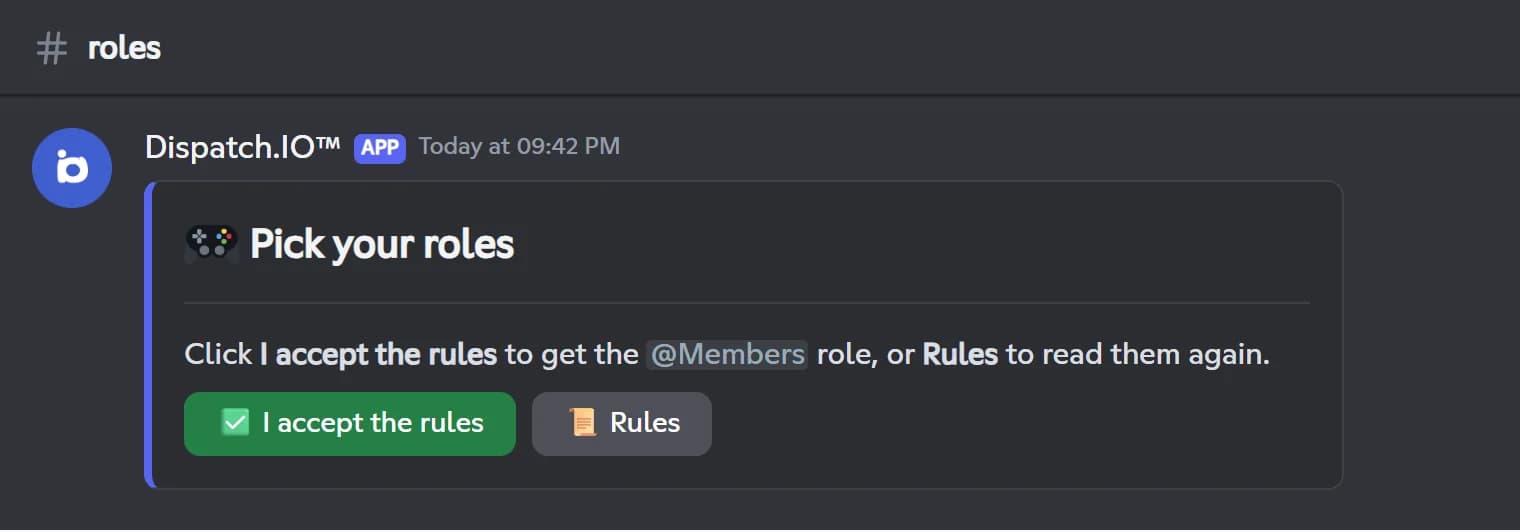
With Dispatch.IO, your members pick their own roles. A reaction role works on any message in a text channel: add the reaction to get the roles, remove it to lose them. A role button works like a switch and answers with a confirmation only the member sees, with your own text if you like. A response button shows a saved message, for example your full rules behind a Rules button.
On the website, a four-step wizard builds the panel: a Components V2 container, a classic embed or an existing message, then the channel, content, buttons, colors and roles. Deploy to Discord, and the bot posts the message and adds the reactions itself. From Discord, /config adds triggers to an existing message. When a message, channel or role is deleted, the matching triggers are cleaned up automatically.
The same module includes word reactions: the bot reacts with your emojis when a word shows up in a message. All of it is free; the number of panels and word reactions grows with the Basic and Ultimate plans. You set it up from Discord with /config or from the web dashboard.
What it does
Reaction roles
Members get or lose roles by adding or removing a reaction, on any message.
Role buttons
A toggle button with a private confirmation, and custom texts using {roles} and {role}.
Response buttons
A button that shows a saved message, such as your rules, visible only to the member.
Web wizard
Container, classic embed or existing message, deployed to Discord in four steps.
Word reactions
The bot reacts with your emojis when a chosen word appears in a message.
Automatic cleanup
Triggers of deleted messages, channels or roles are removed automatically.
Ready in 3 steps
- 1
Add Dispatch.IO
Invite the bot and place its role above the roles it will give.
- 2
Build your panel
With the website wizard or /config, choose the message, the reactions or buttons, and the roles for each one.
- 3
Members pick their roles
Members click or react, and the bot gives or removes their roles instantly.
Main commands
FAQ
How do I set up reaction roles on Discord?
On the Role Reactions page of the website, pick a format and a channel, add an Emoji Reaction trigger with the emoji and the roles to give, then click Deploy to Discord. The bot posts the message and adds the reaction itself. From Discord, use /config on an existing message, by channel and message ID.
Reaction or button: which should I choose?
Reaction roles assign silently and work on any message, even a member's. Role buttons only go on bot messages, but they reply with a private confirmation and can give or remove several roles at once.
Can Dispatch.IO give a role automatically to new members?
For roles given automatically when someone joins, use the welcome roles of the welcome module: they are added right after the welcome message. Reaction roles and role buttons let members choose their roles themselves.
Why is the role not given when a member clicks?
The bot needs the Manage Roles permission and its role must sit above the roles it gives. If it cannot assign a role, the member sees no error message, so check those two points first.
Discord reaction roles bot
Dispatch.IO is a free Discord reaction roles bot: roles by reaction or button, response buttons and word reactions. Members pick their roles with no staff help.
Go further
Discord welcome bot: messages, cards and auto roles
Greet every newcomer with a message and a custom card, hand out roles automatically and announce departures.
Discord embed builder bot
Embeds, containers and banners built from Discord with a live preview, posted in the bot's name.
Discord leveling bot: XP, level roles and leaderboards
Members earn XP by chatting and in voice, level up and unlock roles, with a leaderboard to chase.