
Triggers add actions to a message: a member adds a reaction or clicks a button to get a role or show a message. Word reactions make the bot react with emojis when a word appears in a message.
This page explains how each one works, from the member's side and the staff's side. It is written for administrators. For the settings, see Bot configuration (/config → Role/message reaction and Word reaction) or the Reaction roles and Word reactions pages of the website.
Overview
| Type | Name in /config | Name on the website | On which message | What the member does | Result |
|---|---|---|---|---|---|
| Reaction role | Reaction | Emoji Reaction | Any message in a text channel | Adds or removes the reaction | Gets or loses the roles, silently |
| Role button | Reaction button | Role Button(s) | A message from the bot | Clicks the button | Gets or loses the roles, with a private confirmation |
| Response button | Response button | Message Button | A message from the bot | Clicks the button | Gets a message |
| Word reaction | Word reaction | Word reaction | Every message | Writes the word | The bot reacts with emojis |
A message carrying at least one trigger is called a panel. One panel can mix buttons and reactions.
Creating a panel
From the website: the wizard
The website's Role Reactions page offers a four-step wizard, then the Deploy to Discord button:
- Format: Discord Container (Components V2), Classic Discord Embed or Existing Discord Message (ID).
- Destination and content: the channel, then the title, description, accent colour (
#5865F2by default) and an image for a new message. - Triggers: for each one, the type (Role Button(s), Message Button or Emoji Reaction), the text or emoji, the button style (Blurple Blue, Discord Gray, Success Green, Alert Red), its position (inside the container or below it), the roles or the response message.
- Review, then deploy: the bot posts the message, adds the buttons and places the reactions itself.
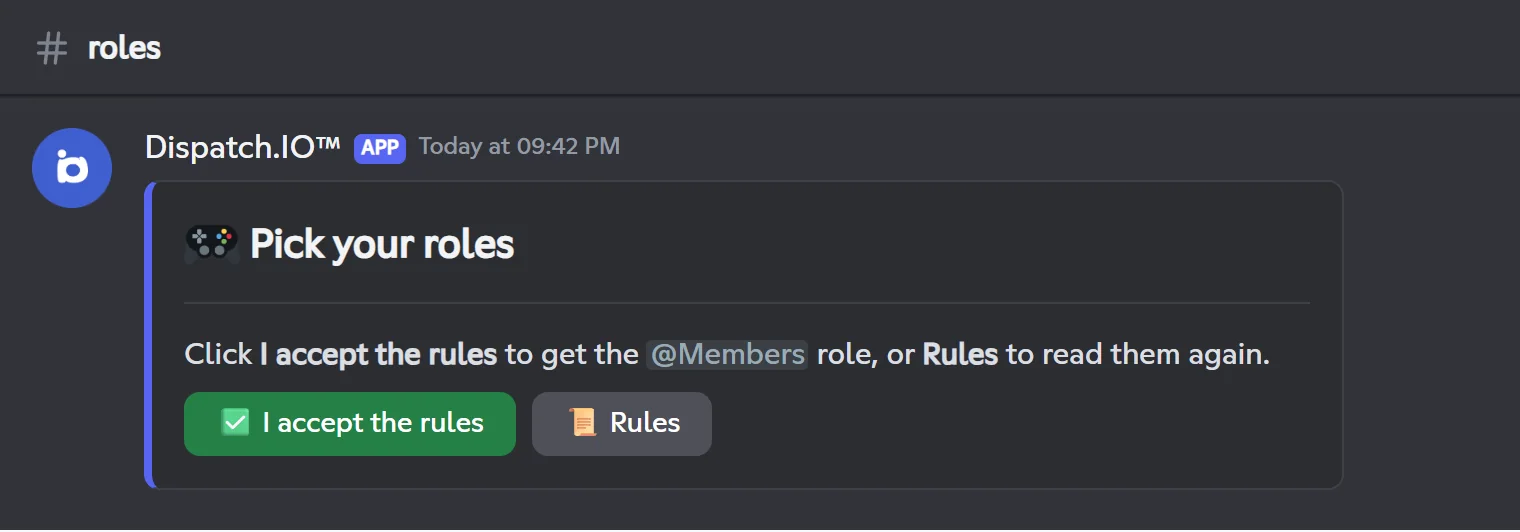
- The default title and description ("🎭 Rôles & Intérêts", "Cliquez sur les boutons ci-dessous…") are in French whatever the server language: replace them.
- Editing a panel updates the message, and all its triggers are recreated.
- Deleting removes the bot's buttons and reactions; the message itself stays on Discord.
From Discord: /config
In /config → Role/message reaction, you add triggers to an existing message (channel + message ID):
- on a member's message, reactions only;
- on a message from the bot, reactions, role buttons or response buttons.
To create a bot message first, use /say, /create-embed or /create-container (see Messages and announcements). The fields are detailed in Bot configuration.
Role buttons
A role button works like a switch, driven by the button's first role:
- if the member does not have that first role, they get every role of the button they are missing;
- if they already have it, they lose every role of the button they own.
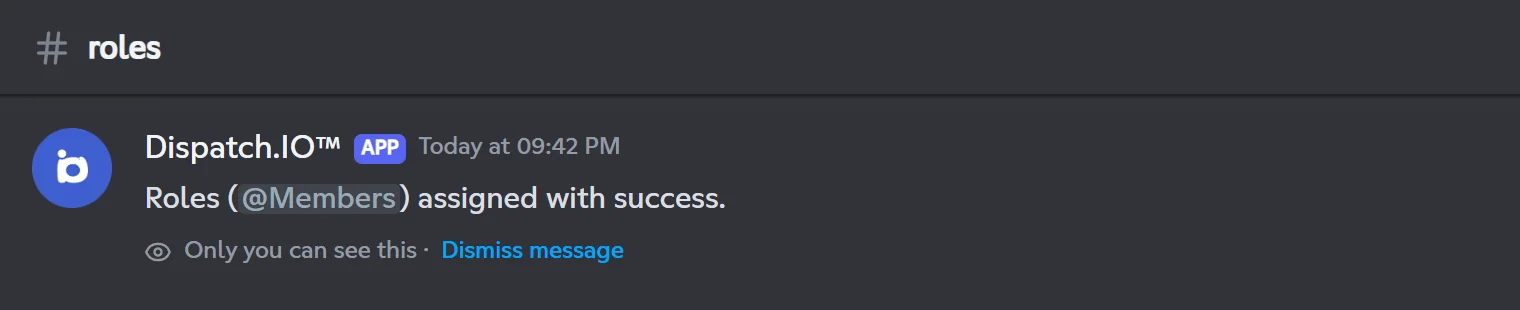
The member then gets a confirmation only they can see, in their Discord language: "Roles (@Members) assigned with success." or "Roles (…) removed with success.".
Custom messages (website)
On the website, the Reply step of a role button lets you write your own messages: Message when the role is added and Message when the role is removed.
{roles}shows every role involved,{role}the first one.- The website pre-fills "Tu as reçu {roles} !" and "Tu as perdu {roles}." (French): translate them if your server is in English.
- If only the "added" message is filled in, it is also used on removal.
Good to know
- If the bot cannot give the role (no Manage Roles permission, role placed above its own), the member sees nothing: no error message.
- In
/config, a button gives at most 3 roles. Roles managed by an integration and roles above the bot's role are refused. - A button whose text is a single emoji shows as an icon; otherwise the text becomes the button label.
Reaction roles
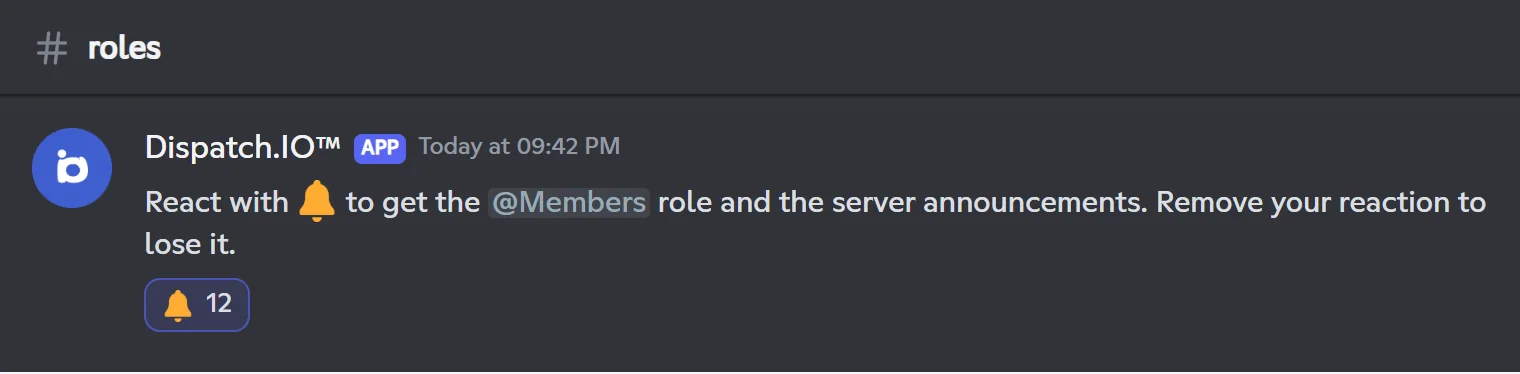
- The member adds the reaction: they get the roles. They remove it: they lose them. No message is sent.
- Works on any message in a text channel, a member's message included.
- The bot places the reaction on the message itself when you create the trigger.
- If a member adds and removes the reaction very quickly, the bot waits 2.5 seconds and applies the final state.
- Super reactions and bots' reactions are ignored.
- A custom emoji must come from your server.
Response buttons
A response button shows a saved message when clicked. Example: a Rules button that shows the full rules.
- Created in
/config: you pick a source message (text, embeds, images, link buttons); the bot keeps a frozen copy. By default, the reply is only visible to the member (Make the message ephemeral?: Yes); with No, it is posted in the channel. - Created on the website (Message Button): you write a text; the reply is always visible to the member only.
If the copy cannot be shown (for example an expired attachment), the bot posts instead, visible to everyone: "Unable to display saved message." Replace the button then.
Limits
| Limit | Free | Basic | Ultimate |
|---|---|---|---|
| Panels (messages carrying triggers) | 3 | 5 | Unlimited |
Role buttons per message (/config) | 20 | 20 | 20 |
Response buttons per message (/config) | 20 | 20 | 20 |
Roles per reaction or button (/config) | 3 | 3 | 3 |
| Word reaction rules | 5 | 10 | Unlimited |
- The panel limit only blocks creation: you can always edit an existing panel, and if the plan goes down, existing panels keep working. See Premium plans and limits.
- Discord has its own limits: 5 buttons per row, 20 different reactions per message.
- In
/config, adding a reaction is greyed out as soon as the message carries 3 reactions, whatever they are.
Automatic clean-up
The bot keeps triggers up to date on its own:
| What happens on Discord | Effect |
|---|---|
| The message is deleted | Its triggers are deleted |
| The channel is deleted | The triggers of its messages are deleted |
| A role is deleted | It is removed from the triggers; a trigger left with no role is deleted (its button or reaction disappears) |
- When you open
/config→ Role/message reaction, the bot also deletes the triggers of messages it can no longer read, even if it only lost access to the channel. - On the website, a panel whose message no longer exists is removed from the list ("orphaned panel(s) cleaned").
- Every creation, change or deletion made from
/configor the website is noted in the Server logs channel.
Word reactions
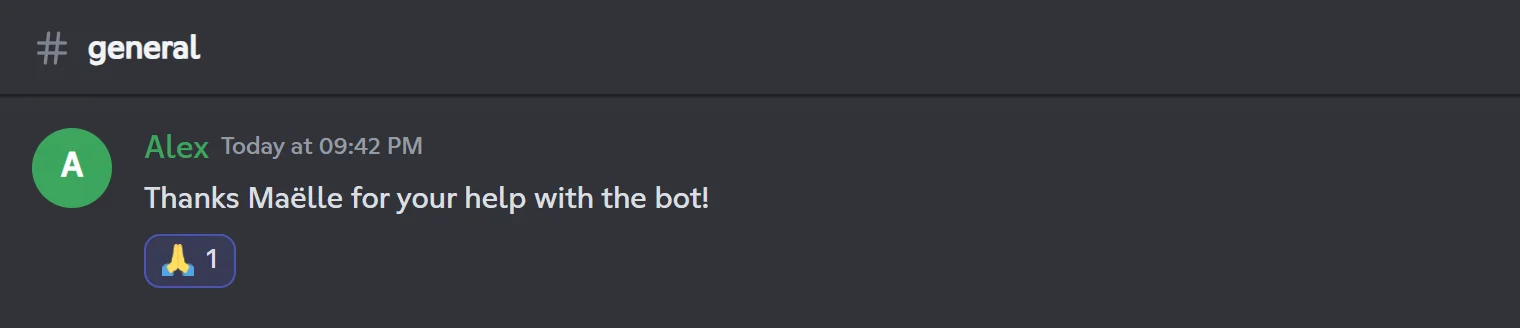
A rule links a word to one or more emojis. When a message contains the word, the bot reacts with those emojis, in order.
- The word is matched anywhere in the message, ignoring case, even inside another word (
catalso triggers oncatalogue). - The word can be a mention (
<@id>): the bot reacts when that member is mentioned. - Anti-flood: a message that only triggers one word with a single emoji always gets its reaction. When several words match, or a rule has several emojis, the bot only reacts once every 10 seconds for the same member.
- Not affected: messages from bots, from accounts on the Dispatch.IO blacklist and in the suggestions channel.
- On the website, a rule can be disabled without being deleted, and holds up to 10 emojis.
- If the plan goes down, only some rules stay active, within the plan's limit: the website marks the others Over quota.
- The bot needs Add Reactions (and Use External Emojis for emojis from another server).
Pitfalls and limits
- Switch on the first role: a member who has a button's first role loses every role of the button when clicking, even if they were missing some.
- Success shown too early on the website: the success message shows as soon as the request is sent. If the bot fails (channel out of reach, missing permission, two buttons with the same text), the list simply does not change.
- Two identical triggers: one message cannot carry two buttons with the same text, nor a button named like a reaction emoji.
- Existing message with a container: in Existing Discord Message (ID) mode, the website cannot add buttons to a message that uses a container; only reactions are placed.
- Removed custom reaction: deleting the trigger of a reaction with a custom emoji does not remove the reaction from the message; remove it by hand.
- Orphan button: clicking a button whose trigger was deleted shows a technical text (
message_trigger.button.content.message_trigger_not_found).
Related pages
- Bot configuration:
/config→ Role/message reaction and Word reaction. - Reaction roles and Word reactions: the website pages.
- Messages and announcements: create a bot message with
/say,/create-embedor/create-container. - Permissions and roles: put the bot's role above the roles it gives.
- Premium plans and limits: every limit per plan.