
Discord ticket bot
Ticket panels, private channels, claim and transcripts, handled from Discord or the dashboard.

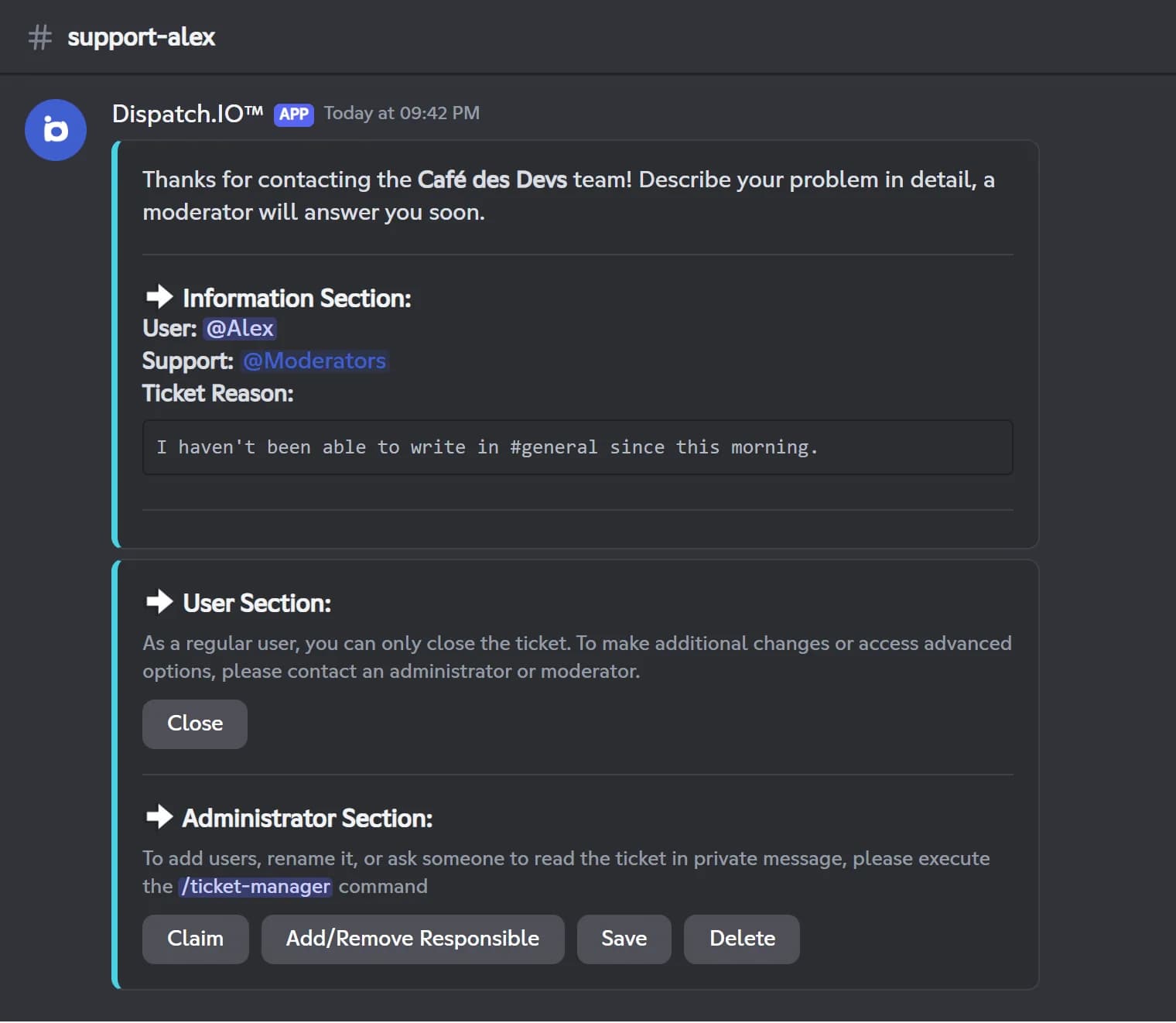
Dispatch.IO tickets let your members reach your team privately. The bot posts a panel with a button, or a dropdown with up to 25 ticket types (support, partnership, report…). The member gives a reason, and the bot creates a private text channel such as support-alex, pinging the roles linked to that type.
Those roles can read the ticket, but a moderator has to click Claim to reply: every ticket gets an identified owner, and the member is told by DM. Your team can then close, reopen, save or delete it. Saving stores the whole conversation, attachments included, as a transcript you can read on the website even after the channel is gone. /ticket-manager adds a member, renames the ticket or asks someone to answer.
The Ticket handling page of the dashboard lists open, closed and archived tickets: your team can reply live, claim, close or sanction the author without opening Discord. Tickets are free; the number of panels grows with the Basic and Ultimate plans. You build them on the dashboard or from Discord with /config.
What it does
Button or dropdown panels
A single button, or a dropdown with up to 25 ticket types, each with its own prefix, message and roles.
Private channels
Only the member and your team see the ticket. One open ticket per member across the server.
Claim system
A moderator claims the ticket to reply, and the member gets a DM when it is taken on.
Transcripts
Messages, attachments and reactions saved and readable on the website, even after deletion.
Handled from the dashboard
Reply live, claim, close, rename or sanction the author from the website.
Ready in 3 steps
- 1
Add Dispatch.IO
Invite the bot and keep its Administrator permission: it creates the channels and sets their permissions.
- 2
Create a panel
On the Tickets page of the dashboard or with /config, pick the format, channels, ticket types and roles, then publish.
- 3
Handle requests
Members open tickets, your team claims, answers and saves them, from Discord or the website.
Main commands
FAQ
How do I set up a ticket system on Discord?
On the Tickets page of the dashboard, click Button system or Dropdown system, pick the panel channel and the category where tickets will be created, write the description, then set the name, channel prefix, welcome message and mentioned roles. Click Save & publish and the bot posts the panel. You can do the same from Discord with /config.
How do I keep a record of a closed ticket?
Click Save before deleting: the conversation, with attachments and reactions, is stored as a transcript on the website and stays available after the channel is deleted. Deleting does not save anything automatically. If an archive channel is set, the bot posts a notice there with a link to the dashboard.
How many ticket panels can I create for free?
On the free plan, you get 2 button systems and 2 dropdown systems, counted separately. The limit goes up with Basic and becomes unlimited with Ultimate. If your plan drops, existing systems keep working; only creating new ones is blocked.
Why can't my moderator write in a ticket?
Mentioned roles can read a ticket but not write in it. The moderator has to click Claim first, which makes them responsible for the ticket and lets them reply.
Discord ticket bot
Dispatch.IO is a free Discord ticket bot: button or dropdown panels, private channels, claim and transcripts. Your support stays organized and easy to follow.
Go further
Discord moderation bot
Warnings, timeouts, kicks and bans with a full infraction history and automatic filters.
Discord logging bot
Deleted messages, joins, sanctions, server changes: every event in the right channel, with who did it.
Discord embed builder bot
Embeds, containers and banners built from Discord with a live preview, posted in the bot's name.