
Tickets let your members contact your team privately. The bot posts a panel in a channel; by clicking it, a member opens a private channel that only they and your team can see. Your team takes it on, closes it, keeps a transcript viewable on the website, then deletes it.
This page explains the whole life cycle of a ticket, from the members' side and from the team's side, with everyone's exact rights. Panels are created on the Tickets page of the dashboard or in the Tickets category of /config (see Bot configuration). The /ticket-manager command is described in Community.
Key concepts
| Concept | What it is |
|---|---|
| Ticket system | A panel posted in a channel, with its settings. There are two formats: button and dropdown menu. |
| Option | A type of ticket: its name, the channel prefix, the welcome message, an image and the roles notified. A button system has a single option; a dropdown system has up to 25. |
| Mentioned roles | Your team's roles linked to an option (up to 10). They are mentioned when a ticket opens and can read it. |
| Ticket | A private text channel created in the system's category, named prefix-name (for example support-alex). |
| Responsible | A team member who took the ticket on with Claim or was added as responsible. |
| Archive channel | The channel that receives a notice every time a ticket is saved (Archive channel on the website, Channel for saved tickets in /config). |
On this page, "administrator" means a member with the Discord Administrator permission or an ADMIN-type staff role (see Permissions and roles).
The life cycle of a ticket:
Creating a ticket system
On the website, the Button system and Dropdown system buttons open a step-by-step editor:
- Format: button (a single ticket type) or dropdown menu (several types).
- Destination: the Panel channel and the Tickets category where channels will be created.
- Content: the Panel description and its optional image.
- Options (dropdown) or Ticket option (button): Name, Channel prefix (50 characters max), Welcome message, Welcome image (dropdown only) and Mentioned roles.
- Review, then Save & publish: the bot posts (or updates) the panel.
In /config, Ticket with a button and Ticket with a dropdown menu go through the same steps with Discord forms. Each field is detailed on the website's Tickets page.
Bot permissions
The bot must have the Administrator permission: without it, the Tickets category of /config is hidden, and the bot cannot see ticket channels (it does not add itself to them). It creates the channels, sets their permissions and reads their history: Manage Channels, Manage Roles and Read Message History are therefore essential, which Administrator covers.
On the website you can also pause a system (its button or menu is greyed out), repost the panel or delete it.
The posted panel
What members see in the panel channel.
The panel is posted in the server language, with the server's color.
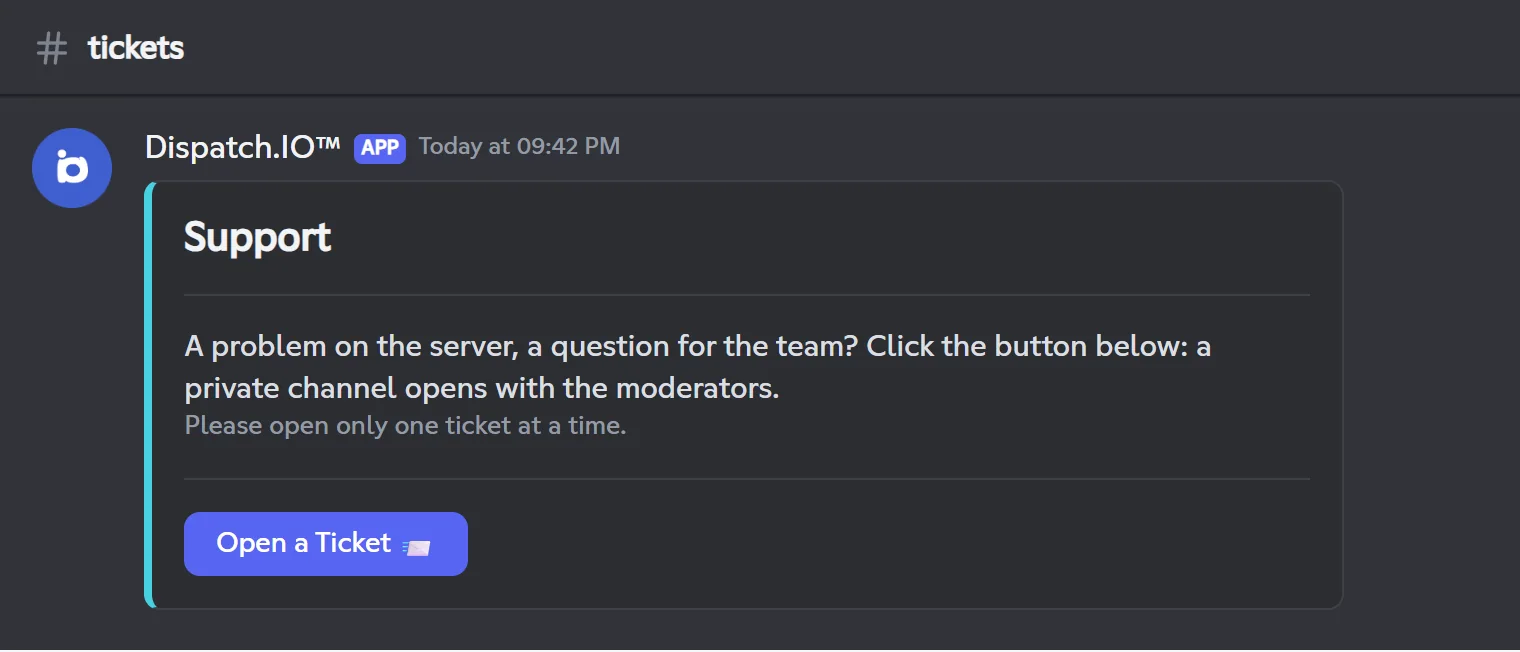
- Button system: the image (if you added one), the option name as a title, your description, then the Open a Ticket 📨 button.
- Dropdown system: the image, your description, then a "Which ticket would you like to open?" menu listing the options by name. The menu appears as soon as the system has at least one option.
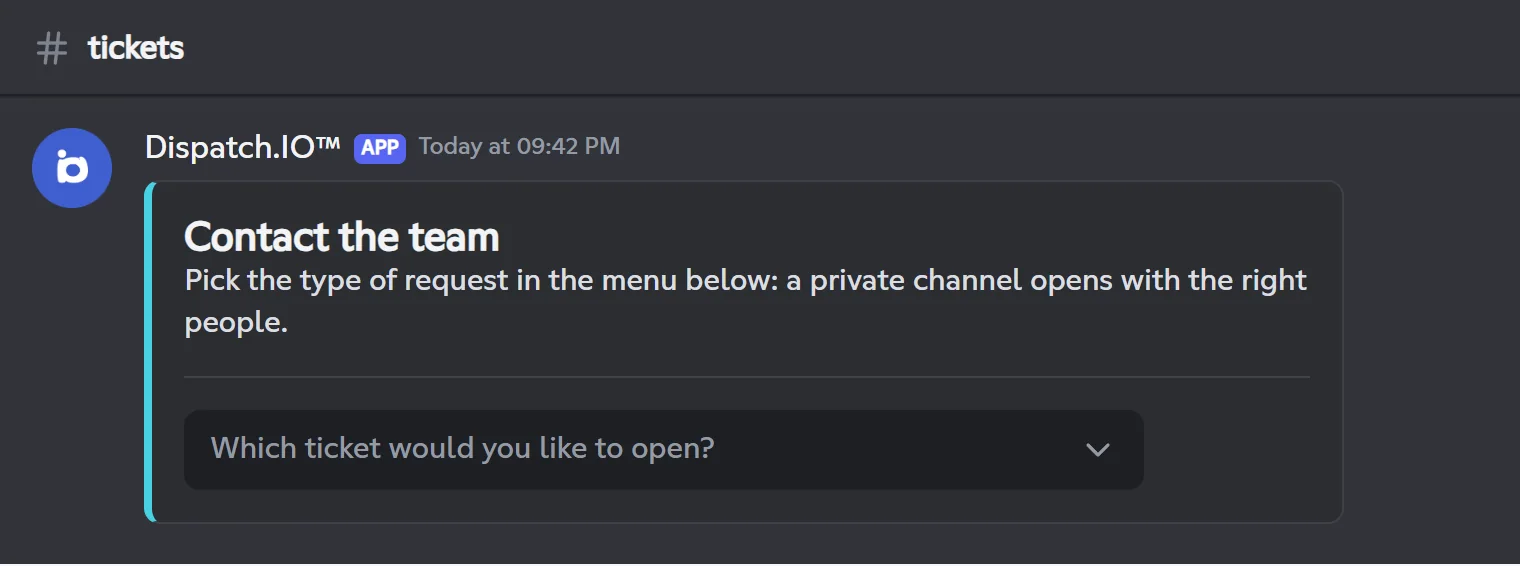
The button or menu is greyed out when the system is paused on the website, or when its category no longer exists. In that case, the bot adds a message for administrators under the panel: "Since the category linked to this ticket has been deleted, you must configure a new one to activate this ticket."
Opening a ticket
From the click on the panel to the private channel.
- The member clicks Open a Ticket or picks an option in the menu.
- If they already have an open ticket on the server (across all systems), the bot refuses: "You cannot open new tickets while you already have an open ticket (#support-alex)." Administrators are not affected by this limit. A closed ticket no longer counts.
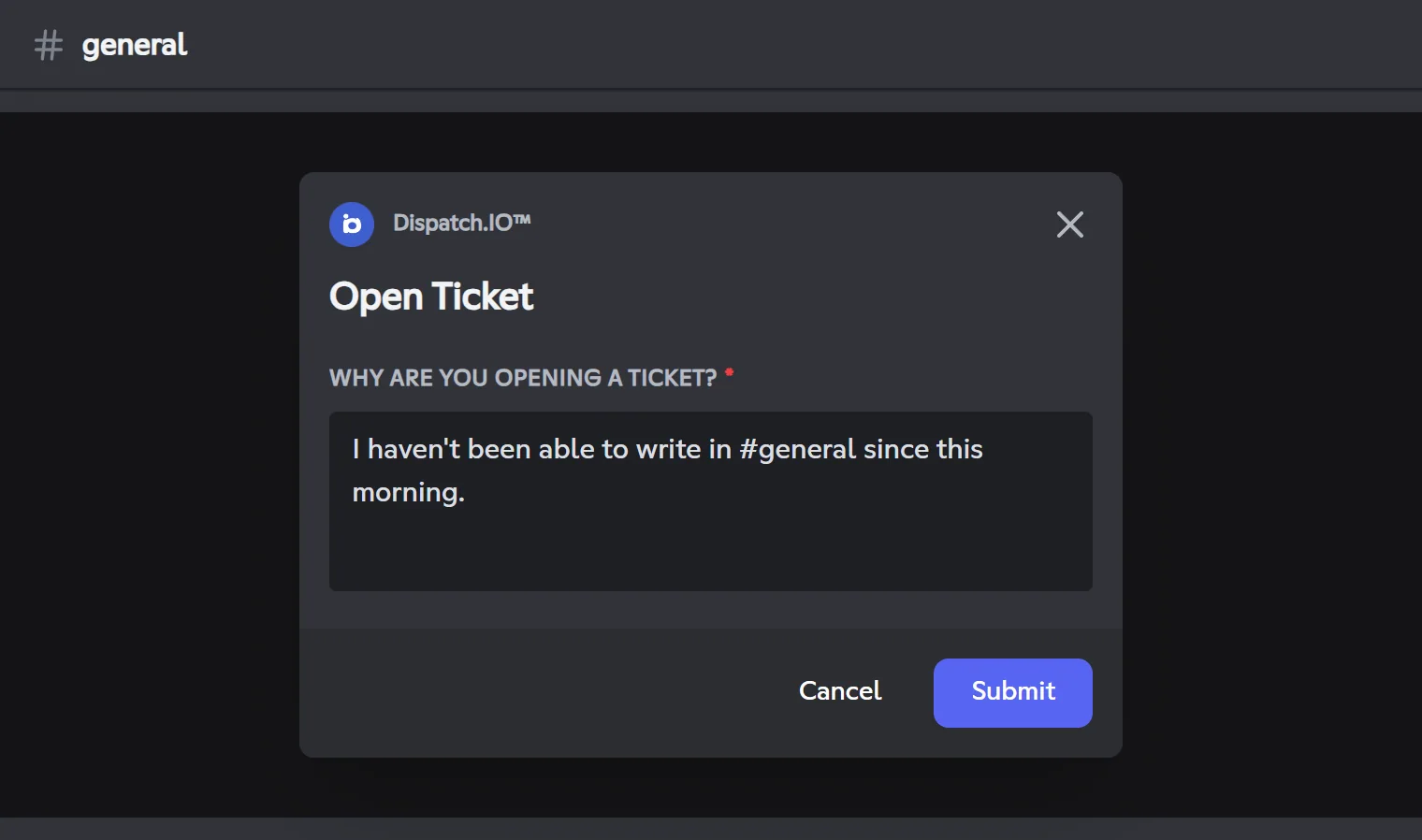
- An Open Ticket window asks "Why are you opening a ticket?" (required, 300 characters max).
- The bot creates a text channel in the system's category, named
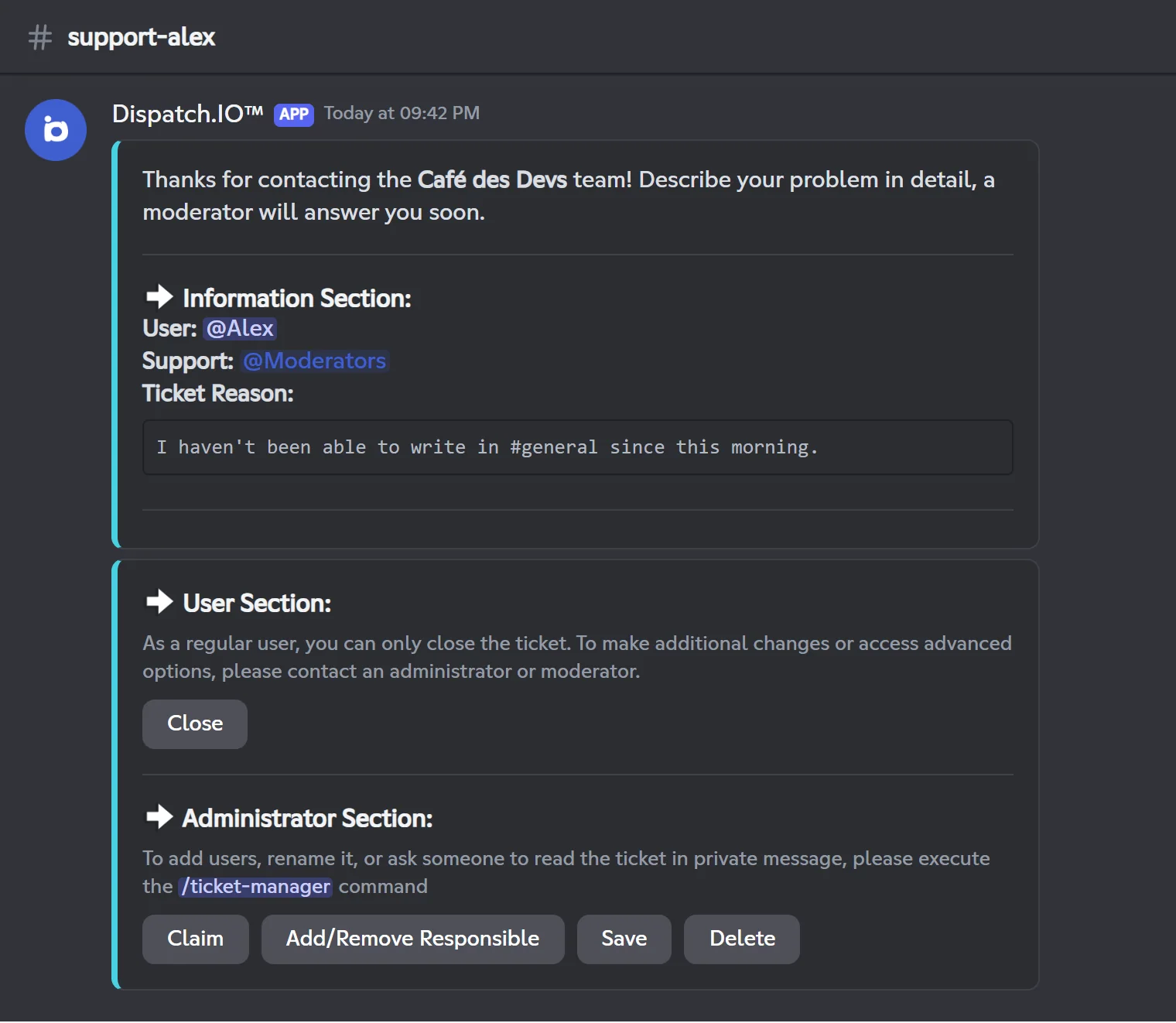
prefix-usernamein lower case:support-alex. The channel topic reads "Ticket created by @Alex on…". - It posts the opening message, which mentions the member and the notified roles (they get a notification):
- the option's image and welcome message;
- the information section: the author, the support (the option's mentioned roles, or the ADMIN roles if there are none) and the reason;
- the user section, with the Close button;
- the administrator section, with a reminder about
/ticket-managerand the Claim, Add/Remove Responsible, Save and Delete buttons.
If the author is a member of the Dispatch.IO team, an extra box says so, to prevent impersonation. A member blacklisted from Dispatch.IO cannot use the bot's buttons, so they cannot open a ticket.
If the bot cannot create the channel (missing permissions, full category: Discord limits a category to 50 channels…), the member sees: "An error occurred while creating the channel."
Who sees and who writes in a ticket
The bot sets the channel permissions when it is created, then at every step:
| Who | Open ticket | Closed ticket |
|---|---|---|
| @everyone | Cannot see the channel | Cannot see the channel |
| The ticket author | Sees and writes | No longer has access |
| The option's mentioned roles | See and read the history, without being able to write | Same |
| ADMIN roles | See and write | See and write |
| A responsible (after Claim or being added) | Sees and writes | Sees, can no longer write (unless administrator) |
A member or role added with /ticket-manager | Sees and writes | Same |
Members with the Discord Administrator permission see every channel, tickets included. In every case, external apps are disabled for these accesses.
Tip
Mentioned roles can read the ticket but not reply: a moderator must click Claim to be able to write. That way, every ticket has an identified responsible.
Ticket buttons
Who can use which button.
| Button | Who can use it | Effect |
|---|---|---|
| Close | Anyone who can see the ticket, the author included | Closes the ticket (see below). |
| Claim | An administrator or a member with one of the option's mentioned roles | Takes the ticket on and grants the right to write. |
| Add/Remove Responsible | An administrator or a current responsible | Adds or removes a responsible. |
| Save | An administrator or a responsible | Saves the transcript. |
| Delete | An administrator | Deletes the channel after 5 seconds. |
| Reopen (after closing) | Anyone who can still see the ticket | Reopens the ticket. |
Refusals show in a message only the clicker can see, for example "You do not have permission to claim this ticket.". To add members, rename the ticket or invite someone to reply, use /ticket-manager (see Community).
Claiming and managing responsibles
Claim makes you a responsible of the ticket:
- you get the right to write in the channel;
- the bot posts "This ticket is now handled by" followed by the list of all responsibles;
- on the first claim, the author receives a direct message: "Your ticket #support-alex is now being handled."
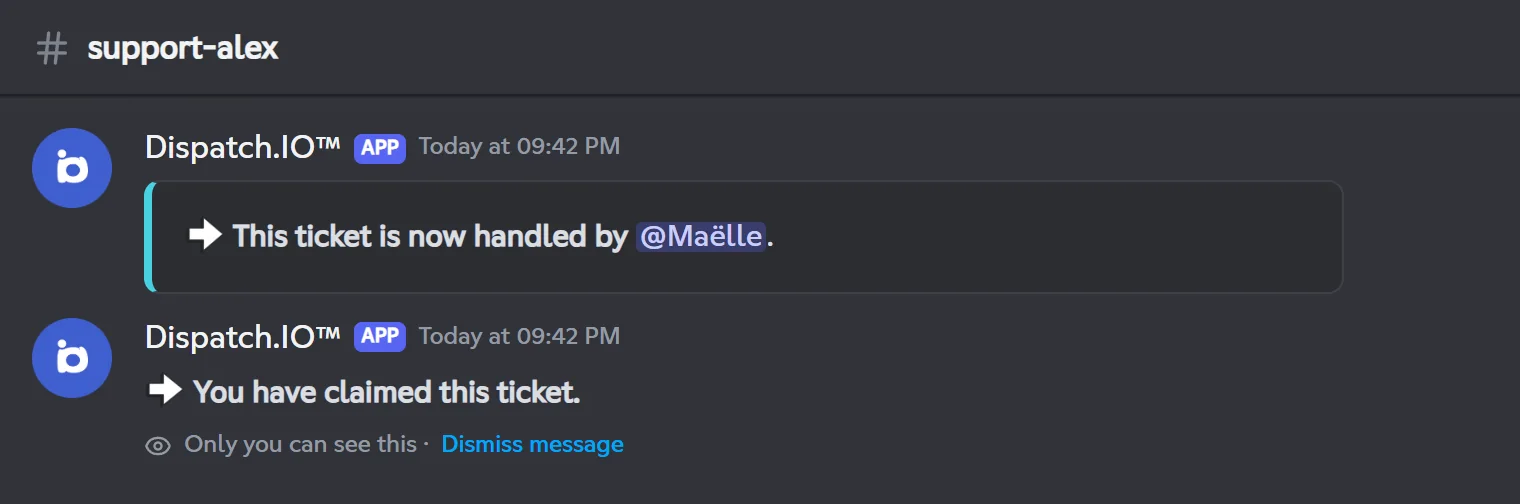
A closed ticket cannot be claimed, and claiming twice replies "You have already claimed this ticket.".
Add/Remove Responsible opens a member picker, active for 60 seconds. Picking a member who is not a responsible adds them (they can then see and write); picking a responsible removes them: they lose access to the ticket, unless they have one of the mentioned roles (they then keep read-only access) or are an administrator. The bot posts the change and the list of current responsibles. A member blacklisted from Dispatch.IO cannot be added.
Closing, reopening and deleting
Closing
Close acts immediately, with no confirmation:
- the author loses access to the channel;
- responsibles who are not administrators can no longer write;
- the bot posts "Ticket Closed" with the Reopen, Save and Delete buttons, and the channel topic shows who closed it.
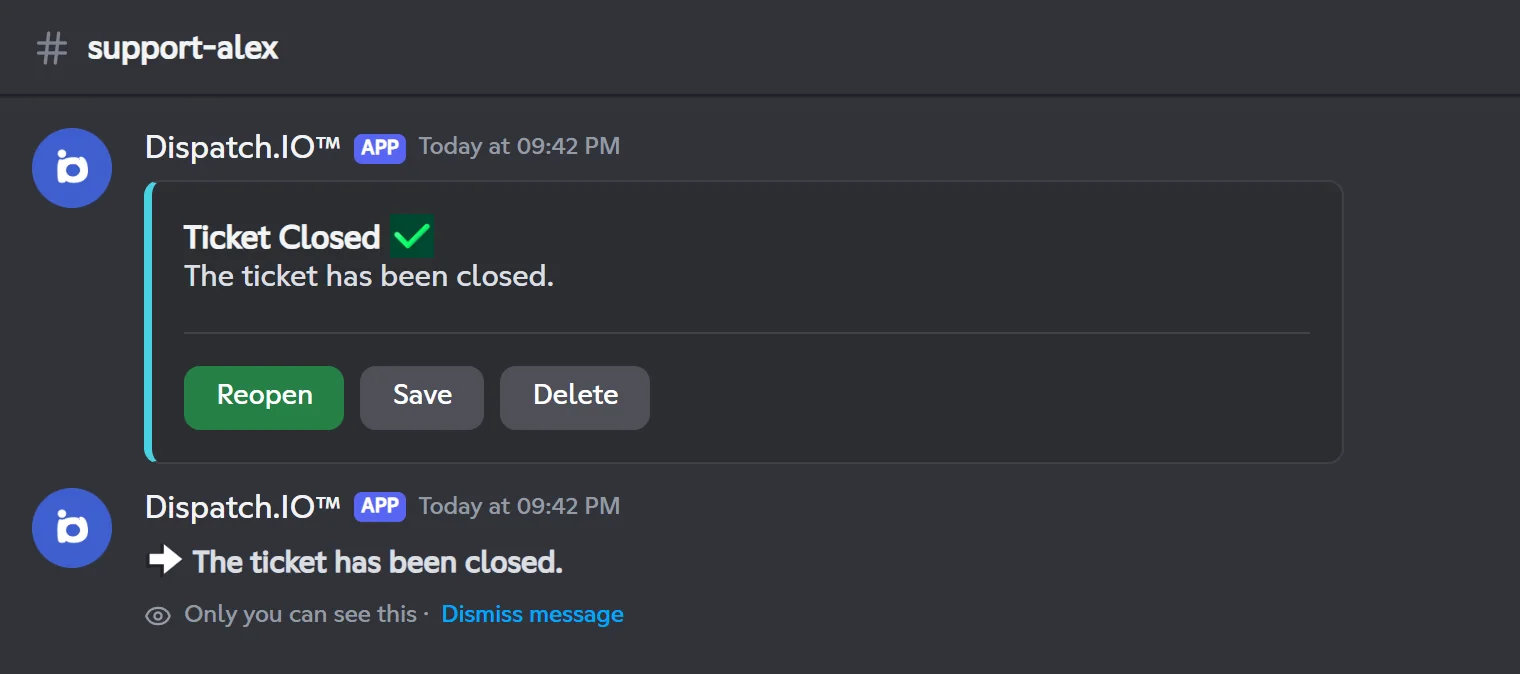
Closing saves nothing and sends no direct message. The channel stays until it is deleted, and the author can open a ticket again.
Reopening
Reopen gives access back to the author and the right to write to responsibles, replaces the "Ticket Closed" message with "Ticket Reopened" and updates the channel topic.
Deleting
Delete (administrators only) shows you "The ticket will be deleted in 5 seconds...", then deletes the channel. There is no confirmation and no automatic save: click Save first if you want to keep the conversation.
Caution
Always delete a ticket with the Delete button (or close it first). If you delete the channel by hand in Discord, the ticket stays "open" for the bot and its author can no longer open another one.
Deleting a whole system (on the website or in /config) removes its panel and also erases all its tickets from the database, including open ones and their transcripts. Deleting an option erases that option's tickets the same way.
Saving the transcript
Save stores the whole conversation of the channel (messages, attachments, reactions, authors) as a transcript viewable on the website. A ticket can be saved at any time, open or closed; a new save replaces the previous one.
The bot then posts a notice in the archive channel, if one is set, with a View ticket on dashboard button. The person who clicked gets the same notice, visible only to them. Nothing is posted in the ticket.
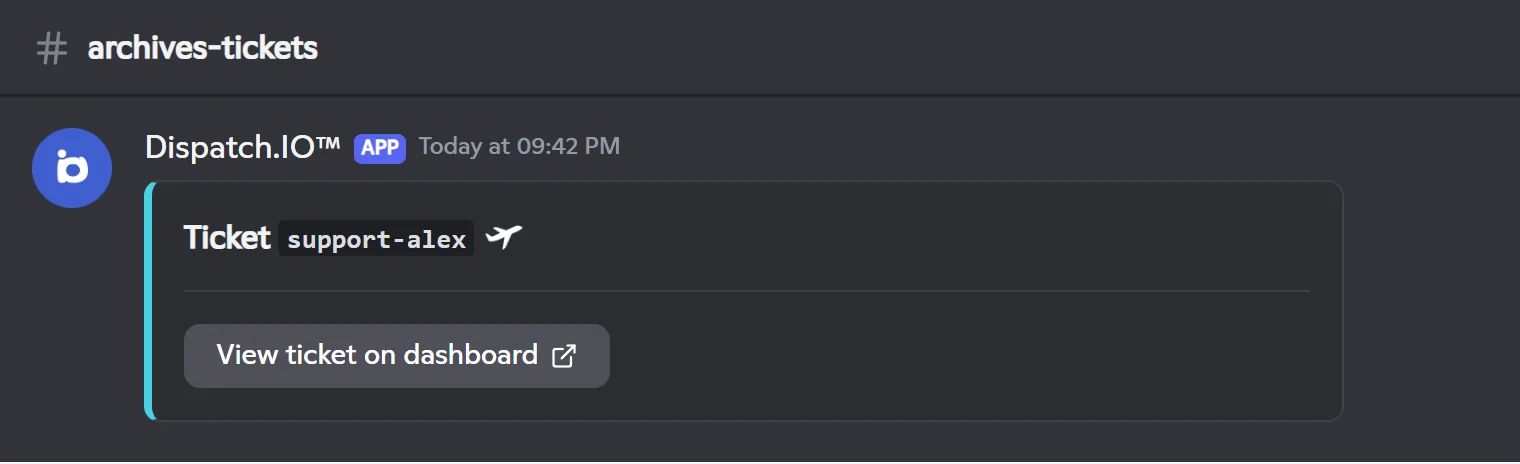
The transcript stays available after the channel is deleted. The button leads to the dashboard: only members who can access it (owner, Administrator or Manage Server) can open it.
Handling tickets from the website
The Ticket handling page of the dashboard lists the server's tickets (open, closed, archived) with filters. By opening a ticket that is still active, your team can, without opening Discord:
- read the conversation live and reply (the message is posted by the bot, up to 3 files);
- Claim, Close, Reopen, Rename and Save the ticket;
- add or remove responsibles;
- sanction the ticket author (warning, timeout, kick, ban…).
A deleted ticket stays viewable read-only if it was saved. Details are on the website's Tickets page.
Limits and Premium plans
| Limit | Free | Basic | Ultimate |
|---|---|---|---|
| Button systems | 2 | 5 | Unlimited |
| Dropdown menu systems | 2 | 5 | Unlimited |
Both types are counted separately: on Free, you can have 2 button systems and 2 dropdown systems. If the server's plan goes down, existing systems keep working; only creating new systems is blocked. See Premium plans and limits.
Fixed limits, whatever the plan:
| Item | Limit |
|---|---|
| Options of a dropdown system | 25 |
| Options of a button system | 1 |
| Mentioned roles per option | 10 |
| Channel prefix | 50 characters |
| Reason typed when opening | 300 characters |
| Open tickets per member | 1 across the server (except administrators) |
Common problems
| Problem | Likely cause and fix |
|---|---|
The Tickets category does not show in /config | The bot does not have the Administrator permission. |
| "An error occurred while creating the channel." | Not enough bot permissions, or full category (50 channels): delete old tickets or pick another category. |
| The panel button is greyed out | The system is paused on the website, or its category was deleted: pick a new category. |
| The panel disappeared | Its channel was deleted: edit the system, pick a new Panel channel and save, the panel is posted there. |
| The ticket channel is empty, with no buttons | The option has no Welcome message. Always fill it in (it is optional on the website, but the bot needs it). |
| A member can no longer open a ticket | They already have an open ticket: close it. If that ticket's channel was deleted by hand, the ticket stays open for the bot. |
| A moderator cannot write in the ticket | They must click Claim first. |
| No notice after saving | No archive channel is set. The transcript is still saved on the website. |
| The conversation was lost | The ticket was deleted without saving: there is no automatic archive. |
Learn more: Community for /ticket-manager, Permissions and roles and Troubleshooting.