
These commands let you post messages as Dispatch.IO: a quick announcement, a polished embed, a rich container (texts, thumbnails, images, link buttons) or an illustrated banner. You can edit these messages whenever you like. They are reserved for administrators.
| Command | What it does | Required Discord permission |
|---|---|---|
/say | Send, edit or delete a simple message (text, image) | Administrator |
/create-embed | Build an embed and post it | Administrator |
/edit-embed | Edit an embed already posted by the bot | Administrator |
/create-container | Build a container and post it | Administrator |
/edit-container | Edit a container already posted by the bot | Administrator |
/create-banner | Generate a banner with a stylized title | Administrator |
Command names
The reference cards use the base command and option names (/say content:). In Discord, some commands are displayed with a translated name (/dire contenu: in French, and a few options differ in English too): the displayed name is given on each card.
Which command should I use?
| What you need | Command | What the message looks like |
|---|---|---|
| A quick message, with or without an image, in a channel or by direct message | /say | A regular message, written by the bot |
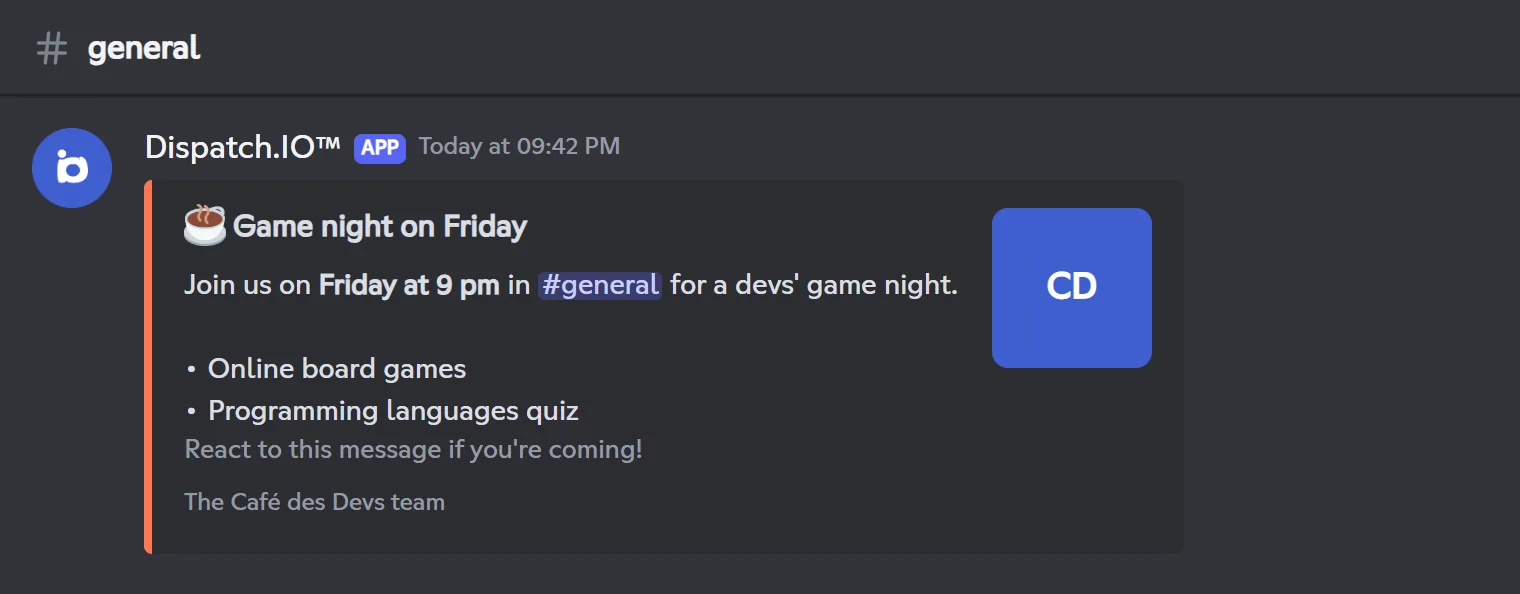
| A formatted announcement: clickable title, description, color, thumbnail, large image, footer | /create-embed | A box with a colored bar on the left |
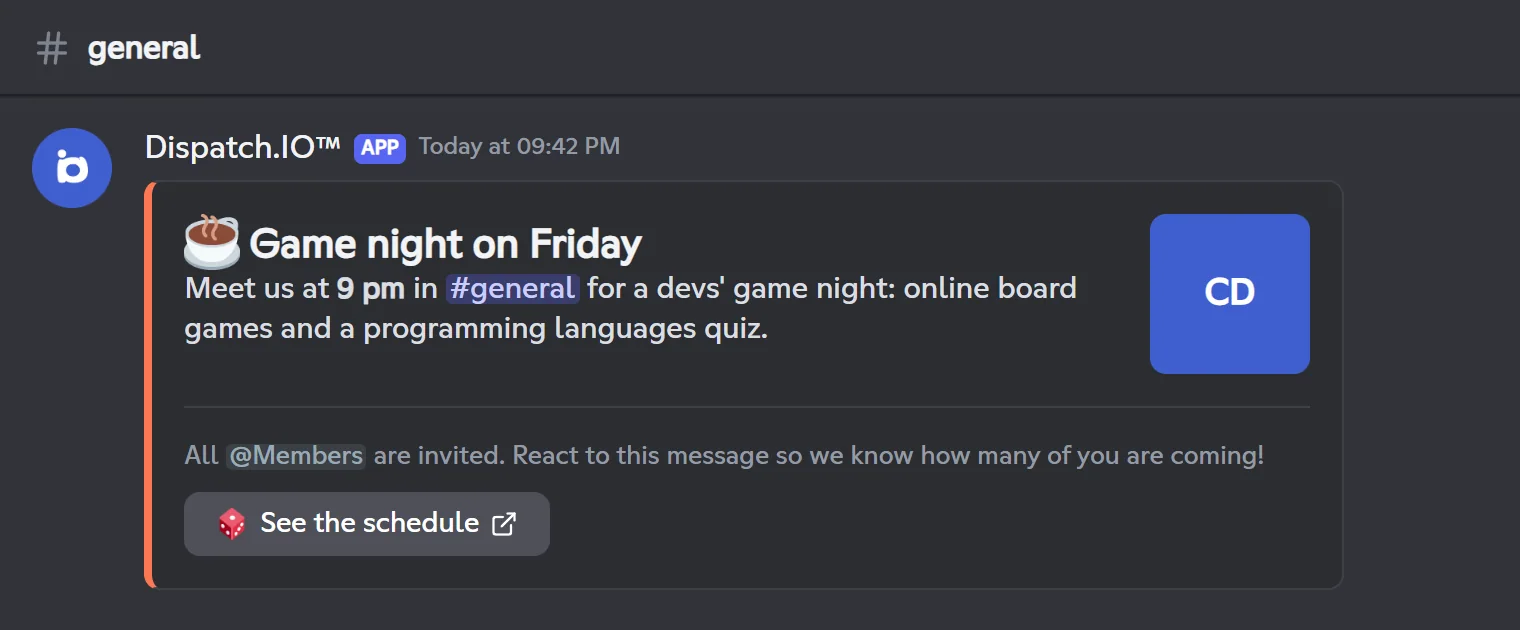
| A richer layout: several text blocks, thumbnails next to text, image gallery, separators, link buttons | /create-container | A Discord container (newer format) with a colored bar |
| A header image with the name of your event or server | /create-banner | A 1200 × 400 px image |
Before you start
Permissions
These commands require the Administrator permission (or an Admin role registered for your server in Dispatch.IO, if you opened them to it in Server Settings → Integrations). Without it, the command doesn't reply. See Permissions and roles.
The bot must be able to write in the target channel: View Channel, Send Messages, plus Embed Links for embeds or Attach Files for images.
Where is the message posted?
/create-embed,/create-containerand/create-bannerpost in the channel where you run the command. Run them directly in your announcements channel./saylets you choose: current channel, another channel or a direct message./create-embed,/edit-embed,/create-containerand/edit-containeralso work in direct messages with the bot: the message is then posted in that conversation.
Builders and confirmations are only visible to you. Only the final message is public.
Finding a message ID
To edit a message (/say, /edit-embed, /edit-container), you need its ID:
- Turn on Developer Mode: User Settings → Advanced → Developer Mode.
- Right-click the message (or long-press on mobile) → Copy Message ID.
Tip
Only messages posted by Dispatch.IO can be edited with these commands, even weeks later.
Send a simple message (/say)
/say makes the bot write a message (text, image or both), in the channel of your choice or by direct message. With the message_id option, it edits or deletes a message the bot has already sent.
/saySends a message as the bot in a channel or by direct message, or edits or deletes a bot message.
Syntax
/say content:[text] image:[file] message_id:[ID]Options
| Option | Type | Required | Description |
|---|---|---|---|
content | String | No | The message text, up to 2,000 characters. Markdown and mentions are supported. |
image | Attachment | No | An image to attach to the message. |
message_id | String | No | The ID of a bot message to edit or delete. |
Member permission
Administrator
Where to use it
Server only
Rate limit
2 uses / 10 s
Examples
/say content:📢 Game night starts on Friday at 9 pm! See you in #general./say image:schedule.png/say content:📢 Game night is moved to Saturday, 9 pm! message_id:1300000000000000250
Displayed in French Discord as /dire contenu: image: id_du_message:.
Give at least one option, otherwise the bot replies "You must provide content, an image, or a message ID.".
Result on Discord
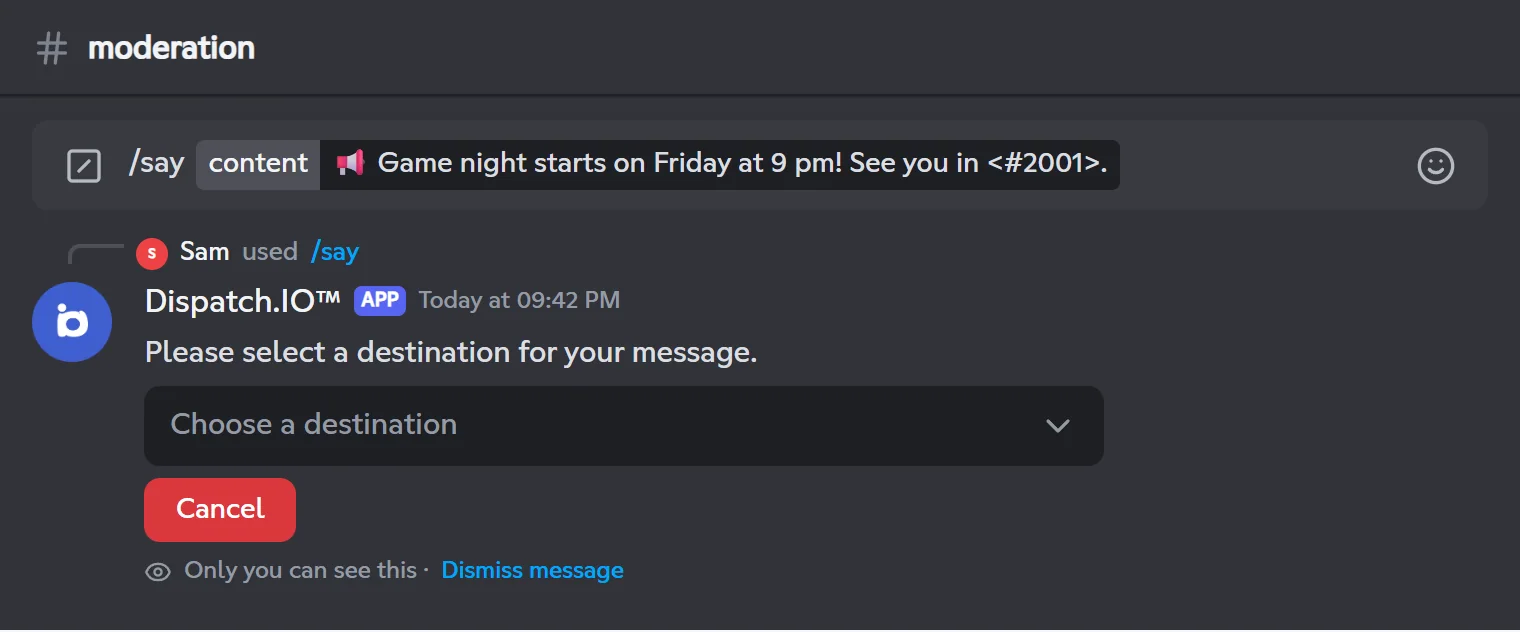
Sending a message
- Run
/saywithcontent,imageor both. - In the Choose a destination menu, pick within 60 seconds:
- Current channel: the message is sent right away in this channel;
- Specific channel: a second menu lets you pick a text channel;
- Direct message: a menu lets you pick the member who will receive it.
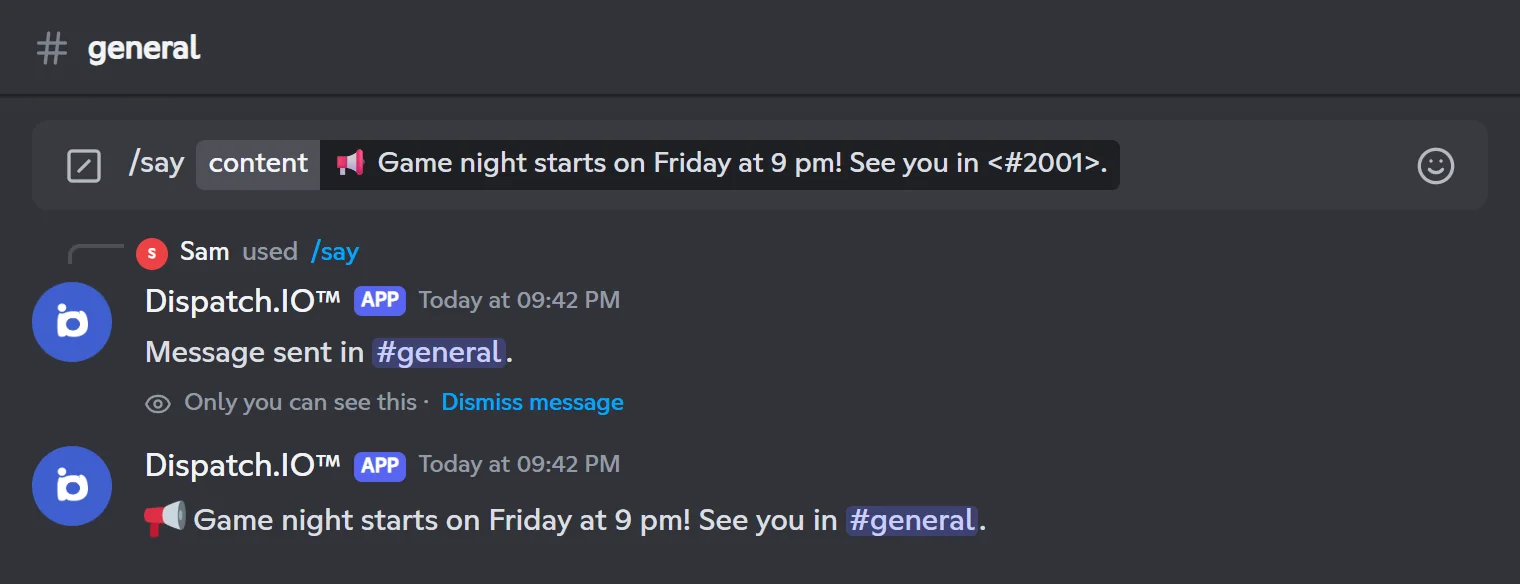
- The bot posts the message and confirms it ("Message sent in #general." or "Message sent privately to @Alex.").
- Mentions written in
contentnotify the people involved, just like a regular message. - If the member has closed their direct messages, the bot replies "Unable to send or edit a private message.".
- Cancel, or 60 seconds without a choice, stops the operation.
Editing or deleting a bot message
- Run
/say message_id:<ID>with the newcontentand/or the newimage. To delete the message, only givemessage_id. - In the menu, say where the message is: current channel, specific channel, or Direct message (then pick the member who received it).
- The bot shows a Message edit summary: old and new content, old and new image.
- Click Confirm within 30 seconds (Cancel to give up).
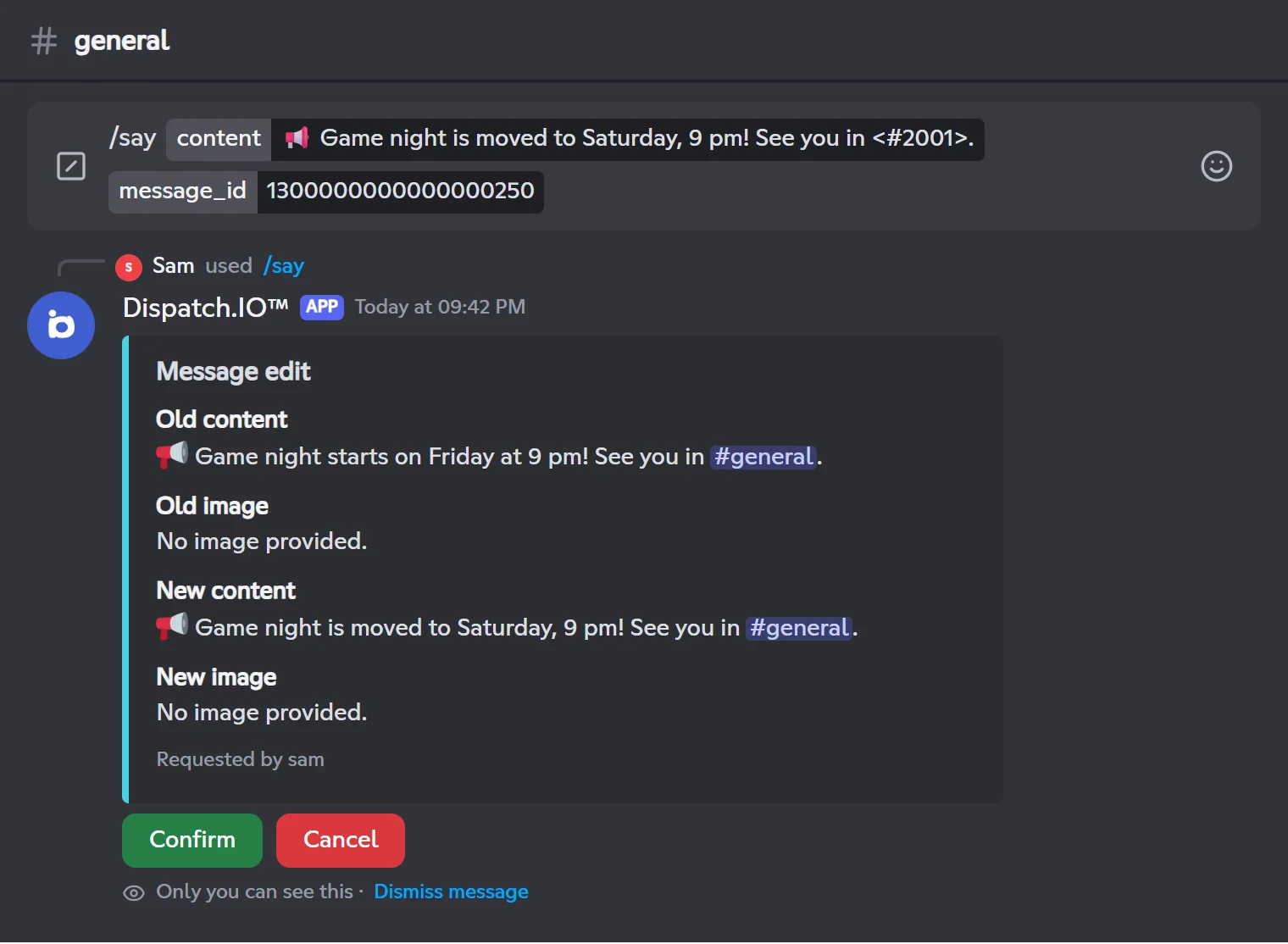
Editing replaces the whole message
The text and image are replaced with what you provide. If you don't give a new image, the old one is removed; if you don't give any text, the text is emptied.
| Bot message | Cause |
|---|---|
| Message not found with this ID. | The ID is wrong, or you picked the wrong destination in the menu. |
| You cannot edit this message (…) because the bot is not the author of the message. | The message wasn't sent by Dispatch.IO. |
| Timed out, operation cancelled. | Nothing happened in time: run the command again. |
Every message sent, edited or deleted is logged in General Server Logs (with the message ID and, for an edit, the old and new text).
Create an embed (/create-embed)
/create-embed opens a builder, only visible to you, to put an embed together step by step and post it in the current channel.
/create-embedOpens a builder to create a custom embed and post it in the current channel.
Syntax
/create-embedMember permission
Administrator
Where to use it
Server and direct messages with the bot
Rate limit
2 uses / 30 s
Examples
/create-embed
Displayed in French Discord as /création-embed.
Result on Discord
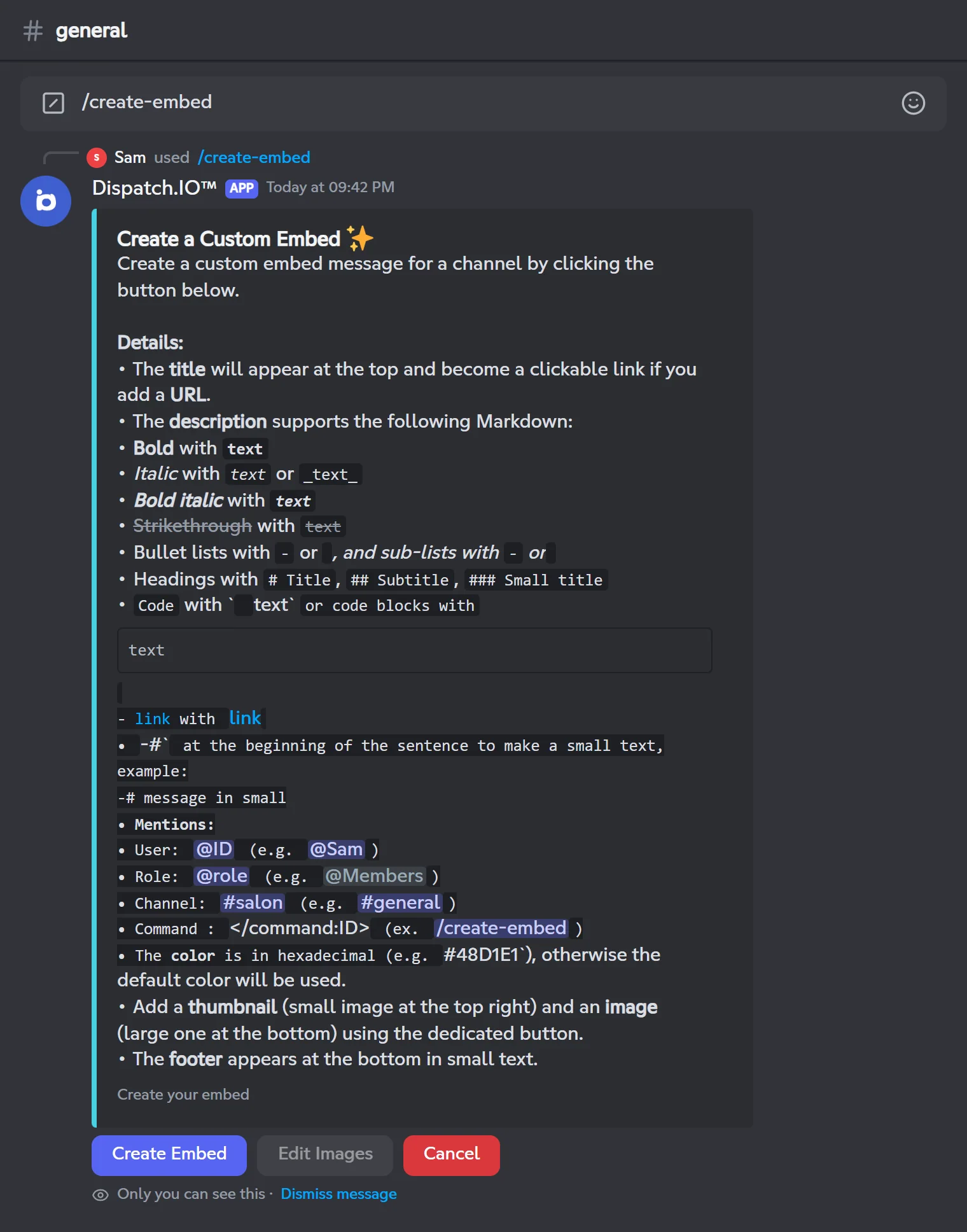
Step 1: the welcome screen
The bot shows the instructions (supported Markdown, mention syntax, color, images) and three buttons:
- Create Embed: opens the input window;
- Edit Images: greyed out while the embed is empty;
- Cancel: closes the builder.
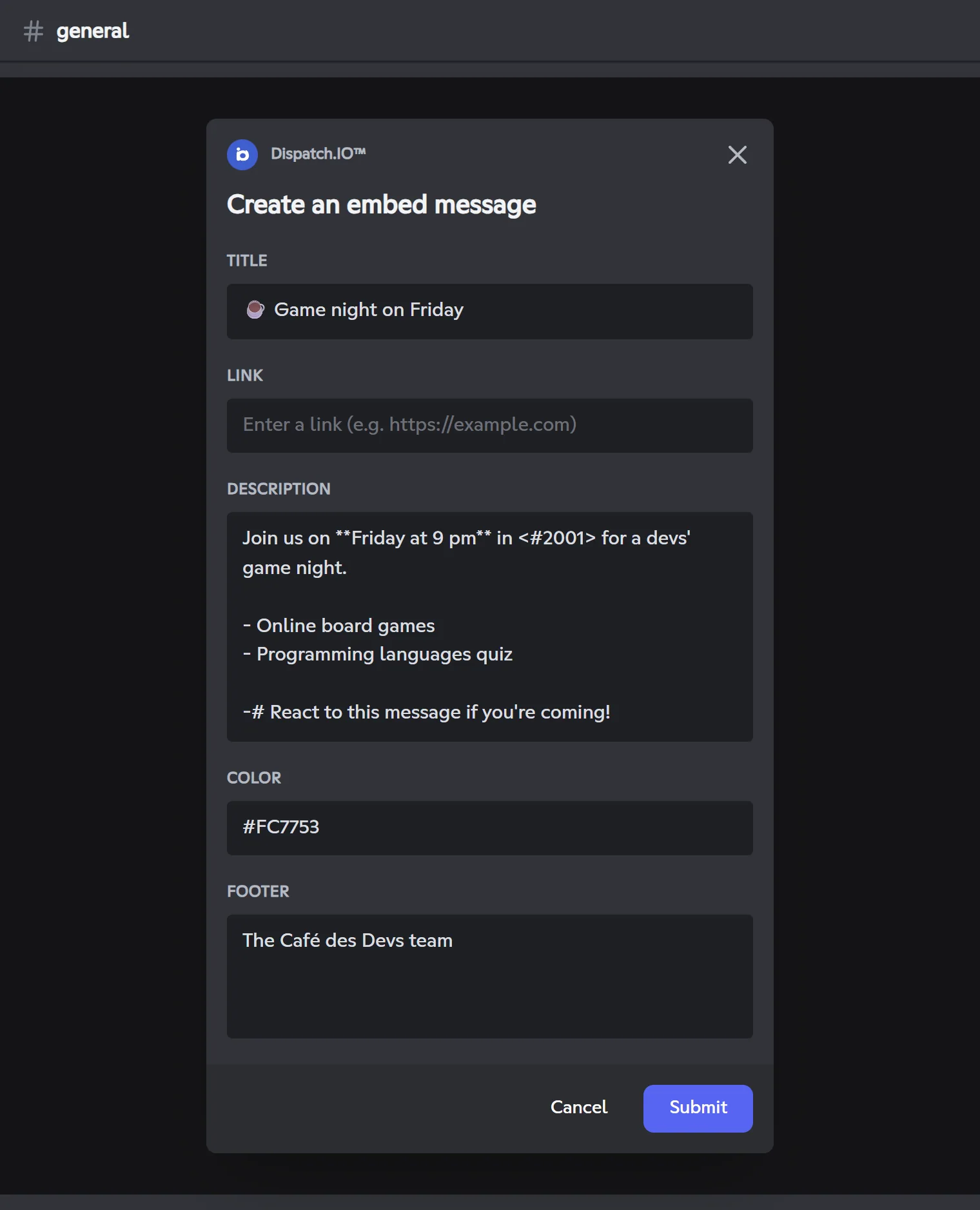
Step 2: fill in the window
The Create an embed message window has five fields, all optional:
| Field | What it holds | Good to know |
|---|---|---|
| Title | The title, at the top of the embed | Becomes a clickable link if you fill in Link. |
| Link | The address opened when clicking the title | Must start with http:// or https://. Otherwise, it is replaced with the Dispatch.IO support server link. |
| Description | The main text | Markdown (bold, lists, headings, links, -# for small text) and mentions <@ID>, <@&ID>, <#ID>. |
| Color | The color of the bar on the left, in hexadecimal (#FC7753) | Prefilled with the default color. An invalid value is replaced with the default color. |
| Footer | A small text at the very bottom | Up to 500 characters. |
Default color
It's the server's color (/config → Color or the dashboard), or your personal accent color if you picked one on the website.
Step 3: check the preview
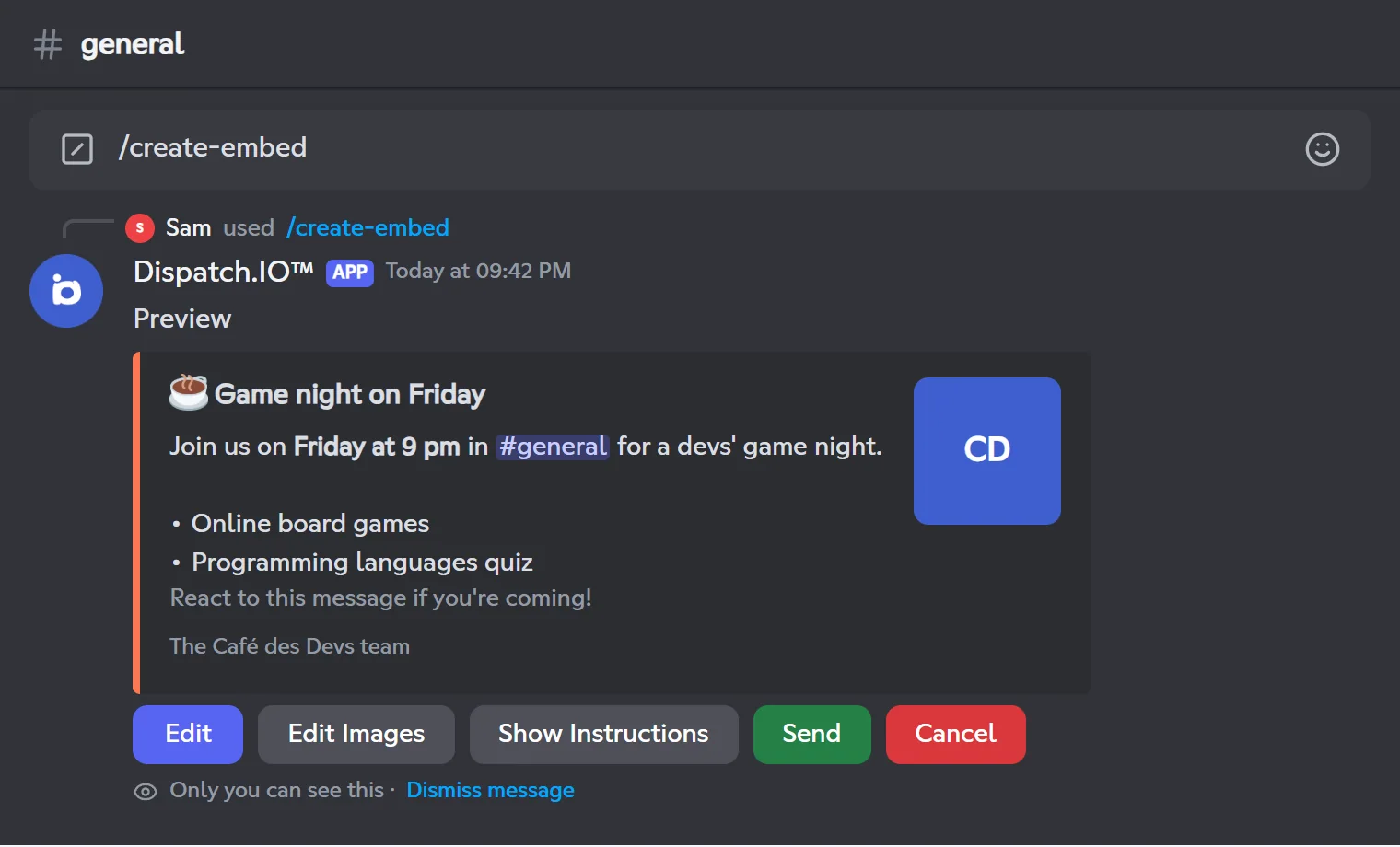
Once submitted, the builder shows Preview and the embed as it will be posted, with five buttons:
| Button | Effect |
|---|---|
| Edit | Reopens the step 2 window, already filled in. |
| Edit Images | Opens the images window (step 4). |
| Show Instructions | Sends you the instructions in a message only you can see. |
| Send | Posts the embed (step 5). |
| Cancel | Closes the builder without posting anything. |
Step 4 (optional): add images
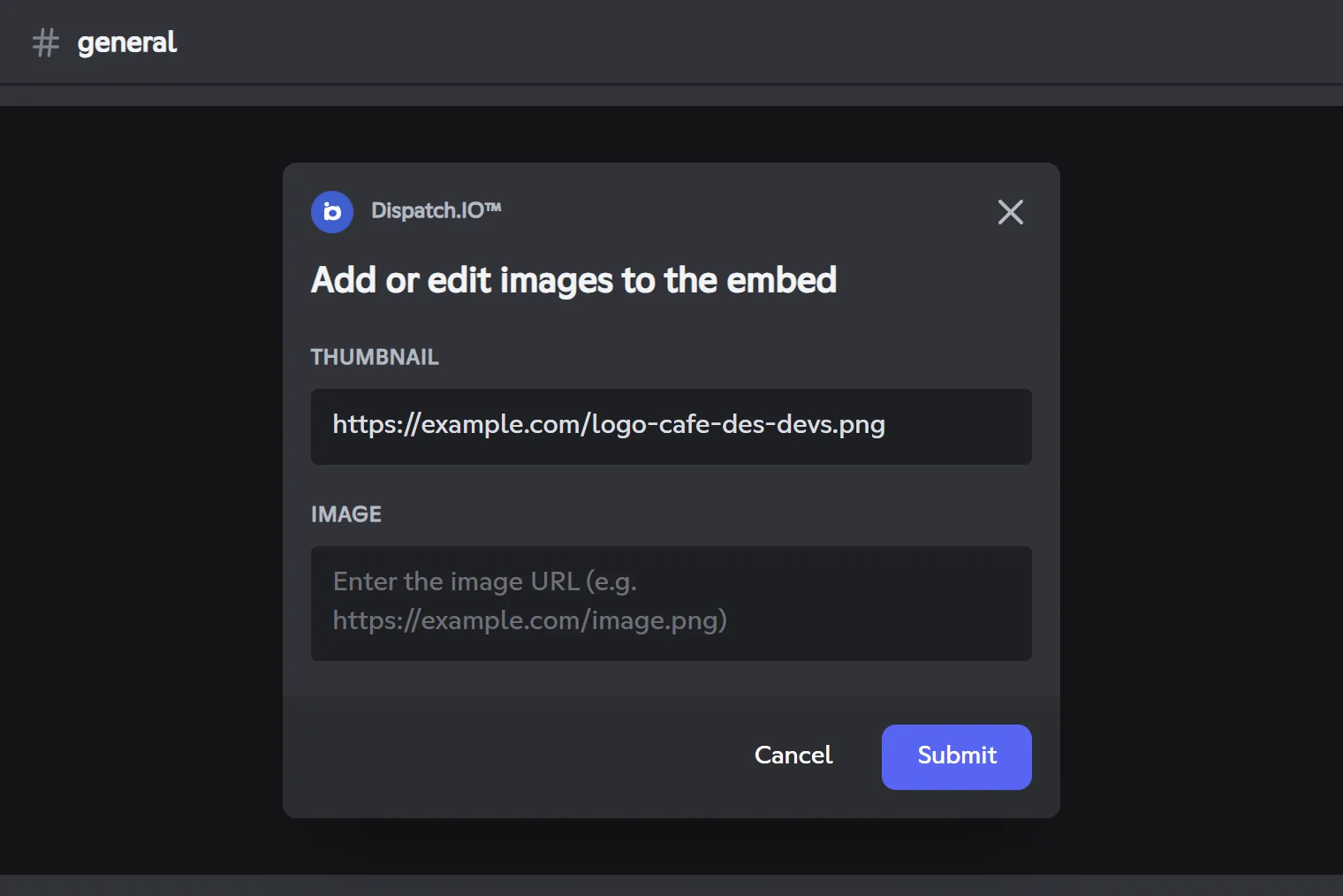
The Add or edit images to the embed window has two fields for direct image links (https://…/image.png):
- Thumbnail: small image at the top right;
- Image: large image at the bottom of the embed.
Empty a field to remove the image. If a link isn't valid, Discord rejects the update and the preview doesn't change.
Step 5: post it
Click Send: the embed is posted in the channel where you ran the command and the builder disappears. The result looks like the first image on this page.
- The builder closes by itself after 5 minutes without any action.
- Mentions in an embed are clickable but don't notify anyone (a Discord rule). To notify people, use
/say. - To edit the embed later, use
/edit-embed.
Edit an embed (/edit-embed)
/edit-embed reopens the builder on an embed already posted by the bot, so you can fix it.
/edit-embedEdits an embed posted by the bot.
Syntax
/edit-embed message_id:<ID> channel:[channel]Options
| Option | Type | Required | Description |
|---|---|---|---|
message_id | String | Yes | The ID of the message containing the embed. |
channel | Channel | No | The channel where the message is. Defaults to the current channel. |
Member permission
Administrator
Where to use it
Server and direct messages with the bot
Rate limit
2 uses / 30 s
Examples
/edit-embed message_id:1300000000000000260/edit-embed message_id:1300000000000000260 channel:#general
Displayed in French Discord as /édition-embed id_du_message: salon:.
Result on Discord
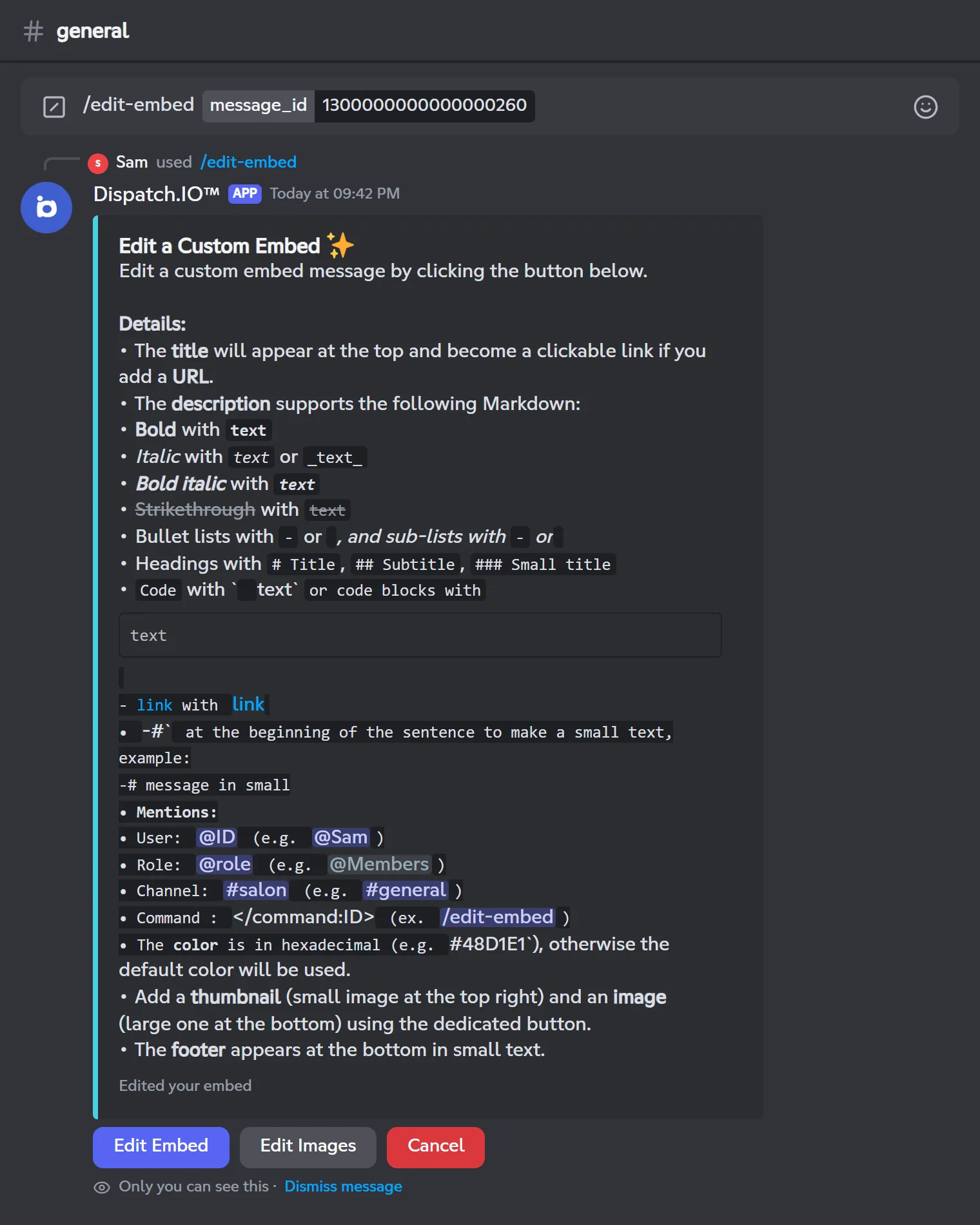
- The bot finds the message and loads its first embed: title, link, description, color, footer text, thumbnail and image.
- Click Edit Embed: the window opens already filled in. Edit Images is available right away.
- The rest works exactly like
/create-embed(preview, images). - Send replaces the embed in the original message. The message's text and any buttons stay as they are.
What isn't kept
Only the elements listed in step 1 are kept. An author, fields, a footer icon or a timestamp in the original embed disappear when you send. If the message had several embeds, only one remains.
| Bot message | Cause |
|---|---|
| The channel specified is invalid or inaccessible. | The bot can't write in that channel. |
| The custom embed message was not found. | The ID is wrong or the message is in another channel (use the channel option). |
| You cannot edit this message (…) because the bot is not the author of the message. | The message wasn't posted by Dispatch.IO. |
| The message you specified does not have an embed. | This message has no embed (it may be a container: use /edit-container). |
Create a container (/create-container)
A container is a newer Discord message format: a block with a colored bar in which you stack elements (texts, sections with a thumbnail, image galleries, separators, link buttons). /create-container opens a builder, only visible to you, to assemble it element by element.
/create-containerOpens a builder to put a container together (texts, sections, images, separators, link buttons) and post it in the current channel.
Syntax
/create-containerMember permission
Administrator
Where to use it
Server and direct messages with the bot
Rate limit
2 uses / 30 s
Examples
/create-container
Displayed in French Discord as /création-conteneur.
Result on Discord
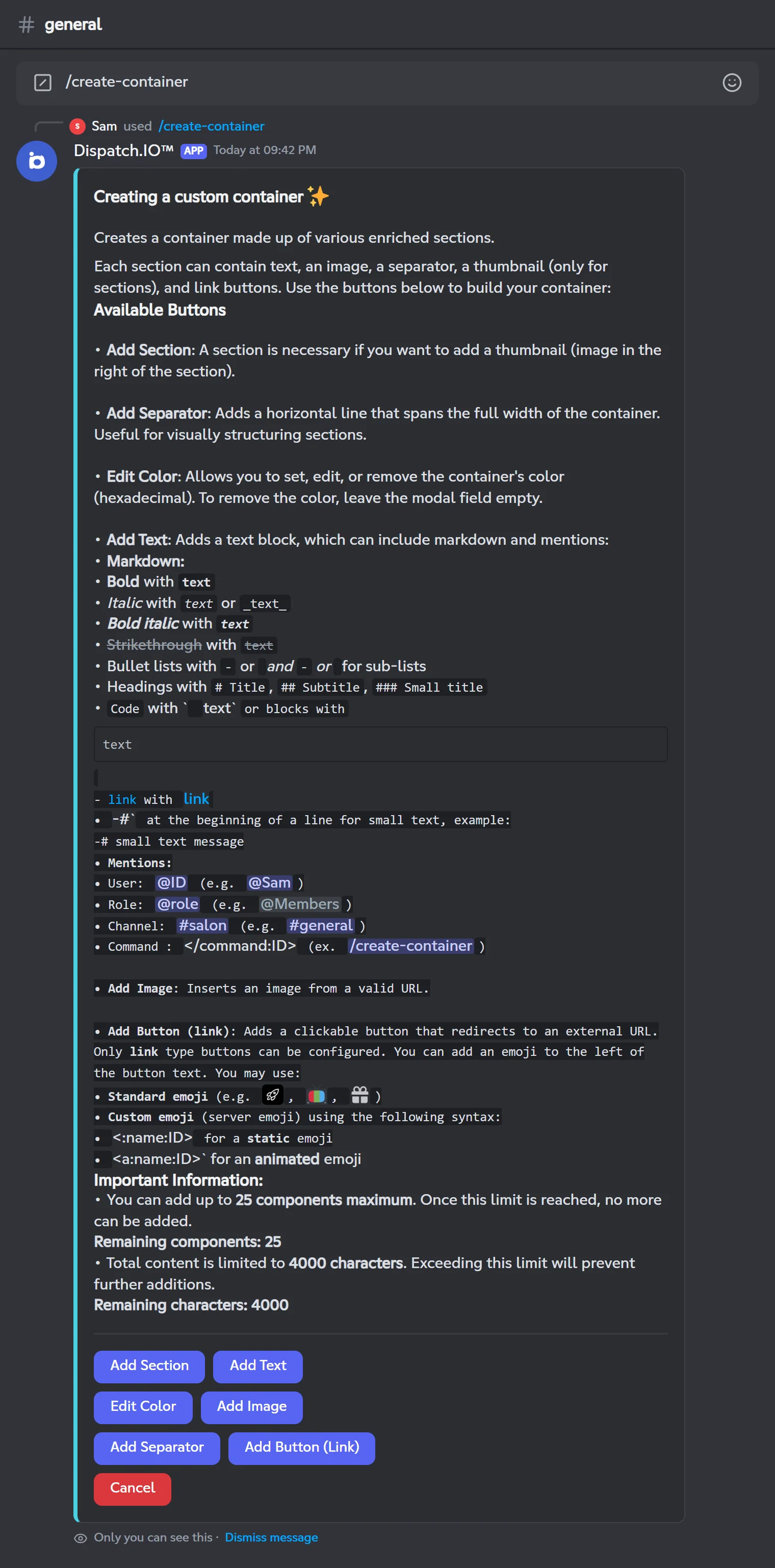
Step 1: the empty builder
The builder shows the instructions and seven buttons: Add Section, Add Text, Edit Color, Add Image, Add Separator, Add Button (Link) and Cancel.
Language of the windows
The builder's instructions and input windows use the server's language, even if your Discord is set to another language.
Step 2: add elements
Each button adds an element at the end of the container. All of them open a window, except the separator.
| Element | Window and fields | Good to know |
|---|---|---|
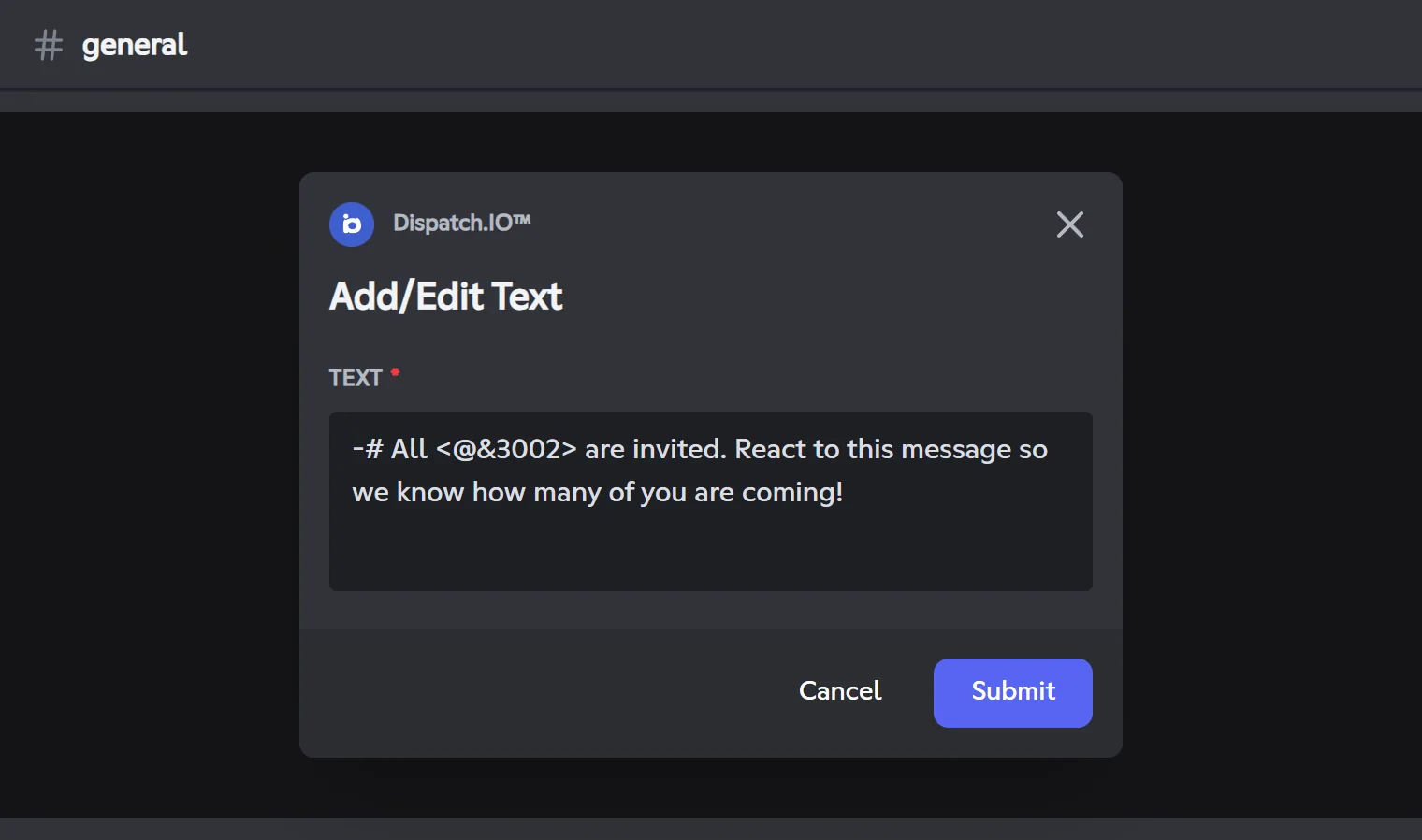
| Text | Add/Edit Text: Text (required) | Markdown and mentions are supported. |
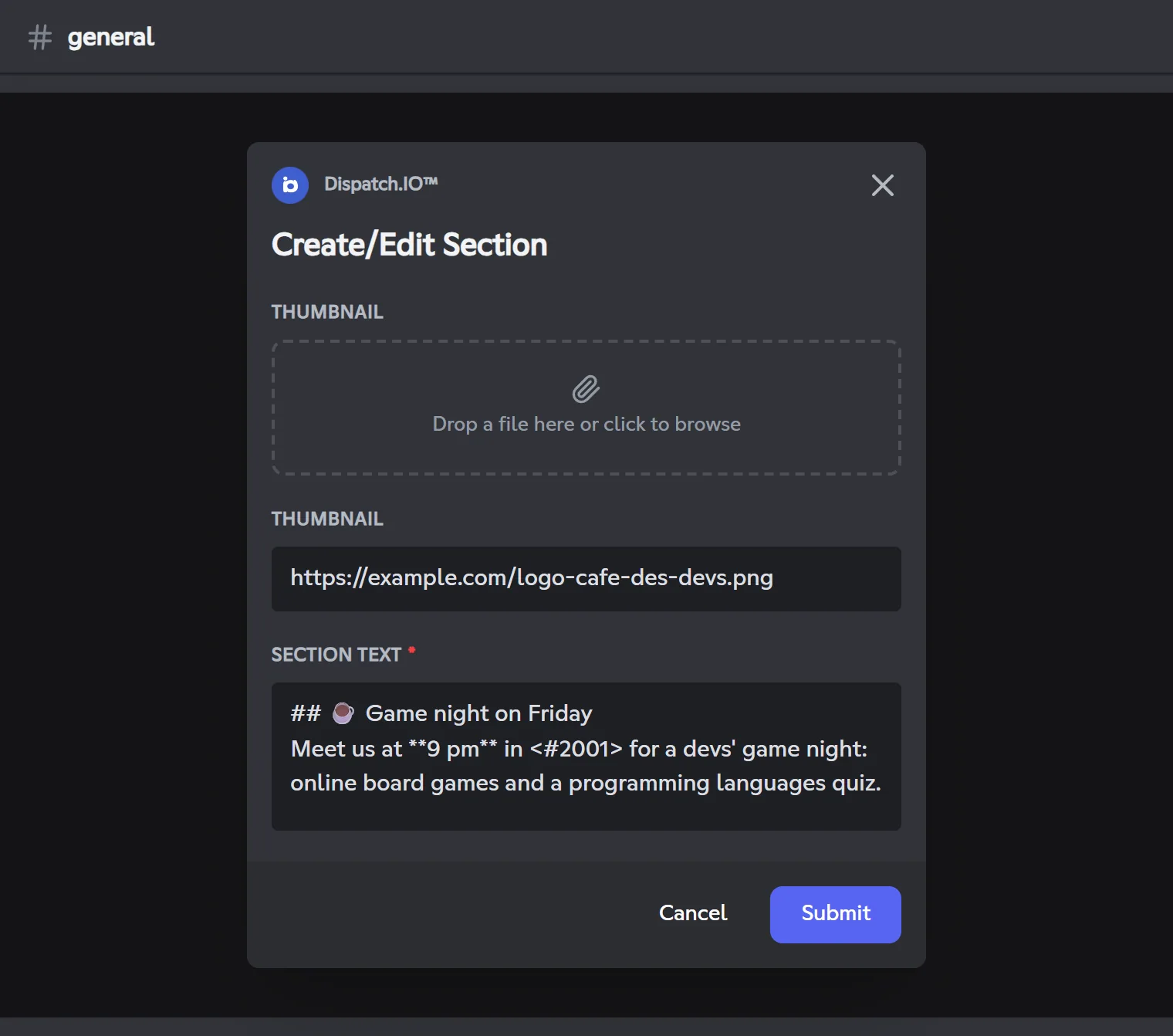
| Section | Create/Edit Section: Thumbnail (file upload), Thumbnail (image link), Section text (required) | A text with a small image on the right. The image is required: upload a file (10 MB max) or paste a link. |
| Image | Add/Edit Image: two Image : fields (file uploads) and three Image link: fields | A gallery of 1 to 5 images. Links must end with .jpg, .jpeg, .png, .gif or .webp. |
| Separator | No window | A horizontal line, added right away. |
| Button (link) | Add/Edit Button (Link): Button text (required, 80 characters max), Emoji (optional), Button URL (required) | The URL must start with http://, https:// or discord://. The emoji must be a Unicode emoji or a custom emoji from this server. |
| Color | Edit Container Color: Color (hexadecimal) | Prefilled with the current color. Leave the field empty to go back to the default color: a container always has a color. |
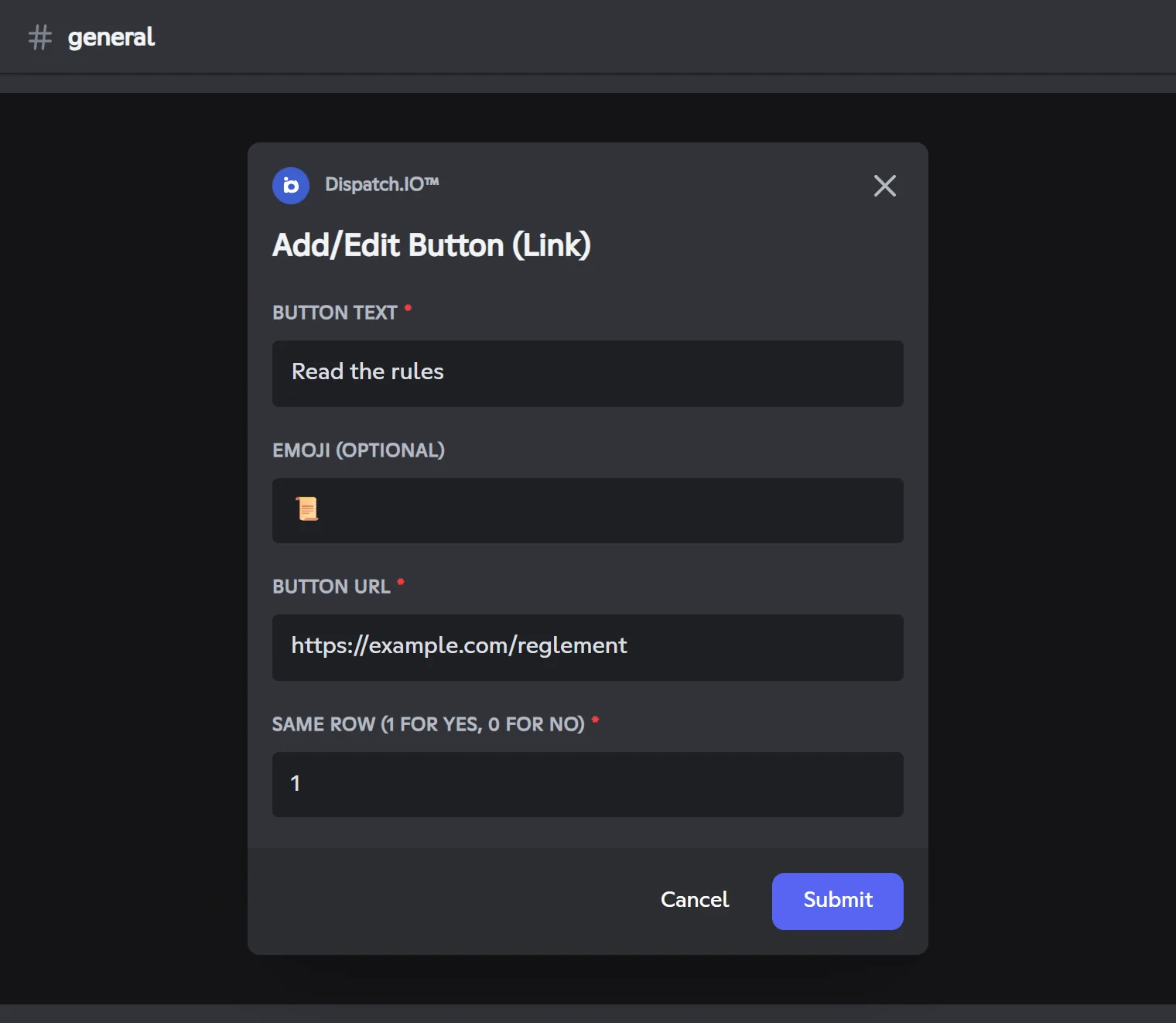
- Several buttons on one row: when the container's last element is a row with fewer than 5 buttons, the window shows one more field, Same row (1 for yes, 0 for no). Type
1to add the button to that row,0to start a new one. - Images uploaded as files: the bot hosts them online (on ImgBB) so they can be displayed. A public image link is therefore created.
- If an image or link is rejected, a message only you can see explains why ("The image URL must be valid and end with an image extension…", "The button URL must be valid…"). Fix it and try again.
Step 3: the preview
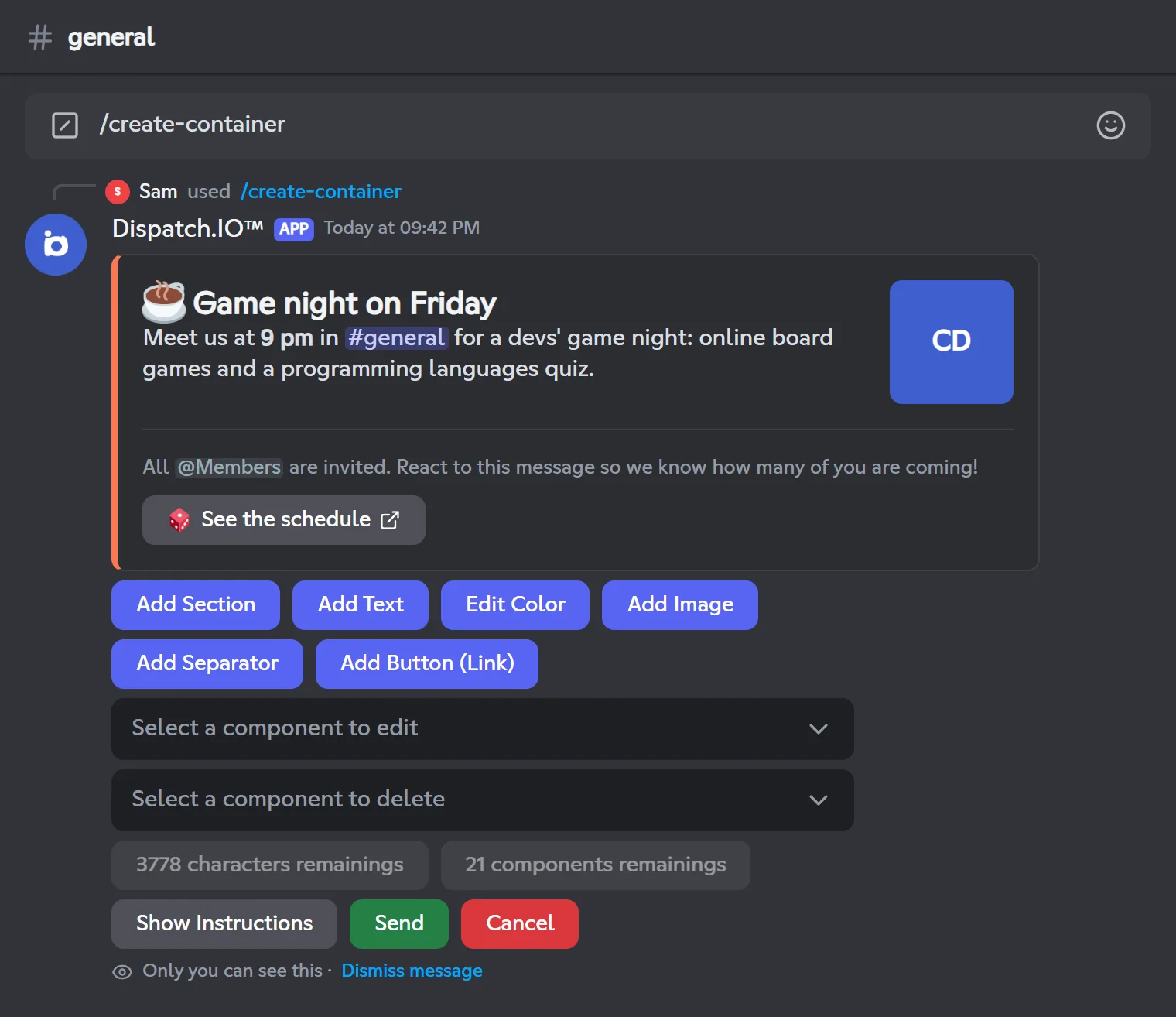
From the first element on, the builder shows your container as it will be posted. Below it:
| Builder control | Effect |
|---|---|
| The Add… and Edit Color buttons | Same as step 2. |
| Select a component to edit menu | Reopens the chosen element's window, already filled in. For a row of several buttons, a small menu asks which one to edit. Separators can't be edited. |
| Select a component to delete menu | Removes the chosen element. |
| Remaining characters and components counters | What you have left before the limits (greyed out, not clickable). |
| Show Instructions | Sends you the instructions in a message only you can see. |
| Send | Posts the container. |
| Cancel | Closes the builder without posting anything. |
Limits
A container holds at most 25 elements and 4,000 characters of text (texts and section texts). Once a limit is reached, the matching add buttons are greyed out.
Editing an image
Editing a gallery replaces it entirely with what you enter in the window: enter again every image you want to keep.
Step 4: post it
Click Send: the container is posted in the channel where you ran the command and the builder disappears.
- During the preview, mentions don't notify anyone. Once posted, the container notifies the mentioned members and roles.
- After 5 minutes without any action, the builder stops responding: close it (Dismiss message) and run the command again.
- To edit the container later, use
/edit-container.
Edit a container (/edit-container)
/edit-container reopens the builder on a container already posted by the bot.
/edit-containerEdits a container posted by the bot.
Syntax
/edit-container message_id:<ID> channel:[channel]Options
| Option | Type | Required | Description |
|---|---|---|---|
message_id | String | Yes | The ID of the message containing the container. |
channel | Channel | No | The channel where the message is. Defaults to the current channel. |
Member permission
Administrator
Where to use it
Server and direct messages with the bot
Rate limit
2 uses / 30 s
Examples
/edit-container message_id:1300000000000000270/edit-container message_id:1300000000000000270 channel:#general
Displayed in French Discord as /édition-conteneur id_du_message: salon:.
Result on Discord
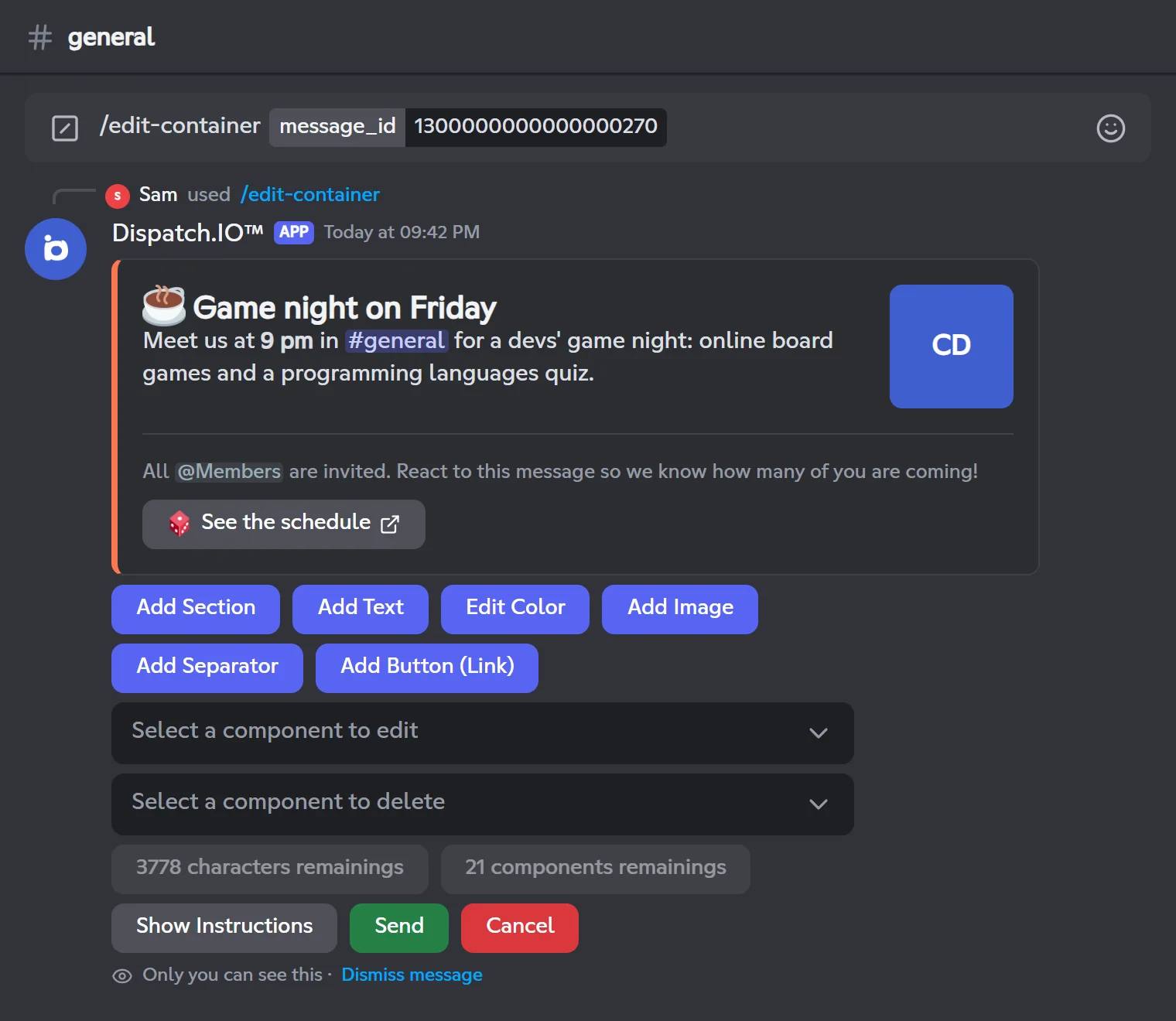
- The bot finds the message and loads its container: elements and color.
- The builder opens straight on the preview. Add, edit or delete elements just like with
/create-container. - Send replaces the content of the original message with the new container.
Two differences from /create-container:
- the Section window has no file upload field: paste an image link (required);
- the Image window offers five link fields, prefilled with the current images.
Warning
Only use it on containers created with /create-container. The builder only handles link buttons: a container with other kinds of buttons (a bot panel, for example) can't be edited properly.
| Bot message | Cause |
|---|---|
| The channel specified is invalid or inaccessible. | The bot can't write in that channel. |
| The custom container message was not found. | The ID is wrong or the message is in another channel (use the channel option). |
| You cannot edit this message (…) because the bot is not the author of the message. | The message wasn't posted by Dispatch.IO. |
| The message you specified does not have a container. | This message has no container (it may be an embed: use /edit-embed). |
Create a banner (/create-banner)
/create-banner generates a 1200 × 400 px image with a stylized title, to use at the top of an announcement or a channel.
/create-bannerGenerates a banner with a stylized title.
Syntax
/create-banner title:<text> right_text:[True/False] server_icon:[True/False] text_effect:[effect] font:[font] text_alignment:[alignment] opacity_overlay:[True/False] text_color:[#hex]Options
| Option | Type | Required | Description |
|---|---|---|---|
title | String | Yes | The banner title, up to 25 characters. Emojis are drawn. |
right_text | Boolean | No | Shows the server name, uppercased and repeated, along the right edge. Default: no. |
server_icon | Boolean | No | Shows the server icon in a band on the left. Default: no. |
text_effect | Choice | No | Gradient (default), Neon or Without effect. |
font | Choice | No | Octosquares (default), Horizon, Roboto, Montserrat or Open Sans. |
text_alignment | Choice | No | Left, Center (default) or Right. |
opacity_overlay | Boolean | No | Darkens the background so the title is easier to read. Default: no. |
text_color | String | No | The title color in hexadecimal (e.g. #48D1E1). Default: white (#FFFFFF). |
Member permission
Administrator
Where to use it
Server only
Rate limit
2 uses / 30 s
Examples
/create-banner title:Game night server_icon:True/create-banner title:Welcome! text_effect:Neon text_color:#FC7753 opacity_overlay:True
In English Discord, the options are written with a hyphen: right-text, server-icon, text-effect, text-alignment, overlay-opacity, text-color. In French Discord: /création-bannière titre: texte-droite: icon-serveur: effet-texte: police: alignement-texte: opacité-overlay: couleur-texte:.
Result on Discord
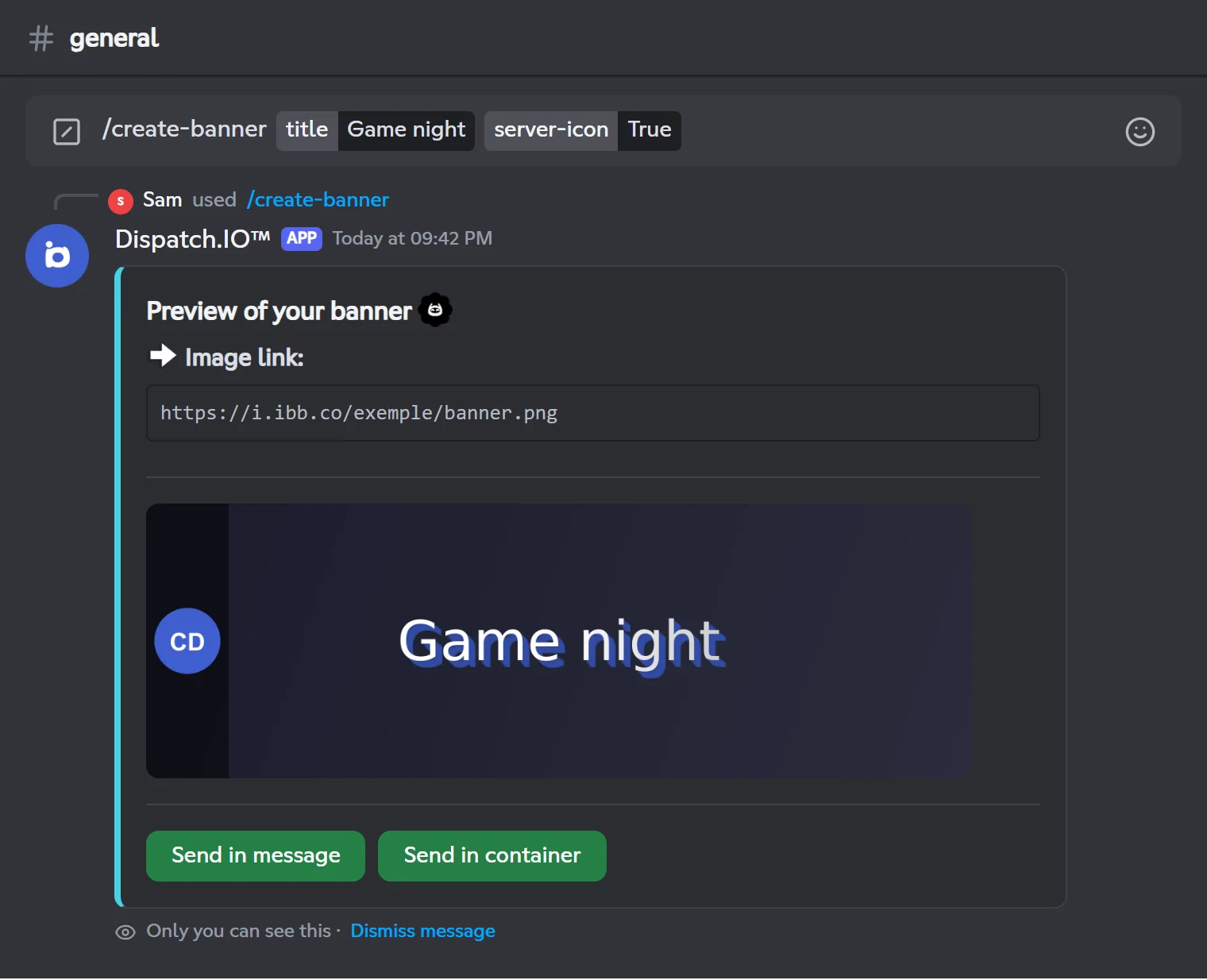
What it looks like
- Background: the server's welcome image if you set one (see Welcome and goodbye), otherwise a dark gradient.
- Effects: Gradient draws the title with a gradient and a drop shadow in the server's color; Neon adds a glow in the server's color; Without effect shows plain text.
- Title size: it adjusts automatically to the title's length so it fits on the banner.
- An invalid text color is replaced with white, with no error message.
Sending the banner
- The bot shows a preview (only visible to you) with the image link, hosted online on ImgBB. You can reuse this link elsewhere, for example in the Image field of
/create-embed. This link is public. - Within 5 minutes, choose:
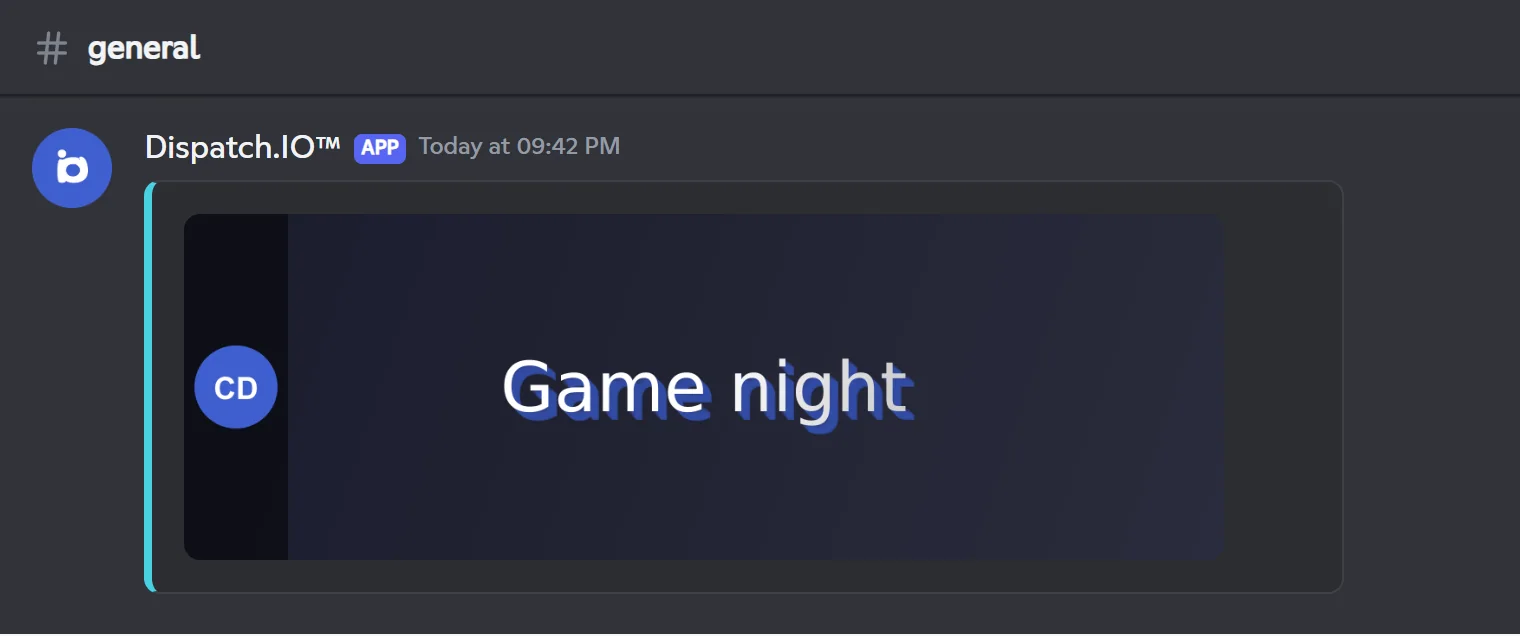
- Send in message: posts the image alone in the current channel;
- Send in container: posts the image inside a container in the server's color.
- The preview stays after sending. With no click after 5 minutes, it is replaced with an expiry message.
Note
If the link couldn't be created, the preview says so: the image was generated, but download it and host it yourself to reuse it.
Related pages
- Server management: clean up channels, protection mode, roles, emojis.
- Permissions and roles: who can use what.
- Welcome and goodbye: the welcome image, also used as the banner background.
- Logs: where to find the messages sent with
/say. - All commands