
Every member can use these commands, no special permission needed (the only exception is renaming someone else with /rename). They help you find your way around the bot, look up a member, a role or the server, show your Dispatch.IO profile, report a message or a bug, and handle a few handy tasks (translation, image hosting, questions to Gemini).
Some replies are public (the whole channel sees them), others are private: Discord then shows "Only you can see this" under the message. Most of these commands also work in direct messages.
| Command | Reply visible to | Works in DMs |
|---|---|---|
/help | only you | yes |
/ping | the whole channel | yes |
/info | the whole channel | app and user only |
/profil | the whole channel | yes |
/premium | only you | yes |
/report | only you | yes |
/rename | only you | no |
| Translate this | only you | yes |
/upload-image | only you | no |
/gemini, /giphy, /hello | the whole channel | yes |
Tip
Not sure how to run a slash command, or why a command doesn't show up? Start with All commands, which explains how commands work, rate limits and which language replies use.
Help and bot status
Find a command with /help and check that the bot responds with /ping.
Finding a command with /help
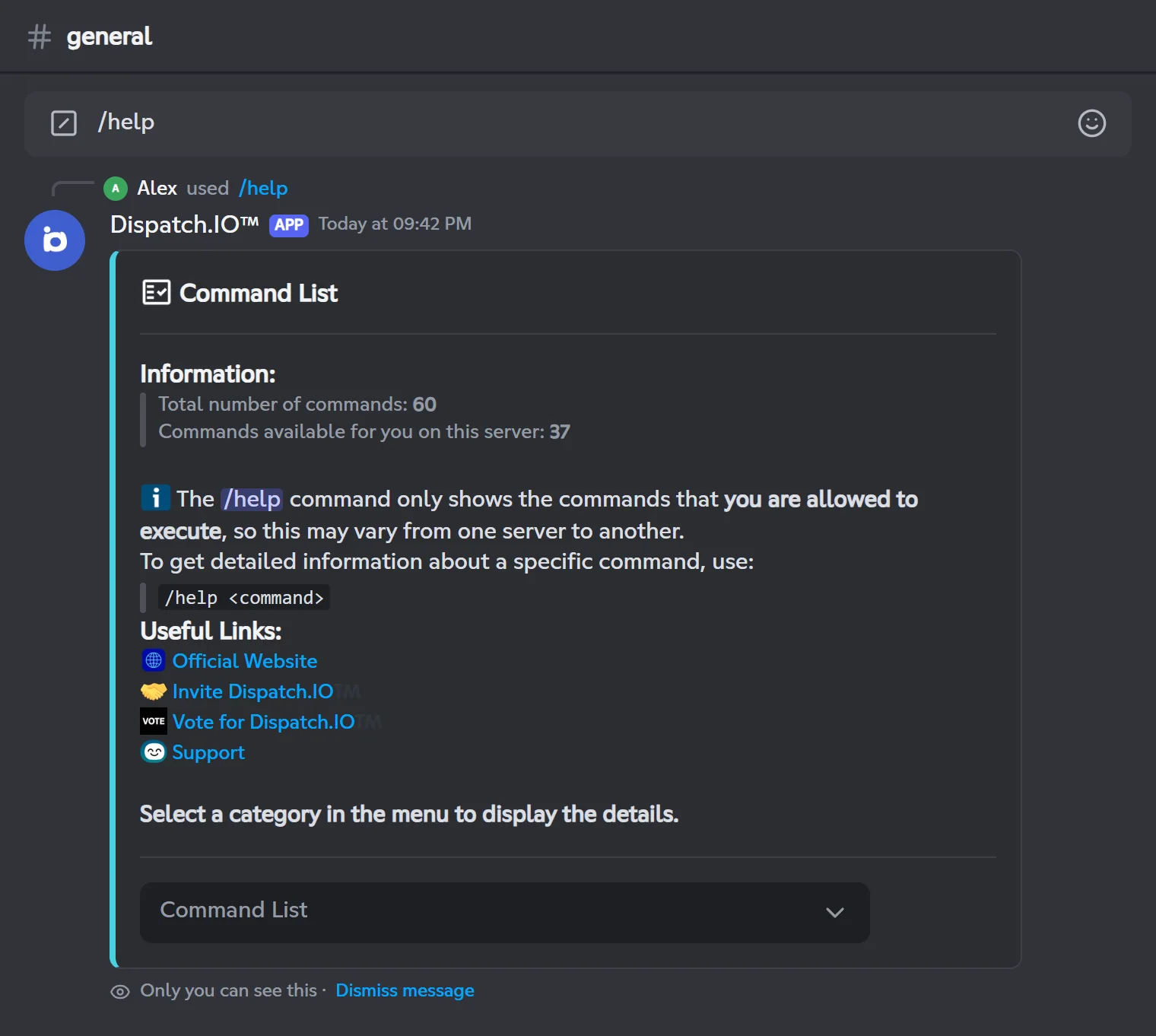
Type /help without any option to open the help home page. It shows the bot's total number of commands, how many you can use here, and useful links (website, bot invite, vote, support server).
- Open the drop-down menu under the home page.
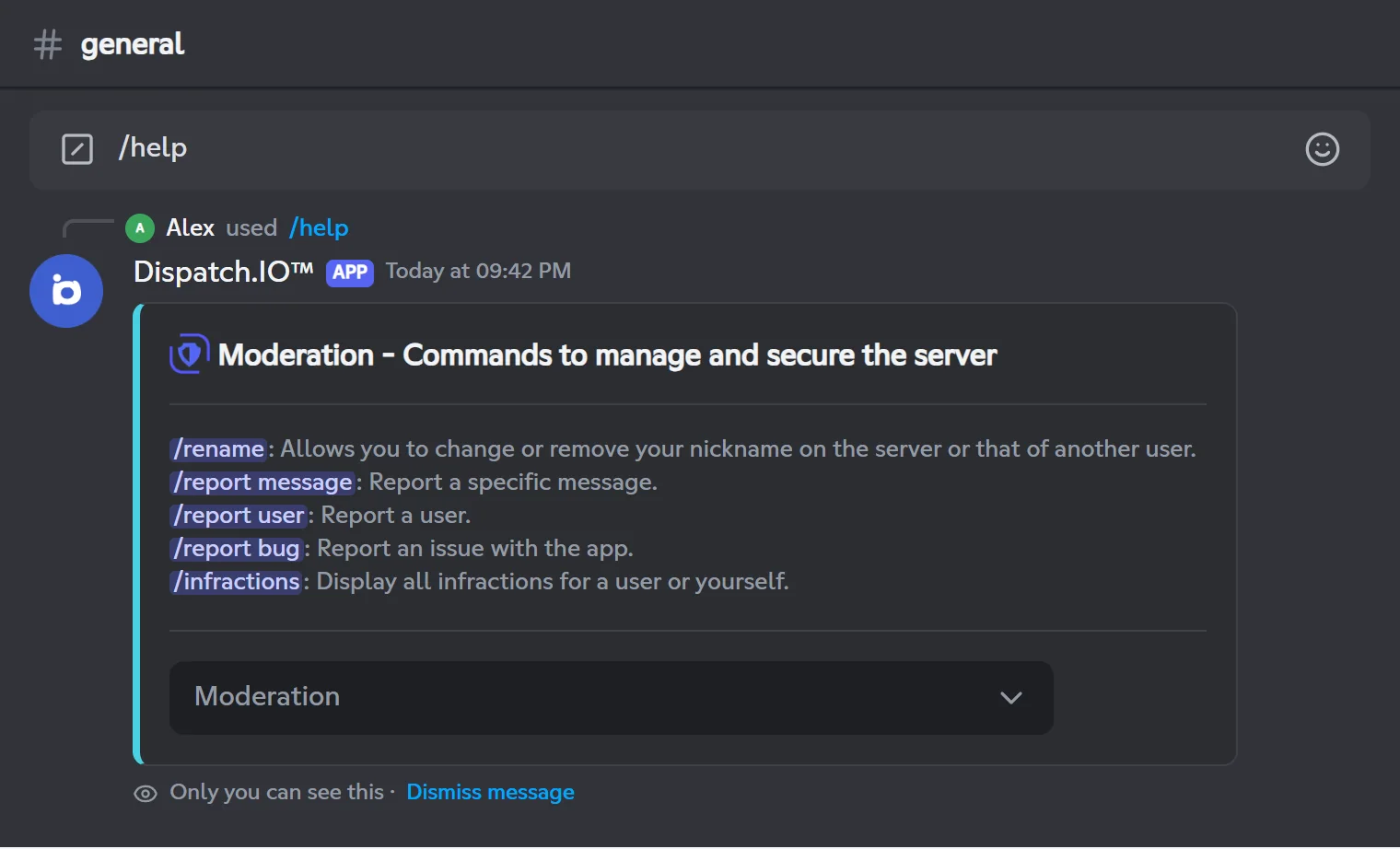
- Pick a category (APP, Moderation, Utilities, Engagement, Information, Levels, Music, Aviation…). Only categories that contain at least one command you can run are offered.
- The category's commands are listed, each with its description. Click a command name to drop it into your message bar.
Help is personalised: it takes into account your Discord permissions, which modules are enabled (for example /rank only shows up when the leveling system is on) and where you are (in a DM, only commands that work outside servers are listed). The "Translate this" context-menu command is not listed.
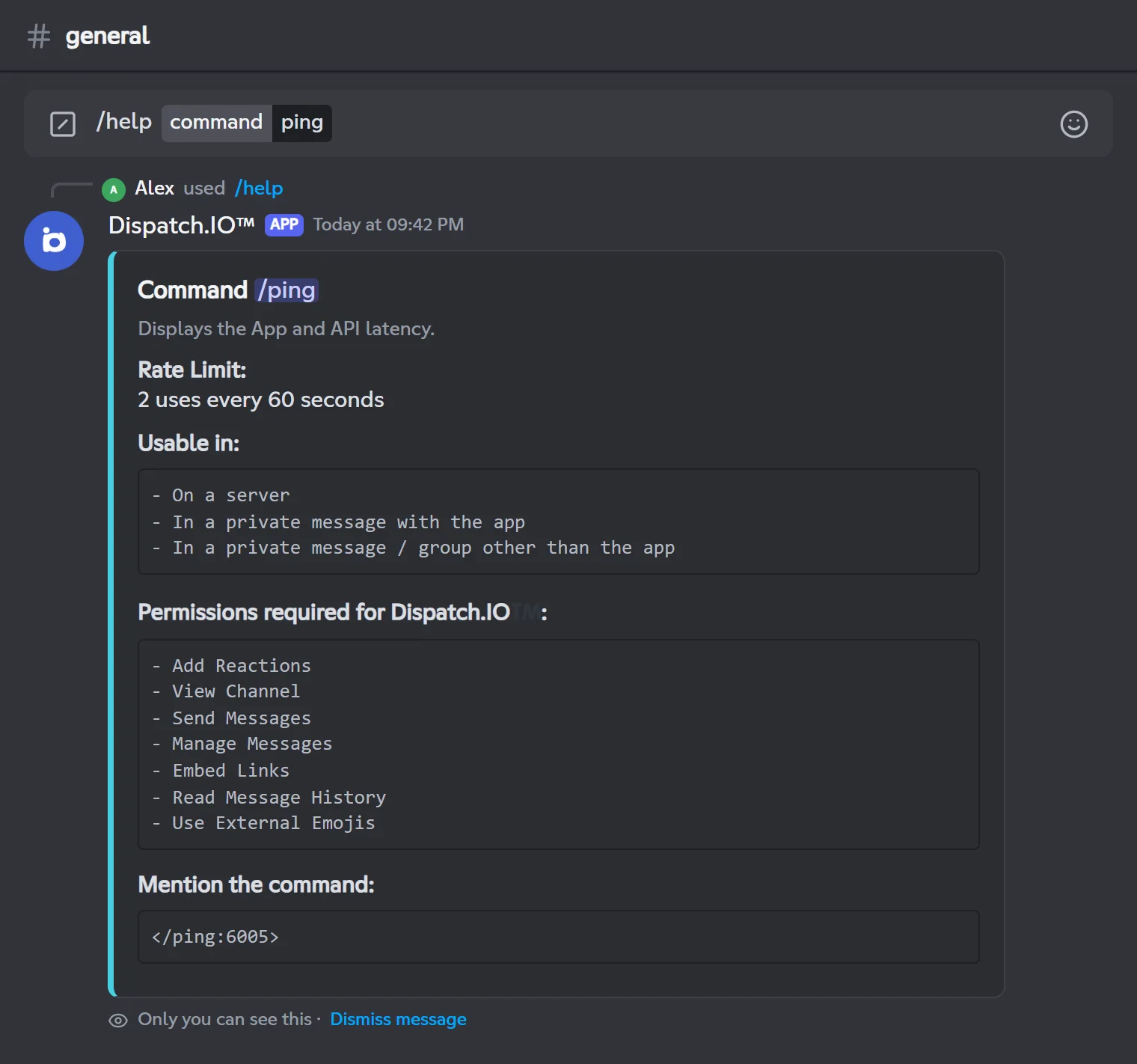
For a command's detail card, use the command option. Suggestions appear as you type; the search uses the command's English name (type report, not signaler). For a subcommand, type both words: info user.
/helpShows the commands you can use, grouped by category, or the detail card of one command.
Syntax
/help [command:<command>]Options
| Option | Type | Required | Description |
|---|---|---|---|
command | Text (with suggestions) | No | The command you want details about, for example ping or info user. |
Member permission
None (every member)
Bot permission
None
Where to use it
Servers and DMs (user install supported)
Rate limit
None
Plan
Free
Examples
/help/help command:info user
In a French Discord client the command is shown as /aide and its option as commande.
The menu stays active for 5 minutes after your last selection. After that it stops responding: run /help again.
Result on Discord
Result on Discord
Result on Discord
Checking latency with /ping
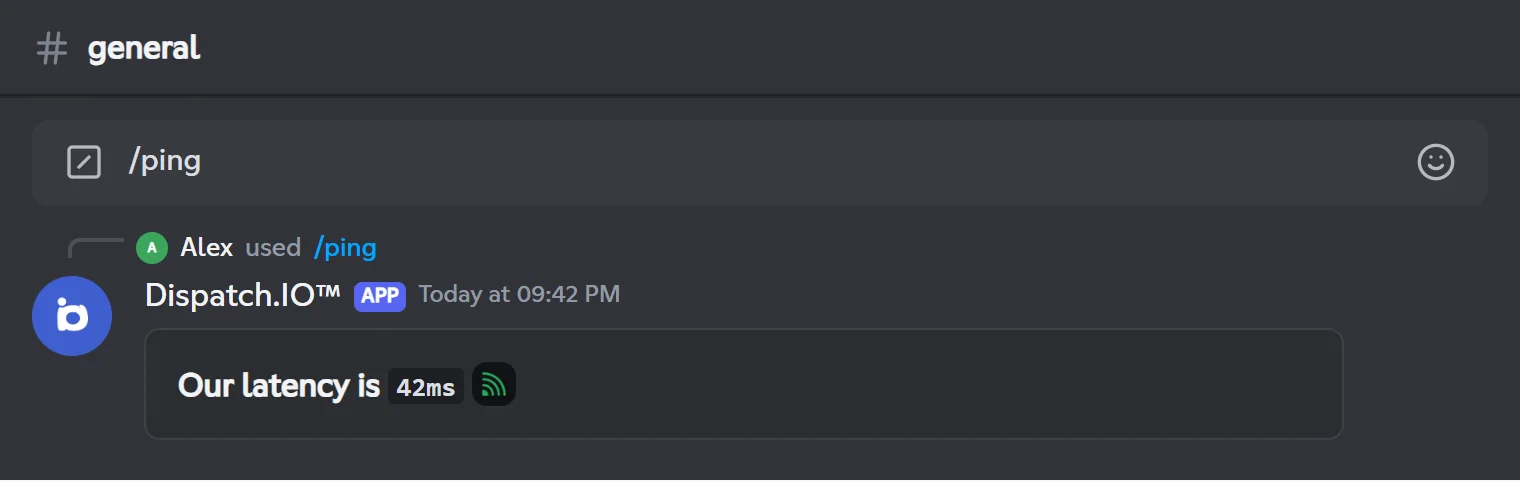
/ping shows how fast the bot is talking to Discord. A loading message appears first, then the latency in milliseconds with a coloured indicator: good up to 160 ms, medium up to 400 ms, high up to 1,500 ms, offline above that.
/pingShows the bot's latency.
Syntax
/pingMember permission
None (every member)
Bot permission
None
Where to use it
Servers and DMs (user install supported)
Rate limit
2 uses every 60 seconds
Plan
Free
Examples
/ping
Result on Discord
Information with /info
Six subcommands to learn everything about the bot, the server, a member, a role, a channel or an emoji.
/info groups six subcommands. They all reply publicly in the channel and share one limit: 1 use every 10 seconds across all of /info. A "Your request is being processed…" message is shown while the bot gathers the information.
| Subcommand | Name in a French client | What it shows | Where |
|---|---|---|---|
/info app | /info app | The bot: version, statistics, badges | Anywhere |
/info server | /info serveur | The current server or another one | Server with Dispatch.IO |
/info user | /info utilisateur | A Discord account and its badges | Anywhere |
/info role | /info rôle | A server role | Server with Dispatch.IO |
/info channel | /info salon | A server channel | Server with Dispatch.IO |
/info emoji | /info émoji | A custom emoji of the server | Server with Dispatch.IO |
Note
server, role, channel and emoji need Dispatch.IO to be a member of the server. Used in a DM, they never get past the "being processed" message.
/info app
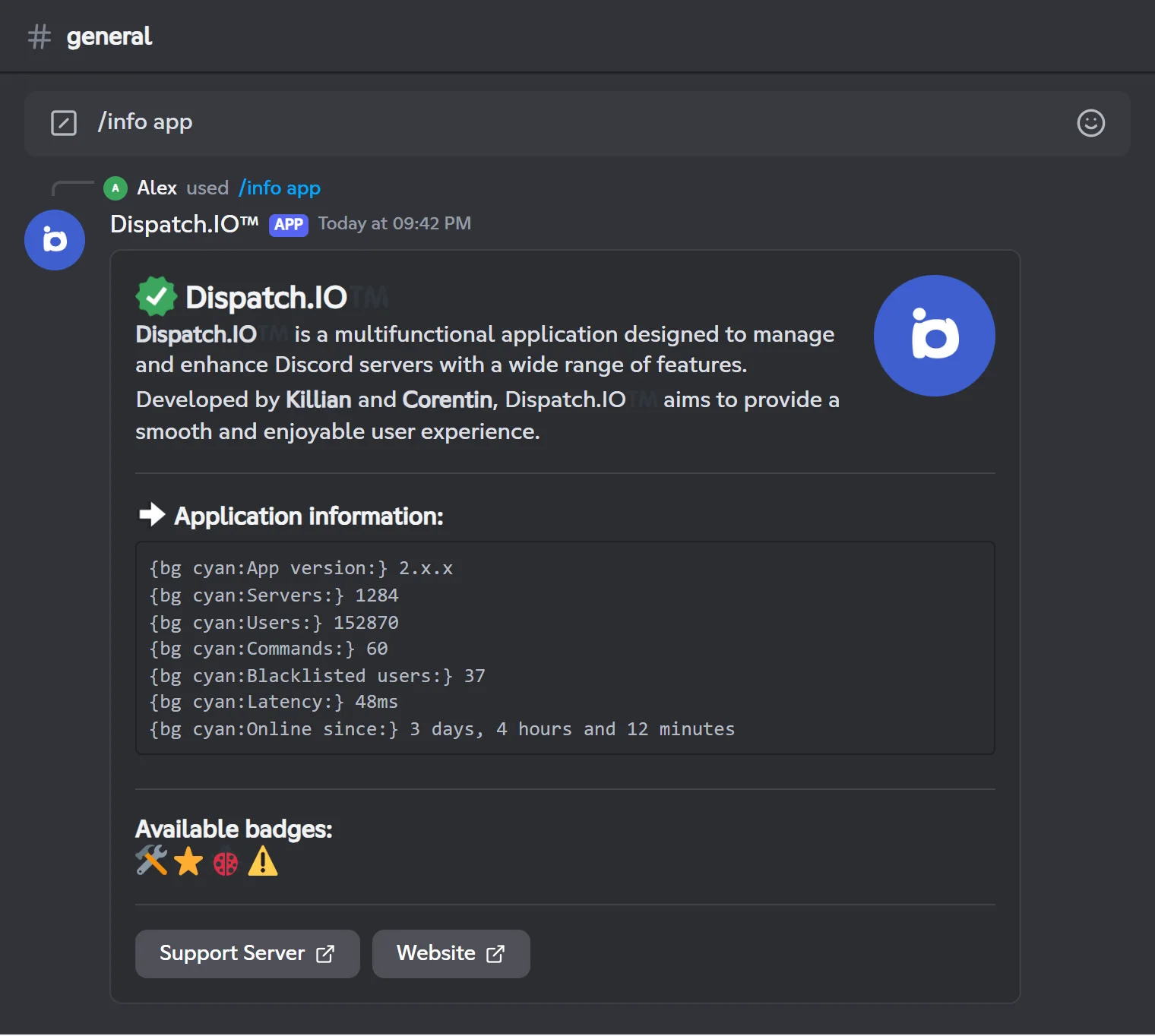
/info appIntroduces Dispatch.IO and shows its statistics (version, servers, users, commands, blacklisted users, latency, uptime) and the list of existing Dispatch.IO badges.
Syntax
/info appMember permission
None (every member)
Bot permission
None
Where to use it
Servers and DMs (user install supported)
Rate limit
1 use every 10 seconds (shared with /info)
Plan
Free
Examples
/info app
Result on Discord
/info server
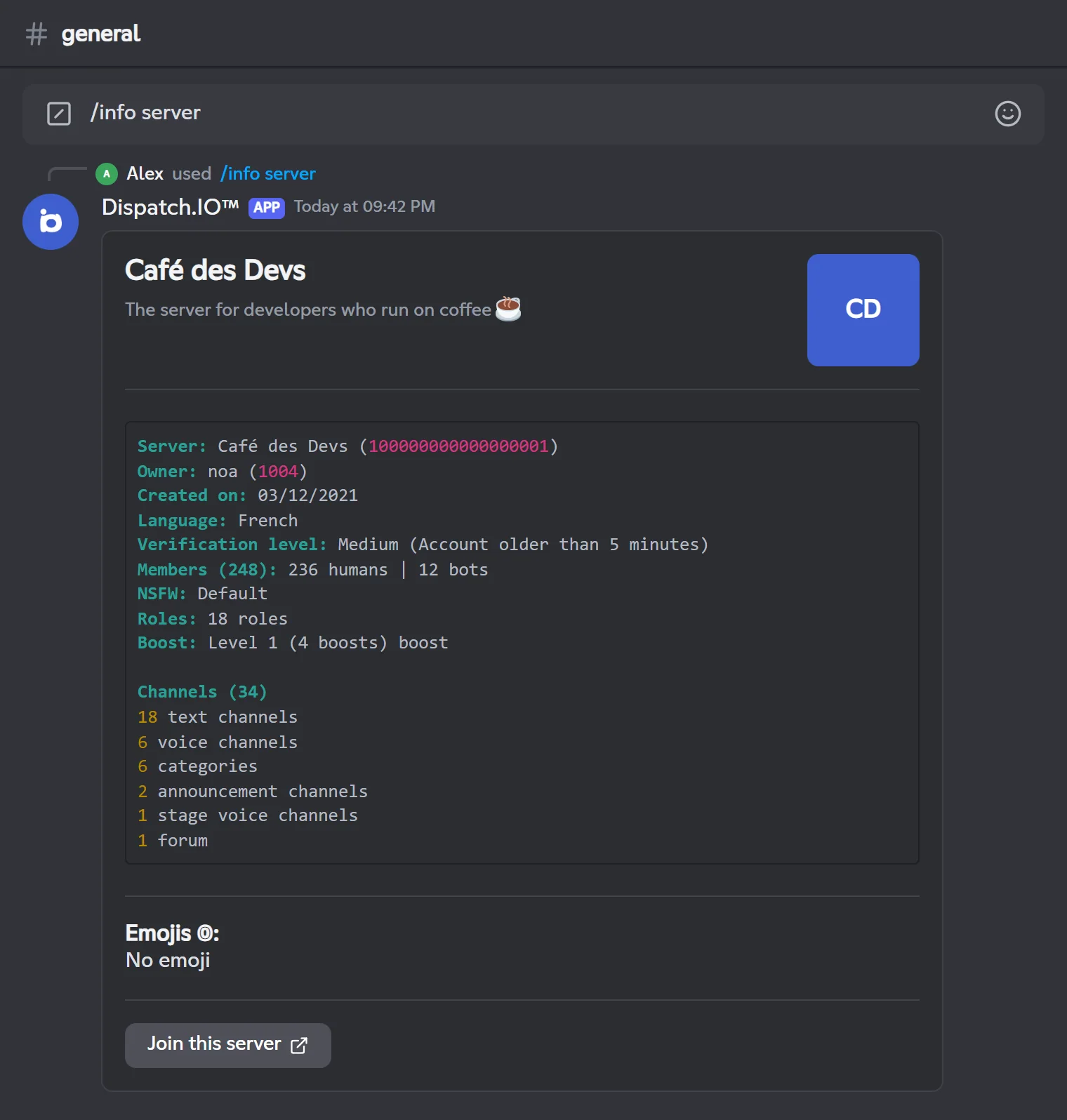
Without an option, the command describes the server you're in: owner, creation date, language, verification level, members (humans and bots), NSFW level, number of roles, boosts, channels by type and the server's emojis. The Join this server button is only active if the server has a permanent invite.
With server_id you can target another server. If Dispatch.IO is in it, you get the full card. Otherwise only a short card is possible, and only for public servers that Discord lets you preview (approximate member and online counts, emojis, invite splash). In any other case the bot replies "Unable to access information for this server".
/info serverShows all the information about a server.
Syntax
/info server [server_id:<ID>]Options
| Option | Type | Required | Description |
|---|---|---|---|
server_id | Text | No | The ID of another server. Defaults to the current server. |
Member permission
None (every member)
Bot permission
None
Where to use it
Servers where Dispatch.IO is present
Rate limit
1 use every 10 seconds (shared with /info)
Plan
Free
Examples
/info server/info server server_id:100000000000000001
To copy a server ID, turn on Discord's Developer Mode (Settings, Advanced) and right-click the server icon.
Result on Discord
/info user
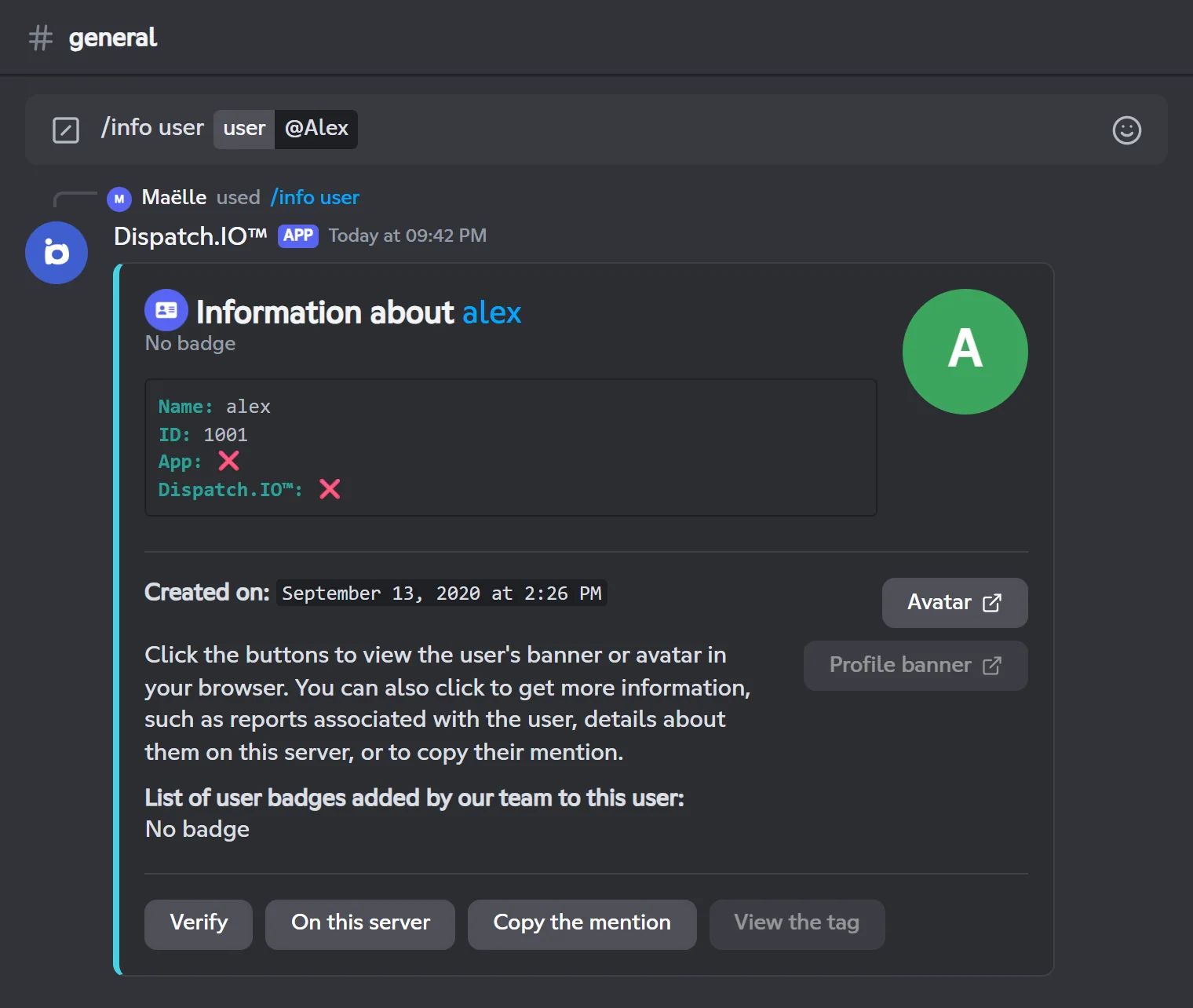
Without an option, the command is about you. The card shows the username, the ID, whether the account is an app, whether the person is on the Dispatch.IO team, their Discord badges, the account creation date and the badges the Dispatch.IO team gave them. The card colour is the highlight colour the person picked on their dashboard, or the server's colour otherwise.
The buttons at the bottom open private replies:
| Button | What it shows |
|---|---|
| Avatar and Profile banner | Open the image in your browser (banner greyed out if the person has none). |
| Verify | Known reports: the DangerCord database, the Dispatch.IO blacklist and decisions published by the European Commission (DSA transparency database). |
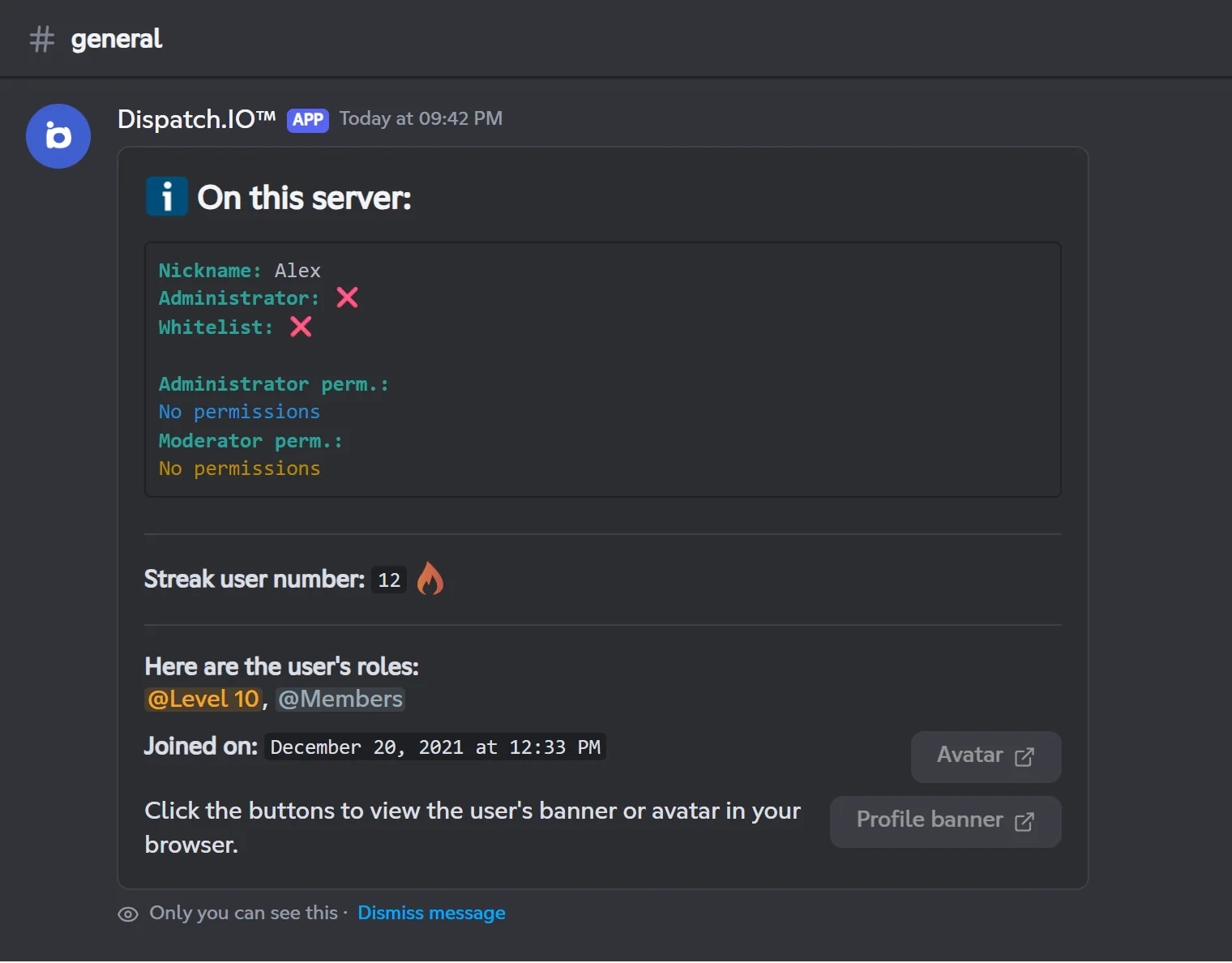
| On this server | Nickname, administrator or not, anti-raid whitelist, administration and moderation permissions, number of flames, roles, join date. Greyed out if the person is not a member of the server. |
| Copy the mention | The person's mention, ready to copy. |
| View the tag | The server tag the person displays, with a button to get that tag and a button to add it as an emoji on your server (active if you have the "Manage Expressions" permission and the bot can create expressions). Greyed out if the person shows no tag. |
Note
These buttons only work on a server where Dispatch.IO is present.
/info userShows information about a Discord account and its badges.
Syntax
/info user [user:<member>]Options
| Option | Type | Required | Description |
|---|---|---|---|
user | User | No | The person to show. Defaults to you. |
Member permission
None (every member)
Bot permission
None
Where to use it
Servers and DMs (user install supported)
Rate limit
1 use every 10 seconds (shared with /info)
Plan
Free
Examples
/info user/info user user:@Alex
Result on Discord
Result on Discord
/info role
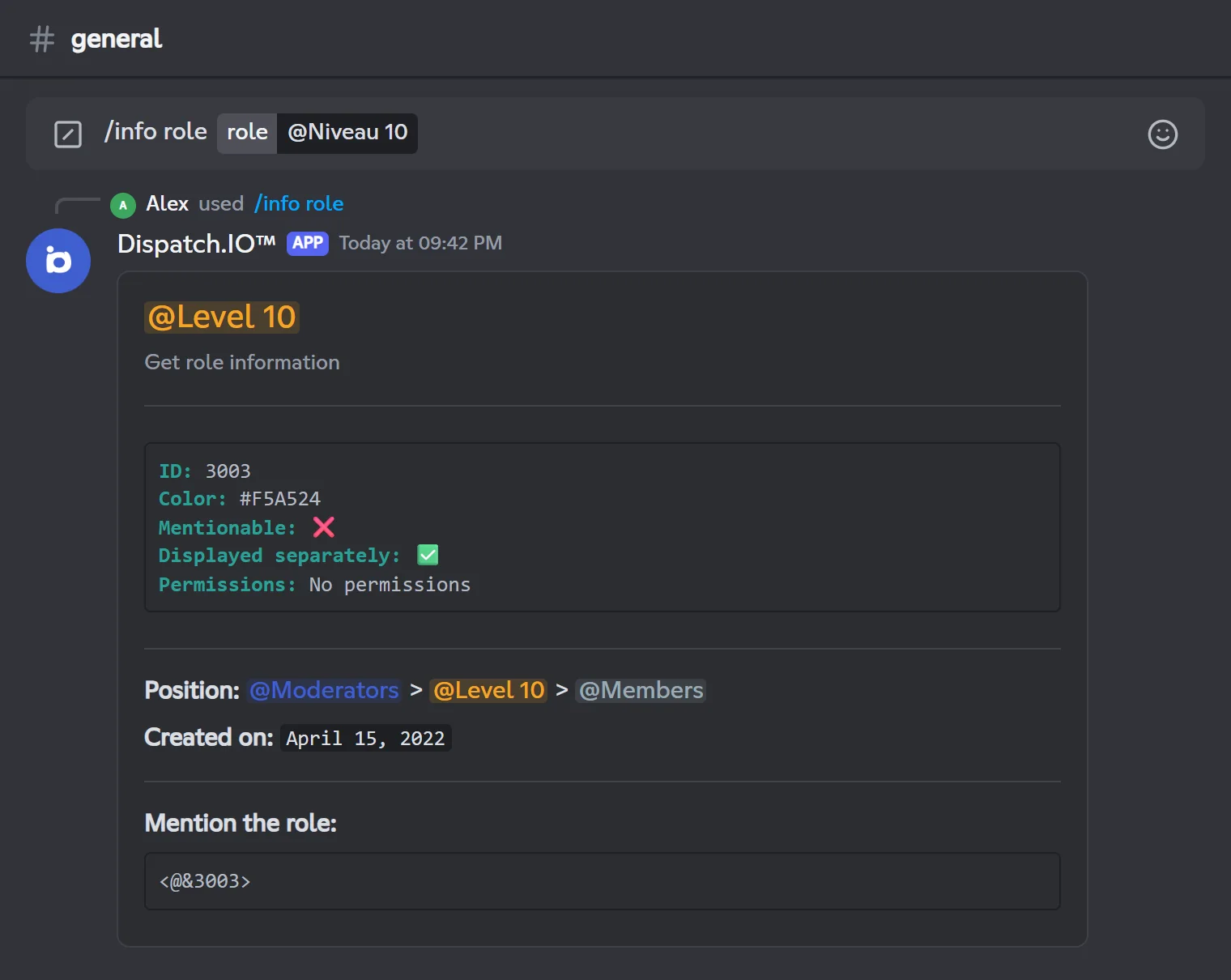
/info roleShows information about a role: ID, colour, mentionable or not, displayed separately or not, permissions, position, creation date and a mention to copy.
Syntax
/info role role:<role>Options
| Option | Type | Required | Description |
|---|---|---|---|
role | Role | Yes | The role to show. |
Member permission
None (every member)
Bot permission
None
Where to use it
Servers where Dispatch.IO is present
Rate limit
1 use every 10 seconds (shared with /info)
Plan
Free
Examples
/info role role:@Niveau 10
Result on Discord
/info channel
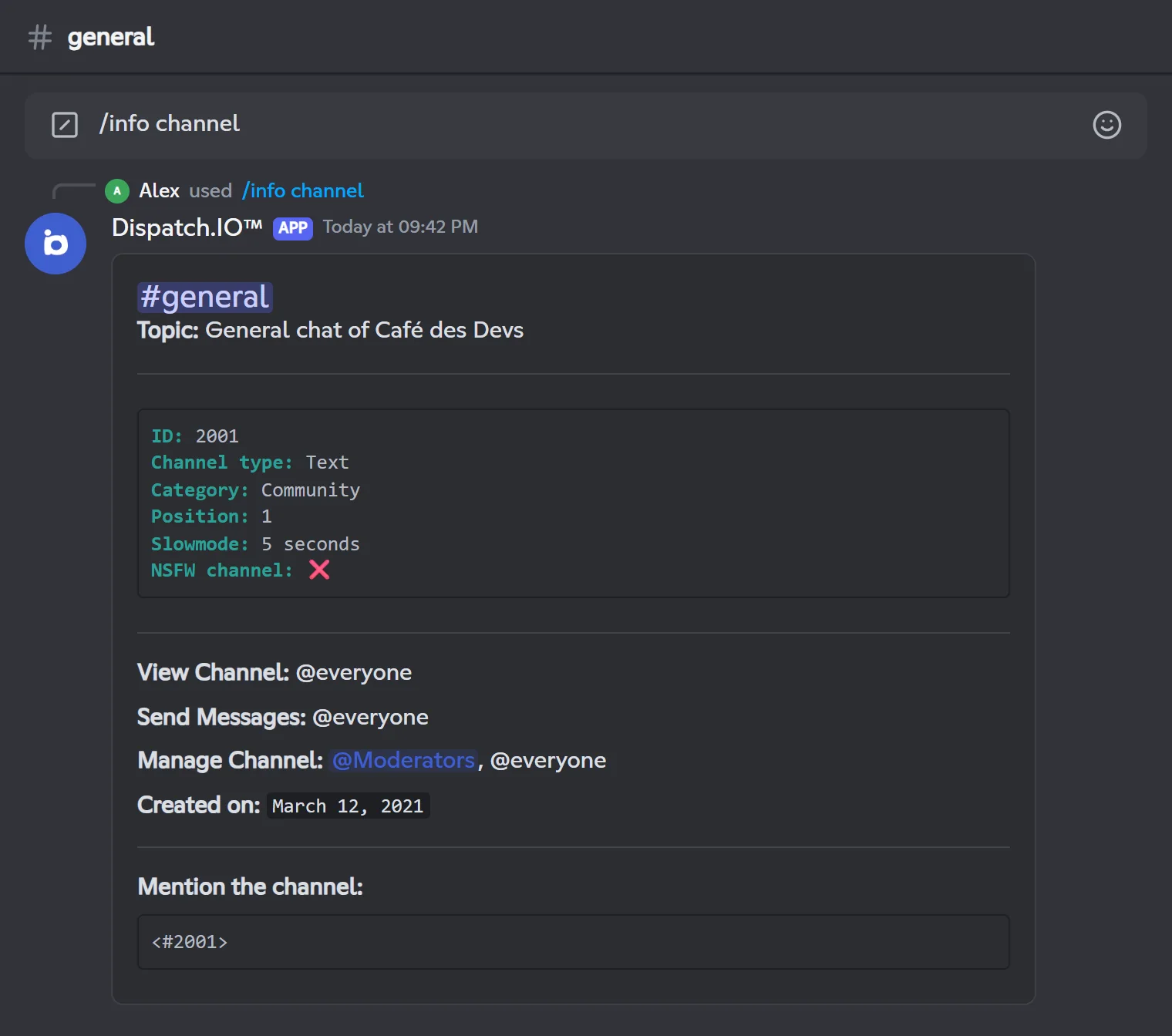
A channel card shows its topic, ID, type, category, position, slowmode, NSFW status, and for a voice channel its bitrate and user limit. It also lists the roles that can see the channel, write in it (or connect and speak, for voice) and manage it: these are the roles allowed in the channel's own settings. @everyone appears when the channel doesn't change the default permission for everyone.
/info channelShows information about a channel and the roles that can access it.
Syntax
/info channel [channel:<channel>]Options
| Option | Type | Required | Description |
|---|---|---|---|
channel | Channel | No | The channel to show. Defaults to the current channel. |
Member permission
None (every member)
Bot permission
None
Where to use it
Servers where Dispatch.IO is present
Rate limit
1 use every 10 seconds (shared with /info)
Plan
Free
Examples
/info channel/info channel channel:#general
Result on Discord
/info emoji
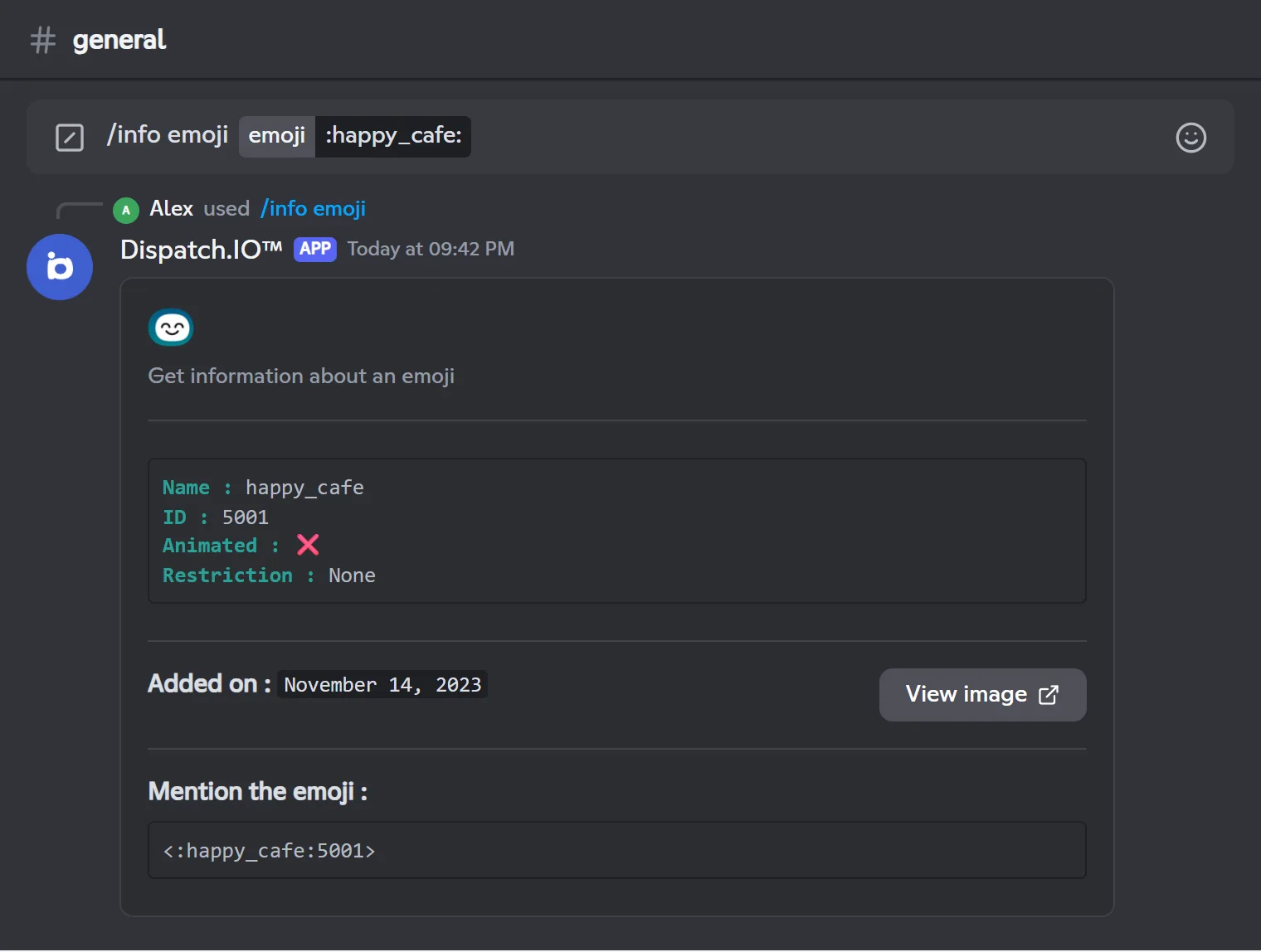
/info emojiShows information about a custom emoji of the server: name, ID, animated or not, allowed roles, date added, a link to the image and the code to copy.
Syntax
/info emoji emoji:<emoji>Options
| Option | Type | Required | Description |
|---|---|---|---|
emoji | Text | Yes | The emoji to show. Pick it from Discord's emoji picker. |
Member permission
None (every member)
Bot permission
None
Where to use it
Servers where Dispatch.IO is present
Rate limit
1 use every 10 seconds (shared with /info)
Plan
Free
Examples
/info emoji emoji::happy_cafe:
Only custom emojis of the current server are accepted. For a Unicode emoji or one from another server, the bot replies that it is not a valid custom emoji.
Result on Discord
Profile and Premium
Show a Dispatch.IO profile and check your subscriptions.
Showing a profile with /profil
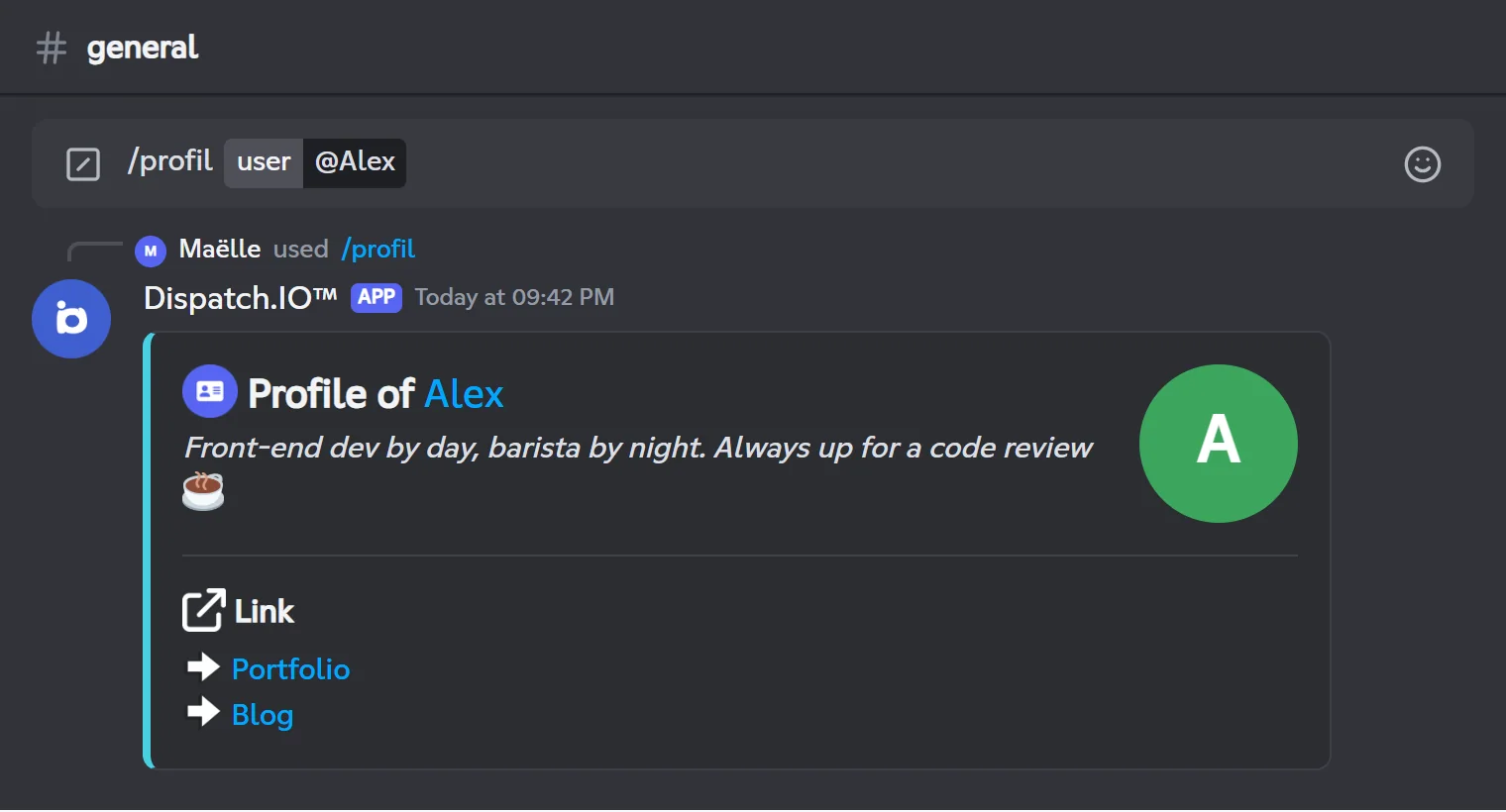
/profil shows a member's Dispatch.IO profile (yours by default): their name, avatar, description and links. If the person has Dispatch.IO badges, the first one is shown before their name. If they added a profile banner, it appears at the top.
You set up your profile on the website, in the Profile section of your dashboard:
- Your description: a single text, shown on every server;
- Your links: up to 5 public links (label + address);
- Profile banner: a wide image.
All of these settings are free. The border of the reply uses the person's Highlight color, a Premium perk set in the dashboard's Preferences; without it, the server color.
Your birthday and country are never shown by /profil. A profile with no description and no link shows "This profile is still empty. Set it up from the Dispatch.IO dashboard."
/profilShows a member's Dispatch.IO profile.
Syntax
/profil [user:<member>]Options
| Option | Type | Required | Description |
|---|---|---|---|
user | User | No | The person whose profile you want to see (mention or ID). Defaults to you. |
Member permission
None (every member)
Bot permission
None
Where to use it
Servers and DMs (user install supported)
Rate limit
1 use every 10 seconds
Plan
Free
Examples
/profil/profil user:@Alex
In an English Discord client the command is shown as /profile.
Result on Discord
Checking Premium with /premium
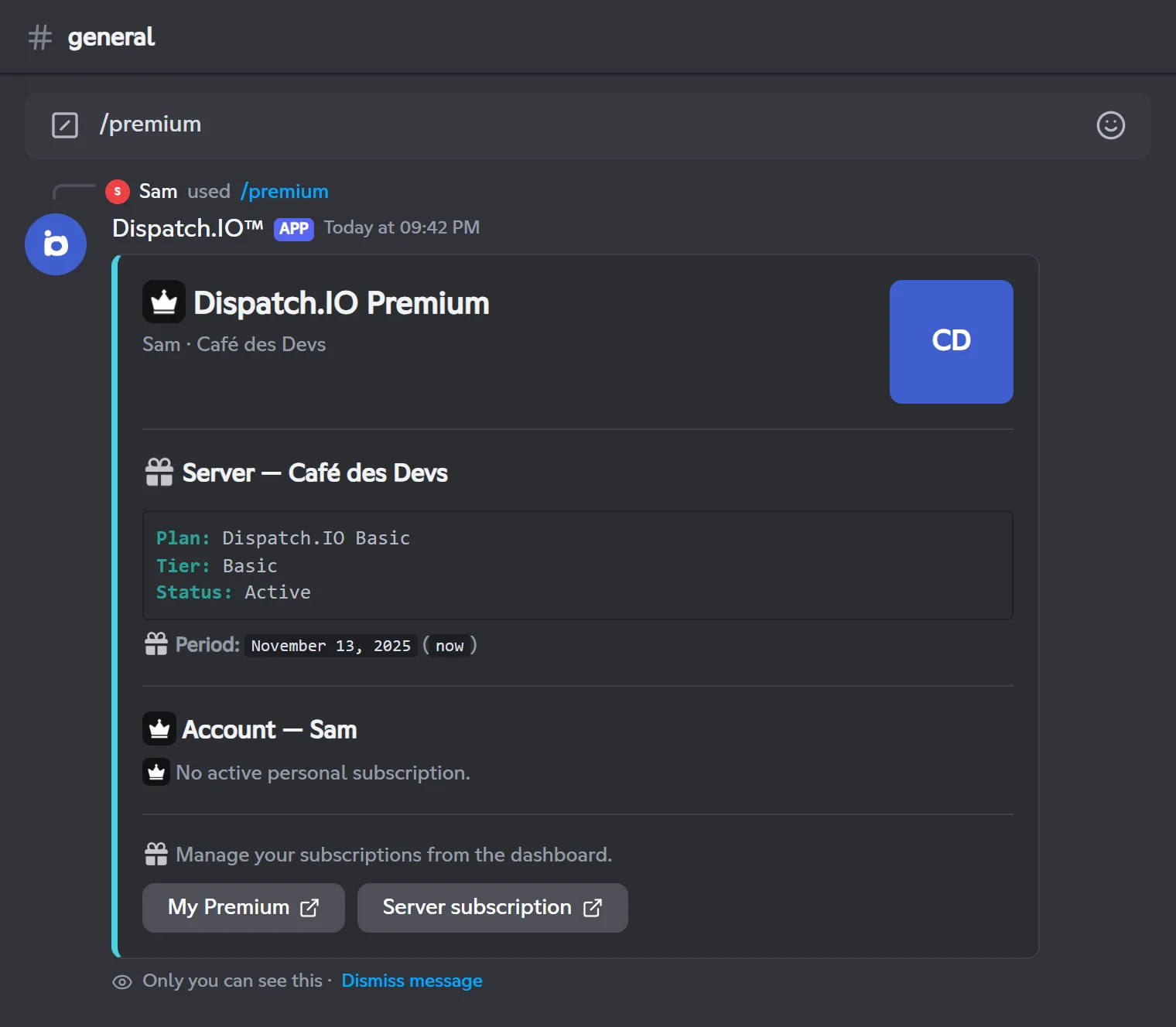
/premium privately shows the subscription of the server you're in and your personal subscriptions:
- Server: the active plan (Dispatch.IO Basic or Dispatch.IO Ultimate, including an Ultimate slot provided by an Individual Ultimate subscription), its tier, its status (Active, Trial, Past due, Cancels at period end) and its end date;
- Account: your Individual Basic or Individual Ultimate plans, including those shared with you (marked "Shared").
The My Premium button opens your subscription management on the website. The Server subscription button is added if you're an administrator of the server (Administrator permission or ADMIN role). In a DM, the server part simply tells you to run the command in a server.
/premiumPremium overview for this server and your account.
Syntax
/premiumMember permission
None (every member)
Bot permission
None
Where to use it
Servers and DMs (user install supported)
Rate limit
2 uses every 10 seconds
Plan
Free
Examples
/premium
Result on Discord
The plans and what they unlock are described in Premium plans and limits; purchases are made from Shop and subscription.
Report a message, a member or a bug
Alert the server's moderators or the Dispatch.IO team.
/report has three subcommands. The reply is always private: the reported person is not notified.
| Subcommand | Name in a French client | Who receives the report |
|---|---|---|
/report message | /signaler message | The server's moderators and the Dispatch.IO team |
/report user | /signaler utilisateur | The server's moderators and the Dispatch.IO team |
/report bug | /signaler bug | The Dispatch.IO team only |
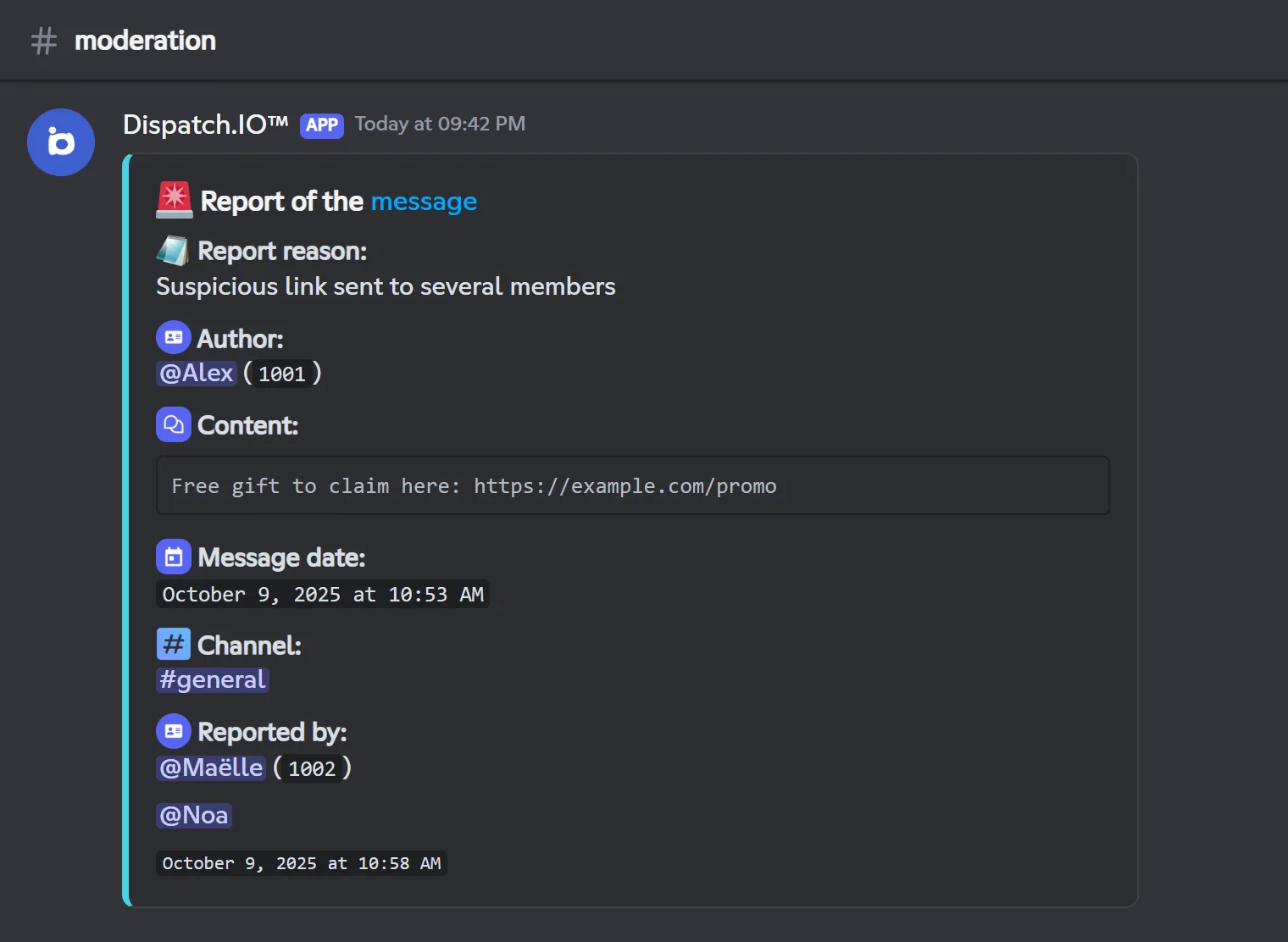
On a server, message and member reports are posted in the Moderation & Sanction Logs channel, in the server's language. If that channel isn't set up, the server's moderators receive nothing. Like any sanction log, the message may mention the people set up for emergency alerts (the server owner by default): see Logs.
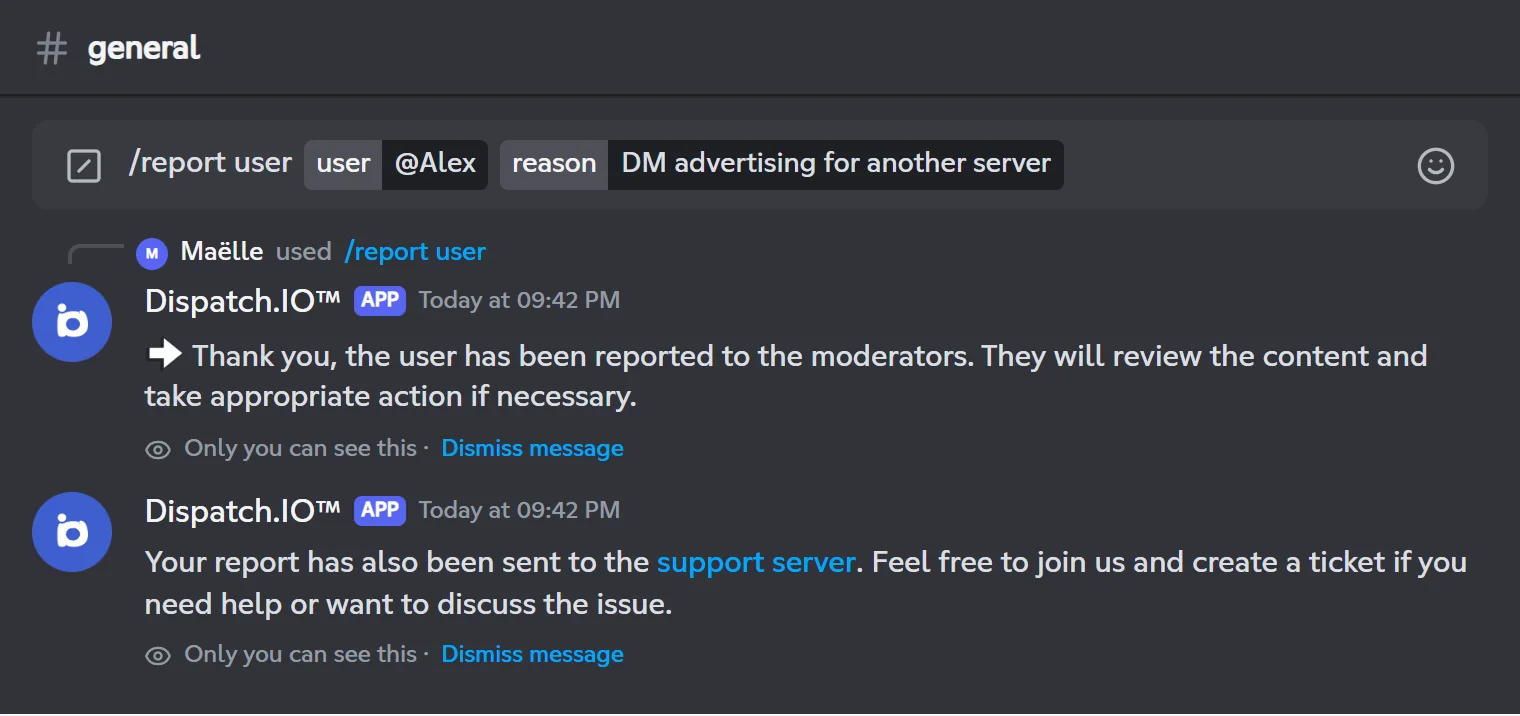
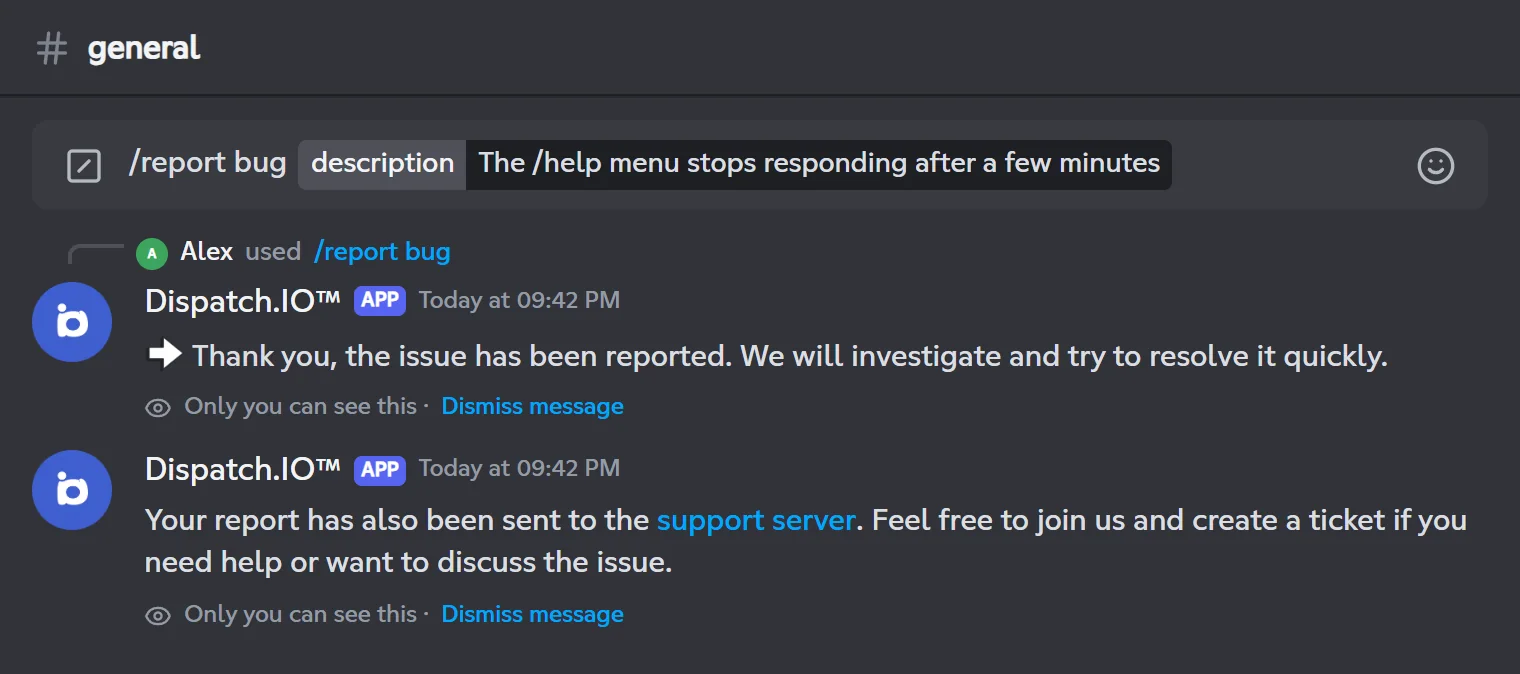
After your confirmation, a second private message invites you to join the Dispatch.IO support server if you want to talk about it.
Important
Admins: to receive your members' reports, pick a Moderation & Sanction Logs channel on the dashboard's Channels page or in /config.
/report message
To copy a message ID, turn on Discord's Developer Mode (Settings, Advanced), then right-click the message and choose "Copy Message ID". If the message is in another channel, give that channel with the channel option.
/report messageReports a specific message to the moderators.
Syntax
/report message message_id:<ID> reason:<reason> [channel:<channel>] [image:<file>]Options
| Option | Type | Required | Description |
|---|---|---|---|
message_id | Text | Yes | The ID of the message to report. |
reason | Text | Yes | The reason for the report. |
channel | Channel | No | The channel the message is in. Defaults to the current channel. |
image | Attachment | No | An image to attach to the report, such as a screenshot. |
Member permission
None (every member)
Bot permission
None
Where to use it
Servers and DMs (user install supported)
Rate limit
2 uses every 60 seconds (shared with /report)
Plan
Free
Examples
/report message message_id:7001 reason:Suspicious link sent to several members
You can't report your own messages or Dispatch.IO's messages.
Result on Discord
/report user
/report userReports a member to the moderators.
Syntax
/report user user:<member> reason:<reason> [image:<file>]Options
| Option | Type | Required | Description |
|---|---|---|---|
user | User | Yes | The person to report. |
reason | Text | Yes | The reason for the report. |
image | Attachment | No | An image to attach to the report. |
Member permission
None (every member)
Bot permission
None
Where to use it
Servers and DMs (user install supported)
Rate limit
2 uses every 60 seconds (shared with /report)
Plan
Free
Examples
/report user user:@Alex reason:DM advertising for another server
You can't report yourself or Dispatch.IO.
Result on Discord
/report bug
/report bugReports a problem with the bot to the Dispatch.IO team.
Syntax
/report bug description:<description> [image:<file>]Options
| Option | Type | Required | Description |
|---|---|---|---|
description | Text | Yes | Description of the problem. |
image | Attachment | No | A screenshot of the problem. |
Member permission
None (every member)
Bot permission
None
Where to use it
Servers and DMs (user install supported)
Rate limit
2 uses every 60 seconds (shared with /report)
Plan
Free
Examples
/report bug description:The /help menu stops responding after a few minutes
Result on Discord
Change a nickname
Change or remove your nickname, or another member's if you moderate the server.
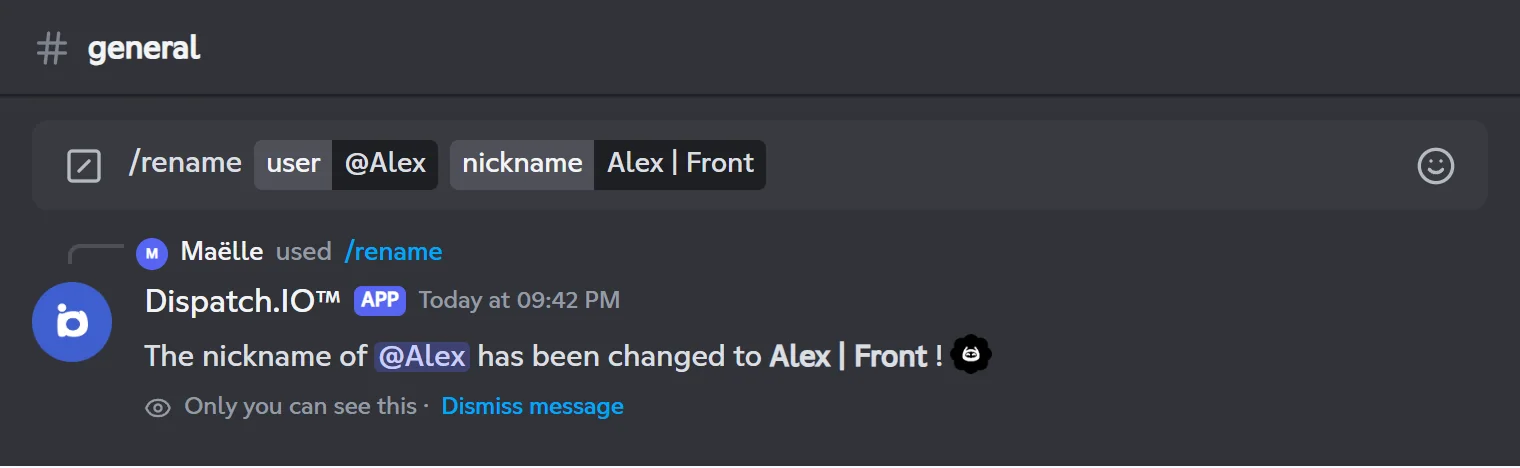
/rename changes your nickname on the server, or removes it if you leave nickname empty. The bot makes the change for you, so you don't need Discord's "Change Nickname" permission.
To rename someone else, you need the "Manage Nicknames" permission or an ADMIN or MODO role set up on the server. A few rules apply:
- nobody can rename the server owner;
- you can't rename a member whose highest role is higher than or equal to yours;
- Dispatch.IO's role must sit above the highest role of the person being renamed (including yourself).
When you rename another member, the change is recorded in the Member & Profile Logs channel if it is set up.
/renameChanges or removes your nickname on the server, or another member's.
Syntax
/rename [user:<member>] [nickname:<nickname>]Options
| Option | Type | Required | Description |
|---|---|---|---|
user | User | No | The person to rename (moderators only). Defaults to you. |
nickname | Text | No | The new nickname. Leave empty to remove the nickname. |
Member permission
None for yourself; Manage Nicknames (or an ADMIN or MODO role) for another member
Bot permission
Manage Nicknames
Bot permission
The bot's basic permissions (see the note)
Where to use it
Server only
Rate limit
1 use every 10 seconds
Plan
Free
Examples
/rename nickname:Alex | Front/rename user:@Alex nickname:Alex | Front/rename
In a French Discord client the command is shown as /renommer, with the options utilisateur and nickname.
Basic permissions checked: View Channel, Send Messages, Embed Links, Read Message History, Add Reactions, Use External Emojis and Manage Messages. If the bot's role is missing one of them, the command doesn't reply at all.
Result on Discord
Translate a message
The Translate this context-menu command, available from any message.
"Translate this" isn't a slash command: you open it from a message's menu.
- Right-click the message (long-press on mobile).
- Choose Apps, then Translate this.
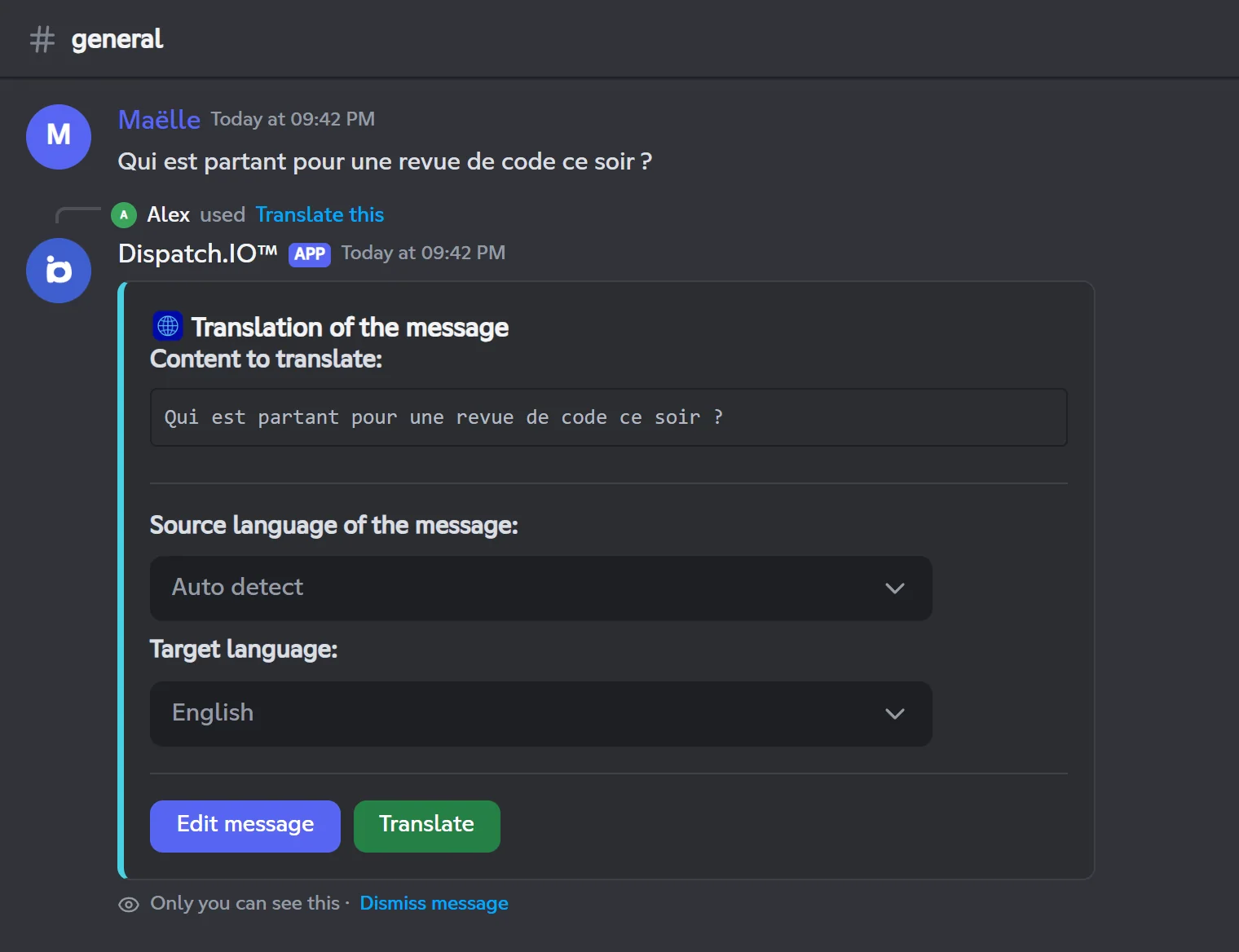
- A private panel shows the text to translate. Under Source language of the message, keep "Auto detect" or pick the original language.
- Under Target language, pick the language you want.
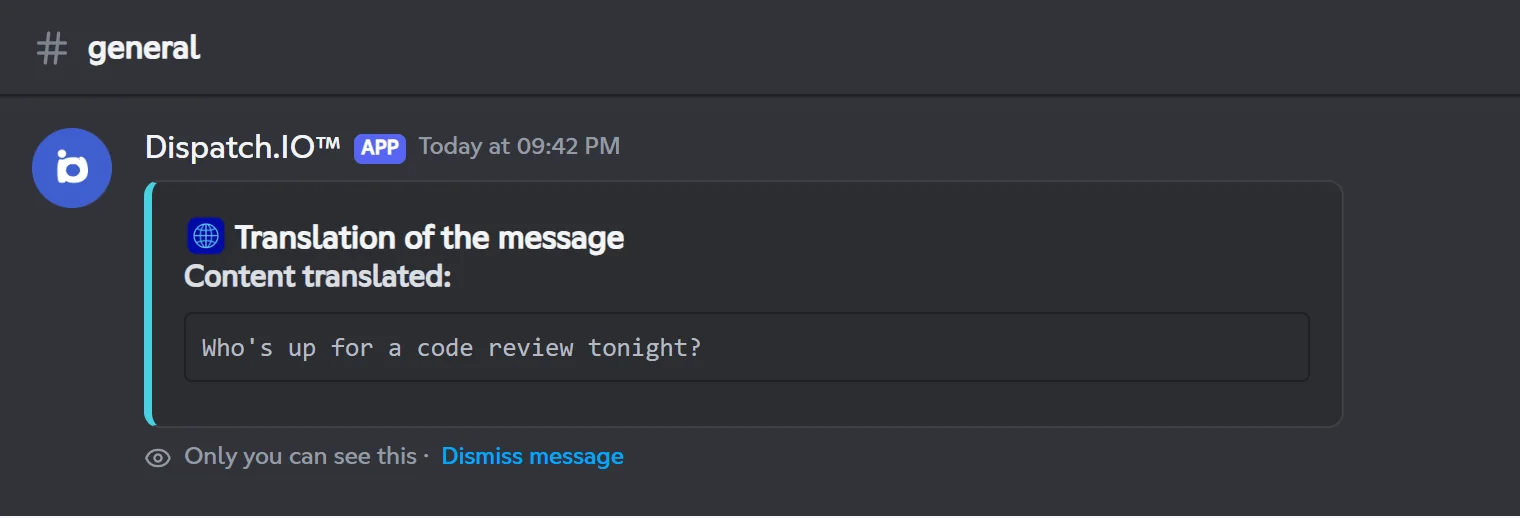
- Click Translate: the translation replaces the panel.
The Edit message button opens a form to fix or shorten the text before translating it. Available languages: French, English, Spanish, German, Italian, Portuguese, Japanese, Korean, Chinese, Arabic and Hindi.
The bot collects the text of the message, its embeds and containers, then strips emojis and formatting. Mentions are replaced with markers such as [USER MENTION]. The text must be at most 1,500 characters. The panel closes after 5 minutes without any action.
Warning
For now, only the first sentence of the text is translated. If the message has several sentences, use Edit message to translate one sentence at a time.
/Translate thisTranslates a message's text into one of the 11 available languages.
Syntax
Right-click a message, Apps, Translate thisMember permission
None (every member)
Bot permission
None
Where to use it
Servers and DMs (user install supported)
Rate limit
1 use every 20 seconds
Plan
Free
Examples
Right-click Maëlle's message, Apps, Translate this, then Target language English
In a French Discord client the command is called Traduire ce message.
Result on Discord
Result on Discord
Upload an image
Get a direct link to an image with /upload-image.
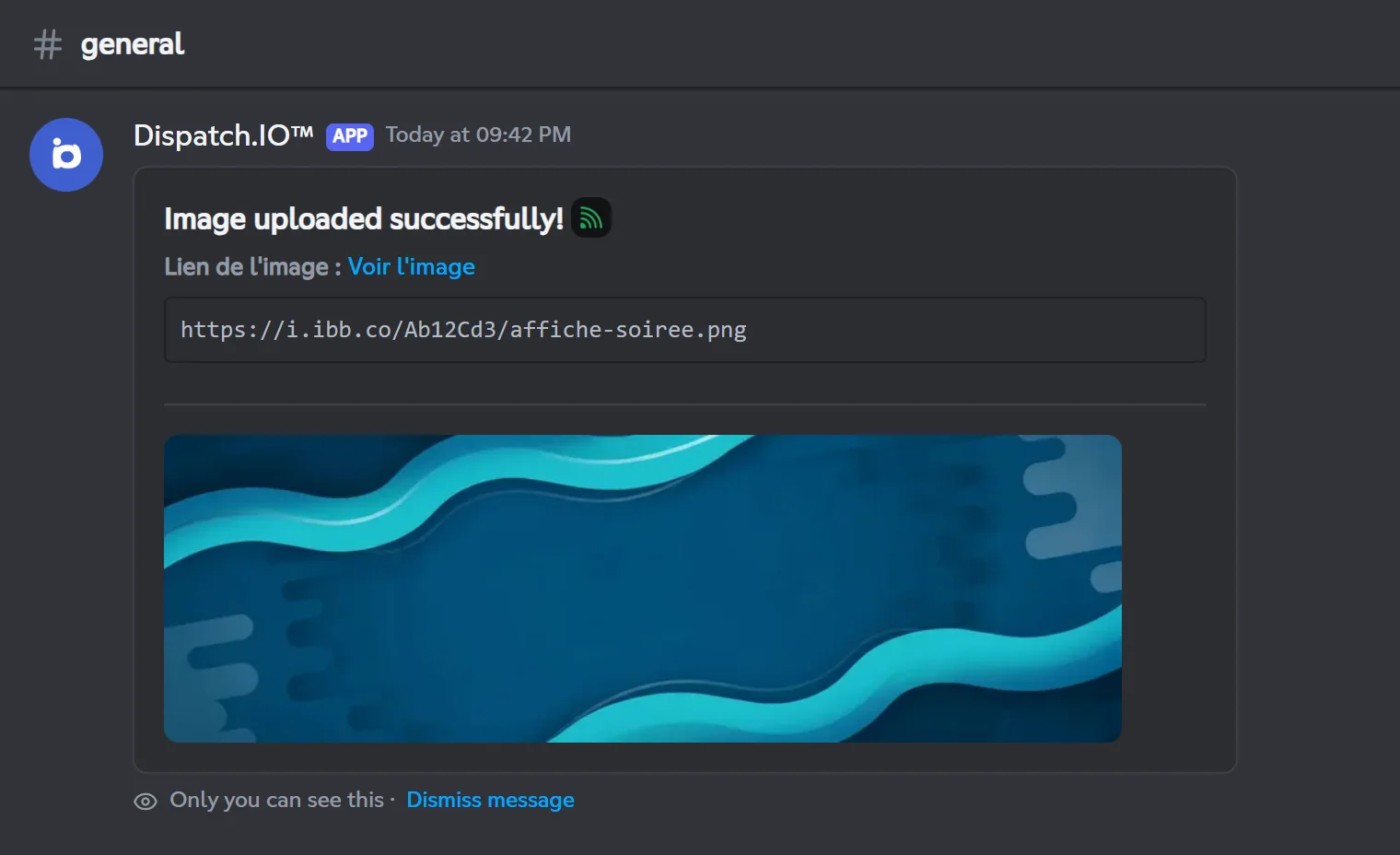
/upload-image uploads an image to the ImgBB host and gives you its direct link, handy for a banner or an embed. Accepted formats: JPG, JPEG, PNG, WEBP and GIF, 10 MB max.
- Run
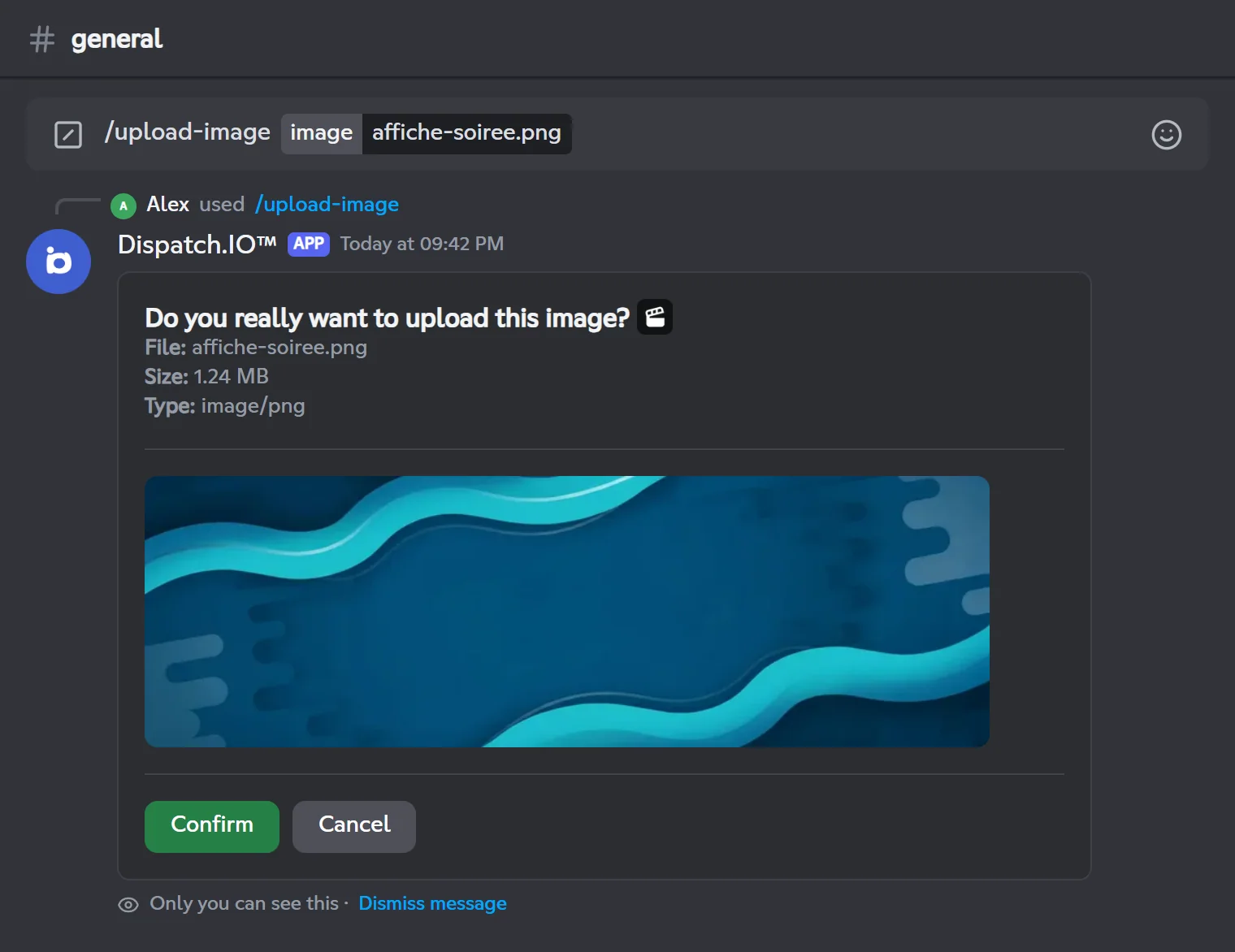
/upload-imageand attach your image to theimageoption. - A private preview shows the file's name, size and type.
- Click Confirm to upload it, or Cancel to close the preview.
- The bot shows the image link and a preview.
The buttons stay active for 2 minutes. The command only works on a server where Dispatch.IO is present.
Warning
Anyone with the link can see the image. Don't upload private images.
/upload-imageUploads an image and gives you its direct link.
Syntax
/upload-image image:<file>Options
| Option | Type | Required | Description |
|---|---|---|---|
image | Attachment | Yes | The image to upload (JPG, JPEG, PNG, WEBP or GIF, 10 MB max). |
Member permission
None (every member)
Bot permission
None
Where to use it
Servers where Dispatch.IO is present
Rate limit
2 uses every 30 seconds
Plan
Free
Examples
/upload-image image:affiche-soiree.png
Result on Discord
Result on Discord
Gemini, GIFs and manners
Ask the AI a question, share a GIF or remind people of their manners.
Asking a question with /gemini
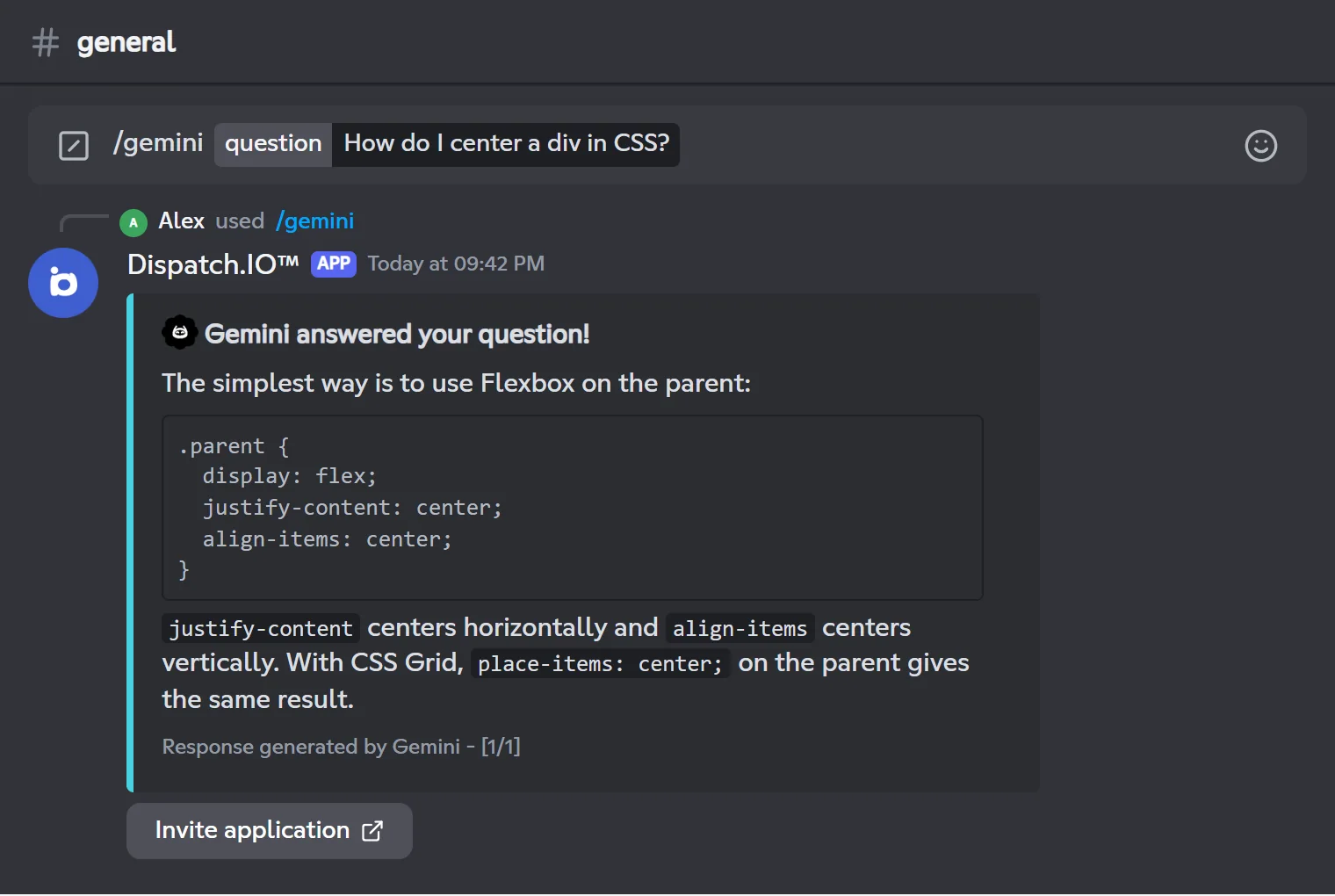
/gemini sends your question to Gemini, Google's AI, and posts the answer in the channel. Each question stands alone: Gemini doesn't remember previous questions. A long answer is split into several messages numbered at the bottom ([1/2], [2/2]…). On a server, the last message has an Invite application button.
/geminiAsks Gemini a question and posts its answer.
Syntax
/gemini question:<question>Options
| Option | Type | Required | Description |
|---|---|---|---|
question | Text | Yes | The question to ask Gemini. |
Member permission
None (every member)
Bot permission
None
Where to use it
Servers and DMs (user install supported)
Rate limit
2 uses every 20 seconds
Plan
Free
Examples
/gemini question:How do I center a div in CSS?
This command is separate from the AI assistant channel, which is set up in the server's channels.
Result on Discord
Sharing a GIF with /giphy
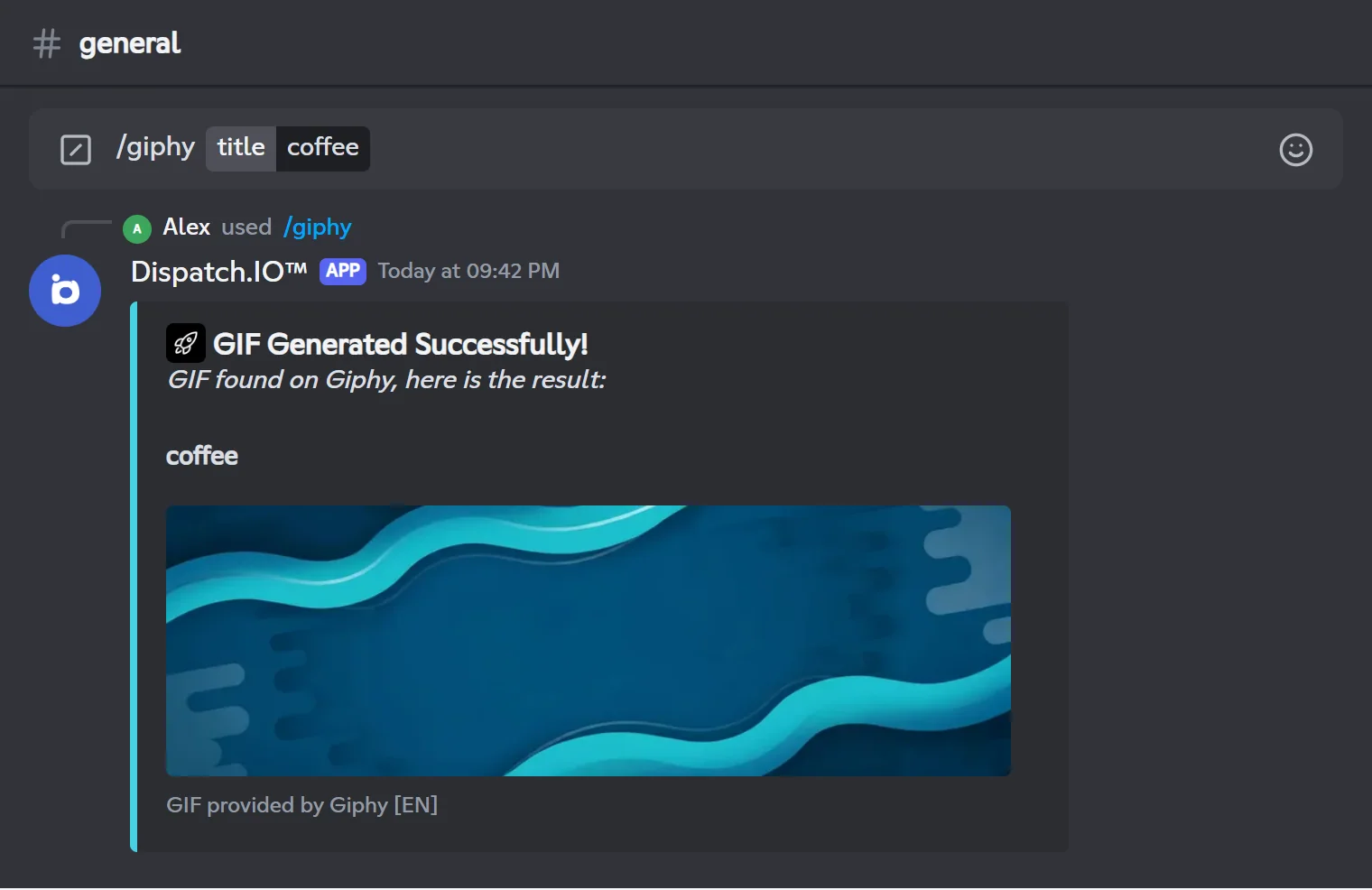
/giphy searches Giphy for your text and posts a random GIF among the first 10 results. The language option (with suggestions) sets the search language with a 2-letter code (fr, en, es, de, ja…). Without it, the search uses your Discord language (French, otherwise English).
/giphySearches Giphy for a GIF and posts it.
Syntax
/giphy title:<search> [language:<code>]Options
| Option | Type | Required | Description |
|---|---|---|---|
title | Text | Yes | The text to search for. |
language | Text (with suggestions) | No | Language code for the results, for example en, fr or es. |
Member permission
None (every member)
Bot permission
None
Where to use it
Servers and DMs (user install supported)
Rate limit
2 uses every 20 seconds
Plan
Free
Examples
/giphy title:coffee/giphy title:café language:fr
In a French Discord client the options are shown as titre and langue.
Result on Discord
Reminding people of their manners with /hello
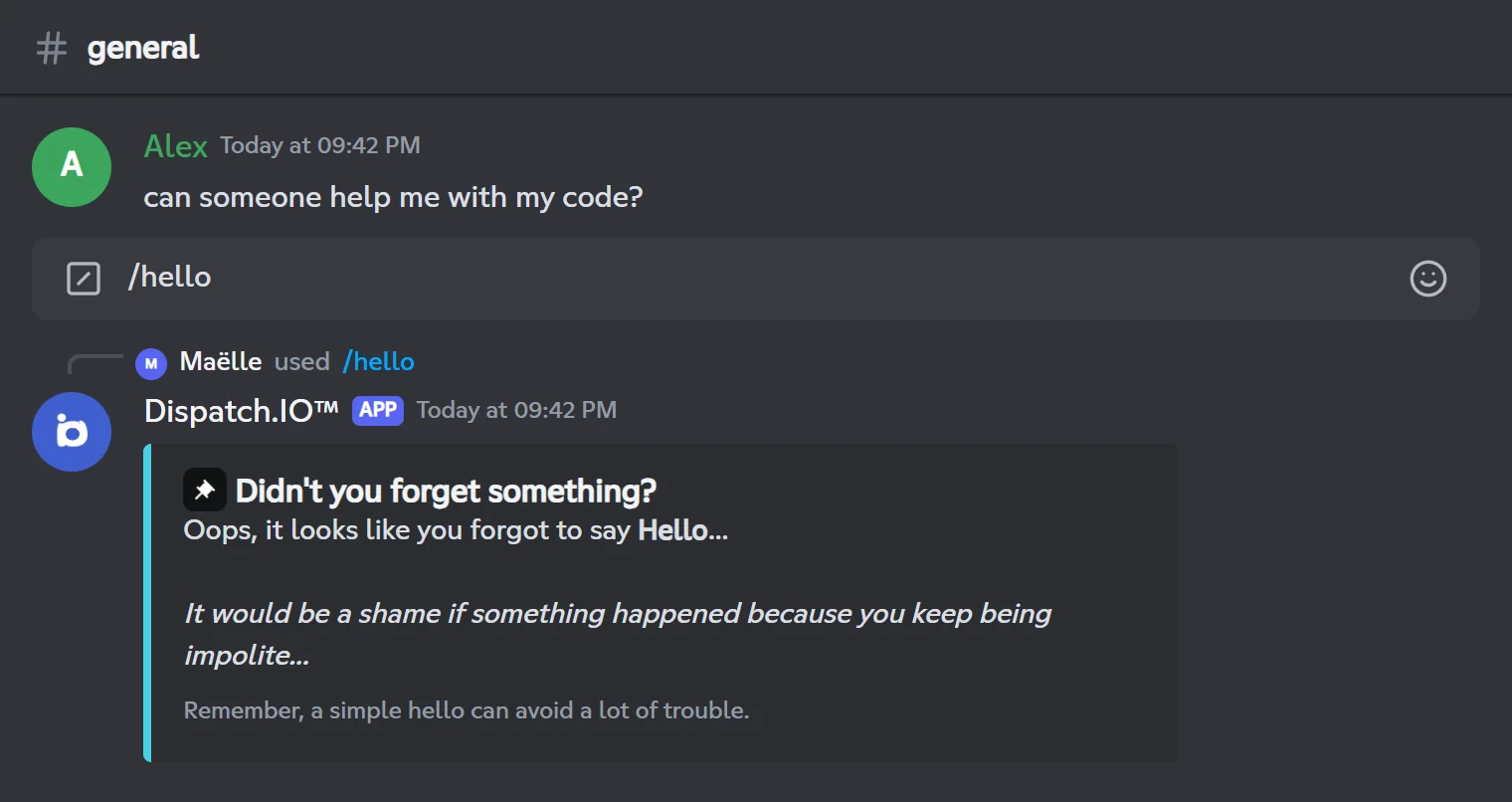
/hello posts a tongue-in-cheek message reminding people to say hello. The command has no option: use it right after the message of the person concerned.
/helloReminds someone to be polite if they forget to say hello.
Syntax
/helloMember permission
None (every member)
Bot permission
None
Where to use it
Servers and DMs (user install supported)
Rate limit
1 use every 10 seconds
Plan
Free
Examples
/hello
In a French Discord client the command is shown as /bonjour.
Result on Discord
Learn more
- All commands: the full list, how slash commands work, rate limits and which language replies use.
- Permissions and roles: the ADMIN and MODO roles and the permissions the bot needs.
- Levels and leaderboards and Community:
/rank,/top,/poll,/bumpand/ticket-manager. - The dashboard: set up your profile and your highlight colour.
- Troubleshooting: what to do when a command doesn't respond.