
This page gathers every command of Dispatch.IO, grouped by topic, with a one-line explanation and a link to the page that covers it in detail. It also explains what to know before using them: how to run a slash command, who can use what, where commands work, which language the bot replies in, and how often you can run a command.
It's for everyone: curious members, moderators and server owners.
Using a slash command
Type /, pick the command, fill in the options.
All Dispatch.IO commands are Discord slash commands.
- In a channel, type
/in the message bar. - Keep typing the command name to filter the list, for example
/infto find/info. - Pick the command. If it has subcommands, pick the right one:
/info user,/report bug… - Fill in the options. Required options are offered straight away; click the optional ones to add them. Some options show suggestions as you type.
- Press Enter.
Depending on the command, the bot first shows "Your request is being processed…" or "Dispatch.IO is thinking…", then its reply. A public reply is visible to the whole channel; a private reply is visible only to you, with the "Only you can see this" label.
Tip
In a French Discord client, many commands have a French name: /aide for /help, /avertir for /warn… The tables below give both names. This documentation always writes the syntax with the English command and option names.
Only one command isn't a slash command: Translate this. Right-click a message (long-press on mobile), then Apps and Translate this.
When a bot reply has a coloured border, it uses the server's colour (set in /config or on the dashboard). If you picked a Highlight color on your dashboard, that colour is used on the replies to your commands.
Here's what happens when you run a command:
General commands
Open to every member.
Details: General commands.
| Command | French name | What it does | Who can use it | Limit |
|---|---|---|---|---|
/help | /aide | Lists the commands you can use or details one command. | Everyone | None |
/ping | /ping | Shows the bot's latency. | Everyone | 2 / 60 s |
/info app, server, user, role, channel, emoji | /info app, serveur, utilisateur, rôle, salon, émoji | Information about the bot, the server, a member, a role, a channel or an emoji. | Everyone | 1 / 10 s |
/profil | /profil | Shows a member's Dispatch.IO profile. | Everyone | 1 / 10 s |
/premium | /premium | Premium overview for the server and your account. | Everyone | 2 / 10 s |
/report message, user, bug | /signaler message, utilisateur, bug | Reports a message, a member or a bug. | Everyone | 2 / 60 s |
/rename | /renommer | Changes or removes your nickname, or another member's. | Everyone (another member: Manage Nicknames) | 1 / 10 s |
/upload-image | /upload-image | Uploads an image and gives you its direct link. | Everyone | 2 / 30 s |
/gemini | /gemini | Asks the Gemini AI a question. | Everyone | 2 / 20 s |
/giphy | /giphy | Searches Giphy for a GIF and posts it. | Everyone | 2 / 20 s |
/hello | /bonjour | Jokingly reminds someone to say hello. | Everyone | 1 / 10 s |
| Translate this (message menu) | Traduire ce message | Translates a message's text. | Everyone | 1 / 20 s |
Moderation
Sanction and track members.
Details: Moderation.
| Command | French name | What it does | Who can use it | Limit |
|---|---|---|---|---|
/ban | /ban | Bans a user from the server. | Ban Members | 3 / 10 s |
/unban | /unban | Unbans a user. | Ban Members | 3 / 10 s |
/kick | /expulser | Kicks a member from the server. | Kick, Accept, and Deny Members | 3 / 10 s |
/timeout | /exclure | Times a member out. | Timeout Members | 3 / 10 s |
/end-timeout | /fin-exclure | Lifts a member's timeout. | Timeout Members | 3 / 10 s |
/warn | /avertir | Warns a member and records the warning. | Timeout Members | 3 / 10 s |
/infractions | /infractions | Shows your sanctions or a member's. | Everyone (another member: Timeout Members) | 1 / 10 s |
/snipe | /snipe | Retrieves a member's deleted messages from the logs. | Timeout Members | 1 / 30 s |
/force-disconnect | /forcer-déconnexion | Disconnects a member from their voice channel. | Timeout Members | 3 / 10 s |
Server management
Configure the bot and look after the server.
Details: Server management; for /config, see Bot configuration.
| Command | French name | What it does | Who can use it | Limit |
|---|---|---|---|---|
/config | /config | Opens the bot's configuration panel in Discord. | Administrator | None |
/clear number, user, conversation | /effacer nombre, utilisateur, conversation | Deletes messages: a given number (up to 100), a member's messages, or a conversation. | Administrator | 2 / 30 s |
/nuke | /nuke | Deletes and recreates a channel with its settings. | Administrator | 2 / 30 s |
/toggle-lock | /basculer-verrouillage | Locks or unlocks a channel for the welcome roles. | Manage Channels | 1 / 30 s |
/raid-mode | /mode-protection | Turns on or off the temporary block on new arrivals. | Administrator | 1 / 20 s |
/role-all | /role-tous | Gives a role to every member of the server. | Administrator | 1 / 60 s |
/banlist | /liste-ban | Shows the list of users banned from the server. | Administrator | 1 / 10 s |
/botlist | /liste-bot | Shows the list of apps on the server. | Administrator | 1 / 60 s |
/emoji add, remove, image | /émoji ajouter, supprimer, image | Adds or removes a server emoji, or shows an emoji's image. | Manage Expressions | 3 / 60 s |
Messages and announcements
Post messages as the bot.
Details: Messages and announcements.
| Command | French name | What it does | Who can use it | Limit |
|---|---|---|---|---|
/say | /dire | Sends, edits or deletes a bot message in a channel or a DM. | Administrator | 2 / 10 s |
/create-embed | /création-embed | Creates a custom embed message. | Administrator | 2 / 30 s |
/edit-embed | /édition-embed | Edits an embed sent by the bot. | Administrator | 2 / 30 s |
/create-container | /création-conteneur | Creates a custom container message. | Administrator | 2 / 30 s |
/edit-container | /édition-conteneur | Edits a container sent by the bot. | Administrator | 2 / 30 s |
/create-banner | /création-bannière | Generates a banner with a stylised title. | Administrator | 2 / 30 s |
Levels and leaderboards
Check and manage members' XP.
Details: Levels and leaderboards.
| Command | French name | What it does | Who can use it | Limit |
|---|---|---|---|---|
/rank * | /rang | Shows a member's rank card (level and XP). | Everyone | 1 / 10 s |
/top level, streak, tag | /top niveau, streak, tag | Leaderboards by level, by flames or by server tag. | Everyone | 1 / 10 s |
/modify-xp * | /modification-xp | Changes a member's level and XP. | Administrator | 1 / 10 s |
/reset-levels * | /réinitialisation-niveaux | Resets the levels of one member or of the whole server. | Administrator | 1 / 60 s |
* These commands only show up on the server when the leveling system is enabled (see Levels and XP).
Community
Liven up the server and get it known.
Details: Community.
| Command | French name | What it does | Who can use it | Limit |
|---|---|---|---|---|
/poll | /sondage | Creates a poll. | Everyone | 1 / 60 s |
/giveaway | /giveaway | Creates a giveaway. | Administrator | 1 / 20 s |
/bump | /bump | Promotes the server on the Dispatch.IO bump network. | Everyone | 1 / 20 s |
/ticket-manager | /gestion-ticket | Manages the ticket you're in: add or remove a member, rename the ticket. | Everyone, inside an open ticket | None |
Music and radio
Listen to music or the radio in voice.
Details: Music and radio. To start or control playback, you need to be in a voice channel.
| Command | French name | What it does | Who can use it | Limit |
|---|---|---|---|---|
/play | /jouer | Plays music in your voice channel. | Everyone | 3 / 20 s |
/play-radio | /jouer-radio | Starts a live radio station in your voice channel. | Everyone | 2 / 20 s |
/pause | /pause | Pauses the music. | Everyone | 2 / 10 s |
/resume | /reprendre | Resumes the music. | Everyone | 2 / 10 s |
/next | /suivant | Skips to the next track. | Everyone | 2 / 10 s |
/previous | /précédent | Goes back to the previous track. | Everyone | 2 / 10 s |
/stop | /arrêt | Stops the music or radio and disconnects the bot. | Everyone | 2 / 10 s |
/loop | /boucle | Turns loop playback on or off. | Everyone | 2 / 10 s |
/queue | /queue | Shows, clears or shuffles the queue. | Everyone | 2 / 10 s |
/title | /titre | Shows what is currently playing. | Everyone | 2 / 10 s |
/volume | /volume | Sets the volume, from 0 to 100. | Everyone | 2 / 10 s |
Aviation
Tools for flight simulation.
Details: Aviation.
| Command | French name | What it does | Who can use it | Limit |
|---|---|---|---|---|
/zulu * | /zulu | Shows the UTC (Zulu) time. | Everyone | 3 / 20 s |
/metar * | /metar | Shows an airport's METAR from its ICAO code. | Everyone | 3 / 20 s |
/frequencies * | /fréquences | Shows an airport's IVAO radio frequencies. | Everyone | 3 / 20 s |
* These commands only show up on the server when the Aviation module is enabled (dashboard Other commands page, or /config).
Internal commands
Three more commands exist: /badge, /flag and /manage-badge. The Dispatch.IO team uses them to manage the bot's badges and blacklist, and they only exist on the Dispatch.IO support server. They are described on a team-only page: Internal commands.
Who can use what
Permissions, ADMIN and MODO roles, enabled modules.
The permission shown in the tables
The "Who can use it" column gives the Discord permission required by default. Discord hides a command from members who don't have that permission: they don't see it when typing /. An administrator can change who sees each command in Server Settings, under Integrations, then Dispatch.IO.
When the command runs, the bot checks again. It accepts the Discord permission, or instead an ADMIN or MODO staff role registered for the server: the ADMIN role replaces every required permission, the MODO role only the moderation ones (ban, kick, timeout, manage messages and nicknames). Neither the dashboard nor /config can set these roles yet: without them, only Discord permissions count. The details are in Permissions and roles.
Warning
If you can see a command without having the required permission or role, or if the bot's role lacks the permissions it needs, the command doesn't reply at all: Discord eventually shows "The application did not respond".
Commands tied to a module
Some commands are only added to the server when their module is enabled, and removed when it's disabled:
| Module | Commands | Where to enable it |
|---|---|---|
| Leveling system | /rank, /modify-xp, /reset-levels | Dashboard Levels page or /config |
| Aviation | /zulu, /metar, /frequencies | Dashboard Other commands page or /config |
Blacklisted accounts
The Dispatch.IO team can blacklist an account that abuses the bot (spam, scams…). That account can no longer use any of the bot's commands or buttons: on every attempt it gets a reply only it can see, "You are blacklisted from using this app.", with the reason and, when the decision can be lifted, a link to support.
On a server or in DMs
Installing on the server or on your Discord account.
Dispatch.IO can be added in two ways:
- To a server: an administrator adds the bot to the server (see Adding the bot and first steps). Every command becomes available on that server, depending on each person's permissions.
- To your Discord account: from the Dispatch.IO app profile, choose to add it to your account rather than to a server. Some commands then work outside servers, in direct messages.
Commands that work in DMs:
| Command | Remark |
|---|---|
/help, /ping, /profil, /premium, /gemini, /giphy, /hello | /help then only lists the commands that work outside servers. |
/info app, /info user | The other /info subcommands need a server the bot is in. |
/report message, /report user, /report bug | Outside a server, the report only goes to the Dispatch.IO team. |
| Translate this | From the menu of any message. |
/create-embed, /edit-embed, /create-container, /edit-container | See Messages and announcements. |
Every other command only works on a server where Dispatch.IO is installed.
Reply language
Your Discord language or the server's?
The bot speaks French or English. It picks the language based on who the message is for:
| What you see | Language used |
|---|---|
| Command names, descriptions and options in Discord's list | Your Discord language: French if your Discord is in French, English for every other language. |
| Replies to your commands, public or private | Your Discord language, the same way. |
| Messages posted for the whole server: logs, reports received by moderators, polls, bump messages, ticket panels, rank cards, blacklist alerts… | The server language: the "Bot Language" setting on the dashboard, or the "Language and time zone" menu in /config. English by default. |
Example: Alex uses Discord in English on the Café des Devs server, which is set to French. When he types /help, the reply is in English. When he reports a message with /report message, the moderators receive it in French in their log channel.
Note
A few permission error messages (for example when a member tries to rename someone without being allowed to) are written in the server language.
Rate limits
How often you can run a command.
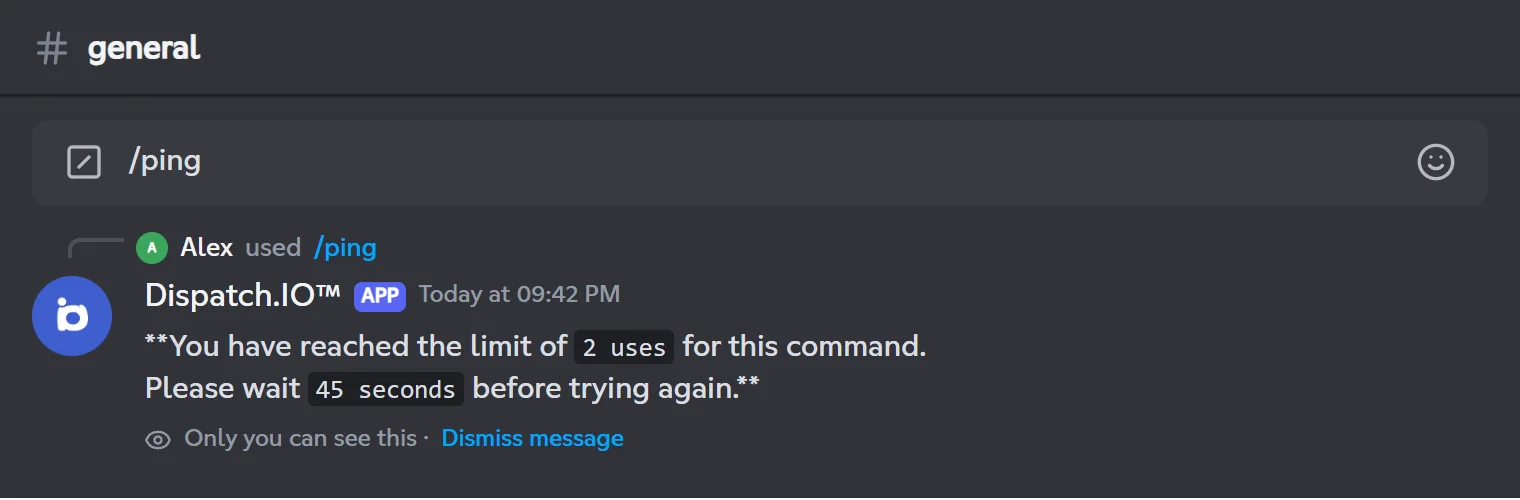
Most commands have a rate limit to prevent spam. The "Limit" column of the tables reads like this: 2 / 60 s means at most 2 uses in any 60-second window.
- The limit applies to each person: when you hit it, other members aren't blocked.
- It applies to each command: you can still use the others. Exception: subcommands of the same command share the limit (all
/infosubcommands count together, same for/report). - When you hit it, the bot tells you privately how long to wait.
- A command's card in
/help command:<command>also shows its limit.
Some features also have their own delay, separate from these limits: for example /bump can only be run again after several hours for the whole server (see Community).
When a command doesn't respond
The most common cases.
| What you see | What it means | What to do |
|---|---|---|
The command doesn't show up when you type / | You don't have the required permission, the module isn't enabled, or the bot isn't on this server. | Check the "Who can use it" column and the modules. |
| "The application did not respond" | A permission is missing, either yours or the bot's role. | See Permissions and roles. |
| The "being processed" message stays on screen | The command needs a server the bot is in (for example /info server in a DM). | Run it again on a server where Dispatch.IO is present. |
| "You have reached the limit…" | Rate limit reached. | Wait for the time shown. |
| "Oh no, it seems there's a problem…" | An unexpected error. The message contains the error details and a .log file. | Download the file and click Contact Support, or use /report bug. |
More cases are covered in Troubleshooting.