
Dispatch.IO can play music (search by title or link) and live radio stations in a voice channel. This page covers each command, the player message the bot posts during playback and the rules that decide who can control what. Music commands are open to every member: no Discord permission is required.
| Command | In Discord set to French | What it does |
|---|---|---|
/play | /jouer | Play a track or add it to the queue |
/pause | /pause | Pause the music |
/resume | /reprendre | Resume playback |
/next | /suivant | Skip to the next track |
/previous | /précédent | Go back to the start of the current track |
/loop | /boucle | Repeat the current track or the whole queue |
/queue | /queue | View, shuffle or clear the queue |
/play-radio | /jouer-radio | Listen to a live radio station |
/title | /titre | Show the current track or radio station |
/volume | /volume | Set the volume |
/stop | /arrêt | Stop the music or the radio |
Before you start
What you need
- Be in a voice channel.
/playand/play-radiobring the bot into your voice channel; without one, the bot replies "You must be in a voice channel to use this command.". - Stay in the same channel as the bot to control playback (pause, volume, queue…). Otherwise: "You must be in the same voice channel as me to use this command.".
- Permissions for the bot: Connect and Speak, on top of its basic permissions (View Channel, Send Messages, Embed Links, Read Message History, Add Reactions, Use External Emojis, Manage Messages). If one is missing,
/playand/play-radiodon't reply at all ("The application did not respond").
Music or radio, not both
Music and radio use two different players that can't run at the same time. If a radio is playing, /play replies "I'm already playing a radio station, please stop it first."; if music is playing, /play-radio replies "I am already playing music, please stop it first.". Use /stop to switch from one to the other.
Automatic stop
When no member (bots aside) is left in the bot's voice channel, the music or radio stops and the bot leaves the channel. The same happens if someone disconnects the bot.
Languages
Command replies use your Discord app's language. The player message and the track card (/title, /queue) use the server language, set in the dashboard.
Who can control playback
To stop members from cutting each other's music, some actions are reserved for the person who requested the current track (the "requester").
| Command | Be in voice | Be in the bot's channel | Requester only |
|---|---|---|---|
/play, /play-radio | Yes | No | No |
/pause, /resume, /previous | Yes | Yes | Yes |
/next, /loop | Yes ¹ | Yes ¹ | Yes |
/stop | Yes ¹ | Yes ¹ | No |
/queue, /title, /volume | Yes | Yes | No |
| Player message buttons | Yes ¹ | Yes ¹ | Yes |
¹ A member with the Discord Administrator permission can use /next, /loop, /stop and the Next and Stop buttons without being in the voice channel.
The requester rule: while the requester of the current track is in the bot's voice channel, only they (or a member with the Administrator permission) can control it. If they left the channel, anyone in the channel can. Otherwise the bot replies "You are not the one who requested this track, so you can't control it.".
Tip
Once the queue has finished, there is no current track anymore: control commands then give that same reply. Start a new track with /play or stop the player with /stop.
Playing music
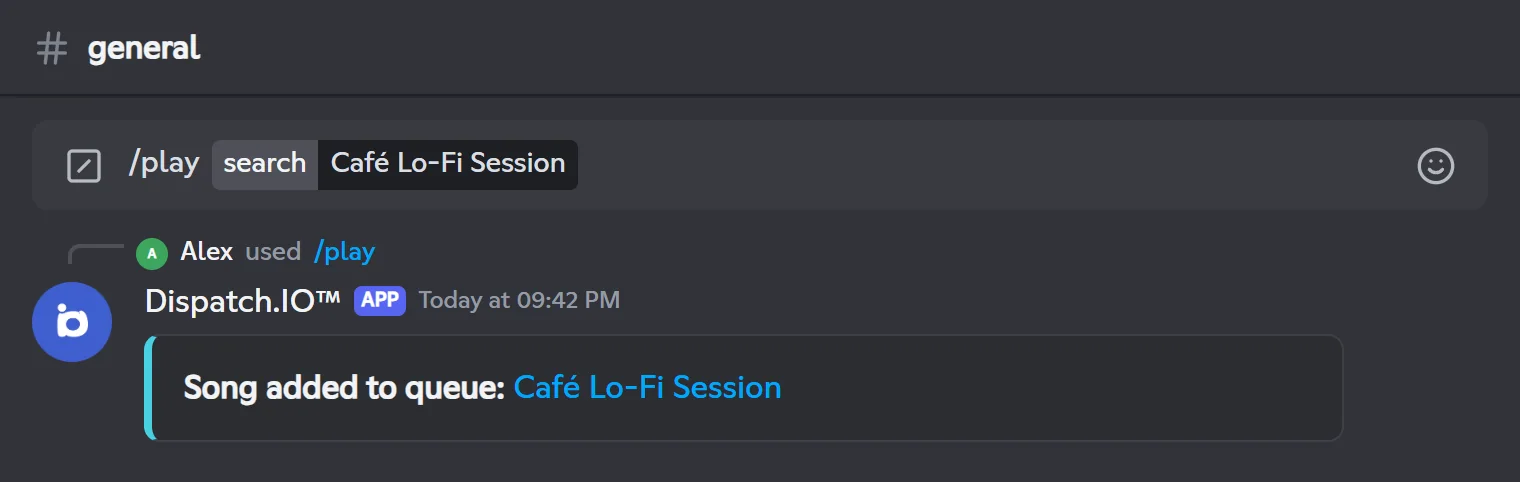
/play searches for a track (by name or by link) and plays it, or adds it to the queue if something is already playing. The bot joins your voice channel if it isn't there yet, at 100% volume.
- Join a voice channel.
- Type
/playand start writing the track name: Discord suggests up to 10 results. Pick one or send your text (or paste a link). - The bot confirms "Song added to queue: title". This message disappears after 5 seconds.
- The player message shows up in the channel (or updates) as soon as the track starts.
The two modes
Mode (select option) | If nothing is playing | If a track is already playing |
|---|---|---|
| Play or add to queue (default) | Plays the track | Adds the track to the end of the queue. With a playlist link, all its tracks are added. |
| Play now | Plays the track | Puts the track at the front of the queue and skips straight to it |
Warning
YouTube links are not accepted: the bot replies "YouTube links have been disabled.". Search for the track by name instead. With a playlist link, "Play now" only adds the first track, at the end of the queue: use the default mode for playlists.
/playSearches for a track and plays it in your voice channel, or adds it to the queue.
Syntax
/play query:<title or link> [select:<mode>]Options
| Option | Type | Required | Description |
|---|---|---|---|
query | Text (with suggestions) | Yes | The track name or a link (not YouTube). Suggestions appear as you type. |
select | Choice | No | "Play or add to queue" (default) or "Play now". |
Member permission
None (every member)
Bot permission
Connect + Speak + basic permissions
Where to use it
Server only
Rate limit
3 uses every 20 seconds
Plan
Free (included in every plan)
Examples
/play query:Café Lo-Fi Session/play query:Café Lo-Fi Session select:Play now
In Discord set to English, the options are shown as search: and play_or_play_now:. In French: /jouer recherche: jouer_ou_jouer_maintenant:
If nothing is found: "No results found for your search.". The player message is posted in the channel where the first /play was used.
Result on Discord
The player message
As soon as the first track starts, Dispatch.IO posts a "player" message in the channel where /play was first used. That same message is updated on every new track, pause, resume, volume change or queue addition.
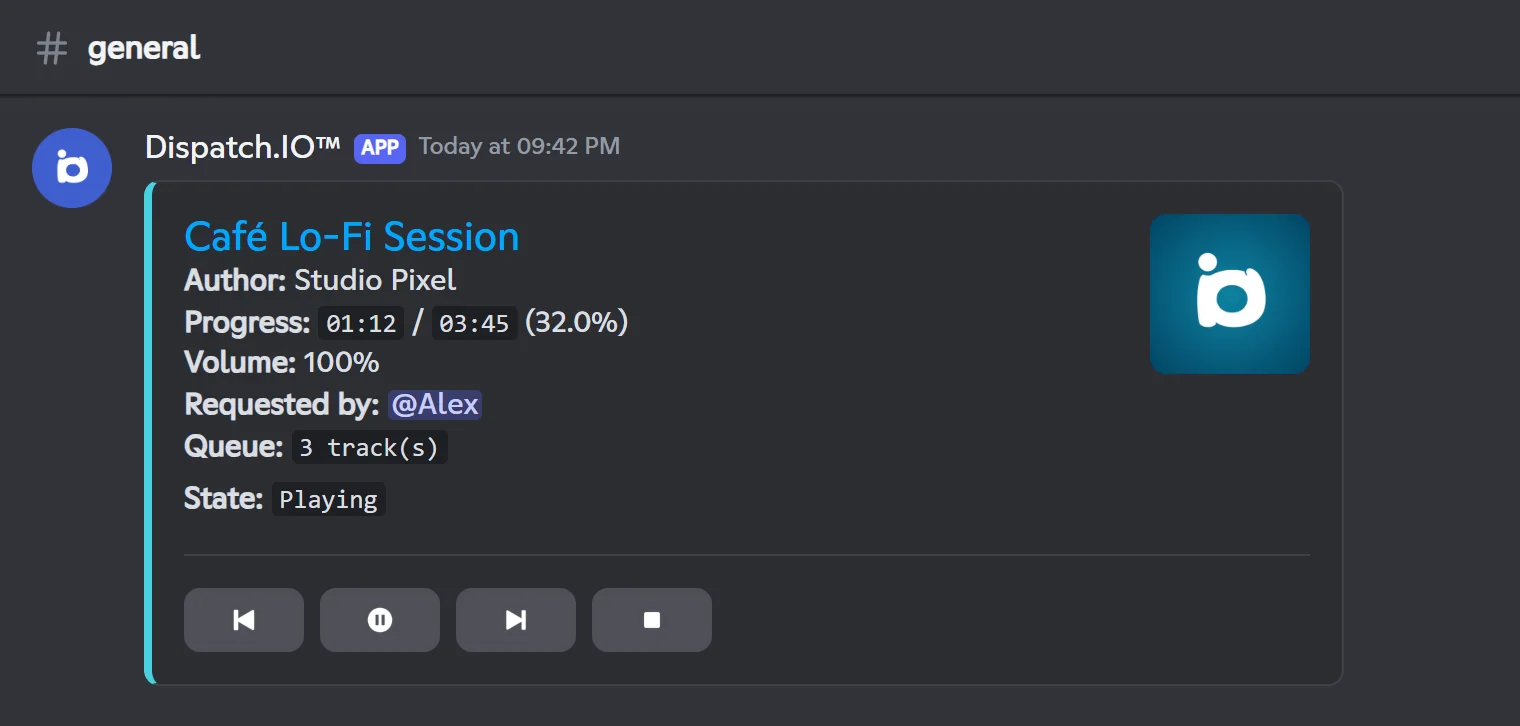
| Line | Content |
|---|---|
| Title | The current track, linking to its source, with its thumbnail (or the Dispatch.IO logo) |
| Author | The artist or channel |
| Progress | Position and length of the track, as a percentage, or "Live" for a stream |
| Volume | The player volume |
| Requested by | The member who added the track |
| Queue | How many tracks are waiting, or "No tracks waiting" |
| State | "Playing" or "Paused" |
Note
Progress is calculated when the message is updated: it doesn't move in real time. Use /title to see where the track is.
The buttons
| Button | Effect | Same as |
|---|---|---|
| Previous | Goes back to the start of the current track (see /previous) | /previous |
| Pause / Play | Pauses or resumes; the icon changes with the state | /pause, /resume |
| Next | Skips to the next track (greyed out when the queue is empty) | /next |
| Stop | Stops the music, deletes the player message and disconnects the bot | /stop |
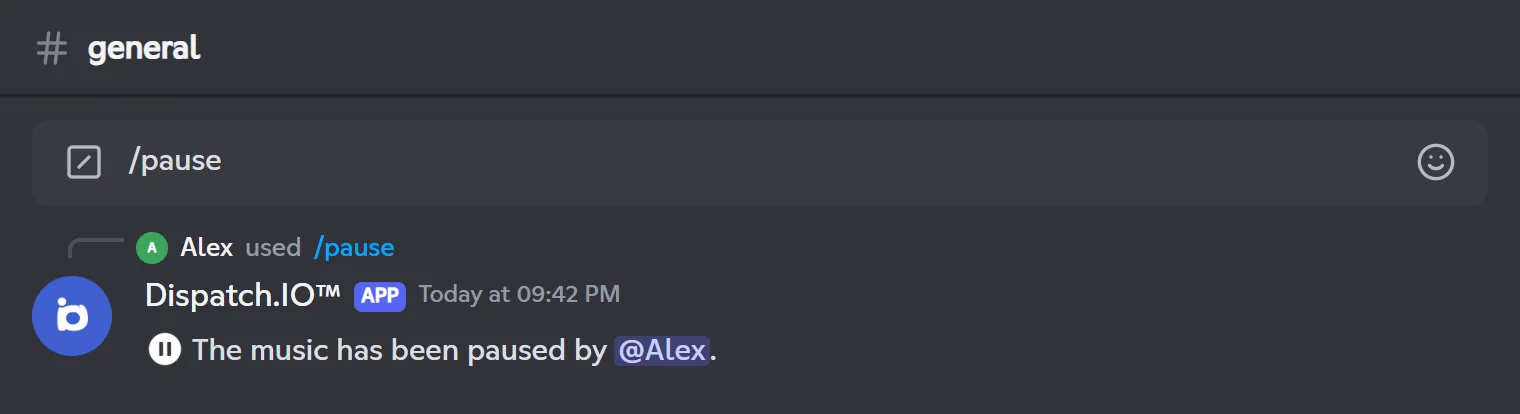
The buttons follow the same rules as the commands, including Stop, which is reserved for the requester. Error messages are only visible to you; confirmations ("The music has been paused by…") are public. The buttons respond for 1 hour after the current track started.
During and after playback
- Voice channel status: the bot shows the current track as the voice channel status.
- Queue finished: the message stays with the title "Unknown" and greyed-out buttons, and the bot stays in the voice channel. Add a track with
/playor disconnect the bot with/stop. - Player stopped (
/stop, Stop button, empty voice channel): the player message is deleted.
Pausing and resuming
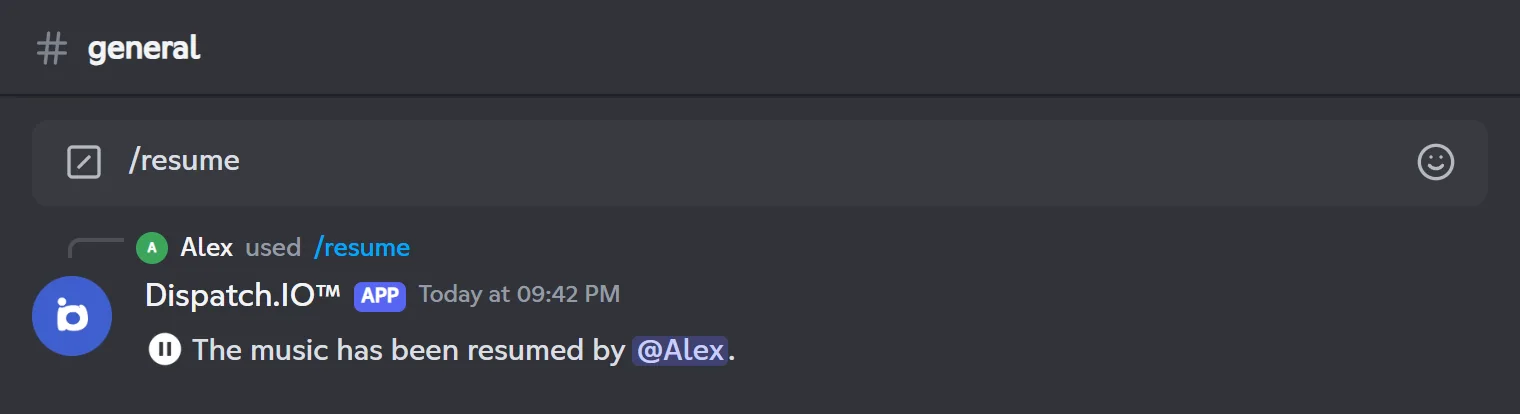
/pause and /resume pause and restart the current track. The player message switches to "Paused" or "Playing". The radio can't be paused: use /stop.
/pausePauses the current music.
Syntax
/pauseMember permission
None (requester rule)
Bot permission
Basic permissions
Where to use it
Server only
Rate limit
2 uses every 10 seconds
Plan
Free (included in every plan)
Examples
/pause
If the music is already paused: "The music is already paused.".
Result on Discord
/resumeResumes paused music.
Syntax
/resumeMember permission
None (requester rule)
Bot permission
Basic permissions
Where to use it
Server only
Rate limit
2 uses every 10 seconds
Plan
Free (included in every plan)
Examples
/resume
In Discord set to French: /reprendre
If the music isn't paused: "The music is not paused.".
Result on Discord
Skipping ahead or going back
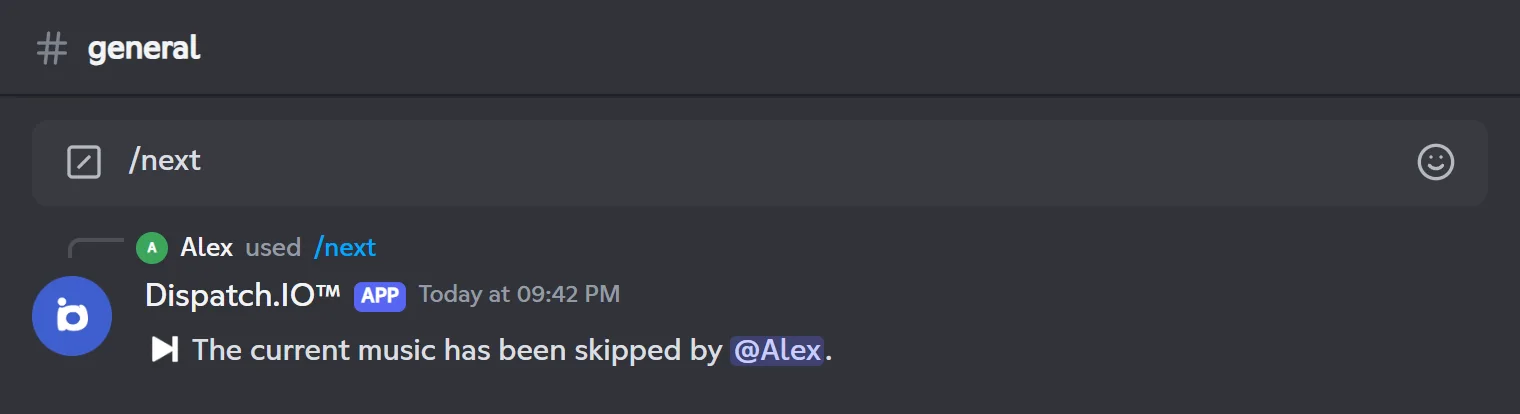
/next skips to the next track in the queue. /previous goes back to the start of the current track.
/nextSkips to the next track in the queue.
Syntax
/nextMember permission
None (requester rule)
Bot permission
Basic permissions
Where to use it
Server only
Rate limit
2 uses every 10 seconds
Plan
Free (included in every plan)
Examples
/next
In Discord set to French: /suivant
If nothing comes after the current track: "No next music found in the queue.". To stop the last track, use /stop.
Result on Discord
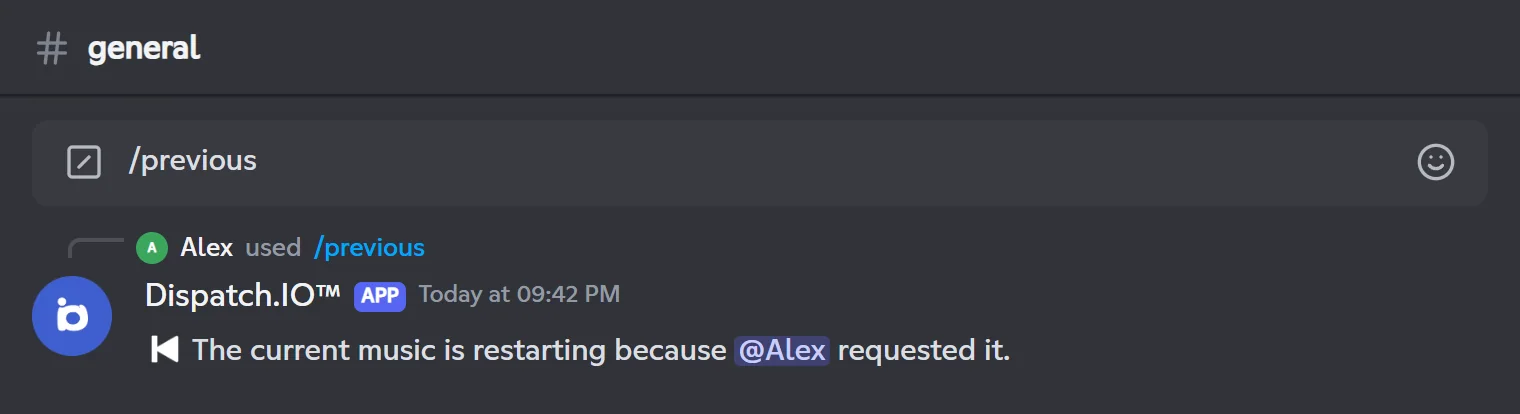
/previousRestarts the current track from the beginning.
Syntax
/previousMember permission
None (requester rule)
Bot permission
Basic permissions
Where to use it
Server only
Rate limit
2 uses every 10 seconds
Plan
Free (included in every plan)
Examples
/previous
In Discord set to French: /précédent
Works when the track has been playing for more than 10 seconds: it starts over.
Result on Discord
Going back to the previous track doesn't work yet
During the first 10 seconds of a track, /previous (and the Previous button) replies "Playing the previous music because … requested it.", but the current track keeps playing. To hear a track again, play it once more with /play.
Repeating a track or the queue
/loop turns on loop playback, either for the current track or for the whole queue.
| Mode | Effect |
|---|---|
| Current track | The current track starts over every time it ends. |
| Queue | Each finished track goes back to the end of the queue: the whole queue loops. |
/loop works like a switch: if a loop is already on (whatever its mode), the command turns it off. To change modes, run /loop once to turn it off, then again with the new mode.
/loopTurns loop playback of the current track or the queue on or off.
Syntax
/loop mode:<mode>Options
| Option | Type | Required | Description |
|---|---|---|---|
mode | Choice | Yes | "Current track" or "Queue". |
Member permission
None (requester rule)
Bot permission
Basic permissions
Where to use it
Server only
Rate limit
2 uses every 10 seconds
Plan
Free (included in every plan)
Examples
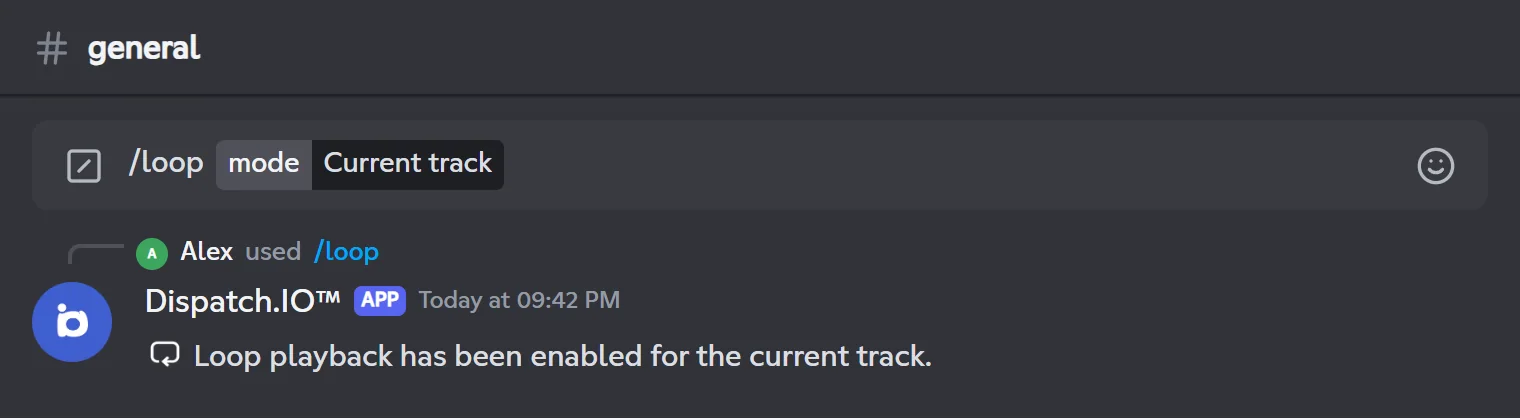
/loop mode:Current track/loop mode:Queue
In Discord set to French: /boucle mode:
When a loop is on, the reply is "Loop playback has been disabled.".
Result on Discord
Managing the queue
/queue shows, shuffles or clears the queue. It only works with music (not with the radio), and any member in the bot's voice channel can use it.
| Option | Effect |
|---|---|
| View the queue | Shows the current track, then the waiting tracks (10 per page) with their length and requester, the number of tracks and the total duration (current track included). |
| Shuffle the queue | Shuffles the order of the waiting tracks. |
| Clear the queue | Removes every waiting track; the current track keeps playing. |
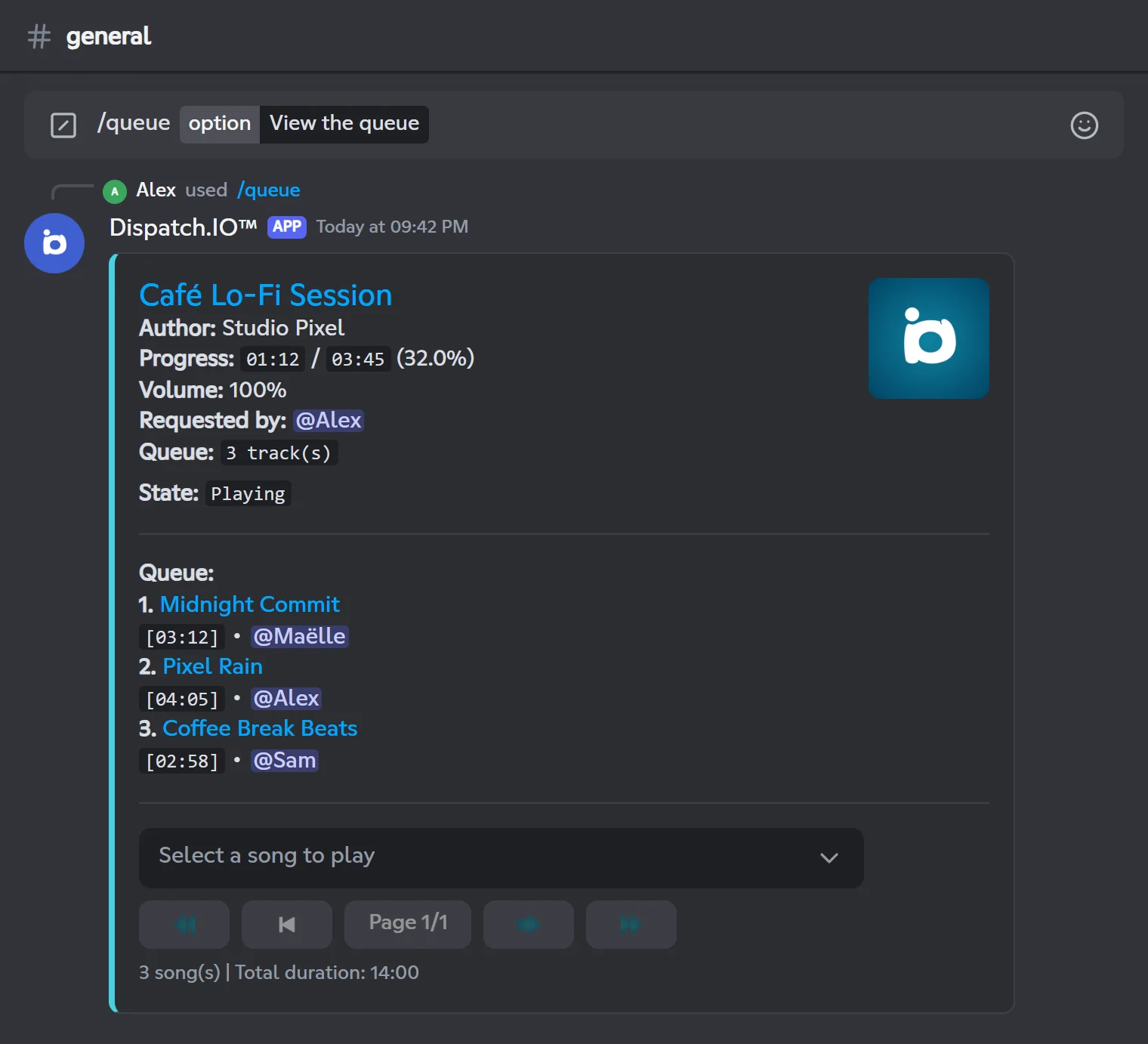
In the queue view, the Select a song to play menu lets you jump straight to a track: the tracks before it are removed from the queue and it starts right away (the bot confirms privately). The buttons switch pages. The menu and buttons stay usable for 60 seconds after your last action, and only you can use them.
/queueShows, shuffles or clears the music queue.
Syntax
/queue option:<action>Options
| Option | Type | Required | Description |
|---|---|---|---|
option | Choice | Yes | "View the queue", "Shuffle the queue" or "Clear the queue". |
Member permission
None (be in the bot's voice channel)
Bot permission
Basic permissions
Where to use it
Server only
Rate limit
2 uses every 10 seconds
Plan
Free (included in every plan)
Examples
/queue option:View the queue/queue option:Shuffle the queue
Public replies: "The queue has been shuffled." or "The queue has been cleared.".
Result on Discord
Listening to the radio
/play-radio plays a live radio station in your voice channel. As you type, Discord suggests up to 25 stations whose name contains your text.
- Join a voice channel (with no music playing).
- Type
/play-radio, write part of the station name and pick it from the list. - The bot joins your voice channel, starts the radio and shows its name as the voice channel status.
/play-radioPlays a live radio station in your voice channel.
Syntax
/play-radio query:<station>Options
| Option | Type | Required | Description |
|---|---|---|---|
query | Text (with suggestions) | Yes | The station name, for example France Inter. Pick it from the suggestions. |
Member permission
None (every member)
Bot permission
Connect + Speak + basic permissions
Where to use it
Server only
Rate limit
2 uses every 20 seconds
Plan
Free (included in every plan)
Examples
/play-radio query:France Inter
In Discord set to French: /jouer-radio recherche:
If the station's stream can't be found: "An error occurred while playing the radio stream.".
Result on Discord
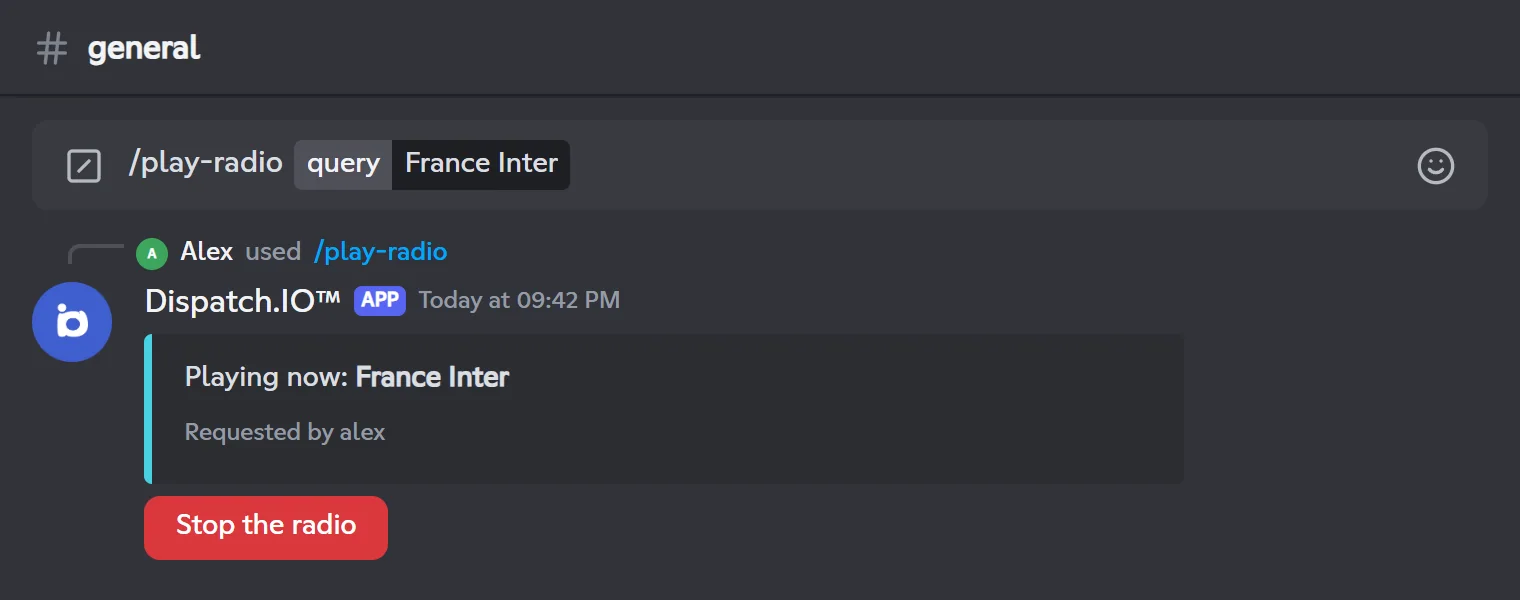
The Stop the radio button only works for the person who started the radio; for anyone else, Discord shows "This interaction failed". Any member in the bot's voice channel can also stop it with /stop. When the radio stops (button, /stop or empty voice channel), its message says "The radio playback has been stopped." and the button is greyed out.
While a radio is playing, /title shows its name and /volume sets its volume. The radio can't be paused.
Showing the current track
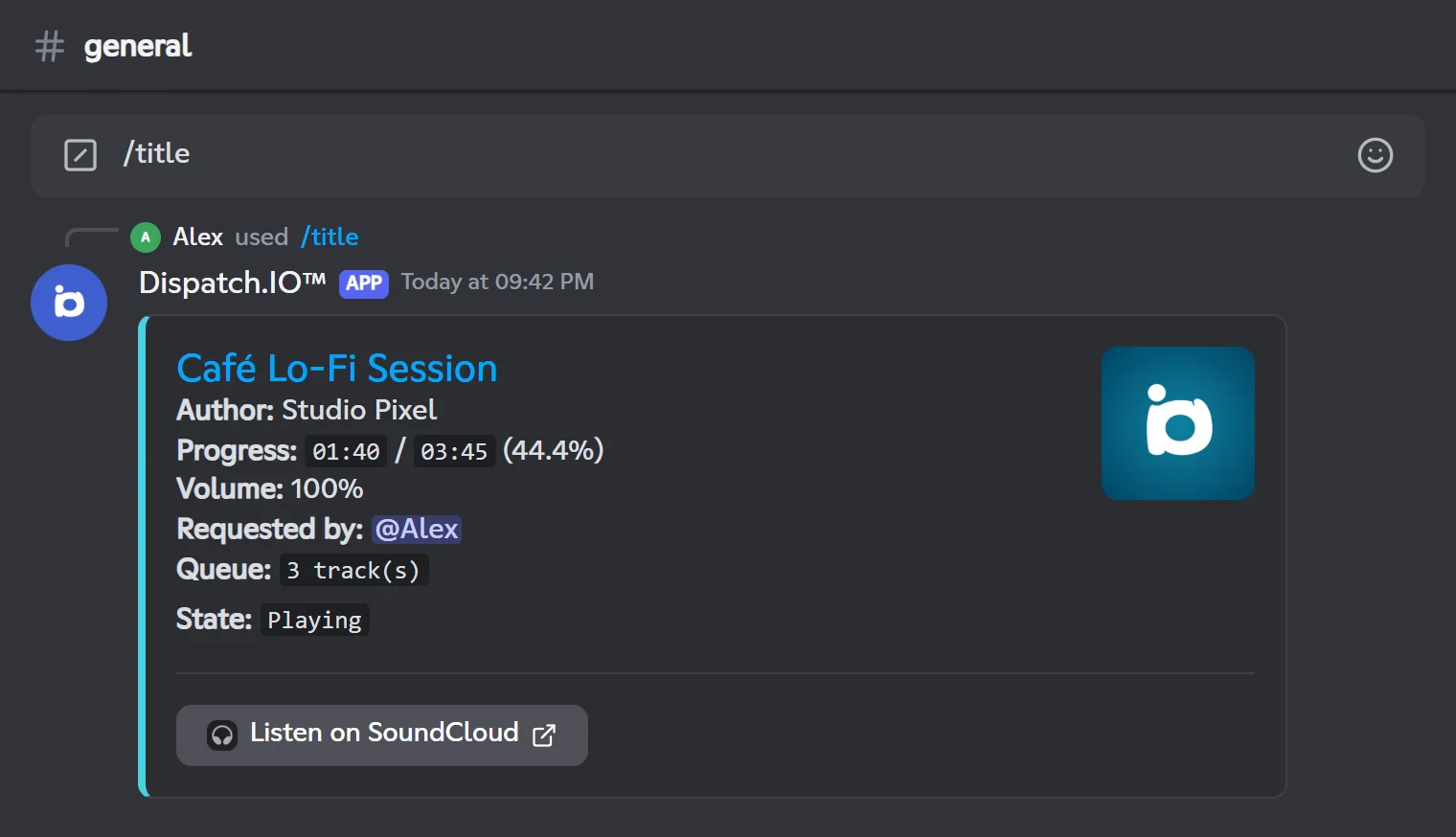
/title shows what's playing: the full track card for music, or the station name for a radio.
For music, the card repeats the player message information (title, author, up-to-date progress, volume, requester, queue, state) and adds a button to the source when it is recognised: Listen on YouTube, Listen on Spotify, Listen on SoundCloud or Watch on Twitch.
/titleShows the track currently playing or the radio station name.
Syntax
/titleMember permission
None (be in the bot's voice channel)
Bot permission
Basic permissions
Where to use it
Server only
Rate limit
2 uses every 10 seconds
Plan
Free (included in every plan)
Examples
/title
In Discord set to French: /titre
For a radio, the reply is "Now playing: France Inter".
Result on Discord
Setting the volume
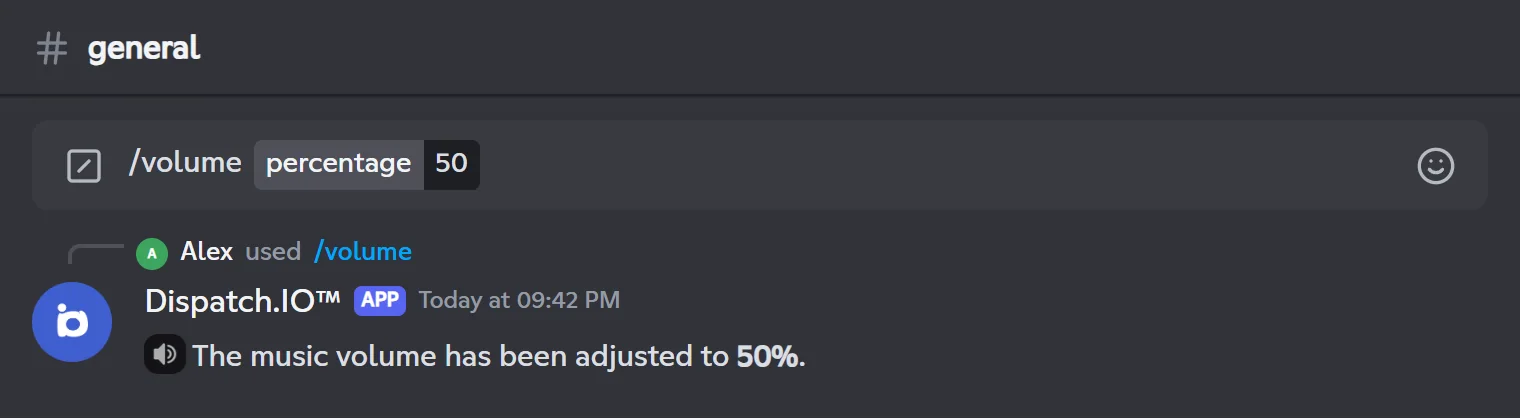
/volume sets the music or radio volume, from 0 to 100%. For music, the Volume line of the player message is updated. The setting applies to everyone in the voice channel.
/volumeSets the music or radio volume.
Syntax
/volume percentage:<0-100>Options
| Option | Type | Required | Description |
|---|---|---|---|
percentage | Integer | Yes | The volume, from 0 to 100. |
Member permission
None (be in the bot's voice channel)
Bot permission
Basic permissions
Where to use it
Server only
Rate limit
2 uses every 10 seconds
Plan
Free (included in every plan)
Examples
/volume percentage:50
In Discord set to French: /volume pourcentage:
For a radio, the reply is "The radio volume has been adjusted to 50%.".
Result on Discord
Stopping the music or the radio
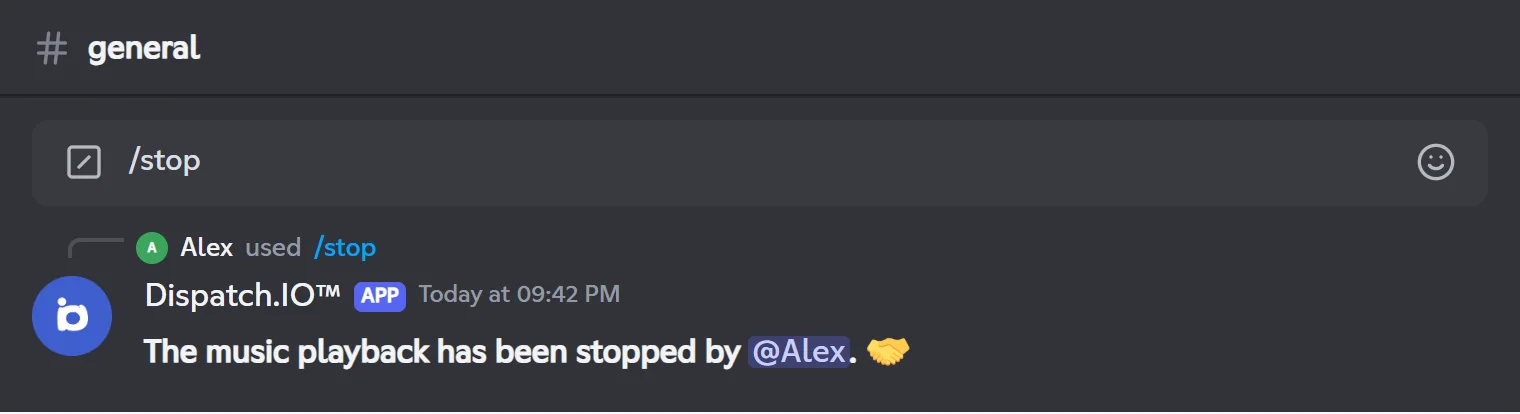
/stop stops whatever is playing and disconnects the bot from the voice channel.
- Music: any member in the bot's voice channel can stop it (a member with the Administrator permission can do it from anywhere). The player message is deleted and the queue is lost.
- Radio: you must be in the bot's voice channel. The radio message shows that it was stopped.
/stopStops the current music or radio and disconnects the bot from the voice channel.
Syntax
/stopMember permission
None (be in the bot's voice channel)
Bot permission
Basic permissions
Where to use it
Server only
Rate limit
2 uses every 10 seconds
Plan
Free (included in every plan)
Examples
/stop
In Discord set to French: /arrêt
If you aren't in the bot's voice channel, /stop replies "I am not currently playing any music or radio.", even if music is playing: join the channel and try again.
Result on Discord
Troubleshooting
| What you see | Explanation and fix |
|---|---|
"The application did not respond" on /play or /play-radio | The bot lacks Connect or Speak (or one of its basic permissions). |
| "You must be in a voice channel to use this command." | Join a voice channel before running the command. |
| "You must be in the same voice channel as me to use this command." | Join the voice channel the bot is in. |
| "You are not the one who requested this track…" | Only the requester (or an Administrator) can control the track. This message also shows up once the queue has finished: start again with /play or stop with /stop. |
| "I'm already playing a radio station…" / "I am already playing music…" | Stop the current playback with /stop first. |
| "YouTube links have been disabled." | Search for the track by name instead of pasting the link. |
| "No results found for your search." | Try other words or a direct link. |
| The player shows "Unknown" with greyed-out buttons | The queue has finished and the bot is waiting: /play to continue, /stop to disconnect it. |
| A player button answers "This interaction failed" | The track has been playing for more than an hour or the message is old: use the commands. |
| A "… recovery mode …" message | The bot is under maintenance: music is temporarily unavailable, try again later. |
| "Oh no, it seems there’s a problem..." | Unexpected error (music service unreachable, for example): try again later or contact support with the attached .log file. |
For other issues, see the Troubleshooting page.
Related pages
- Music player: how the music module works.
- Permissions and roles: the permissions the bot needs.
- All commands: the full command list.