
Dispatch.IO can play music and live radio stations in a voice channel. This page explains how the player works: where the sound comes from, how the queue works, what happens to the player message from the first track until playback stops, who is allowed to control playback and when the bot leaves the voice channel.
It is meant both for members who listen to music and for administrators who want to understand the module. Each command (/play, /queue, /stop…) is detailed on the Music and radio page.
How the player works
Dispatch.IO has two separate players:
| Music | Radio | |
|---|---|---|
| Started with | /play | /play-radio |
| Sound source | A dedicated audio server (Lavalink) that finds the track and streams it | The station's live stream, found in an online radio directory |
| Search | By track name (up to 10 suggestions while typing) or by link, except YouTube links | By station name (up to 25 suggestions) |
| Queue | Yes | No: one station at a time |
| Pause | Yes | No |
| Message shown | The player message, with its buttons | A "Playing now" message with a Stop the radio button |
- One player at a time per server: if a radio is playing,
/playis refused, and the other way around. Use/stopto switch from one to the other. - Free: the player is available on every server, without any Premium plan.
- The bot joins your voice channel on the first
/play, with the volume at 100%. It deafens itself: it doesn't listen to what is said in the channel. - During bot maintenance (recovery mode), music is unavailable: commands reply with an error message.
The queue
The queue holds the tracks that will play after the current one.
/playplays the track if nothing is playing, otherwise adds it to the end of the queue. A playlist link adds all its tracks.- The Play now mode of
/playputs the track at the front of the queue and skips straight to it. /next(or the Next button) skips to the next track;/previous(or Previous) restarts the current track./looprepeats the current track or the whole queue./queueshows the queue (10 tracks per page, with the total duration), shuffles or clears it, and lets you jump straight to a track.
When the last track ends, the queue is empty: the bot waits for a new /play without leaving the voice channel (see below).
The life of the player message
From the first track until playback stops.
The player message is posted in the channel where the first /play was typed, and stays there for the whole listening session. It is written in the server's language.
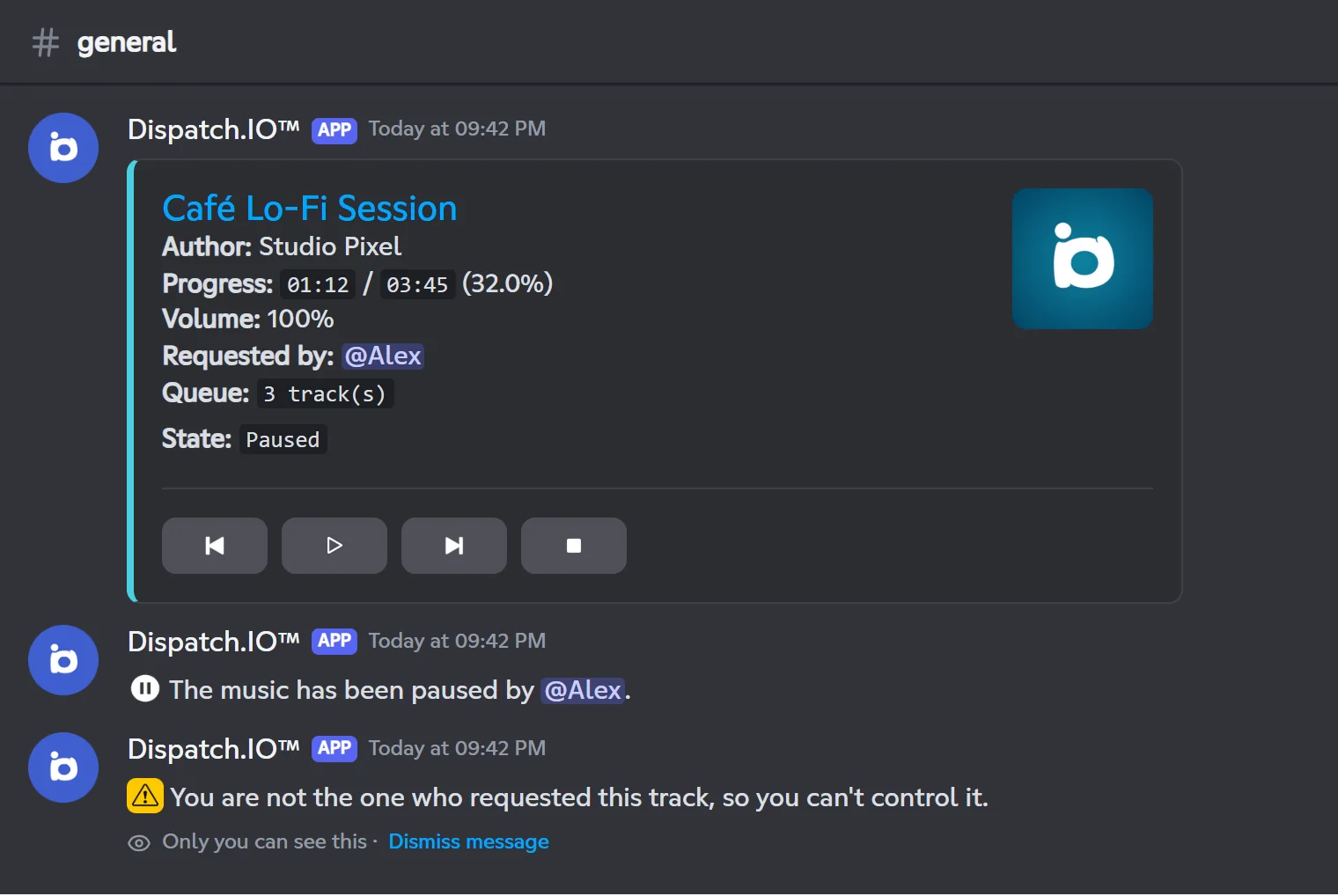
- First track: the bot posts the player message: title (linking to its source) and thumbnail, author, progress, volume, requester, number of tracks waiting and state ("Playing" or "Paused"), then four buttons: Previous, Pause/Play, Next, Stop.
- While playing: the same message is edited on every new track, every pause or resume and whenever the queue changes. Progress is the one at the time of the update: it doesn't move live.
- Voice channel status: when the queue changes (track added, shuffle, clear), the bot shows the current track as the voice channel's status. It clears it when the queue ends or the player stops.
- Queue finished: the message stays, with the title "Unknown" and greyed-out buttons. The bot stays in the voice channel.
- Stop (
/stop, Stop button, empty voice channel, bot disconnected): the player message is deleted.
- The buttons work for 1 hour from the start of the current track; after that, use the commands.
- Button confirmations ("The music has been paused by…") are public; error messages are only visible to you.
- If the player's channel is a temporary channel that deletes messages, the player message is protected and not deleted. The other replies of music commands are deleted like any other message.
- The
/playconfirmation ("Song added to queue") disappears on its own after 5 seconds.
Who controls playback
Music commands are open to all members, with no Discord permission needed. To prevent a member from cutting off someone else's music, the bot applies three rules:
- Be in voice:
/playand/play-radiorequire being in a voice channel. - Be in the bot's channel: to control playback (pause, volume, queue…), you must be in the same voice channel as the bot.
- The requester rule: as long as the person who requested the current track is in the bot's voice channel, only they can pause it, resume it, skip it, go back, loop it or use the player's buttons. If they left the channel, any member of the channel can do it.
A member with the Discord Administrator permission isn't bound by the requester rule, and can use Next, Stop, /next, /loop and /stop without being in the voice channel.
| Action | In voice, in the bot's channel | Reserved to the track's requester |
|---|---|---|
/queue, /title, /volume | Yes | No |
/pause, /resume, /previous, /next, /loop | Yes | Yes |
/stop | Yes | No |
| Player buttons (including Stop) | Yes | Yes |
The full table and the error messages are on the Music and radio page.
Radio
- A member types
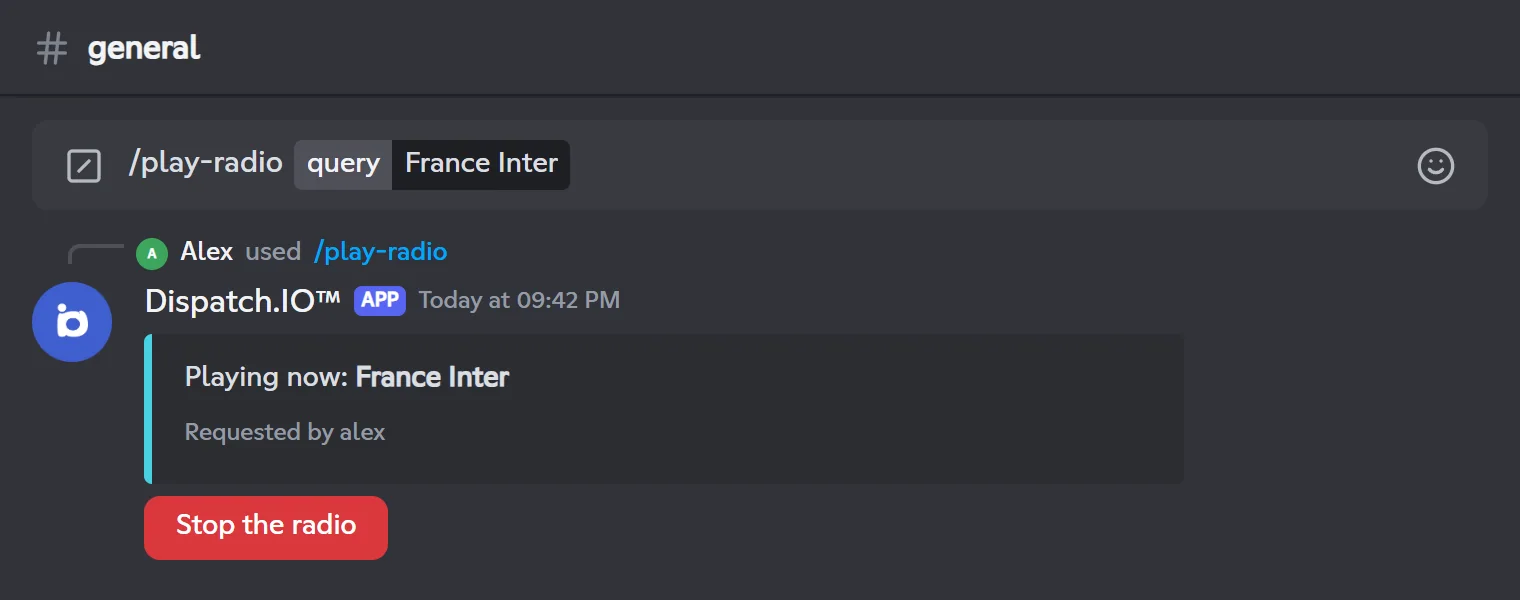
/play-radioand picks a station from the suggestions. - The bot joins their voice channel, starts the stream and shows the station's name as the voice channel's status.
- It replies "Playing now: station" with a Stop the radio button, usable only by the person who started the radio. Any member in the bot's voice channel can also stop it with
/stop. - When the radio stops (button,
/stop, empty voice channel, bot disconnected, stream cut), the message says "The radio playback has been stopped." and its button is greyed out.
/title shows the station's name and /volume sets its volume.
Automatic disconnection
| Situation | What the bot does |
|---|---|
| No members left in its voice channel (bots and members on the Dispatch.IO blacklist don't count) | It stops the music or radio right away and leaves the channel, with no waiting time. |
| Someone disconnects the bot from the voice channel | The music or radio stops. |
| The queue is finished | It stays in the channel: there is no disconnection after a period of inactivity. Start a track again with /play or disconnect it with /stop. |
Whenever playback stops, the player message is deleted and the voice channel status is cleared.
Required permissions
| Bot permission | Why |
|---|---|
| Connect and Speak | Join the voice channel and stream the sound. Without them, /play and /play-radio don't reply at all. |
| Send Messages (in the text channel) | Post the player message and confirmations. |
| Set Voice Channel Status | Show the track or station as the status. Without it, music still works, just without a status. |
The bot also needs its basic permissions, listed on the Permissions and roles page.
Troubleshooting
| What you see | Explanation and fix |
|---|---|
"The application did not respond" on /play | The bot lacks Connect or Speak in your voice channel. |
| "You are not the one who requested this track…" | The requester rule applies: wait for your track, or ask an administrator. This message also shows up when the queue is finished. |
| The player message shows "Unknown" | The queue is finished. The bot is waiting: /play to continue, /stop to disconnect it. |
| A button replies "This interaction failed" | The current track started more than an hour ago: use the commands. |
| The bot left on its own | No members were left in its voice channel. |
Other error messages are explained on the Music and radio page.
Related pages
- Music and radio: every music command in detail.
- Temporary channels: channels where messages delete themselves.
- Permissions and roles: the bot's permissions.
- Discord events: what happens when a member leaves a voice channel.