
These commands help you look after your server day to day: clean up messages, start a channel over, close a channel, respond to a raid, give a role to every member, check banned users and installed apps, or manage emojis. They are meant for administrators (and, for /toggle-lock and /emoji, for members who manage channels or expressions).
| Command | What it does | Required Discord permission |
|---|---|---|
/clear | Delete recent messages | Administrator |
/nuke | Recreate a channel as an identical, empty copy | Administrator |
/toggle-lock | Lock or unlock a channel | Manage Channels |
/raid-mode | Automatically kick new members during a raid | Administrator |
/role-all | Give a role to every member | Administrator |
/banlist | See banned users | Administrator |
/botlist | See the apps (bots) on the server | Administrator |
/emoji | Add, remove or download an emoji | Manage Expressions |
/config | Configure the bot | Administrator |
Command names
The reference cards use the base command and option names (/clear number amount:). In Discord, some commands are displayed with a translated name (/effacer nombre nombre: in French, and a few options differ in English too): the displayed name is given on each card.
Before you start
Required permissions
For you. Discord only offers these commands to members who have the permission listed in the table above. You can open them to other roles in Server Settings → Integrations → Dispatch.IO. In that case the bot runs its own check too: the member needs the permission, or an Admin role registered for your server in Dispatch.IO (see Permissions and roles).
For the bot. For /clear, /nuke, /role-all and /toggle-lock, Dispatch.IO also checks its own permissions: the one listed on the card, plus View Channel, Send Messages, Embed Links, Read Message History, Add Reactions, Use External Emojis and Manage Messages. The bot's role must also sit above the roles it has to manage.
No reply = a permission is missing
If you or the bot lack the required permission, the command doesn't reply at all: Discord just shows "The application did not respond". Check the permissions first (yours and the bot role's).
Who sees the replies?
| Command | Reply |
|---|---|
/clear, /nuke, /toggle-lock, /role-all, /banlist, /botlist | Only visible to you |
/raid-mode, /emoji | Visible to the whole channel (only you can click the buttons) |
Tip
Run /raid-mode and /emoji in a staff-only channel, such as #moderation.
Replies use the language of your Discord app (French or English; English for any other language). Messages posted in the server (for example after /nuke) and logs use the server's language.
Delete messages (/clear)
/clear deletes recent messages. It has three subcommands:
number: the latest messages in the channel where you run the command;user: a member's recent messages, in every channel of the server;conversation: every message between two messages of the current channel.
Discord limit: 14 days
Only messages less than 14 days old can be bulk-deleted. Older ones are skipped.
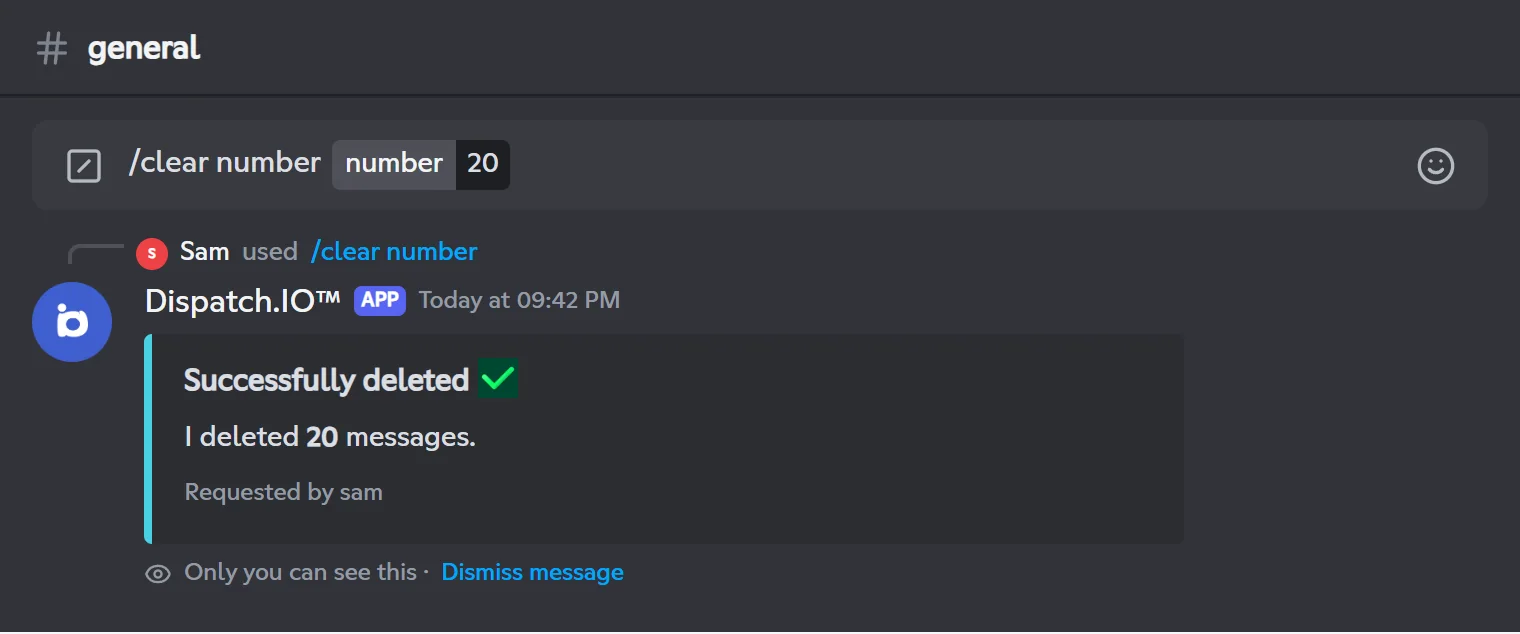
/clear numberDeletes the latest messages in the current channel (up to 100).
Syntax
/clear number amount:<1-100>Options
| Option | Type | Required | Description |
|---|---|---|---|
amount | Integer | Yes | How many messages to delete, from 1 to 100. |
Member permission
Administrator
Bot permission
Manage Messages
Where to use it
Server only
Rate limit
2 uses / 30 s
Examples
/clear number amount:20/clear number amount:100
Displayed in English Discord as /clear number number:20, and in French as /effacer nombre nombre:20.
Result on Discord
/clear userDeletes a member's recent messages in every channel of the server.
Syntax
/clear user target:<member>Options
| Option | Type | Required | Description |
|---|---|---|---|
target | User | Yes | The member whose messages should be deleted. |
Member permission
Administrator
Bot permission
Manage Messages
Where to use it
Server only
Rate limit
2 uses / 30 s
Examples
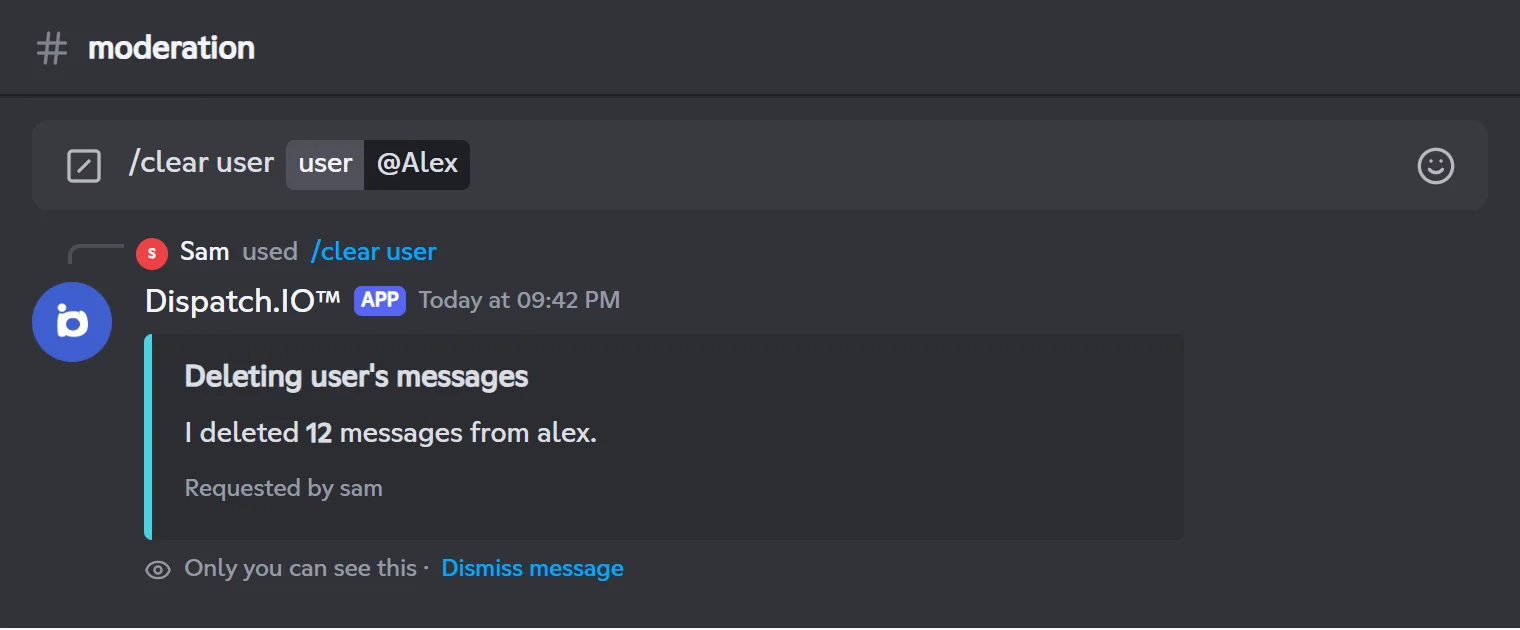
/clear user target:@Alex
Displayed in English Discord as /clear user user:@Alex, and in French as /effacer utilisateur utilisateur:@Alex.
Only the last 100 messages of each channel are checked. Channels used by the bot (logs, announcements…) are skipped, except the welcome channel.
The server owner and administrators can't be targeted.
Result on Discord
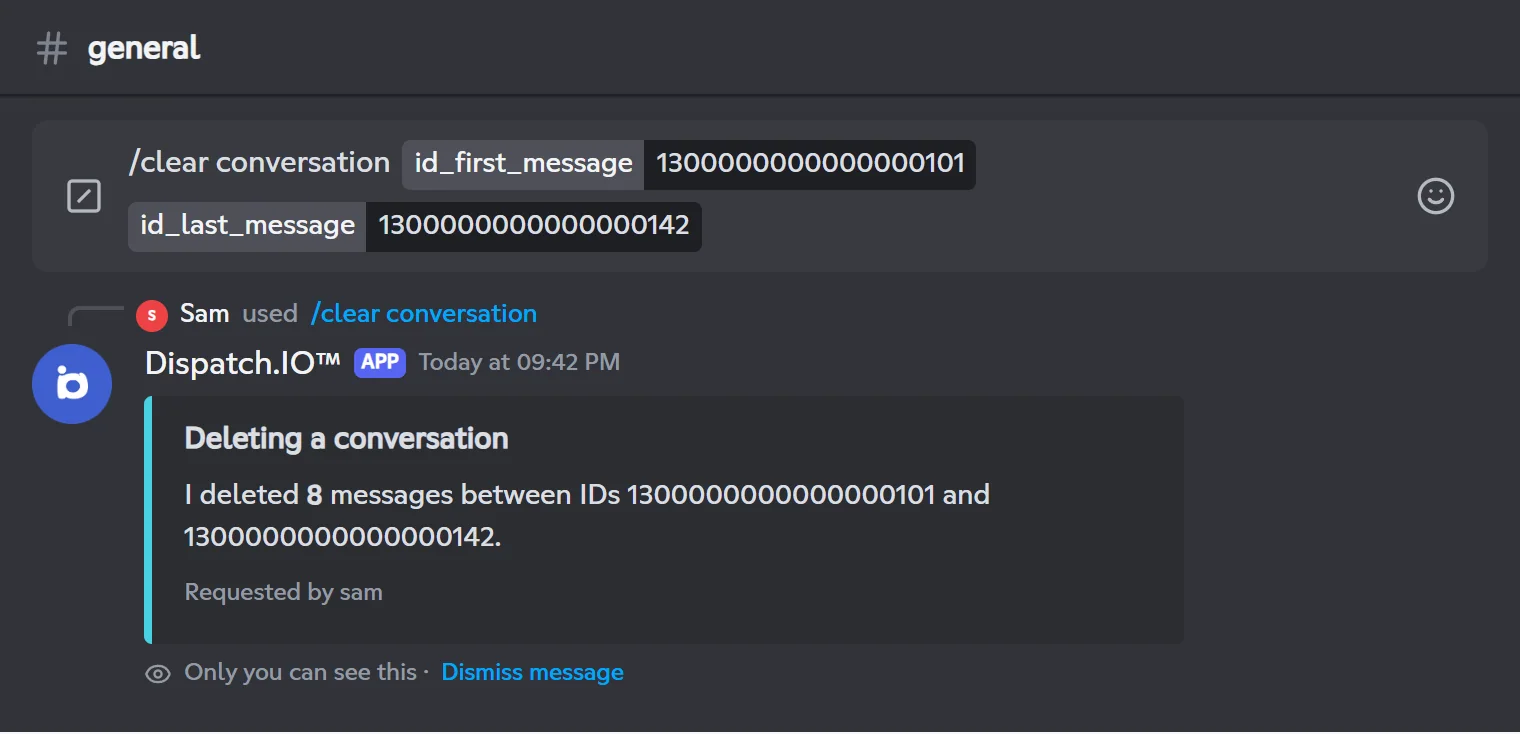
/clear conversationDeletes every message between two messages of the current channel (both included).
Syntax
/clear conversation start_message_id:<ID> end_message_id:<ID>Options
| Option | Type | Required | Description |
|---|---|---|---|
start_message_id | String | Yes | The ID of the first (oldest) message of the range to delete. |
end_message_id | String | Yes | The ID of the last (most recent) message of the range to delete. |
Member permission
Administrator
Bot permission
Manage Messages
Where to use it
Server only
Rate limit
2 uses / 30 s
Examples
/clear conversation start_message_id:1300000000000000101 end_message_id:1300000000000000142
Displayed in English Discord as /clear conversation id_first_message: id_last_message:, and in French as /effacer conversation id_premier_message: id_dernier_message:.
Only the last 100 messages of the channel are taken into account.
Result on Discord
Finding a message ID
Turn on Developer Mode (User Settings → Advanced), then right-click the message (or long-press on mobile) → Copy Message ID.
Common error messages
| Bot message | What to do |
|---|---|
| No recent messages (less than 14 days old) were found to delete. | The messages are older than 14 days: delete them by hand. |
| Unable to delete messages from … (insufficient permissions). | The target is the server owner or an administrator. |
| This user is not a member of the server. | /clear user only works on a member who is still on the server. |
| One or more message IDs could not be found. | Both messages must be in the channel where you run the command. |
| The start ID must come before the end ID. | Swap the two IDs: the first one must be the oldest. |
What gets logged
If a Message Logs channel is set (Channels page of the dashboard, or /config), the bot posts a log there: who ran the command, how many messages were deleted and in which channel, with a .txt file listing the messages (author, date, content).
Recreate a channel (/nuke)
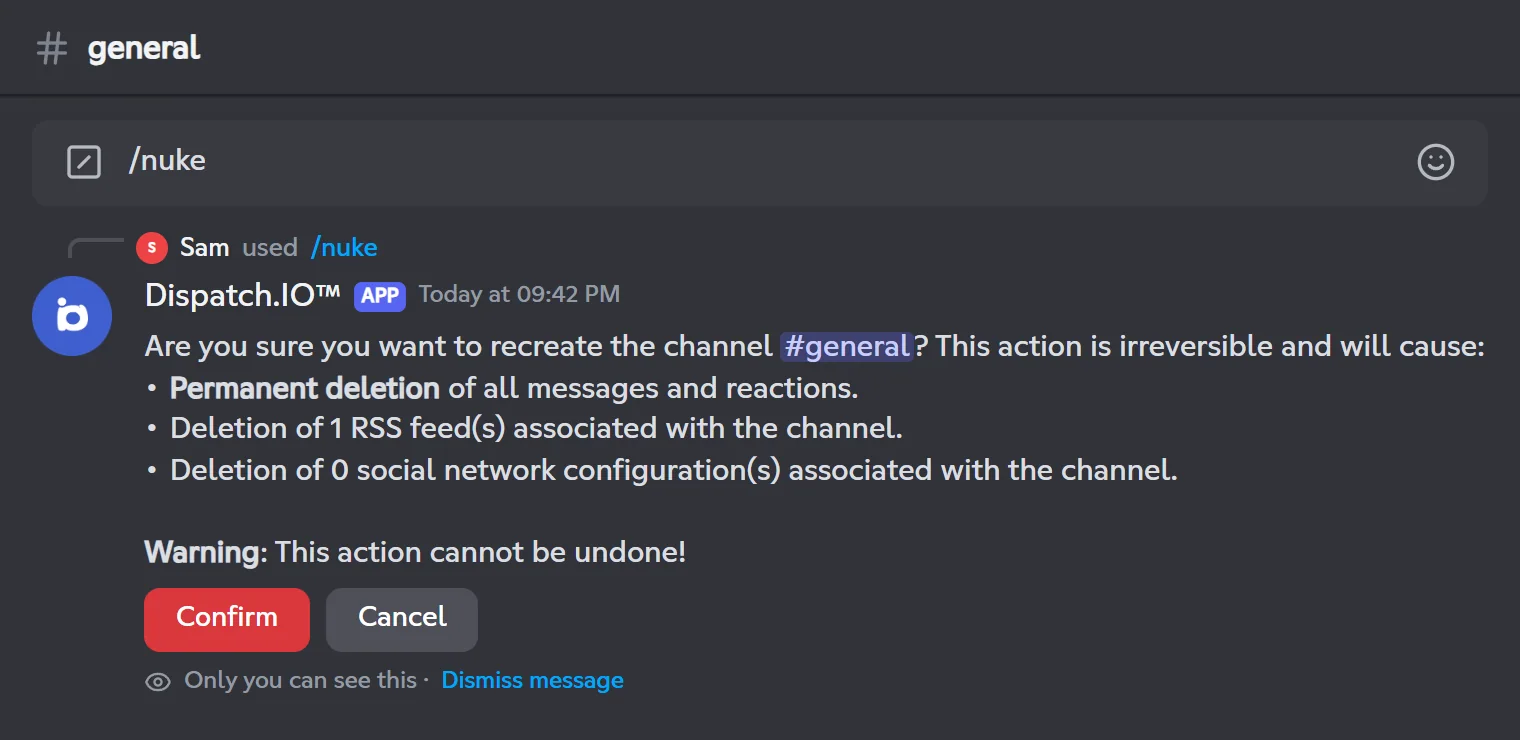
/nuke deletes a channel and recreates it identically (name, topic, category, position, permissions): you get the same channel with none of its messages. Handy to start over after a raid or in a test channel.
/nukeDeletes and recreates a channel with its settings, without its messages.
Syntax
/nuke channel:[channel]Options
| Option | Type | Required | Description |
|---|---|---|---|
channel | Channel | No | The channel to recreate. Defaults to the channel where you run the command. |
Member permission
Administrator
Bot permission
Manage Channels
Where to use it
Server only
Rate limit
2 uses / 30 s
Examples
/nuke/nuke channel:#general
Displayed in French Discord as /nuke salon:#général.
Accepted channels: text, announcement, forum, media, voice and stage. Threads can't be recreated.
Result on Discord
Step by step
- Run
/nuke(in the channel to wipe, or with thechanneloption). - The bot asks for confirmation and lists what will be lost: every message and reaction, plus the RSS feeds and social network notifications tied to this channel.
- Click Confirm within 30 seconds. Cancel (or no answer) closes the request without changing anything.
- The new channel appears in the same place and the bot posts a message there saying who recreated it.

The recreated channel is a new channel
It has a new ID. The bot settings tied to the old channel are removed: log channel, welcome channel, level-up channel, ticket panel, RSS feeds, social networks… If you recreate a channel the bot uses, assign it again on the dashboard's Channels page (Channels) or with /config, and set its feeds up again (Social networks and RSS).
The recreation is logged in General Server Logs. The deletion of the old channel is logged there too, like any channel deletion, with your server's emergency mentions: give your team a heads-up before a /nuke.
Lock a channel (/toggle-lock)
/toggle-lock closes a text channel to the welcome roles (the roles automatically given to new members), then reopens it when you run the command again.
/toggle-lockLocks a text channel for the welcome roles, or unlocks it if it is already locked.
Syntax
/toggle-lock channel:[channel]Options
| Option | Type | Required | Description |
|---|---|---|---|
channel | Channel | No | The text channel to lock or unlock. Defaults to the channel where you run the command. |
Member permission
Manage Channels
Bot permission
Manage Channels
Where to use it
Server only
Rate limit
1 use / 30 s
Examples
/toggle-lock/toggle-lock channel:#general
Displayed in French Discord as /basculer-verrouillage (the option keeps the name channel).
Result on Discord
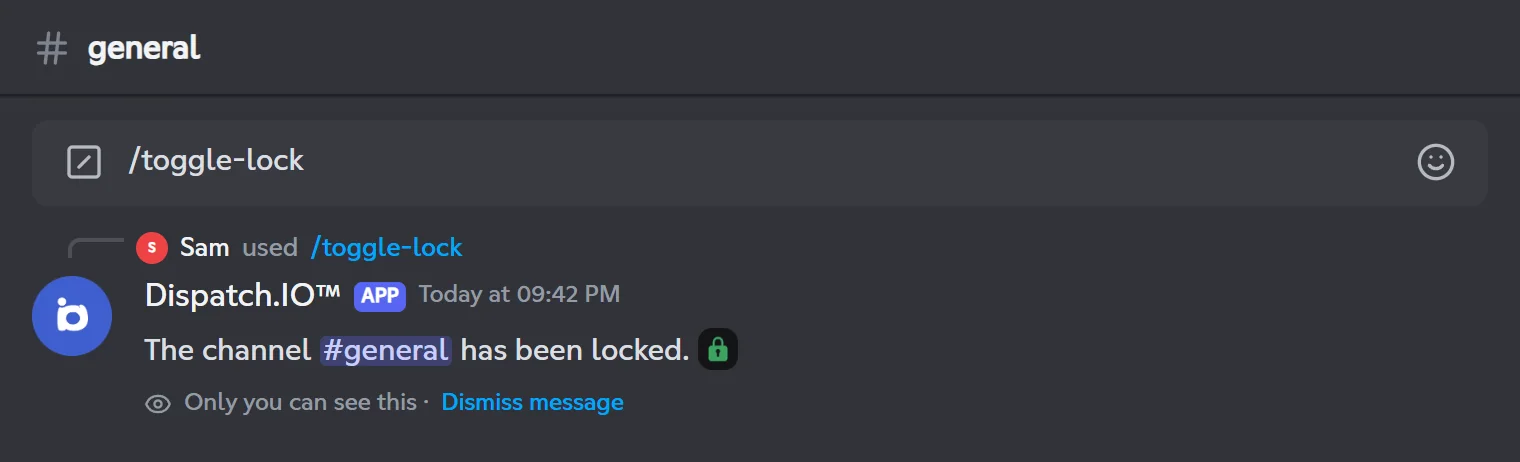
Before using the command
- Set at least one welcome role: dashboard Welcome page (Welcome and goodbye) or
/config→ Welcome → Roles. - Put the bot's role above every welcome role. Otherwise the command stops with a technical message (
commands.toggle-lock.content.error_bot_hierarchy). - Only text channels are accepted (not announcement, forum or voice channels).
What locking does
| Lock | Unlock | |
|---|---|---|
| View Channel for welcome roles | Denied | Reset to default (inherited) |
| Send Messages for welcome roles | Denied | Reset to default (inherited) |
| Use External Apps for welcome roles | Denied | Stays denied |
| Channel topic | The bot adds a padlock at the start | The padlock is removed |
The channel is hidden too
Locking removes View Channel: for members who only see the channel through a welcome role, the channel disappears from the list (it isn't just read-only).
The padlock in the topic matters
The bot knows a channel is locked from the padlock at the start of its topic. Don't remove it by hand, or the next command will lock the channel again instead of unlocking it.
Every lock and unlock is logged in General Server Logs.
Anti-raid protection mode (/raid-mode)
During a raid (a wave of malicious accounts joining), /raid-mode turns on a protection mode: every new member is kicked automatically until you turn it off or it expires.
/raid-modeTurns on or off a protection that temporarily blocks new members from joining the server.
Syntax
/raid-modeMember permission
Administrator
Bot permission
Kick, Approve, and Reject Members
Bot permission
Manage Server (Community servers)
Where to use it
Server only
Rate limit
1 use / 20 s
Examples
/raid-mode
Displayed in French Discord as /mode-protection.
Result on Discord
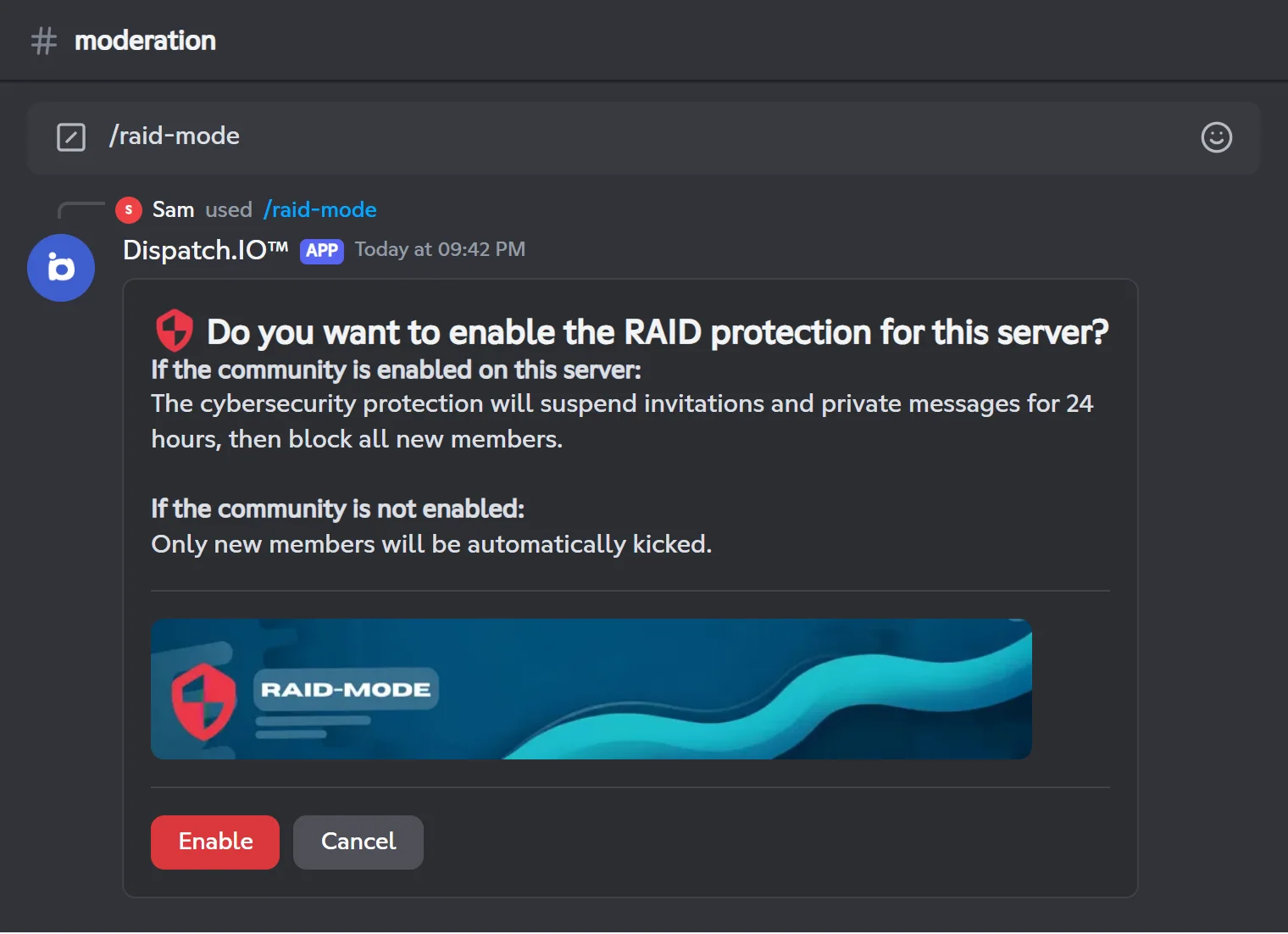
Turning it on or off
- Run
/raid-mode. The panel explains what will happen and offers Enable (or Disable if the protection is already on). - Click the button within 2 minutes. The bot confirms privately ("The protection mode of this server has been successfully activated!") and removes the panel.
- Cancel removes the panel without changing anything. With no click after 2 minutes, the buttons stop responding: run the command again.
While the protection is on
- Any server: every member who joins gets a direct message and is then kicked (reason "Raid Mode Active"). Members already on the server are not affected.
- Community server: the bot also turns on Discord's safety actions for the same duration: invites and new DMs between members are paused. This requires the Manage Server permission.
- The protection turns itself off after 24 hours (default duration), or when you run
/raid-mode→ Disable.
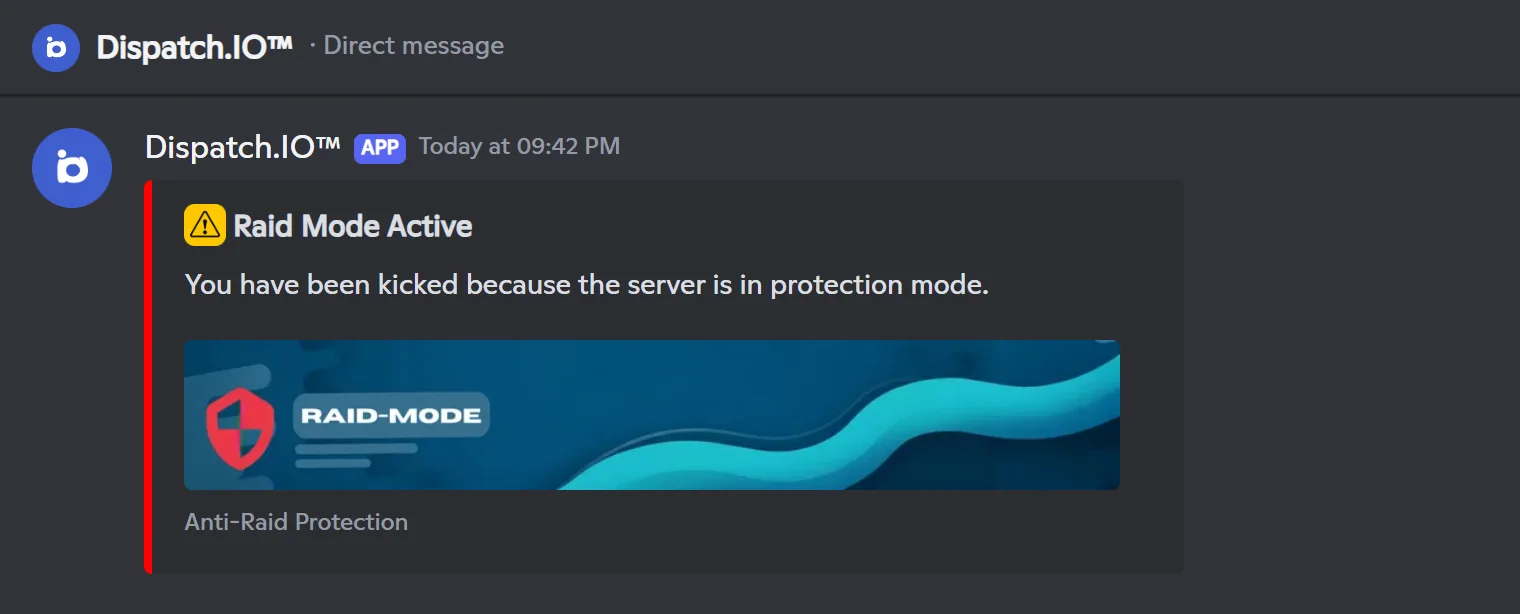
More options on the website
On the dashboard's Security page, you can enable raid mode and choose its duration (1 to 24 h) and which Discord safety actions to apply. See Security and anti-raid.
What gets logged
- Turning it on or off is posted in Anti-Raid & Security Logs, with the emergency mentions set up for your server.
- Each kick is posted in Joins & Leaves Logs.
For the other automatic protections (captcha, recent accounts, links…), see Anti-raid and security.
Give a role to everyone (/role-all)
/role-all gives a role to every member of the server: humans only, apps (bots) only, or everyone.
/role-allAssigns a role to all server members.
Syntax
/role-all role:<role>Options
| Option | Type | Required | Description |
|---|---|---|---|
role | Role | Yes | The role to assign. |
Member permission
Administrator
Bot permission
Manage Roles
Where to use it
Server only
Rate limit
1 use / 60 s
Examples
/role-all role:@Membres
Displayed in French Discord as /role-tous rôle:@Membres.
Result on Discord
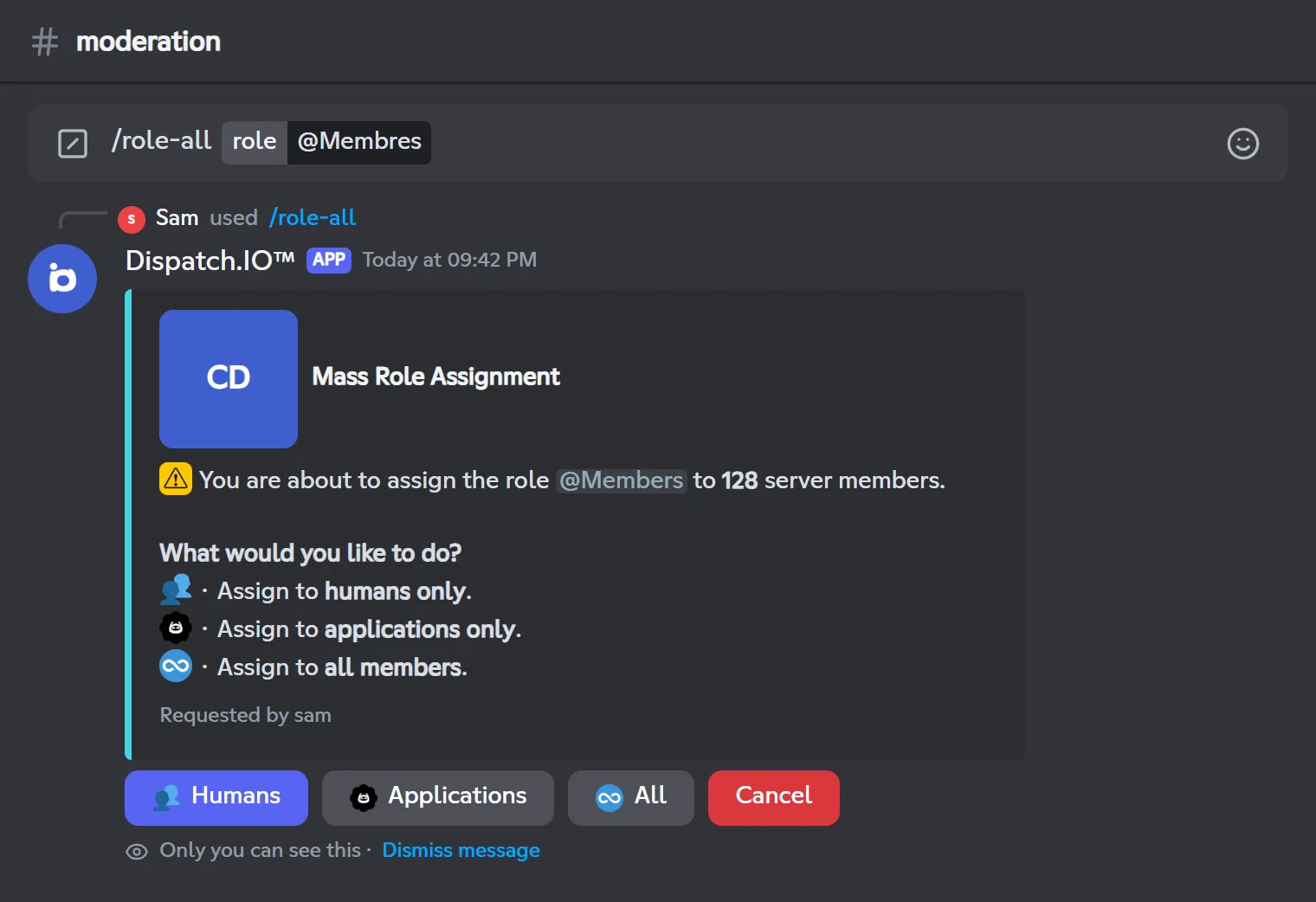
Step by step
- Run
/role-alland pick the role. It must sit below the bot's highest role, otherwise the bot refuses ("I cannot assign this role because it is higher than my highest role"). - Within 60 seconds, choose who gets it: Humans, Applications or All. Cancel stops everything.
- Confirm with Confirm within 30 seconds (the red Cancel button aborts).
- The message shows the progress, updated every 10 members, then "Assignment completed! Role assigned to … members".
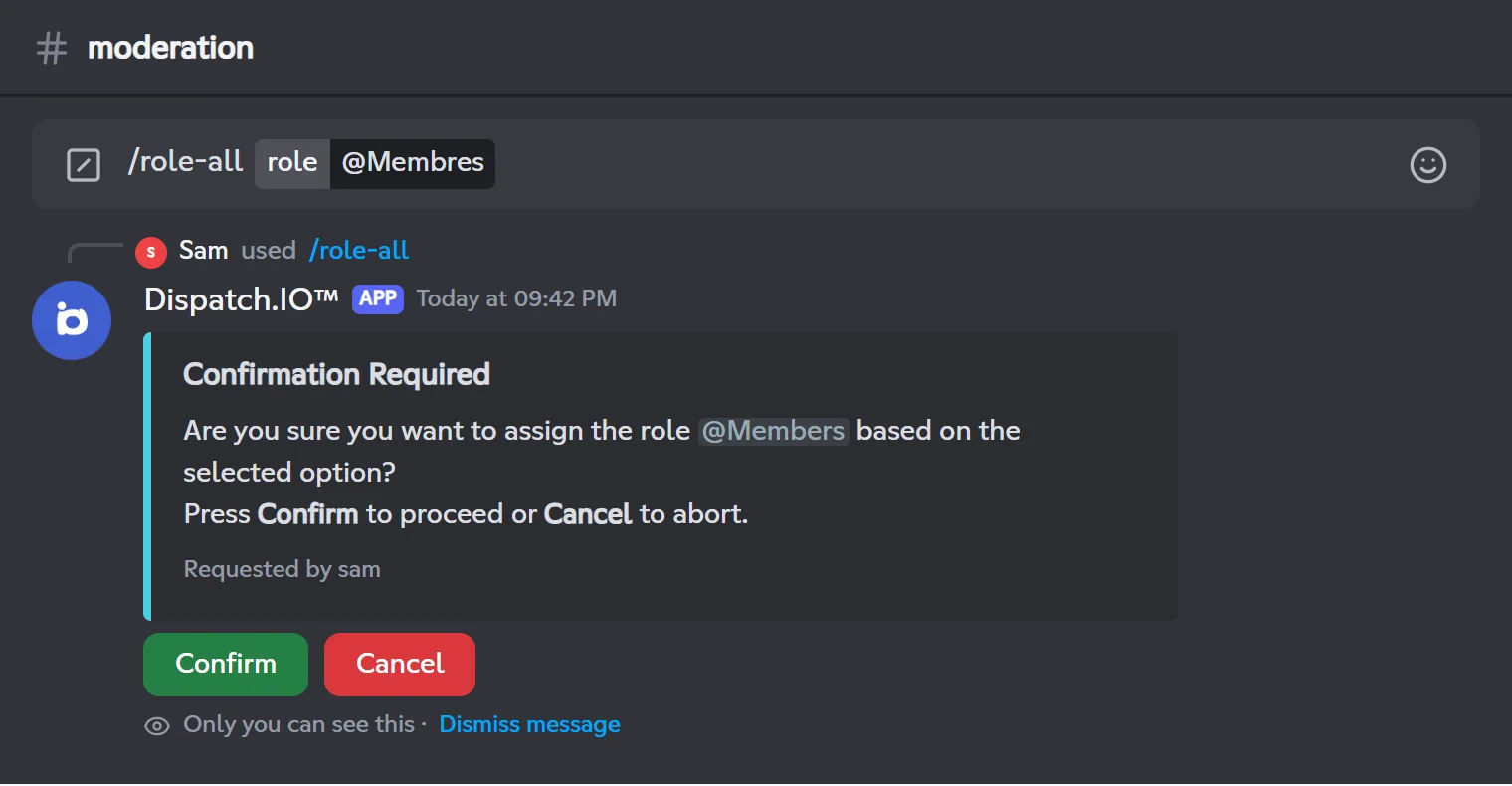
- Members who already have the role are skipped.
- On a large server, this takes a while: the bot handles members in small batches to respect Discord's limits. Keep the message open to follow the progress.
- If you don't click in time (60 s, then 30 s), the bot shows an error message: just run the command again.
The operation is logged in General Server Logs (role and number of members).
Banned users (/banlist)
/banlist shows the users banned from the server, 3 per page, with the ban reason.
/banlistDisplays the list of users banned from this server.
Syntax
/banlistMember permission
Administrator
Bot permission
Ban Members
Where to use it
Server only
Rate limit
1 use / 10 s
Examples
/banlist
Displayed in French Discord as /liste-ban.
Result on Discord
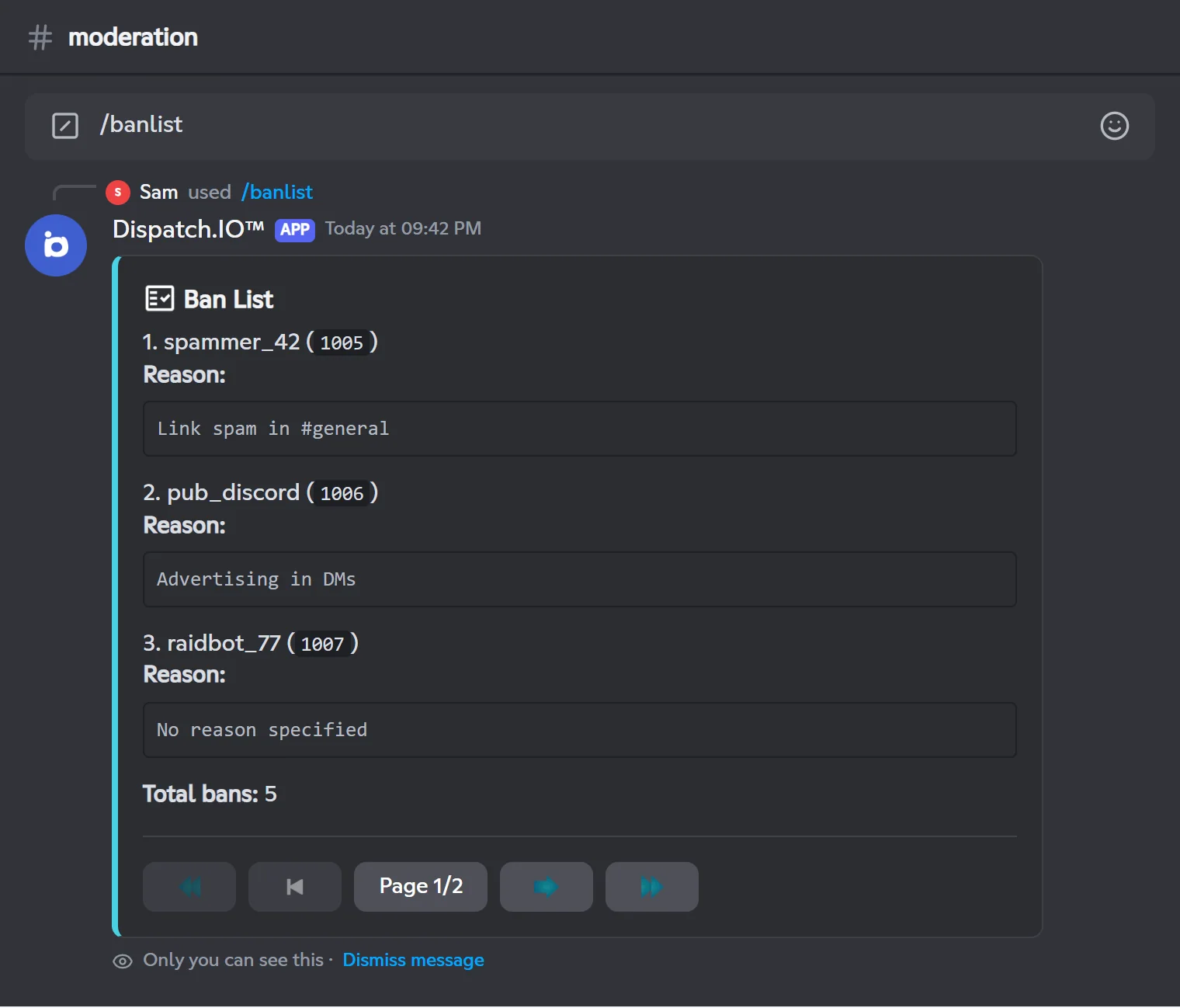
- Use the buttons at the bottom to browse: first page, previous page, Page x/y (opens a "Go to page" window where you type a number), next page, last page.
- The buttons stay active for 2 minutes after the last click.
- If nobody is banned, the bot replies "No users have been banned on this server."
Important
The bot needs the Ban Members permission to read the list. Without it, it replies that no users have been banned.
Known issue
For now, the list shows the server's first ban repeated 20 times ("Total bans: 20") instead of the real list. In the meantime, check the full list in Server Settings → Bans.
To ban or unban someone, see Moderation.
Installed apps (/botlist)
/botlist lists the apps (bots) on the server, 3 per page: name, ID, tag, whether it has the Administrator permission, account creation date and the date it joined the server.
/botlistDisplays the list of apps on the server.
Syntax
/botlistMember permission
Administrator
Where to use it
Server only
Rate limit
1 use / 60 s
Examples
/botlist
Displayed in French Discord as /liste-bot.
Result on Discord
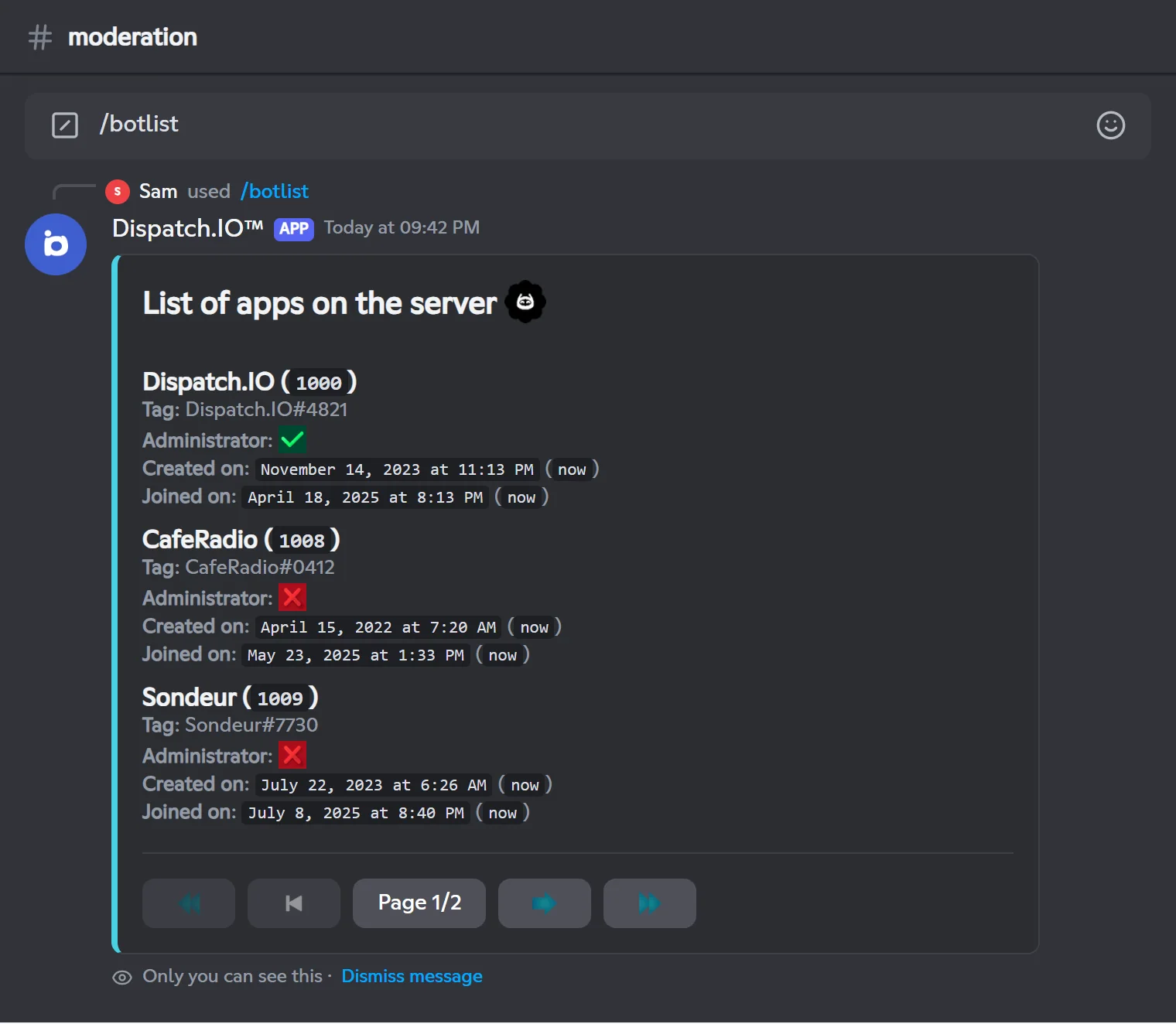
- Browsing works like
/banlist(same buttons). - If you don't click any button, the list disappears after one minute. After a click, it stays.
Tip
Regularly check which apps have the Administrator permission: a compromised app with that right can delete everything.
Manage emojis (/emoji)
/emoji adds an emoji to the server (from an existing emoji or an image), removes one, or gets an emoji's image.
Note
/emoji replies are visible to the whole channel. Only you can click their buttons.
/emoji addAdds an emoji to the server from a pasted emoji or an image.
Syntax
/emoji add name:<name> emoji:[emoji] image:[file]Options
| Option | Type | Required | Description |
|---|---|---|---|
name | String | Yes | The emoji name: 2 to 32 characters, letters, numbers and _ only. |
emoji | String | No | An emoji to copy: a Unicode emoji (☕) or a custom emoji from any server. |
image | Attachment | No | The emoji image: PNG, GIF, JPG, JPEG or WEBP. |
Member permission
Manage Expressions
Bot permission
Manage Expressions
Where to use it
Server only
Rate limit
3 uses / 60 s
Examples
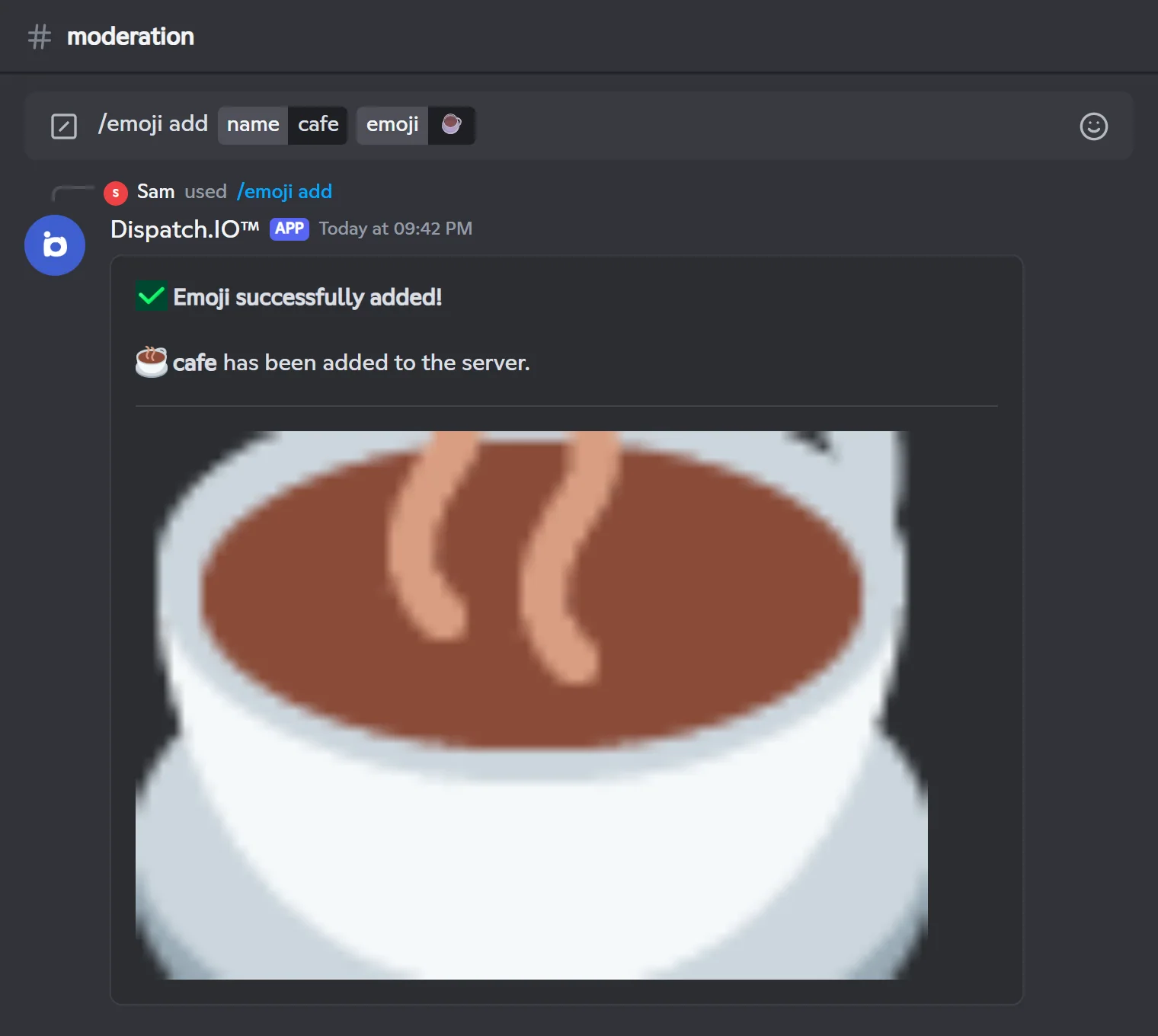
/emoji add name:cafe emoji:☕/emoji add name:logo_devs image:logo.png
Displayed in French Discord as /émoji ajouter nom:cafe emoji:☕.
Fill in emoji or image. If you give both, the emoji option is used.
Result on Discord
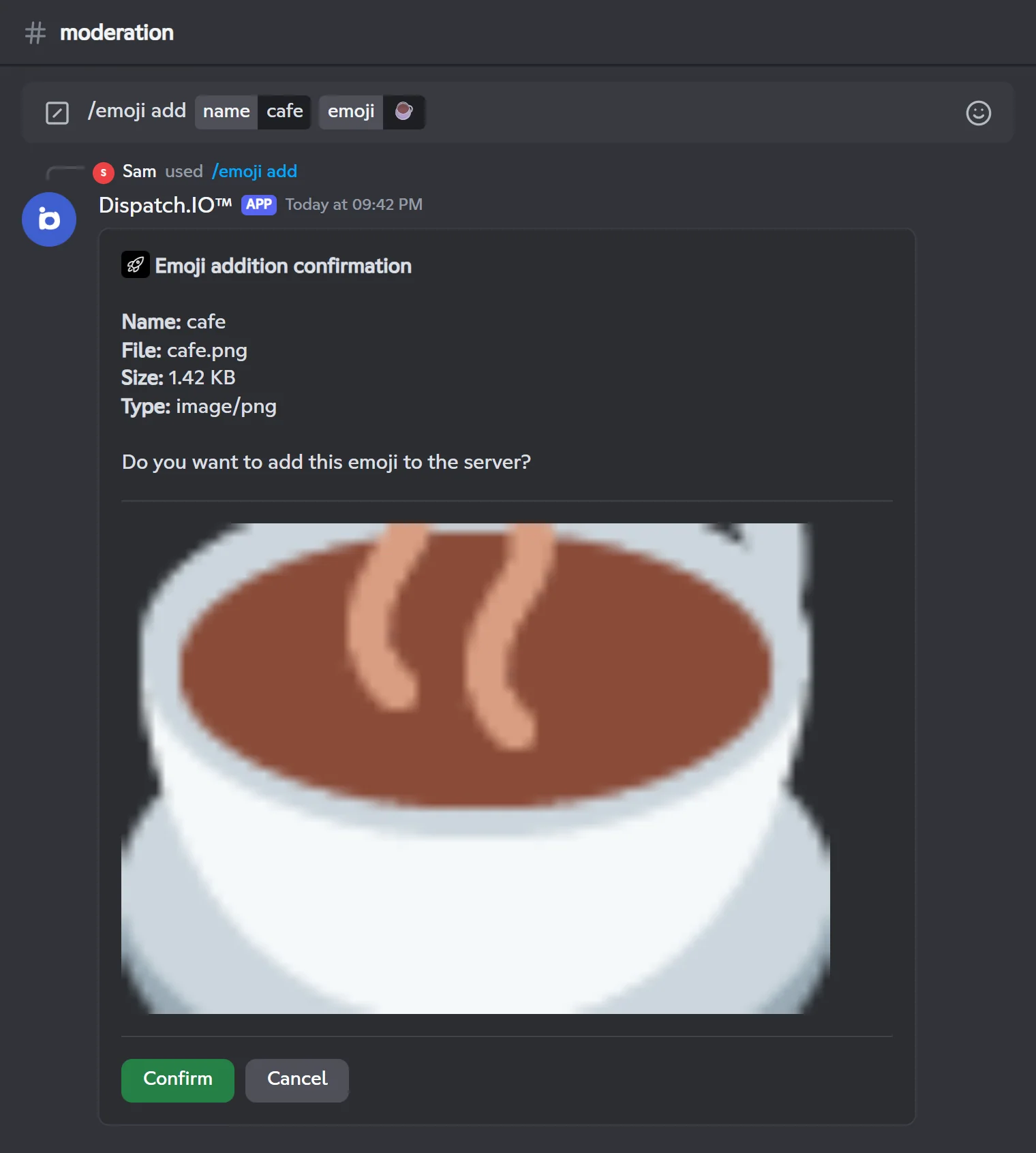
- The bot shows a preview with the name, file, size and type.
- Click Confirm within 5 minutes: the emoji is created and the message confirms it. Cancel deletes the message.
- The addition is logged in General Server Logs.
Tip
Discord limits the size of an emoji image (256 KB) and the number of emojis per server. If adding fails, check both and make sure the name isn't already taken.
/emoji removeRemoves an emoji from the server.
Syntax
/emoji remove emoji:<emoji>Options
| Option | Type | Required | Description |
|---|---|---|---|
emoji | String (suggestions) | Yes | The emoji to remove, picked from the suggested list. |
Member permission
Manage Expressions
Bot permission
Manage Expressions
Where to use it
Server only
Rate limit
3 uses / 60 s
Examples
/emoji remove emoji:cafe (PNG)
Displayed in French Discord as /émoji supprimer emoji:cafe.
Pick the emoji from the suggestions: a name typed by hand without selecting it gives "Emoji not found on this server.".
Result on Discord
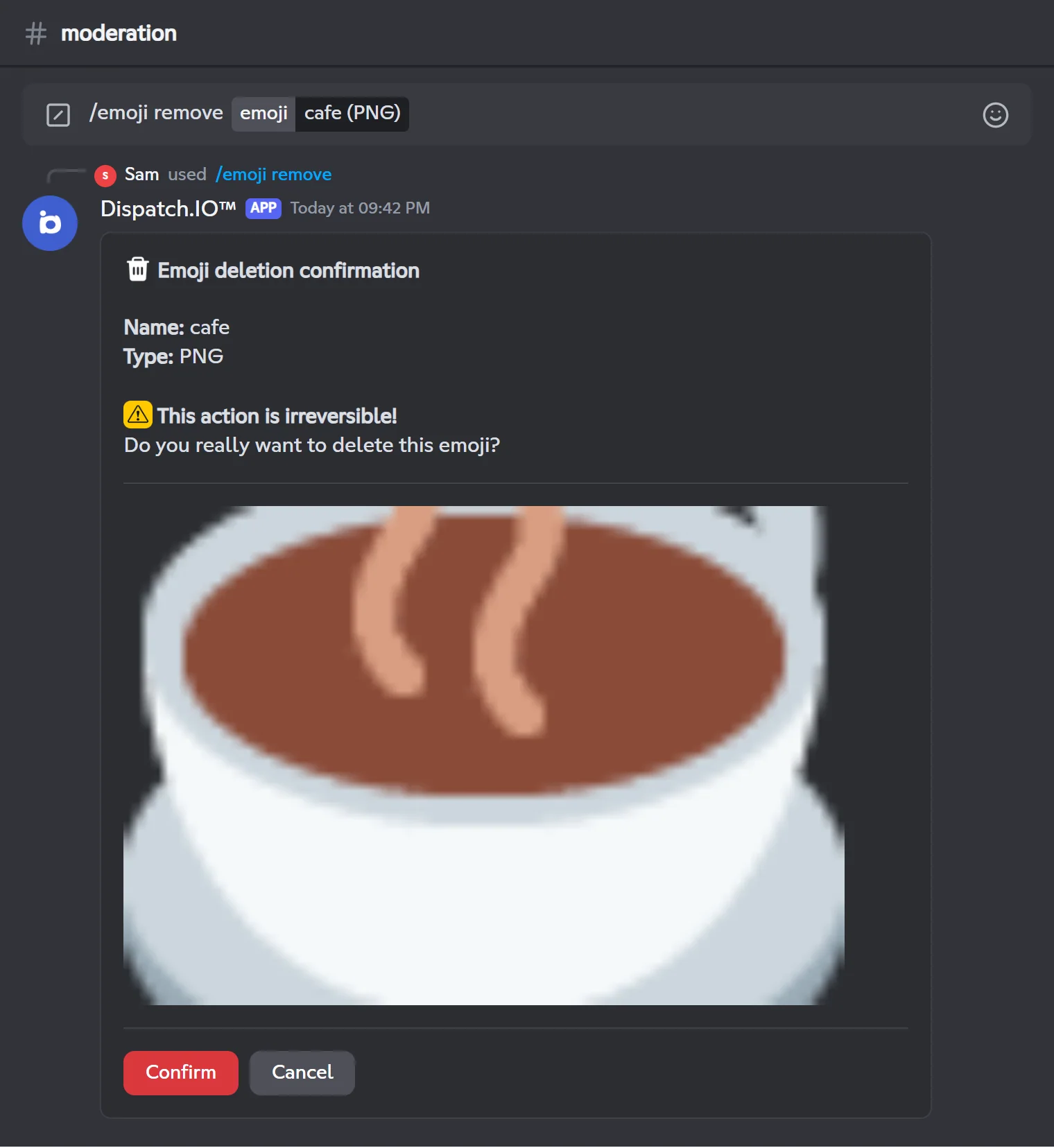
Click Confirm within 2 minutes to remove the emoji (this can't be undone); Cancel deletes the message.
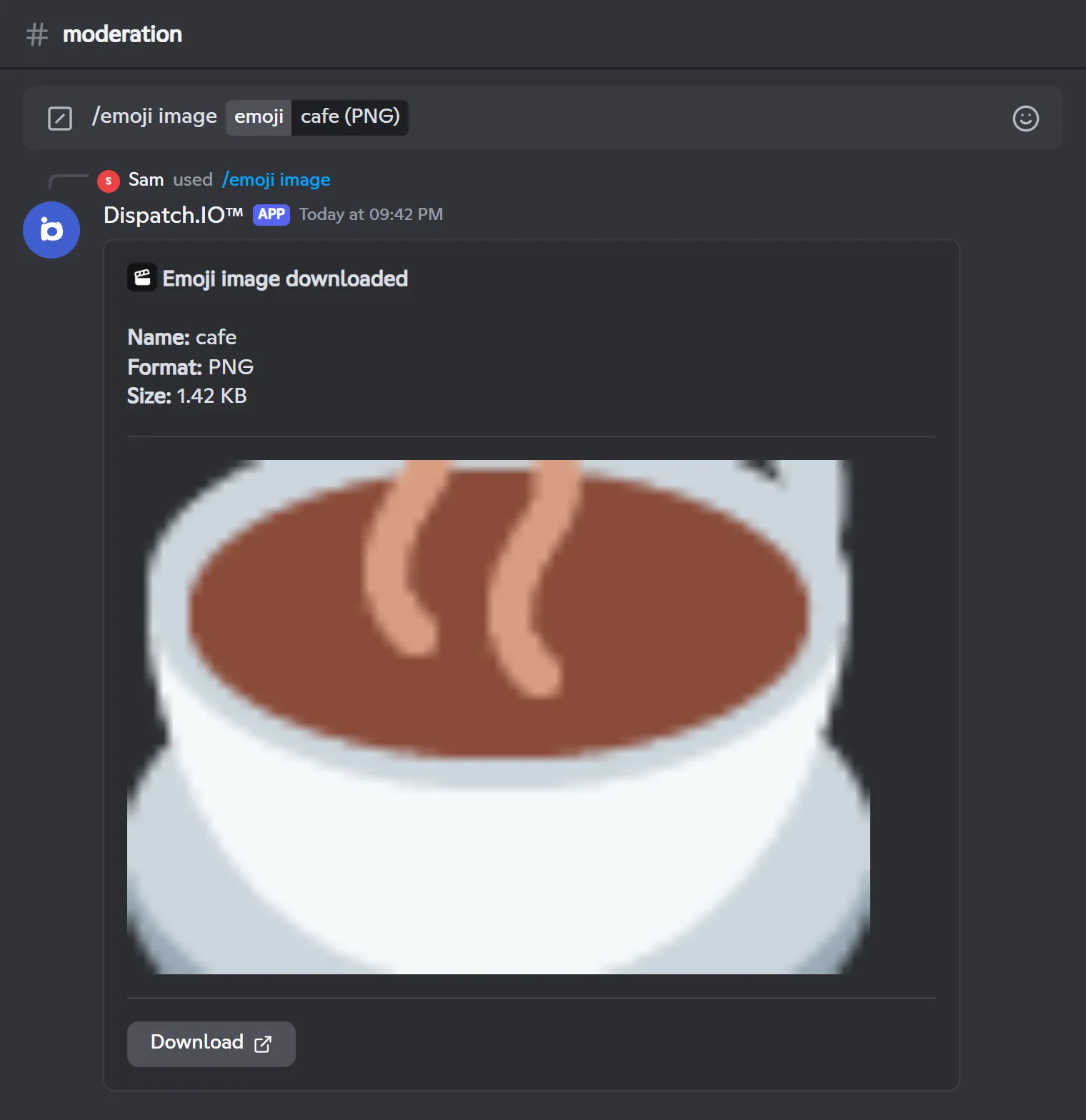
/emoji imageShows an emoji's image with a button to download it.
Syntax
/emoji image emoji:<emoji>Options
| Option | Type | Required | Description |
|---|---|---|---|
emoji | String (suggestions) | Yes | A server emoji (from the list) or a custom emoji pasted from another server. |
Member permission
Manage Expressions
Where to use it
Server only
Rate limit
3 uses / 60 s
Examples
/emoji image emoji:cafe (PNG)
Displayed in French Discord as /émoji image emoji:cafe.
Unicode emojis (☕, 🎉…) have no image to get: the bot replies "Unable to get an image for this unicode emoji.".
Result on Discord
Configure the bot (/config)
/config opens the Dispatch.IO configuration panel right in Discord: language and time zone, channels, welcome, anti-raid, tickets, levels, social networks, color… It is reserved for administrators.
Every category is covered on the Bot configuration page. Most of these settings are also available on the website dashboard.
What gets logged
Several commands leave a trace in the server's log channels. Pick these channels on the dashboard's Channels page (Channels) or with /config → Channels. If no channel is set, the command still works but nothing is posted.
| Command | Log channel | Content |
|---|---|---|
/clear | Message Logs | Number of deleted messages, channel, .txt file of the messages |
/nuke | General Server Logs | Recreated channel (and deletion of the old one) |
/toggle-lock | General Server Logs | Channel locked or unlocked |
/raid-mode | Anti-Raid & Security Logs | Turned on or off, with the emergency mentions |
| Protection mode kicks | Joins & Leaves Logs | Kicked member and reason |
/role-all | General Server Logs | Assigned role and number of members |
/emoji add | General Server Logs | Added emoji |
/banlist, /botlist, /emoji remove, /emoji image | — | Nothing |
Each log shows who ran the command and when. More in Logs.
Related pages
- Bot configuration: the
/configcommand in detail. - Permissions and roles: who can use what.
- Moderation: warn, time out, ban.
- Messages and announcements: make the bot talk, build embeds and containers.
- Anti-raid and security: the automatic protections.
- All commands