
This page helps you find out why the bot isn't doing what you expect: a command that doesn't answer, a missing permission, a module that posts nothing, a missing card, music that doesn't start or a late notification. Each table starts from what you see, then gives the cause and the fix.
It is meant for administrators and moderators. For general questions (language, Premium, data…), see the Bot FAQ.
The basic checks
Before digging further, these five points solve most problems:
- Does the bot answer? Type
/ping. With no answer, the bot is probably restarting or offline: wait a few minutes. - Does the bot's role have its permissions? Keep the Administrator permission on it, as the invite asks.
- Is the bot's role high enough? It must be above the roles it gives and the members it moderates (Server Settings → Roles).
- Is the module enabled and its channel picked? Most modules post nothing without a channel (see A module does nothing).
- Can the bot write in that channel? A channel can deny the bot a permission its role does have: check the channel's permissions.
Commands
| What you see | Cause | Fix |
|---|---|---|
| Discord says the application did not respond | You or the bot's role lack the permission checked by the command. In that case, the bot replies nothing. | Check the permission required by the command in Permissions and roles, and the basic permissions of the bot's role (View Channel, Send Messages, Embed Links, Read Message History, Add Reactions, Use External Emojis, Manage Messages). |
| No command answers anymore | The bot is restarting or offline. | Wait a few minutes, then try /ping again. |
The command doesn't show up when you type / | You lack the required permission, the command's module isn't enabled (levels, aviation), or Discord hasn't refreshed its list yet. | Check your permission, enable the module, then reload Discord (Ctrl+R). |
| "Your request is being processed…" stays on screen | The command needs a server where the bot is (for example /info server in direct messages), or it was interrupted. | Run it on a server where Dispatch.IO is present. If it happens again, contact the support. |
| "You have reached the limit of … uses for this command" | The command's usage limit is reached. | Wait for the time shown. |
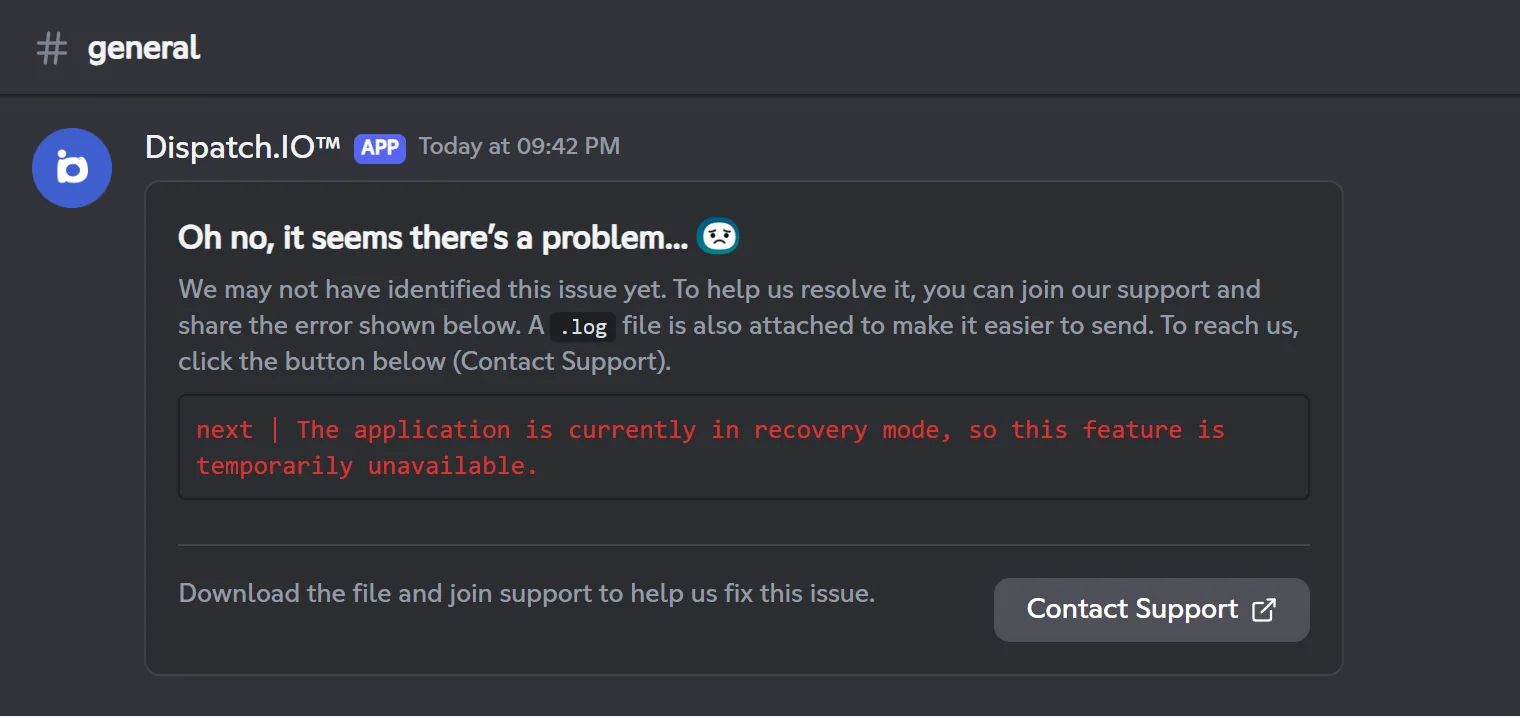
| "Oh no, it seems there's a problem..." | An unexpected error, or a feature unavailable during maintenance (recovery mode). | Try again later. If the error comes back, click Contact Support and share the error text and the attached .log file. |
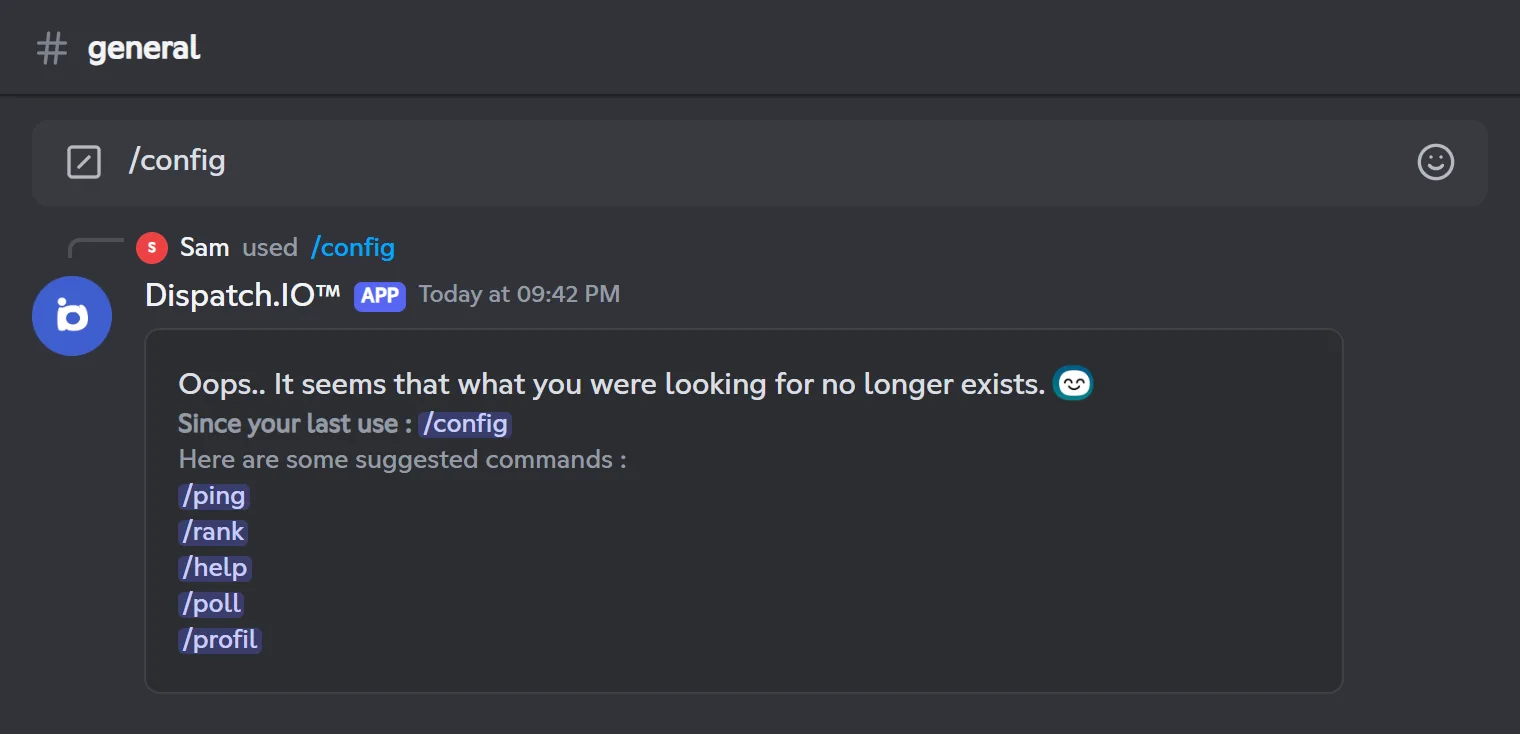
| "Oops.. It seems that what you were looking for no longer exists." | The panel was left idle too long (5 minutes for /config). | Run the command again. The commands suggested below it are clickable. |
| A button or a menu answers "This interaction failed" | The panel has expired, the bot has restarted since, or the button is reserved for the person who ran the command. | Run the command again yourself. |
| "You are blacklisted from using this app." | Your account has been blacklisted by the Dispatch.IO team. | See the FAQ. |
Permissions and role hierarchy
| What you see | Cause | Fix |
|---|---|---|
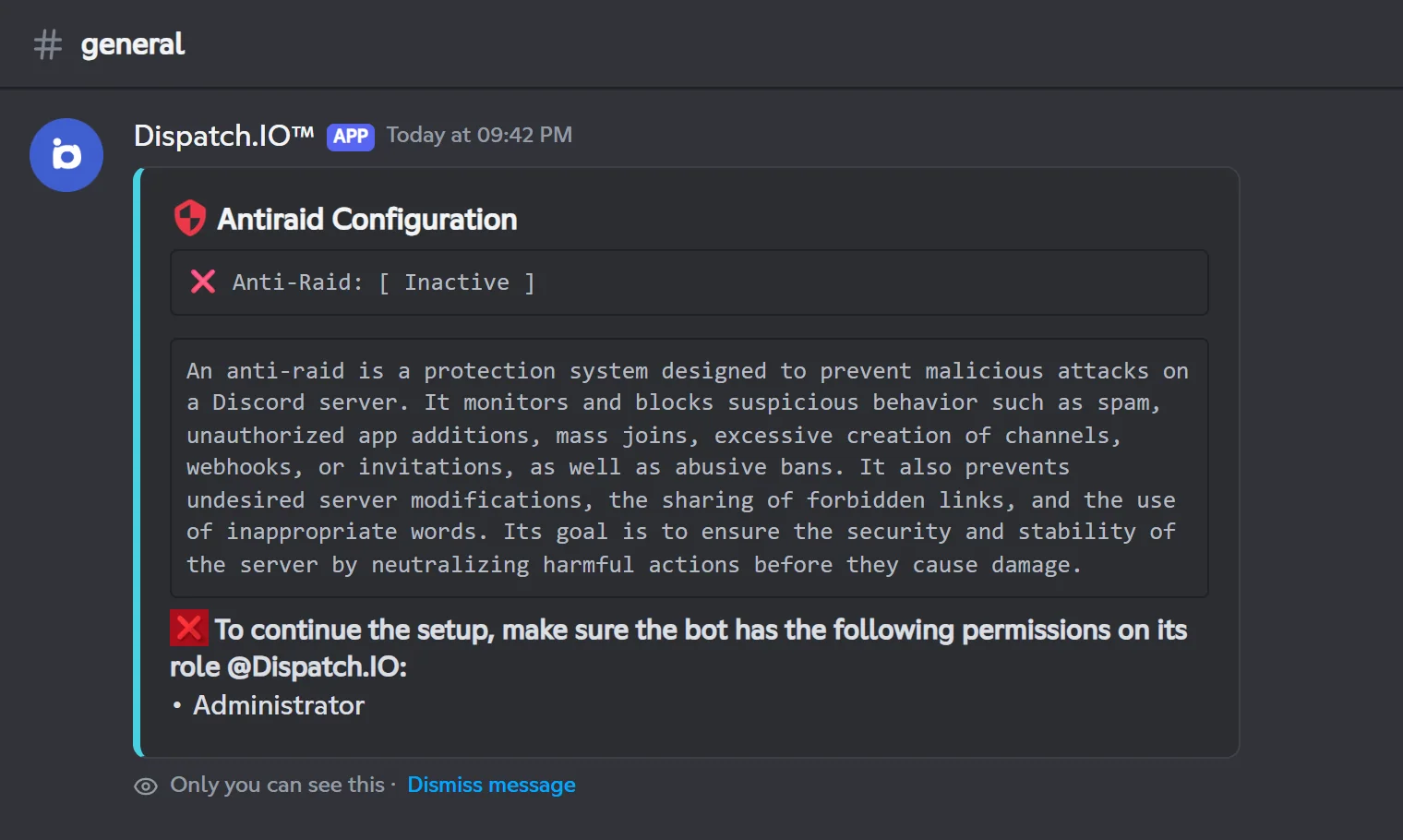
A /config screen shows "To continue the setup, make sure the bot has the following permissions on its role…" and buttons are missing | The bot's role lacks the permission shown. | Add it to the bot's role, then run /config again. |
| "I cannot ban this member because their role is higher than or equal to mine." (or kick, timeout, rename) | The target member's highest role is above the bot's. | Move the bot's role up in Server Settings → Roles. |
| "You cannot ban a member with a role higher than or equal to yours." | Your highest role isn't above the target member's. | Ask a higher-ranked member, or review the role order. |
| Welcome, reward or reaction roles aren't given | The role is above the bot's role, it is managed by an integration, or the bot lacks Manage Roles. | Move the bot's role above those roles and check its permission. |
| The anti-raid, levels or flames turned themselves off | The bot lost a permission after a role change: Administrator for the anti-raid, Manage Roles or Manage Channels for levels, Manage Channels for flames. The change is recorded in your logs. | Give the permission back to the bot's role, then turn the module back on. |
| An action works everywhere but in one channel | The bot checks its permissions at server level, not channel by channel. A permission denied to the bot in a channel's settings makes the action fail in that channel. | Open the channel's settings and allow the bot's role. |
The permissions needed by each command and module are detailed in Permissions and roles.
A module does nothing
The most frequent cause: the module's channel isn't picked, or it isn't a text channel. Channels are picked in /config → Channels or on the website's Channels page.
| Module | What it needs to post | Without it |
|---|---|---|
| Welcome | A Welcome channel | No message and no card. |
| Goodbye | A goodbye channel | No leave message. |
| Levels | Leveling system on, and a Level channel for announcements | XP and rewards work, but nothing is announced. |
| Flames | Flame system on, and a Streak channel | Flames are counted, but nothing is announced. |
| Logs | A channel for each log type | That log type isn't posted. |
| Bump | Bump on, a Bump channel and a permanent invite | /bump refuses to share your server. |
| Suggestions | A Suggestions channel | No suggestion box. |
| Counting game | A Counting game channel | No counting. |
| Captcha | Anti-raid on, Security Captcha protection on and a Captcha channel | Newcomers aren't verified. |
| Saved tickets | A Saved tickets channel | The ticket is saved (viewable on the dashboard), but no link is posted in Discord. |
| Social networks and RSS | A channel for each account or feed | No announcement. |
Warning
- Log, welcome and goodbye channels must be text channels: the picker also lists announcement channels, but the bot posts nothing there.
- In each picked channel, the bot must be able to View Channel, Send Messages, Embed Links and Attach Files (for cards).
Each module's settings are in Bot configuration; module-specific problems are at the bottom of its page (for example Welcome and goodbye or Levels and XP).
Cards and images
| What you see | Cause | Fix |
|---|---|---|
| No welcome message or card | No welcome channel, an announcement channel instead of a text channel, or bot permissions missing in the channel (View Channel, Send Messages, Attach Files). | Pick a text channel and check the bot's permissions in it. |
| No message and no roles although a custom welcome message is written | The welcome channel is no longer set or has been deleted. | Pick a welcome channel again. |
| No level or flame card | No Level channel or Streak channel, or permissions missing in that channel. | Pick the channel and check the bot's permissions. |
| The new welcome image doesn't show on the cards | The image is kept in memory for up to an hour. | Wait an hour. |
| The cards are in English (or in French) | Cards follow the server language. | Change the server language (see the FAQ). |
| The server's image doesn't show on flame cards | That image is reserved for the Dispatch.IO Ultimate plan. | See Premium plans and limits. |
| Your personal banner doesn't show on your cards | Personal images require an Individual plan. | See Premium plans and limits. |
Music
| What you see | Cause | Fix |
|---|---|---|
/play or /play-radio doesn't answer | The bot lacks Connect or Speak (or one of its basic permissions). | Add those permissions to the bot's role, and check the voice channel's. |
| "You must be in a voice channel to use this command." | You aren't in any voice channel. | Join a voice channel, then run the command again. |
| "You must be in the same voice channel as me to use this command." | The bot is playing in another voice channel. | Join the bot's voice channel. |
| "You are not the one who requested this track…" | Only the person who requested the track (or an administrator) can control it. This message also shows when the queue has ended. | Wait for your track, or start playback again with /play. |
| "YouTube links have been disabled." | YouTube links aren't accepted. | Search for the track by its name. |
| The player shows "Unknown" with greyed-out buttons | The queue has ended and the bot is waiting in the channel. | /play to continue, /stop to disconnect it. |
| Error message mentioning "recovery mode" | The bot is under maintenance: music is unavailable. | Try again later. |
Every case is detailed in Music and radio.
Late or missing notifications
| What you see | Cause | Fix |
|---|---|---|
| A YouTube video is announced late | YouTube channels are checked every 2 hours by default (Twitch lives every 30 seconds). | On the website, the Check & send last video button forces a check. You have to wait between two checks: 30 minutes on Free, 15 on Basic, 10 on Ultimate. |
| Two videos or two articles published close together, only one announced | On each check, only the most recent content is posted. | Nothing to do: that's how it works. |
| An RSS article arrives late | Each feed is checked at its own interval, in minutes. | Lower the feed's interval. |
| A YouTube or Twitch account is never announced | Beyond your plan's quota (2 accounts per platform on Free, 5 on Basic), the most recently added accounts aren't checked. | Remove accounts or upgrade your plan. |
| The chosen role isn't mentioned | The role picked in /config isn't always saved. | Check the "Mention:" line and set the role on the website if needed. |
Adding an RSS feed fails in /config with an error message | Adding from Discord can fail. | Add the feed from the website's Social networks and RSS page. |
| The first addition announces an old video or article | The first check posts the latest existing content. | Normal: the next ones will be new content. |
| Nothing is announced anymore, even when forcing | The bot is under maintenance (recovery mode), or no longer has access to the channel. | Check the bot's permissions in the channel; during maintenance, wait for it to come back. |
Bot arrival and dashboard
| What you see | Cause | Fix |
|---|---|---|
| No message from the bot after the invite | The bot can't write in any text channel, or it was restarting when it was invited. | The language stays English: set it with /config → Language and time zone. |
| The Français / English buttons answer "This interaction failed" | The bot has restarted since it joined. | Delete the message and set the language with /config. |
| A member chose the language for you | Anyone can click the choice message. | Change the language with /config or on the website. |
| The language went back to English a day after the bot joined | Nobody clicked the choice message: after 24 hours, the bot sets English again, even if you had changed it in the meantime. | Change the language again. |
| The bot leaves the server right after joining | The server is banned or its owner is blacklisted from Dispatch.IO. | See the FAQ. |
| The dashboard shows "Dispatch.IO™ is not on this server" right after the invite | The website hasn't seen the bot's arrival yet. | Click Sync Discord Data or reload the page. |
| The same message stays after removing the bot and inviting it again | Known issue: the server stays marked as absent. Bump and YouTube, Twitch and RSS announcements don't work either. | Use /config in the meantime, and contact the support. |
| Levels are off after a new invite | A new arrival of the bot turns the leveling system off. | Turn it back on: members' XP is kept. |
The full procedure is in Adding the bot and first steps, and website-specific issues in Website troubleshooting.
Contacting the support
If none of this solves your problem, contact the Dispatch.IO team:
- The support server: the Contact Support button of error messages, or Join the support in the getting-started message (Join Support in the bot's introduction).
/report bug: sends your description straight to the team (see General commands).
To speed things up, give:
- what you did (the command and its options, the button clicked) and what you got;
- the error text in red, and the
.logfile attached to the error message when there is one; - your server's name, and the approximate time of the problem.