
This page takes you from the invite to a server that is ready to go: where to find the invite link, which permissions the bot asks for, what it does when it joins (language choice, getting-started message) and the list of first settings to make.
It is meant for the server owner or an administrator. Allow about ten minutes for the whole thing.
Before you start
- To add a bot to a server, Discord requires the Manage Server permission on that server. The owner always has it.
- To use the website dashboard, sign in with your Discord account (see Sign-in and account). It's optional: everything can also be set in Discord with
/config. - Right after joining, the bot asks about the language in one of your text channels, and any member who can see that channel can answer: plan to click quickly (see Choosing the language).
Inviting the bot
The website's invite buttons
Several buttons on the website open the same Discord invite page:
| Where | Button | Detail |
|---|---|---|
| Website home page (header, steps, footer) | Add to Discord | You pick the server on Discord's page. |
| Home page, pricing section, free plan | Add for free | You pick the server on Discord's page. |
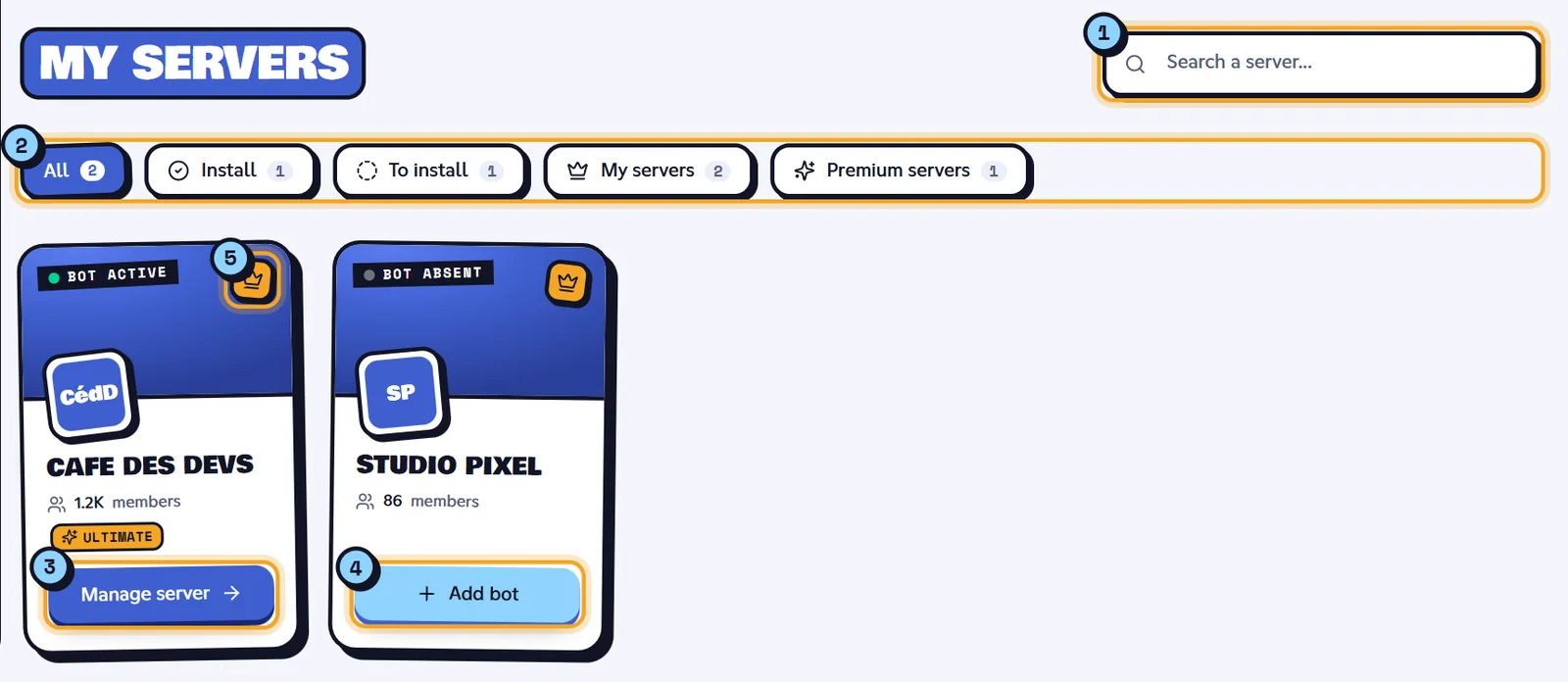
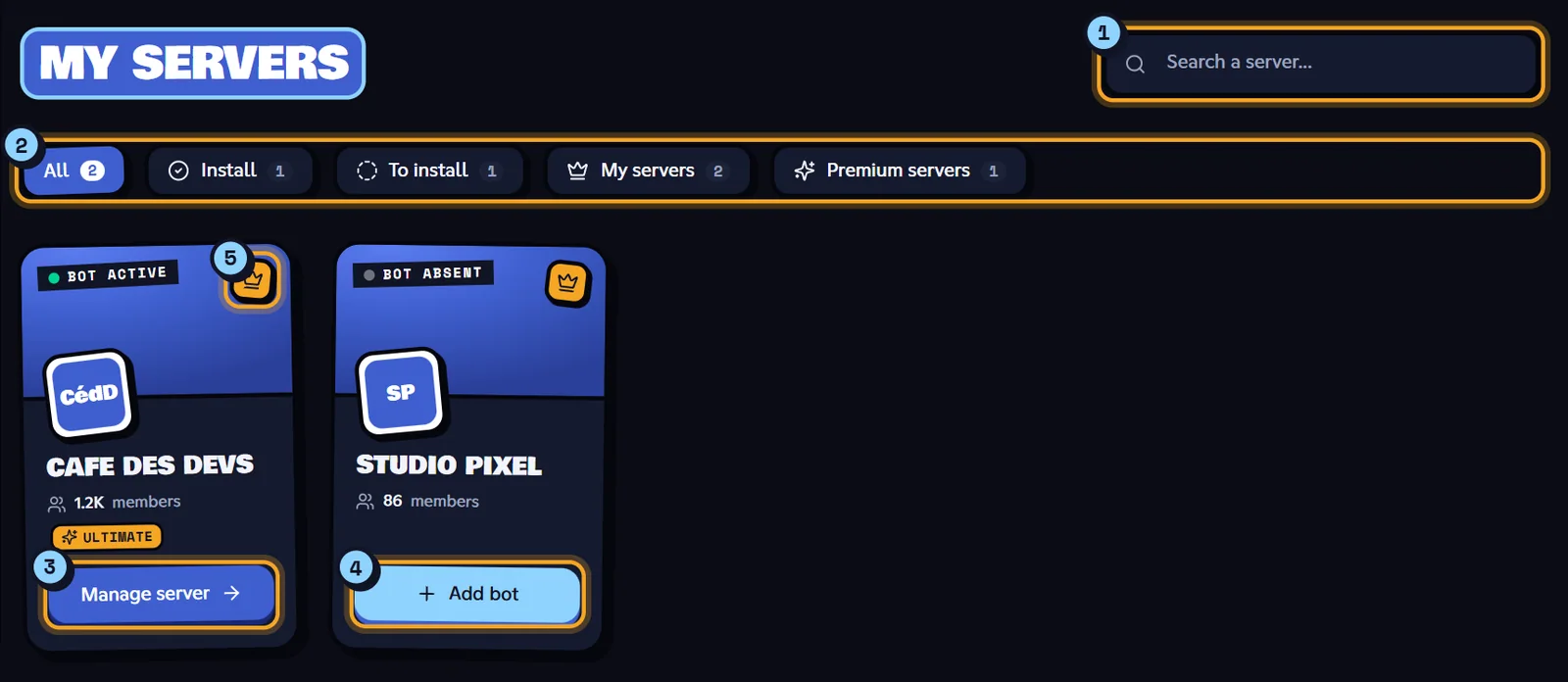
| Dashboard, My servers list, Bot absent card | Add bot | The server is already selected. |
| Page of a server where the bot isn't yet | Add Dispatch.IO™ to server | You pick the server on Discord's page. |
The Invite the App button of the bot's introduction (when someone mentions it) and the invite link in /help lead to that page too.
Confirming the invite
- Click one of the buttons. Discord's authorization page opens in a new tab.
- Pick the server in Discord's list (only the servers where you have Manage Server are listed), then continue.
- Discord shows the list of requested permissions, all checked. Keep them checked (see the next section), then confirm with Authorize.
- The bot joins the server. On the website, the server card switches to Bot active on its own; if it doesn't, click Sync Discord Data (see Managing your servers).
Tip
You can also add Dispatch.IO to your account rather than to a server, to use a few commands in direct messages. This is explained in All commands.
The requested permissions
The invite link asks for the Administrator permission, plus the detailed list of permissions the bot uses. Discord gives them to a role created automatically under the bot's name.
| What they are for | Requested permissions |
|---|---|
| The whole bot | Administrator |
| Messages, logs and replies | View Channel, Send Messages, Embed Links, Attach Files, Read Message History, Add Reactions, Use External Emojis, Use External Stickers, Manage Messages, Pin Messages, Mention @everyone, @here, and All Roles |
| Server, channels and roles | Manage Server, Manage Channels, Manage Roles, Manage Webhooks, Manage Expressions, Create Expressions, View Audit Log, Create Invite, View Server Insights, View Creator Monetization Analytics |
| Moderation | Ban Members, Kick, Accept, and Deny Members, Timeout Members, Manage Nicknames, Change Nickname |
| Voice | Connect, Speak, Priority Speaker, Mute Members, Deafen Members, Move Members, Set Voice Channel Status |
| Threads | Manage Threads, Create Public Threads, Create Private Threads, Send Messages in Threads |
Keep the Administrator permission. The bot's getting-started message asks for it, and several modules don't work without it: the anti-raid turns itself off, and the tickets menu and temporary voice channels are blocked in /config. If you uncheck permissions, the related features fail or show a warning: the details are in Permissions and roles.
Important
The permission isn't enough: on Discord, a role can only give the roles placed below it, and only sanction members whose role is lower. Remember to move the bot's role up (see First steps).
What the bot does when it joins
As soon as it joins the server, the bot goes through these steps:
The settings created when it joins:
| Setting | Value on arrival |
|---|---|
| Server language | English, until the language is chosen |
| Time zone | Europe/Paris |
| Color of the bot's messages | #48D1E1 |
| Channel name separator | ┇ |
| Anti-raid whitelist | The server owner, for every protection |
| Leveling system | Off |
| Other modules | Off or without a channel: nothing is posted until you set them up |
The bot creates no channel and no role and sends nothing by direct message. The website dashboard detects its arrival on its own.
Note
Two cases make the bot leave right away: if the server has been banned from Dispatch.IO, the owner receives a "Server Banned" direct message with the reason; if the server owner is blacklisted from Dispatch.IO, the bot leaves without a message. See the FAQ.
Choosing the language
The bot first posts this message, always in English, in the first text channel where it is allowed to write. That channel follows Discord's internal order: it isn't necessarily the first one in your list.
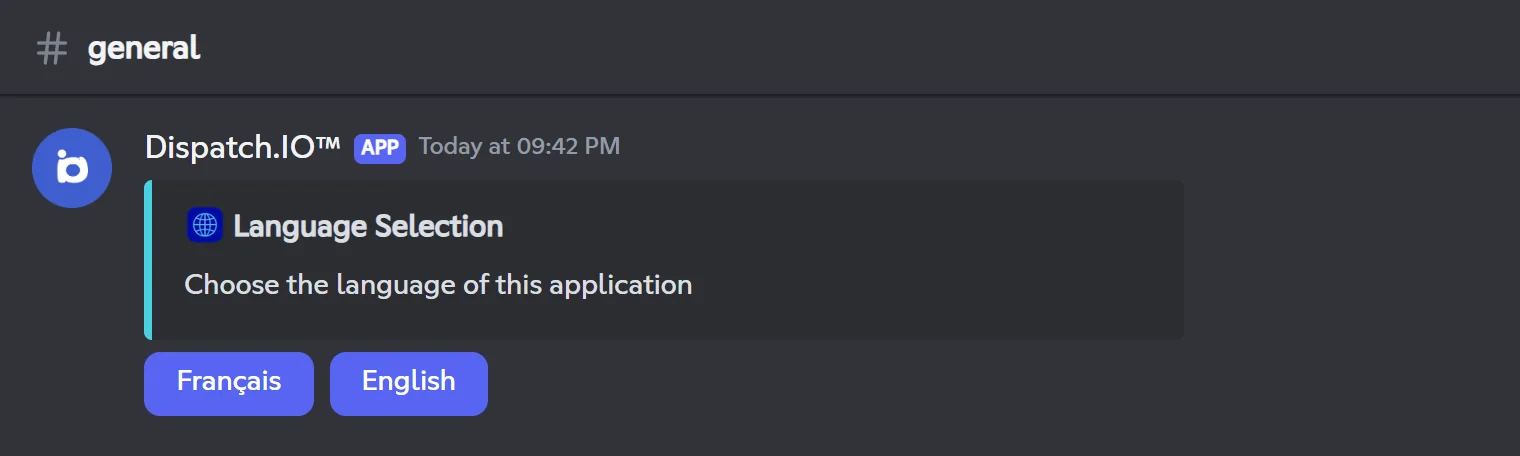
- Click Français or English.
- The bot confirms your choice in a message only you can see ("Language selected: English").
- The choice message disappears and the bot posts its getting-started message (see the next section), in the chosen language.
The server language is used for everything the bot posts for everyone: announcements, logs, welcome and goodbye cards, names of the channels it offers to create. Replies to your commands always follow your Discord language. You can change the server language at any time (see Bot configuration).
Warning
- Any member who sees the message can click: the first click wins.
- With no click for 24 hours, the language stays English: the choice message is deleted and the getting-started message is posted in English.
- If you change the language with
/configor on the website without clicking the message, it switches back to English after those 24 hours. Click one of the message's buttons instead. - If the bot restarts during those 24 hours, the buttons stop working ("This interaction failed") and the getting-started message is never posted. Delete the message and set the language with
/config, Language and time zone category. - If the bot can't write in any text channel, it posts neither this message nor the getting-started message: the language stays English.
The getting-started message
Once the language is chosen, the bot posts a welcome message in the same channel:
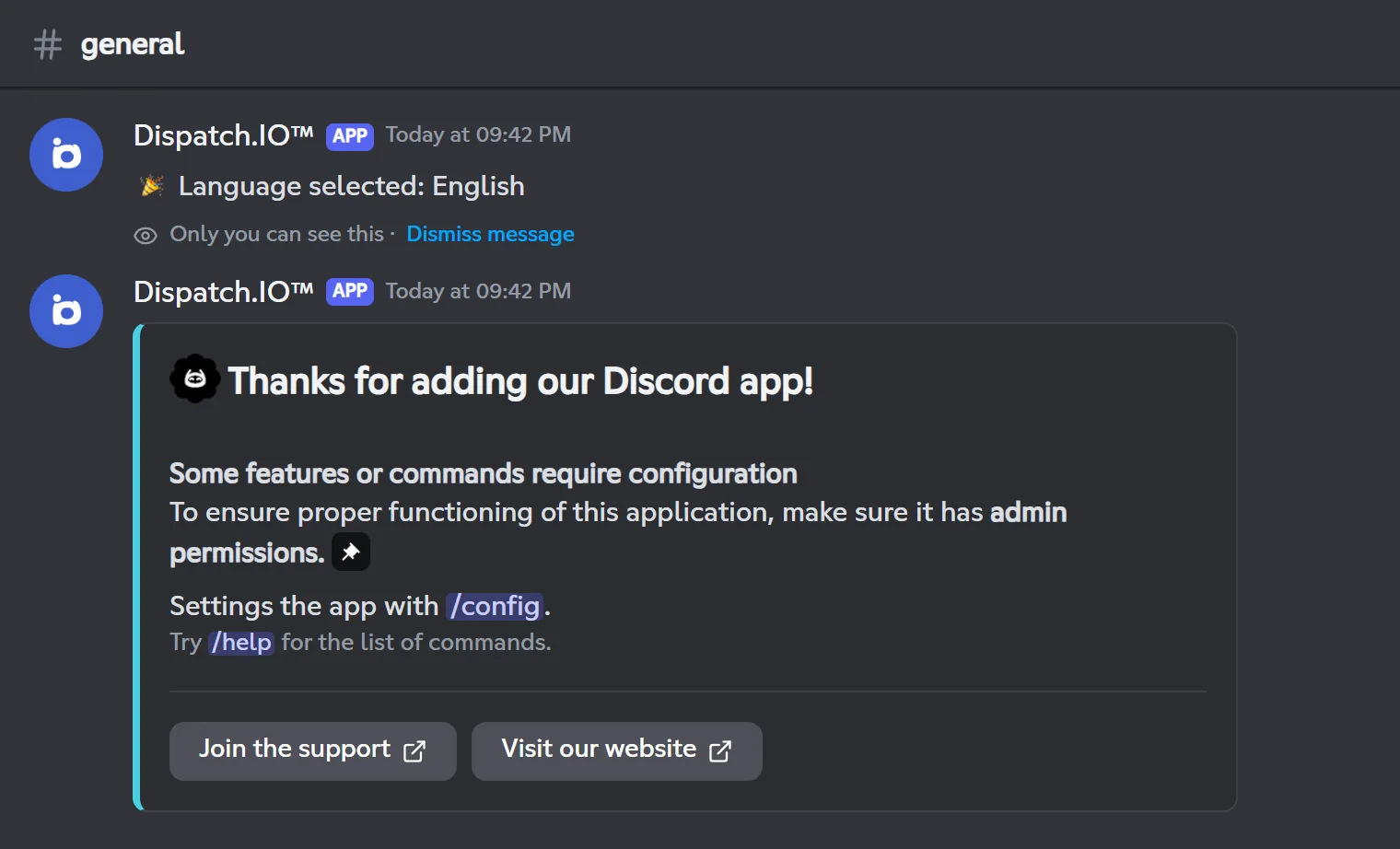
- It reminds you that some features need to be configured and that the bot needs admin permissions.
/configand/helpare clickable: a click prepares the command in your message bar.- Join the support opens an invite to Dispatch.IO's support server; Visit our website opens the website.
This message stays in the channel: you can delete it whenever you like.
First steps
Here are the settings to make right after the bot joins. Each one can be done with /config in Discord or on the website dashboard, as you prefer.
- Move the bot's role up. In Server Settings → Roles, drag the Dispatch.IO role above the roles it will give (welcome roles, level rewards, reaction roles) and above the members it will moderate.
- Check the language and time zone. The time zone sets where flame days start and end.
- Pick your log channels. At least the Server logs channel: every configuration change is recorded there. Then add the ones you need (sanctions, messages, joins and leaves…).
- Prepare the welcome: welcome channel, custom message and roles given to newcomers.
- Turn on the modules you need: anti-raid, levels, flames, tickets, bump…
- Give your team the right permissions: moderation commands follow the Discord permissions of your roles.
- Test:
/pingchecks that the bot answers,/helpshows the available commands.
| Step | In /config | On the website |
|---|---|---|
| Language and time zone | Language and time zone | Basic configuration |
| Log channels | Channels | Channels |
| Welcoming members | Welcome | Welcome and goodbye |
| Modules | One category per module | Configuration section of the menu |
| Team permissions | — | In Discord: Server Settings → Roles (see Permissions and roles) |
Tip
No need to create channels by hand: in Channels, the Create and assign button creates a text channel with a ready-made name (for example 📂┇server). Log channels created this way are hidden from @everyone.
Every option is detailed in Bot configuration.
Removing or re-inviting the bot
To remove Dispatch.IO, kick it from the server like any member (right-click the bot in the member list).
| When you remove the bot | When you invite it again |
|---|---|
| The server's settings are kept (channels, modules, messages, members' XP…). | Your settings are back. The language choice message is posted again. |
Server-specific commands (/rank, /modify-xp, /reset-levels, aviation commands) are removed. | The leveling system is turned off: turn it back on (XP is kept). Turn the aviation pack back on too if you used it. |
| The dashboard says the bot is no longer on the server. | The anti-raid whitelist gives the owner every protection again. |
Known issue
After removing the bot and inviting it again, the dashboard may keep showing "Dispatch.IO™ is not on this server". In that case, bump and the YouTube, Twitch and RSS announcements don't work on that server either. Commands and /config still work: contact the support with the Join the support button of the getting-started message.
Learn more
- Bot overview: what each module does.
- Bot configuration: every option, with its default value.
- Permissions and roles: the permissions of the bot and of your team.
- Managing your servers: adding the bot and opening the dashboard from the website.
- Bot FAQ and Troubleshooting: if something doesn't go as planned.