
This page answers the questions server owners, moderators and members ask most often about Dispatch.IO. Each answer links to the page that covers the topic in detail.
If you are looking for the fix to a specific problem (a module that does nothing, a card that doesn't show…), go straight to the Troubleshooting page.
General
Is Dispatch.IO free?
Yes. Every module and every command is free. The server plans Dispatch.IO Basic and Dispatch.IO Ultimate mostly raise the quotas:
| What is limited | Free | Basic | Ultimate |
|---|---|---|---|
| Ticket systems (with a button, with a menu) | 2 + 2 | 5 + 5 | Unlimited |
| Messages with reaction or button roles | 3 | 5 | Unlimited |
| Word reactions | 5 | 10 | Unlimited |
| Voice creator channels | 3 | 5 | Unlimited |
| Followed YouTube and Twitch accounts (per platform) | 2 | 5 | Unlimited |
Delay between two /bump | 12 h | 9 h | 6 h |
They also unlock a few extras (emergency alerts by direct message, provisional level roles, flame rewards and flame image with Ultimate). The Individual plans are about your account: personal images on your cards, an accent color, more flame freezes. Everything is detailed in Premium plans and limits; purchases are made in the dashboard shop.
How do I know which plan my server has?
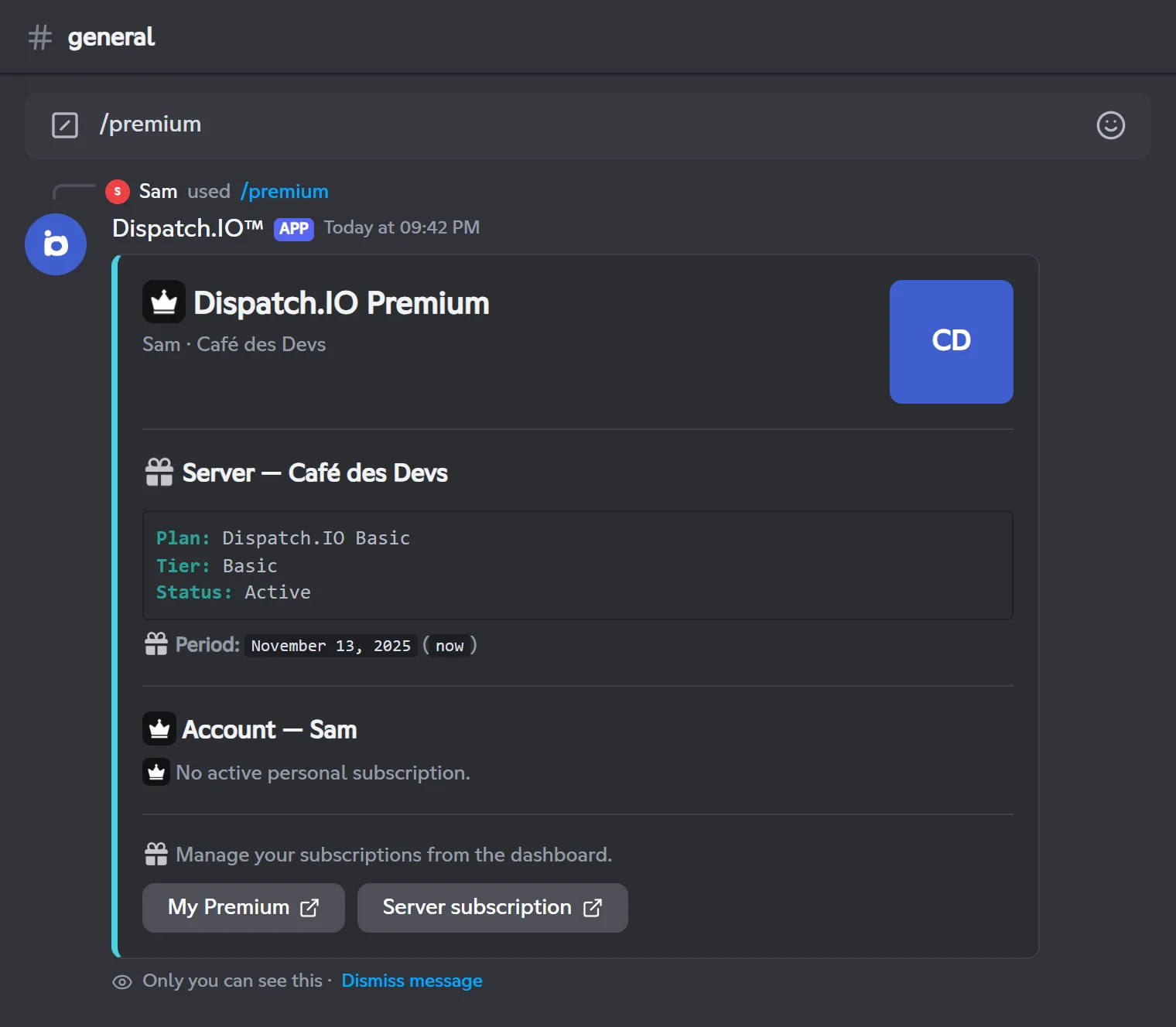
Type /premium on the server: the bot privately shows the server's plan (with its status and end date) and your personal plans. On the website, the Server subscription page gives the same information.
Can I use the bot in direct messages?
Yes, for some commands (/help, /ping, /profil, /premium, /report, Translate this…). You then need to add Dispatch.IO to your Discord account, not only to a server. The list is in All commands.
Commands
Why doesn't the bot answer my command?
Most often, a permission is missing, either yours or the bot role's. In that case the bot replies nothing at all and Discord ends up saying the application did not respond. This happens for example when a command was allowed for your role in Server Settings → Integrations while your role lacks the matching Discord permission.
Other possible causes:
- the bot is restarting or offline (see How do I know if the bot is online?);
- the "Your request is being processed…" message stays on screen: the command needs a server where the bot is (for example
/info serverin direct messages); - the bot shows "Oh no, it seems there's a problem…": that's an unexpected error, see Troubleshooting.
The permission each command requires is in Permissions and roles.
Why can't I see a command when I type "/"?
- You don't have the permission the command requires: Discord hides it (for example
/banwithout Ban Members,/configwithout Administrator). - The module isn't enabled:
/rank,/modify-xpand/reset-levelsonly exist when the leveling system is on;/zulu,/metarand/frequenciesonly when the aviation pack is on. - Discord hasn't refreshed its list yet: reload Discord (Ctrl+R on desktop).
- The bot isn't on this server, or you're in direct messages: only a few commands work there.
How many times can I use a command?
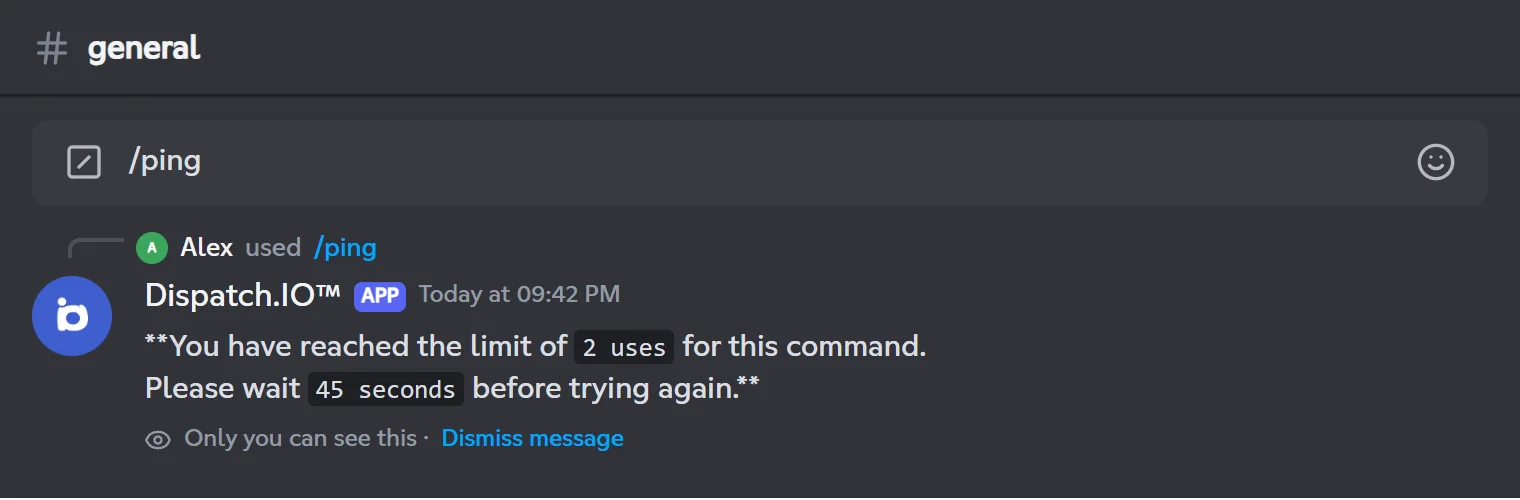
Most commands have a per-person limit, for example 2 / 60 s for /ping (2 uses over a sliding 60 seconds). When you reach it, the bot privately tells you how long to wait. Each command's limit is in All commands.
Why does the bot say I'm blacklisted?
The Dispatch.IO team can blacklist an account that abuses the bot (spam, scams, malicious behavior). That account can no longer use any of the bot's commands or buttons, on any server, and no longer earns XP or flames. On every attempt, it gets this message, visible only to it:
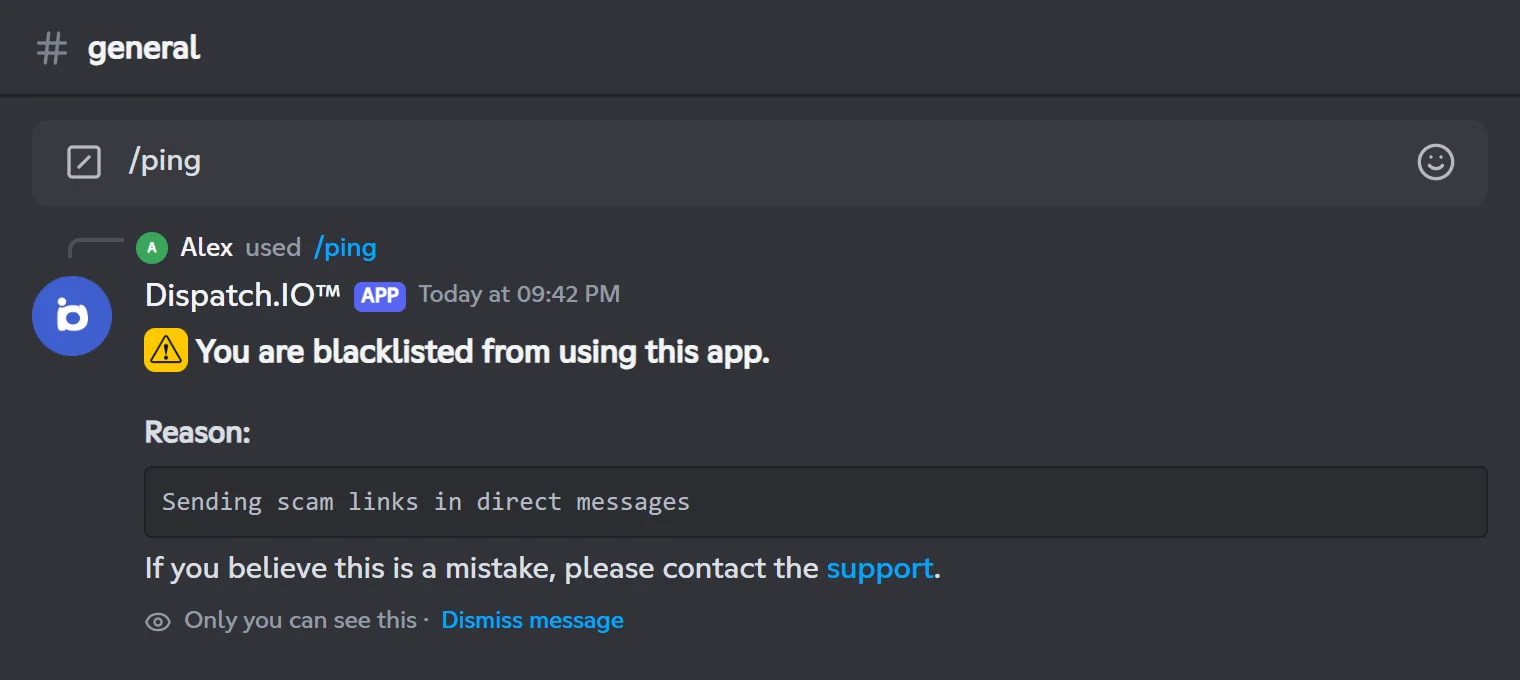
If you think it's a mistake and the message offers a link to the support, join it to talk about it. If the message says "You cannot be unblacklisted", the decision is final.
Language
Which language does the bot answer in?
The bot speaks French and English. It picks based on who the message is for:
| What you see | Language |
|---|---|
Replies to your commands, the /config screens | Your Discord language: French if your Discord is in French, English for every other language. |
| What the bot posts for the whole server: announcements, logs, welcome cards, ticket panels, polls… | The server language. |
A few permission error messages are written in the server language. The details are in All commands.
How do I change the server language?
Either:
- in Discord,
/config→ Language and time zone; - on the website, the server's Basic configuration page → Bot Language (see Server home).
The change applies right away. To change the language of the replies you receive, change the language of your Discord app.
Nobody chose the language when the bot joined: what happens?
With no click on Français or English for 24 hours, the server language stays English and the bot posts its getting-started message. You can change it afterwards with /config. Be careful: any member can click that message, and a change made with /config during those 24 hours is replaced by English if nobody clicked. It's all explained in Adding the bot and first steps.
Installation and permissions
Does the bot really need the Administrator permission?
It's strongly recommended, and the bot asks for it in its getting-started message. Without it, the anti-raid turns itself off, and tickets and temporary voice channels can't be set up. The other modules need specific permissions (Manage Roles for welcome roles, Manage Channels for levels and flames…). When a permission is missing, /config says so at the bottom of the screen concerned. The full list is in Permissions and roles.
Also remember to place the bot's role above the roles it has to give and the members it has to moderate.
Who can configure the bot?
| Where | Who |
|---|---|
/config in Discord | Members with the Administrator permission (the owner always has it). |
| Website dashboard | The owner and members with Administrator or Manage Server; the configuration menu only shows for the owner and administrators. |
Every change made with /config is recorded in the Server logs channel, with its author's name.
Why didn't the bot create any channel or role?
That's on purpose: when it joins, the bot creates nothing. You choose which channels to use. To save time, the Create and assign button in /config → Channels (or the create buttons of the website's Channels page) creates a ready-named channel and links it to the right feature.
The bot on your server
The bot answers on its own when someone mentions it: is that normal?
Yes. When a message mentions the bot (or its role), it answers with a short introduction and links to the support, the invite and the website.
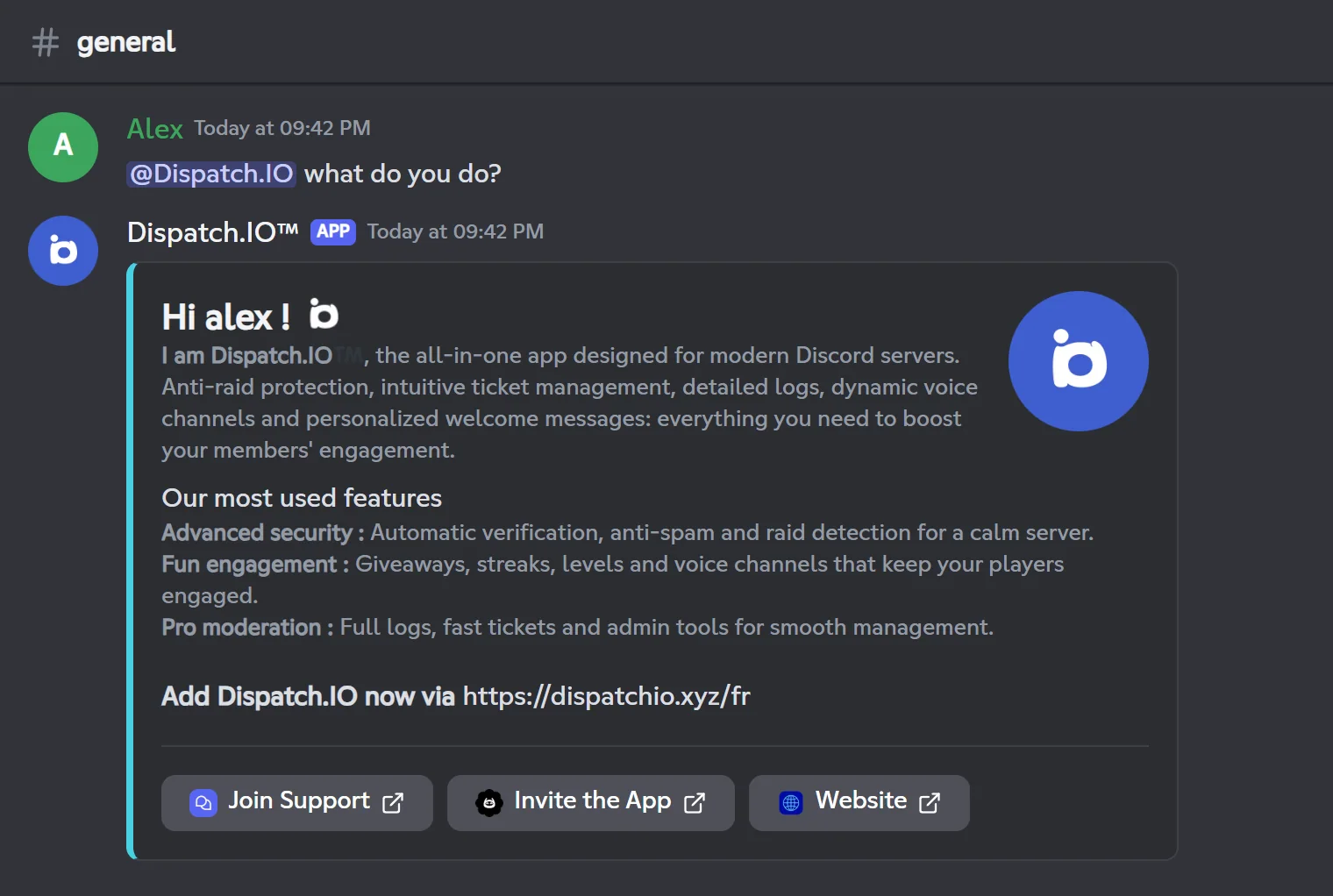
- It shows at most once a minute for each member.
- It doesn't show if the message also mentions
@everyoneor@here, replies to a bot message, or is posted in the suggestions channel. - There is no setting to turn it off.
How do I know if the bot is online?
Type /ping: the bot shows its latency. If it doesn't answer, look at its activity in the member list:
| Activity shown | What it means |
|---|---|
| Rotating texts ("Use /help !", number of servers, version…) | The bot is working normally. |
| "I'm restarting..." | The bot is restarting: wait a minute. |
| "Recovery mode enabled." | The bot is under maintenance (recovery mode): music and /rank are unavailable, XP, flames and YouTube, Twitch and RSS announcements are paused. |
| Offline | The bot is stopped: its commands don't answer. |
After a restart, panels opened before it (/config menus, buttons of an old message…) may stop answering: run the command again.
The bot left my server right after joining: why?
Two possible reasons, both decided by the Dispatch.IO team:
- The server is banned from Dispatch.IO: the owner receives a direct message, in English, with the reason, then the bot leaves the server.
- The server owner is blacklisted: the bot leaves the server without a message.
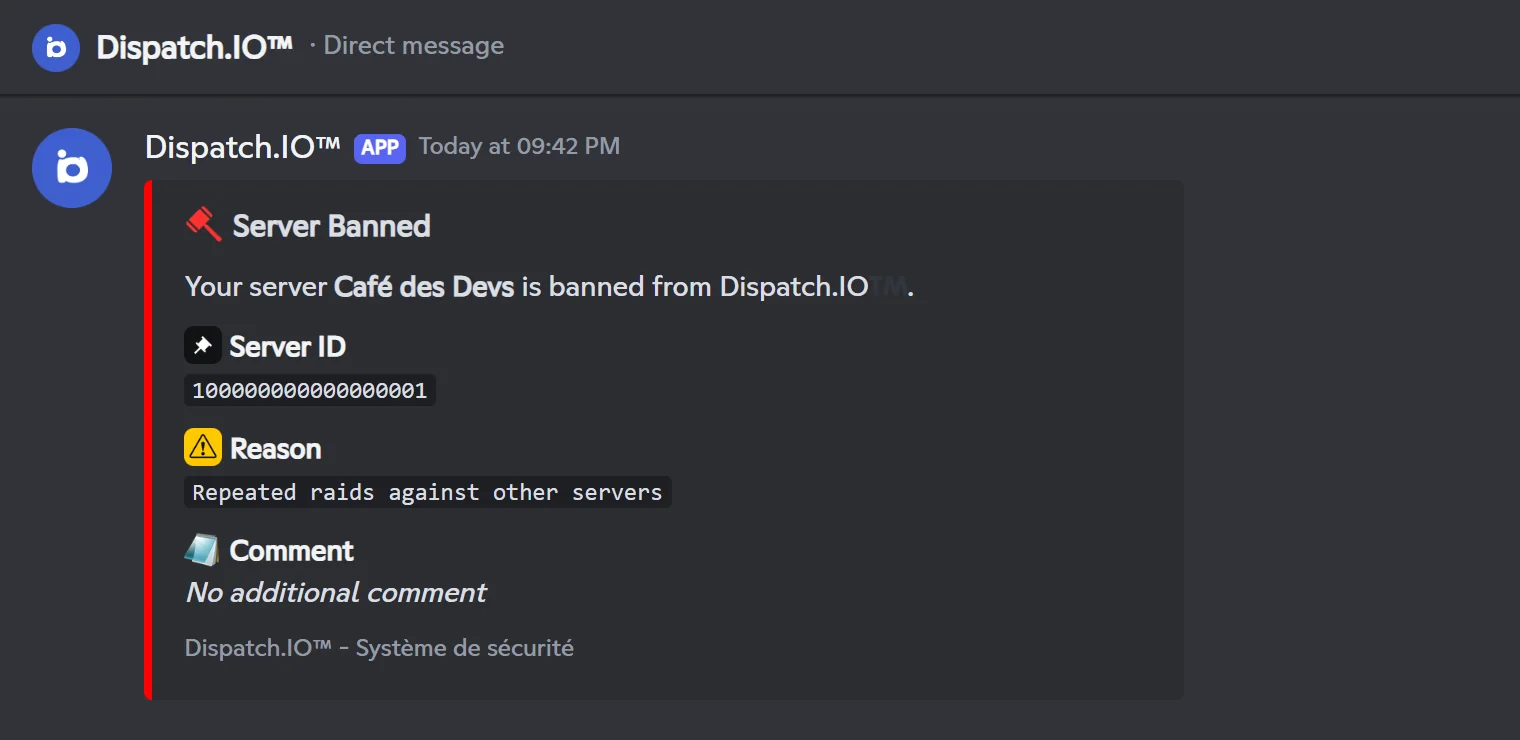
In both cases, the bot leaves again on every new invite. To appeal, contact Dispatch.IO's support.
What happens if I remove the bot from the server?
The server's settings are kept: if you invite the bot again, you get them back. Only the server-specific commands (levels, aviation) are removed, and the leveling system is turned off when the bot joins again: turn it back on, the members' XP is kept. The details, and a known dashboard issue after a new invite, are in Adding the bot and first steps.
Data
What data does the bot store?
The bot keeps what its modules need:
| About | What is stored |
|---|---|
| The server | Its name, icon, banner, the owner's ID and all its settings. |
| Members | Discord ID, username, avatar and server tag, updated when they chat or use the bot. |
| Activity | XP and levels, flames and the history of validated days, counters of messages, voice minutes and commands (for the dashboard statistics). |
| Moderation | Infractions (sanctions and reasons), and the invite each member used to join the server (erased when they leave). |
| What you give the bot | Tickets and saved transcripts, suggestions, polls and votes, giveaway entries. |
The bot also reads messages to run its modules (XP, anti-raid, word reactions, counting, suggestions). Copies of edited or deleted messages are posted in your log channels, on Discord. Finally, every command used is reported to the Dispatch.IO team in a technical log (server, author, command and chosen options), and /report forwards reports to the team.
Removing the bot doesn't delete this data. For any question about it, contact the support.
Getting help
Where can I get help?
- The documentation: start with Troubleshooting, then the page of the module or command concerned.
- Dispatch.IO's support server: the Join the support button of the getting-started message, Join Support in the bot's introduction, or Contact Support in error messages.
/report bug: reports a bug straight to the team, from any channel (see General commands).
When the bot shows "Oh no, it seems there's a problem…", keep the error text (and the attached .log file when there is one): that's what the team will ask you for.