
This page gathers every Dispatch.IO setting for a server: what each option does, the values it accepts and its default value. It is meant for server owners and administrators.
You can set everything up in two ways: with the /config command right inside Discord, or from the website dashboard. Both change the same settings. The sections follow the order of the /config menu, and the Summary table at the bottom of the page lists every option with its default value.
Where to start?
Right after adding the bot: set Language and time zone, then in Channels pick at least the Server logs channel (every configuration change is recorded there). Then turn on the modules you want.
Where to configure the bot
In Discord: the /config command
Type /config in any channel of your server. You need the Administrator Discord permission (see Permissions and roles). The command itself is detailed in the next section.
The /config screens are shown in your Discord language. The bot's logs and public messages use the server language (set in Language and time zone).
On the website: the dashboard
Sign in on the website, open the dashboard and pick your server (see Managing your servers). The server dashboard is open to the server owner and to members with the Administrator or Manage Server permission. The configuration pages are grouped under Configuration in the menu.
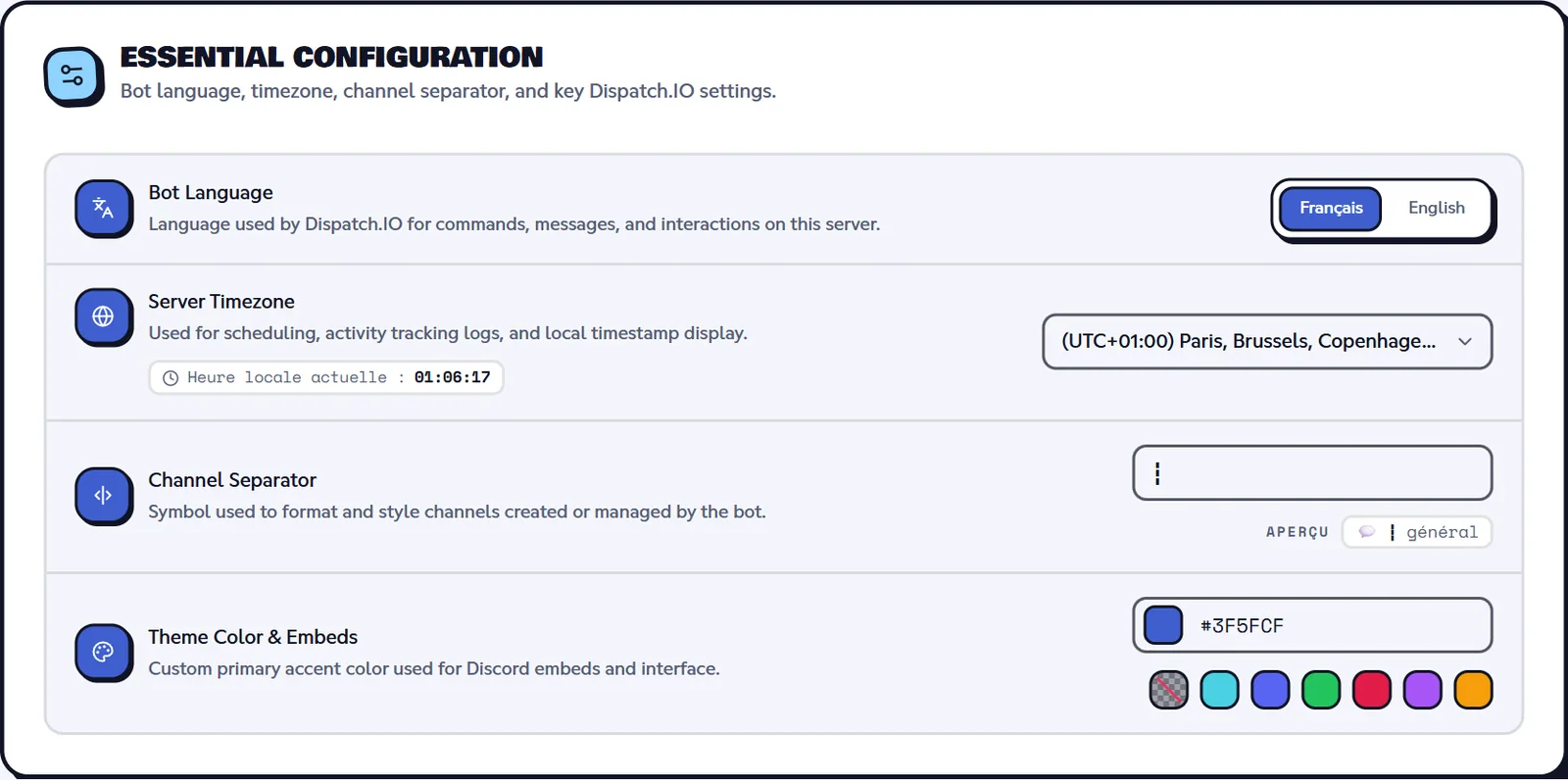
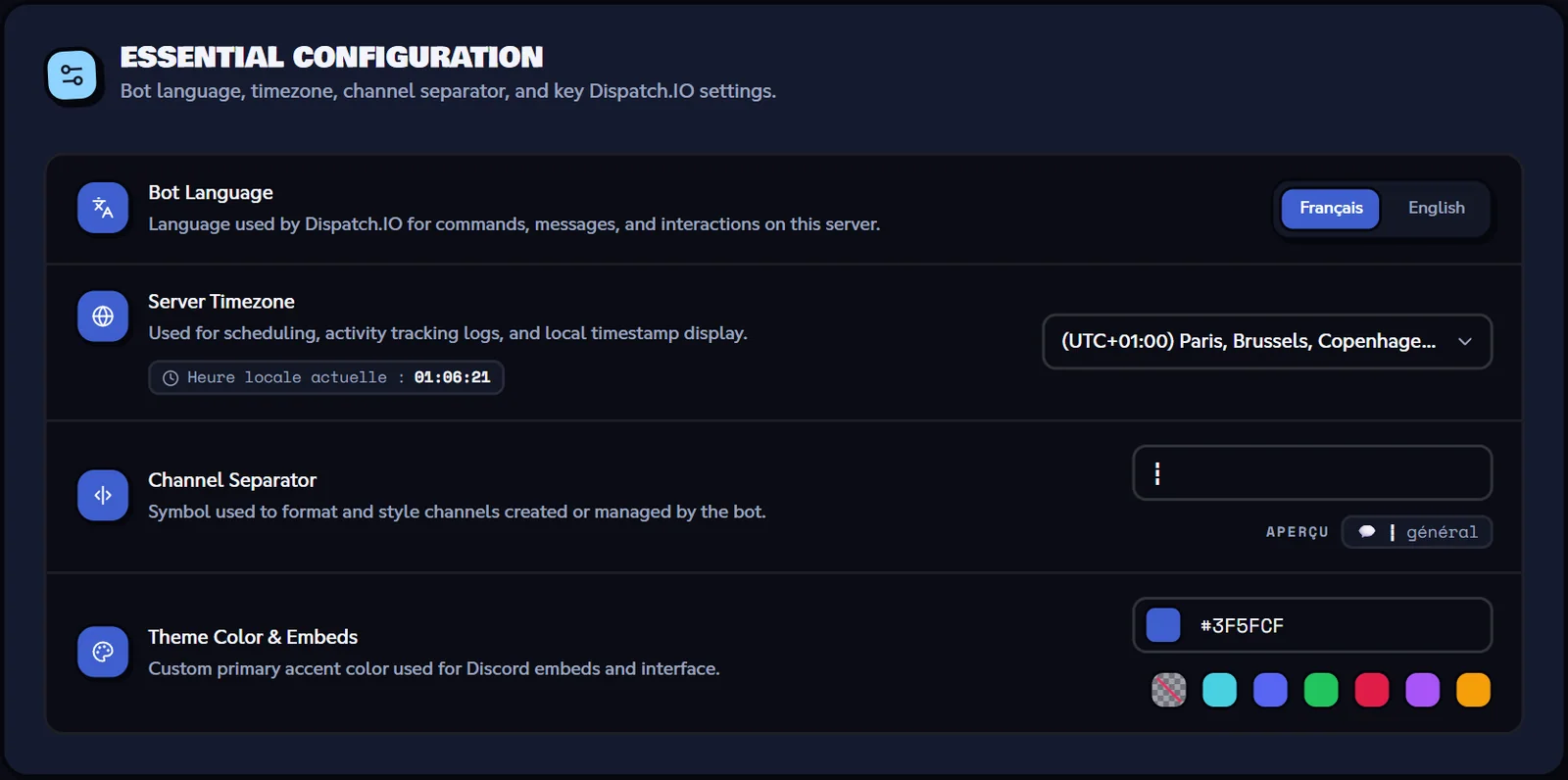
Each /config category has its counterpart on the website:
/config category | Website page |
|---|---|
| Welcome | Welcome and goodbye |
| Channels | Channels |
| Role/message reaction | Reaction roles |
| System for managing other commands | Other commands |
| Antiraid, Whitelist | Security and anti-raid |
| Tickets | Tickets |
| Word reaction | Word reactions |
| Temporary channels, Temporary Voice Channel | Temporary channels |
| Bump | Bump |
| Leveling | Levels |
| Daily Streak System (Fire) | Flames |
| Social networks, RSS | Social networks and RSS |
| Language and time zone, Color | Basic configuration page, see Server home |
A few settings only exist on the website: they are listed in the Settings only available on the website section at the bottom of the page. To learn how the bot receives changes made on the website, read Synchronisation with the bot.
The /config command
/configConfigure the app according to your needs.
Syntax
/configMember permission
Administrator
Bot permission
None checked at launch (each category checks its own)
Where to use it
Server only
Rate limit
None
Plan
Free (some categories have limits depending on the server's plan)
Examples
/config
The command has the same name in every language.
Result on Discord
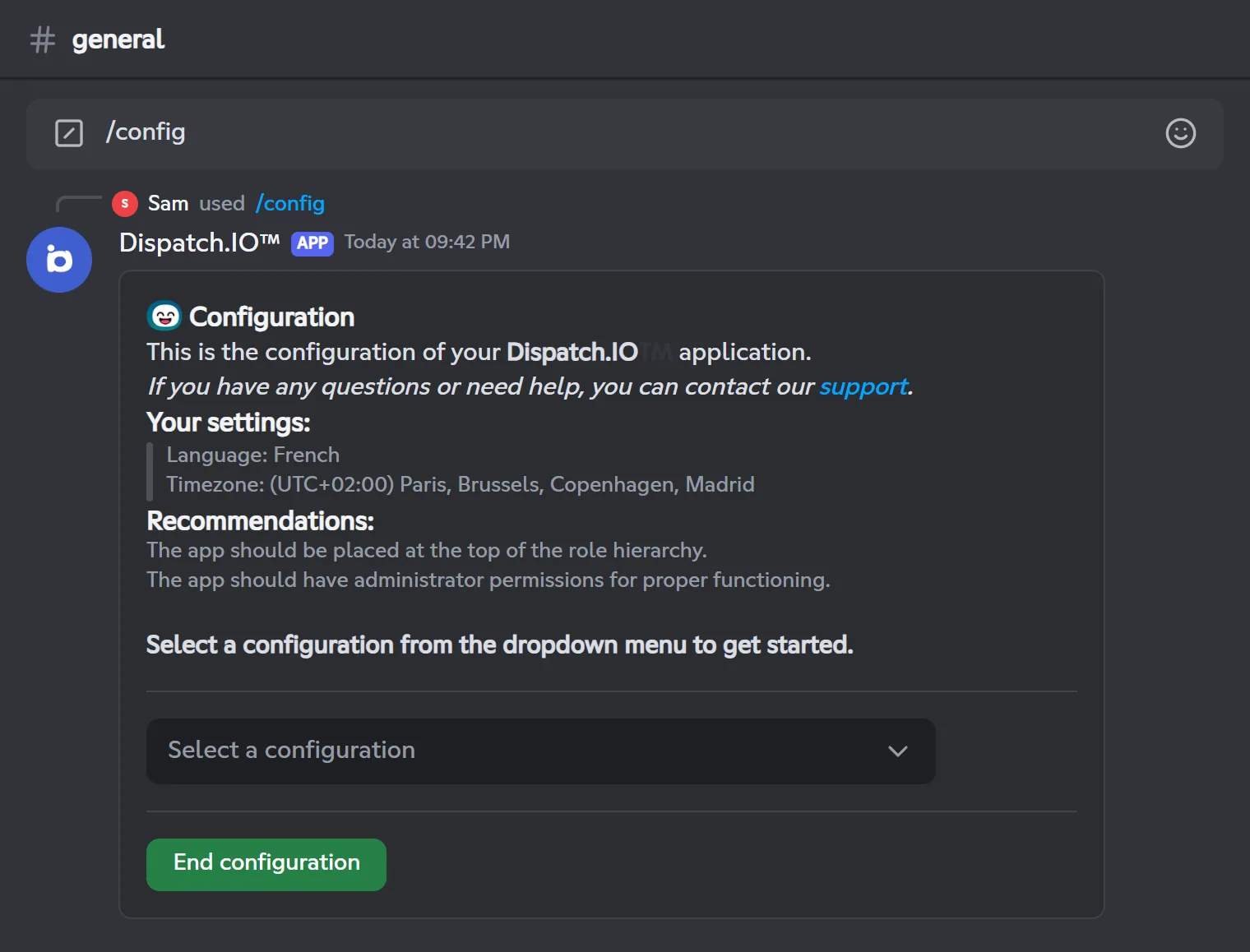
How the panel works
- The main panel is posted in the channel: other members can see it, but only you can use its menu.
- Pick a category in the dropdown. The main panel disappears and the category opens in a message that only you can see.
- The Back button returns to the previous screen or to the main panel. End configuration deletes the panel.
- After 5 minutes without any action (10 minutes in Role/message reaction), the screen is replaced by "Oops.. It seems that what you were looking for no longer exists." with a few suggested commands. Just run
/configagain. If you had already clicked something on that screen, it simply stops responding.
Every change is recorded in the Server logs channel (if one is set and it is a text channel), with your name and the details of the change. Anti-raid changes go to the Raid logs channel.
Note
When the bot lacks a permission for a category, the screen says so at the bottom ("To continue the setup, make sure the bot has the following permissions on its role…") and some buttons are hidden or greyed out. The required permissions are detailed in Permissions and roles.
The main menu
The main panel shows the server's language and time zone, plus two recommendations: put the bot's role at the very top of the role list, and give it the Administrator permission.
The menu offers 17 categories, in this order:
| Category | What it sets up |
|---|---|
| Welcome | Welcome roles, channel, message and image. |
| Channels | The channel used for each feature (logs, welcome, bump…) and the channel name separator. |
| Role/message reaction | Reaction roles, role buttons and response buttons. |
| System for managing other commands | Commands that are not enabled by default (aviation). |
| Antiraid | The anti-raid and its 14 protections. |
| Whitelist | Members ignored by the anti-raid protections. |
| Tickets | Ticket systems (button or dropdown menu). |
| Word reaction | Automatic reactions to certain words. |
| Temporary channels | Channels where messages are deleted automatically. |
| Temporary Voice Channel | Voice channels that create temporary voice channels. |
| Bump | The bump system. |
| Leveling | XP, the announcement channel and level rewards. |
| Daily Streak System (Fire) | Flames (daily streaks). |
| Social networks | YouTube and Twitch notifications. |
| RSS | RSS feeds posted in a channel. |
| Language and time zone | The server's language and time zone. |
| Color | The color of the bot's messages. |
Welcome
In the menu: Welcome · On the website: Welcome and goodbye · Module: Welcome and goodbye
The screen shows the current settings, then a menu with four options: Roles, Join/Leave Channel, Custom Message and Image.
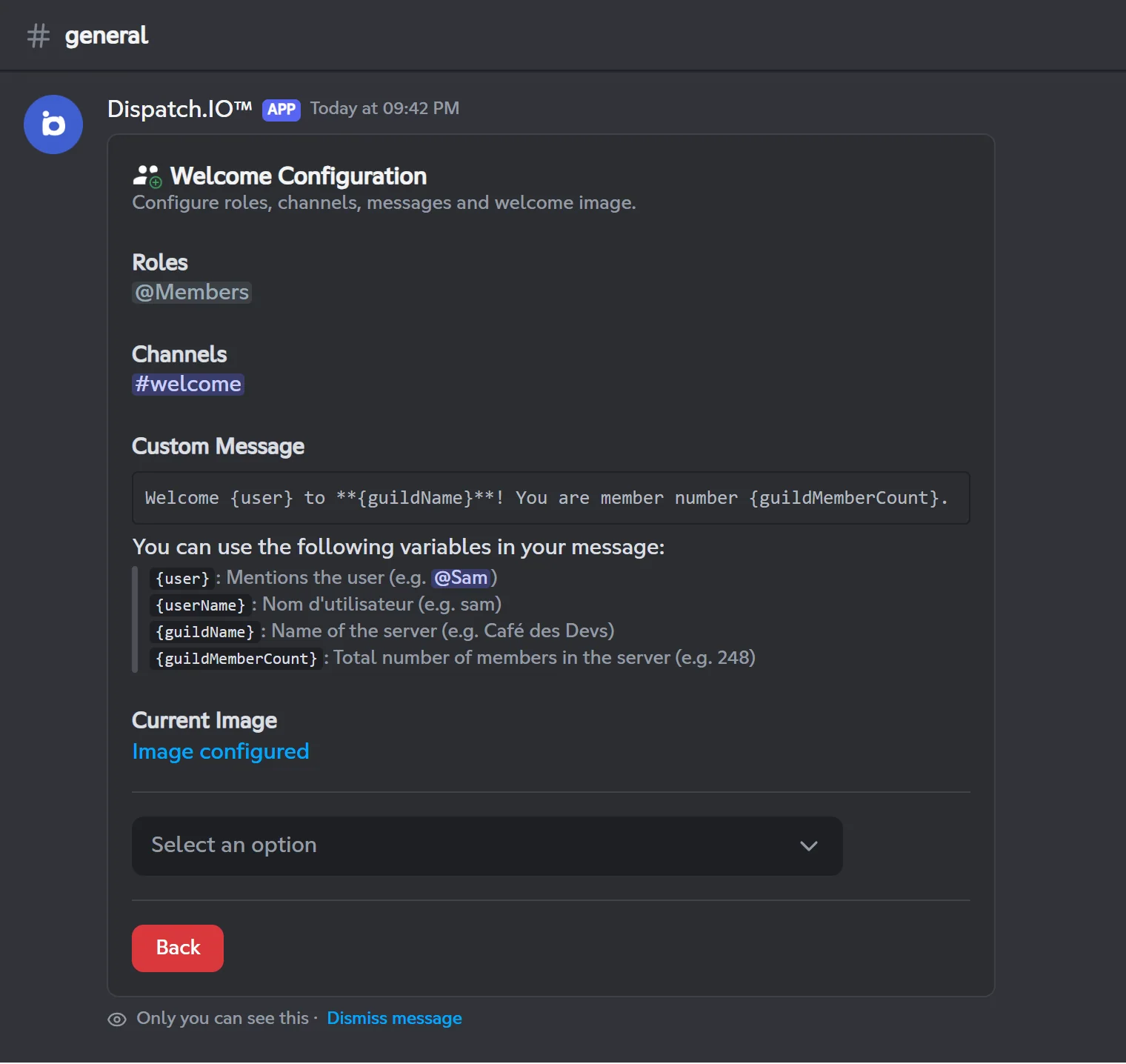
| Option | Allowed values | Default | Effect |
|---|---|---|---|
| Roles | 0 to 25 roles, not managed by an integration and below the bot's role | None | Given automatically to every new member. |
| Join/Leave Channel | A text channel | None | Channel where the welcome card is posted. Without a channel, nothing is posted. |
| Custom Message | Text, up to 2000 characters | None (the bot's default text) | Replaces the welcome text. It is also sent to the new member by direct message. |
| Image | A JPG, JPEG, PNG or WEBP file | Dispatch.IO default image | Background of the welcome card. Reset restores the default image. |
Custom message variables:
| Variable | Replaced with |
|---|---|
{user} | A mention of the new member |
{userName} | Their username |
{guildName} | The server name |
{guildMemberCount} | The total number of members |
Example: Welcome {user} to **{guildName}**! You are member number {guildMemberCount}.
- Roles: select the roles, then click Confirm (Cancel leaves without saving). If you pick a role managed by an integration or placed above the bot's role, it is refused and the screen loses its buttons: run
/configagain. - Join/Leave Channel only sets the welcome channel. The goodbye channel is set in Channels or on the website; the goodbye message and image can only be set on the website.
- The picker also lists announcement channels, but the welcome is only sent in a text channel.
- The custom message cannot be emptied from
/config: to go back to the default text, use the website. After saving, a technical line (commands.config.welcome.message.success) appears at the bottom of the screen: your message has been saved. - A new image can take up to an hour to show up on the cards.
Important
The bot needs the Manage Roles permission. Without it, the category menu is hidden.
Channels
In the menu: Channels · On the website: Channels · Module: Logs
The screen lists every channel type with its current channel, after the separator used in the names of channels created by the bot.
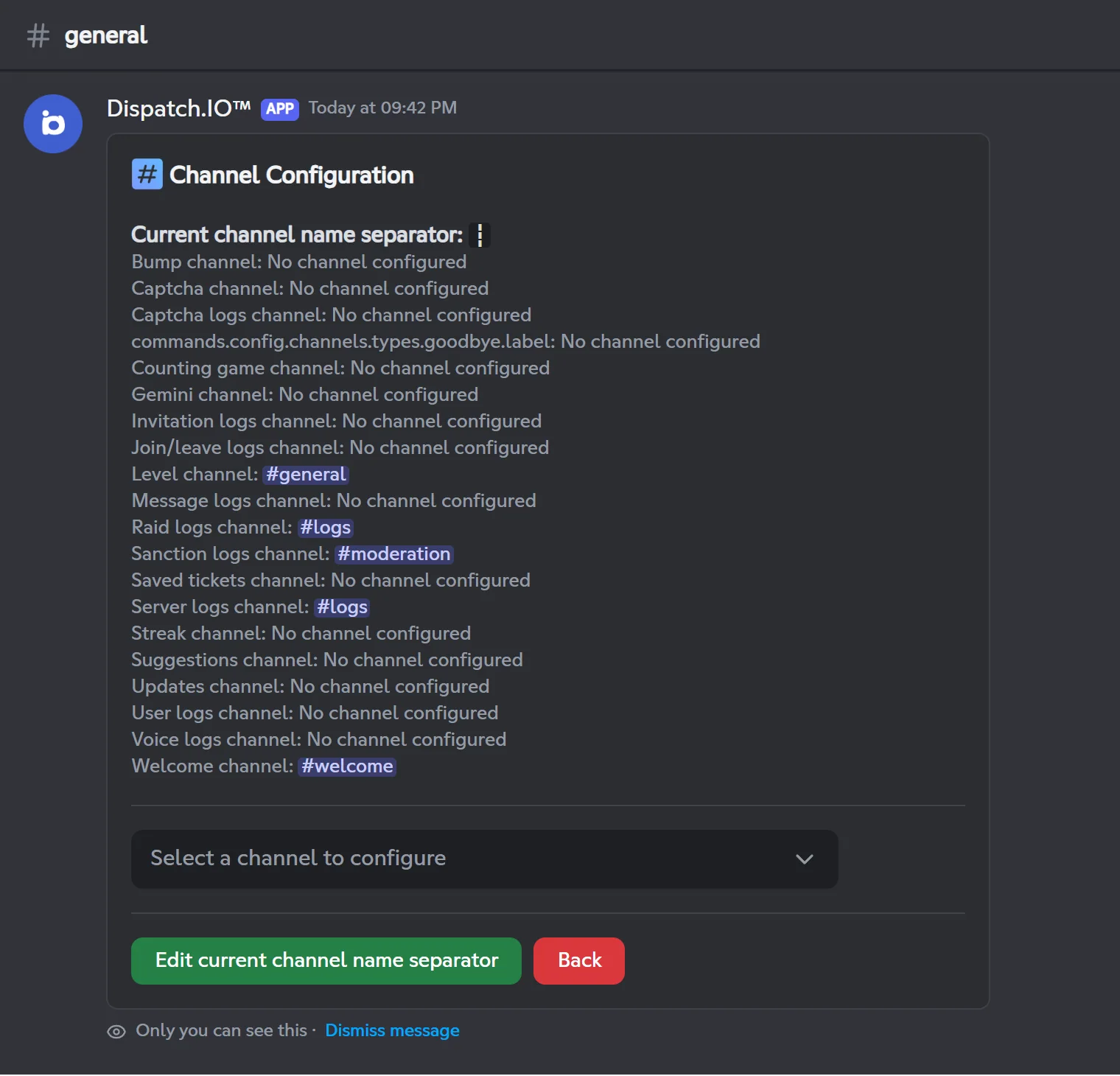
Picking a channel
- In the menu, pick the channel type to set up.
- Select a channel in the list, or click Create and assign: the bot suggests a name (for example
👋┇welcome), then creates a text channel in the same category as the channel where you typed/config. - To remove a channel, clear the selection.
Each type has a single channel, but one channel can serve several types. Log channels created by the bot are hidden from @everyone.
| Channel type | What it is for | Default |
|---|---|---|
| Bump channel | Channel where bumps will be sent (other servers' bumps, required for /bump) | None |
| Captcha channel | Channel where captchas will be sent | None |
| Captcha logs channel | Captcha logs | None |
| Counting game channel | Channel where users can participate in the counting game | None |
| Gemini channel | Channel where messages related to the Gemini AI may appear | None |
| Invitation logs channel | Invitation logs | None |
| Join/leave logs channel | Member join and leave logs | None |
| Level channel | Level-up announcements | None |
| Message logs channel | Message-related logs | None |
| Raid logs channel | Anti-raid logs and anti-raid changes | None |
| Sanction logs channel | Sanction logs | None |
| Saved tickets channel | Channel where saved tickets will be sent | None |
| Server logs channel | Server logs, including every configuration change | None |
| Streak channel | Streak-related messages | None |
| Suggestions channel | Channel where the suggestion system will be enabled (60 s slowmode when created by the bot) | None |
| Updates channel | Channel where app update messages will be sent | None |
| User logs channel | User-related logs | None |
| Voice logs channel | Voice channel logs | None |
| Welcome channel | Channel where welcome messages will be sent | None |
| Goodbye channel | Leave messages. It currently shows up under a technical name: commands.config.channels.types.goodbye.label | None |
Warning
Log channels and the welcome channel must be text channels. The picker also lists announcement channels, but the bot posts nothing there.
Channel name separator
The Edit current channel name separator button opens a form: up to 5 characters, spaces become -. The separator goes between the emoji and the name in the names suggested by Create and assign (📂┇server, 💧┇levels…). Default: ┇.
Important
The bot needs the Manage Channels permission. Without it, the channel picker only shows a warning, with no buttons at all.
Role/message reaction
In the menu: Role/message reaction · On the website: Reaction roles · Module: Reactions and triggers
This category adds actions to an existing message. There are three kinds:
| Type | On which message | What the member does | Result |
|---|---|---|---|
| Reaction | Any message in a text channel | Adds or removes the reaction | Gets or loses the roles, silently |
| Reaction button | A bot message only | Clicks the button | Gets the roles, or loses them if they already have the first role, with a private confirmation |
| Response button | A bot message only | Clicks the button | Receives a copy of a message you picked |
To create a bot message, use /say, /create-embed or /create-container (see Messages and announcements).
Adding an action
- Click Add, pick the message's channel and paste the message ID (Discord developer mode → right-click the message → Copy Message ID).
- If it is a bot message, pick the type: Reaction, Reaction button or Response button. For a member's message, you go straight to reactions.
- Fill in the form for that type:
| Field | Types | Allowed values | Default |
|---|---|---|---|
| Emoji | Reaction | A single emoji; a custom emoji must come from your server | — |
| Button name | Buttons | Up to 80 characters; a lone emoji is shown as the button icon | — |
| Role(s) | Reaction, Reaction button | 1 to 3 roles, not managed and below the bot's role | — |
| Style | Buttons | Blue, Grey, Green or Red | — |
| Place the button inside the message? | Buttons, on a container message | Yes or No | No |
| Make the message ephemeral? | Response button | Yes (only the member sees the reply) or No | Yes |
| Position | Buttons | A number (optional) | At the end |
For a response button, then click Open the form and give the message to copy (channel + ID). It must not contain stickers or any button other than links, and it cannot be the message that carries the button. The bot keeps a frozen copy: later edits to the original message are not picked up.
Edit and Delete list the messages that have actions. Delete removes every action of a message after confirmation.
Limits
| Limit | Free | Basic | Ultimate |
|---|---|---|---|
| Messages with actions (panels) | 3 | 5 | Unlimited |
| Reaction buttons per message | 20 | 20 | 20 |
| Response buttons per message | 20 | 20 | 20 |
| Roles per reaction or button | 3 | 3 | 3 |
Warning
- The bot must be able to see the channel and read the message history. When you open this category, actions on messages it can no longer read are deleted.
- Adding a button rewrites the message: on a classic message, existing buttons (links included) are replaced by the bot's buttons.
- The reactions Add button is greyed out as soon as the message carries 3 reactions, whatever they are.
The Help with custom emoji button gets you the <:name:id> code of one of your server's emojis: type the emoji in the channel and the bot shows its code. While this help is open, the messages you send in the channel are deleted.
System for managing other commands
In the menu: System for managing other commands · On the website: Other commands
Some commands are not available by default. Today this category handles a single pack: the aviation commands /zulu, /metar and /frequencies (see Aviation).
| Option | Values | Default | Effect |
|---|---|---|---|
| Aviation commands | Enabled or disabled | Disabled | Adds or removes the three commands from the server's command list. |
The button reads Enable aviation commands? or Disable aviation commands? depending on the current state. You must wait 60 seconds between two changes on the same server. The commands show up in Discord as soon as the command list refreshes.
Antiraid
In the menu: Antiraid · On the website: Security and anti-raid · Module: Anti-raid and security
The anti-raid protects the server against spam, mass joins, app additions, mass channel creation or deletion, links and forbidden words.
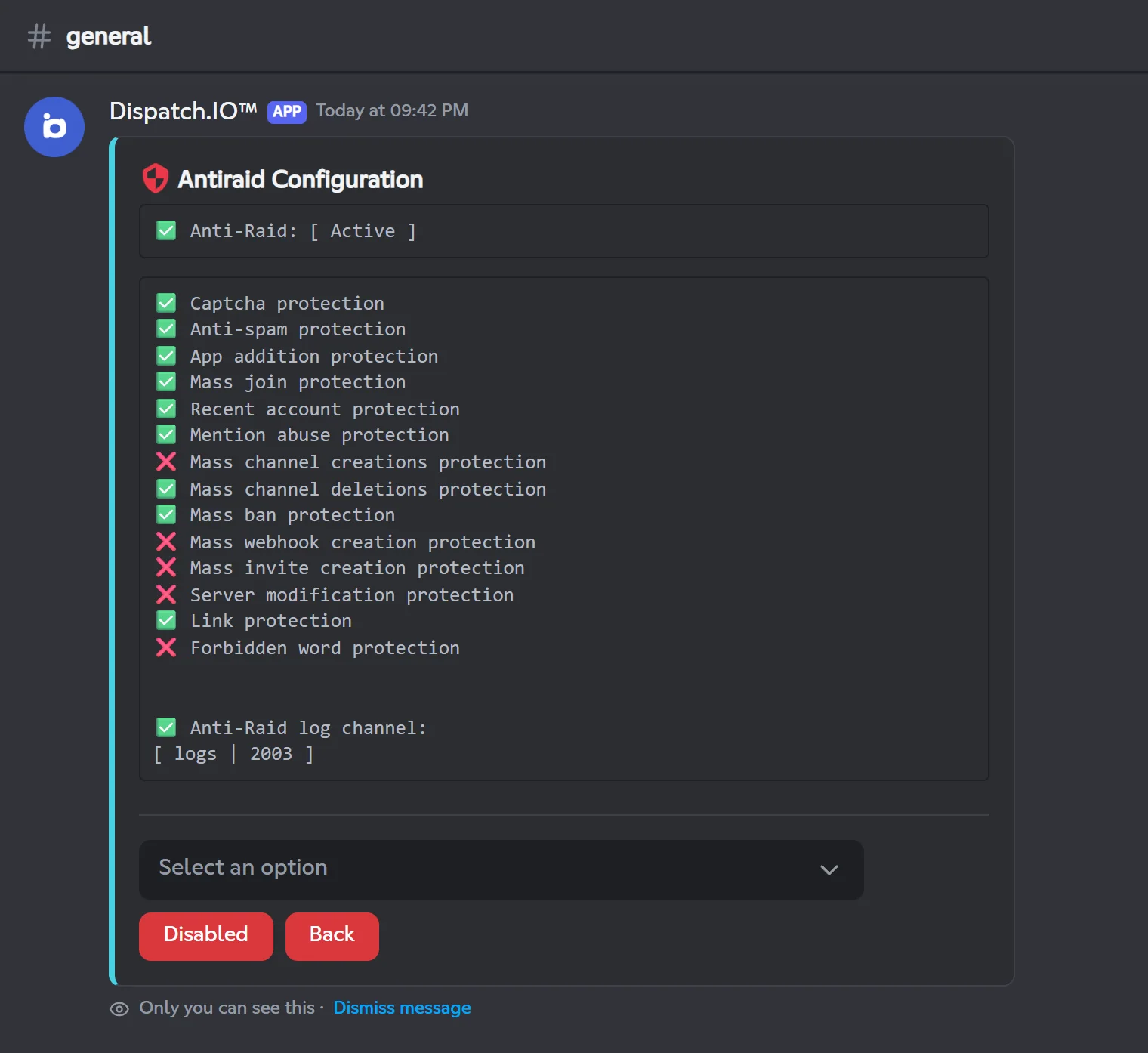
- Click the green button (labelled Enabled): it is the master switch. While it is off, no protection acts and the protection menu is hidden. Once it is on, the button turns red and reads Disabled.
- Pick the Anti-Raid log channel in the menu.
- Open each protection from the menu and turn it on with its button. Each protection screen shows the sanction it applies.
| Protection (menu) | Sanction applied | Extra settings | Default |
|---|---|---|---|
| Security Captcha | Kick after 3 failed attempts | Captcha channel (required), Captcha logs channel | Off |
| Anti-Spam | Timeout for 24 hours | — | Off |
| Anti-App | Kick of the app (only whitelisted apps can be added) | — | Off |
| Anti-Recent account | Kick, then ban if the person joins too many times | Minimum account age: 0 to 365 days | Off, 7 days |
| Anti-Mention abusive | 3 infractions in less than 30 seconds, timeout for 24 hours | — | Off |
| Anti-Mass channel creation | Role removal + timeout for 3 days | — | Off |
| Anti-Mass channel deletion | 3 infractions in less than 30 seconds, timeout for 7 days (only whitelisted users can delete more than 3 channels) | — | Off |
| Anti-Mass ban | Role removal + timeout for 7 days | — | Off |
| Anti-Join massif | Kick | — | Off |
| Anti-Mass webhook creation | Role removal + timeout for 3 days | — | Off |
| Anti-Mass invite creation | Role removal + timeout for 3 days | — | Off |
| Anti-Mass server update | Role removal + cancel modifications + timeout for 7 days (server name, verification level, explicit content filter) | — | Off |
| Anti-Link | 3 infractions in less than 60 seconds, timeout for 24 hours | Channels where links are allowed (up to 25 per selection, the selection replaces the list) | Off, no channel |
| Anti-Bad words | 3 infractions in 24 hours, timeout for 24 hours | Forbidden words (up to 50 characters each) | Off, no word |
Warning
- The bot needs the Administrator permission. Without it, the screen is read-only, and the anti-raid turns itself off if the bot loses that permission.
- Before turning on Anti-App, add the apps you want to install to the whitelist.
- Every anti-raid change is posted in the Raid logs channel and, by default, mentions the server owner (emergency mentions, adjustable on the website).
Whitelist
In the menu: Whitelist · On the website: Security and anti-raid
Whitelisted members and apps are not sanctioned by the anti-raid protections. The server owner is always on it, first, with the Global scope.
| Button | Effect |
|---|---|
| Add | Pick a member or an app: it is added for every protection (Global). |
| Delete | Pick a member in the list (10 per page) to remove them. The owner cannot be removed. |
By default, the list only contains the owner. A member banned, kicked or timed out with the bot's commands is removed from the whitelist.
Note
Per-protection scopes (App additions, Messages, Channel create, Channel delete, Mass bans, Webhooks, Invites, Server updates, Joins / accounts) and the role whitelist can only be set on the website. /config shows members' scopes but not roles.
Tickets
In the menu: Tickets · On the website: Tickets · Module: Tickets
A ticket system is a panel posted in a channel: members use it to open a private ticket. The menu offers three options:
| Option | Effect |
|---|---|
| Channel for saved tickets | Channel that receives tickets saved with the Save button. Default: none. |
| Ticket with a button | A panel with an Open a Ticket button. |
| Ticket with a dropdown menu | A panel with a menu of several options (up to 25). |
Button system
- Add opens a form:
| Field | Values | Used for |
|---|---|---|
| System Name | Text | Panel title |
| Description | Up to 3000 characters | Panel text |
| Channel prefix when opening ticket | Up to 50 characters | Start of the ticket channel names (support-alex) |
| Welcome Message | Up to 3000 characters | First message in the ticket |
| Image above description/welcome message | URL ending in .png, .jpg, .jpeg, .gif or .webp (optional) | Image of the panel and of the welcome message |
- Pick the panel's channel (or create it), then the category where tickets will be created (or create it).
- Pick the roles to mention when a ticket is opened (0 to 10), then Confirm: the panel is posted.
Dropdown menu system
- Add opens a Description + Image form, then you pick the channel and the category. The panel is posted without a menu.
- Then add the menu options (up to 25). Each option has the System Name, Channel prefix, Welcome Message and Image fields, plus its roles to mention. The menu appears on the panel with the first option.
Limits
| Limit | Free | Basic | Ultimate |
|---|---|---|---|
| Button systems | 2 | 5 | Unlimited |
| Dropdown menu systems | 2 | 5 | Unlimited |
Caution
Deleting a system is immediate, with no confirmation: the panel is removed and every ticket of that system is erased from the database, even open ones. Deleting an option also erases its tickets.
- The bot needs the Administrator permission (otherwise the menu is hidden) and Manage Channels to create ticket channels.
- After adding or editing an option with Confirm, the options screen closes: run
/configagain to carry on. - Mentioned roles can read the tickets; they must click Claim to be able to write.
Word reaction
In the menu: Word reaction · On the website: Word reactions · Module: Reactions and triggers
When a message contains a word from the list, the bot reacts to it with the matching emojis.
| Button | Fields | Effect |
|---|---|---|
| Add | Word to add, Reaction for the word | Adds a rule. The word is stored in lowercase. |
| Edit | Word to edit, Reaction for the word | Changes the reaction of an existing word. |
| Delete | Word to remove | Removes the rule. |
| Help with custom emoji | — | Gives the <:name:id> code of one of your server's emojis. |
- The reaction must contain at least one emoji; it can contain several. For one of your server's emojis, use
<:name:id>(or<a:name:id>if it is animated). - The word is matched anywhere in the message, even inside another word (
catalso triggers oncategory). - If a valid custom emoji is refused ("The reaction is not a valid emoji."), just submit the form again.
| Limit | Free | Basic | Ultimate |
|---|---|---|---|
| Configured words | 5 | 10 | Unlimited |
Important
The bot needs the Add Reactions permission. Without it, only the warning and the Back button are shown.
Temporary channels
In the menu: Temporary channels · On the website: Temporary channels · Module: Temporary channels
In a temporary channel, every new message (from members and bots alike) is deleted after a delay.
| Option | Allowed values | Default |
|---|---|---|
| Channel | A text channel | — |
| Duration | 10 seconds, 30 seconds, 1 minute, 5 minutes, 10 minutes, 15 minutes, 30 minutes, 1 hour, 1 hour and 30 minutes, 2 hours | To be chosen |
| Persistence of pinned messages? | Yes (pinned messages are kept) or No | No |
- Edit changes a channel's duration and persistence. Delete stops the automatic deletion; the channel itself is not deleted.
- Always pick Yes or No for persistence: if you leave it empty, No is saved, even though the field shows "Yes (default)".
- The screen text mentions 60 seconds, but the duration you pick is the one that applies.
Important
The bot needs the Manage Channels and Manage Messages permissions. Without them, the Add, Edit and Delete buttons are hidden.
Temporary voice channels
In the menu: Temporary Voice Channel · On the website: Temporary channels · Module: Temporary channels
A creator voice channel creates a personal voice channel for every member who joins it (🔊 Voice of Alex), in the same category. The created channel is deleted when it is empty.
- Add: pick a voice channel, or click Create and assign.
- Pick the roles allowed to join the created channels (0 to 25), then Confirm.
| Option | Allowed values | Default |
|---|---|---|
| Creator voice channel | A voice channel | — |
| Allowed roles | 0 to 25 roles, not managed and below the bot's role | None: only the channel's creator and administrators can join |
| Limit | Free | Basic | Ultimate |
|---|---|---|---|
| Creator voice channels | 3 | 5 | Unlimited |
- Edit changes the allowed roles. Delete is refused while channels created by this hub still exist; the creator voice channel is not deleted from Discord.
- If your plan goes down, only the oldest creator channels stay active.
- The name prefix of created channels ("Voice of" by default) can only be set on the website.
Important
The bot needs the Administrator permission. Without it, the screen only shows a warning, with no buttons at all.
Bump
In the menu: Bump · On the website: Bump · Module: Bump
Bumping promotes your server: /bump shares your card and an invite in the bump channel of every server that turned the system on.
| Option | Allowed values | Default | Effect |
|---|---|---|---|
| Bump System | Active or Inactive | Inactive | Allows /bump and receiving other servers' bumps. |
| Bump channel | A text channel | None | Receives other servers' bumps. Required to use /bump. |
| Invite code | A code or an https://discord.gg/… link of a permanent invite of your server | None | Invite used in your bumps. |
- Click Enable: the Bump channel / Invite code menu appears.
- Pick the channel, then enter the invite code. The invite must be permanent (unlimited duration and uses); a vanity URL is not accepted.
The delay between two /bump depends on the server's plan: 12 h on Free, 9 h on Basic, 6 h on Ultimate. The bump description and image can only be set on the website. After turning the system on or off, receiving bumps can take up to an hour to adjust.
Important
The bot needs the Manage Server permission (or Administrator) to read invites. Without it, the Enable button is greyed out.
Leveling
In the menu: Leveling · On the website: Levels · Module: Levels and XP
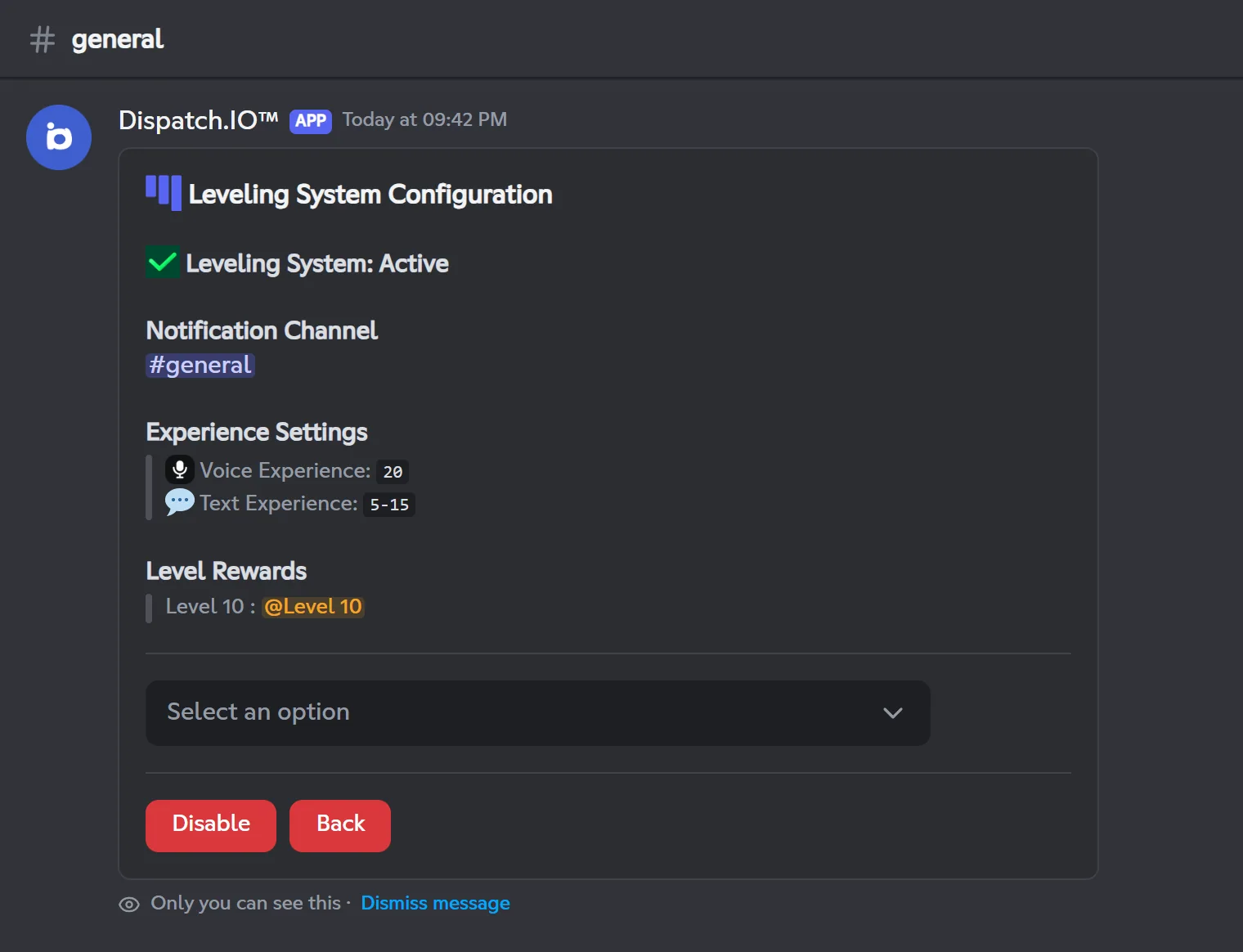
Click Enable: the system starts with the default values and the /rank, /reset-levels and /modify-xp commands are added to the server. Disable removes them and cancels the giveaways that award XP.
| Option | Allowed values | Default | Effect |
|---|---|---|---|
| Leveling System | Active or Inactive | Inactive | Members only earn XP while it is active. |
| Notification Channel | A text channel | None | Channel for level-up announcements. Without a channel, there is no announcement (XP and rewards still work). |
| Voice Experience | 1 to 50 | 20 | XP earned for each minute spent in voice. |
| Text Experience Min | 1 to 50 | 5 | Minimum XP per message. |
| Text Experience Max | 1 to 50, strictly above the min | 15 | Maximum XP per message. |
| Rewards | One role per level, level from 1 to 999 | None | Role given when a member reaches that level. |
- Each message earns a random amount of XP between the min and the max (halved for very short messages).
- Rewards stack: a member keeps the roles of previous levels. Removing a reward does not take the role back from members who already have it.
- Provisional rewards (role removed at the next level) and the level card image can only be set on the website.
Important
The bot needs the Manage Roles and Manage Channels permissions. Without them, the Enable button is greyed out, and the system turns itself off if the bot loses them.
Daily streaks (flames)
In the menu: Daily Streak System (Fire) · On the website: Flames · Module: Flames (streaks)
Each day a member takes part (message, voice activity or command), a flame is added to their streak. The day ends at midnight in the server's time zone.
| Option | Allowed values | Default | Effect |
|---|---|---|---|
| Daily streak system | Active or Inactive | Inactive | Turns flame counting on. |
| Daily streak channel | A text channel | None | Announcement channel. Without a channel, there is no announcement. |
| Start message | Text, up to 2000 characters | `{user}` starts their daily streak! | Announcement for the first day of a streak. Variables: {user}, {userName}, {day}. |
| Progress message | Text, up to 2000 characters | `{userName}` keeps their {day}-day streak going! | Announcement for the following days. Variables: {userName}, {day}. |
| Mention | On or off | Off | Replaces {userName} with a mention on the 7th day, the 14th day, then every 30 days. |
| Auto-rename of users | On or off | Off | Adds the streak to the nickname (Alex | 12🔥). The owner is never renamed. |
- The mention and rename buttons only appear once the system is active.
- On a server that never set up flames, you have to click Enable twice: the first click saves the configuration but leaves it inactive.
- Streak freezes, role rewards and the card image can only be set on the website (rewards and image: Ultimate plan).
Important
The bot needs the Manage Channels permission (and Manage Nicknames for renaming). Without Manage Channels, the Enable button is greyed out and the system turns itself off if the bot loses it.
Social networks
In the menu: Social networks · On the website: Social networks and RSS · Module: Social networks and RSS
The bot announces new YouTube videos and Twitch lives of a channel in a Discord channel.
| Field | Allowed values | Default |
|---|---|---|
| Title | Up to 20 characters | — |
| Platform | YOUTUBE or TWITCH | — |
| Social Network URL | Must start with https://www.youtube.com/@ or https://www.twitch.tv/ | — |
| Role Configuration | A role to mention (optional) | None |
| Channel | A text channel, or Create and assign (📣┇notifications) | — |
| Limit | Free | Basic | Ultimate |
|---|---|---|---|
| Accounts checked per platform | 2 | 5 | Unlimited |
/configaccepts up to 6 accounts per platform, but only the oldest ones, within your plan's limit, are checked.- By default, YouTube is checked every 2 hours and Twitch every 30 seconds.
- The role picked in
/configis not always saved: check the "Mention:" line after adding and, if needed, set the role on the website. - Changing the URL or the platform creates a new entry: delete the old one afterwards.
RSS feeds
In the menu: RSS · On the website: Social networks and RSS · Module: Social networks and RSS
The bot posts the latest item of an RSS or Atom feed in a channel.
| Field | Allowed values | Default |
|---|---|---|
| RSS Feed URL | The address of a valid RSS feed | — |
| Check Interval (in minutes) | Whole number, at least 1 | — (suggested example: 5) |
| Channel Configuration | A text channel | — |
- The bot checks the feed once the interval has passed and only posts the latest item.
- Edit changes the URL and the interval, but not the channel: to move a feed, delete it and add it again.
- If adding fails with an error message, add the feed from the website.
Language and time zone
In the menu: Language and time zone · On the website: Basic configuration page, see Server home
| Option | Allowed values | Default | Effect |
|---|---|---|---|
| Language | English or French | Picked when the bot joins, otherwise English | Language of the logs, the bot's public messages, the welcome and goodbye cards, and suggested channel names. |
| Time zone | About 130 time zones, sorted by UTC offset (10 per page) | Europe/Paris | Time zone shown in the /config panel, and the midnight used to count flames. |
- When the bot joins a server, it posts a message with two buttons, Français and English, to pick the language. Without an answer within 24 hours, the language stays English.
- Your own
/configscreens always follow your Discord language, whatever the server language.
Color
In the menu: Color · On the website: Basic configuration page, see Server home
| Option | Allowed values | Default | Effect |
|---|---|---|---|
| App Color | 6-character hex code, with or without # (48d1e1, #48D1E1) | #48D1E1 | Color of the side bar of the bot's messages (bump, ticket panels, notifications…). |
- Choose a Color opens the form; the screen takes on the new color right away. Short formats (
#FFF), color names andrgb()are refused. - Remove Color brings back
#48D1E1. This button only appears when the color has been changed. - A member who picked a personal accent color on their website profile sees their own color on the replies to their commands.
Settings only available on the website
These settings have no counterpart in /config:
| Setting | Website page |
|---|---|
| Goodbye message and image; dark veil over the welcome and goodbye images | Welcome and goodbye |
| Emergency mentions (who is mentioned on critical logs, direct message copy) | Basic configuration, see Server home |
Raid mode (also available with the /raid-mode command) | Security and anti-raid |
| Per-protection whitelist scopes, role whitelist | Security and anti-raid |
| Bump description and image | Bump |
| Level card image, provisional rewards | Levels |
| Streak freezes, role rewards and flame image | Flames |
| Name prefix of temporary voice channels | Temporary channels |
| Custom replies of role buttons | Reaction roles |
Summary table
Every /config option with its default value on a new server.
| Category | Option | Default value |
|---|---|---|
| Welcome | Welcome roles | None |
| Welcome | Join/Leave Channel | None |
| Welcome | Custom Message | None (the bot's default text, no direct message) |
| Welcome | Image | Dispatch.IO default image |
| Channels | Each channel type (20 types) | No channel |
| Channels | Channel name separator | ┇ |
| Role/message reaction | Actions (reactions, buttons) | None |
| Role/message reaction | Place the button inside the message? | No |
| Role/message reaction | Make the message ephemeral? | Yes |
| Role/message reaction | Button position | At the end |
| Other commands | Aviation commands | Disabled |
| Antiraid | Master switch | Off |
| Antiraid | Each of the 14 protections | Off |
| Antiraid | Minimum account age (Anti-Recent account) | 7 days |
| Antiraid | Channels where links are allowed | None |
| Antiraid | Forbidden words | None |
| Antiraid | Anti-Raid log channel, captcha channel, captcha logs channel | None |
| Whitelist | Members | The owner only (Global) |
| Tickets | Channel for saved tickets | None |
| Tickets | Ticket systems | None |
| Word reaction | Words | None |
| Temporary channels | Channels | None |
| Temporary channels | Persistence of pinned messages | No |
| Temporary voice channels | Creator voice channels | None |
| Temporary voice channels | Allowed roles | None |
| Bump | Bump System | Inactive |
| Bump | Bump channel | None |
| Bump | Invite code | None |
| Leveling | Leveling System | Inactive |
| Leveling | Notification Channel | None |
| Leveling | Voice Experience | 20 |
| Leveling | Text Experience Min / Max | 5 / 15 |
| Leveling | Rewards | None |
| Daily streaks | Daily streak system | Inactive |
| Daily streaks | Daily streak channel | None |
| Daily streaks | Start / progress message | The bot's default texts |
| Daily streaks | Mention | Off |
| Daily streaks | Auto-rename of users | Off |
| Social networks | Followed accounts | None |
| RSS | Feeds | None |
| Language and time zone | Language | Picked when the bot joins, otherwise English |
| Language and time zone | Time zone | Europe/Paris |
| Color | App Color | #48D1E1 |
To go further: Permissions and roles, Premium plans and limits and Troubleshooting.