
Dispatch.IO (Dispatch.IO™) is an all-in-one Discord app: a bot you add to your server, and a website with a dashboard to set it up. Welcoming members, moderation, anti-raid, tickets, levels, flames, notifications, music… it all goes through the same bot.
This page is for server owners and administrators discovering Dispatch.IO. It shows what the bot does, which servers it suits, its modules and commands at a glance, and where to go next.
What Dispatch.IO is
Dispatch.IO works on your server in three ways:
- It answers slash commands: type
/in a channel to see its commands (/help,/rank,/warn,/play…). Depending on the command, the reply is visible to the whole channel or only to you. - It posts automatic messages: a welcome card when a member joins, a level-up announcement, a new YouTube video, logs of server changes…
- It watches over the server once you turn on the anti-raid: spam, links, mass joins, channels deleted in a row…
Everything can be set either in Discord with the /config command or on the website dashboard: both change the same settings.
The bot speaks French and English. Its replies to your commands follow your Discord language; its public messages (announcements, logs) follow the server language, chosen when the bot joins (see the FAQ).
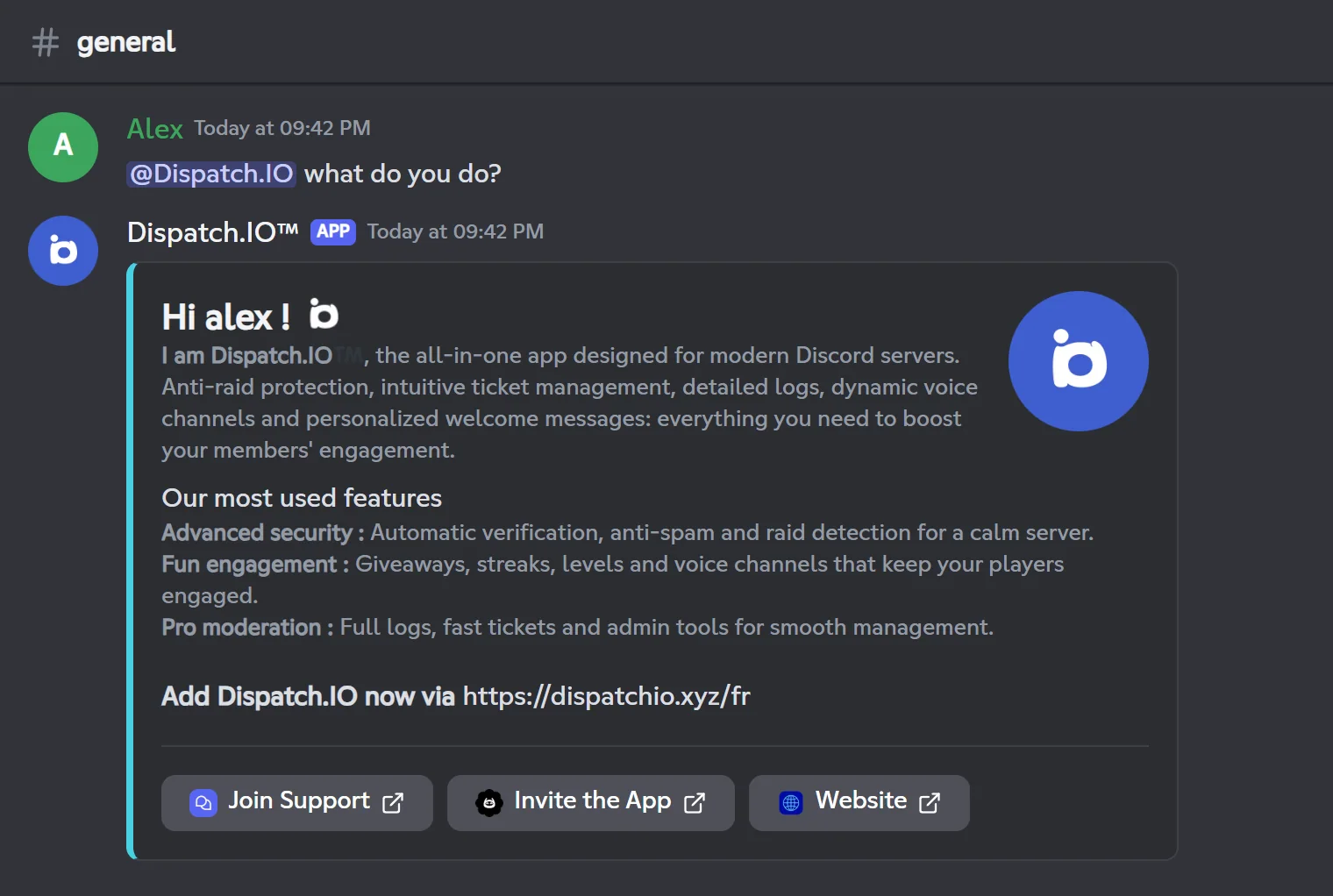
When a member mentions the bot, it introduces itself:
Which servers is it for?
Dispatch.IO fits a small server of friends as well as a large community. The most common uses:
| What you need | What Dispatch.IO does | Learn more |
|---|---|---|
| Bring a community server to life | Welcomes newcomers with a card and automatic roles, announces departures, promotes the server on the bump network. | Welcome and goodbye, Bump |
| Run a support desk | Ticket panels with a button or a menu, private channels, staff claiming, saved transcripts, follow-up from the website. | Tickets |
| Moderate and protect | Warnings, timeouts, kicks and bans with an infraction history; anti-raid, captcha, raid mode and detailed logs. | Moderation, Anti-raid and security, Logs |
| Keep members engaged | XP and levels, flames (daily activity streaks), giveaways, polls, a suggestion box, a counting game, public leaderboards. | Levels and XP, Flames, Polls, giveaways and suggestions |
| Follow creators or websites | Announces new YouTube videos, Twitch lives and RSS feed articles. | Social networks and RSS |
| Liven up voice | Temporary voice channels created on demand, music and live radio. | Temporary channels, Music player |
| Flight simulation | UTC time, METAR and IVAO frequencies of an airport (optional pack). | Aviation |
The modules at a glance
A module is a bot feature that runs on its own once set up. No module posts anything until you have configured it: the right-hand column says what to do to start it.
| Module | What it does | To start it |
|---|---|---|
| Welcome and goodbye | Card and message when someone joins, automatic roles, leave message. | Pick the welcome channel (and the goodbye channel). |
| Levels and XP | XP earned by chatting and in voice, level-up announcements, reward roles. | Turn on the leveling system (off by default). |
| Flames (streaks) | One flame per active day, streak announcements, freezes. | Turn on the flame system (off by default). |
| Tickets | A panel to open a private ticket with the staff. | Create a ticket system. |
| Anti-raid and security | 14 protections, captcha, raid mode, whitelist, emergency mentions. | Turn on the anti-raid, then each protection. |
| Temporary channels | Channels where messages are erased after a delay, voice channels created on demand. | Add a channel. |
| Reactions and triggers | Roles by reaction or button, reply buttons, automatic reactions to words. | Add an action on a message, or a word. |
| Social networks and RSS | YouTube, Twitch and RSS announcements in a channel. | Add a channel or a feed. |
| Bump | /bump shares your server in the bump channel of the other servers in the network. | Turn on bump, pick a channel and a permanent invite. |
| Polls, giveaways and suggestions | Polls, contests, a suggestion box and a counting game. | /poll and /giveaway are ready; suggestions and counting need a channel. |
| Logs | Records edited or deleted messages, joins, sanctions, server changes… | Pick a channel for each log type. |
| Music player | Music and radio in a voice channel, with a button player. | Nothing: join a voice channel and type /play. |
Limits that depend on the server's plan are gathered in Premium plans and limits. Messages the bot sends on its own, without a command, are described in Discord events and Scheduled tasks.
The commands
Commands are grouped by topic. /help shows the ones you can use, based on your permissions and the enabled modules.
| Topic | Examples | Page |
|---|---|---|
| General | /help, /ping, /info, /profil, /premium, /report | General commands |
| Moderation | /warn, /timeout, /kick, /ban, /infractions | Moderation |
| Server management | /config, /clear, /raid-mode, /role-all, /emoji | Server management |
| Messages and announcements | /say, /create-embed, /create-container, /create-banner | Messages and announcements |
| Levels and leaderboards | /rank, /top, /modify-xp, /reset-levels | Levels and leaderboards |
| Community | /poll, /giveaway, /bump, /ticket-manager | Community |
| Music and radio | /play, /play-radio, /queue, /stop | Music and radio |
| Aviation | /zulu, /metar, /frequencies | Aviation |
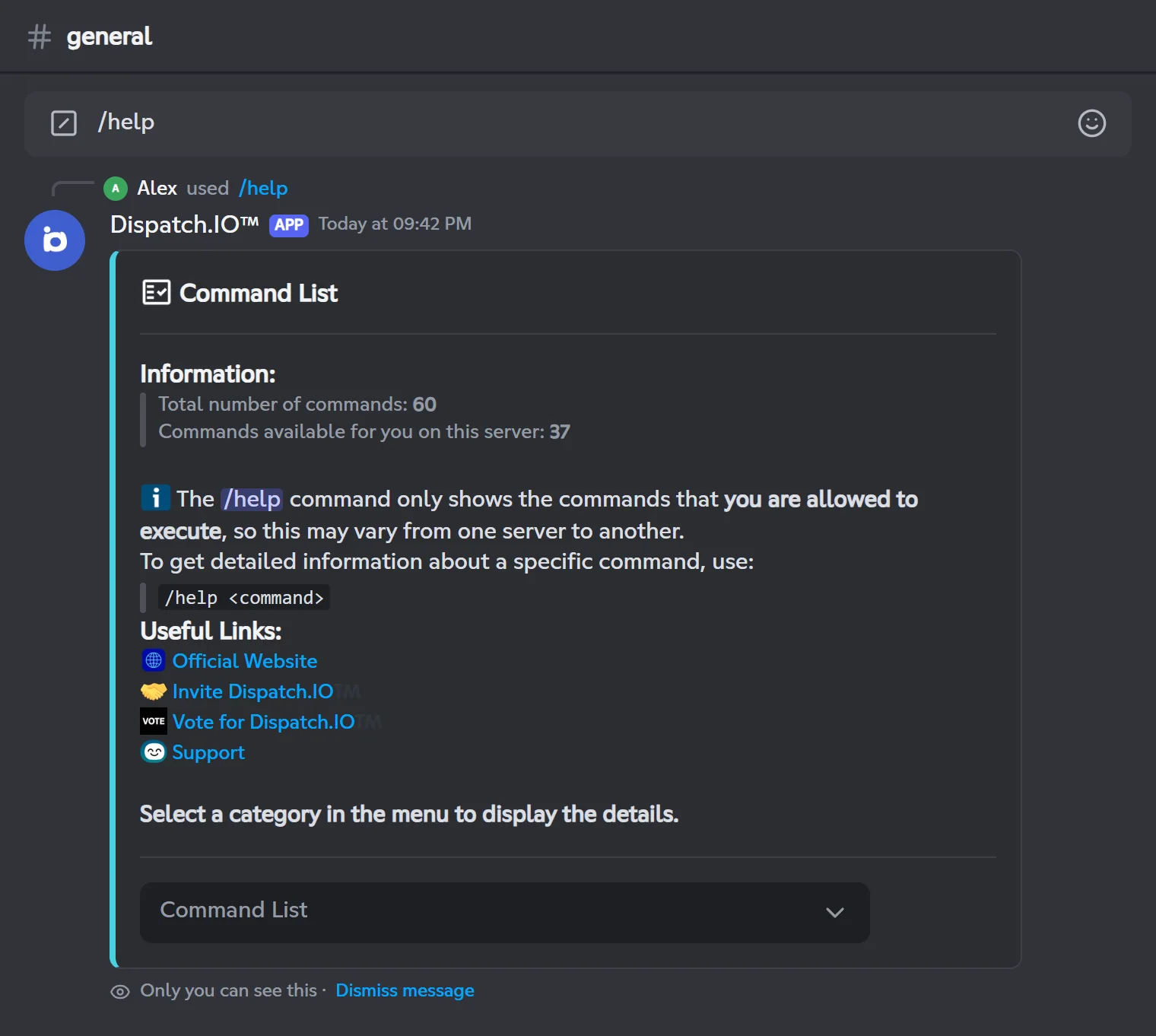
The full list, with who can use each command and its usage limits, is on All commands.
In Discord or on the website?
You can set everything up from Discord or from the website, whichever you prefer:
/configopens a settings panel in Discord. It requires the Administrator permission.- The dashboard has the same settings, with previews and a few extra options (goodbye message, emergency mentions…). It is open to the owner and to members with Administrator or Manage Server.
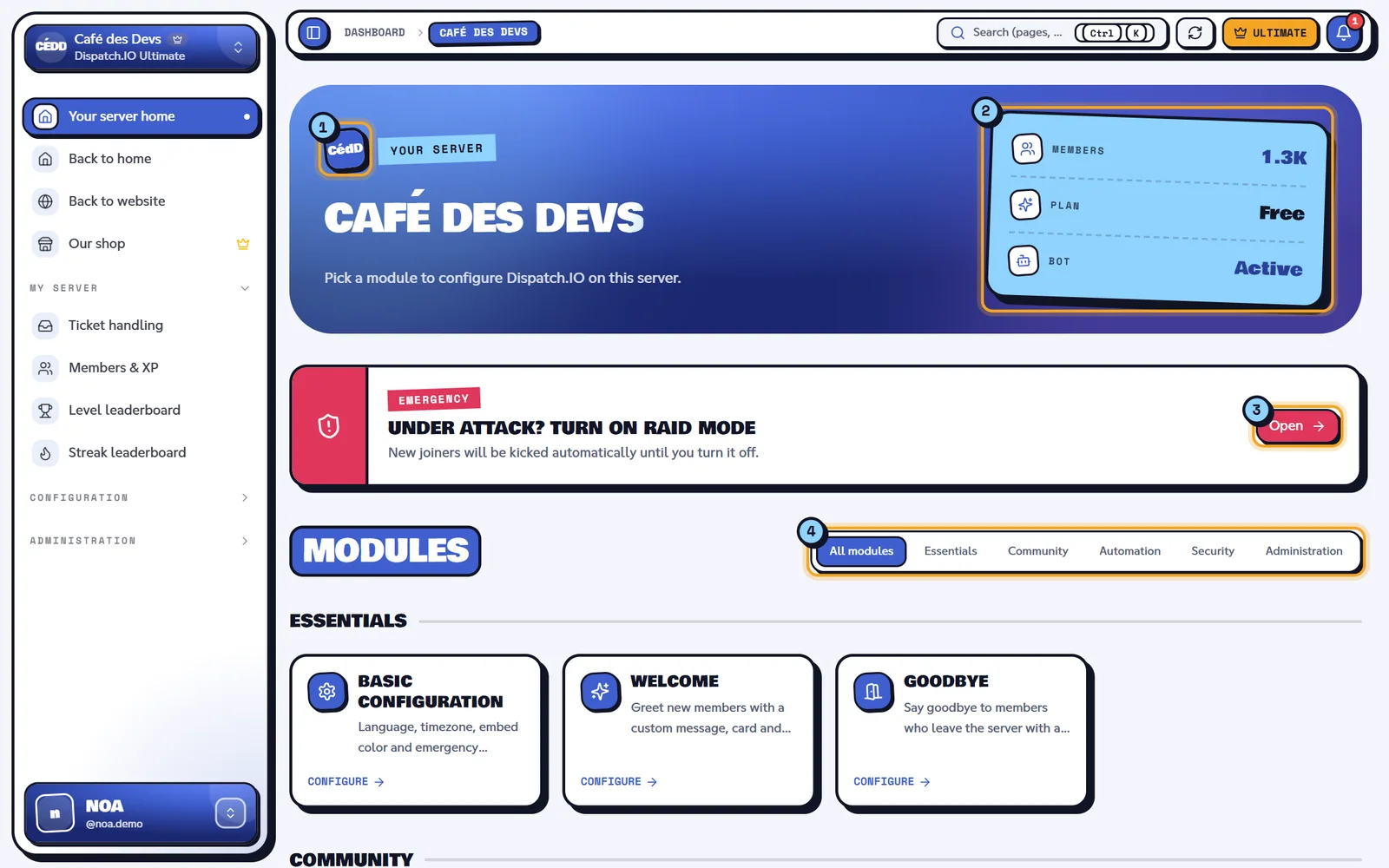
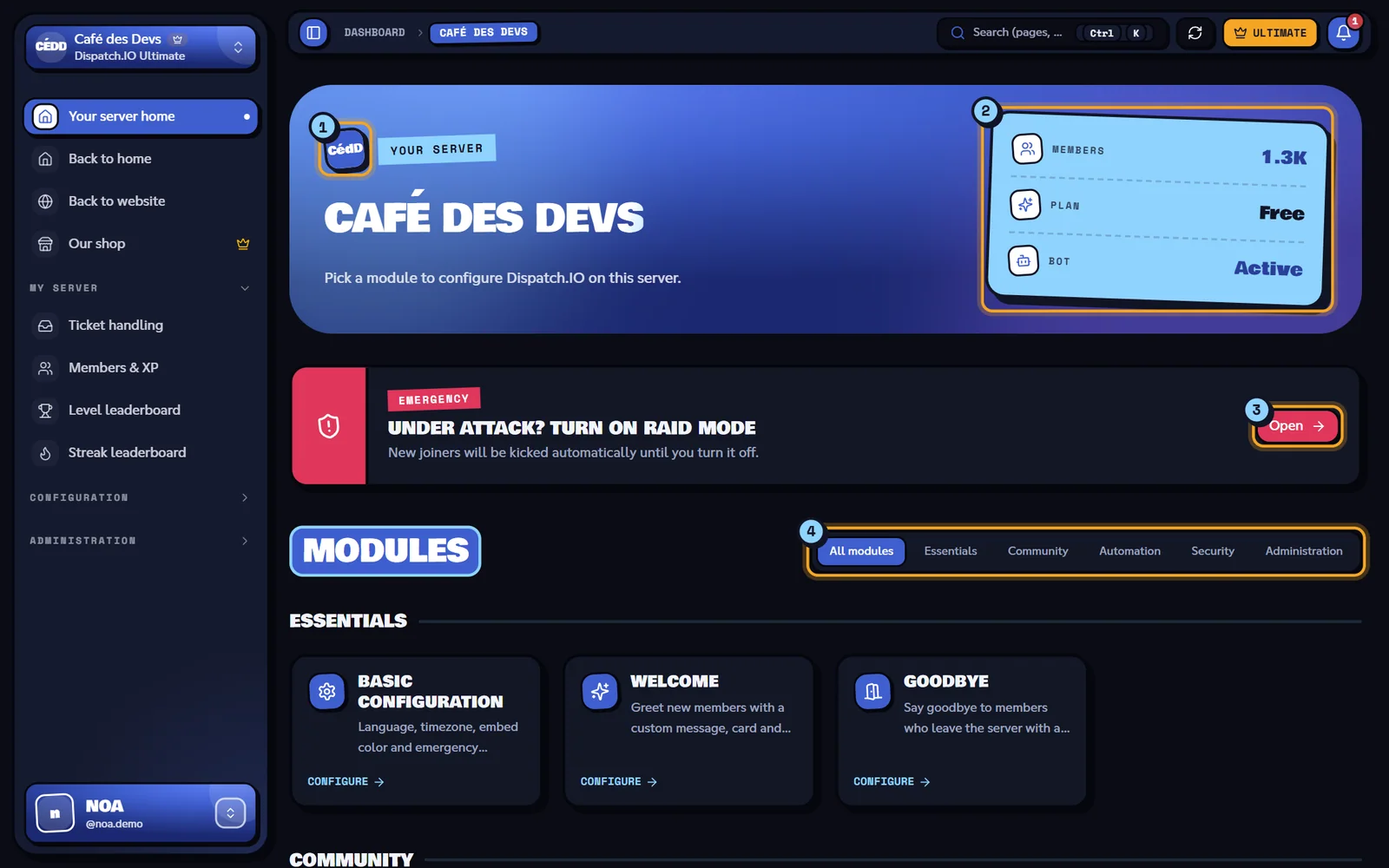
Every setting is detailed in Bot configuration, and the website tour is in Website overview.
Free or Premium?
All Dispatch.IO modules and commands are free. The server plans Dispatch.IO Basic and Dispatch.IO Ultimate raise the quotas (more ticket systems, role panels, word reactions, voice creator channels and followed YouTube or Twitch accounts, a more frequent /bump) and unlock a few extras such as emergency alerts by direct message or flame rewards. The Individual plans are about your account: personal images on your cards, an accent color and more flame freezes, on every server. The /premium command shows the server's plan and yours. All the details are on Premium plans and limits.
Where to go next
- Adding the bot and first steps: invite Dispatch.IO and get it ready in a few minutes.
- Bot configuration: every option of
/configand the dashboard. - Permissions and roles: what the bot needs, and who can use what.
- All commands: the full list.
- Something wrong? The Bot FAQ and the Troubleshooting page.