
This page explains how Dispatch.IO decides who can do what on your server: the Discord permission required by each command, the permissions the bot itself needs, the staff roles the bot recognises and the owner's special rights. It is meant for owners and administrators who organise their moderation team.
Tip
The simplest setup: invite the bot with the Administrator permission, put its role at the very top of the role list, and give your moderators the Discord permissions of the commands they use.
How the bot checks permissions
When a member uses a command, three checks run one after the other:
- Discord hides the command from members who lack its default permission (for example Ban Members for
/ban). This default can be changed in the server settings (see below). - The bot checks again the member's permission. It accepts the Discord permission or a staff role registered for the server (ADMIN and MODO types, see below). For commands that declare them, it also checks its own permissions.
- The command applies its own rules: for example, nobody can ban the server owner, or a member whose role is above their own.
Warning
If check 2 fails, the bot replies nothing: Discord just says the application did not respond. This mostly happens when a command was allowed for a role in the integration settings while that role lacks the matching Discord permission.
The bot checks permissions at server level (the roles' permissions), not channel by channel.
The bot's permissions
When inviting the bot
The official invite link (the Add Dispatch.IO™ to server button on the website) asks for the Administrator permission, plus the detailed permissions the bot uses: managing channels, roles, messages, nicknames, webhooks and expressions, banning, kicking, timing out, viewing the audit log, connecting and speaking in voice, and so on. Keep Administrator checked: the anti-raid, tickets and temporary voice channels need it.
Where the bot's role sits
On Discord, a role can only manage the roles and members placed below it. Put the bot's role above:
- the roles it has to give (welcome roles, level and flame rewards, reaction roles, temporary voice channel roles);
- the members it has to sanction or rename.
Permissions checked per command
Some commands check the bot's permissions before running. They then also check a common base: View Channel, Send Messages, Embed Links, Read Message History, Add Reactions, Use External Emojis and Manage Messages.
| Command | Permission checked on the bot (on top of the common base) |
|---|---|
/ban, /unban | Ban Members |
/kick | Kick, Accept, and Deny Members |
/timeout, /end-timeout, /warn, /force-disconnect | Timeout Members |
/clear | Manage Messages |
/nuke, /toggle-lock | Manage Channels |
/role-all | Manage Roles |
/rename | Manage Nicknames |
/play, /play-radio | Connect, Speak |
Other commands check nothing beforehand: if a permission is missing, the action itself fails.
Permissions required by /config
Each category of /config checks what it needs and shows a warning when a permission is missing.
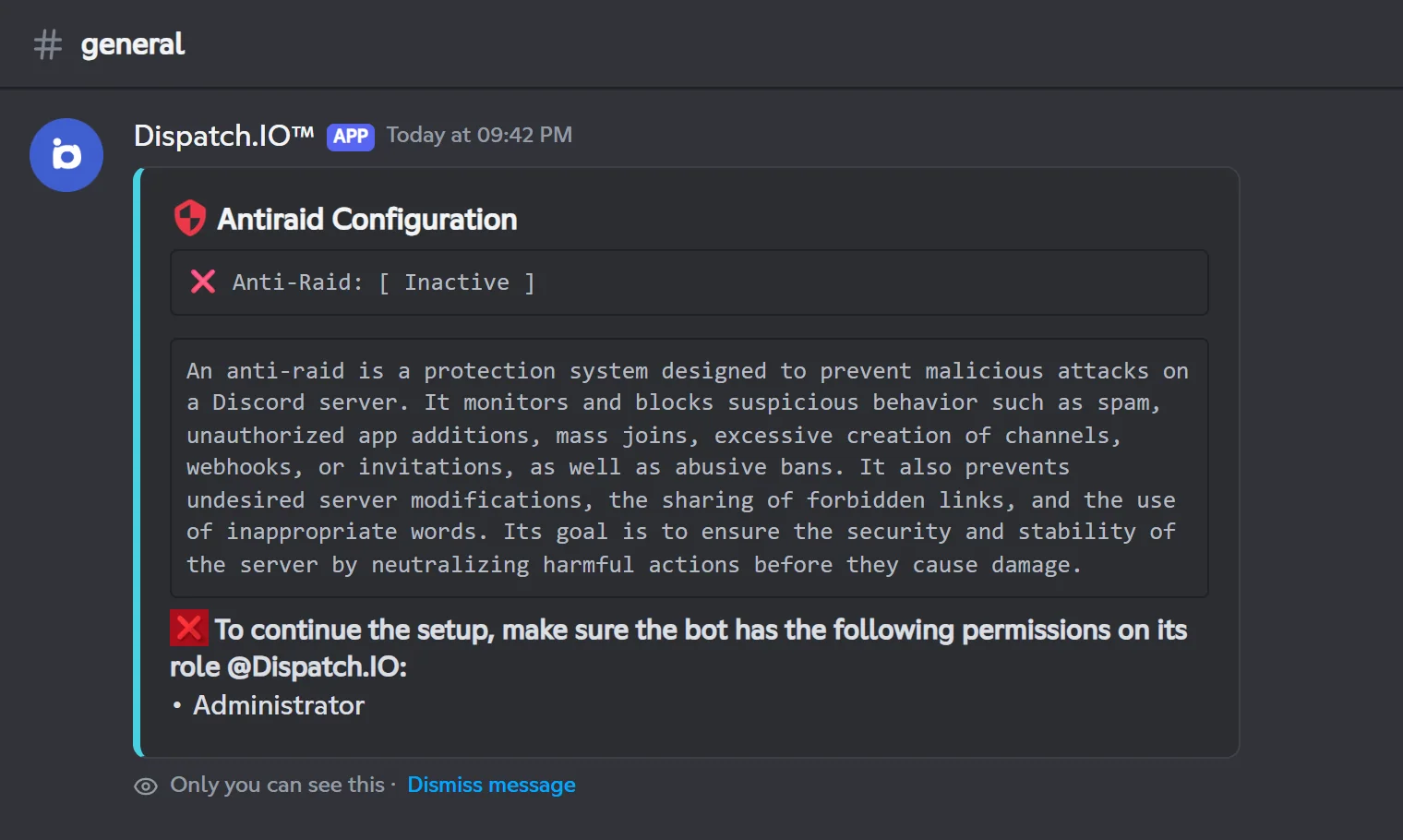
| Category | Bot permission | Without it |
|---|---|---|
| Main panel | View Channel, Send Messages | Warning at the bottom of the panel |
| Welcome | Manage Roles | Category menu hidden |
| Channels (and every channel picker) | Manage Channels | Warning only, no buttons |
| Antiraid | Administrator | Read-only screen |
| Tickets | Administrator, plus Manage Channels to create tickets | Menu hidden |
| Word reaction | Add Reactions | Buttons hidden |
| Temporary channels | Manage Channels, Manage Messages | Buttons hidden |
| Temporary Voice Channel | Administrator | Warning only, no buttons |
| Bump | Manage Server or Administrator | Enable button greyed out |
| Leveling | Manage Roles, Manage Channels | Enable button greyed out |
| Daily Streak System | Manage Channels | Enable button greyed out |
Caution
If the bot loses a permission (for example when a role is edited), some modules turn themselves off: the anti-raid without Administrator, levels without Manage Roles or Manage Channels, flames without Manage Channels. Give the permission back to the bot, then turn the module on again.
Permission required for each command
This table gives the Discord permission required from the member for each command. It is what decides whether Discord shows the command.
| Command | Member permission | Details |
|---|---|---|
/config, /say, /giveaway, /raid-mode, /banlist, /botlist, /clear, /nuke, /role-all, /create-banner, /create-embed, /edit-embed, /create-container, /edit-container | Administrator | — |
/modify-xp, /reset-levels | Administrator | Only present when the leveling system is on. |
/emoji | Manage Expressions | — |
/toggle-lock | Manage Channels | — |
/ban, /unban | Ban Members | Protection rules, see below. |
/kick | Kick, Accept, and Deny Members | Protection rules, see below. |
/timeout, /end-timeout, /warn, /force-disconnect | Timeout Members | Protection rules, see below. |
/snipe | Timeout Members | — |
/infractions | None | Viewing another member's infractions: Timeout Members. Deleting one: the owner or Administrator. |
/rename | None | Renaming another member: Manage Nicknames. |
/poll | None | Stopping a poll: its creator or an administrator. |
/ticket-manager | None | Inside an open ticket: its author, a responsible member or an administrator. |
/play, /play-radio, /queue, /title, /volume, /stop | None | See Music and radio. |
/pause, /resume, /next, /previous, /loop | None | You must be in the bot's voice channel. While the person who requested the current track is in that channel, only they (or a member with Administrator) can control it. |
/rank | None | Only present when the leveling system is on. |
/bump, /gemini, /giphy, /hello, /help, /info, /ping, /premium, /profil, /report, /top, /upload-image, Translate this | None | — |
/zulu, /metar, /frequencies | None | Only present when the aviation commands are enabled. |
Commands reserved for the Dispatch.IO team are described in Internal commands. The full command list is in All commands.
The ADMIN and MODO staff roles
On top of Discord permissions, the bot knows two staff role types registered for each server: ADMIN and MODO. A member holding a role of one of these types passes the bot's checks as if they had the Discord permission:
| Permission checked by the bot | Also granted by a role |
|---|---|
| Administrator, Manage Server, Manage Channels, Manage Roles, Manage Webhooks, Manage Expressions, View Audit Log | ADMIN |
| Ban Members, Kick, Accept, and Deny Members, Timeout Members, Manage Messages, Manage Nicknames, Create Invite | ADMIN or MODO |
| View Channel, Send Messages, Add Reactions | None (Discord permission only) |
These types are also used by the protection rules: a member with an ADMIN role can only be sanctioned by the owner, and a member with a MODO role only by the owner or an administrator. ADMIN roles also get access to every ticket channel, and ADMIN and MODO roles get moderation rights in temporary voice channels (muting, moving members…).
Note
For now, neither /config nor the dashboard has a screen to designate your ADMIN and MODO roles. If your server has none, the bot relies only on Discord permissions: that is the normal case. The roles picked in Welcome are a different type (welcome roles) and grant no rights.
Who can sanction whom
The moderation commands protect the owner and the staff. Here is the full path of /ban:
Each refusal shows a clear message, for example "You cannot ban a member with a role higher than or equal to yours." or "Only the server owner can ban an administrator.".
The rules vary slightly from one command to another:
| Rule | /ban | /kick | /timeout | /warn | /end-timeout | /force-disconnect | /unban |
|---|---|---|---|---|---|---|---|
| The owner cannot be targeted | Yes | Yes | Yes | No | No | No | Yes |
| The target must be in the server | No | Yes | Yes | Yes | Yes | Yes | It must be banned |
| The author's role must be above the target's | Yes | Yes | Yes | No | No | No | No |
| The bot's role must be above the target's | Yes | Yes | Yes | No | No | No | No |
| Target with the Administrator permission | Owner only | — | Always refused | — | — | — | — |
| Target with an ADMIN role | Owner only | Owner only | Owner only | Owner only | Owner only | Owner only | — |
| Target with a MODO role | Owner or admin | Owner or ADMIN role | Owner or ADMIN role | Owner or ADMIN role | Owner or ADMIN role | Owner or ADMIN role | — |
For /ban, "admin" means an ADMIN role or the Administrator permission. For the other commands, only an ADMIN role counts. The role position checks of /ban only apply to members present in the server: /ban can also ban a user who is not in the server.
The owner's rights
The server owner always has every Discord permission: they see and can use every command, and they can open the server dashboard. On top of that, the bot gives them these rights:
- Protection: they cannot be targeted by
/ban,/kick,/timeoutor/unban. - Sanctioning staff: they are the only one who can sanction a member with an ADMIN role (and, with
/ban, a member with the Administrator permission). - Anti-raid: the message filters always ignore them. For server protections (channels, bans, invites, webhooks, server changes), they are protected by a Global whitelist entry that the bot creates when it joins the server (and on an ownership transfer).
/configcan't remove it, but saving the whitelist from the website deletes it (see The whitelist): their own changes can then be undone. To create it again, see Whitelist. - Alerts: as long as no emergency mention is set on the website, they are the one mentioned on critical logs (anti-raid, sanctions).
- Infractions: along with members who have the Administrator permission, they can delete an infraction with
/infractions. - Nickname: flames never rename them.
Note
The owner is still bound by the role hierarchy for /ban, /kick and /timeout: their highest role must be above the target's.
Giving your team the right access
Access goes through the Discord permissions of your roles (Server Settings → Roles). Example for the Café des Devs server:
| Role | Permissions to give | Bot commands available |
|---|---|---|
| @Modérateurs | Timeout Members, Kick, Accept, and Deny Members, Ban Members | /warn, /timeout, /end-timeout, /force-disconnect, /snipe, /kick, /ban, /unban, /infractions on other members |
| An administration role | Administrator | Every command, including /config |
| @Membres | No special permission | Public commands (/profil, /top, /bump…) |
To protect staff members from each other, mind the hierarchy: put @Modérateurs above @Membres, and the bot's role above them all.
Changing who sees a command
In Server Settings → Integrations → Dispatch.IO, you can allow or hide each command for given roles, members or channels. This setting only changes visibility: the bot still checks the permission. If you allow /ban for a role that lacks Ban Members, its members will see the command but get no reply.
Who can configure the bot
| Where | Who |
|---|---|
/config command | Members with the Administrator permission (the owner always has it). |
| Website dashboard | The owner and members with Administrator or Manage Server. Menu entries are only shown to the owner and to members with Administrator. |
Changes made with /config are recorded in the Server logs channel, with the name of their author. The website also has its own Configuration Logs page. Every setting is detailed in Bot configuration.
Website account roles (Dispatch.IO team, administration pages) are a separate system: see Managing permissions.
Common problems
| Problem | Likely cause | Fix |
|---|---|---|
| A member does not see a command | They lack the Discord permission required by the command | Give the permission to their role, or allow the command in Integrations (while also giving the permission). |
| Discord says the application did not respond | The member or the bot lacks the permission checked by the bot | Check the member's permission (table above) and the bot role's permissions. |
| "I cannot ban this member because their role is higher than or equal to mine." | The bot's role is below the target's | Move the bot's role up in Server Settings → Roles. |
A /config screen shows "To continue the setup…" | The bot lacks the listed permission | Add the permission to the bot's role, then run /config again. |
| A module turned itself off | The bot lost a permission | Give the permission back, then turn the module on again in /config. |
For other issues, see Troubleshooting.