
These commands keep your server lively: polls to ask members what they think, giveaways with a random draw and automatic rewards, bumps to introduce your server to other communities, and a menu to manage a support ticket.
This page walks through every screen, button and window, from the organiser's side and the members' side. For how the modules work overall, see also Polls, giveaways and suggestions, Bump and Tickets.
Overview
Who can use what.
| Command | Who can use it | What it does |
|---|---|---|
/poll | Everyone | Sets up and posts a poll with 2 to 4 choices and button voting. |
/giveaway | Administrators | Sets up and posts a giveaway: random draw, reward given automatically. |
/bump | Everyone | Posts the server's introduction in the bump channel of every server in the network. |
/ticket-manager | Ticket author, responsibles, administrators | Add or remove a member, rename the ticket, resend its panel, ask someone to reply. |
The setup panels (/poll, /giveaway, /ticket-manager) are only visible to you. Posted messages (poll, giveaway, bump) are written in the server language.
French command names
In a Discord client set to French, /poll shows as /sondage and /ticket-manager as /gestion-ticket. /giveaway and /bump keep the same name. This page uses the original names, which Discord also accepts.
Create a poll with /poll
Set up the poll, vote, stop it.
/pollOpens a panel to pick a poll's duration and choices, then posts it in the channel.
Syntax
/poll question:<text>Options
| Option | Type | Required | Description |
|---|---|---|---|
question | Text | Yes | The poll question (300 characters max). |
Member permission
None
Bot permission
View Channel, Send Messages, Attach Files
Where to use it
Server only
Rate limit
1 use per minute
Plan
Free
Examples
/poll question:Which language for the next live coding session?/poll question:Game night on Friday or Saturday?
Result on Discord
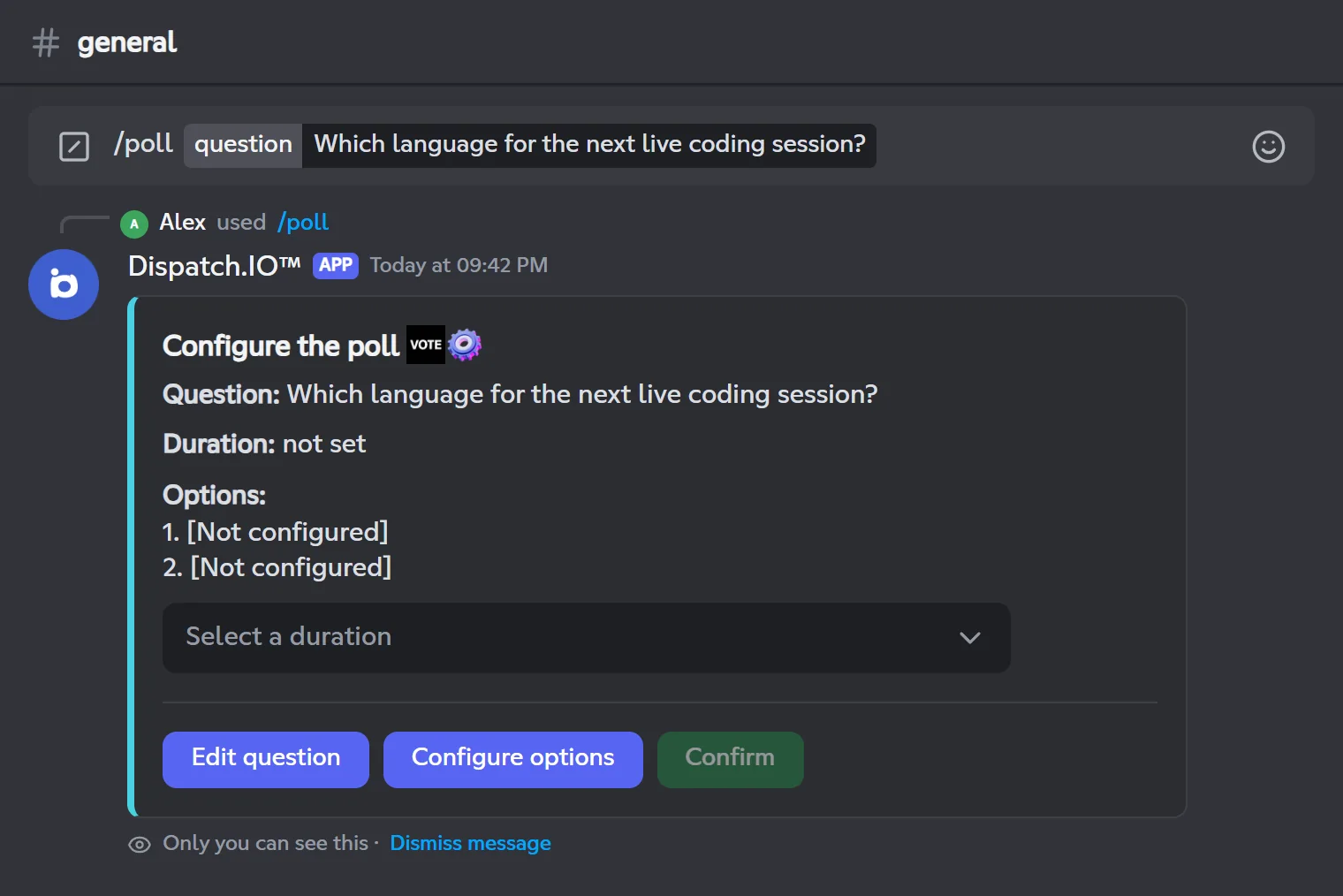
1. Set up the poll
The panel shows the question, the duration ("not set") and the options ("[Not configured]").
- Pick a duration in the Select a duration menu: 1 minute, 10 minutes, 30 minutes, 1 hour, 2 hours, 6 hours, 12 hours, 1 day, 3 days or 1 week.
- Click Configure options. A window shows four fields, Option 1 to Option 4 (80 characters max each). The first two are required, the other two optional, so a poll has 2 to 4 choices. Empty fields are ignored.
- Click Confirm. The button becomes active as soon as the duration and at least two choices are set.
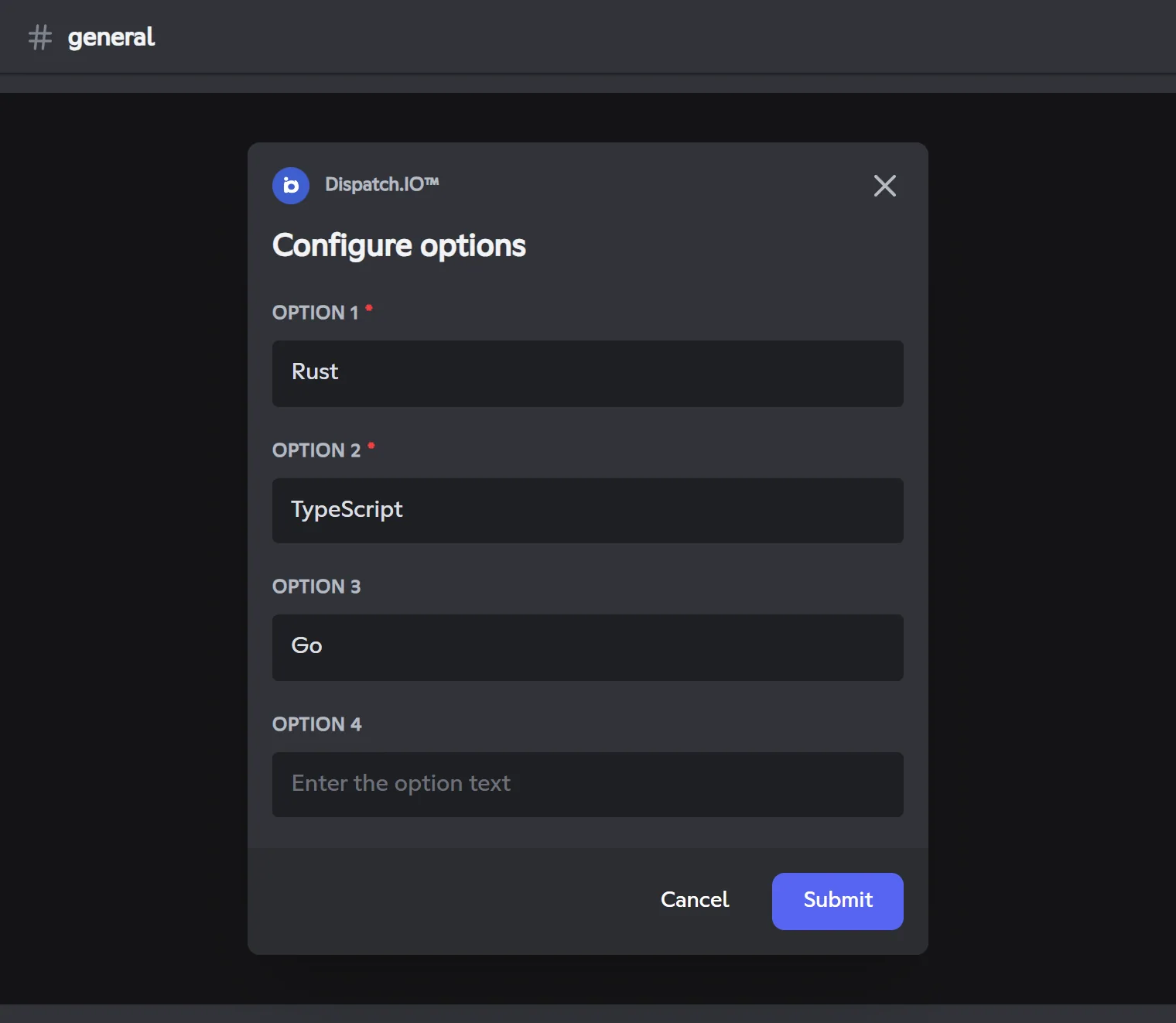
The bot confirms with "The poll has been successfully submitted." and posts the poll in the channel.
The question comes from the command
The Edit question button changes the question shown in the panel, but the posted poll uses the question typed in /poll. For a different question, run the command again.
Note
You have 5 minutes to post the poll; the timer restarts whenever you submit one of the windows. After that, the panel stops responding: run /poll again.
2. The posted poll
The public message shows the question as a title, the time left ("Time remaining: in a day"), its author ("Poll created by…"), a results image, then one blue button per choice and a red Stop the poll button.
The results image shows one bar per choice, filled in proportion to the votes, with the choice name on the left and the vote count and percentage on the right (for example "5 votes (41.7%)"). The vote total is shown at the bottom ("Total votes: 12"). The background uses the server welcome image, otherwise a dark gradient.
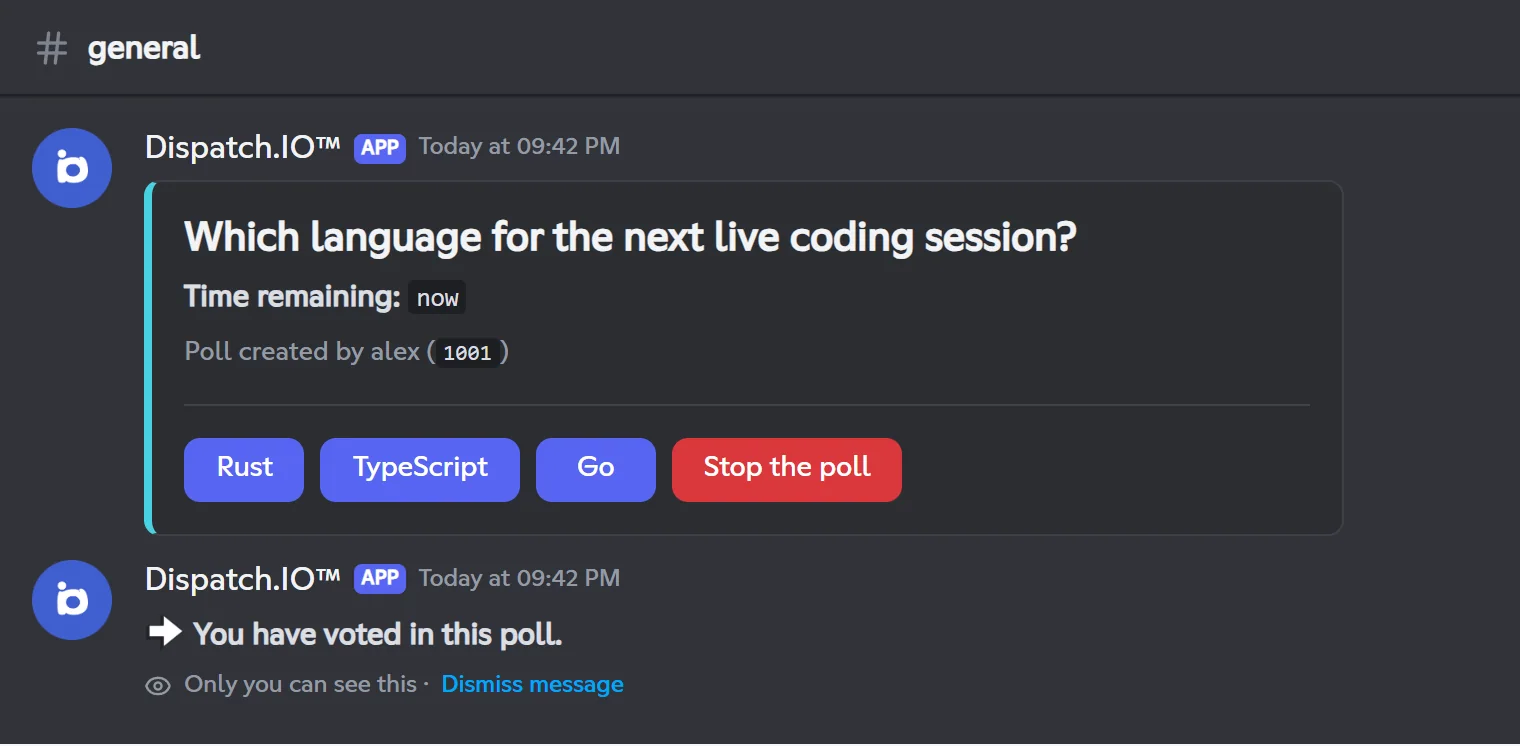
3. Vote
- Click the button of your choice. A message only you can see confirms: "You have voted in this poll."
- Each member has one vote. Clicking another choice moves your vote; clicking the same one again changes nothing.
- The message only shows totals, not who voted.
- The image updates about 2 seconds after votes come in.
- If you click several times very quickly, the bot replies "You have already voted in this poll. If you want to change your vote, please wait 10 seconds.": wait a few seconds and try again.
4. End of the poll
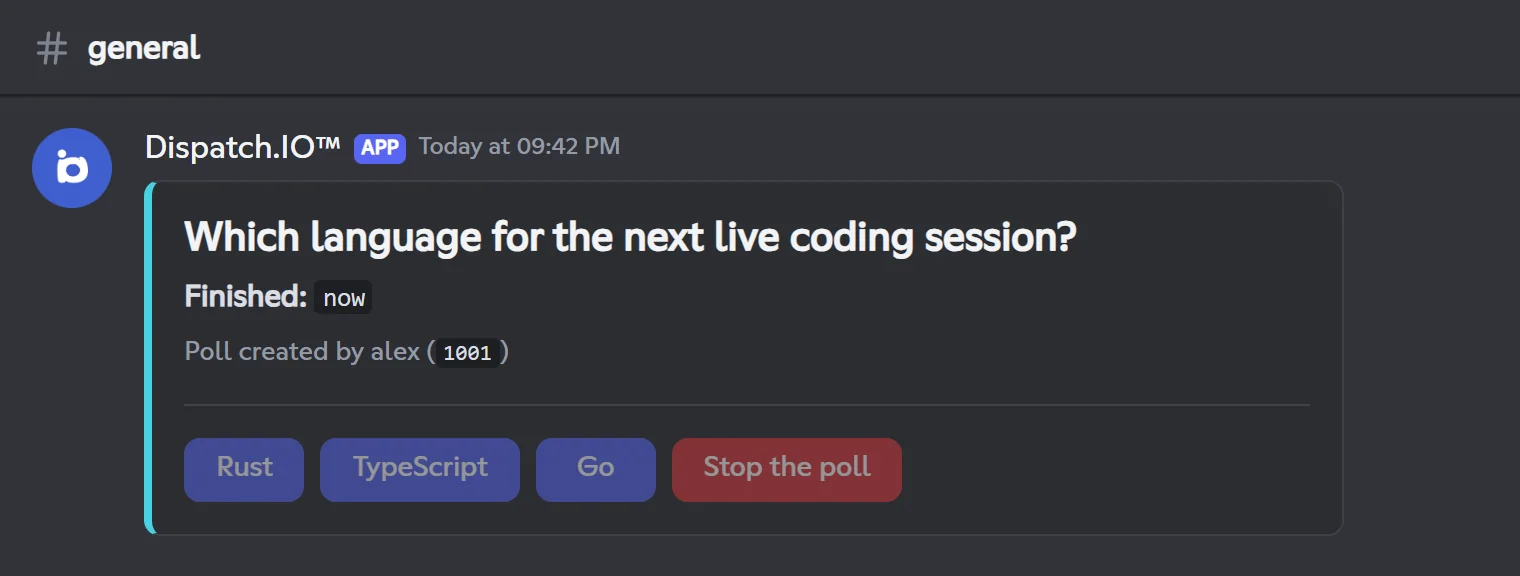
- When the duration is over, the message switches to "Finished: … ago", the buttons turn grey and the image shows the final results. There is no separate results message. The poll ends even if the bot restarted in the meantime.
- To stop it early, click Stop the poll. Only the poll author and administrators (Administrator permission or the bot's admin role) can do it; others get "You do not have permission to stop this poll."
- Creating and stopping a poll is logged in the General Server Logs channel, if one is set (see Channels).
Run a giveaway with /giveaway
Set up the giveaway, how members join, the draw.
/giveawayOpens a panel to set up a giveaway (title, duration, reward, number of winners, allowed roles), then posts it.
Syntax
/giveawayMember permission
Administrator
Bot permission
View Channel, Send Messages; Manage Roles for a role reward
Where to use it
Server only, in a text channel
Rate limit
1 use every 20 seconds
Plan
Free
Examples
/giveaway
Run the command in the channel where the giveaway should be posted.
Result on Discord
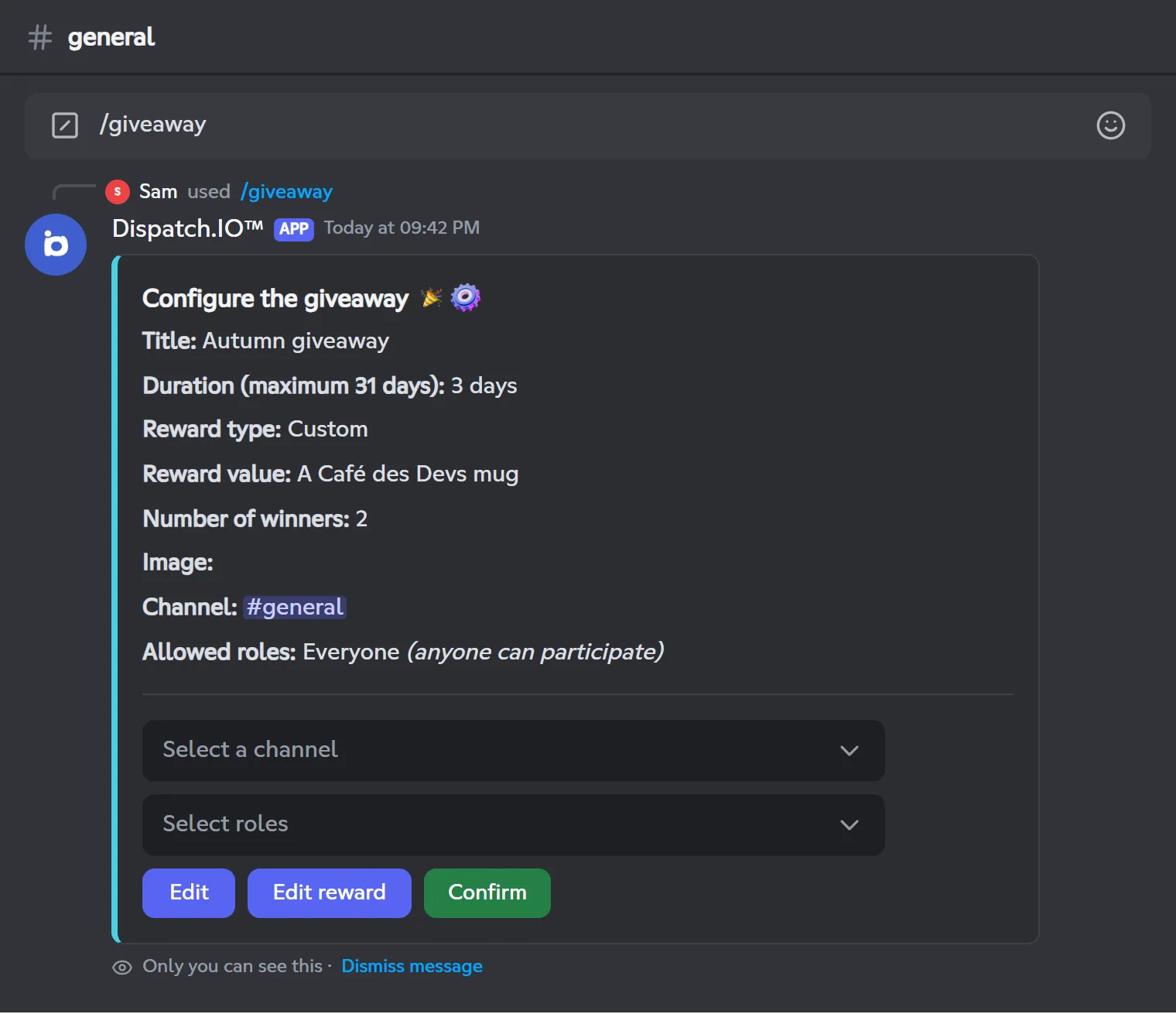
1. The setup panel
| Panel line | At first | To change it |
|---|---|---|
| Title | empty | Edit button |
| Duration (maximum 31 days) | not set | Edit button |
| Reward type | Custom | Edit reward button |
| Reward value | empty | Edit reward button |
| Number of winners | 1 | Edit button |
| Image | empty | Edit button |
| Channel | the current channel | Select a channel menu |
| Allowed roles | Everyone (anyone can participate) | Select roles menu (up to 25 roles) |
Confirm stays greyed out until the duration and the reward value are set. The panel expires after 5 minutes without any action.
Where the giveaway is posted
The giveaway is posted in the channel where you ran the command. Run /giveaway directly in the right channel and leave the Channel menu on that channel: for now, picking another channel in this menu does not move the giveaway, and it may then never end if the bot restarts before the end time.
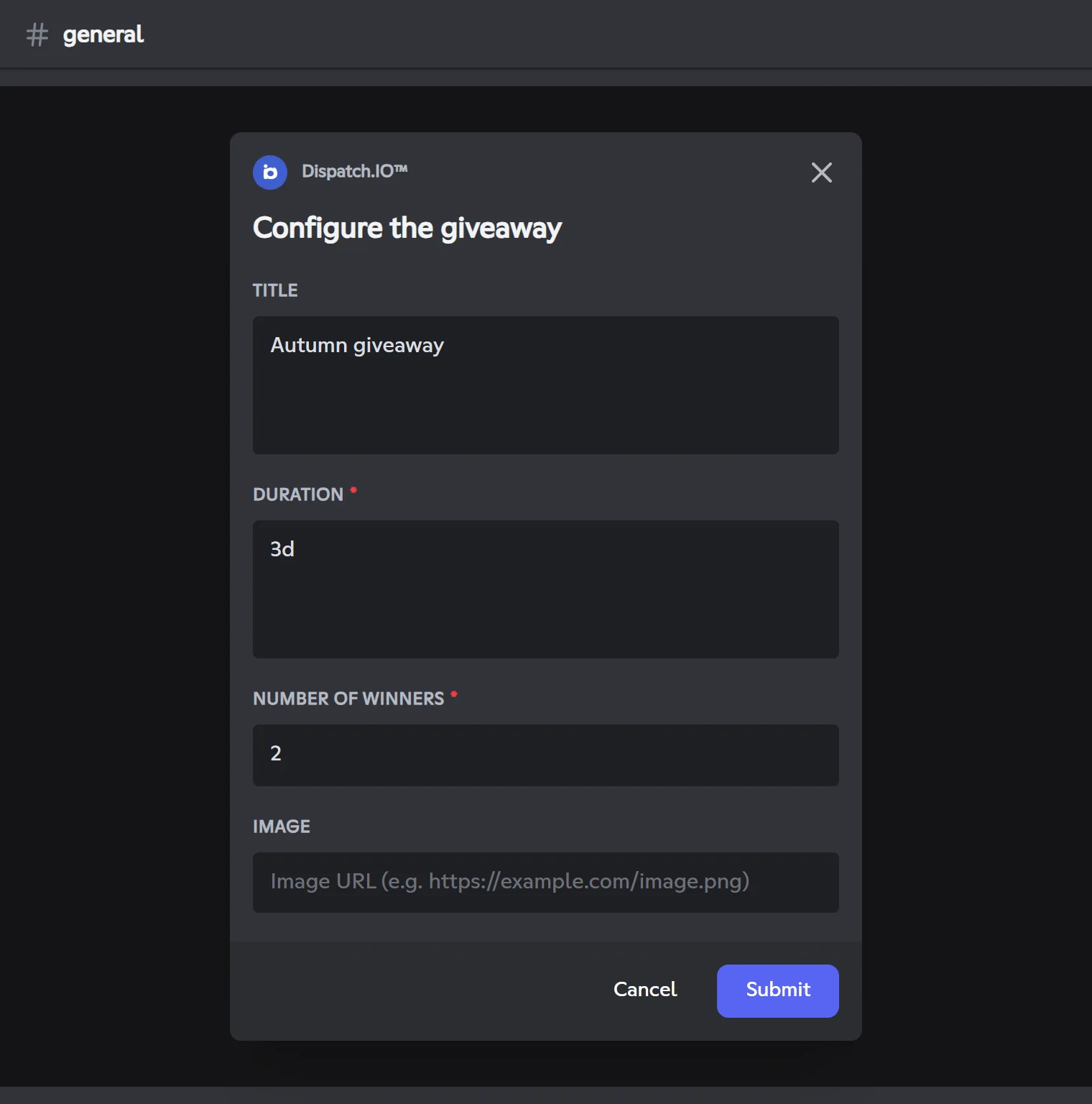
2. The "Configure the giveaway" window
The Edit button opens this window:
| Field | Required | What to enter |
|---|---|---|
| Title | No | Free text (1,000 characters max), shown large at the top of the giveaway. |
| Duration | Yes | A number followed by a unit: s (seconds), m (minutes), h (hours), d (days), w (weeks). Units can be combined: 2d 3h 13m. 31 days max. |
| Number of winners | Yes | From 1 to 50. |
| Image | No | A direct link to an image ending in .png, .jpg, .jpeg, .gif or .webp. |
English units only
The bot only understands English units: write 2d for 2 days (the French 2j is not recognised).
If a value is invalid, the valid fields are still saved and a private message lists the errors, for example "The number of winners must be between 1 and 50."
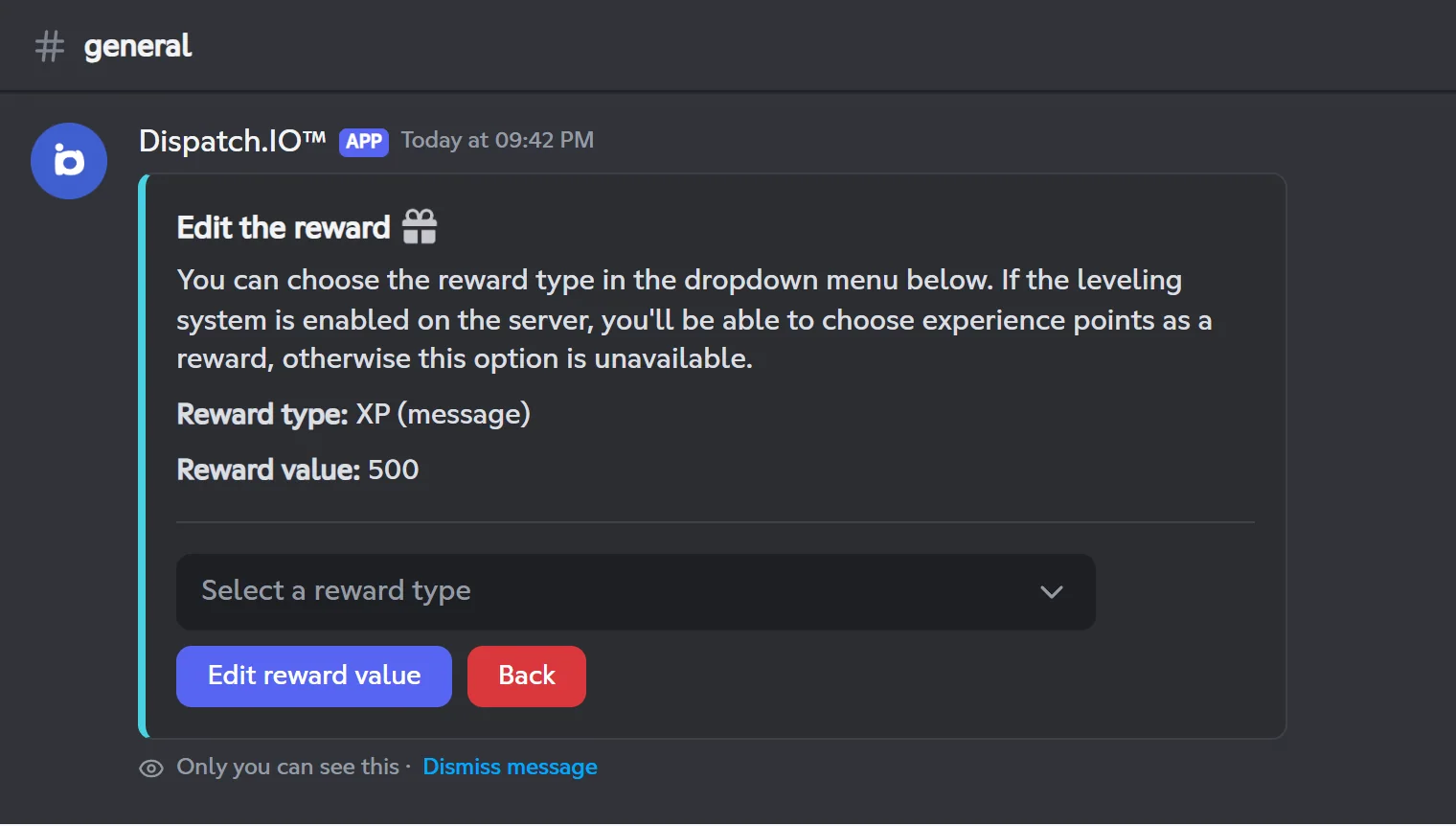
3. Choose the reward
The Edit reward button opens a second screen with the Select a reward type menu:
| Type | Value to give | What the winner gets |
|---|---|---|
| Role | a role, picked in the Select a role menu | the role, added automatically |
| XP (message) | a whole number above 0 | that much message XP, with the level-up announcement if they reach a new level |
| XP (voice) | a whole number above 0 | that much voice XP, with the level-up announcement if they reach a new level |
| Custom | free text (300 characters max) | nothing automatic: a DM asks them to contact the organiser |
- XP types only appear when the level system is enabled.
- The role must not be managed by an integration and must sit below the bot's role. Otherwise: "The role you selected cannot be used…"
- Edit reward value opens a window to enter the value (not for the Role type, which is picked in the menu). Back returns to the main panel.
4. Post it
Click Confirm: the panel shows "The giveaway was successfully created!" and the giveaway is posted. The creation is logged in the General Server Logs channel, if one is set.
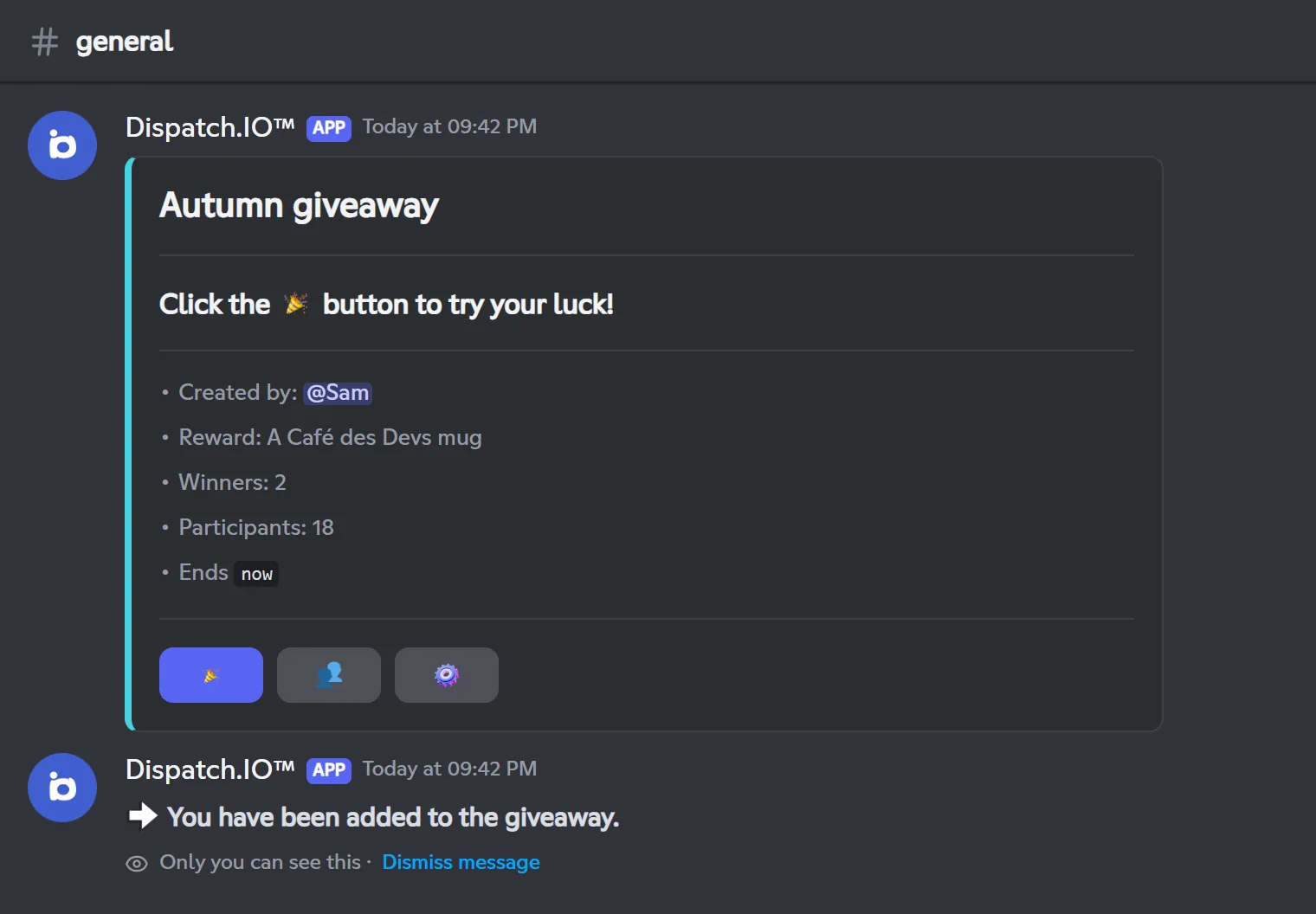
5. What members see and do
The public message shows the title, "Click the 🎉 button to try your luck!", the organiser, the reward, the number of winners, the number of participants, the allowed roles (if any), the end time ("Ends in 3 days") and the image (if any). Below are three buttons:
| Button | What it does |
|---|---|
| 🎉 | Join. The member gets "You have been added to the giveaway." If they already joined, the bot offers a Leave the giveaway button. Without one of the allowed roles, they get "You cannot participate in this giveaway because you don't have the required role(s)." (administrators can always join). |
| 👥 | Shows the participant list, 10 per page, only visible to whoever clicks. |
| ⚙️ | Opens giveaway management, for administrators only (see below). |
The participant counter updates a few seconds after each join or leave.
6. End of the giveaway and winners
When time is up, the bot draws the winners among the participants:
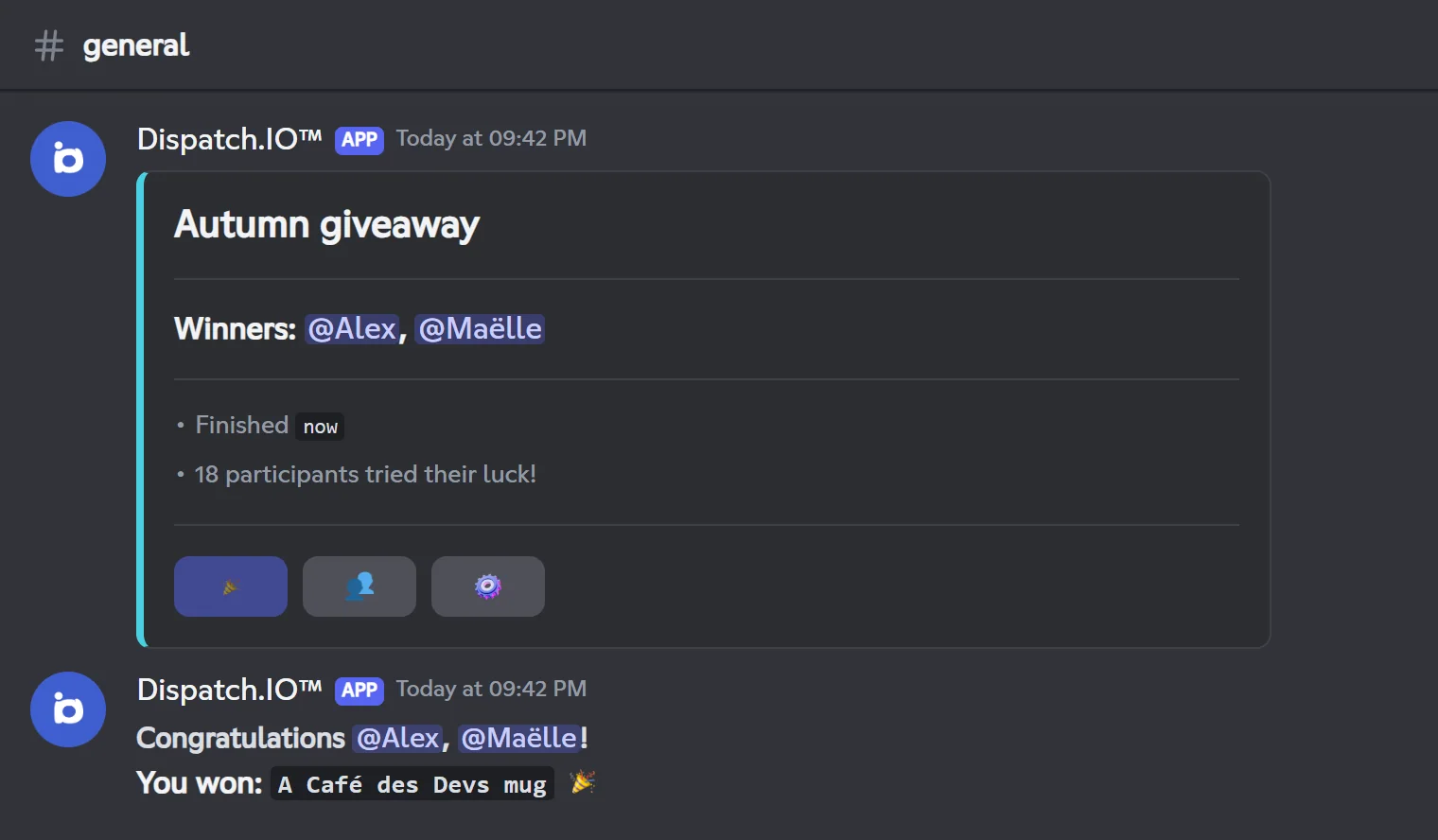
- the message switches to "Winners: @Alex, @Maëlle", "Finished … ago" and "18 participants tried their luck!", and the 🎉 button turns grey;
- the bot replies to the giveaway with "Congratulations @Alex, @Maëlle! You won: … 🎉", which mentions the winners;
- a role or XP reward is given automatically;
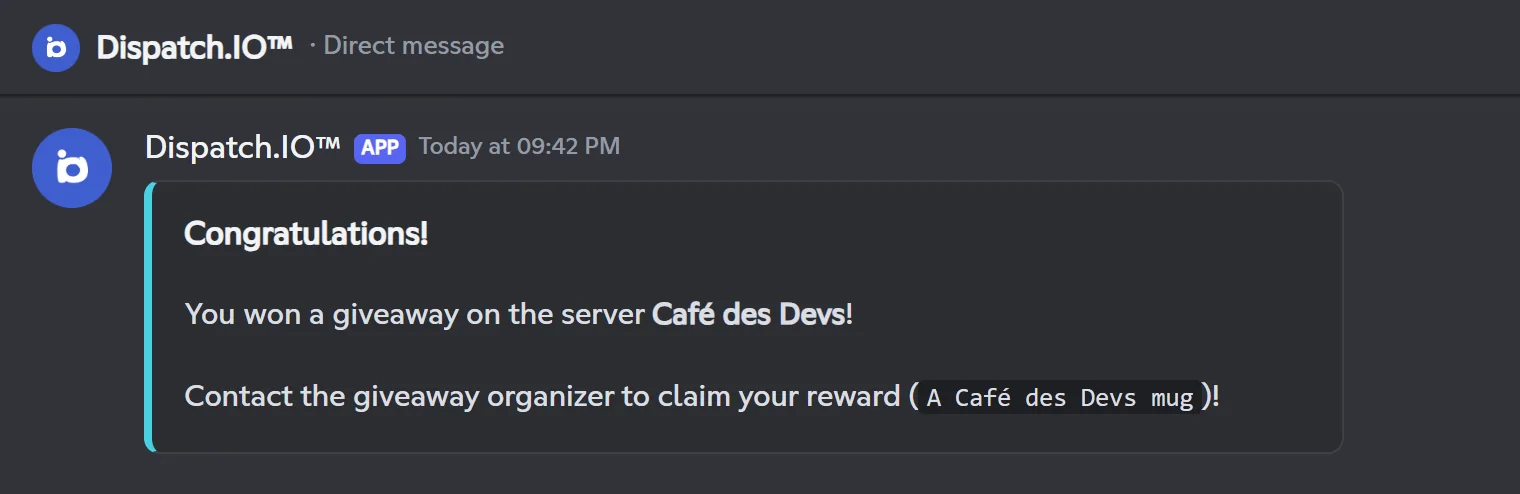
- each winner gets a DM: "Congratulations! You won a giveaway on the server Café des Devs!", followed by the role or XP they won, or an invitation to contact the organiser for a custom reward.
With no participants, the bot simply replies "Giveaway ended with no participants." The giveaway ends even if the bot restarted in the meantime.
Note
For a Role reward, the congratulations message shows the role as raw code (<@&…>) instead of its name. The winner does get the role.
A giveaway is cancelled automatically when its reward can no longer be given: an XP giveaway when the level system is disabled ("The leveling system has been disabled."), or a reward role that was deleted ("The role associated with the reward has been deleted."). The message then shows the reason.
7. Manage a giveaway (⚙️ button)
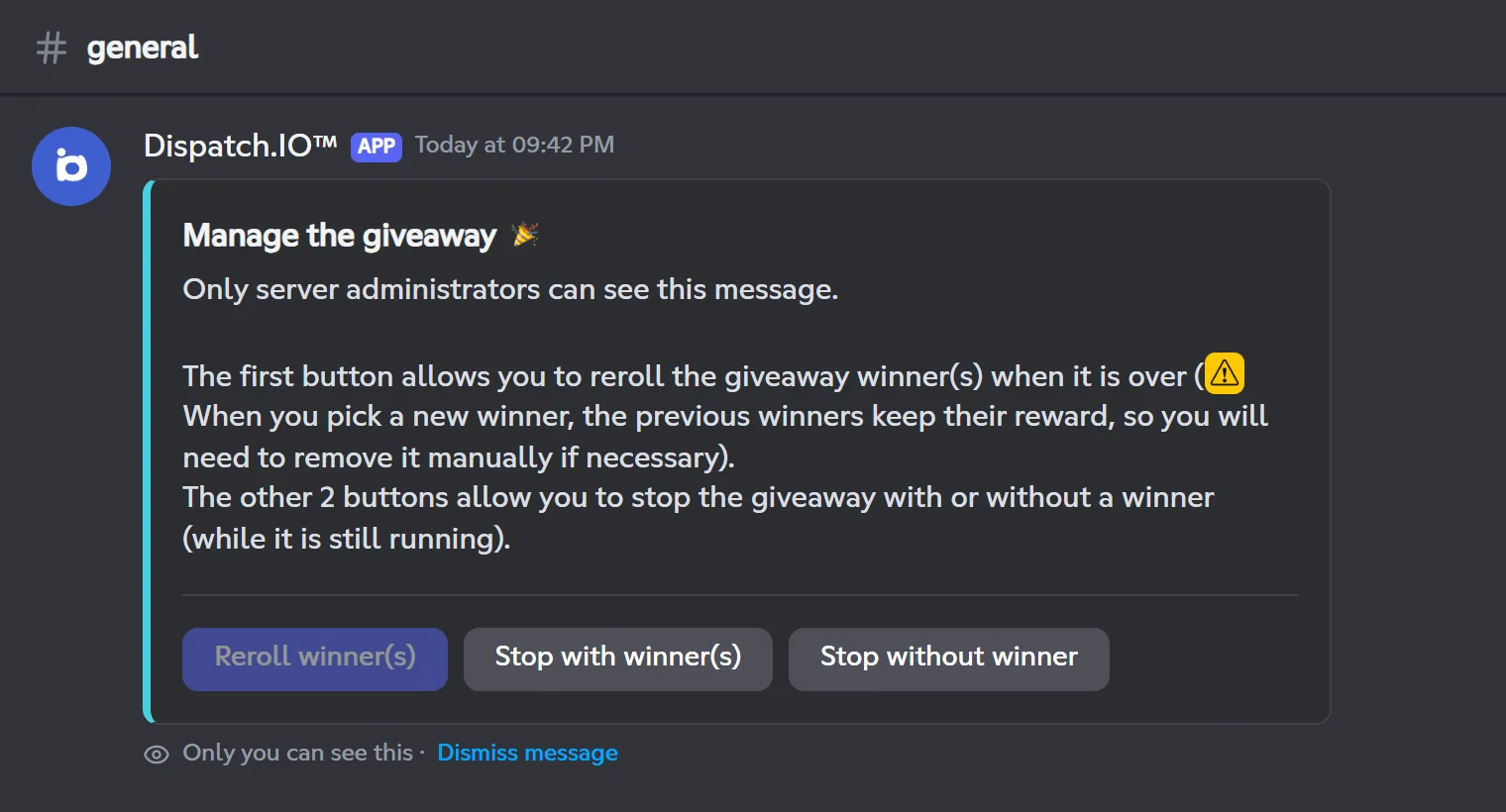
An administrator who clicks ⚙️ gets a private panel with three buttons:
| Button | Available | Effect |
|---|---|---|
| Reroll winner(s) | Giveaway finished, if some participants were never drawn | New draw among the participants who have not been drawn yet. Previous winners keep their reward: remove it by hand if needed. |
| Stop with winner(s) | Giveaway running | Ends the giveaway now and draws the winners. |
| Stop without winner | Giveaway running | Ends the giveaway now, with no winner. |
New winners from a reroll get their reward, the DM and a new congratulations reply. This panel expires after 2 minutes without any action. Members without the rights get "You don't have permission to manage the giveaway."
Promote your server with /bump
The bump network, the cooldown, error messages.
/bumpPosts your server's introduction in the bump channel of every server in the Dispatch.IO network.
Syntax
/bumpMember permission
None
Bot permission
View Channel, Send Messages, Embed Links (in the receiving bump channels)
Where to use it
Server only
Rate limit
1 use every 20 seconds, then a per-server cooldown: 12 h (Free), 9 h (Basic), 6 h (Ultimate)
Plan
Free (shorter cooldown with Basic and Ultimate)
Examples
/bump
Result on Discord
Before your first bump
An administrator sets up bumping on the Bump page of the website (or in the bump section of /config):
- Enable bump.
- A permanent Invite code: the website's Generate button creates one.
- A Bump receive channel.
Optionally: a server description (500 characters) and a bump image. Every server that enabled bumping and picked a receive channel is part of the network: each one receives the others' bumps, and yours too.
What happens when you bump
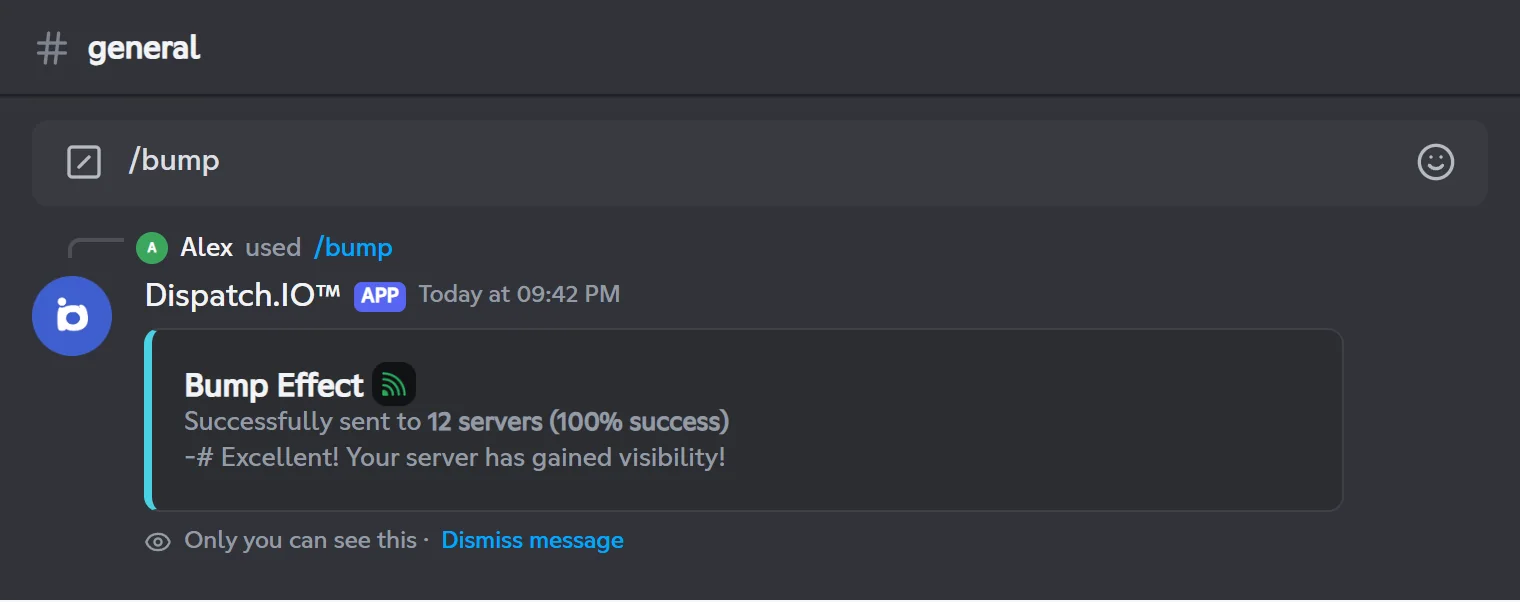
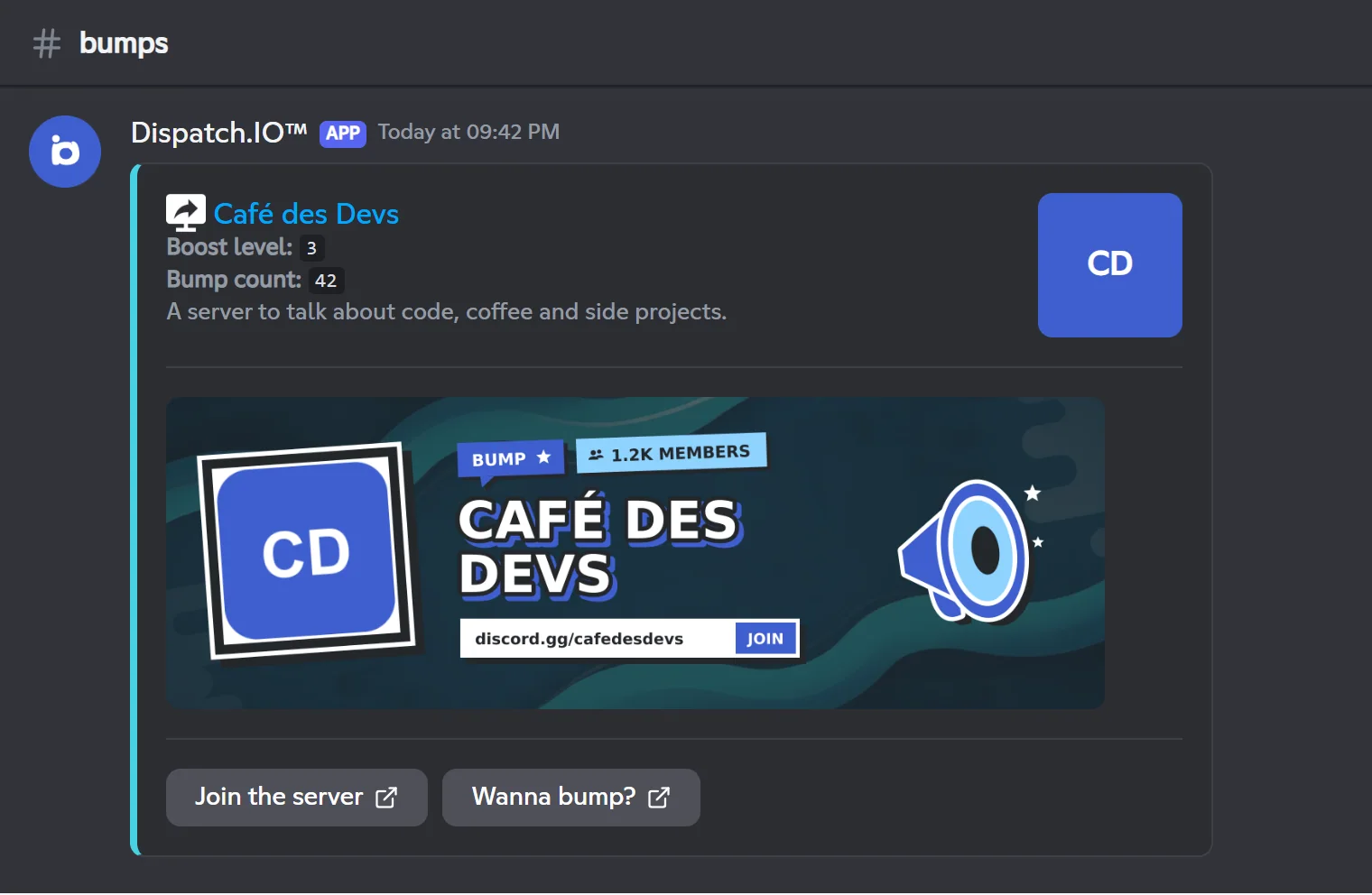
- The bot shows "Bump in progress...", then the confirmation: the number of servers reached, the success rate and an encouraging message based on how many servers were reached.
- In the bump channel of every server in the network (yours included), the bot posts your server's introduction, in the language and color of the receiving server:
- your server name, linked to your invite, and its icon;
- "Boost level" (the server's number of boosts) and "Bump count";
- your description (the one from the website, otherwise Discord's);
- the bump card: icon, server name, member count, invite link and "JOIN", on your bump image (otherwise your welcome image, otherwise the default banner);
- the Join the server and Wanna bump? buttons (the latter adds Dispatch.IO).
Cooldown between bumps
The cooldown starts as soon as you bump, even if no server received the message. It depends on the server's plan (see Premium plans and limits):
| Server plan | Cooldown between bumps |
|---|---|
| Free | 12 hours |
| Basic | 9 hours |
| Ultimate | 6 hours |
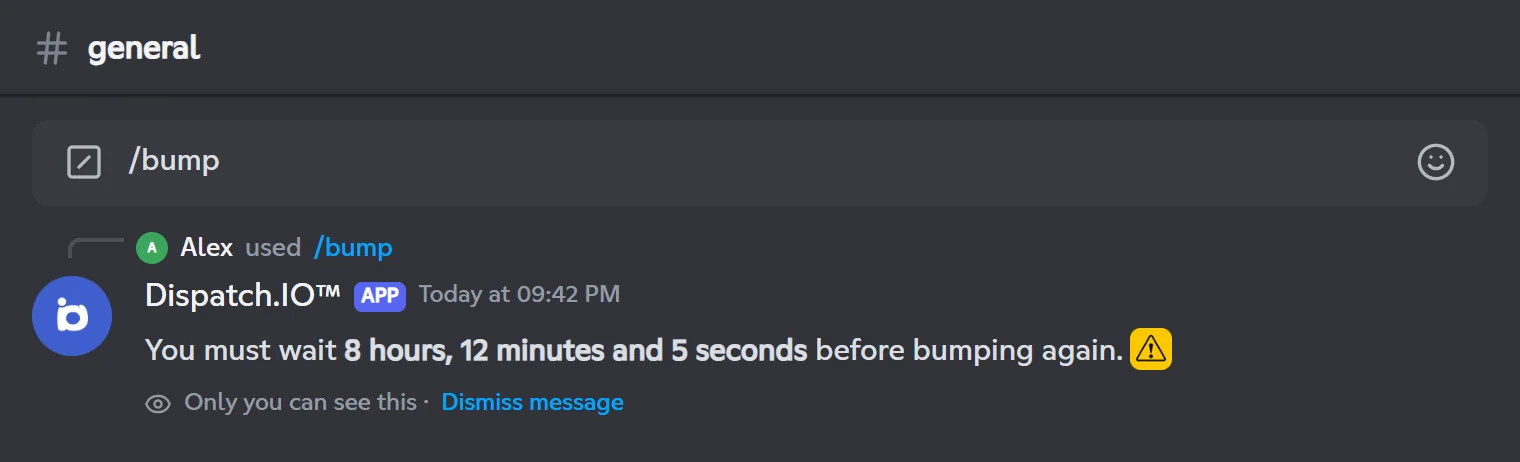
Before the cooldown is over, the bot tells you how long is left:
Error messages
| Message | Cause | Fix |
|---|---|---|
| "The bump system is disabled on this server." | Bumping is not enabled. | Enable it on the website's Bump page. |
| "No invite code configured." | No invite code. | Add or generate a permanent invite. |
| "No bump channel configured for this server or the channel does not exist anymore." | No receive channel, or it was deleted. | Pick a receive channel. |
Members with the Administrator permission also see a line telling them where to fix the setting in /config.
Manage a ticket with /ticket-manager
Add or remove members, rename, ask for a reply.
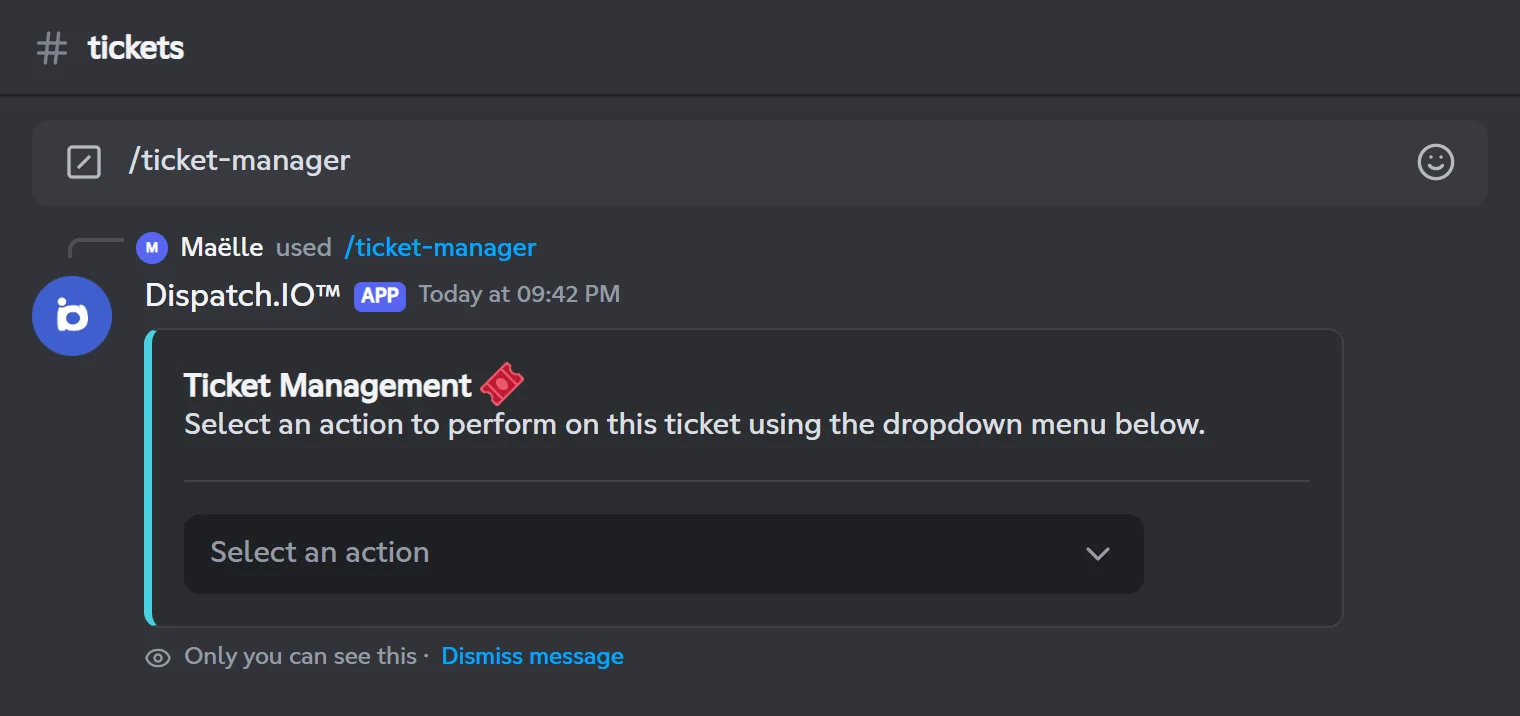
/ticket-managerOpens the management menu of the ticket you are in: add or remove a member, rename the ticket, resend its panel, ask someone to reply.
Syntax
/ticket-managerMember permission
None (ticket author, ticket responsible or administrator)
Bot permission
Manage Channels, Manage Roles
Where to use it
Server only, inside an open ticket
Rate limit
None
Plan
Free
Examples
/ticket-manager
Result on Discord
Who can use it
Type the command in the channel of an open ticket (tickets are created with the Tickets module panel). It is reserved for:
- the person who opened the ticket;
- the ticket responsibles (those who took it with Claim);
- administrators (Administrator permission or the bot's admin role).
Anywhere else, the bot replies "You must be in a ticket to use this command." Without the rights: "You do not have permission to manage this ticket. You must claim the ticket first."
Menu actions
Pick an action in the Select an action menu:
| Action | What it does |
|---|---|
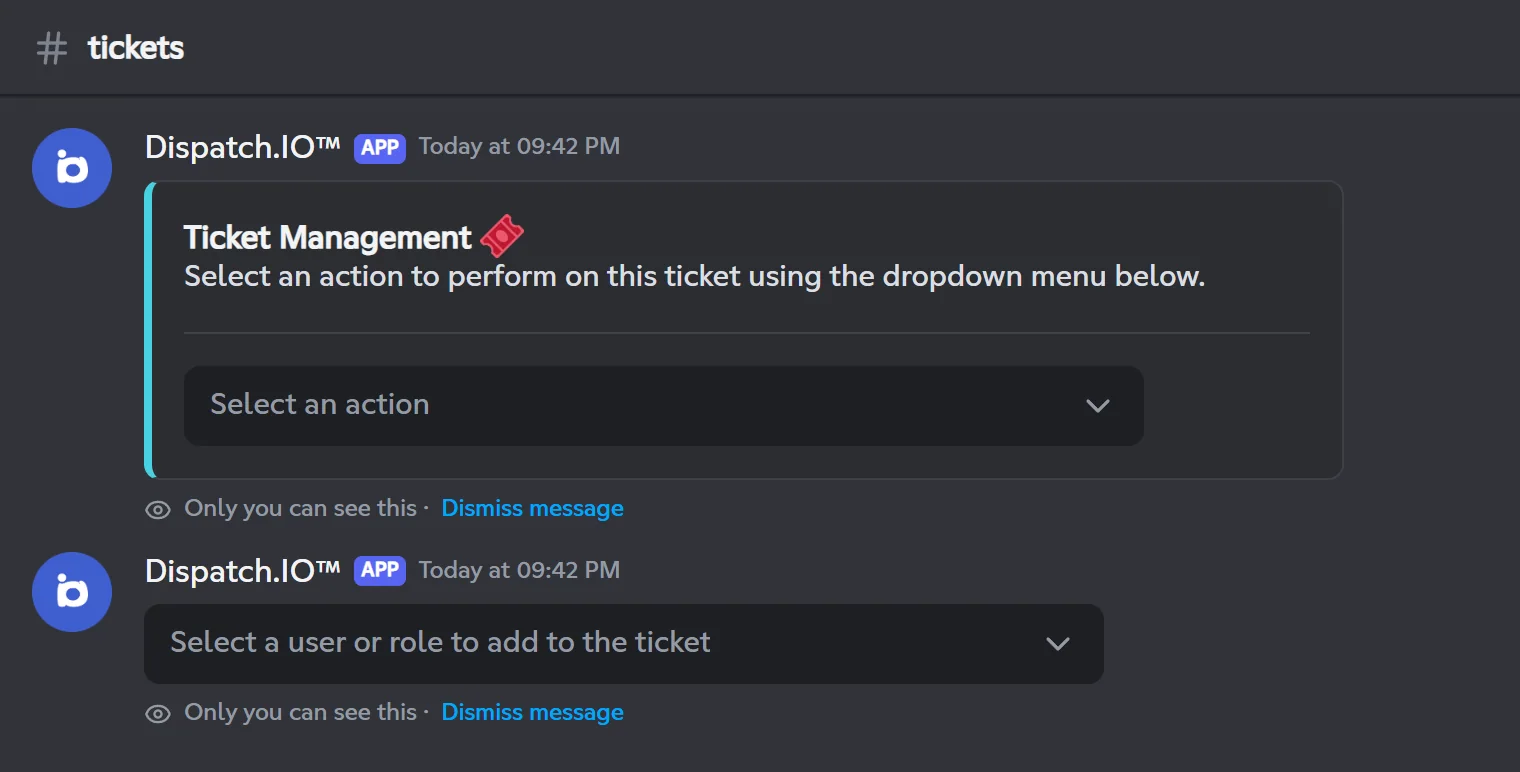
| Add a user or role | A menu asks who to add. The chosen member can see the ticket, write in it and read its history: "User @Alex has been added to the ticket." Refused if the member already has access (author, responsible, administrator or a role notified by the ticket). |
| Remove a user or role | Removes the access given to a member or a role. The author, responsibles, administrators and roles notified by the ticket cannot be removed. |
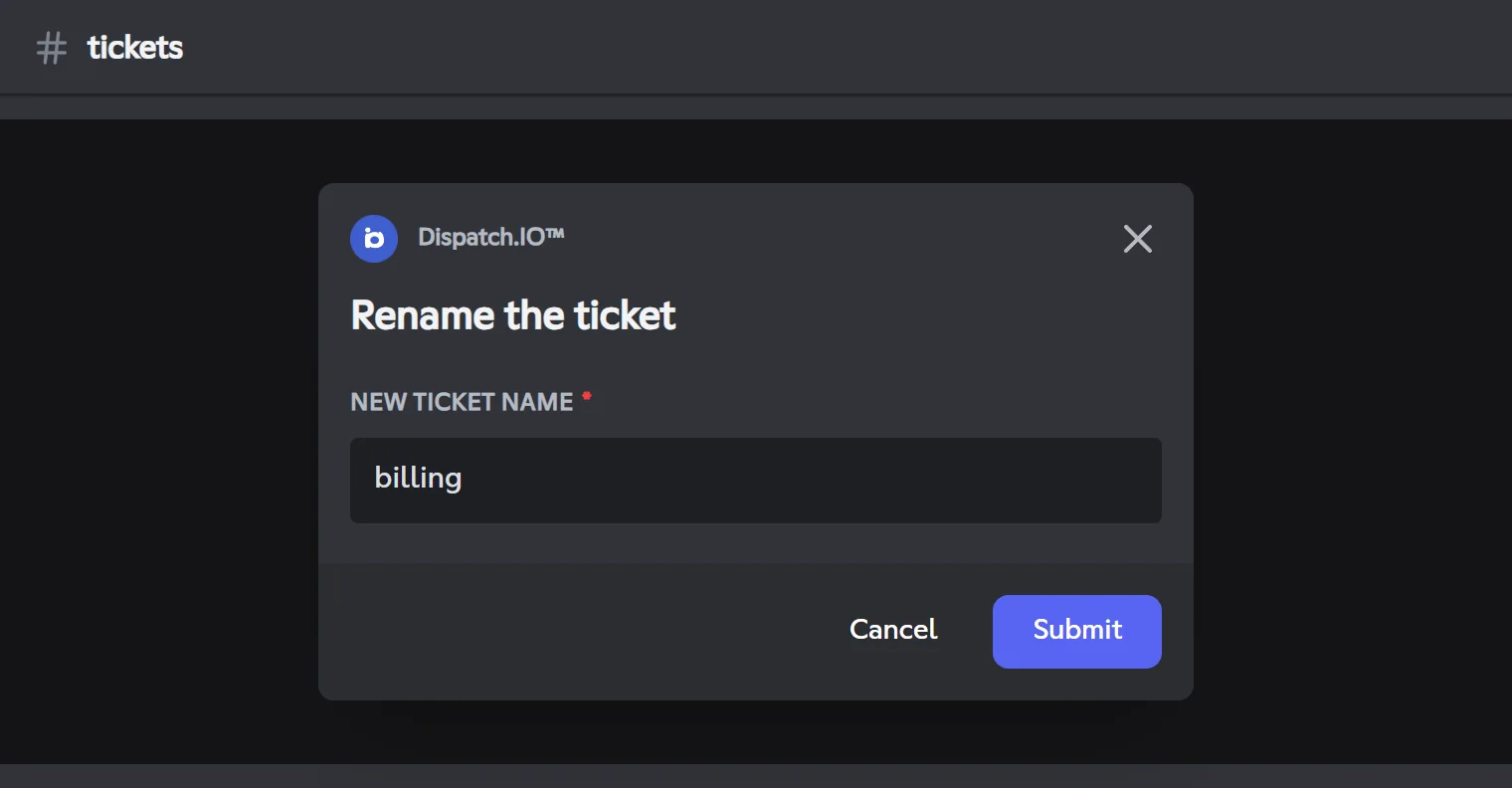
| Rename the ticket | Opens the Rename the ticket window (see below). |
| Resend the panel | Posts the ticket management panel again in the ticket (Close, Claim, Add/Remove Responsible, Save, Delete). |
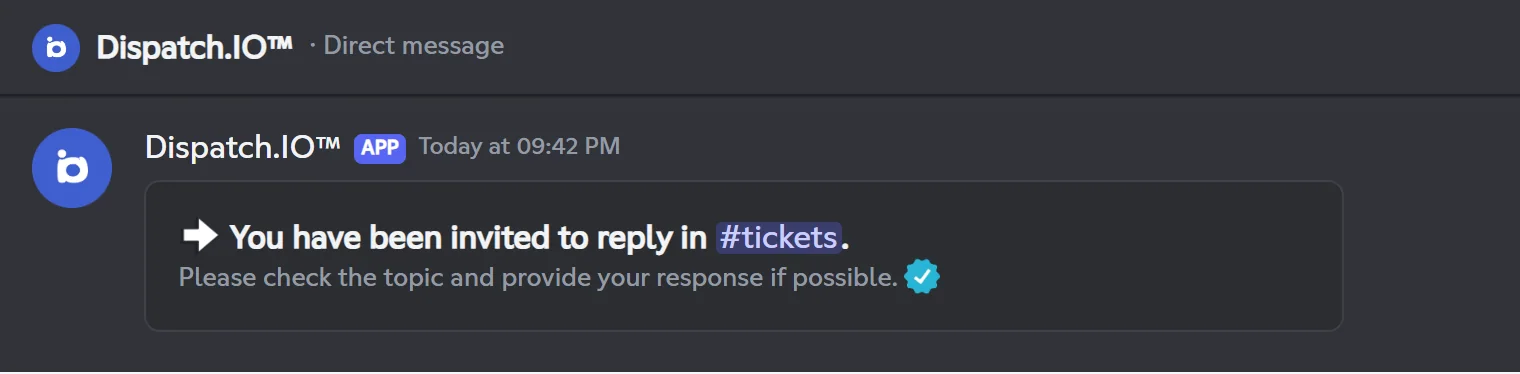
| Ask a user to respond to the ticket | Pick a member: they get a DM "You have been invited to reply in #ticket." |
Adding a role
The add menu also lists roles, but adding a role does not work for now: nothing happens. Add members one by one instead. Removing a role does work.
Rename the ticket
Enter the New ticket name. The name is lower-cased and formatted like a Discord channel name. The ticket option prefix (the Channel prefix set on the website's Tickets page) is kept in front: billing becomes support-billing.
Note
Discord limits channel renames (2 every 10 minutes). Beyond that, the new name can take several minutes to show up.
Ask for a reply
The chosen member gets this DM, with a link to the ticket. If you ask the same member again within the hour, the bot confirms without sending another DM. If their DMs are closed, nothing reaches them.
The menu expires after 2 minutes without any action: run /ticket-manager again to reopen it.
Common issues
| Issue | Cause and fix |
|---|---|
/giveaway doesn't show up | The command requires the Administrator permission. The owner can change this in Server Settings > Integrations. |
| The giveaway is not posted in the chosen channel | It is posted in the channel where the command was run. Run /giveaway again in the right channel. |
| No XP type among giveaway rewards | The level system is disabled. Enable it on the Levels page. |
| The giveaway duration is refused | Use English units (d for days) and 31 days at most. |
| The posted poll doesn't have the edited question | Only the question typed in /poll is used. Run the command again. |
| A panel stopped responding | It expired (5 minutes for /poll and /giveaway, 2 minutes for /ticket-manager). Run the command again. |
/bump reaches few servers | Only network servers whose bump channel the bot can write in receive the message. The result depends on how many servers are signed up. |
| My bump channel receives nothing | Check that bumping is enabled and that the bot can view the channel, send messages and embed links there. |
/ticket-manager says I must be in a ticket | Run it in the ticket channel, and only while the ticket is open. |