
Dispatch.IO has four tools to get your community involved: polls, giveaways (contests with a random draw), the suggestions box and the counting game. This page explains what happens behind the scenes for each one: where the message is posted, who can act on it, how it ends, and what the bot does on its own (automatic end, cancellation, cleanup, logs).
It is meant for the administrators who set these tools up. The details of the /poll and /giveaway commands (every screen, every button) are on the Community page.
Overview
The four tools and what you need to use them.
| Tool | How it starts | Who starts it | What you need to set up |
|---|---|---|---|
| Poll | /poll command | Everyone | Nothing |
| Giveaway | /giveaway command | Administrators | Nothing (the leveling system for an XP reward) |
| Suggestions box | A regular message in the suggestions channel | Everyone | The Suggestions Box channel |
| Counting game | A number typed in the counting channel | Everyone | The Counting Game channel |
What they have in common:
- Free: none of these tools depends on a Premium plan, and there is no limit on the number of polls, giveaways or suggestions.
- Language: published messages (poll, giveaway, suggestion card, counting errors) are written in the server's language. Replies that only you can see follow the language of your Discord app.
- Administrators: when an action is reserved for administrators, this means members who have the Discord Administrator permission or a role declared as the bot's administrator role (see Permissions and roles).
- Logs: the creation and end of polls, giveaways and suggestions are recorded in the General Server Logs channel, if one is set (see Logs).
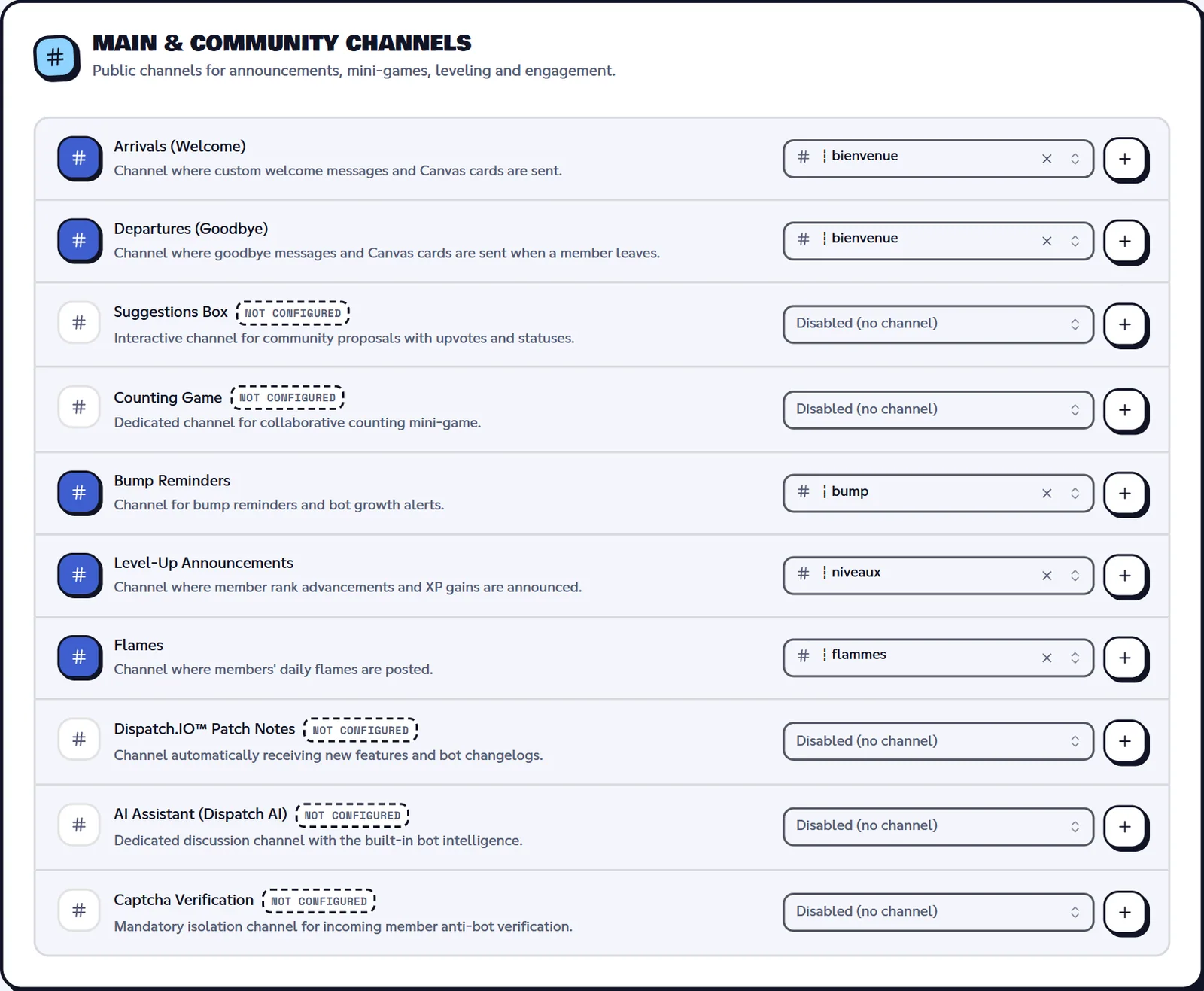
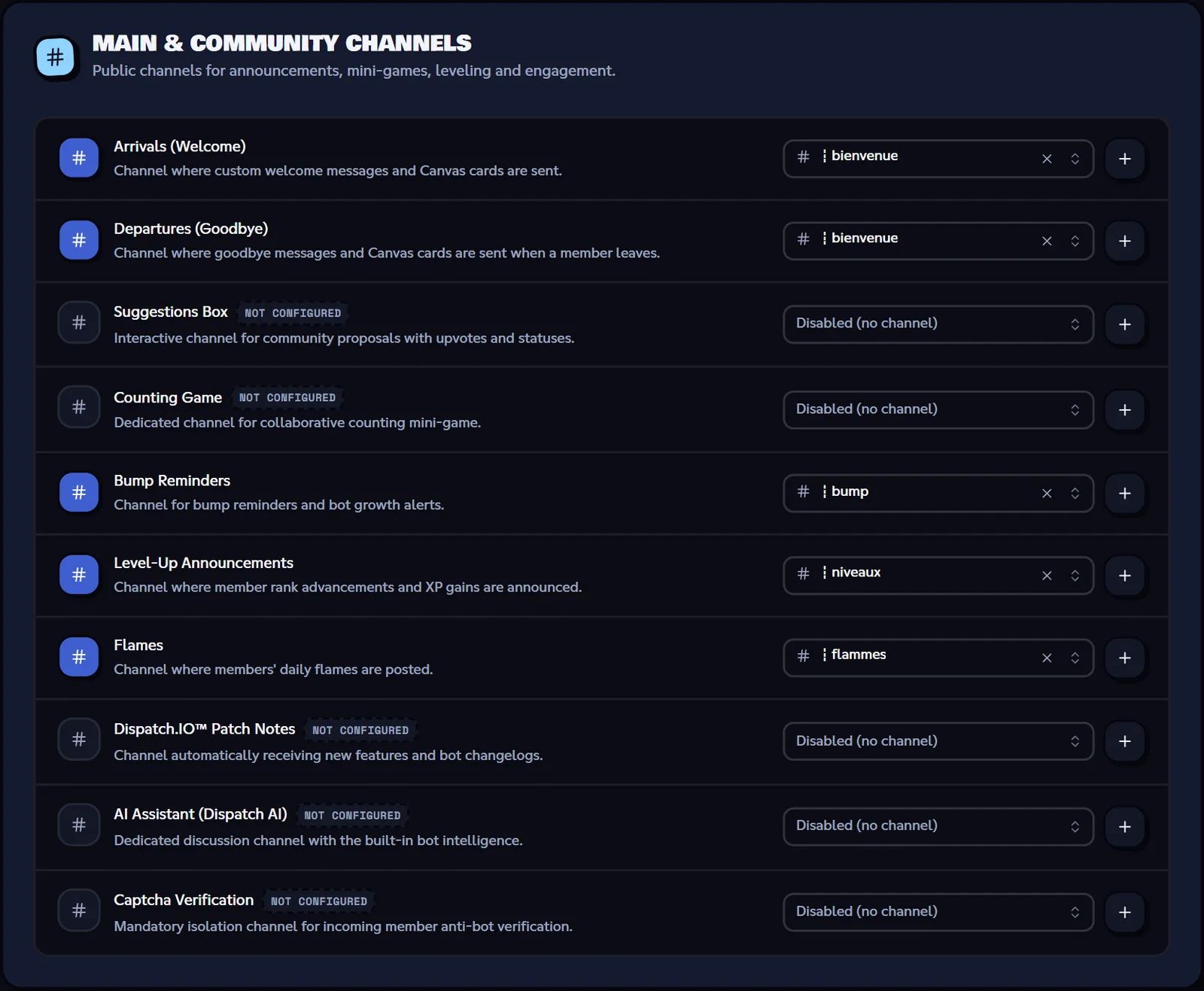
Both channels are picked on the Channels page of the dashboard, in the "Main & Community Channels" section (the + button creates the channel for you), or in /config → Channels ("Suggestions channel", "Counting game channel").
What about the "AI Assistant" channel?
The channel list also contains AI Assistant (Dispatch AI). For now, the bot does not reply in that channel: to ask the AI a question, use the /gemini command (see General commands).
Polls
From the setup panel to the final results.
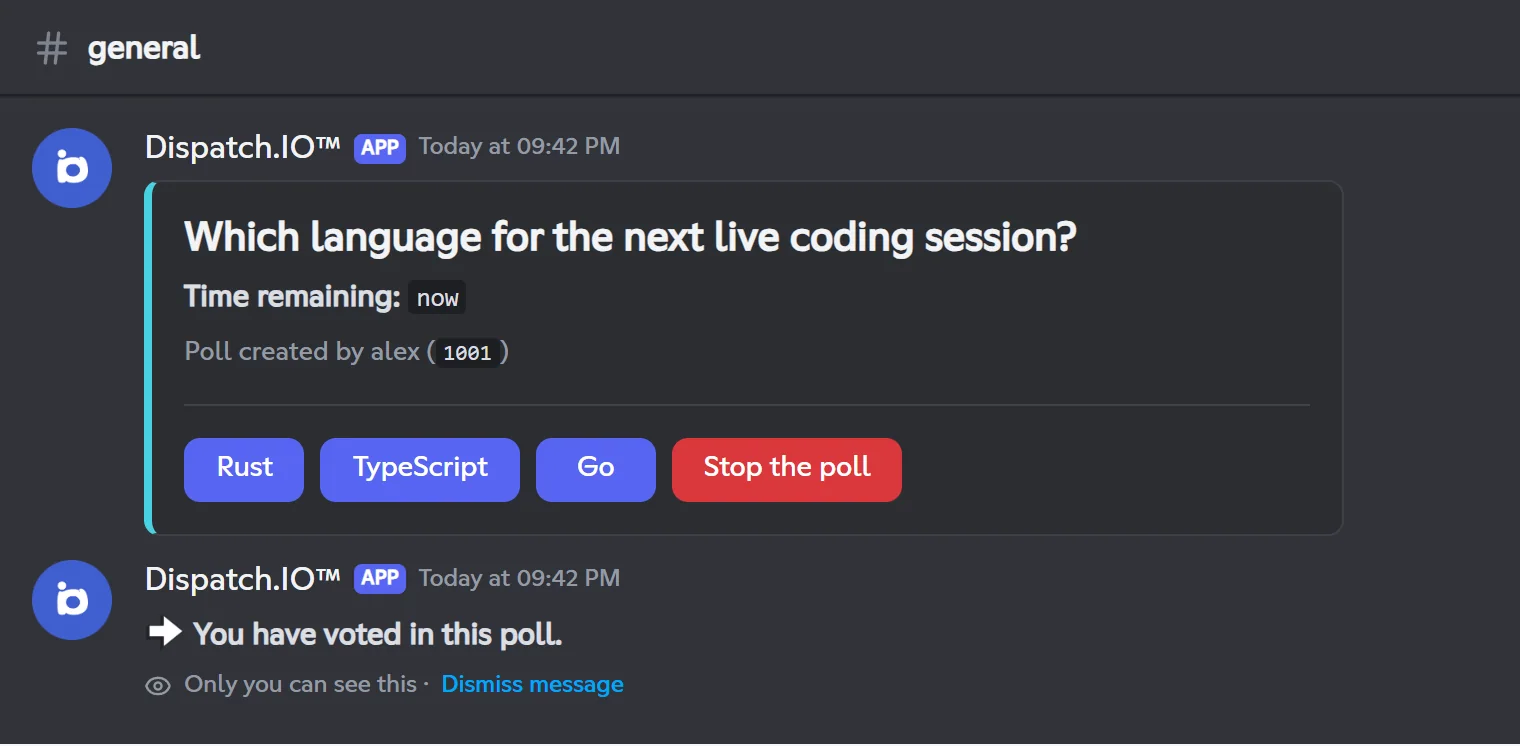
A poll asks a question with 2 to 4 choices. Members vote with buttons and an image shows the results live.
Creating and publishing
- A member types
/pollwith their question (300 characters max). A panel only they can see lets them pick the duration (from 1 minute to 1 week) and the choices (80 characters max each). - They have 5 minutes to click Confirm. The poll is posted in the channel where the command was typed.
- The creation is recorded in General Server Logs.
While the poll is open
- One vote per member. Clicking another choice moves your vote; you cannot remove it.
- Votes are anonymous: the message only shows the number of votes and the percentage of each choice.
- The results image is redrawn about 2 seconds after votes come in, so the message is not edited on every click.
End of the poll
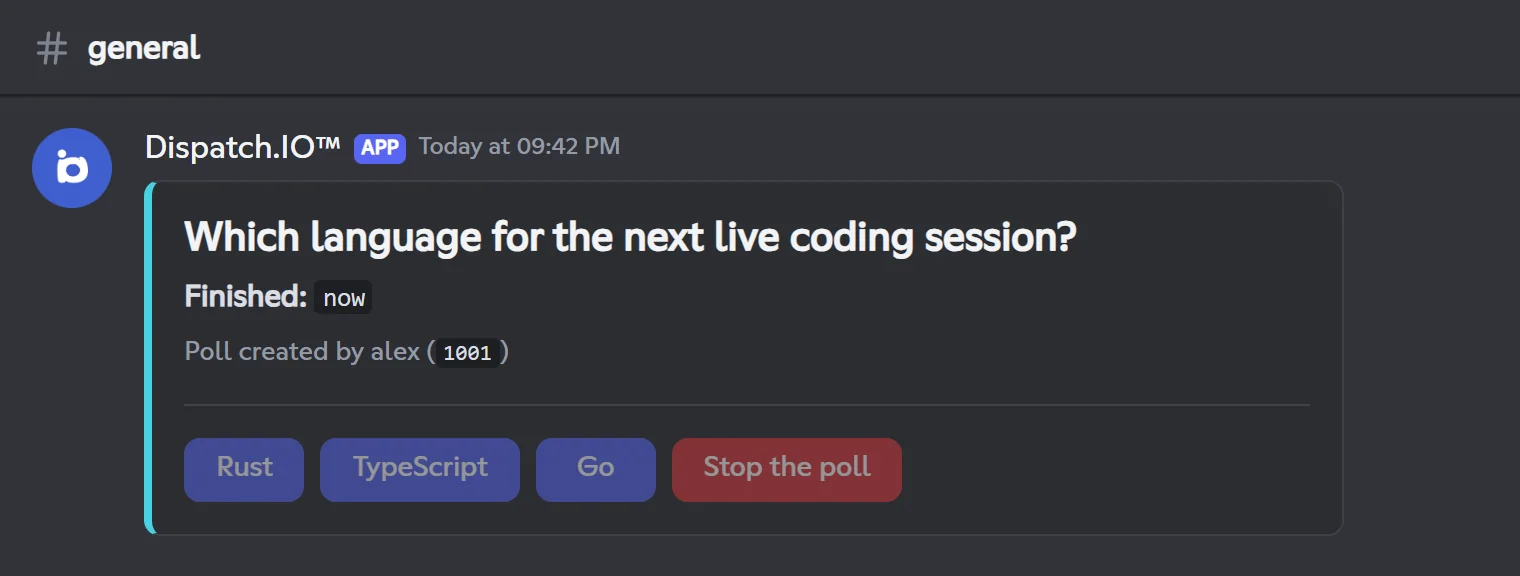
- When the duration is over, the bot closes the poll by itself: the message shows "Finished", the buttons turn grey and the image shows the final results. No other message is posted.
- Before that, the poll's author or an administrator can click Stop the poll. Stopping it is recorded in General Server Logs.
- Bot restart: running polls pick up their timer again at startup. A poll that should have ended while the bot was down is closed as soon as it restarts.
Automatic cleanup
| What happens | What the bot does |
|---|---|
| The message of a running poll is deleted | The poll is removed from the database. |
| The channel is deleted | The running polls of that channel are removed. |
| The message can't be found at restart | The poll is removed. |
Finished polls stay saved.
Bot permissions in the channel: Send Messages, Attach Files (for the results image) and Read Message History.
Giveaways
Joining, drawing, rewards and automatic cancellations.
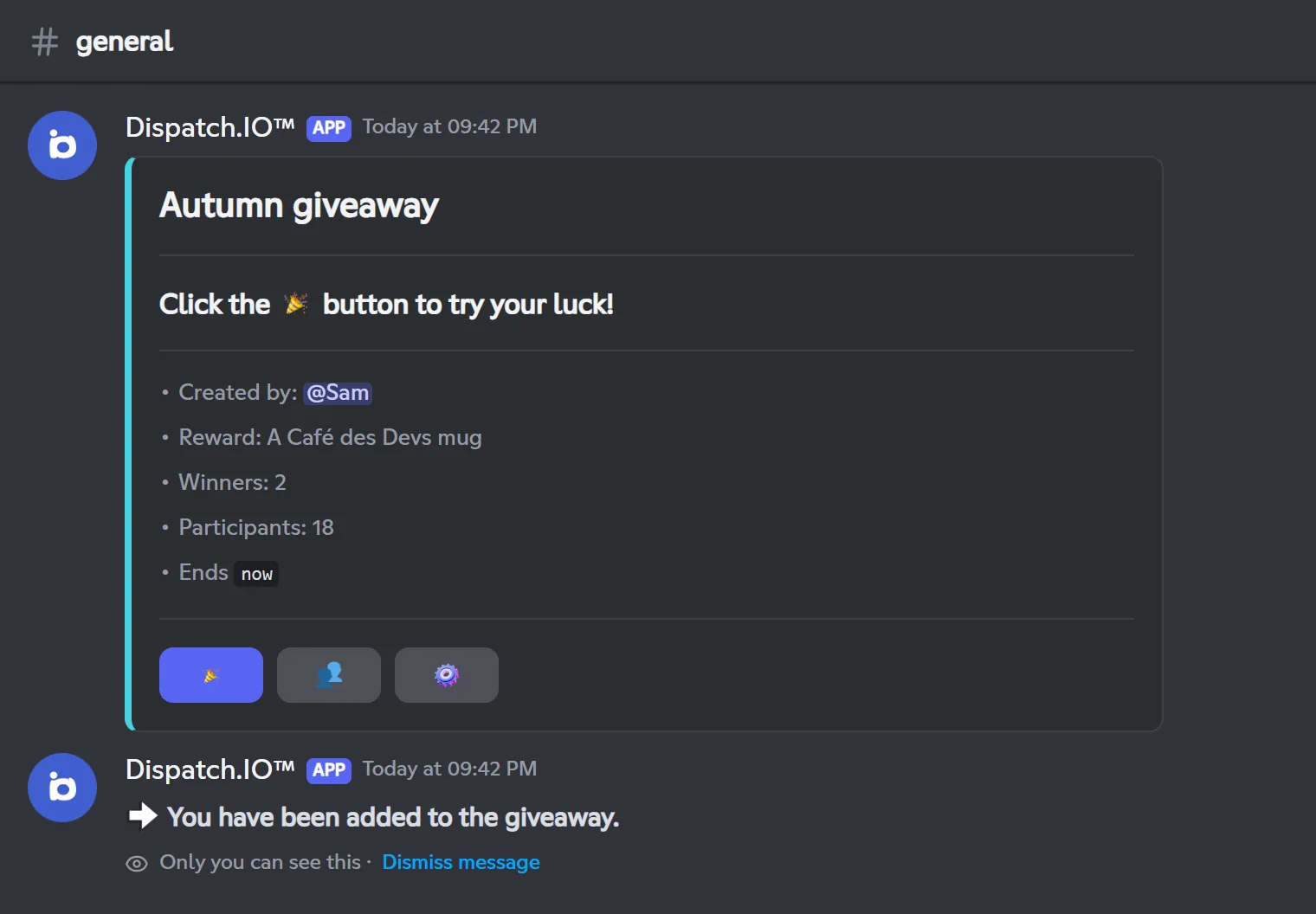
A giveaway is a contest: members sign up with a button, and at the end the bot randomly draws the winners and hands out the reward.
Creating
Only administrators can run /giveaway. The panel lets you set the title, the duration, the number of winners (1 to 50), an image, the roles allowed to join (up to 25) and the reward. The giveaway is posted in the channel where the command was typed: run it directly in the right channel (details on the Community page).
Recommended maximum duration: 24 days
The panel accepts up to 31 days, but beyond about 24 days and 20 hours the bot's timer can't hold: the giveaway ends almost right after it is published. Choose a duration of 24 days or less.
Joining
- A member clicks 🎉 to join. If they already joined, the bot offers to leave the giveaway.
- If allowed roles are set, only members with at least one of those roles can join. Administrators can always join.
- The 👥 button shows the list of participants (10 per page), only to the member who clicks.
- A member who leaves the server is automatically removed from running giveaways.
Note
The participant count shown on the message and the 👥 list can lag behind the actual sign-ups (by up to an hour).
End and draw
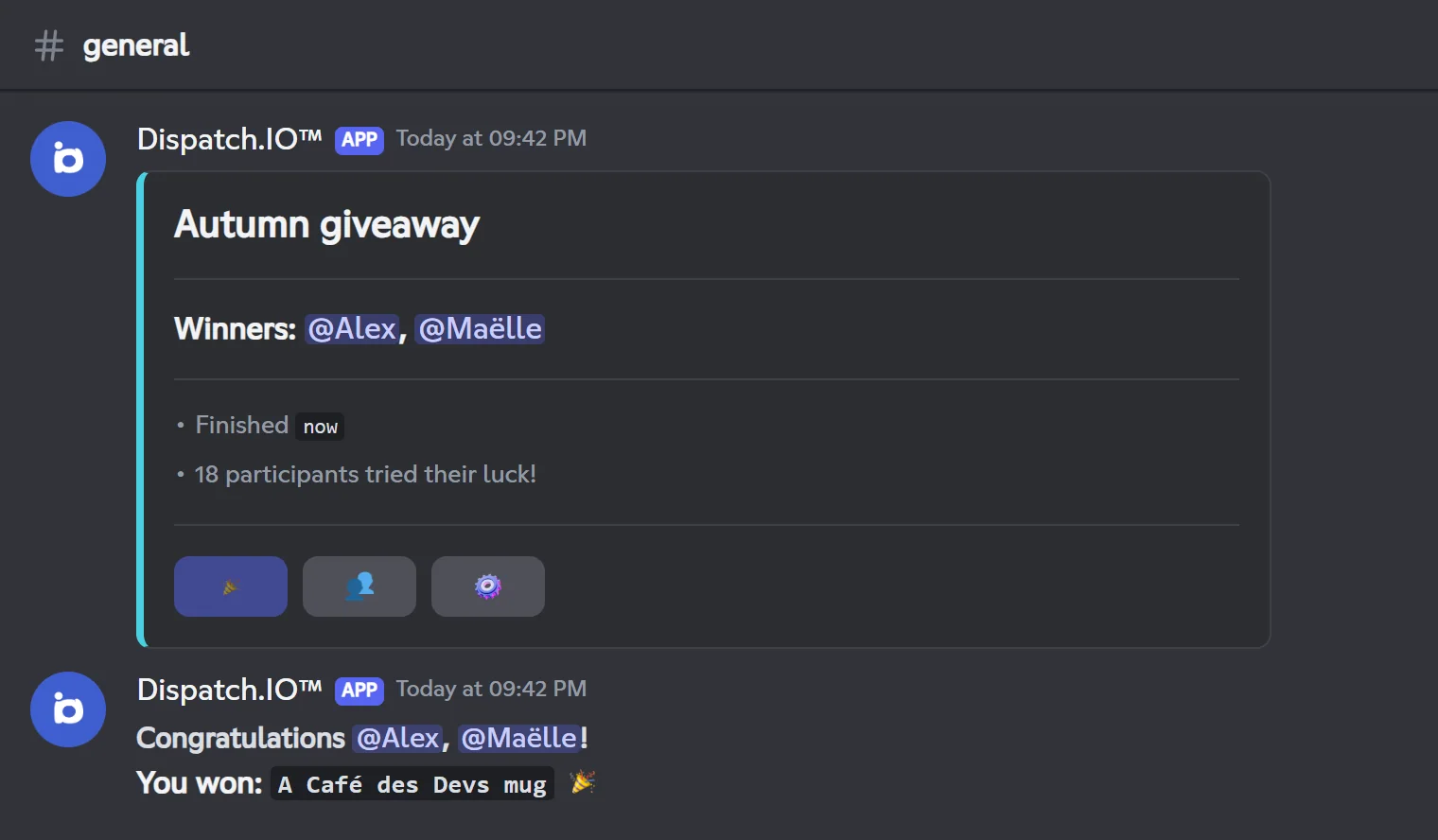
When the duration is over (or when an administrator stops it with ⚙️), the bot:
- randomly draws the winners among the participants; a member who already won this giveaway can't be drawn a second time;
- updates the message: "Winners: …", the end time, the number of participants, and the 🎉 button turns grey;
- gives the reward to each winner who is still on the server;
- sends each winner a direct message (if they accept DMs);
- replies to the giveaway with a congratulations message that mentions the winners;
- records the end in General Server Logs.
| Reward type | What the bot does |
|---|---|
| Role | Adds the role to the winner. The bot needs Manage Roles and its role must be above the role being given. |
| XP (message) or XP (voice) | Adds the XP; if the winner reaches a new level, the usual level-up announcement is posted. |
| Custom | Nothing automatic: the DM asks the winner to contact the organizer. |
Allowed roles are not checked again at draw time. If nobody joined, the bot simply replies "Giveaway ended with no participants.".
Rerolling or stopping (⚙️ button)
The ⚙️ button opens a private panel for administrators:
- Reroll winner(s): a complete new draw, among participants who have never won yet. Previous winners keep their reward: remove it by hand if needed. The new winners get their reward, a DM and a new congratulations reply.
- Stop with winner(s): ends the giveaway right away with a draw.
- Stop without winner: ends the giveaway without a draw. You can still draw winners afterwards with Reroll.
Each reroll and each stop is recorded in General Server Logs.
Automatic cancellations and cleanup
| What happens | What the bot does |
|---|---|
The leveling system is disabled (in /config or on the website) | Giveaways with an XP reward are cancelled: the message shows "The giveaway was cancelled for the following reason: The leveling system has been disabled.". |
| The role given as a reward is deleted | The giveaway is cancelled ("The role associated with the reward has been deleted."). |
| An allowed role is deleted | It is removed from the list. If none are left, the giveaway becomes open to everyone. The role deletion log mentions it. |
| The message of a running giveaway is deleted, or its channel | The giveaway is removed from the database. |
| The bot restarts | Running giveaways resume. A giveaway that should have ended while the bot was down is ended (with a draw) as soon as it restarts. |
Each cancellation is recorded in General Server Logs ("Giveaway cancelled").
Bot permissions: Send Messages and Read Message History in the channel, Manage Roles for a role reward.
Suggestions box
A channel where every idea becomes a voting card.
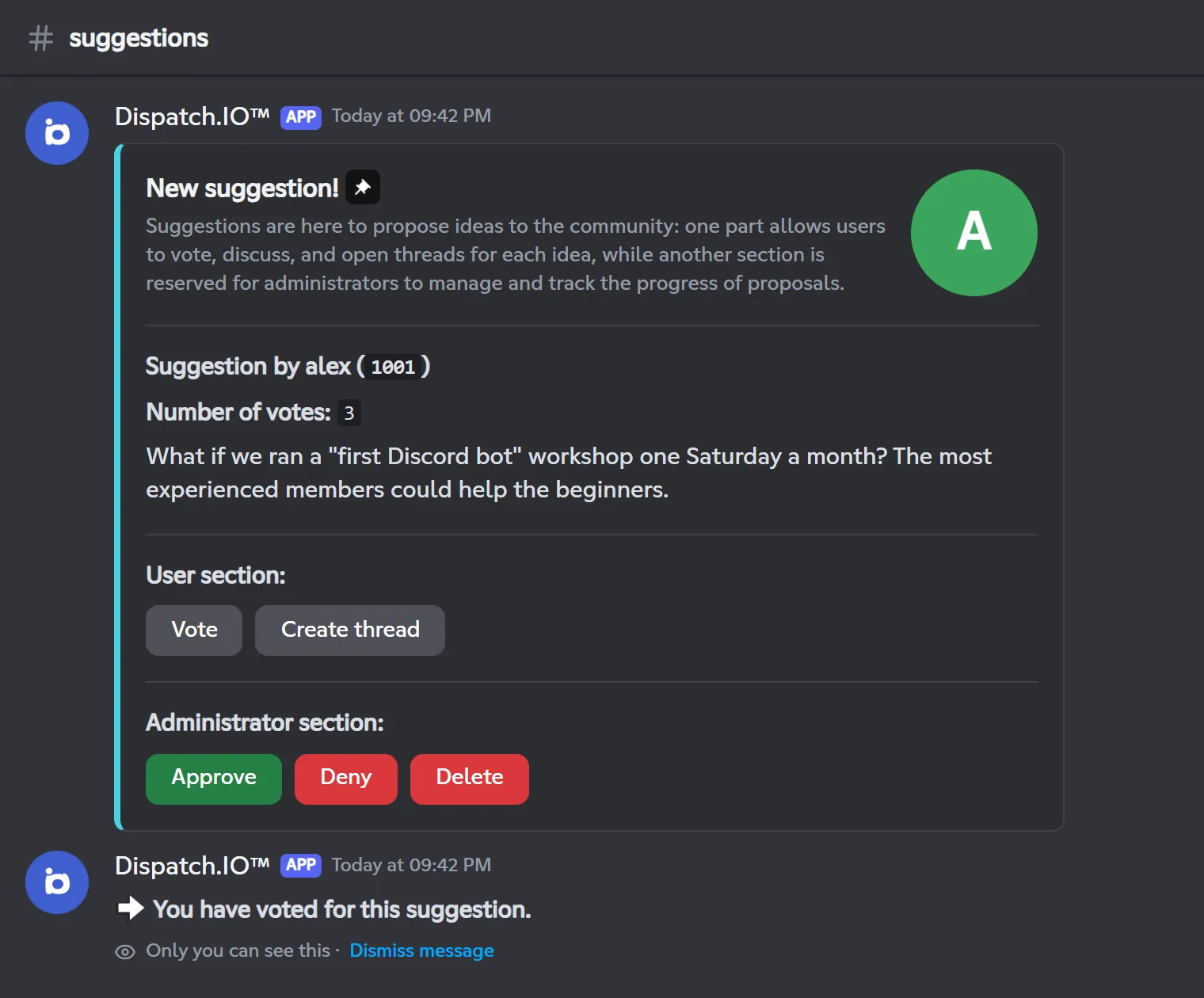
The suggestions box turns a channel into an ideas board: every message posted becomes a card with a vote button, an optional discussion thread and decision buttons for administrators. There is no command: members just write in the channel.
Setup
Pick the Suggestions Box channel on the Channels page (or in /config → Channels → "Suggestions channel"). If you create it with the dashboard's + button, the channel gets a 60-second slow mode. There are no other options.
Posting a suggestion
A member writes their idea as a regular message. The bot checks the message:
| Check | If it fails |
|---|---|
| Between 5 and 2,000 characters | The bot replies "Your suggestion content is too short…" or "…too long…", then deletes both messages after 5 seconds. A message with only an image counts as too short. |
No mentions (@everyone, a member or a role) | The message is deleted without explanation. |
| One suggestion per minute per member | The bot replies "You must wait 1 minute before submitting a new suggestion." then deletes both messages after 10 seconds. This delay applies across every server where the member posts suggestions. |
If everything is fine, the bot posts the card and deletes the original message. Attached images (5 max) are kept in the card. The creation is recorded in General Server Logs with a link to the card.
Tip
A message in the suggestions channel counts towards the day's flame, but it doesn't earn XP and doesn't trigger word reactions.
Voting and discussing
- Vote: every member (the author included) can vote once. Clicking again removes the vote. After a click, you have to wait 1 minute before changing your mind on the same suggestion.
- Create thread: opens a discussion thread named "Discussion:" followed by the beginning of the idea. The thread is archived after a week without messages. The button then becomes Open thread.
Note
The vote count shown on the card can lag a little when several members vote within the same hour.
Deciding: approve, deny or delete
These buttons are reserved for administrators.
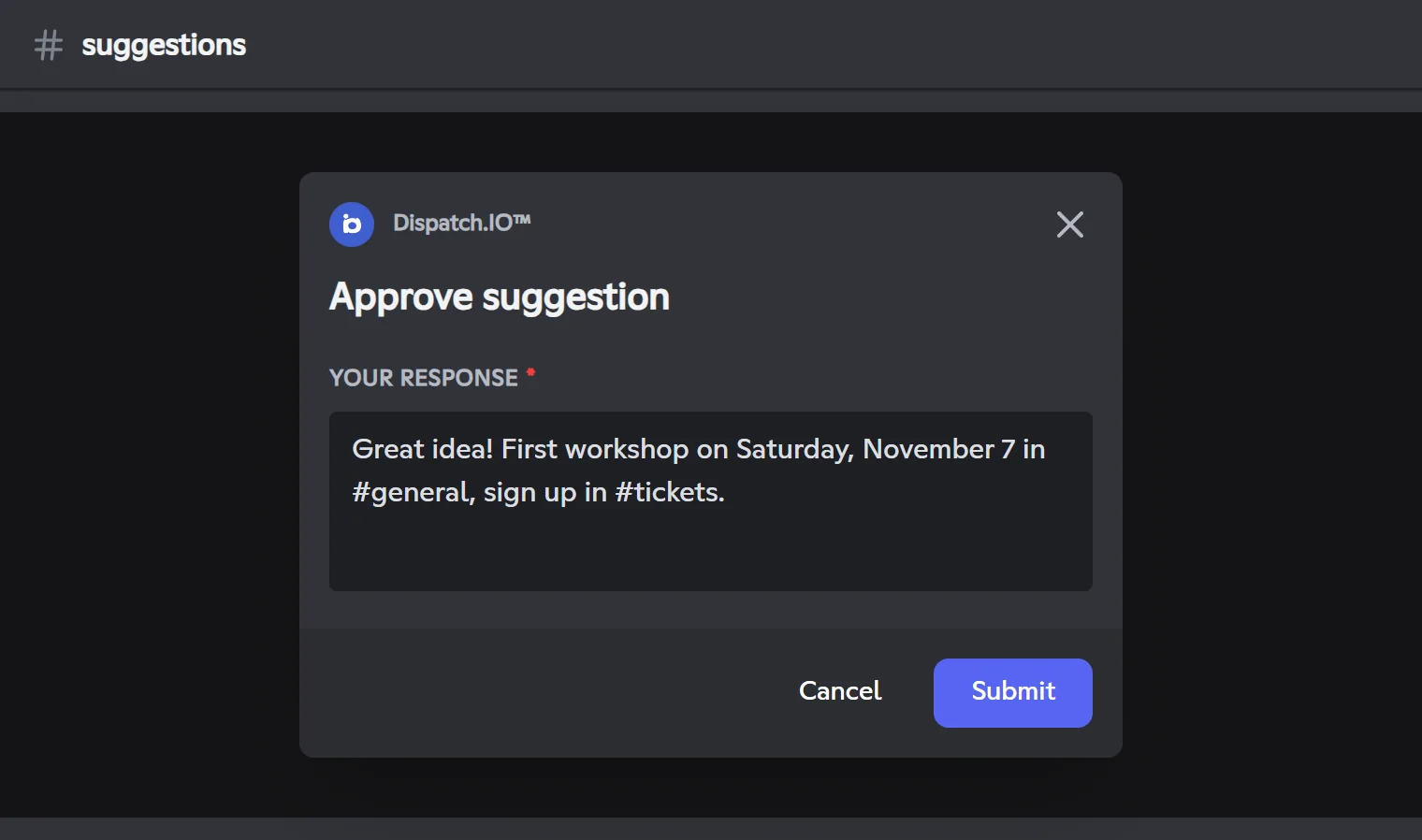
- Approve or Deny opens a "Your response" window (required, 1,000 characters max).
- Once submitted, the card changes: it turns green ("Suggestion approved!") or red ("Suggestion denied!"), shows the response and loses its buttons.
- A copy of the card is posted in a locked Accepted Suggestions or Denied Suggestions thread, created automatically in the channel. The suggestion's discussion thread, if there is one, is locked.
- The author gets a DM with their suggestion, the number of votes, the status and the response.
Delete removes the card. The deletion is recorded in General Server Logs with the suggestion's text and author.
After a decision, leave the discussion thread alone
Creating or deleting the discussion thread of a suggestion that has already been processed makes it show up again as a "New suggestion", with all its buttons.
Cleanup
If a suggestion's card is deleted (with the button or by hand), its discussion thread is deleted too.
Bot permissions in the channel: Send Messages, Manage Messages (delete the original messages), Read Message History, Create Public Threads, Manage Threads (lock threads, post in locked threads), Send Messages in Threads.
Counting game
Counting together, one number at a time.
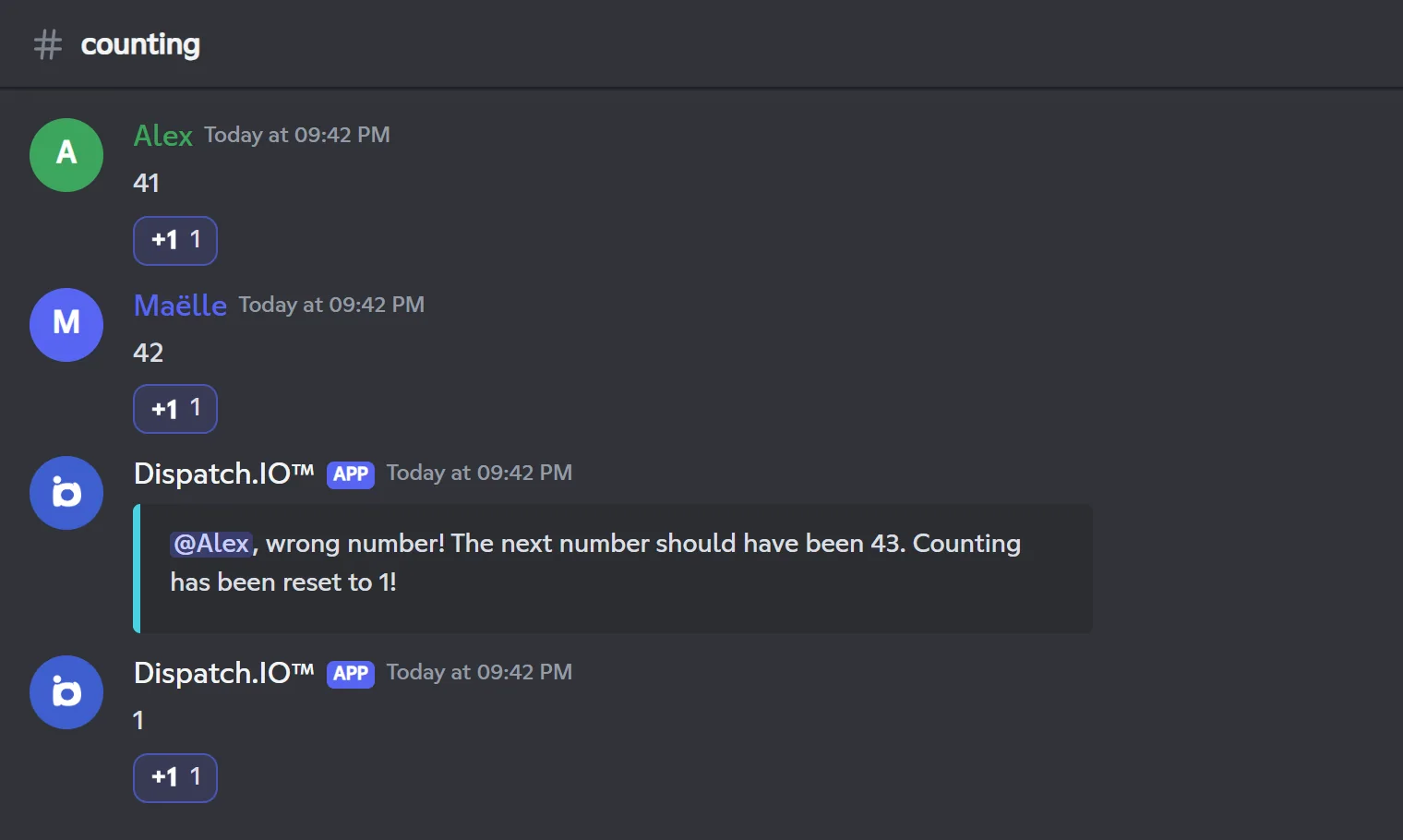
In the counting channel, members count together: 1, 2, 3… Every correct number gets a reaction from the bot. A mistake resets the counter to 1.
Setup
Pick the Counting Game channel on the Channels page (or in /config → Channels → "Counting game channel"). It must be a regular text channel. There are no other options.
The rules
| Rule | Error message |
|---|---|
| The message only contains digits (no spaces, text or signs). | "@member, please enter numbers only!" |
| Nobody counts twice in a row. | "One person at a time, please wait!" |
| The first number is 1. | "@member, you must start with 1!" |
| Each number follows the previous one (+1). | "@member, wrong number! The next number should have been 43. Counting has been reset to 1!" |
- A correct number gets the bot's reaction.
- A wrong message is deleted. The error message stays for 5 seconds, then disappears.
- After a wrong number, the bot writes "1" itself: the next expected number is therefore 2.
Tip
After an error message, wait for it to disappear (5 seconds) before going on: while it is shown, the bot considers that counting starts again from 1.
- The bot keeps no score or record: it only looks at the last message in the channel. Editing or deleting an old number has no effect.
- Deleted messages in this channel are not logged.
- Members on the Dispatch.IO blacklist can't play: their message is deleted and the channel is hidden from them.
Bot permissions in the channel: Send Messages, Embed Links, Add Reactions, Manage Messages, Read Message History.
Troubleshooting
| What you see | Explanation and fix |
|---|---|
| Nothing happens in the suggestions or counting channel | Check that the channel is set on the Channels page, that it is a regular text channel and that the bot can write and manage messages there. |
| The giveaway ended right after it was published | Its duration was longer than about 24 days: run it again with 24 days or less. |
| A giveaway never ends after the bot restarted | A channel other than the command's channel had been picked in the panel's Channel menu. Run it again in the right channel without changing that menu. |
| The bot replies "Giveaway ended with no participants." although members had joined | The winners shown on the message then received neither an automatic reward nor a DM: give them their reward by hand. |
| The role reward was not given | The bot lacks Manage Roles, or the role is above the bot's role. |
| A processed suggestion shows up again with its buttons | Its discussion thread was created or deleted after the decision. Process it again. |
Related pages
- Community: every screen and button of
/polland/giveaway. - Channels: picking the suggestions and counting channels.
- Logs: where creations and endings are recorded.
- Levels and XP: XP rewards for giveaways.
- Discord events and Scheduled tasks: the bot's automations.