
The welcome module greets every new member in a channel of your choice with a message and an illustrated card, can send them that message privately and automatically gives them welcome roles. Its twin, the goodbye message, announces departures in another channel.
This page explains what the bot does, in which order and with which rules. It is meant for server owners and administrators. The settings themselves live on the Welcome and goodbye page of the dashboard or in the Welcome category of /config (see Bot configuration).
In two minutes
Pick a text channel for arrivals, add a welcome role (for example @Membres), save, then click Test Welcome Message on the website: you immediately see what your new members will get.
What happens when a member joins
The steps, in the exact order the bot runs them.
As soon as a member joins the server, the bot runs these steps one after the other:
- It posts the join and invite logs, if those log channels are set (see Logs).
- It runs the member through the anti-raid protections and raid mode. If one of them kicks the member, everything stops there.
- If the captcha is on, it waits for the member to type the code (up to 3 minutes). If they fail, they are kicked and everything stops.
- It sends the welcome message in the join channel (and by direct message if you wrote a custom message).
- It gives the welcome roles.
Note
The bot makes no difference between a human and a bot: an app added to the server also gets the welcome message and the welcome roles.
The welcome message
The default text, the card and the channel it is posted in.
The message is posted in the join channel: Join Announcement Channel on the website, Join/Leave Channel in /config. Without a channel, no message is posted; welcome roles are still given, as long as you have not written a custom message (see Common problems). The text is written in the server language.
Until you write a custom message, the bot uses its default text:
- the title "New Member!";
- "Welcome to server name!", then a greeting with the member's display name (their server nickname, otherwise their Discord name) and the total number of members;
- the member's avatar as a thumbnail on the right;
- below it, the welcome card (see Welcome and goodbye cards).
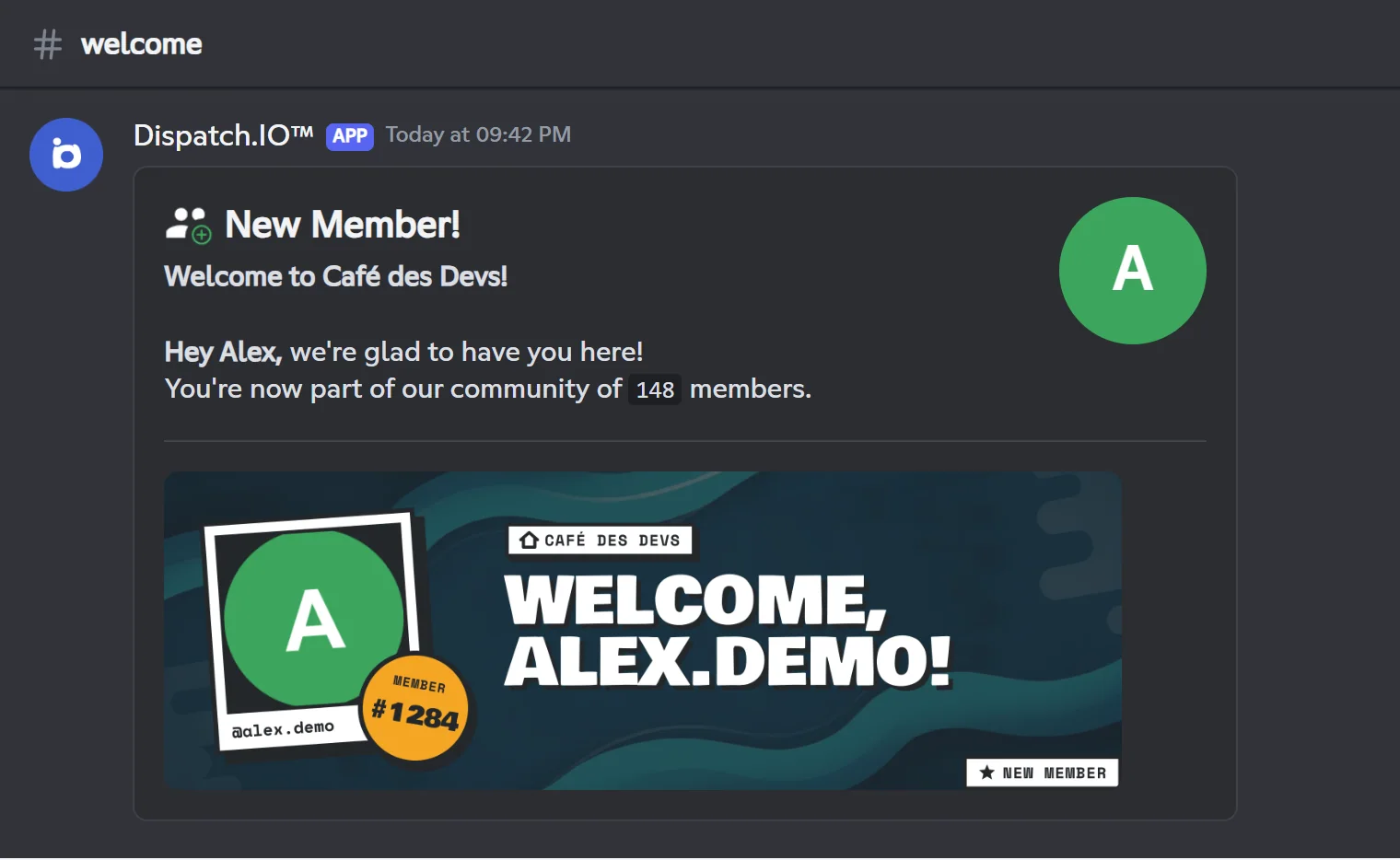
The default text does not mention the member, so they get no notification. To mention them, write a custom message with the {user} variable.
Important
The join channel must be a text channel. The website and /config also list announcement channels, but the bot posts nothing there. In that channel the bot also needs View Channel, Send Messages and Attach Files (the card is an attached image).
Customising the message and its variables
Your own text, its variables, and the direct message sent to the member.
The custom message (Custom Welcome Message on the website, Custom Message in /config) replaces the default title and text. The avatar and the card stay. It accepts 2000 characters and Discord formatting (### for a heading, **bold**, -# for small text…).
Variables
| Variable | Replaced with | Example |
|---|---|---|
{user} | A mention of the member (they get a notification) | @Alex |
{userName} | Their Discord username (not their server nickname) | alex |
{guildName} | The server name | Café des Devs |
{guildMemberCount} | The total number of members, bots included | 148 |
Example message:
### Welcome {user} to **{guildName}**! ☕
You are member number **{guildMemberCount}**, make yourself at home and introduce yourself!
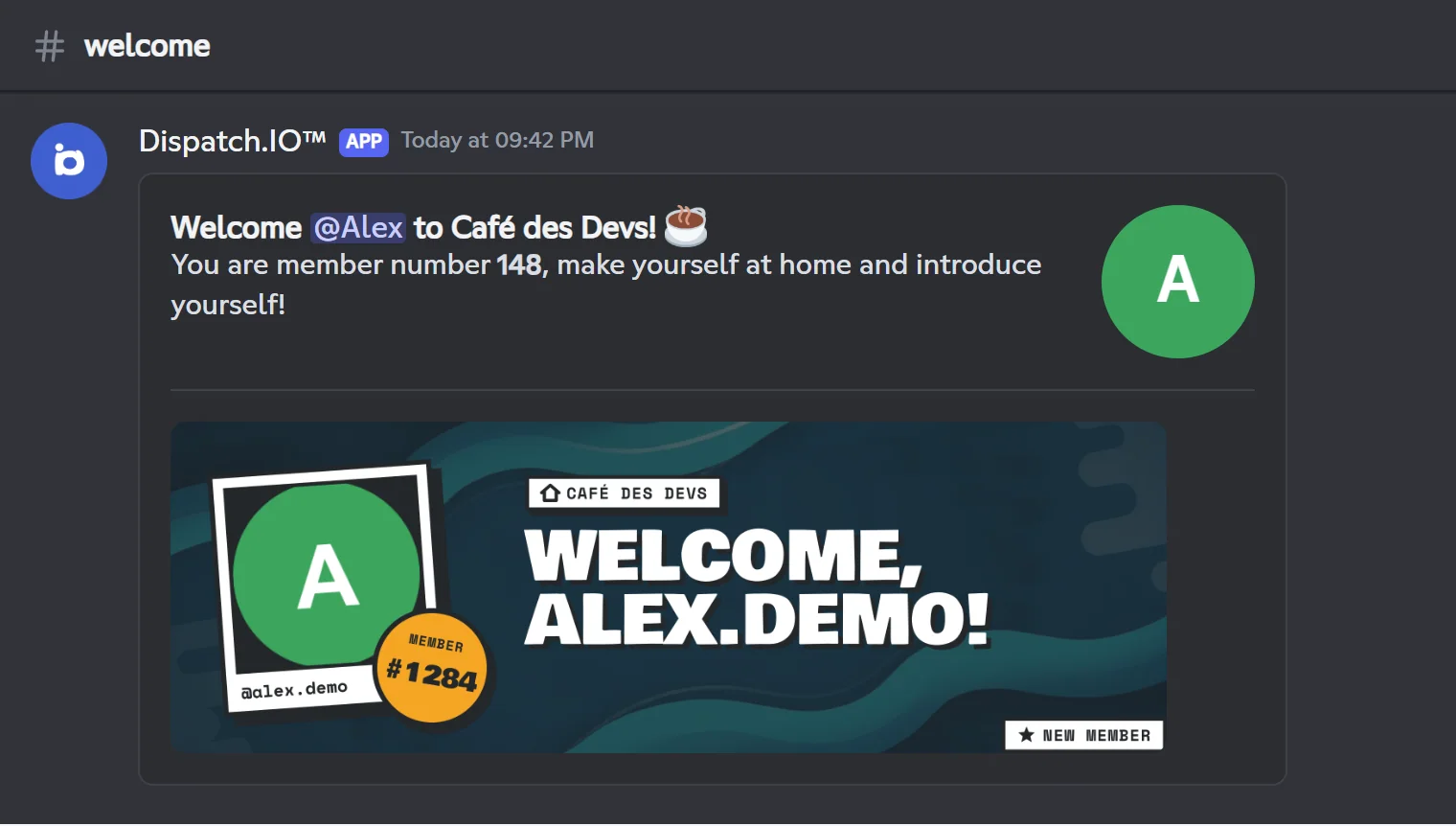
- An unknown variable stays as it is in the message. Careful:
{memberCount}only exists in the default text, use{guildMemberCount}. - For an emoji, paste the character itself (☕) or the Discord syntax of one of your server's emojis (
<:name:id>). - On the website, the variable tags are inserted with one click, and Use default message adds a template close to the bot's text (in French, whatever your language).
- In
/configthe field is required: to go back to the default text, clear the message from the website.
The direct message
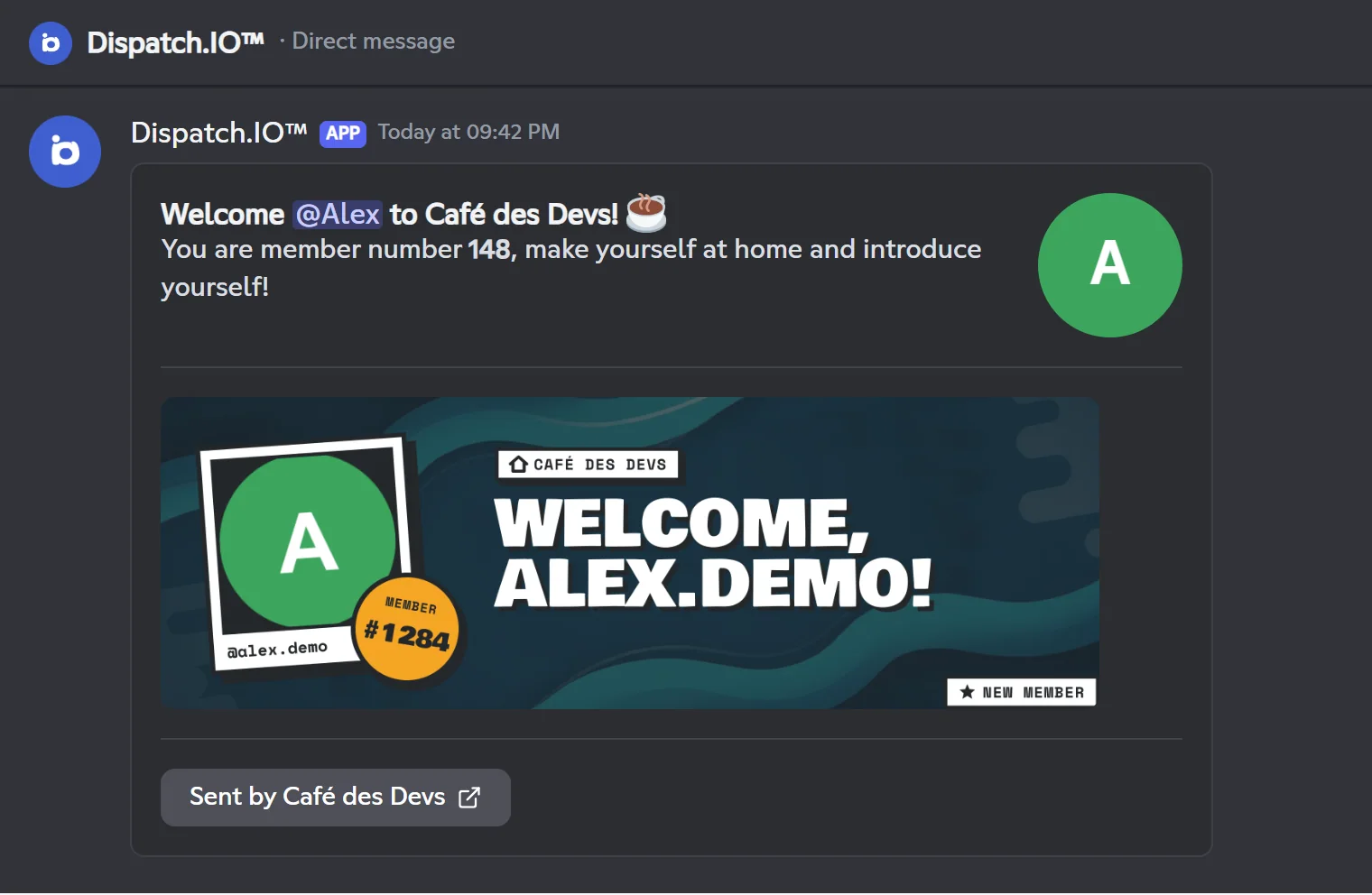
With a custom message, the bot also sends the message to the new member by direct message: the same text, their avatar and the card, followed by a "Sent by server name" button that opens the join channel. If the member has closed their DMs, sending fails silently. With the default text, no direct message is sent.
Welcome roles
The roles given automatically after the greeting.
Welcome roles are added to the member right after the welcome message, all at once. Discord's audit log shows the reason "Assigning welcome roles" (in the server language).
For a role to be given:
- the bot needs the Manage Roles permission;
- the role must be below the bot's highest role and not managed by an integration (a bot's role, the Booster role…);
- the role must still exist: a deleted role is simply skipped.
In /config you can pick up to 25 roles, and only valid roles are accepted. On the website, the list offers the roles not managed by an integration, with no limit.
A "verified" role
Welcome roles are only given after the anti-raid and the captcha. You can therefore use one as an access role: make your channels visible to @Membres only, and only members who passed the checks will see them.
Roles are not given when the member was kicked by the anti-raid, raid mode or the captcha.
With the anti-raid captcha
When the greeting waits for the member to be verified.
The captcha is part of the anti-raid (Security Captcha). It is active when the anti-raid is on, the captcha protection is on and a text captcha channel is set. It is configured on the Security and anti-raid page of the website or in /config → Antiraid.
When it is active:
- the bot posts in the captcha channel an image with a 6-character code and mentions the new member;
- the member must type that code in the channel before the countdown ends (3 minutes); their messages are deleted as they go;
- if they succeed, the bot sends the welcome message, then gives the welcome roles;
- if they fail or don't answer in time, they are kicked from the server and receive a direct message.
During those 3 minutes the member has no welcome role yet, so the captcha channel must be visible to @everyone. Every protection is detailed on the Anti-raid and security page.
The goodbye message
Announcing departures in the channel of your choice.
When a member leaves the server (on their own, kicked or banned), the bot posts a goodbye message in the leave channel: Leave Announcement Channel on the website. It can be the same channel as the join channel or a different one.
- Without a leave channel, nothing is posted. As for arrivals, it must be a text channel.
- No direct message is sent: the person is no longer on the server.
- The default text shows the title "A member left", the member's display name, a thank-you line and the number of remaining members, with their avatar and the goodbye card.
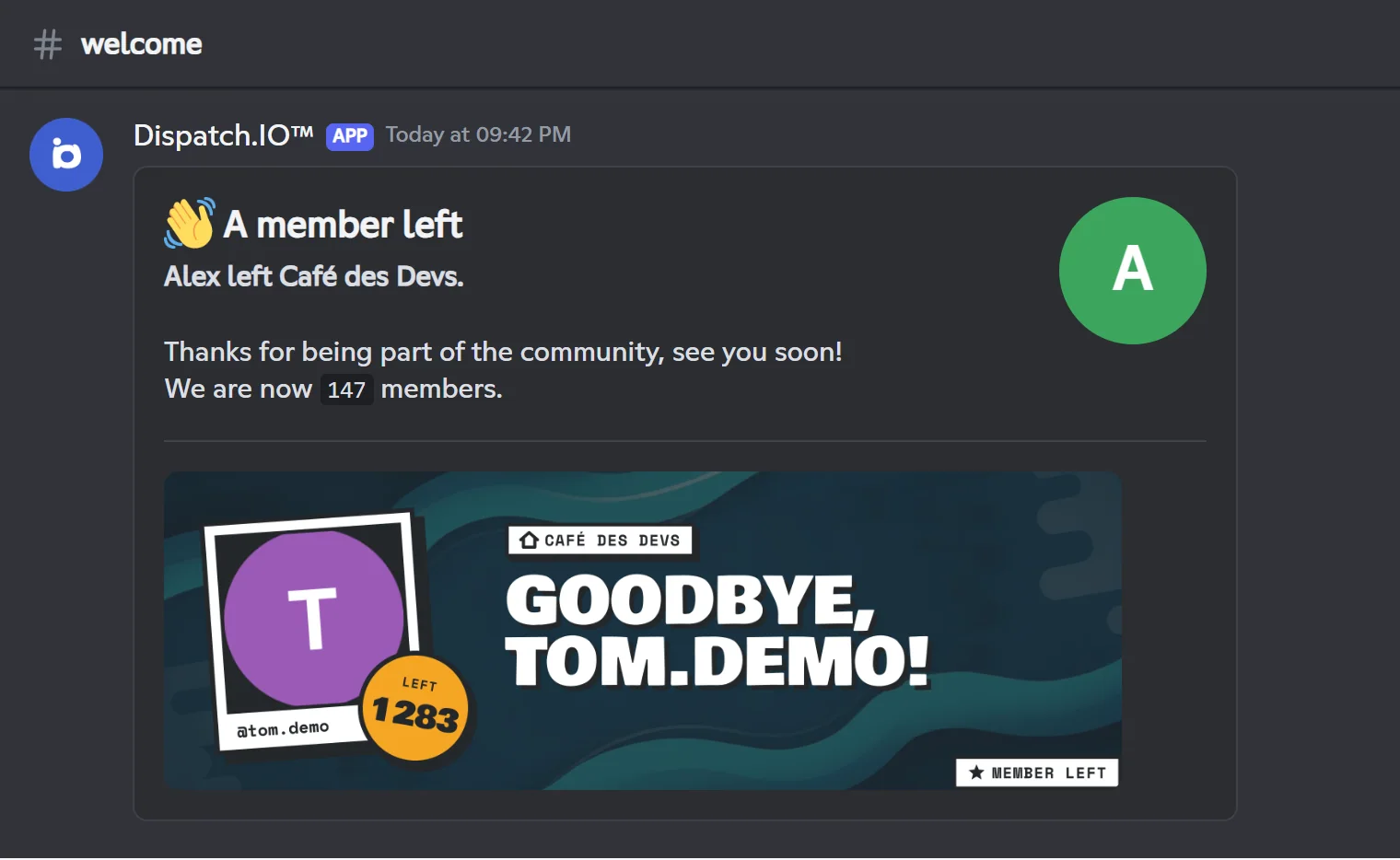
The custom goodbye message can only be set on the website. It accepts the same variables as the welcome message; there, {guildMemberCount} gives the number of remaining members.
Tip
In the goodbye message, prefer {userName} over {user}: since the member is no longer on the server, a mention is not very useful.
Welcome and goodbye cards
What is drawn on the image and where its background comes from.
Every message comes with a 1200 × 400 pixel image generated by the bot, in the server language.
| Element | Welcome card | Goodbye card |
|---|---|---|
| Top chip | The server name | The server name |
| Big title | "WELCOME, ALEX!" (username in capitals) | "GOODBYE, ALEX!" |
| Polaroid | The member's avatar and @alex | The member's avatar and @alex |
| Round badge | "MEMBER #148": the number of members | "LEFT 147": the remaining members |
| Bottom chip | "NEW MEMBER" | "MEMBER LEFT" |
Emojis and characters the font doesn't know are removed from names. If nothing is left of the username, the title simply becomes "WELCOME!" or "GOODBYE!".
The card background
For the welcome card, the bot takes the first available background:
- the member's own background for their welcome cards, if they picked one in their website preferences (an option of the personal plans, see The dashboard);
- the server image (Welcome Card Banner & Image on the website, Image in
/config); - the Dispatch.IO default image.
For the goodbye card, it is the server's goodbye image (Goodbye Card Banner & Image, website only), otherwise the default image. Personal backgrounds do not apply to goodbyes.
The dark veil (on by default, website only) darkens the image so the text stays readable. Turn it off if your image is already dark. The welcome image is also the fallback background of level and flame cards.
Settings and default values
| Setting | Where | Default | Effect |
|---|---|---|---|
| Join channel | Website (Join Announcement Channel), /config (Join/Leave Channel) | None | Channel of the welcome message. No channel: no message. |
| Welcome roles | Website, /config (Roles) | None | Roles given on every arrival. |
| Custom welcome message | Website, /config | Empty (default text) | Replaces the default text and turns on the direct message. |
| Welcome image | Website, /config (Image) | Default image | Background of the welcome card. |
| Dark veil (welcome) | Website | On | Darkens the welcome image. |
| Leave channel | Website (Leave Announcement Channel) | None | Channel of the goodbye message. No channel: no message. |
| Custom goodbye message | Website | Empty (default text) | Replaces the goodbye text. |
| Goodbye image | Website | Default image | Background of the goodbye card. |
| Dark veil (goodbye) | Website | On | Darkens the goodbye image. |
- Messages and cards use the server language (Language and time zone).
- The module has no Premium-plan limit. Only members' personal backgrounds depend on their personal plan (see Premium plans and limits).
- An image changed from
/configcan take up to one hour to show on the cards.
Test before opening the doors
On the website, the Test Welcome Message and Test Goodbye Message buttons make the bot send the real message, as if you had just joined or left:
- you must save a channel first: the test uses the saved configuration, not the form being edited;
- with a custom message, you also get the direct message;
- no role is given during a test;
- one test per server every 60 seconds.
The card preview shown on the website is generated by the bot itself: if it doesn't appear, check that the bot is online.
Common problems
| Problem | Likely cause and fix |
|---|---|
| No message on arrival | No join channel, an announcement channel instead of a text channel, or missing bot permissions in the channel (View Channel, Send Messages, Attach Files). |
| No message and no roles although a custom message is written | The join channel is no longer set (or was deleted). With a custom message, always keep a valid join channel: otherwise the bot stops before giving the roles. |
| Roles are not given | Role above the bot's role, role managed by an integration, missing Manage Roles permission, or member stopped by the anti-raid, raid mode or captcha. |
| The message arrives minutes after the member joined | The captcha is on: the greeting waits until the member has typed the code. |
{memberCount} shows as is | In a custom message, use {guildMemberCount}. |
| The name differs between the text and the card | The default text uses the display name (server nickname); {userName} and the card use the Discord username. |
| A goodbye message appears for an account that never really arrived | Kicks by the anti-raid, raid mode or captcha are departures too: they trigger the goodbye message. |
| A bot received the welcome roles | The module does not filter bots. Remove the role by hand if needed. |
Learn more: Bot configuration, Permissions and roles and Troubleshooting.