
Dispatch.IO offers two "temporary" features that have nothing to do with each other: temporary text channels, where every message is deleted after a delay, and temporary voice channels, where joining a "creator" voice channel opens a personal voice channel that is deleted as soon as it is empty.
This page explains how each one works, what members see and the limits to know about. It is written for administrators. For the settings, see Bot configuration (/config → Temporary channels and Temporary Voice Channel) or the Temporary channels page of the website.
Overview
| Temporary text channels | Temporary voice channels | |
|---|---|---|
| Idea | Messages of a text channel are deleted after a delay | Joining a creator voice channel creates a personal voice channel |
| What you configure | The channel, the delay, whether pinned messages are kept | The creator voice channel, the allowed roles, the name prefix |
| What members see | Their messages disappear after the delay | A channel with their name and a control panel |
| Limit | None | 3 creator channels on Free, 5 on Basic, unlimited on Ultimate |
| Messages posted by the bot | None | The control panel and its replies |
Temporary text channels
In a temporary text channel, every new message is deleted after the chosen delay: messages from members, from other bots and from Dispatch.IO itself. Handy for a bot-commands channel, a "spam" channel or a short-lived help channel.
The delay
| Possible delays | Default |
|---|---|
| 10 seconds, 30 seconds, 1 minute, 5 minutes, 10 minutes, 15 minutes, 30 minutes, 1 hour, 1 hour and 30 minutes, 2 hours | 1 minute on the website; to be picked in /config |
Example: with a 30-second delay in #bot-commands, Alex types /rank; his command and the bot's reply disappear 30 seconds later.
Pinned messages
With the Keep pinned messages option (website) or Persistence of pinned messages? (/config), a message pinned before the delay ends is kept. The option is off by default.
Tip
Pin the channel's rules before turning on automatic deletion, and turn on pinned-message persistence.
Good to know
- Only new messages are affected: those that existed before the setup stay.
- The bot posts nothing and logs nothing.
- Pending deletions are lost if the bot restarts, and messages sent while the bot is offline are never deleted.
- The bot needs Manage Messages and Read Message History in the channel.
- Removing a channel from the list stops the automatic deletion; the channel itself is not deleted.
Temporary voice channels
A creator voice channel (for example ➕ Create a channel) acts as an entrance: every member who joins it gets their own voice channel.
The channel name
The channel is called 🔊 <prefix> <nickname>, with the member's nickname on the server: 🔊 Voice of Alex on an English server, 🔊 Salon de Alex on a French server. You can change the prefix on the website (Opening prefix, 40 characters max). The owner can then rename the channel from the panel.
Who can join the channel
The bot sets the new channel's permissions like this:
| Who | Rights in the channel |
|---|---|
| The owner (at first, the member who created it) | Connect, Speak, Video, Use Voice Activity |
| The allowed roles of the creator channel | The same rights |
| The server's ADMIN and MODO staff roles (see Permissions and roles) | The same rights, plus Mute Members, Deafen Members and Move Members |
| Members added with the panel | Connect, Speak, Video, Use Voice Activity |
@everyone | Cannot connect |
Without an allowed role, the channel is private
If you pick no allowed role, only the owner, staff roles and members added with the panel can connect, even though the website says "Leave empty for no restriction". For a channel open to everyone, add a role all your members have, for example @Members.
The bot does not hide the channel: members who can see the category see it, but they cannot connect without the right.
Good to know
- The channel is created in the same category as the creator channel.
- An account on the Dispatch.IO blacklist that joins a creator channel is disconnected and can no longer connect to it: no channel is created.
- The bot needs Manage Channels, Manage Roles, Move Members and Connect. In
/config, the category asks for the Administrator permission.
The control panel
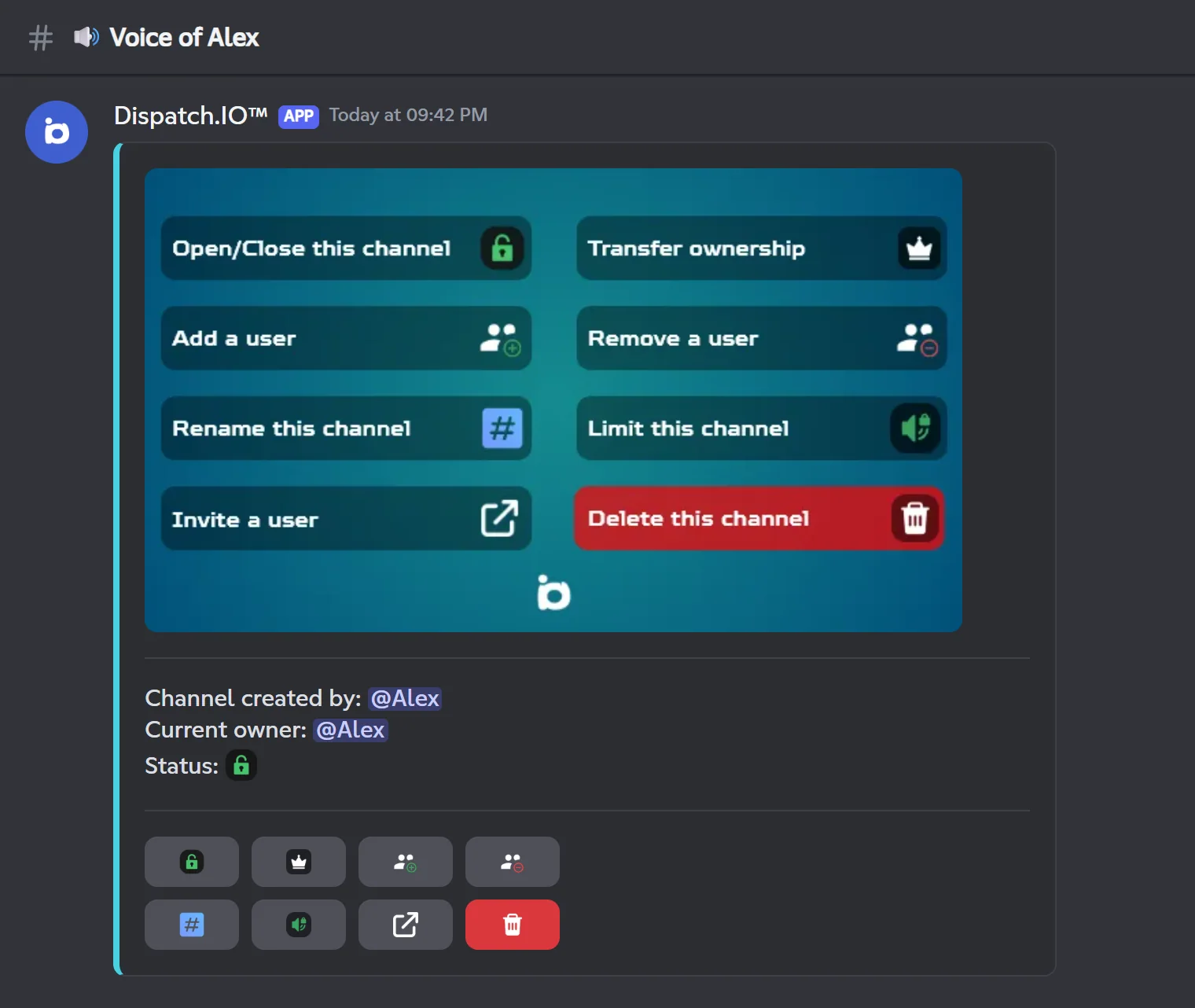
As soon as the channel is created, the bot posts a panel in the voice channel's text chat. It shows who created the channel, who owns it and its state (open or closed padlock).
Who can use the panel
- The owner, as long as they are connected to the voice channel.
- Members with the Administrator permission (or an ADMIN staff role), at any time.
Everyone else gets "Only the channel owner can use these controls.". Every panel reply is only visible to the person who clicked, except the deletion notice.
The buttons
| Button | Effect |
|---|---|
| Padlock | Locks or unlocks the channel: the allowed roles can no longer (or can again) connect. The owner, staff and added members keep access. The panel's state icon changes; the button itself always shows the open padlock. |
| Crown | Transfers ownership to a member who is in the channel. |
| Plus | Adds a member: they can connect and speak, even if the channel is private or locked. |
| Minus | Removes a member: they can no longer connect. If they are already in the channel, they are not disconnected. |
| Hash | Renames the channel: type the new name in the chat within 30 seconds (1 to 98 characters). 🔊 is added in front and your message is deleted. |
| Limit | Sets a member limit: type a number from 0 to 99 in the chat within 30 seconds (0 = no limit). |
| Link | Invites a member: they get a DM with a Join Channel button. |
| Bin | Deletes the channel right away ("Deleting the channel..."). |
For Crown, Plus, Minus and Link, a member picker shows up for 60 seconds; after that, the bot replies "Session expired, please try again.".
The invite
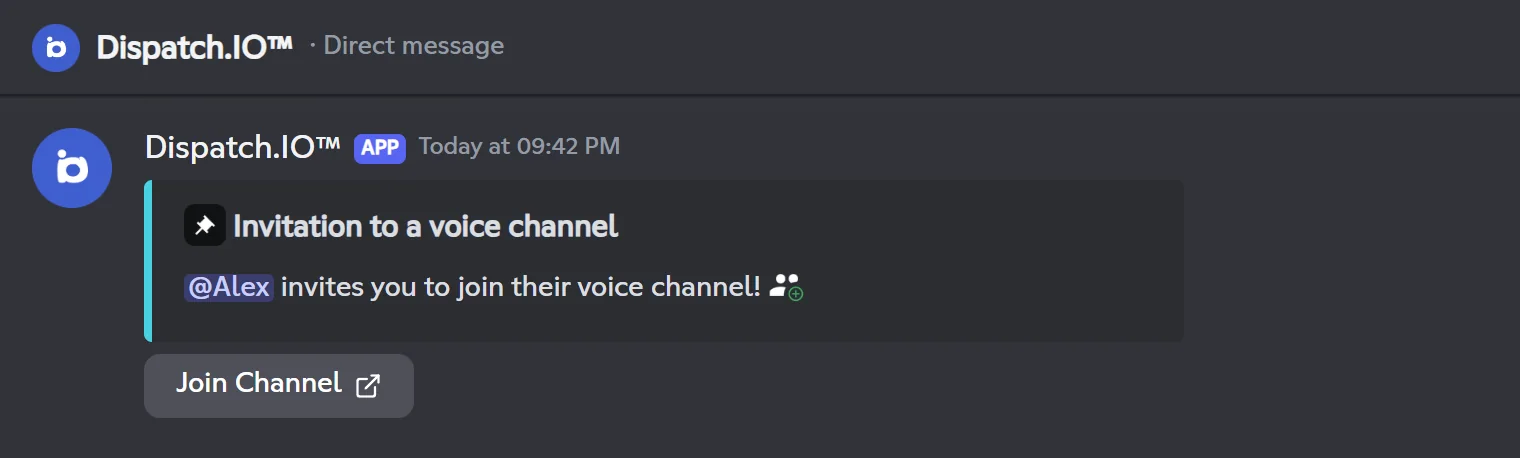
- The Join Channel button opens the channel but grants no right: in a private or locked channel, add the member first with the Plus button.
- Each member can send 3 invites per hour, and the last person invited on the server cannot be invited again for about 30 minutes.
- You cannot invite, add or remove yourself. Ownership can only be transferred to a member who is in the channel, and not to an account on the Dispatch.IO blacklist.
The panel stays in view
Roughly every 10 messages written in the channel's chat, the bot deletes the panel and posts it again at the bottom, so it stays at hand.
Owner and closing
Automatic ownership change
When the owner leaves the channel, the first member still there (excluding bots and blacklisted accounts) becomes the owner: they get the owner's rights, the previous owner loses theirs, the panel is updated and the channel is renamed after the new owner (so a custom name is lost).
Closing
When nobody is left (or only bots), the channel is deleted 5 seconds later. If someone joins within those 5 seconds, it is kept.
After the bot restarts
On startup, the bot goes over every temporary channel: it deletes the empty ones, changes the owner if they left, and posts the panel again.
Removing a creator channel
Removing a creator channel (website or /config) is refused while channels created from it still exist. The creator channel itself is not deleted from Discord.
Limits per plan
| Limit | Free | Basic | Ultimate |
|---|---|---|---|
| Creator voice channels | 3 | 5 | Unlimited |
| Temporary text channels | Unlimited | Unlimited | Unlimited |
| Voice channels created per creator channel | Unlimited | Unlimited | Unlimited |
If the server's plan goes down, your creator channels are kept, but only the oldest ones, within the plan's limit, work: joining the others no longer creates anything. They come back with the plan. See Premium plans and limits.
Pitfalls and limits
- Creator channel chat: messages written in the text chat of the creator voice channel itself are deleted after one minute.
- Locking has no effect if the creator channel has no allowed role: the channel is already private.
- Removing a member does not disconnect them: they simply cannot come back.
- Renaming only lasts until the next ownership change.
- Deleting a creator channel directly on Discord: it keeps counting toward your limit. Remove it from the bot first (website or
/config), then delete it. - Text channels: a bot restart cancels pending deletions.
Related pages
- Bot configuration:
/config→ Temporary channels and Temporary Voice Channel. - Temporary channels: the website pages.
- Permissions and roles: bot permissions and staff roles.
- Premium plans and limits: every limit per plan.