
The Dispatch.IO dashboard uses your Discord account: there's no password to create and no sign-up form. This page explains how to sign in, what the site can see of your account, how to switch between Discord accounts, where to set your preferences and how to sign out.
Public pages (home, leaderboards, documentation) open without signing in. Only the dashboard needs it.
Signing in with Discord
- Click Sign in at the top right of the site (or Open the dashboard on the home page).
- The site sends you to Discord. The first time, Discord asks you to authorise Dispatch.IO to access your account: check it's the right account, then confirm. After that, Discord sends you straight back to the site.
- You land on your dashboard. At the top of the site, the Sign in button becomes Dashboard, with your avatar.
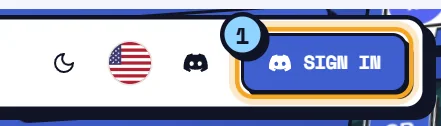
If you open a dashboard address directly while signed out (a link you received, a bookmark…), the site sends you to Discord and then brings you back to that page.
If something goes wrong, you're taken back to the home page with a red message at the bottom right, for example "Invalid or expired login attempt. Please try again." (the sign-in page stayed open too long) or "Access denied." (you cancelled on Discord). Just click Sign in again.
What the site can see
When you sign in, Discord gives the site three permissions:
| Discord permission | What the site does with it |
|---|---|
| Your identity | Your Discord ID, username, display name, avatar and banner, to show you in the dashboard. |
| Your email address | Saved with your account. It's also passed to Stripe, the payment service, on your first purchase in the shop. |
| Your list of servers | The servers you're in and your permissions on each, to show the ones you can manage (see Managing your servers). |
These permissions don't give access to your messages and don't let the site act on Discord for you. What acts on a server is the bot, which you add separately to each server.
Your name, avatar and banner are updated from Discord every time you sign in. On each sign-in, the site also records the date, IP address and browser used, to keep your account secure.
Staying signed in
- Your sign-in (your "session") lasts 2 days. It's extended automatically while you use the site.
- Once it has expired, opening the dashboard takes you through Discord again, usually without anything to confirm.
- Each browser has its own session: your computer and your phone each have one.
Your account menu
In the dashboard, your account sits at the very bottom of the sidebar: your avatar, your name and your @username. Click it to open the menu. When the sidebar is collapsed, only your avatar remains.
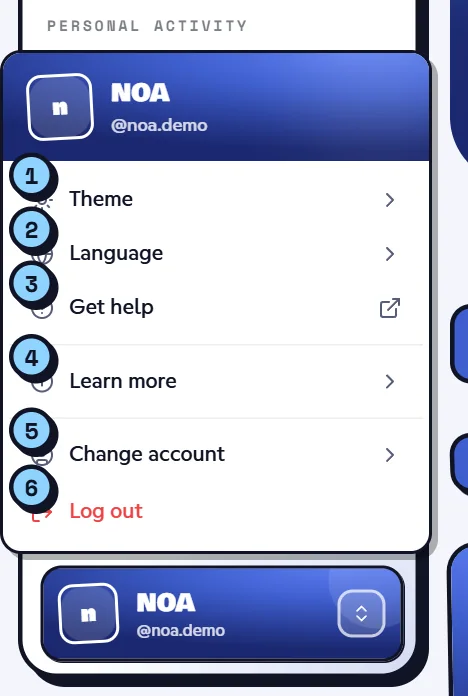
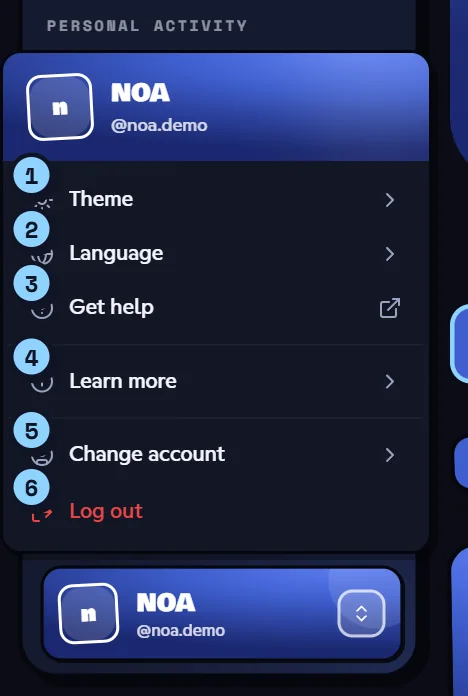
| Item | What it does |
|---|---|
| Theme (1) | Picks the dashboard theme: Light, Dark or System. |
| Language (2) | Switches the site to English or Français. |
| Get help (3) | Opens the support Discord server in a new tab. |
| Learn more (4) | Links to About Dispatch.IO™, the FAQ, the commands and the legal pages (new tab), plus Keyboard Shortcuts. |
| Change account (5) | Lists your signed-in Discord accounts and gives access to Manage accounts. |
| Log out (6) | Ends the session of the account in use (see below). |
Using several Discord accounts
You can sign in with up to 5 Discord accounts in the same browser and switch between them without signing out. Handy if you manage servers with a main account and an alt.
Adding an account
- Open your account menu, then Change account › Manage accounts.
- Click Add an account (greyed out when 5 accounts are already signed in).
- You go through Discord, then come back to the dashboard with the new account.
Adding an account other than yours
Discord signs in the account that's open on discord.com in your browser. To add another account, first switch accounts on Discord in this browser (or log out of Discord), then click Add an account.
Switching accounts
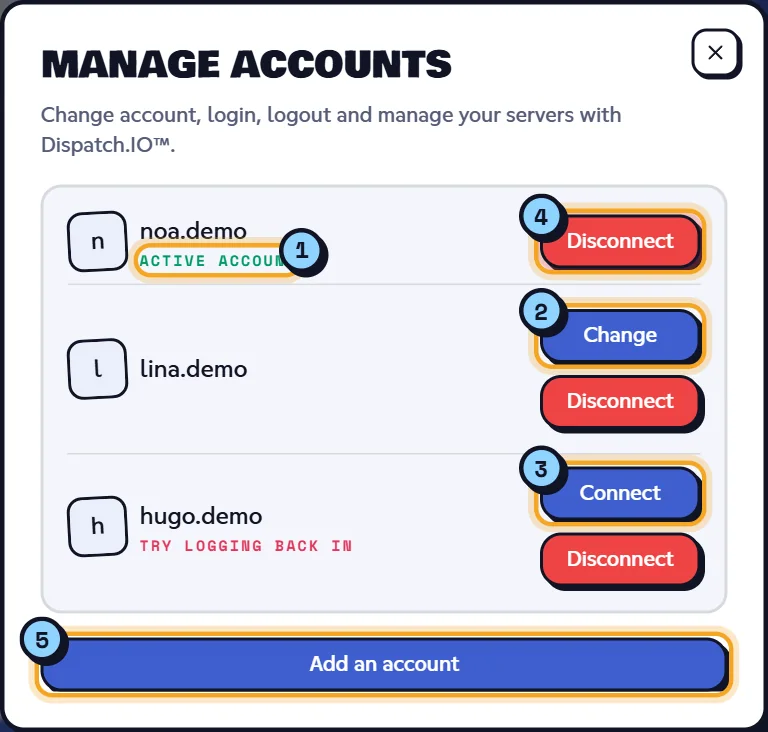
In Change account, click another account: the site shows "Active account: name" and opens that account's dashboard. You can also use the Change button in the Manage accounts window.
If the session of the account in use has expired but another account is still signed in, the site switches to that other account on its own when you open the dashboard.
The "Manage accounts" window
| Item | Meaning |
|---|---|
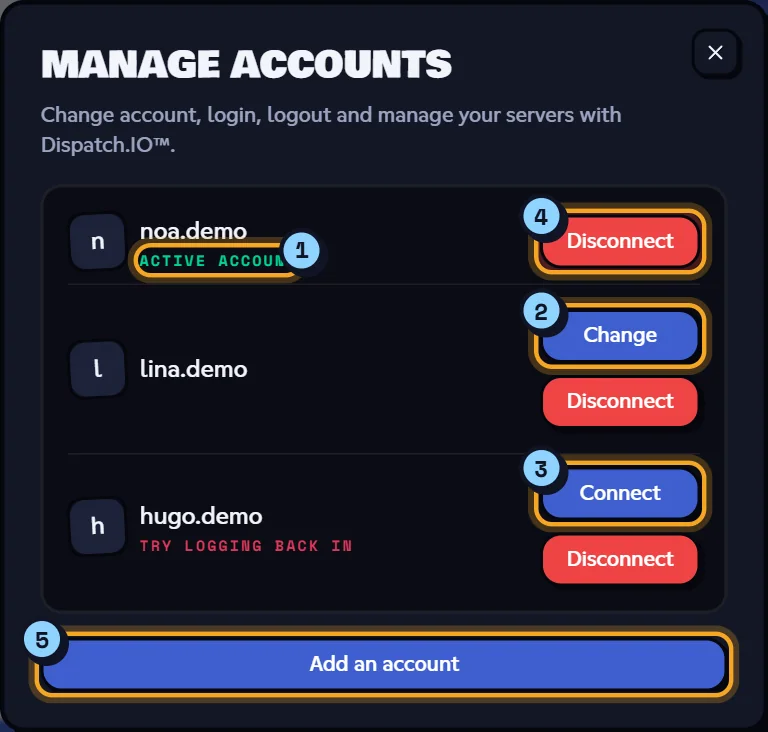
| "Active account" (1) | The account you're using right now. |
| Change (2) | Uses this account. |
| "Try logging back in" and Connect (3) | This account's session has expired: Connect signs it in again through Discord. The site also remembers accounts already used in this browser, even after they've expired. |
| Disconnect (4) | Ends this account's session. For an expired account, simply removes it from the list. |
| Add an account (5) | Signs in a new Discord account (5 at most). |
Profile, linked accounts and preferences
Everything about your account is set on the dashboard home, covered in The dashboard:
- Preferences: theme, language, browser notifications, shortcuts and, for subscribers, your highlight color and personal images on the bot's cards.
- Profile: the banner, description and links shown by the
/profilecommand, plus your birthday and country. - Linked accounts: your game accounts (Riot Games, Steam…). This part is currently disabled and shows "The Dispatch.IO team has disabled this feature because it is under development."
These settings aren't all saved in the same place:
| Setting | Where to change it | Where it's kept |
|---|---|---|
| Dashboard theme | Account menu › Theme, or Preferences | In this browser |
| Site language | Account menu › Language, Preferences, or the flag on the public site | In this browser |
| Browser notifications | Preferences, or the bell › Settings | In this browser |
| Highlight color, personal images | Preferences | On your account, on all your devices |
| Profile (banner, description, links…) | Profile section | On your account, on all your devices |
The public site (home, documentation) has its own theme button, separate from the dashboard's (see Website overview).
Signing out
Open your account menu and click Log out.
- Only the session of the account in use, in this browser, is ended. Your other browsers and devices stay signed in until their session expires.
- If another account is signed in in this browser, you land on its dashboard. Otherwise, you're taken back to the home page.
Note
Signing out doesn't remove the permission you gave Dispatch.IO on Discord. To remove it completely, go to your Discord settings, in the authorised apps section. The next time you sign in, Discord will ask for your consent again.
If your dashboard access is blocked
The Dispatch.IO team can block an account from the dashboard. In that case, every dashboard page sends you to a dedicated page. It currently shows "This page is a work in progress by IO. Come back soon!": no reason or duration is given.
Public pages (home, leaderboards, documentation) stay available. If you think it's a mistake, contact the team on the support Discord server (Support in the top menu).
Learn more
- Managing your servers: why a server shows up or not.
- The dashboard: profile, preferences and personal images in detail.
- Navigation, search and notifications: the sidebar and notifications.
- Website troubleshooting: when signing in doesn't work.