
Bump promotes your server to the other servers that use Dispatch.IO: when a member types /bump, a presentation card of your server (description, boost count, join button) is posted in the receive channel of every server in the network. In return, your receive channel shows the other servers' bumps.
The Bump page gets all of this ready. It is meant for administrators; the /bump command and its messages are described in the Bump module.
Page overview
Open Configuration > Bump in the menu or the Bump tile of the server home.
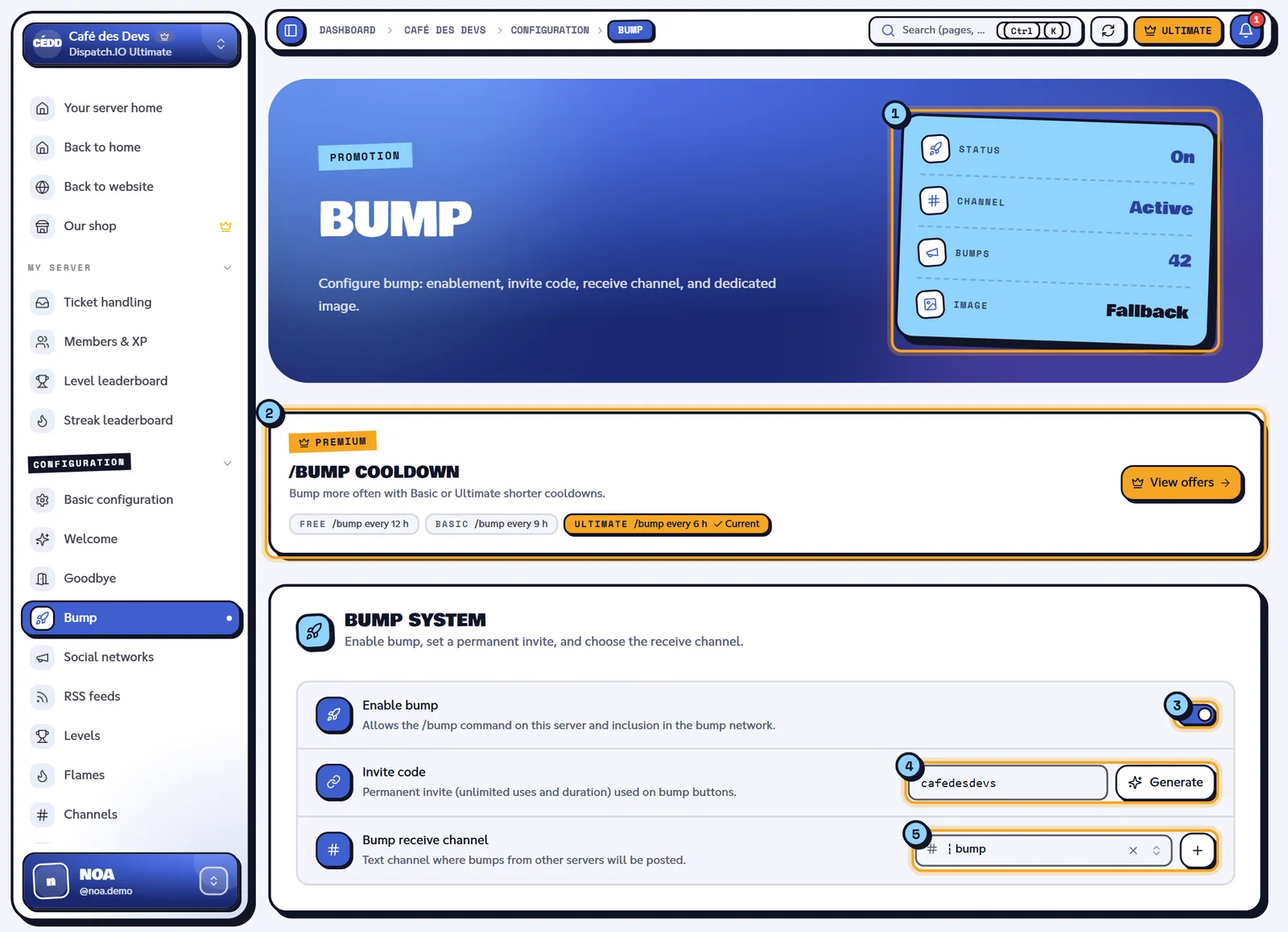
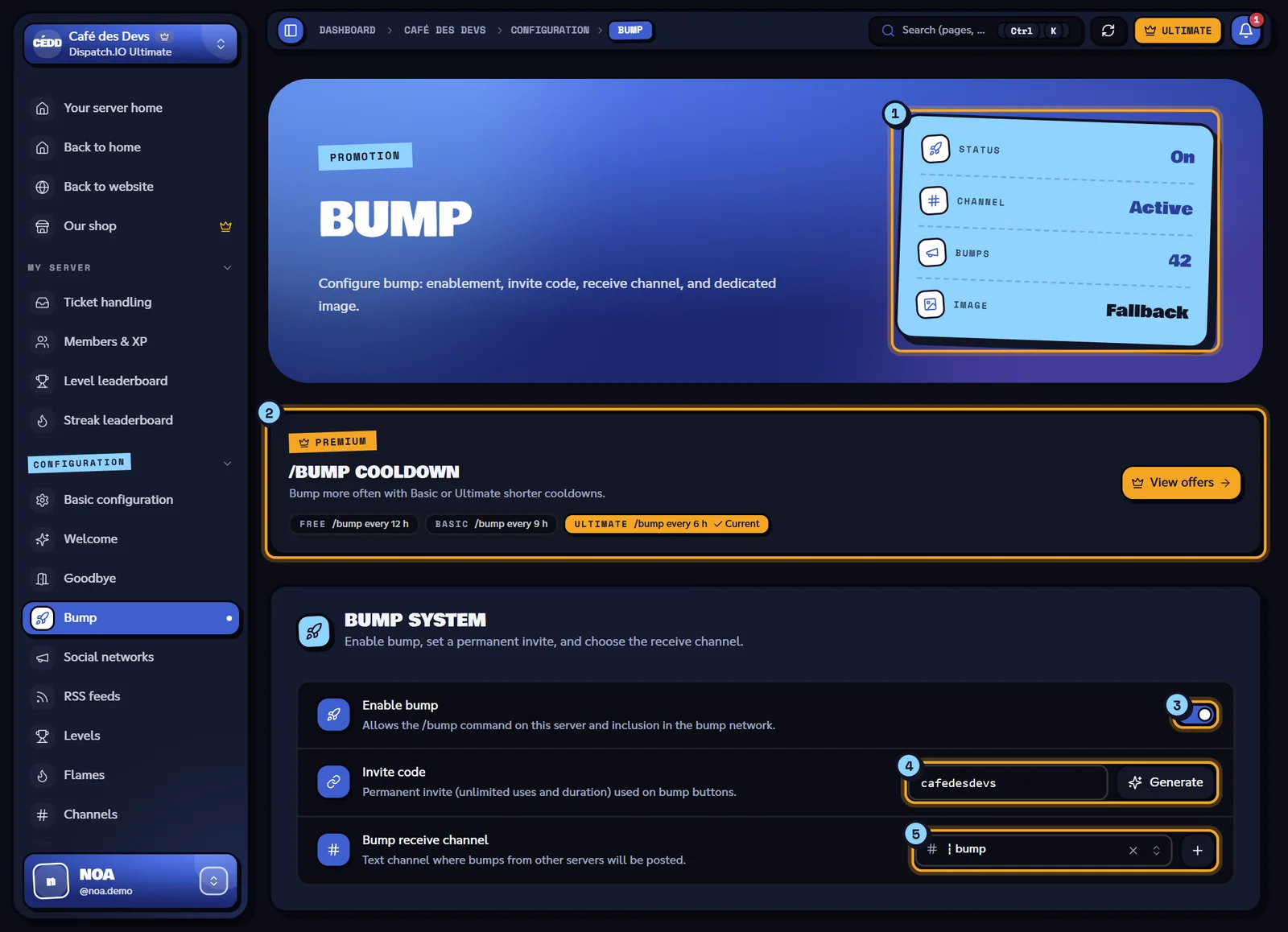
- Indicators: Status (On or Off), Channel (Active or Off), Bumps (total bumps of the server) and Image (Custom or Fallback).
- /bump cooldown banner: the delay between two bumps depending on the server's plan.
- Enable bump.
- Invite code and the Generate button.
- Bump receive channel, with the + button.
Delay between two bumps
| Server plan | One /bump every |
|---|---|
| Free | 12 h |
| Basic | 9 h |
| Ultimate | 6 h |
That's the only difference between plans on this page. See Premium plans and limits.
Turning bump on
The Bump system block holds the three required settings: without them, /bump is refused on your server.
| Setting | What it does | Default |
|---|---|---|
| Enable bump | Allows /bump on the server and adds your server to the network: your receive channel gets other servers' bumps. | Off |
| Invite code | Permanent invite used by the Join the server button of each bump. Paste a link (https://discord.gg/cafedesdevs) or just the code (cafedesdevs): the link is cut down to the code when saving. | Empty |
| Bump receive channel | Text channel where other servers' bumps arrive. The + button creates a ┇bumps channel. | None |
Generating the invite
Click Generate: the website reuses a permanent invite of the server if there is one, otherwise it creates a new one, with unlimited uses and duration, in the chosen receive channel (or the first text channel). The field fills in ("Permanent invite generated (unlimited)!"): then save the page.
Warning
The code isn't checked with Discord. A typo or an expiring invite breaks the Join the server button: prefer Generate.
If generating fails: "Failed to generate invite. Make sure the bot has Create Invite permission."
The receive channel is the same setting as Bump Reminders on the Channels page. The bot must be able to view the channel, write in it and embed links.
Writing the description
The Server description block sets the text shown in each bump.
- Quick formatting: buttons for bold, italic, underline, strikethrough, spoiler, code, quotes, headings, subtext, lists and links.
- The box takes 500 characters and Discord Markdown.
- Markdown preview shows the result. If the box is empty, the server's Discord description is used; with no Discord description either, the preview shows "It seems this server has not set a description."
Example for Café des Devs:
**The server for developers who love coffee** ☕
- Help with your projects
- Coding nights every week
Image and preview
The Bump image block picks the background of the card sent with each bump: Upload an image (PNG, JPG, WEBP or GIF, 5 MB max) or an image link. Remove dedicated image (fallback) clears the field. Without a dedicated image, the welcome banner is used, then the default image.
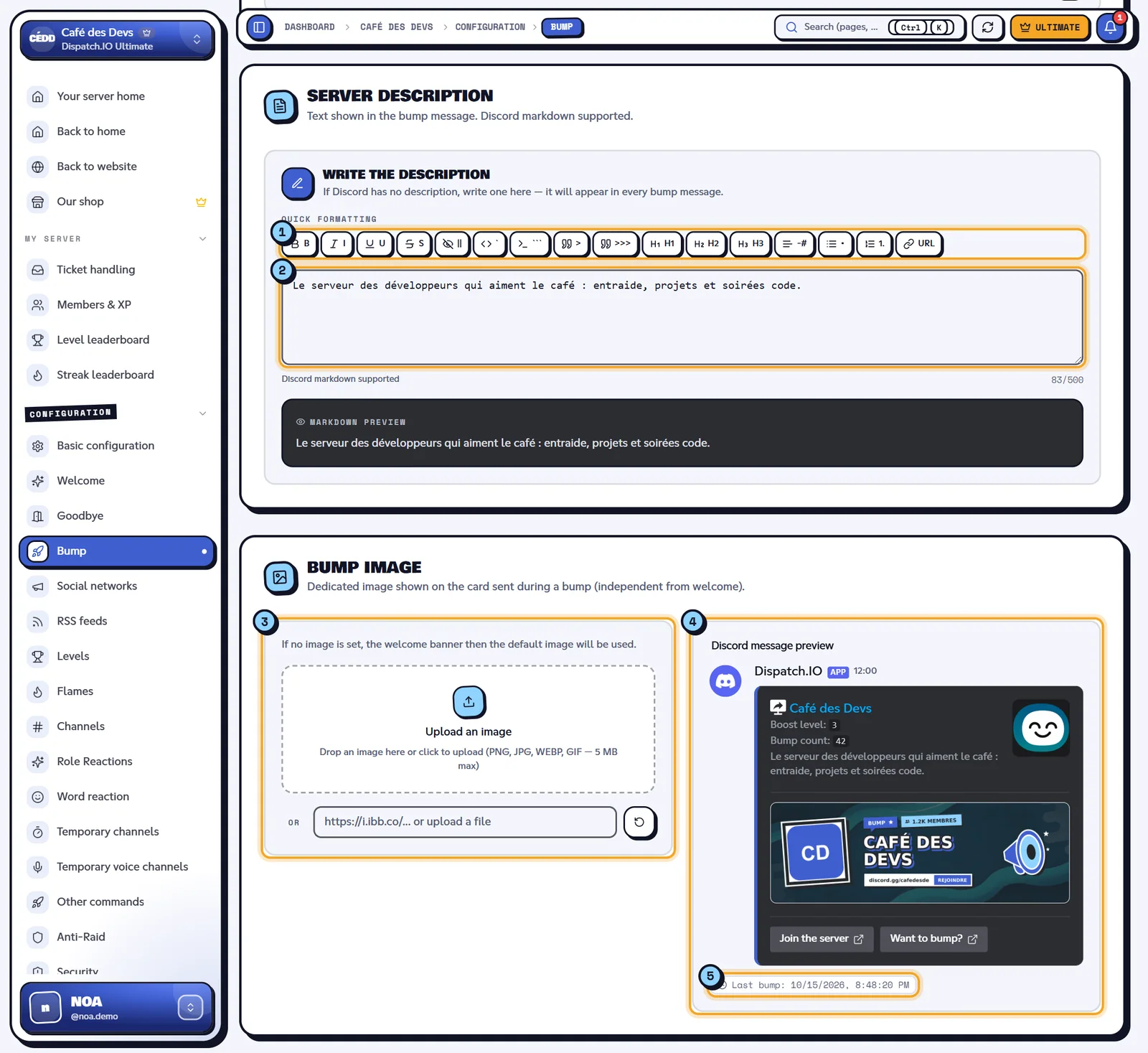
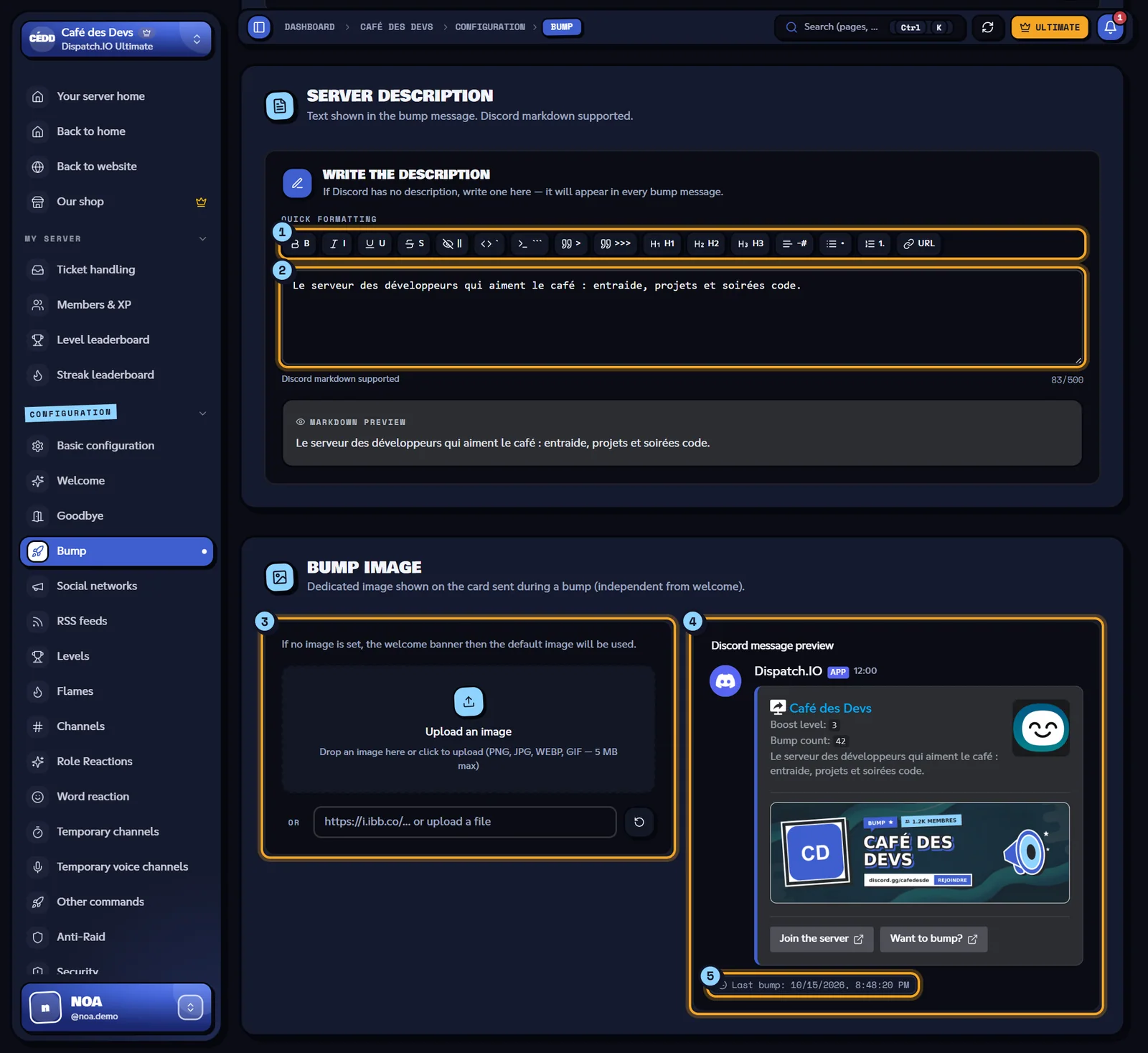
- Quick formatting.
- The description, its counter and the Markdown preview.
- The bump image.
- The Discord message preview: server name and icon, description, boost level, bump count, card and the Join the server and Want to bump? buttons.
- Last bump: date of the last
/bump(Never if there hasn't been one).
The preview card is generated by the bot; if it is offline: "Could not generate the canvas. Make sure the bot is online."
Saving
Click Save changes in the bottom bar: "Bump configuration saved successfully!". The bot uses the new configuration from the next bump on. Changes on this page aren't recorded in the Discord logs, but they stay in Configuration Logs (see Logs).
| Message | Cause |
|---|---|
| "Failed to save bump configuration." | Saving failed: try again. |
| "Image is too large. Please re-upload a smaller image (PNG/JPG under 5 MB)." | Image too heavy. |
| "Failed to create the channel automatically." | The + button couldn't create the channel (Manage Channels permission). |
| "Bump configuration updated by …" | Another administrator just saved. |
Before the first /bump
- Enable bump is on.
- The Invite code is filled in (ideally with Generate).
- The Bump receive channel is picked.
- The page is saved.
Then any member can type /bump (see Community).
Related pages
- Bump (bot module): the
/bumpcommand and the card it sends. - Channels: the receive channel.
- Welcome and goodbye: the banner used by default.
- Premium plans and limits: delays per plan.