
On Dispatch.IO, "who can do what" depends on three independent systems. Mixing them up is behind most access questions:
| System | Decides… | Managed where? |
|---|---|---|
| Your account's Discord permissions on a server | Who can open and edit a server's dashboard. | On Discord, in the server's roles. |
| The bot's role types on a server | Which roles the bot treats as join roles or staff roles. | Per server, in the bot's configuration. |
| Dispatch.IO team roles and permissions | Who can access the website's administration pages and the documentation back office. | On the website, reserved to the Dispatch.IO team. |
The first two concern every server owner and administrator; the third one only concerns the Dispatch.IO team.
Who can manage a server on the website
The website reads your server list straight from Discord, on every page load, with your signed-in account. A server shows up in your dashboard and can be configured if you meet one of these conditions:
- you're the server owner;
- one of your roles has the Administrator permission;
- one of your roles has the Manage Server permission.
- Without those rights, the server's address shows a page not found.
- If the bot isn't on the server, every page shows "Dispatch.IO™ is not on this server" with the Add Dispatch.IO™ to server button; the page updates on its own as soon as the bot joins.
- A role change on Discord is taken into account on the next page load.
Note
Dispatch.IO team roles (see below) give no access to other people's servers: even a team member needs one of the three conditions above on the server.
What everyone sees in the menu
Once on a server's dashboard, the left menu shows three groups: My server, Configuration and Administration.


- My server: ticket handling, members and XP, leaderboards.
- Configuration: every bot module.
- Administration: statistics and logs.
| Your access | Open the server's pages | See the server's entries in the menu |
|---|---|---|
| Owner | Yes | Yes |
| Administrator permission | Yes | Yes |
| Manage Server permission only | Yes | No: the menu shows the website's general entries. Use the tiles on the server home. |
There are no finer per-page rights on the website: anyone who can open a server's dashboard can change all of its settings. To limit who configures the bot, limit who has Administrator or Manage Server on Discord.
Tip
On Discord, the /config command requires the Administrator permission: a member with only Manage Server can configure the bot from the website, but not with /config.
The bot's role types on a server
For each server, the bot can save roles with a type. They have no effect on website access: the bot uses them on Discord.
| Type | Role for the bot | Set where? |
|---|---|---|
| WELCOME | Roles given automatically to new members. | Welcome and goodbye page or /config. |
| ADMIN | Staff role: passes the bot's checks like the Administrator permission; only the owner can sanction its members. | No screen to set it yet. |
| MODO | Moderation role: passes the bot's moderation checks. | No screen to set it yet. |
| DEVELOPER | Not used for now. | — |
Details (which commands, which protections) are in Permissions and roles.
Dispatch.IO team roles
Every website account has one or more team roles. Every new account gets the User role on first sign-in; other roles are assigned by the Dispatch.IO team.
| Role | Rank | Default permissions |
|---|---|---|
Root (ROOT) | 100 | All of them, no exception (no individual exception can withhold a right from it). |
Administrator (ADMIN) | 80 | Server blacklist, view / ban users and view their IP, dashboard statistics, the whole documentation (view, create, edit, delete, publish, translate, administer), sanctions (view, create, edit, delete), audit logs, sessions (view, revoke), grant and revoke permissions. Not bot or team management. |
Moderator (MODERATOR) | 50 | View and ban users, dashboard statistics, view the documentation, sanctions (view, create, edit). |
Support (SUPPORT) | 30 | View users, dashboard statistics, view the documentation, view sanctions. |
Writer (REDACTOR) | 30 | Documentation (view, create, edit, translate), dashboard statistics. |
User (USER) | 10 | None. |
When someone has several roles, they get all of their permissions and their rank is the highest one. Rank drives the hierarchy: you can only change the rights of someone with a strictly lower rank.
What each permission unlocks on the website
| Permission | What it unlocks today |
|---|---|
BOT_MANAGE (Bot management) | The Administration → Configuration submenu: global bot settings (General, Emojis, Colors, Images, URLs) and Shop configuration, with their live updates. Also the website's Audit Logs. Only Root has it by default. |
TEAM_CREATE, TEAM_UPDATE, TEAM_DELETE | The website's Audit Logs (the Manage team entry has no page yet). Only Root has them by default. |
DOCUMENTATION_* | The documentation back office (see below). |
PERMISSION_ASSIGNMENT_GRANT / _REVOKE | Add / remove individual exceptions on documentation permissions. |
DASHBOARD_VIEW_STATS, SANCTIONS_VIEW, AUDIT_VIEW | Can be used to restrict who reads documentation pages. |
The others (USERS_*, GUILDS_BLACKLIST, SANCTIONS_CREATE…, SESSION_*) | Reserved for future tools: they don't unlock any website page yet. |
The website's administration pages are described in Global bot configuration (team only).
Individual exceptions (GRANT / DENY)
On top of their roles, a person can get an exception on a specific permission:
| Field | Effect |
|---|---|
| Effect | Grant (GRANT) gives the permission even if their roles don't have it; Withhold (DENY) takes it away even if one of their roles has it. |
| Until (optional) | End date. Once it's passed, the exception is ignored and the person gets their roles' rights back. No date: no end date. |
| Reason | Free note (300 characters max), visible to the team. |
There can only be one exception per person and per permission. To decide, the website applies this order:
Today, exceptions are managed for documentation permissions, in the Permissions tab of the documentation back office (Members and exceptions section). You need PERMISSION_ASSIGNMENT_GRANT to add one, PERMISSION_ASSIGNMENT_REVOKE to remove one, and a rank strictly higher than the person's (otherwise: "You can't change the rights of a member of equal or higher rank."). Every exception added or removed is recorded in the website's Audit Logs.
When a change takes effect
Roles and permissions are read from the database through the Redis cache shared by the website and the bot. Every change made from the website clears the relevant cache, so it applies immediately:
| Data | Kept in cache | Cleared when… |
|---|---|---|
| Account and team roles | 5 minutes | the account's roles change |
| A person's exceptions | 5 minutes | an exception is added, edited or removed |
| Per-role permissions | 1 hour | a role's rights are changed from the back office |
| Servers you can manage | No cache | — (read again from Discord on every page) |
A change made directly in the database (by the technical team, outside the website) can therefore take up to 5 minutes (roles, exceptions) or 1 hour (per-role permissions) to apply. Blocking a banned account can also take up to 5 minutes. How the cache works is detailed in Redis and database (team only).
Documentation permissions
The documentation you're reading is public, except the spaces, categories or pages restricted to a permission. Seven permissions run its back office:
| Permission | Label | What it allows | Default roles |
|---|---|---|---|
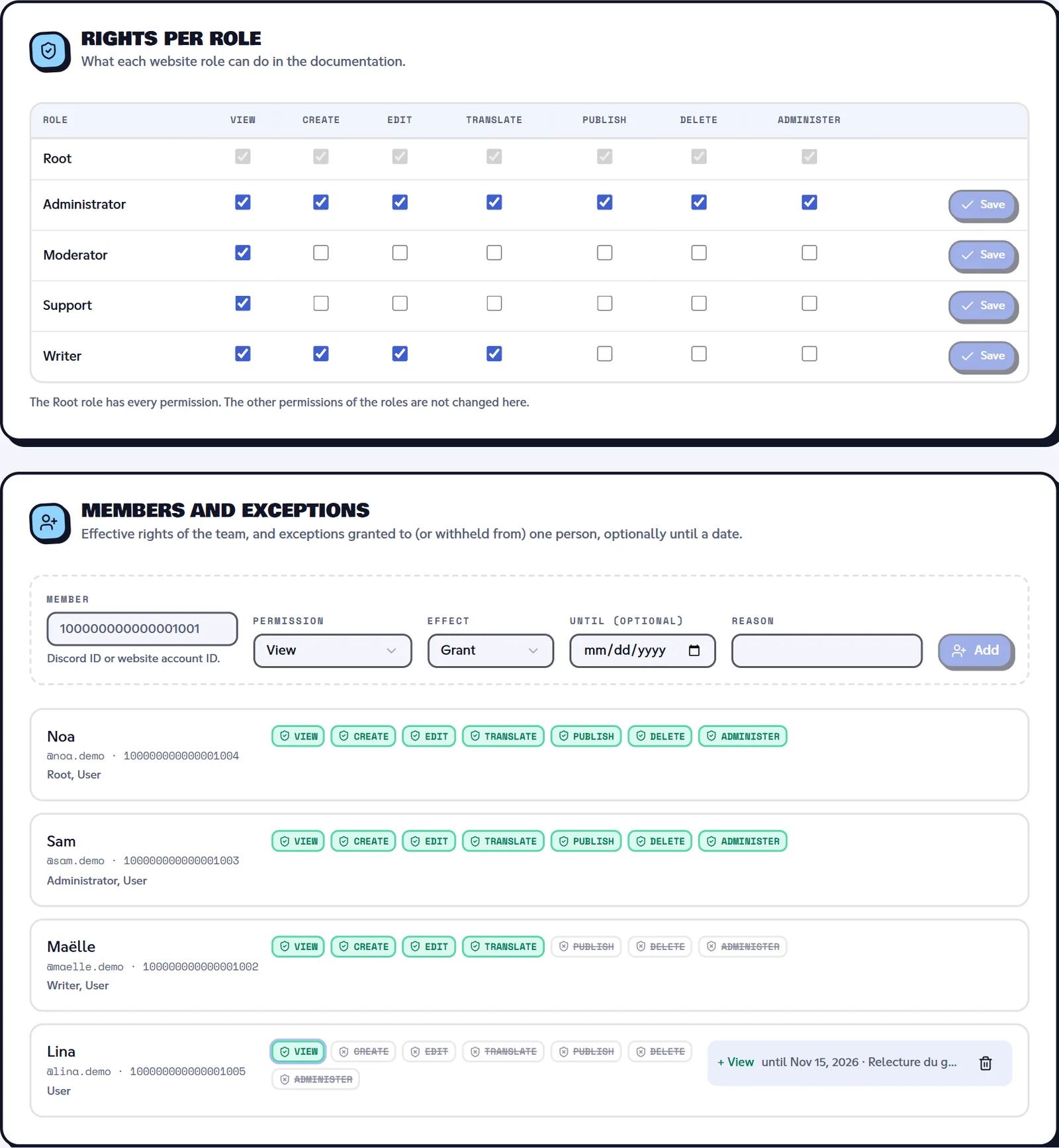
DOCUMENTATION_VIEW | View | Read internal pages and drafts, open the back office read-only. | Root, Administrator, Moderator, Support, Writer |
DOCUMENTATION_CREATE | Create | Create pages, sections and categories. | Root, Administrator, Writer |
DOCUMENTATION_UPDATE | Edit | Edit texts in the source language, order, icons and tags. | Root, Administrator, Writer |
DOCUMENTATION_TRANSLATE | Translate | Edit texts in the other languages and mark a translation as up to date. | Root, Administrator, Writer |
DOCUMENTATION_PUBLISH | Publish | Publish drafts and switch between published and draft. | Root, Administrator |
DOCUMENTATION_DELETE | Delete | Delete pages, sections, categories and images. | Root, Administrator |
DOCUMENTATION_MANAGE | Administer | Manage spaces, visibility, read restrictions and role grants. | Root, Administrator |
- A restricted item ("Readable by") is only visible to people with the chosen permission:
DOCUMENTATION_VIEW,DASHBOARD_VIEW_STATS,BOT_MANAGE,SANCTIONS_VIEWorAUDIT_VIEW. The restriction also applies to everything below it. - A draft is only visible to people with the View permission or an editing permission (Create, Edit, Translate, Publish, Administer).
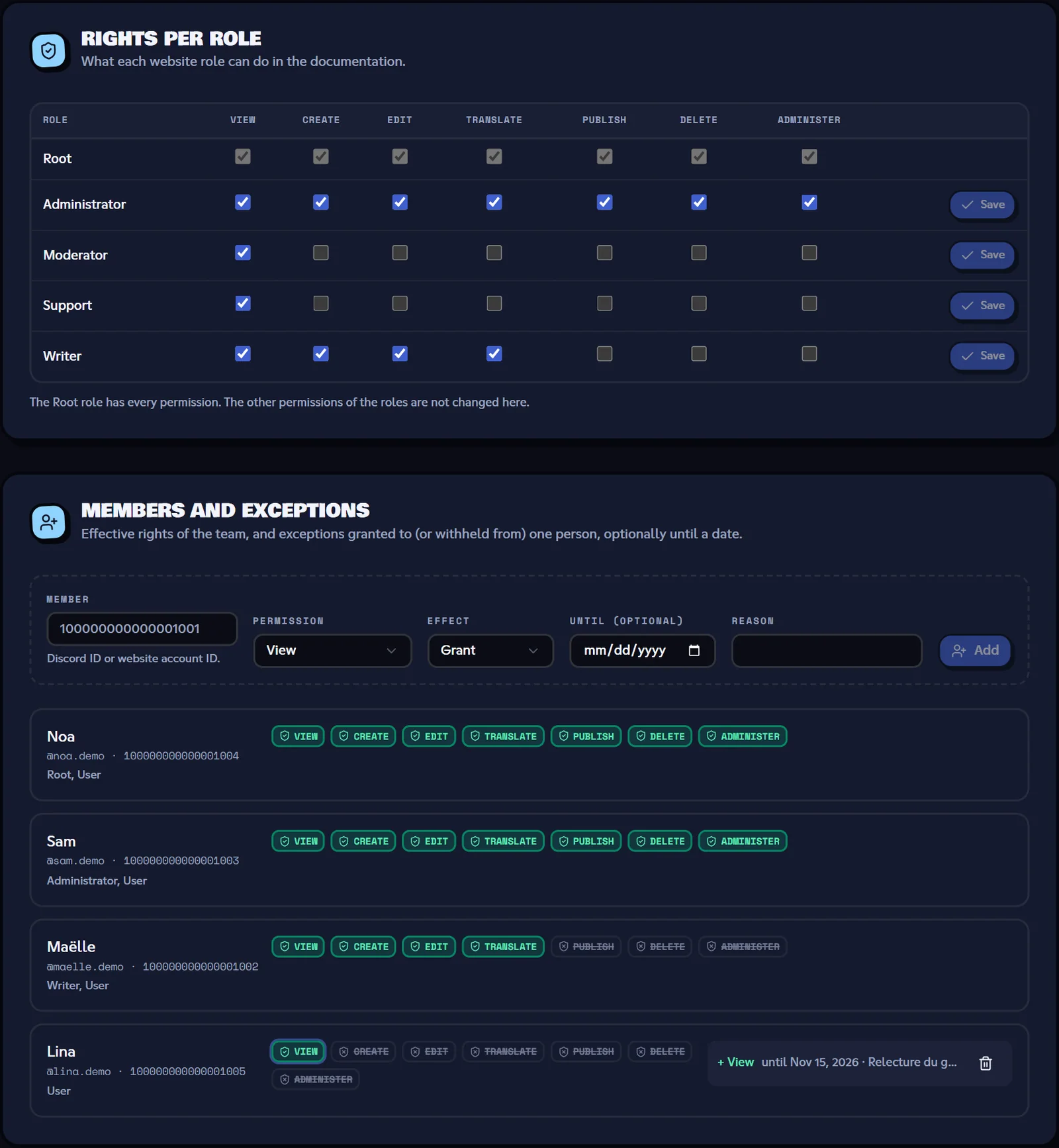
- The back office's Permissions tab shows the Rights per role (editable for every role except Root and User, with
DOCUMENTATION_MANAGEand the assignment permissions) and the Members and exceptions.
The full guide is in Documentation permissions (team only).
Related pages
- Managing your servers
- Permissions and roles: permissions on the bot side.
- Sign-in and account
- Synchronisation with the bot