
When you pick a server in the dashboard, you land on its home page: a summary of the server, a shortcut to raid mode and the list of every module you can configure. This page also covers Basic configuration, where you set the bot language, the timezone, the channel separator, the embed color and the emergency mentions.
It is meant for the server owner and the members who manage it. To pick a server first, see Managing your servers.
Opening a server's home
Getting there
- From your server list, click the server: the address is
/dashboard/guild/<server id>. - From any page of the server, use the Your server home shortcut at the top of the left menu.
A server's dashboard is open to the owner and to members with the Discord permission Administrator or Manage Server. However, the server entries of the left menu are only shown to the owner and administrators: a member who only has Manage Server can open the pages through their link but won't see them in the menu. Details in Managing permissions.
The server menu
| Group | Entries | Documentation |
|---|---|---|
| My server | Ticket handling, Members & XP, Level leaderboard, Streak leaderboard | Tickets, Levels, Leaderboards |
| Configuration | Basic configuration, Welcome, Goodbye, Bump, Social networks, RSS feeds, Levels, Flames, Channels, Role Reactions, Word reaction, Temporary channels, Temporary voice channels, Other commands, Anti-Raid, Security, Tickets | one page per module, see Modules below |
| Administration | Statistics, Configuration Logs, Discord Audit Logs | Statistics, Logs |
When the bot isn't on the server
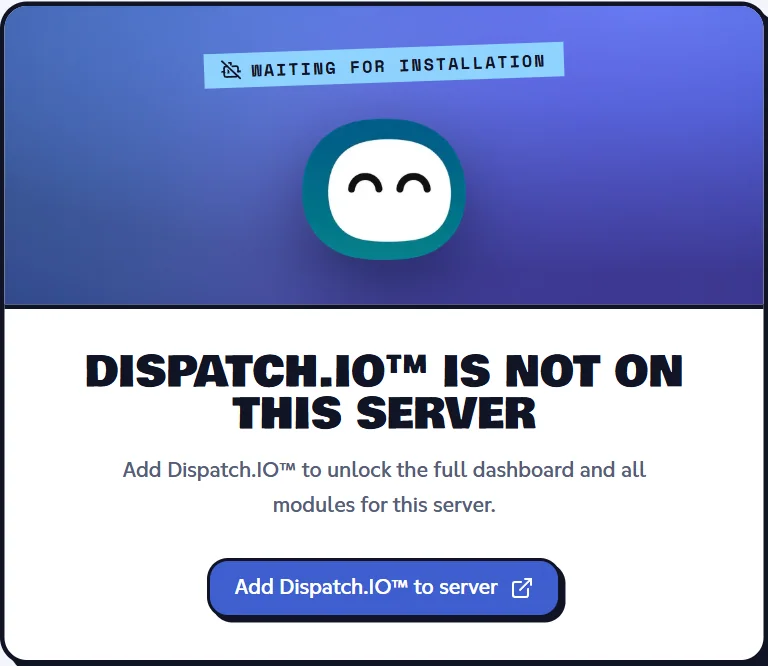
If Dispatch.IO hasn't been added yet, every page of the server shows the "Dispatch.IO™ is not on this server" card with the Add Dispatch.IO™ to server button. The button opens the Discord invite in a new tab. As soon as the bot joins, the page updates by itself, no reload needed.
The server header
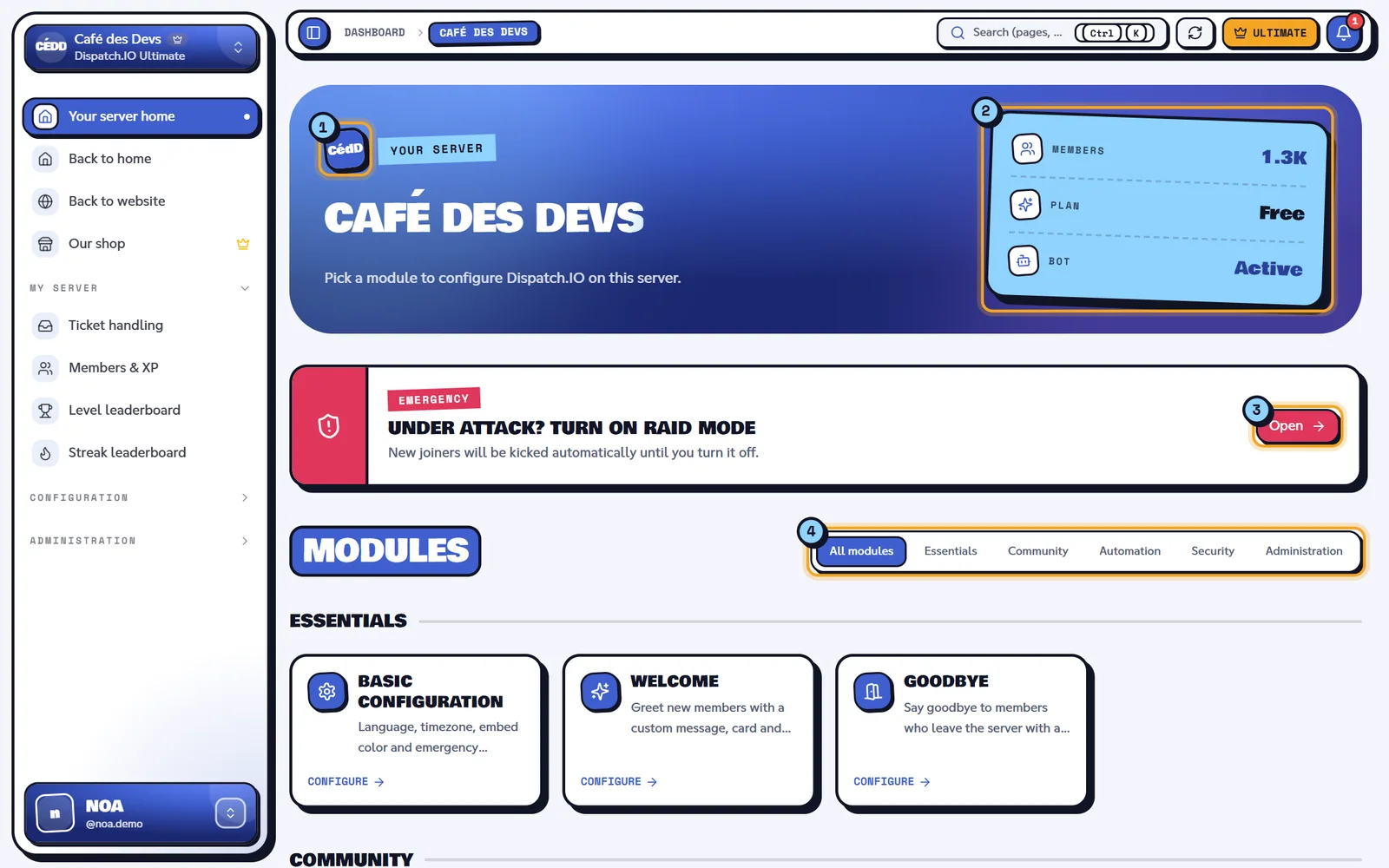
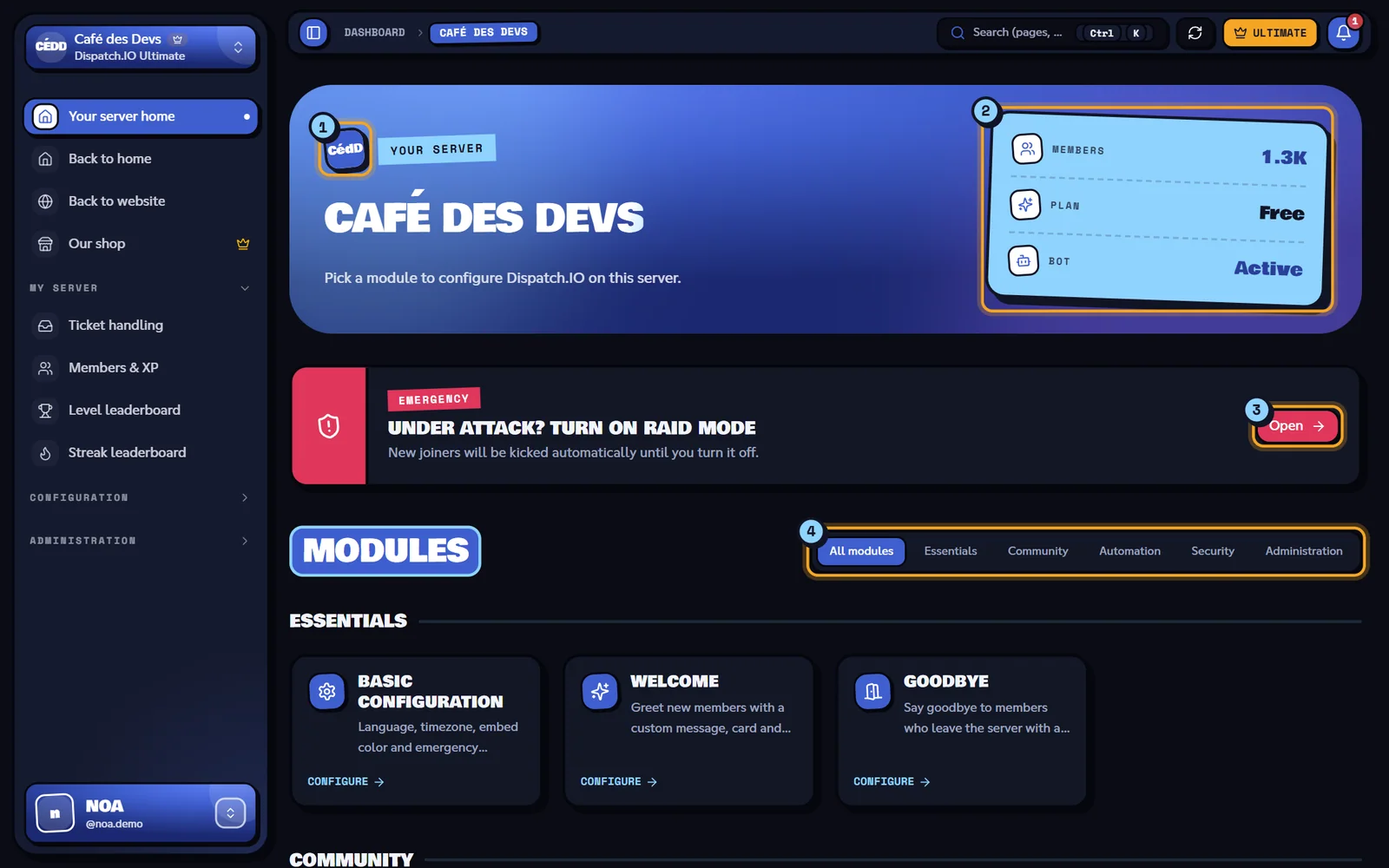
- Icon, plan and role: the server icon, the server's plan tag (Ultimate, Basic or Premium) when it has one, and Owner if it's your server.
- Indicators: Members (approximate count from Discord), Plan (Free, Basic or Ultimate) and Bot (Active or Missing).
- Raid mode shortcut: the Open button leads to the Security page (see next section).
- Module filter: shows every module or a single category.
Note
For now, the header always shows the Free plan, without the plan tag or Owner, even on an Ultimate server (as in the screenshot). The server's real plan is the one shown in the sidebar, under its name, and on the button at the top right.
If the server has a Discord banner, it is shown full width above the header. To change plans, see Server subscription.
Raid mode shortcut
While raid mode is off, a red Emergency box says "Under attack? Turn on raid mode". The Open button takes you to the Security page, where you turn it on. During raid mode, new joiners are kicked automatically.
When raid mode is on, the box is replaced by the Raid mode active banner, with the end date if one is set, and the Open Security button. Both blocks update live, even when raid mode is turned on from another tab or by another administrator.
Raid mode itself is explained in Security and anti-raid.
Modules
The Modules area lists every configuration page as a tile. The filter at the top right offers All modules, Essentials, Community, Automation, Security and Administration. With All modules, tiles are grouped by category. The filter isn't remembered: it goes back to All modules on each visit.
Each tile has a Configure button that opens the module page. The RSS feeds tile has the New! badge. Tiles don't tell you whether a module is already set up: open the page to check.
| Category | Tile | What you set there | Documentation |
|---|---|---|---|
| Essentials | Basic configuration | Language, timezone, color, separator, emergency mentions | next sections of this page |
| Essentials | Welcome, Goodbye | Join and leave messages and cards, welcome roles | Welcome and goodbye |
| Community | Levels | XP, level-up channel, role rewards | Levels |
| Community | Flames | Daily streaks, messages, rewards | Flames |
| Community | Bump | Enabling, invite, receive channel | Bump |
| Community | Social networks, RSS feeds | YouTube, Twitch and RSS notifications | Social networks and RSS |
| Community | Tickets | Ticket panels | Tickets |
| Automation | Channels | Channels used by the bot and log channels | Channels |
| Automation | Role reactions | Role panels with buttons or reactions | Reaction roles |
| Automation | Word reaction | Automatic reactions to words | Word reactions |
| Automation | Temporary channels, Temporary voice channels | Channels that close or spawn automatically | Temporary channels |
| Automation | Other commands | Extra commands | Other commands |
| Security | Security & Raid mode, Anti-Raid | Raid mode, whitelist, protections | Security and anti-raid |
| Administration | Statistics | Server activity | Statistics |
| Administration | Configuration logs, Audit logs | Change history | Logs |
Basic configuration
Open the Basic configuration tile (or Configuration > Basic configuration in the menu). The page starts with the Essential configuration block: four settings that apply to the whole server.
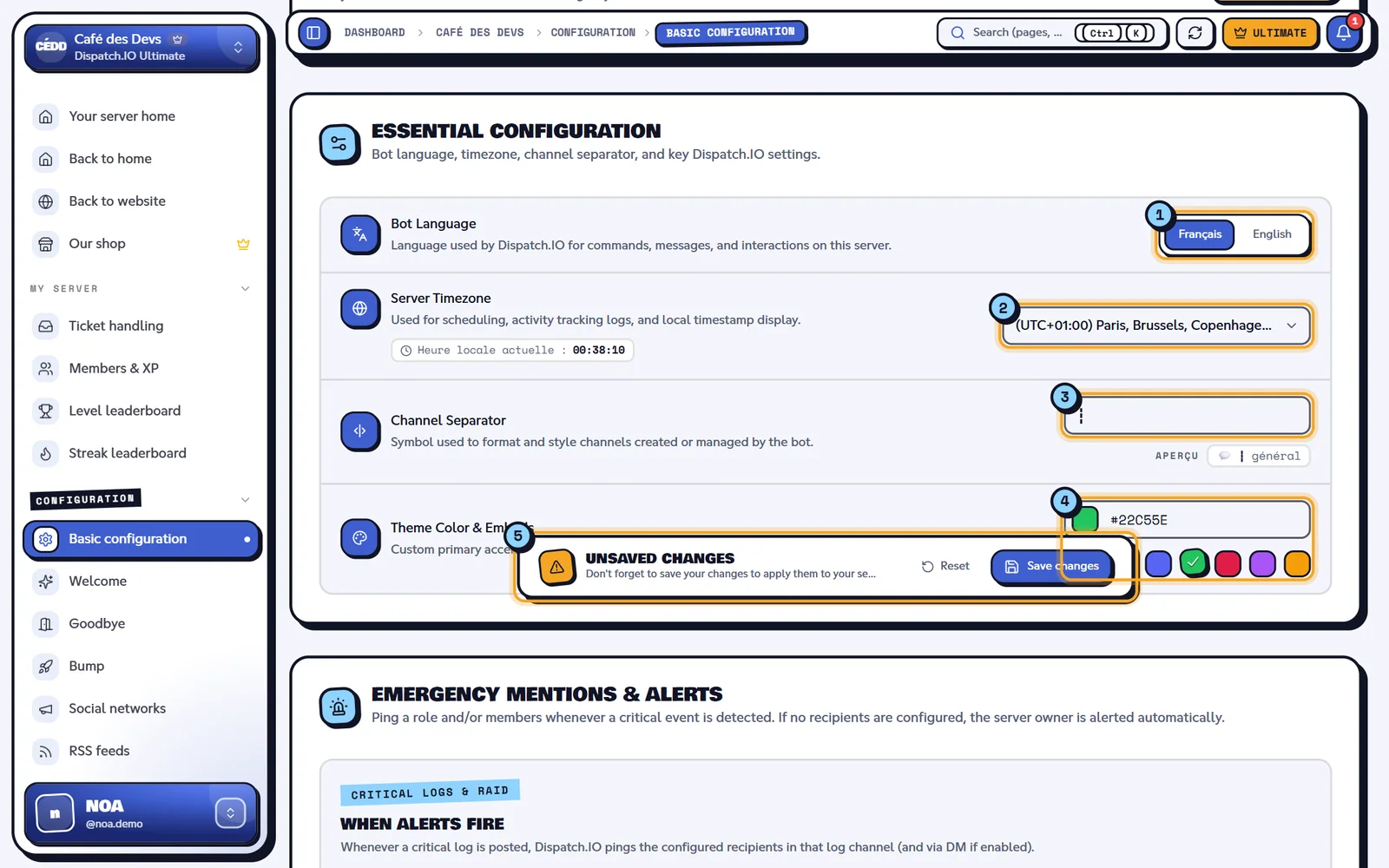
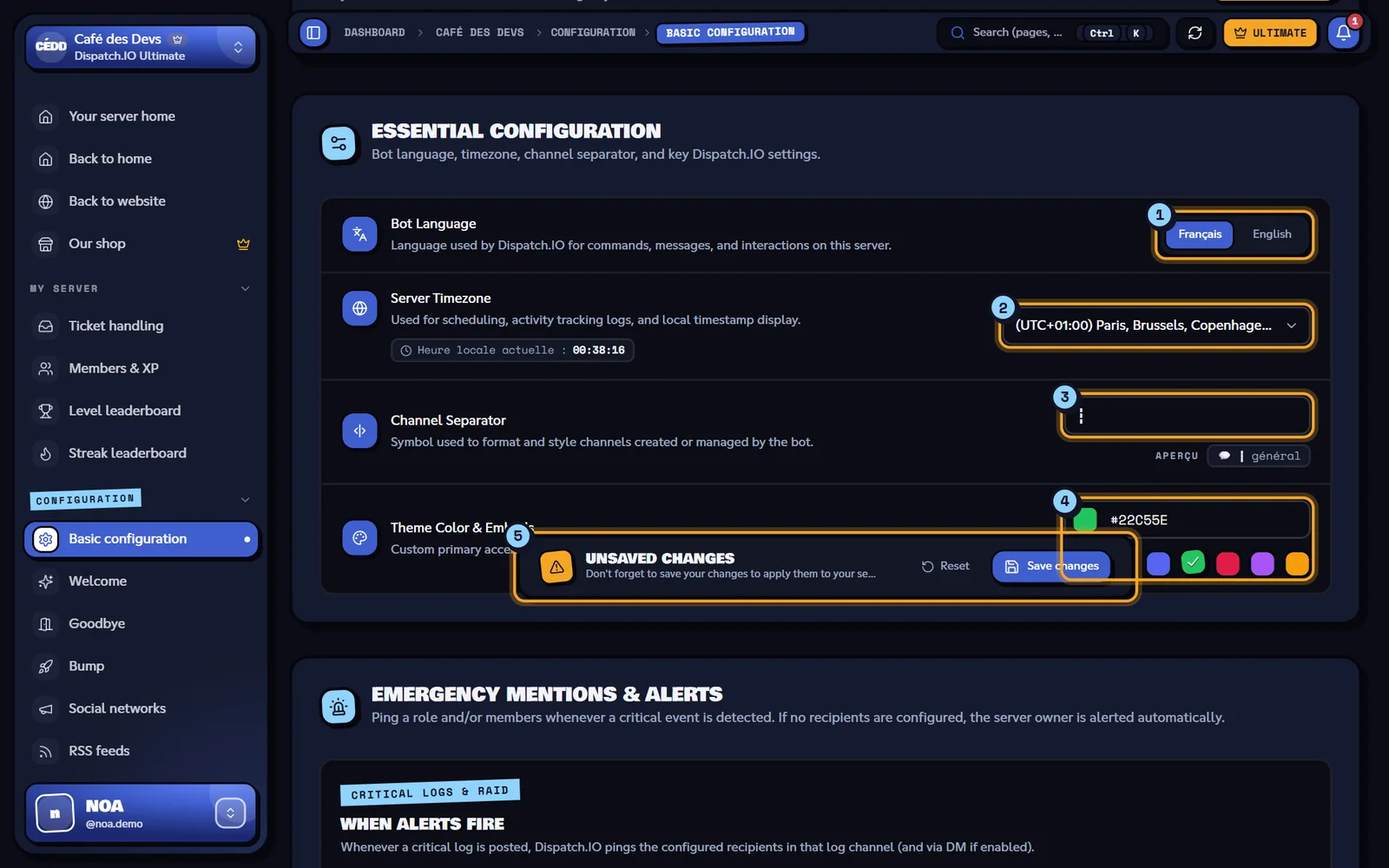
- Bot Language
- Server Timezone, with the current local time
- Channel Separator, with its preview
- Theme Color & Embeds and its ready-made colors
- The Unsaved changes bar
| Setting | Allowed values | Default | Effect on the bot |
|---|---|---|---|
| Bot Language | Français or English | The one picked when the bot joined the server (English if nobody picked) | Language of the messages the bot posts for the whole server: announcements, logs, panels. Replies to commands follow each person's Discord language. |
| Server Timezone | One city per timezone, with its UTC offset. The "Heure locale actuelle" (current local time) badge shows the time in the chosen zone. | Europe/Paris | Used to show local times and to split days for flames (a flame is validated once per day in this timezone). |
| Channel Separator | 1 to 3 characters. Empty = ┇. The preview shows 💬 ┇ général. | ┇ | Added at the start of the names of channels the bot creates, for instance with the + buttons of the Channels, Welcome or Levels pages (┇bienvenue). |
| Theme Color & Embeds | A hex code (#3F5FCF), the color picker or a swatch: No color, Cyan, Blurple, Émeraude, Rose, Violet, Ambre. | #48D1E1 (Cyan) | Color of the side bar of the bot's embeds. No color (#000000) removes that bar. |
Tip
Always type a full 6-digit code after the #. The field doesn't check the format: an incomplete code is saved as is.
Note
A member who picked their own accent color with an individual premium plan keeps their color on the commands they run.
A few labels of this block are only available in French for now ("Heure locale actuelle", "Aperçu", the swatch names). The same settings exist in Discord through /config (Language and time zone and Color categories): see Bot configuration.
Saving
As soon as you change a setting, the Unsaved changes bar shows up at the bottom of the screen. Click Save changes (or Reset to go back to the saved values). The message "Server settings saved successfully!" confirms it.
The bot applies the new settings immediately and posts one line per changed setting in the General Server Logs channel, if it is set on the Channels page.
Warning
If raid mode was turned on or off (from another tab or by another administrator) after you opened this page, reload the page before saving. Otherwise, the raid mode state from when you opened the page is applied again.
Emergency mentions
The second block of Basic configuration, Emergency Mentions & Alerts, picks who gets warned when something critical happens. Whenever a critical log is posted, Dispatch.IO mentions the recipients in that log channel, and by DM if you turned it on.
The When alerts fire box lists the critical events:
- channel and role deletions, critical server changes;
- anti-raid: spam, links, forbidden words, bot adds, mass joins, mass bans, invites, webhooks or channels;
- moderation sanctions: ban, kick, warn, timeout, unban, force-disconnect, reports;
- blacklist actions.
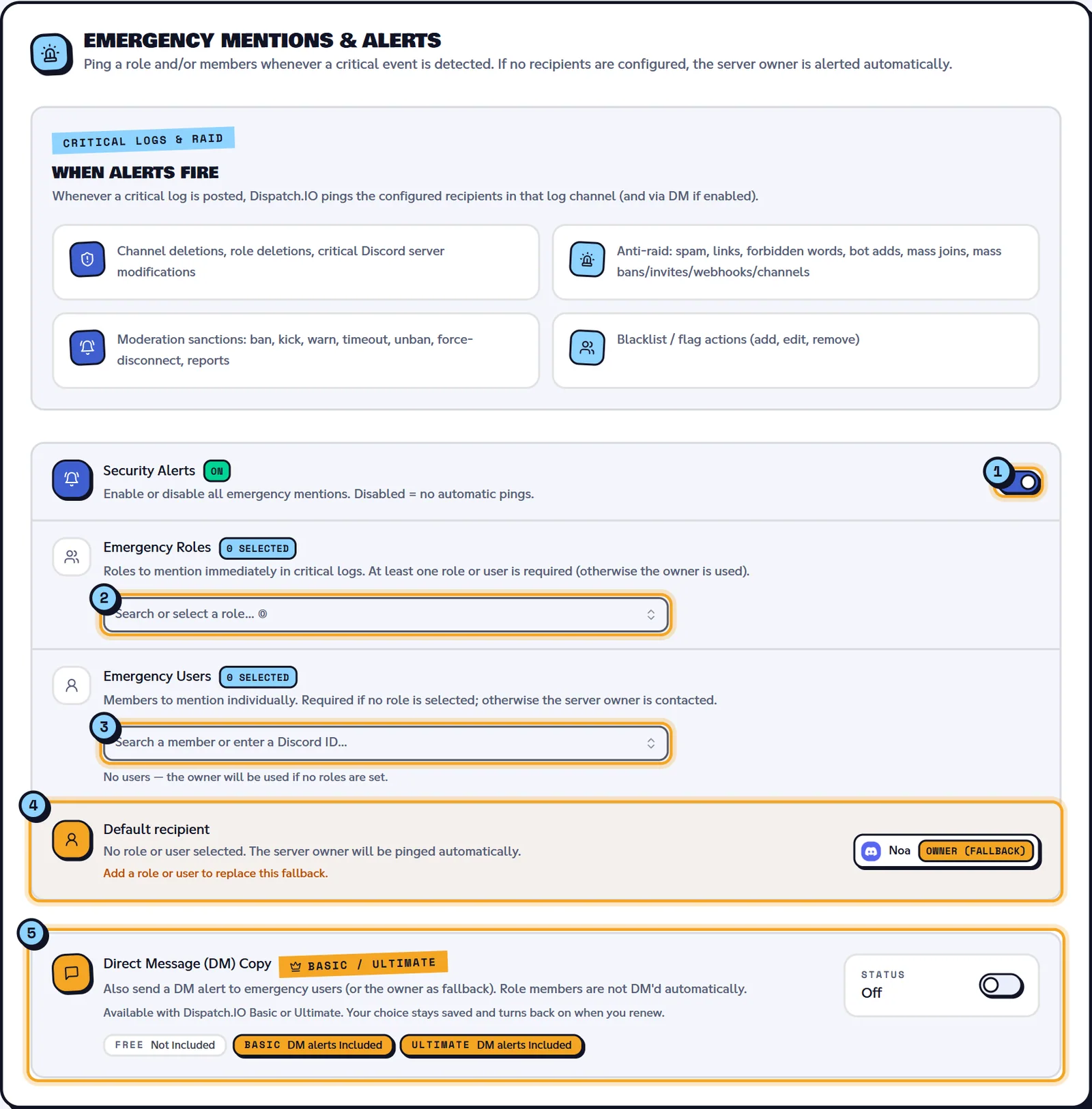
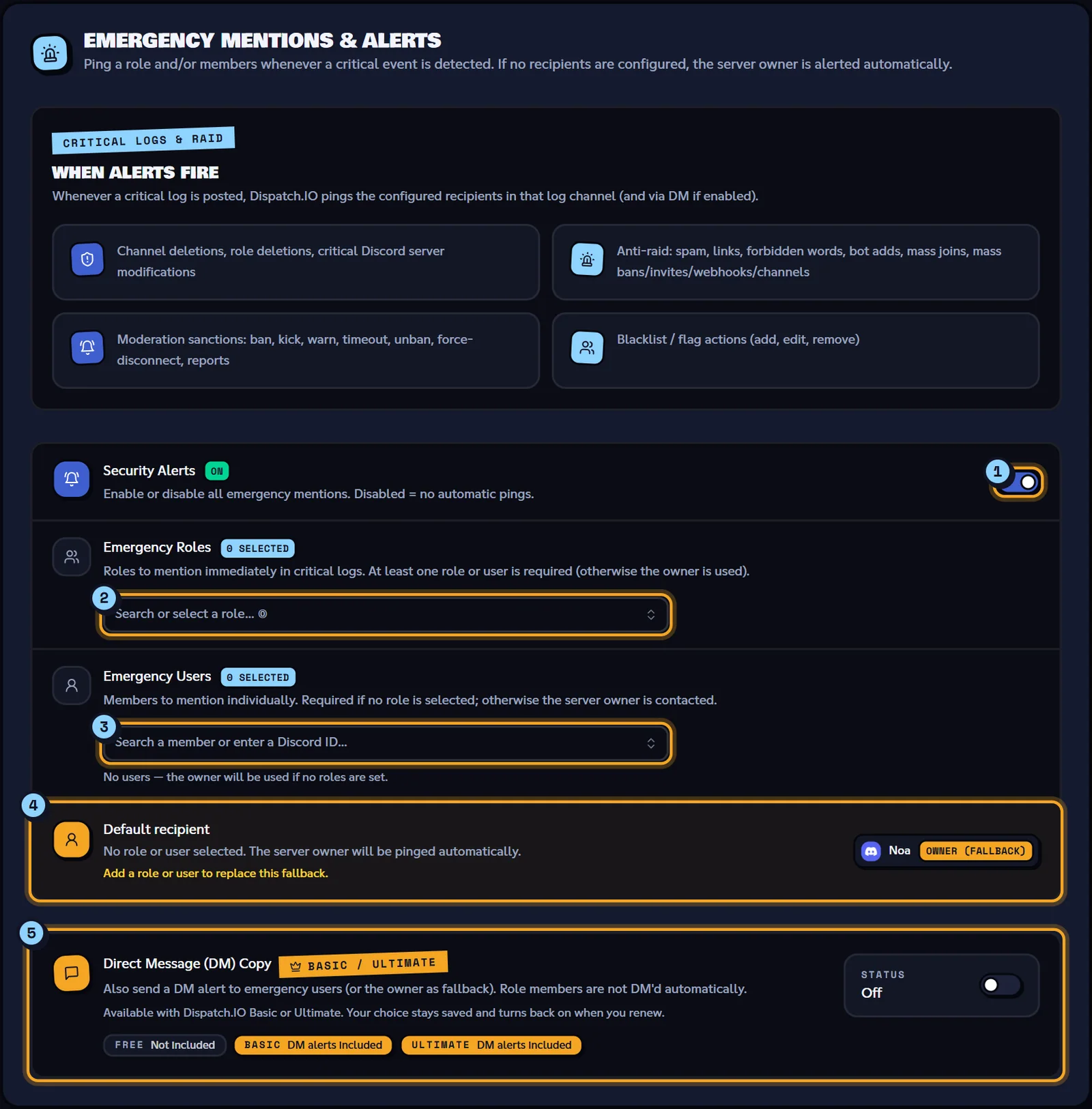
- Security Alerts: the master switch.
- Emergency Roles
- Emergency Users
- Default recipient: shown when no role and no user are selected.
- Direct Message (DM) Copy: Basic and Ultimate plans only.
| Setting | What it does | Default |
|---|---|---|
| Security Alerts | Turns every emergency mention on or off. Off: no mention, no DM. | On |
| Emergency Roles | Roles mentioned in critical logs. No limit. Integration-managed roles and @everyone aren't offered. | None |
| Emergency Users | Members mentioned one by one. Search for a member, or paste their Discord ID and pick the "Use ID" option. | None |
| Default recipient | With no role and no user, the server owner is mentioned. Add a role or a user to replace them. | Owner |
| Direct Message (DM) Copy | Also sends the alert by DM to emergency users (or to the owner by default). Members of emergency roles don't get a DM. | Off |
Plans
The DM copy needs the Basic or Ultimate plan on the server (the Emergency DM alerts banner sums up what each plan includes). Without it, the switch is greyed out and the View offers button leads to the shop. If the plan expires, your choice stays saved and turns back on when you renew.
Tip
The member search only offers the first 100 members of the server. If someone is missing, paste their Discord ID into the field.
Mentions show up in critical log channels (sanctions, anti-raid…): pick them on the Channels page. The logs themselves are described in Logs.
This block has its own save bar. Save it on its own: "Emergency mentions configuration saved successfully!". The change applies right away and is recorded in the server logs.
Tip
Both blocks of the page have their own bar, shown at the same spot. Save one block before editing the other.
Saving and staying in sync
These rules apply to every configuration page of the server:
- Nothing is saved until you click the save button. If you leave the page before that, your changes are lost without warning.
- If another administrator saves the same page while you have it open, the form updates and a message tells you, for example "General settings updated by sam.demo.".
- A role or channel you just created on Discord doesn't show up in the lists right away. Click Sync Discord Data in the site header ("Modified a role, channel, or server on Discord?"). The button can be used once a minute; without it, lists refresh by themselves within 30 minutes.
- Every change is kept in Configuration Logs (see Logs).
Errors you may see when saving:
| Message | What to do |
|---|---|
| "Failed to save server settings." | Try again; if it keeps failing, reload the page. |
| "Failed to save emergency mentions configuration." | Same thing for the emergency mentions block. |
| "Cooldown active: … remaining." (Sync Discord Data button) | Wait until the displayed delay is over. |
How the website and the bot talk to each other is described in Synchronisation with the bot.
Related pages
- Managing your servers: pick a server and add the bot.
- Channels: the log channels where alerts land.
- Security and anti-raid: raid mode and whitelist.
- Bot configuration: the same settings through
/configin Discord. - Premium plans and limits: what Basic and Ultimate unlock.