
The Statistics page gives an overview of your server: its audience, the activity measured by Dispatch.IO (commands, messages, time spent in voice) and its structure (channels, roles, boosts). It's read-only and meant for server owners and administrators.
Open the page
In the left menu, Administration group, click Statistics (or the tile of the same name on the server home).
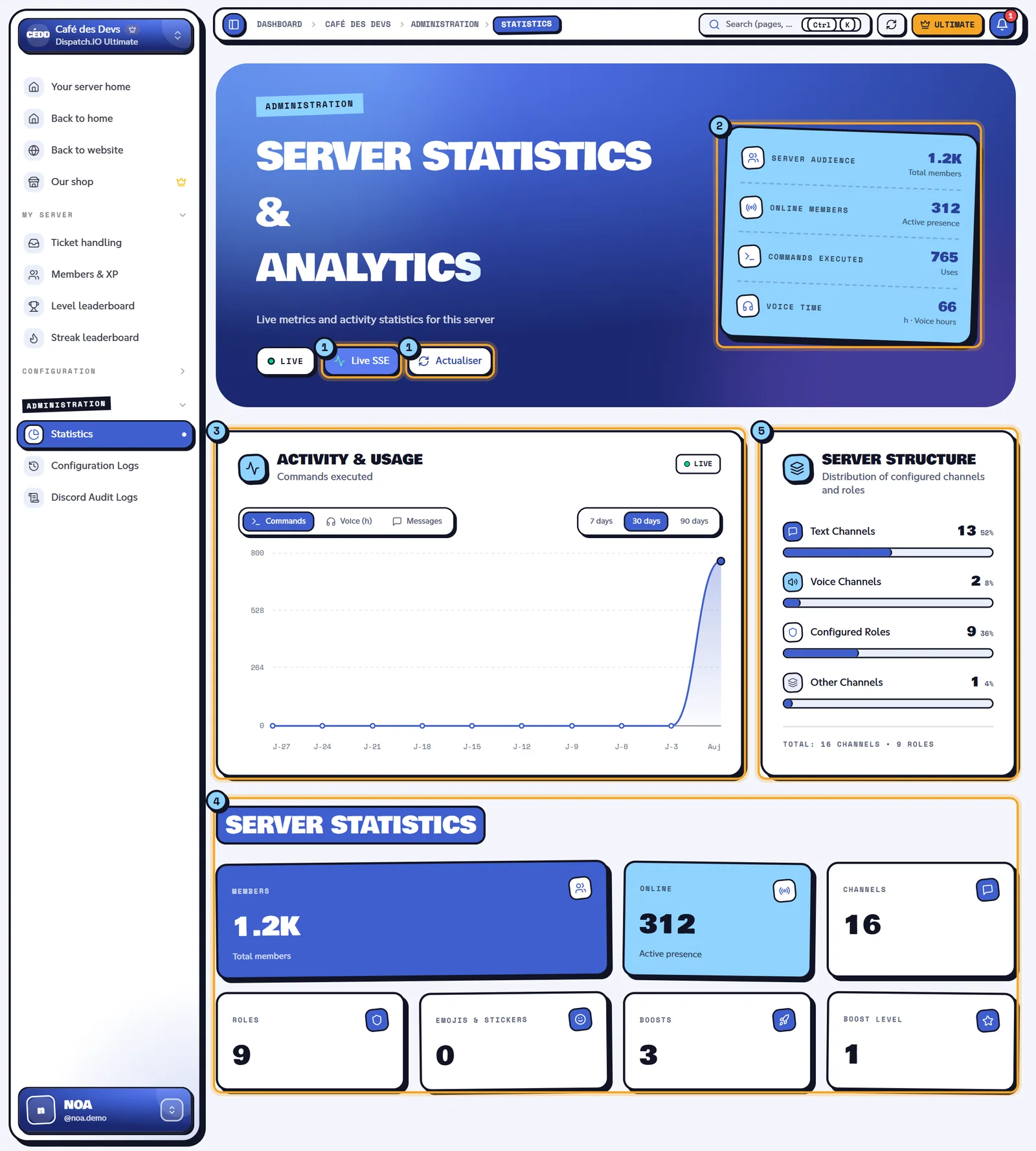
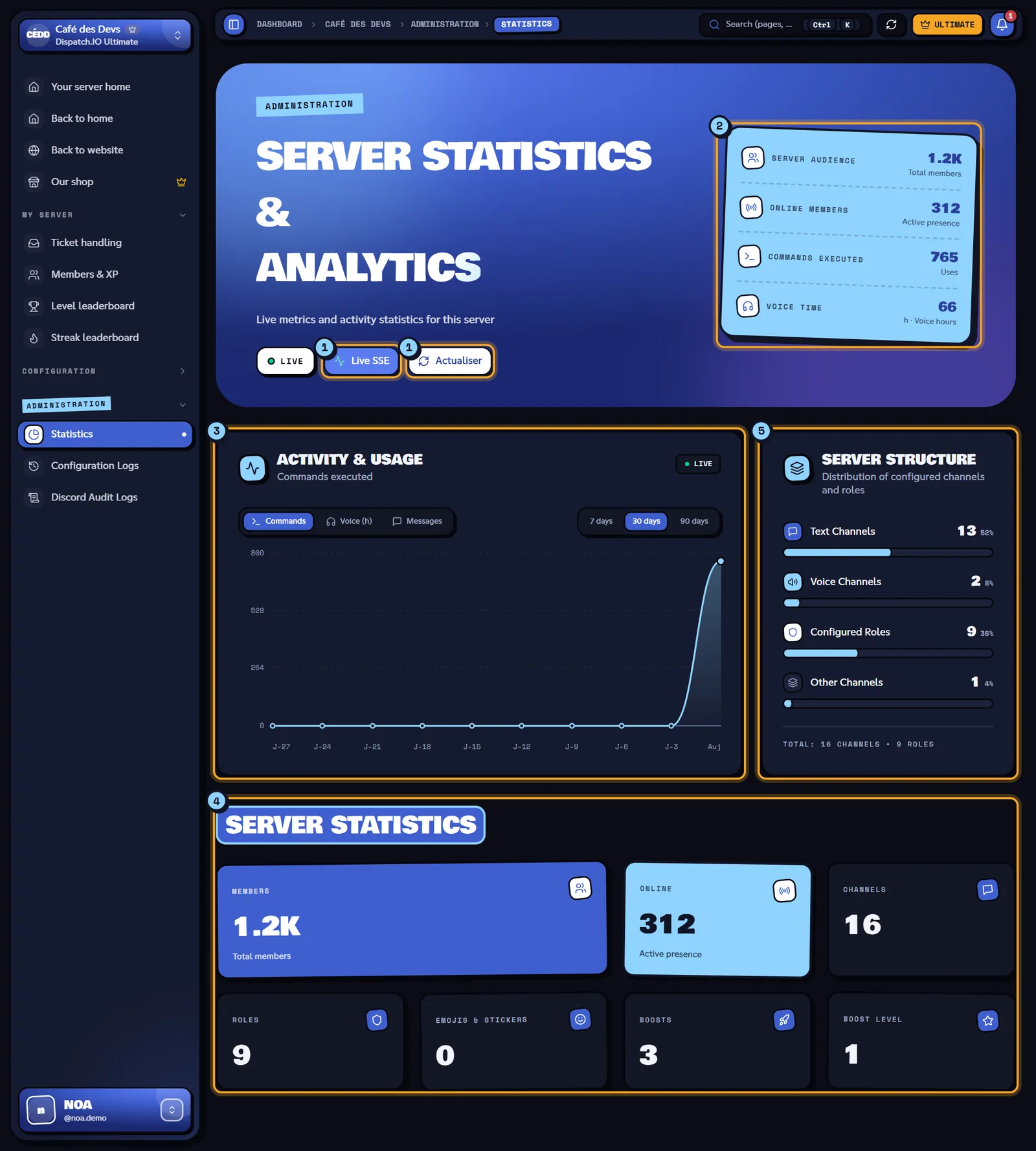
- Live SSE / Live Off turns live updates on or off; Actualiser (refresh) reloads the figures.
- The four main counters.
- The Activity & Usage chart, with the choice of metric and period.
- The Server Statistics tiles.
- The Server Structure breakdown.
The counters
| Counter | What it measures | Source |
|---|---|---|
| Server Audience | Total number of members. | Discord (approximate value). |
| Online Members | Members online right now. | Discord (approximate value). |
| Commands Executed | Dispatch.IO commands used on the server since tracking started. | Bot counters. |
| Voice Time | Total hours members spent in voice channels (rounded to the hour). | Bot counters. |
Messages from bots aren't counted, and activity is only measured while Dispatch.IO is on the server.
The activity chart
The Activity & Usage chart (Live badge) shows one metric at a time:
| Tab | Metric | Hover tooltip |
|---|---|---|
| Commands | Dispatch.IO commands used. | "N commands executed" |
| Voice (h) | Hours spent in voice. | "N hrs spent in voice" |
| Messages | Messages sent by members. | "N processed messages" |
Pick the period with 7 days, 30 days (default) or 90 days. Each point on the chart is a single day: every day for 7 days, 10 days spread over the period for 30 days (marks "J-27", "J-24"… up to "Auj", meaning today), 12 days spread out for 90 days. So they aren't weekly totals.
Note
The axis marks aren't translated: they're shown as they are whatever the site language ("J-n" means n days ago).
Server tiles and structure
The Server Statistics tiles show Discord's figures: Members, Online, Channels (all types), Roles, Emojis & Stickers, Boosts and Boost Level.
The Server Structure section ("Distribution of configured channels and roles") compares Text Channels, Voice Channels, Other Channels (announcements, forums, stages…) and Configured Roles, each with its share as a percentage, then a total "Total: N channels • N roles".
Tip
Discord data (channels, roles, emojis, boosts) is kept for 30 minutes. After a change on Discord, click Sync Discord Data at the top of the page to see it right away.
Live updates
- While Live SSE is on (default), the bot signals every change to its counters (within two seconds of the activity) and the page reloads the figures on its own.
- Figures are also reloaded when you come back to the browser tab.
- Live Off freezes the display; Actualiser reloads on demand.
See Synchronisation with the bot for how live updates work.
Related pages
- Server home
- My activity: your personal statistics.
- Logs