
Tickets let your members open a private conversation with your team: they click a button (or pick a topic in a menu) and the bot creates a channel reserved for the member and the staff. On the website, two pages take care of it:
- Tickets (Configuration menu): create and publish ticket systems, the panels posted in a Discord channel.
- Ticket handling (My server menu): the ticket list and a workspace to read, reply, close or sanction.
This page is meant for administrators and the support team. The member's journey on Discord (reason prompt, channel created, buttons inside the ticket) is described in the Tickets module.
The configuration page
Open Configuration > Tickets in the menu or the Tickets tile of the server home.
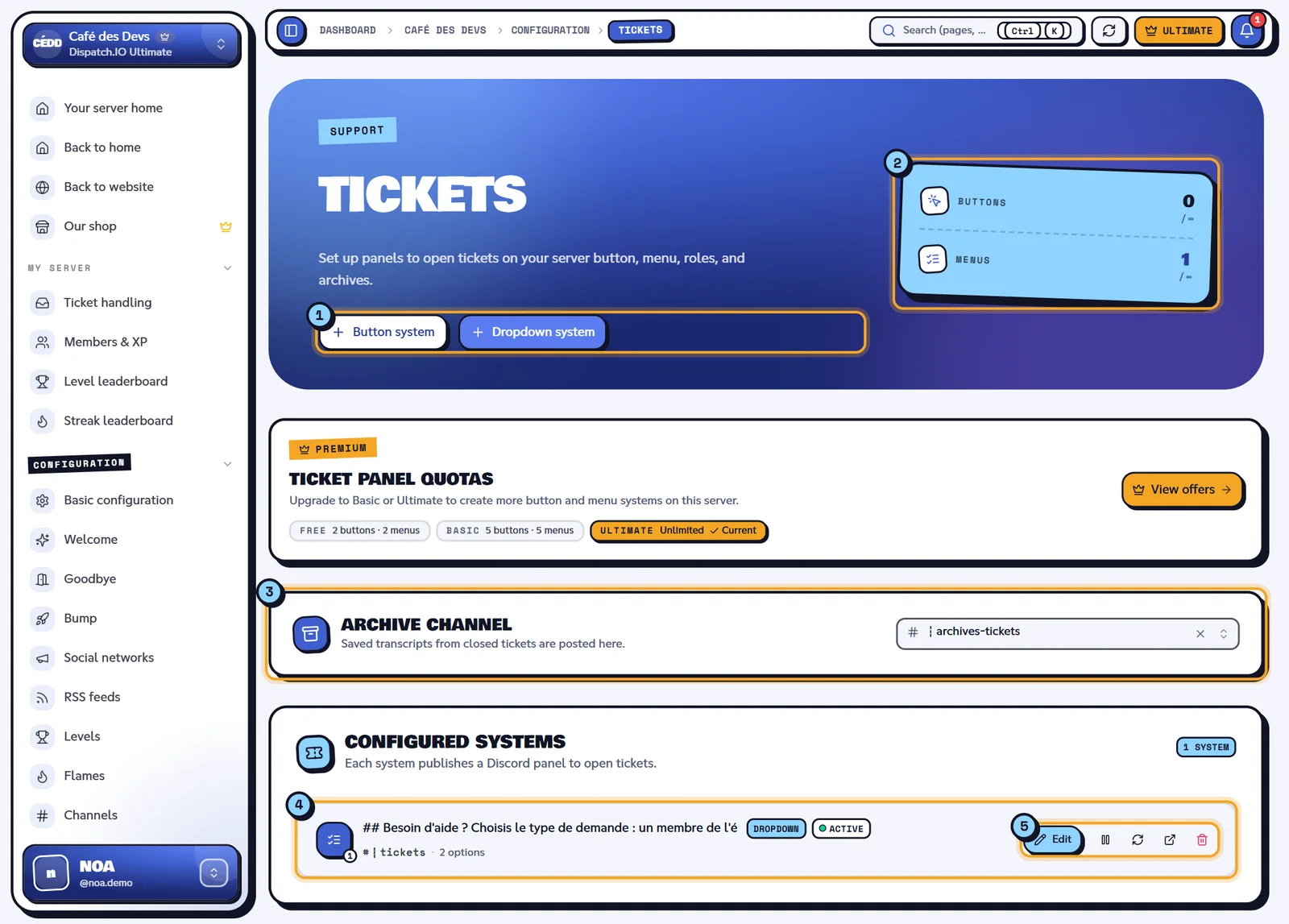
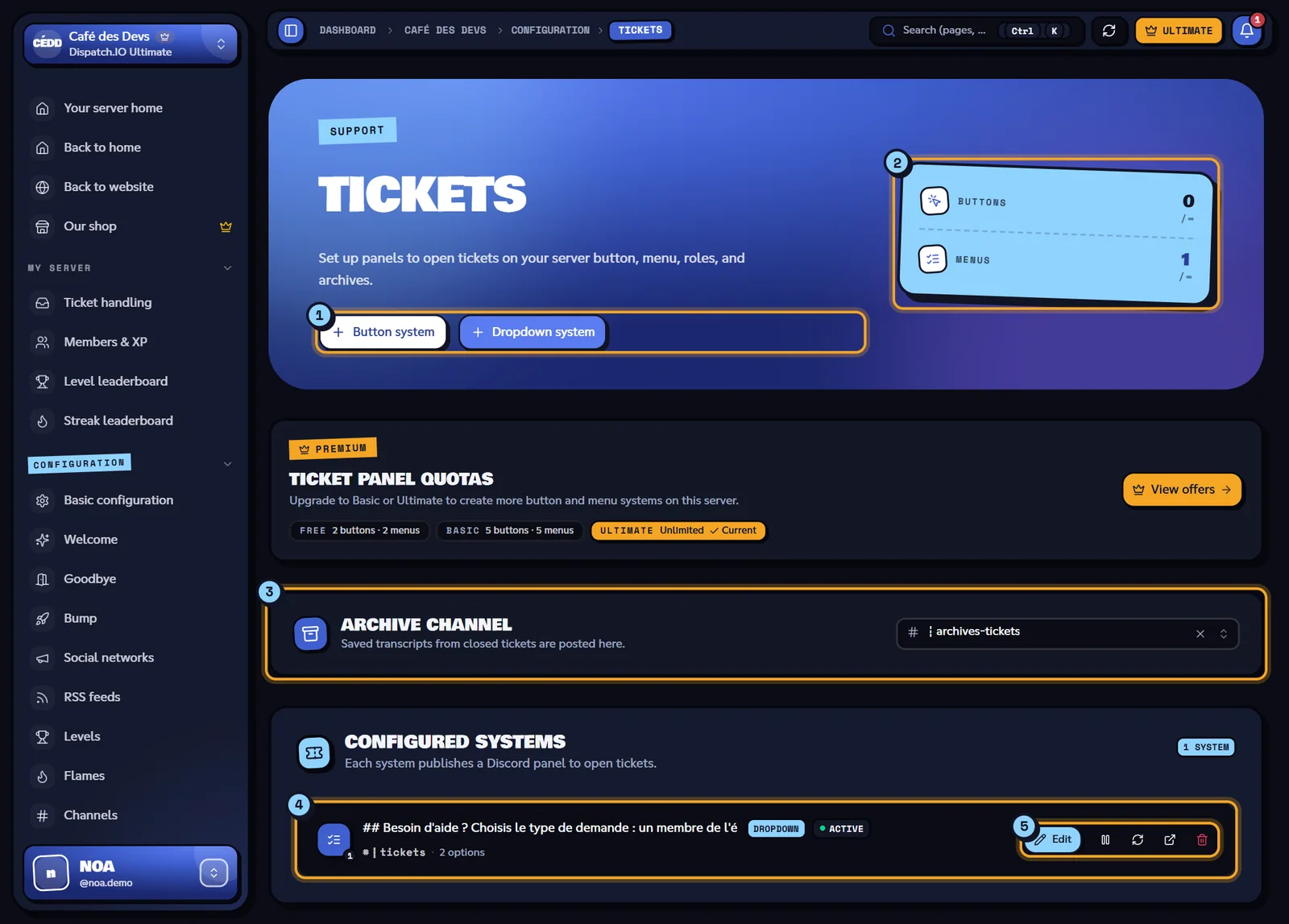
- Button system and Dropdown system: create a new system.
- Quotas: Buttons and Menus used out of your plan's maximum (∞ with Ultimate).
- Archive channel: where saved transcripts are posted.
- A configured system: title, type, status, channel and number of options.
- The system's actions: Edit, pause, repost, open in Discord (once the panel is posted), delete (icons, with a tooltip on hover).
Archive channel
The Archive channel receives the transcripts of saved tickets. It is saved as soon as you pick it ("Archive channel updated."), with no save bar. No channel (disabled) stops posting transcripts (they stay available on the website). It's the same setting as Ticket Transcripts & Archives on the Channels page.
Limits per plan
| Free | Basic | Ultimate | |
|---|---|---|---|
| Button systems | 2 | 5 | Unlimited |
| Dropdown systems | 2 | 5 | Unlimited |
When a type is full, its create button is greyed out and the Ticket panel quotas banner shows "You've hit the limit for your current plan.". Editing an existing system is always possible. Other limits, for every plan:
- a button system has exactly 1 option; a dropdown system has up to 25;
- 10 mentioned roles max per option;
- 50 characters max for the channel prefix.
Creating a system step by step
Click Button system or Dropdown system. The editor opens with, on the right, a Discord preview of the panel that follows your changes.
| Step | What you fill in |
|---|---|
| Format | Button: a single button, one ticket type, ideal for simple support. Dropdown: a menu with several options (up to 25), ideal for routing requests. The format can't be changed afterwards. |
| Destination | Panel channel: where the opening message will be posted. Tickets category: the Discord category where ticket channels will be created. Both are required. |
| Content | Panel description (required): the message text, Discord Markdown accepted. Panel image (optional): upload (5 MB max) or HTTPS link. For a button system, the Ticket option is also filled in here. |
| Options (dropdown only) | The menu entries: Add creates one, the 01, 02… tabs switch between them, the bin deletes one (at least one is needed). |
| Review | The summary (type, channel, category, options). Save & publish creates the system and publishes the panel. |
Continue goes to the next step, Back goes back. Back to list or Close ask for confirmation ("Leave the editor?"): your unsaved changes would be lost.
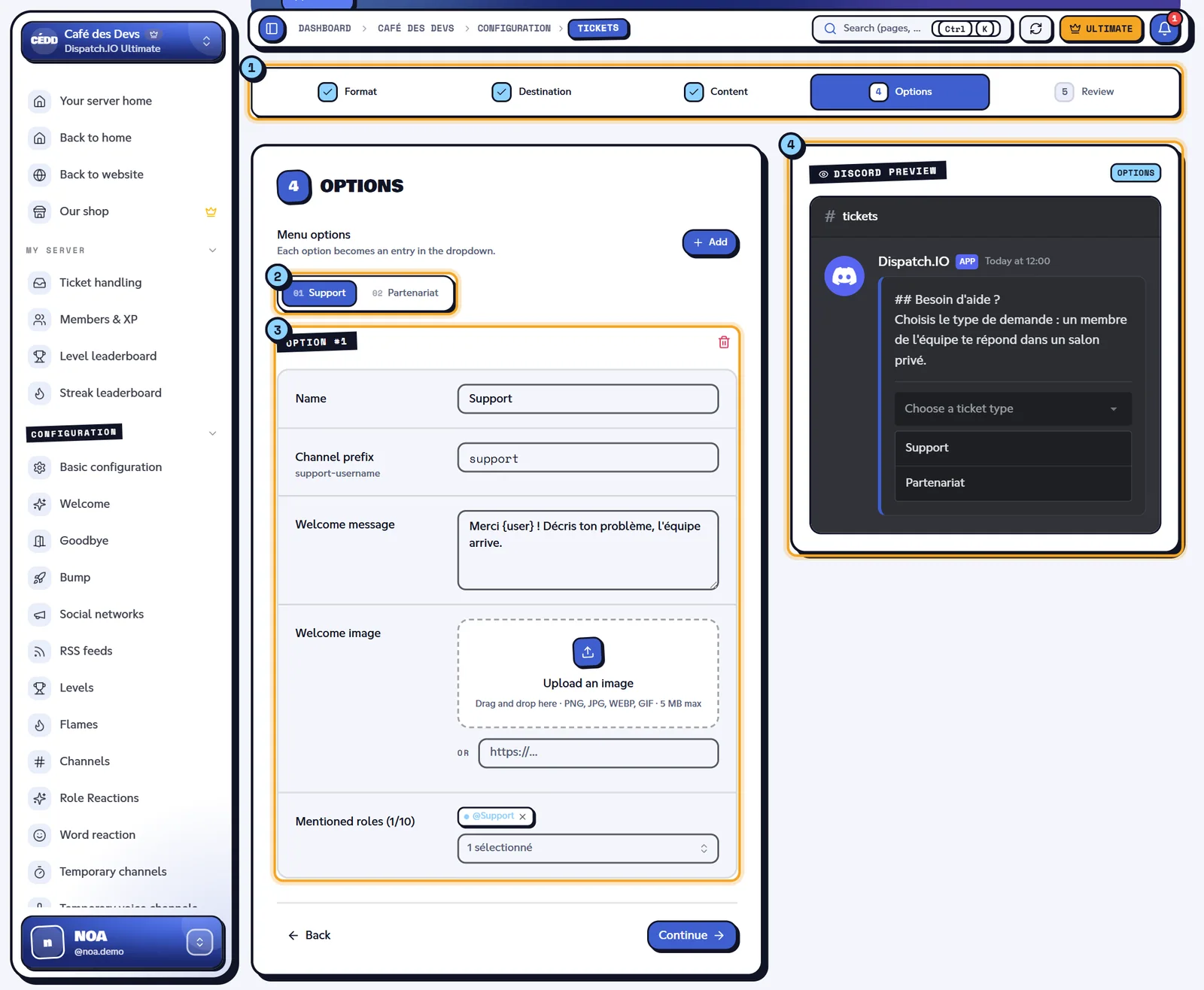
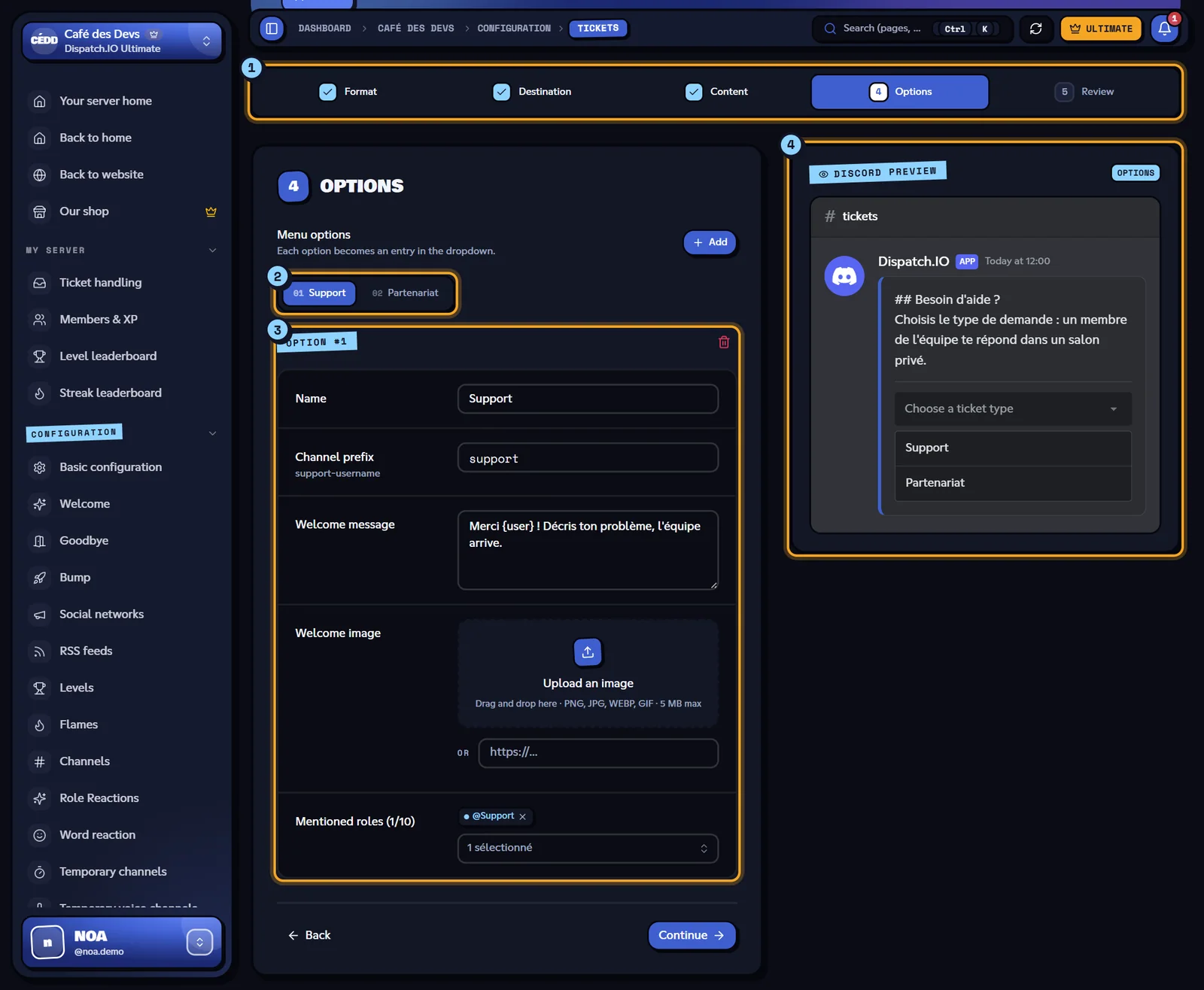
- The editor steps.
- The option tabs and the Add button.
- The fields of the current option.
- The Discord preview: description, image and the "Choose a ticket type" menu.
Note
The category list only shows categories that contain at least one channel. If it's empty ("No categories detected…"), create a category with a channel inside on Discord, then click Sync Discord Data in the site header.
After saving: "System saved and Discord panel synced.". The bot posts the panel in the chosen channel within a few seconds.
Ticket options
Each option is one ticket type (the button of a button system, or one entry of the menu).
| Field | What it does | Rules |
|---|---|---|
| Name | Text of the button or menu entry | Required |
| Channel prefix | Start of the created channel names: support gives support-alex for Alex | Required, 50 characters max |
| Welcome message | Text posted in the ticket channel when it's created | Optional |
| Welcome image | Image added to that message (dropdown systems only) | Optional, 5 MB max |
| Mentioned roles | Roles mentioned in the new ticket and given access to it. Without roles, administrators are mentioned. | 10 max (the counter shows n/10) |
Example on Café des Devs: the Support option (prefix support, role @Support) and the Partenariat option (prefix partenariat, role @Admins).
Editing, pausing, reposting, deleting
On each row of Configured systems:
| Action | Effect | Message |
|---|---|---|
| Edit | Reopens the editor at the Destination step. If you change the channel, the old panel is deleted and a new one is posted. | "System saved and Discord panel synced." |
| Pause | The panel's button or menu is disabled on Discord: nobody can open a ticket with this system anymore. The status becomes Paused. | "System paused." |
| Resume | Makes the panel usable again (status Active). | "System resumed." |
| Repost panel | Deletes the old panel message and posts a new one (handy if the message was deleted or scrolled too far up). | "Discord panel repost requested." |
| External link icon | Opens the panel message in Discord (shown once the panel is published). | — |
| Delete | After the browser confirmation ("Delete this system and its Discord panel?"), deletes the system, its options and the Discord panel. | "Ticket system deleted." |
Warning
Deleting a system (or removing an option in the editor) also erases its tickets and their saved transcripts on the website. Transcripts already posted in the archive channel stay on Discord.
Handling tickets: the list
Open My server > Ticket handling. The page lists the server's tickets, 10 per page.
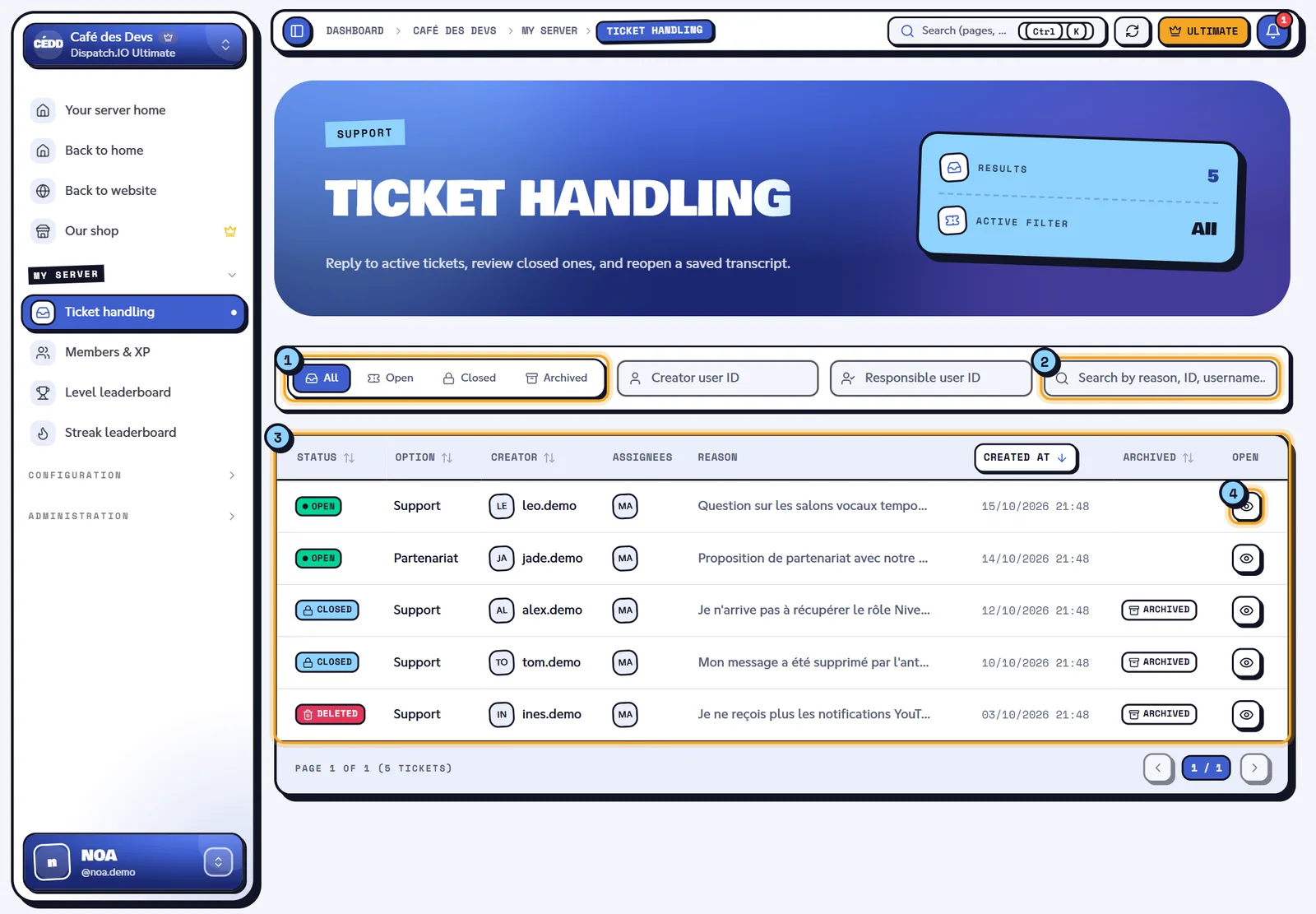
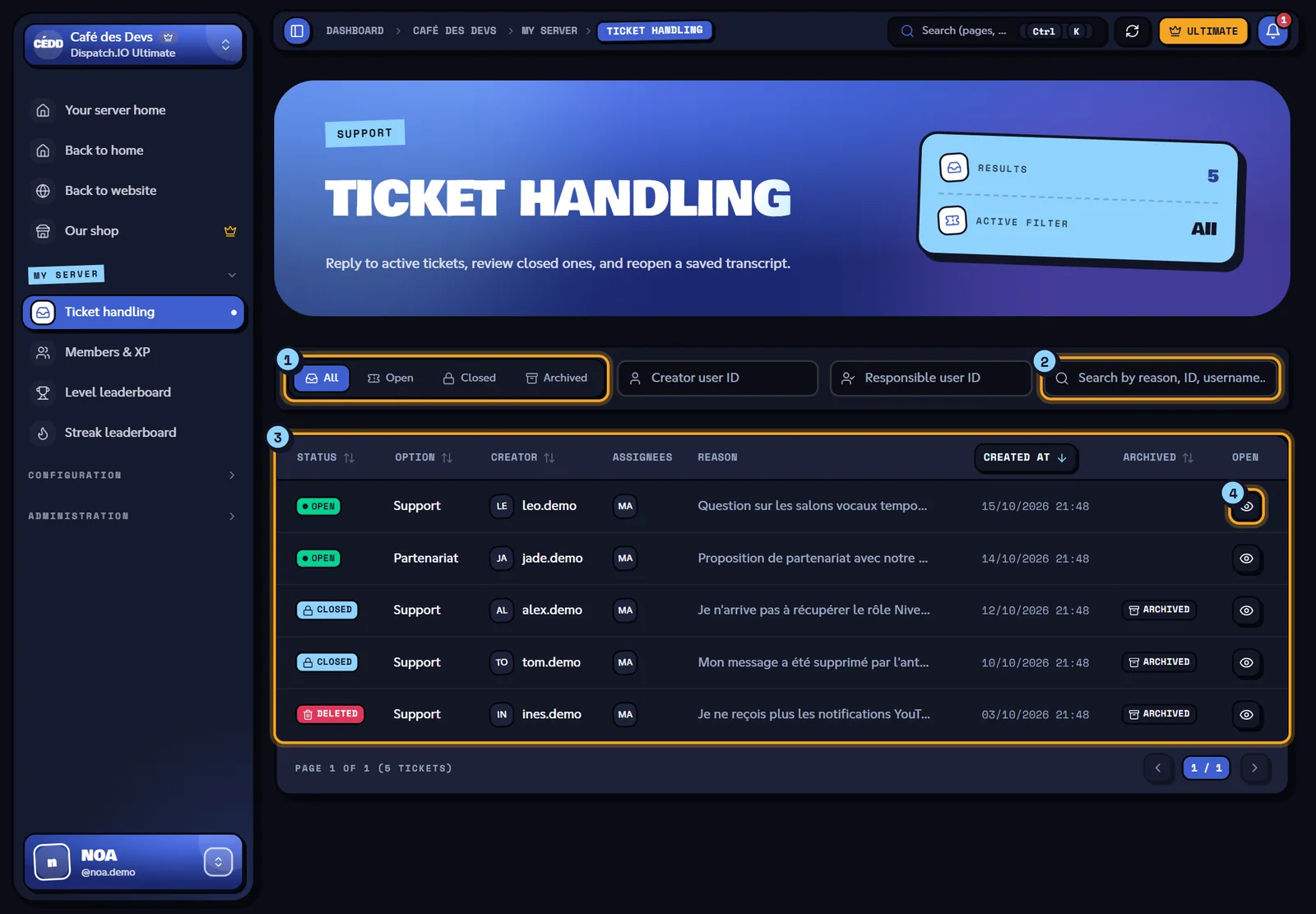
- Status filter: All, Open, Closed or Archived (tickets whose transcript was saved).
- Search: by reason, ID or username.
- The table: Status, Option, Creator, Assignees, Reason, Created at, archive.
- Open: opens the ticket workspace.
- The Status, Option, Creator, Created at and archive columns sort with a click.
- Server administrators get two extra filters: Creator user ID and Responsible user ID (full Discord IDs).
- Filters are kept in the page address: you can share it with your team.
- The list doesn't update live: reload the page (or come back to the tab) to see new tickets.
If the list fails to load: "Could not load tickets. Please try again in a moment." (for instance with an invalid ID in a filter).
The ticket workspace
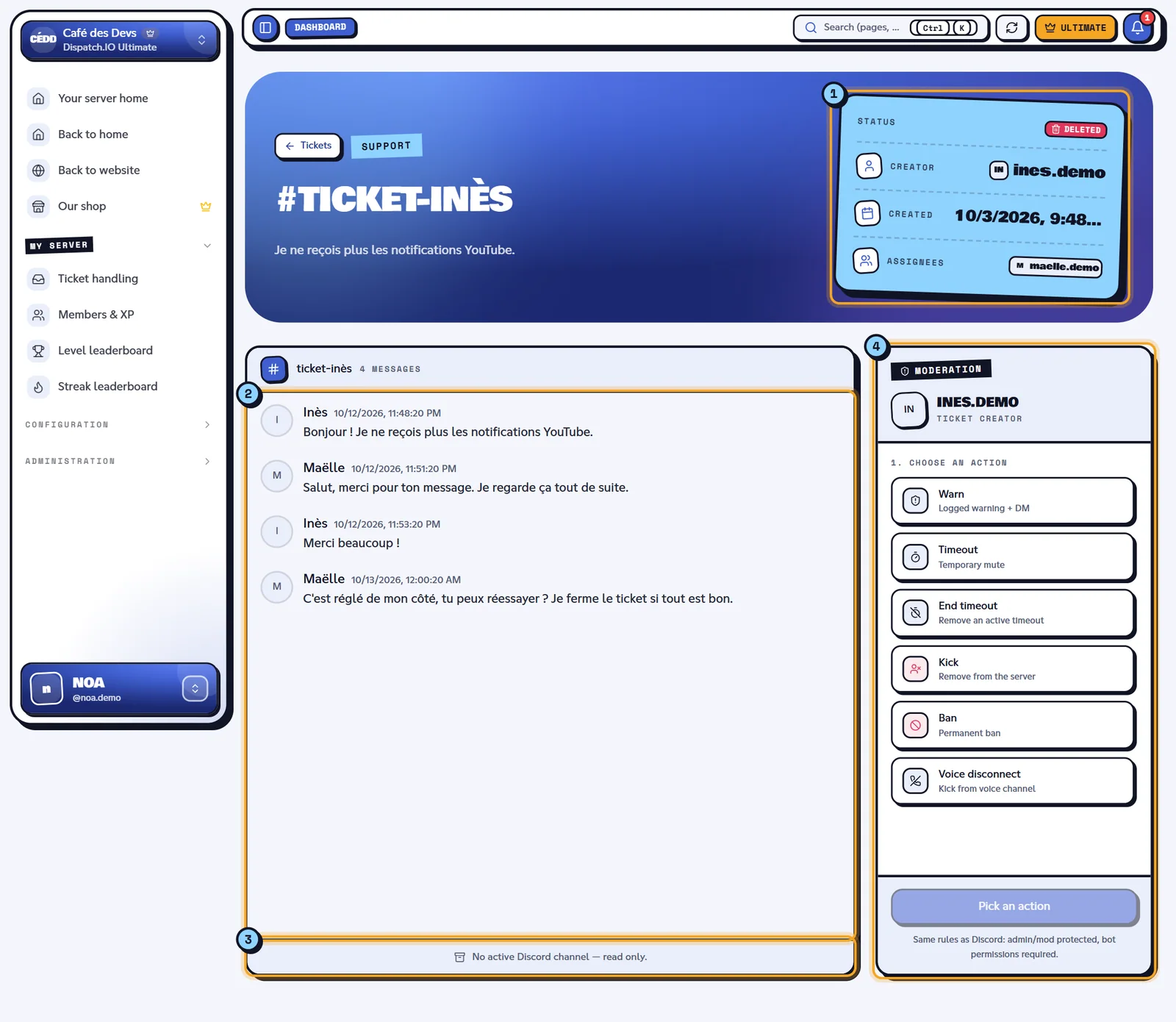
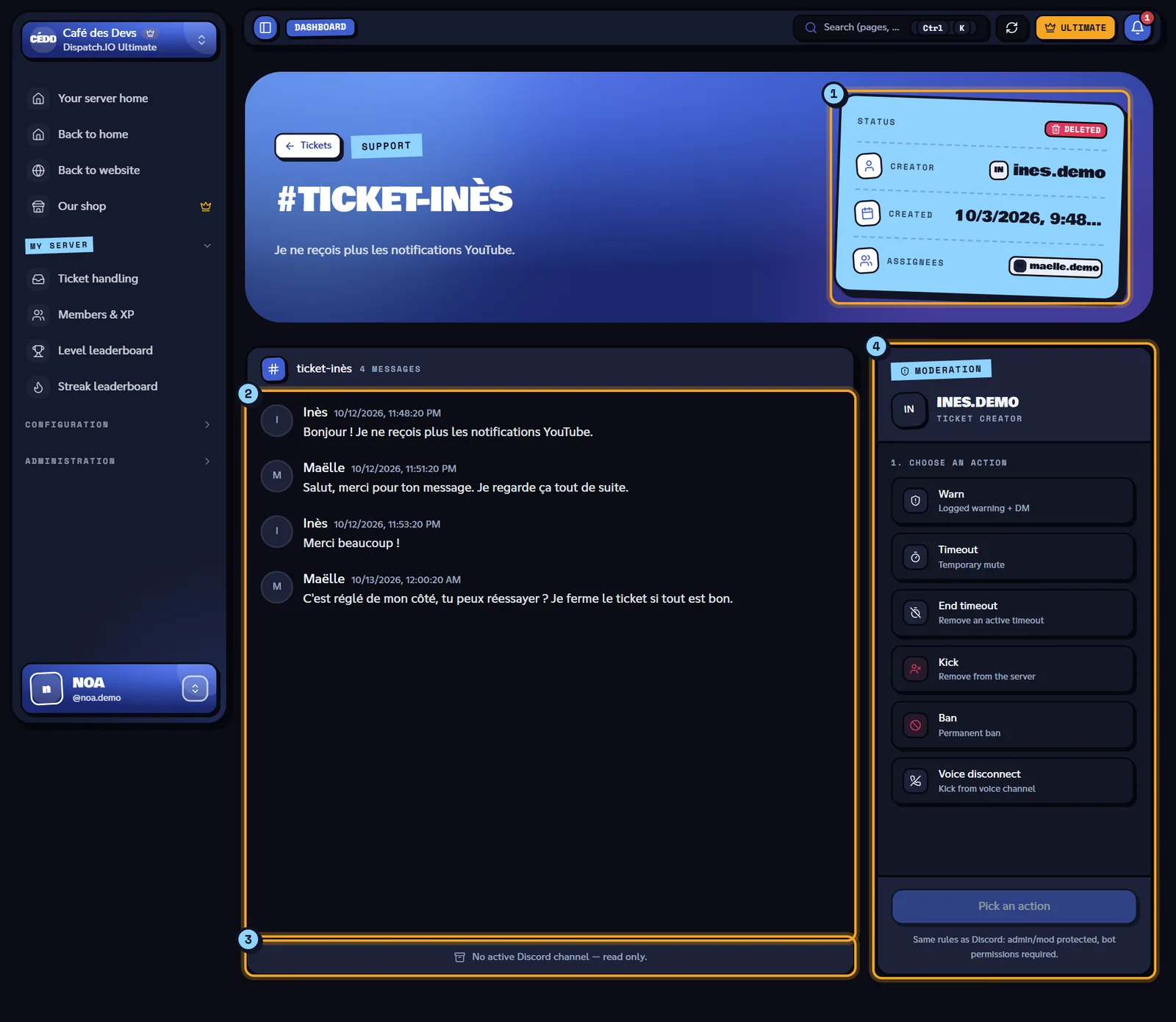
- The details: Status, Creator, Created, Assignees. On a live ticket (its channel still exists), the header also shows the ticket actions (Save, Claim, Close or Reopen, Rename) and the Add button for assignees.
- The transcript: the channel's messages, as on Discord.
- The bottom of the transcript: "No active Discord channel — read only." here; on an open ticket, this is the reply box.
- The Moderation panel.
Actions
| Action | Effect on Discord | Message |
|---|---|---|
| Save | Saves the ticket transcript and posts it in the Archive channel (nothing is posted in the ticket). | "Transcript saved" |
| Claim | Gives you access to the channel, adds you to the assignees and announces it in the ticket. | "Claim requested" |
| Close / Reopen | Closes or reopens the ticket. | "Close requested" / "Reopen requested" |
| Rename | Changes the name of the Discord channel and of the saved transcript. | "Channel renamed and archive updated" |
| Add (assignees) | Pick a member in Add a member: they get access to the channel. The × on an assignee removes them. | "Member added" / "Member removed" |
Actions go through the bot: messages say "requested" because the bot runs them within the next few seconds. If nothing changes on Discord, check the bot's permissions in the ticket category.
The transcript
- Ongoing ticket (its channel exists): messages are loaded from Discord ("Loading Discord messages…") and then arrive live. Scroll up to load older ones.
- Deleted channel: the saved transcript is shown, read only ("No active Discord channel — read only.").
- Edited messages are marked edited (the Changes button shows before/after); messages deleted on Discord stay greyed out with Deleted.
- On bot messages, Edit and Delete act directly on Discord.
Replying
The reply box only shows on an open ticket. Your message is posted as the bot (not under your name): sign it if needed.
- Enter sends, Shift+Enter adds a new line.
- Attach a file or Image / GIF: 3 files max per message, 7 MB max each (images, videos, PDF, TXT, ZIP, RAR, DOC, DOCX). You can also paste an image.
- On a closed ticket: "Ticket closed — reopen it to reply."
Some of these error messages are only available in French:
| Error message | Cause |
|---|---|
| "Message vide" | Nothing to send. |
| "Maximum 3 fichiers" / "Fichier trop volumineux (max 7 Mo)" | Too many files or file too large (7 MB). |
| "Salon Discord indisponible" | The ticket channel no longer exists. |
| "Action impossible" / "Action failed" | The action was refused: reload the page and try again. |
Sanctioning the ticket creator
The Moderation panel on the right always acts on the ticket creator.
- Choose an action:
| Action | What it does | Reason |
|---|---|---|
| Warn | Logged warning + DM | Required |
| Timeout | Temporary mute: 1 hour, 1 day, 7 days or 28 days | Required |
| End timeout | Removes an active timeout | Optional |
| Kick | Removes the member from the server | Required |
| Ban | Permanent ban, with the Delete messages (7 days) option | Required |
| Voice disconnect | Disconnects the member from their voice channel | Required |
- Write the Reason (2 characters minimum when required).
- Click the confirm button ("Send warning", "Apply timeout", "Confirm ban"…).
The same rules as on Discord apply ("admin/mod protected, bot permissions required"): your highest role must be above the member's (except for a warning) and the bot needs the matching permissions, for instance Kick Members or Ban Members (see Permissions and roles). The sanction is recorded in the member's infractions and posted in Moderation & Sanction Logs. The matching commands are in Moderation.
| Error message | Cause |
|---|---|
| "Impossible de te sanctionner toi-même" | You are the ticket creator. |
| "Raison trop courte" | Fewer than 2 characters. |
| "Sanction failed" | The bot refused or couldn't apply the sanction. |
Common configuration errors
The editor's error messages are shown in French, whatever the website language.
| Message | Cause |
|---|---|
| "Salon, catégorie et description sont requis." | A step isn't complete (channel, category, description). |
| "Au moins une option ticket est requise." | The system has no option. |
| "Chaque option doit avoir un nom et un préfixe de salon." | An option is incomplete (name, prefix). |
| "Le préfixe de salon est limité à 50 caractères." | Prefix too long. |
| "Maximum 10 rôles mentionnés par option." | Too many roles. |
| "Limite atteinte : … système(s) bouton maximum." (or menu) | Plan quota reached. |
| "Aucun salon panel configuré." | Reposting without a panel channel. |
Related pages
- Tickets (bot module): what the member sees and the buttons inside the ticket.
- Channels: the archive channel.
- Moderation: sanctions as commands.
- Premium plans and limits: system quotas.