
This page starts from what you see (a message, a blocked page, a greyed-out button), explains why and gives the fix. For general questions, check the Website FAQ first. For a problem with a bot command on Discord, see Bot troubleshooting.
When you open a server's setup page, the website runs these checks in order:
Sign-in and session
Redirects to Discord, sign-in error messages, multiple accounts.
| What you see | Why | Fix |
|---|---|---|
| Every dashboard page sends you to Discord | You don't have a valid session: signed out, session expired (more than 2 days away), private browsing or another browser. | Authorise the sign-in on Discord. If it happens every time, check that your browser accepts the website's cookies. |
| A red message in the bottom-right corner after signing in | The Discord sign-in failed (see the next table). | Start again from the Sign in button. |
| You end up on another of your accounts | Your active account's session expired; the website switched to another account still signed in on this browser. | Profile menu › Change account, then pick the right account (sign it back in if needed). |
| Add an account is greyed out | You already have 5 accounts signed in on this browser, the maximum. | Disconnect an account in Manage accounts. |


The most common sign-in error messages:
| Message | Likely cause | Fix |
|---|---|---|
| "Access denied." | You clicked Cancel on Discord's authorisation page. | Try again and click Authorize. |
| "Invalid or expired login attempt. Please try again." | You confirmed an old authorisation page (tab left open, going back) or cookies are blocked. | Close the sign-in tabs and start again from Sign in. |
| "No email returned by provider. Check settings." | Discord didn't share an email address. | Check that your Discord account has a verified email address, then try again. |
| "No authorization code received. Please try again." / "Please restart the authentication process." | The sign-in was interrupted. | Start again from Sign in. |
| "An unknown error occurred. Please try again." | Another problem. | Try again in a few minutes, then contact support if it keeps happening. |
The Banned page
When the dashboard only shows one page.
What you see: every dashboard page takes you back to the same page; the browser tab reads "Banned of Dispatch.IO™". For now, this page only shows the text "This page is a work in progress by IO. Come back soon!".
Why: your account is banned from the dashboard, for example because your Discord ID is on the Dispatch.IO blacklist. The reason isn't shown.
Fix: contact the team on the support server (the /discord address, or the Support button in the top menu). Public pages (home, leaderboards, documentation) stay available.
Page not found or access denied
Maze, empty menu, team pages.
| What you see | Why | Fix |
|---|---|---|
| The maze "The page you were looking for has been lost in the maze!" when opening a server | You don't own the server and have neither Administrator nor Manage Server, you're on the wrong account, or the ID in the address is wrong. | Check your Discord permissions and your active account, then go through My servers. The maze's "clicking here" link takes you back to the dashboard. |
| The server opens but its side menu is empty | You have Manage Server but not Administrator: the menu only shows for the owner and administrators. | Use the Modules tiles on the server home page. |
| Your server isn't in My servers | Same reason as the maze, or the list is out of date. | Click Sync Discord Data in the top bar. |
| The Commands menu link leads to "This page got lost." | That page doesn't exist on the website yet. | See All commands. |
| A public leaderboard shows "This page got lost." | The server ID is wrong, or the bot doesn't know this server. | See Leaderboards and rank cards. |
| An administration page is not found or sends you back to the dashboard | These pages are reserved for the Dispatch.IO team. | Nothing to do: this is expected if you're not on the team. |
The bot and your settings
Bot missing, settings with no effect, module turned off.
| What you see | Why | Fix |
|---|---|---|
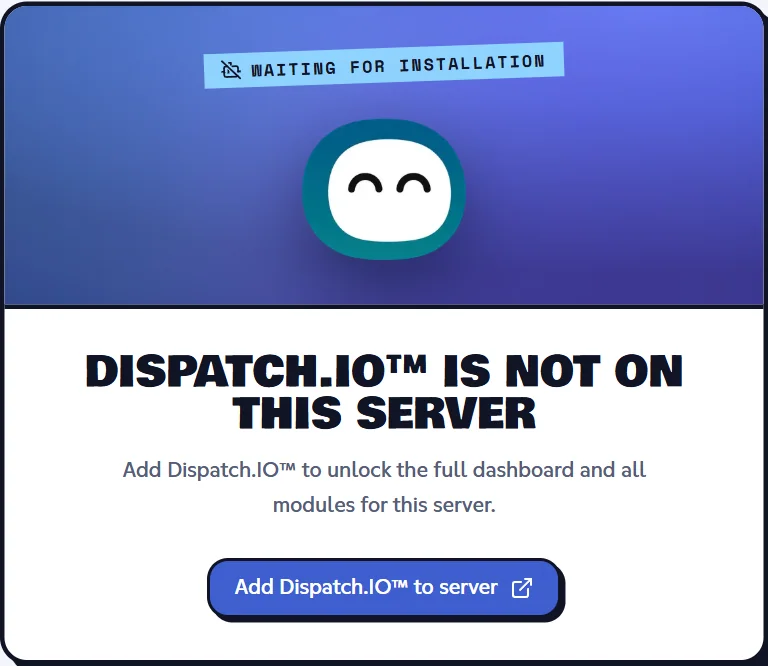
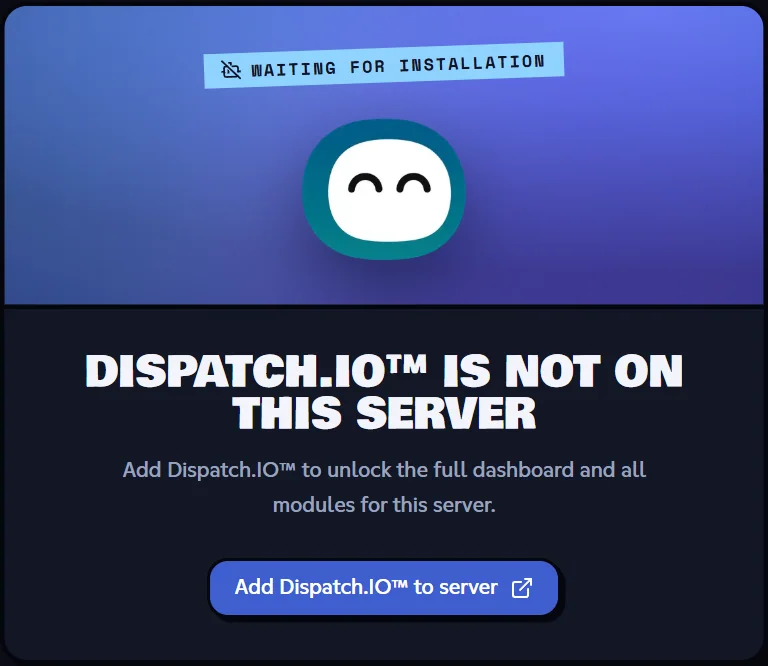
| "Dispatch.IO™ is not on this server" on every page of the server | The bot hasn't been added, or it was removed from the server. | Click Add Dispatch.IO™ to server, pick the server and confirm. The page updates on its own when the bot arrives. |
| Your settings are lost | On a server's pages, leaving the page without clicking Save changes discards your edits, with no warning. | Always save before moving to another page. |
| The setting is saved but nothing happens on Discord | The bot is offline, or it is missing a Discord permission in the chosen channel. Announcement channels appear in the lists, but the bot doesn't post welcome, goodbye or log messages there. | Check that the bot is online, its permissions in the channel, and pick a regular text channel. See Permissions and roles. |
| A module turned itself off | When a role changes on the server and the bot has lost a permission, it turns off the module that needs it: anti-raid without Administrator, levels without Manage Roles or Manage Channels, flames without Manage Channels. It reports it in the server's log channel, if there is one. | Give the permission back to the bot's role, then turn the module back on. |
| A new channel or role isn't in the lists | The website keeps a copy of channels and roles for 30 minutes. | Click Sync Discord Data in the top bar. |
| "Cooldown active: 0:47 remaining." | The Sync Discord Data button can only be used once a minute. | Wait for the countdown to finish. |
To understand when a change reaches Discord, read Synchronisation with the bot.
A preview that won't load
Preview images depend on the bot.
What you see: on the Welcome, Goodbye, Levels or Bump pages, the image preview stays empty or shows "Could not generate the canvas. Make sure the bot is online.".
Why: these previews aren't drawn by the website but by the bot itself, so they match exactly what your members will see. The website sends the bot a request and waits a few seconds for the answer (8 at most). If the bot is offline, restarting or very busy, it doesn't answer in time.
Fix:
- Check that the bot is online on Discord.
- Wait a moment, then reload the page to request the preview again.
- The preview isn't needed to save: your settings are saved even if the image doesn't show.
Too many requests (error 429)
The 100 requests per minute limit.
What you see: the website slows down, ticket images or lists stop loading, live updates stop, or an API call answers 429 with "TooManyRequests".
Why: each IP address is allowed 100 requests per minute on the website's /api addresses. The website uses them itself: ticket images, ticket lists, the live-update connection, the home page figures. Lots of open tabs, a script calling the API in a loop or several people behind the same connection can reach the limit. From 80 requests, responses are slowed down; at 100, they are refused.
Fix:
- Wait a minute: the counter starts again from zero.
- Close the website tabs you don't need.
- If you use the API, space out your calls (see the public API).
Note
Displaying images (ticket attachments, previews) also has its own limit of 100 images per minute per account.
Payment and Premium
Stripe, promo codes and subscriptions.
| What you see | Why | Fix |
|---|---|---|
| The Subscribe buttons are greyed out, or the message "Checkout is not available yet." | Online payment isn't turned on for the website. | Try again later or contact the team. |
| "Select a server." | The offer is a server pack and no server is selected. | Pick the server in the card's list (only servers where the bot is present appear). |
| "Unable to start checkout" | The Stripe payment page couldn't be created (offer taken off sale, temporary problem). | Reload the shop and try again. |
| You paid but the offer doesn't show as active | Stripe confirms the payment to the website a few seconds after you come back. | Wait a few seconds: the shop updates on its own. Otherwise reload the page, then contact support with your Stripe receipt. |
| "Your last payment failed: update your payment method to keep your perks." | The payment failed (status Payment overdue). | Manage payment in My subscription, then update your card on Stripe. |
| "No Stripe customer yet — subscribe first." or a greyed-out portal button | You've never paid through Stripe: your perks come from a code or a gift. | Nothing to manage: the offer ends on its end date. |
| "Unable to open the portal" | The Stripe space couldn't be opened. | Try again in a moment. |
Promo code errors (the shop's Promo code field):
| Message | Fix |
|---|---|
| "This code doesn't exist or is no longer active." | Check the spelling; the code may have been turned off. |
| "This code has expired." / "This code isn't active yet." | The code can't be used today. |
| "You've already used this code." | A free days code can only be used once per account. |
| "This code has reached its maximum number of uses." | There are no uses left for this code. |
| "Pick the server that should receive the offer." | The code's offer is a server pack: pick the server in the window. |
| "This code is used at checkout." | It's a discount code: enter it on the Stripe payment page, after Subscribe. |
How the shop works is detailed in Shop and subscription.