
The dashboard has two "temporary" features, on two separate pages of the Configuration menu:
| Menu page | What it does | Example |
|---|---|---|
| Temporary channels | Messages in a text channel are deleted automatically after a delay. The channel itself stays. | In #general, every message disappears after 10 minutes. |
| Temporary voice channels | Joining a "creator" voice channel spawns a private voice room for the member; it is deleted once empty. | Alex joins "➕ Créer un salon" and lands in "🔊 Voice of Alex". |
This page is for server owners and administrators. How things work on the Discord side (voice room control panel, etc.) is covered in Temporary channels (module).
Temporary channels: the page
In the left menu, Configuration group, click Temporary channels.
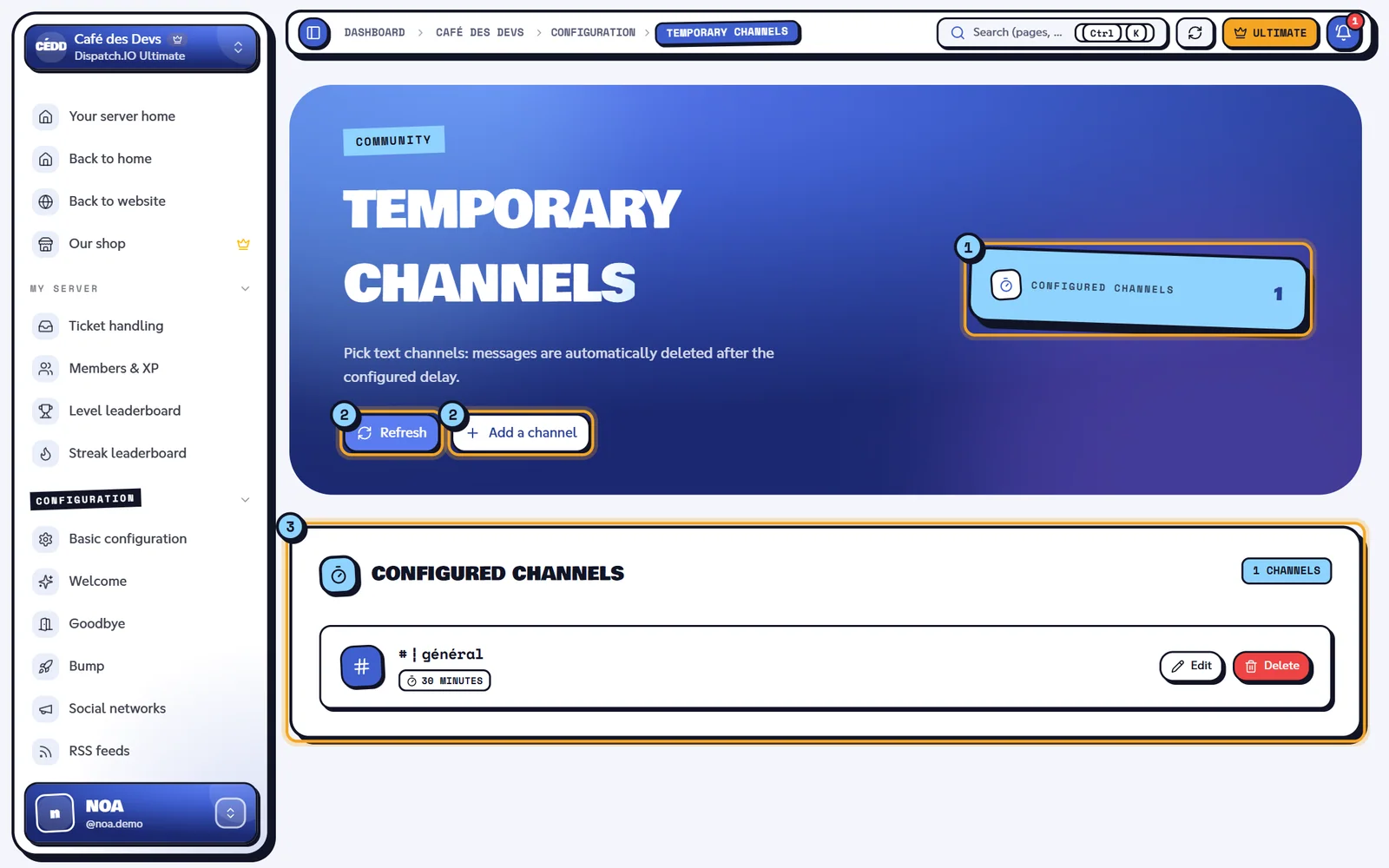
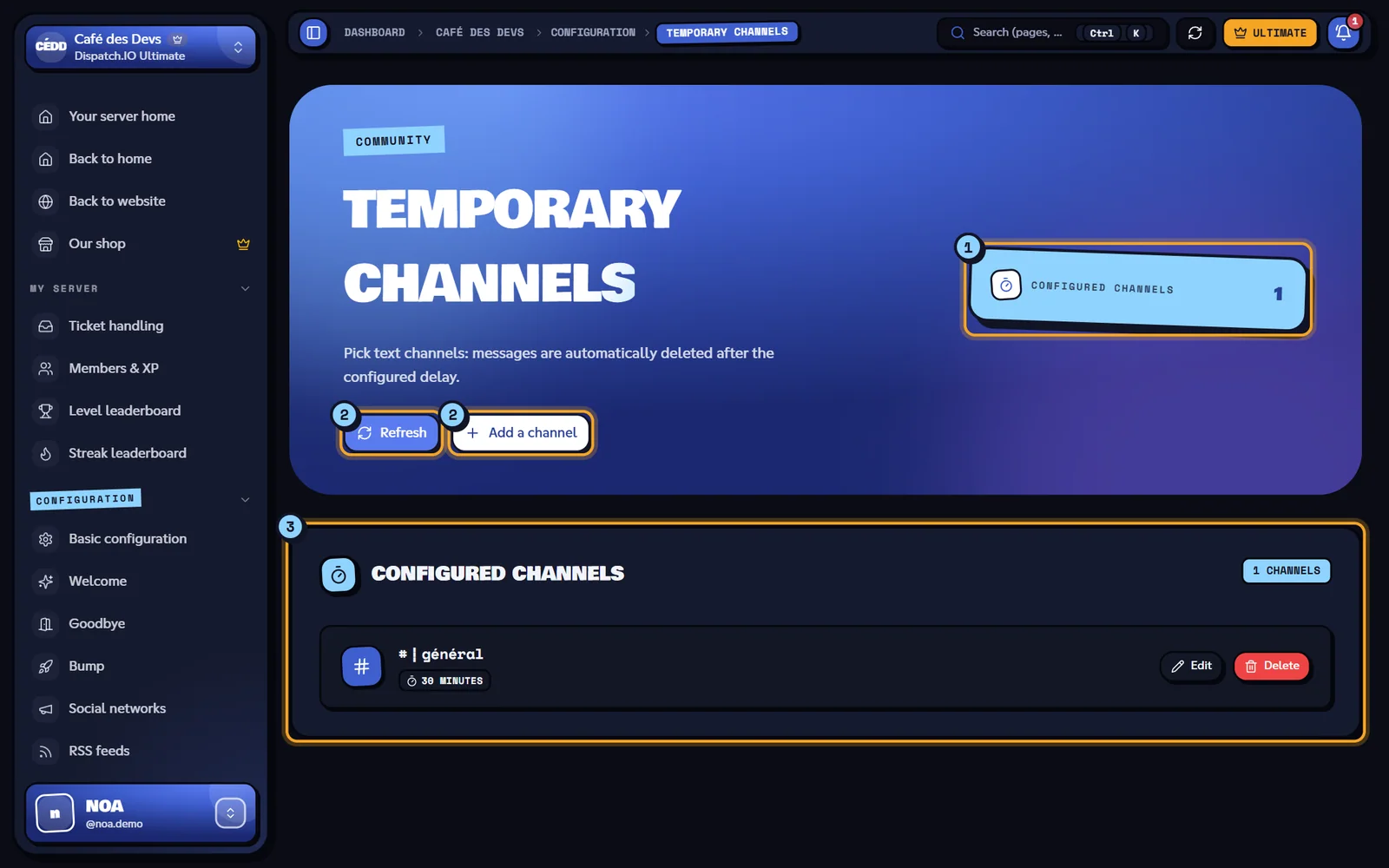
- The Configured channels counter.
- Refresh reloads the list; Add a channel opens the form.
- The Configured channels list: the channel, the chosen delay, the Pinned kept badge when that option is on, Edit and the bin icon.
This feature is available on every plan, with no limit on the number of channels.
Add a self-cleaning channel
- Click Add a channel. The New temporary channel form opens.
- Set the fields below, then click Save ("Temporary channel created.").
| Field | Effect on the bot | Values | Default |
|---|---|---|---|
| Text channel | The channel whose messages will be deleted. | A text or announcement channel of the server. Required. | — |
| Delete after | Time between a message being sent and its deletion. | 10 seconds, 30 seconds, 1 minute, 5 minutes, 10 minutes, 15 minutes, 30 minutes, 1 hour, 1 h 30, 2 hours | 1 minute |
| Keep pinned messages | On: a message pinned before the delay runs out is not deleted. | On / off | Off |
To change an existing channel, click Edit, change the values, then Update. The bin removes the configuration without confirmation (messages are no longer deleted; those already deleted don't come back).
What the bot does in these channels
- For every new message (including messages from bots), the bot schedules its deletion after the chosen delay.
- When the time comes, it checks the message again: it keeps it if it was pinned in the meantime (when Keep pinned messages is on) and never touches the music player's control message.
- Messages already there before the channel was configured are not deleted.
- If the bot restarts, pending deletions are lost: messages sent just before the restart stay.
Note
The bot needs the Manage Messages permission in the channel.
Temporary voice channels: the page
In the left menu, Configuration group, click Temporary voice channels.
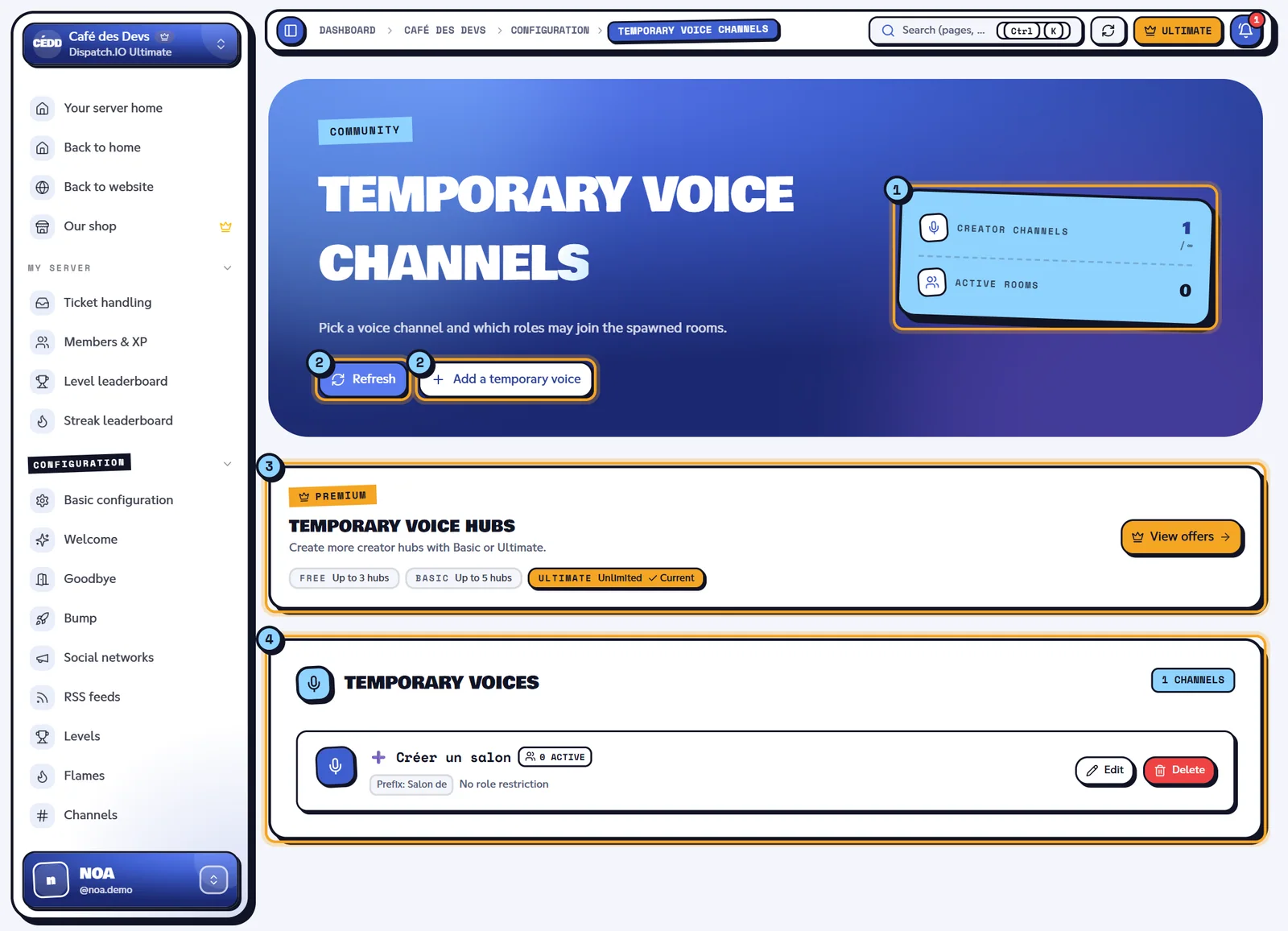
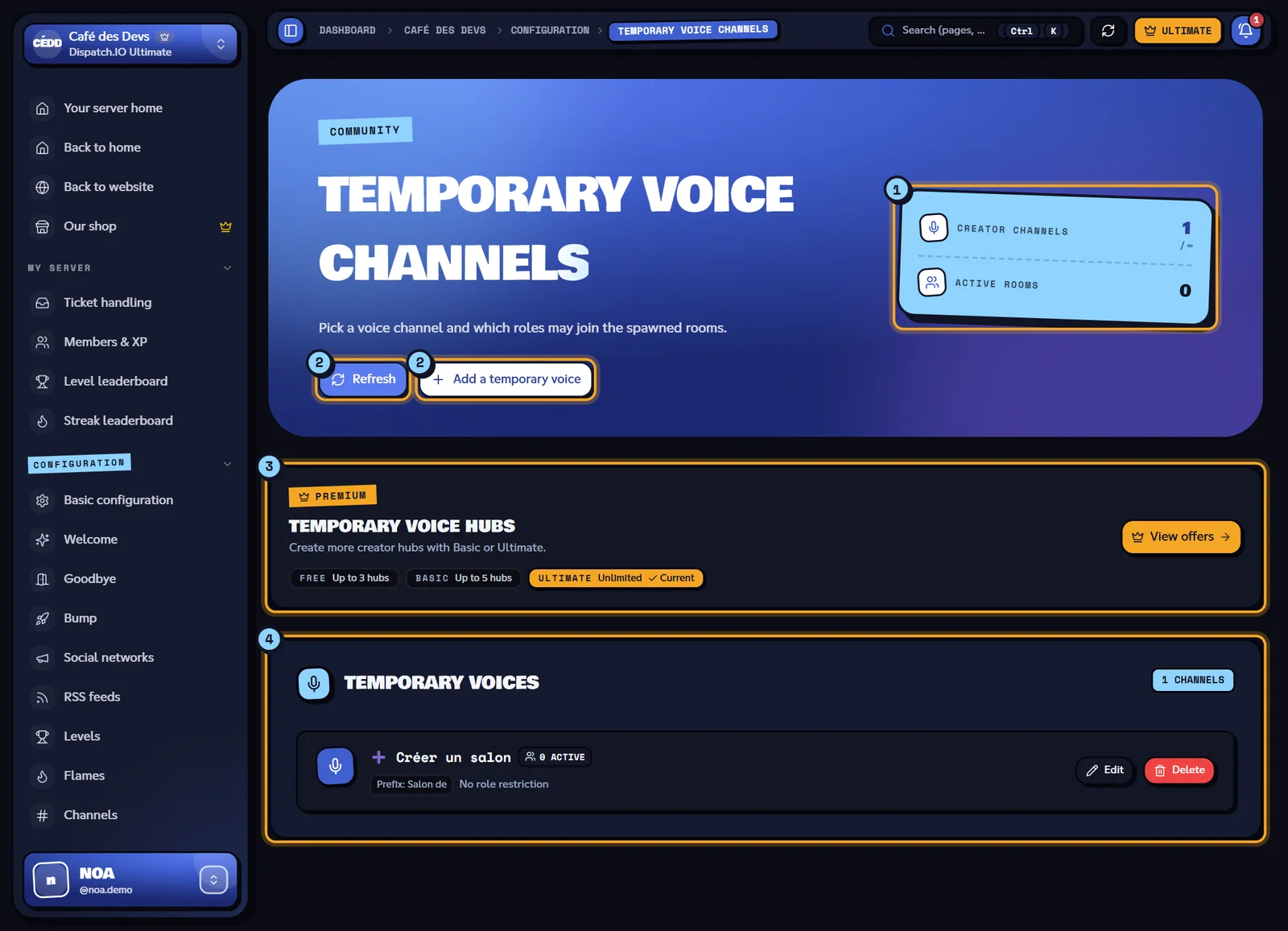
- The Creator channels counter (creator channels / your plan's maximum) and Active rooms (rooms spawned right now).
- Refresh reloads the list and the Discord channels; Add a temporary voice opens the form (greyed out once the limit is reached).
- The Premium banner with each plan's limits.
- The Temporary voices list: the creator channel, the number of active rooms, the prefix, the allowed roles (or No role restriction), Edit and the bin icon.
Add a creator channel
- Click Add a temporary voice. The New temporary voice form opens.
- Set the fields below, then click Save ("Temporary voice added.").
| Field | Effect on the bot | Values | Default |
|---|---|---|---|
| Opening prefix | Start of the spawned rooms' names: the bot adds 🔊, the prefix, then the member's name. The hint under the field shows an example. | 40 characters max. Empty: the bot's default prefix in the server language ("Voice of" / "Salon de"). | Pre-filled with "Salon de" — replace it with your own text, for example "Voice of". |
| Voice channel | The "creator" channel: joining it spawns a room. | A voice or stage channel. Required. | — |
| Allowed roles | Members with these roles can join the spawned rooms. | One or more roles, or none. | None |
No voice channel to use as a creator yet? Click Create a voice channel under the picker: the bot creates a vocal-temporaire channel on Discord and selects it. Remember to click Save afterwards, otherwise it isn't configured.
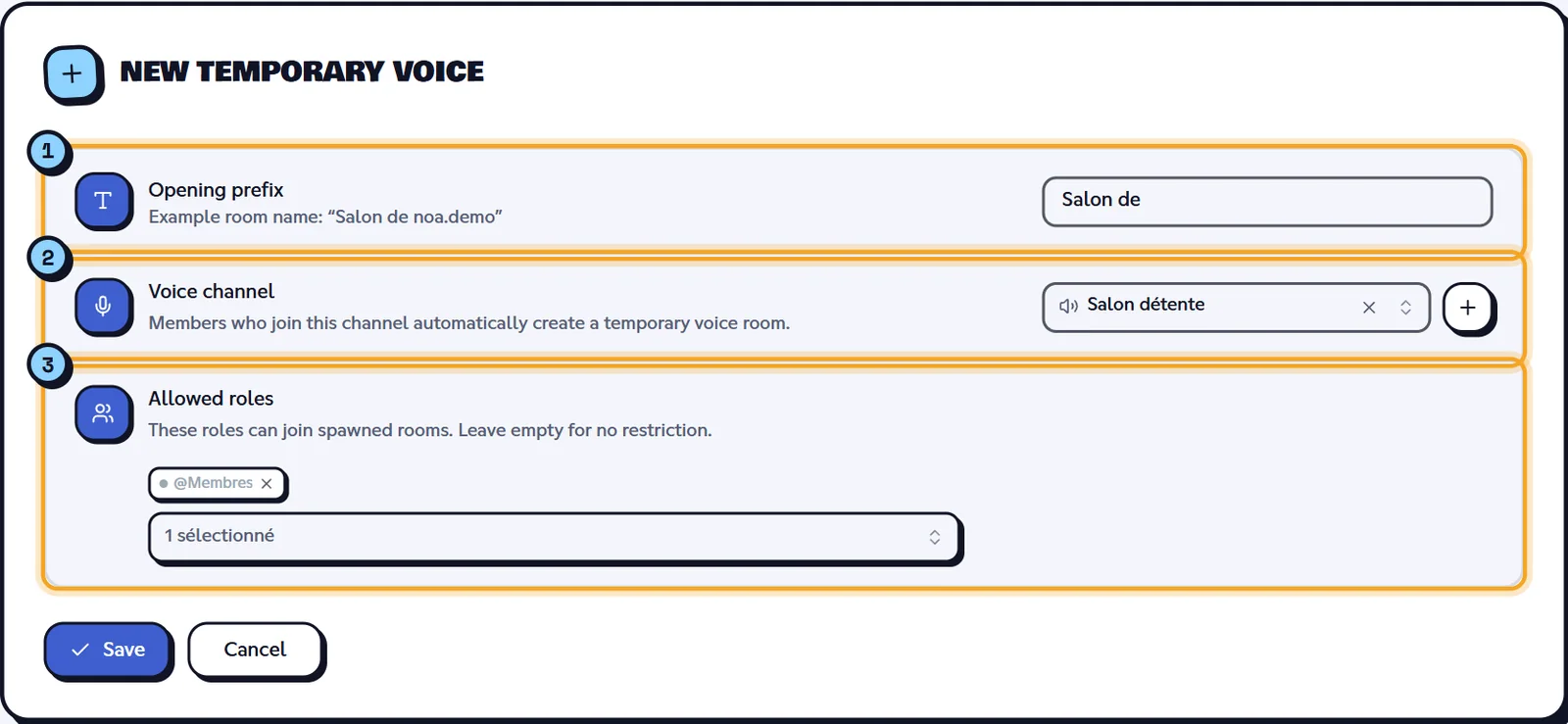
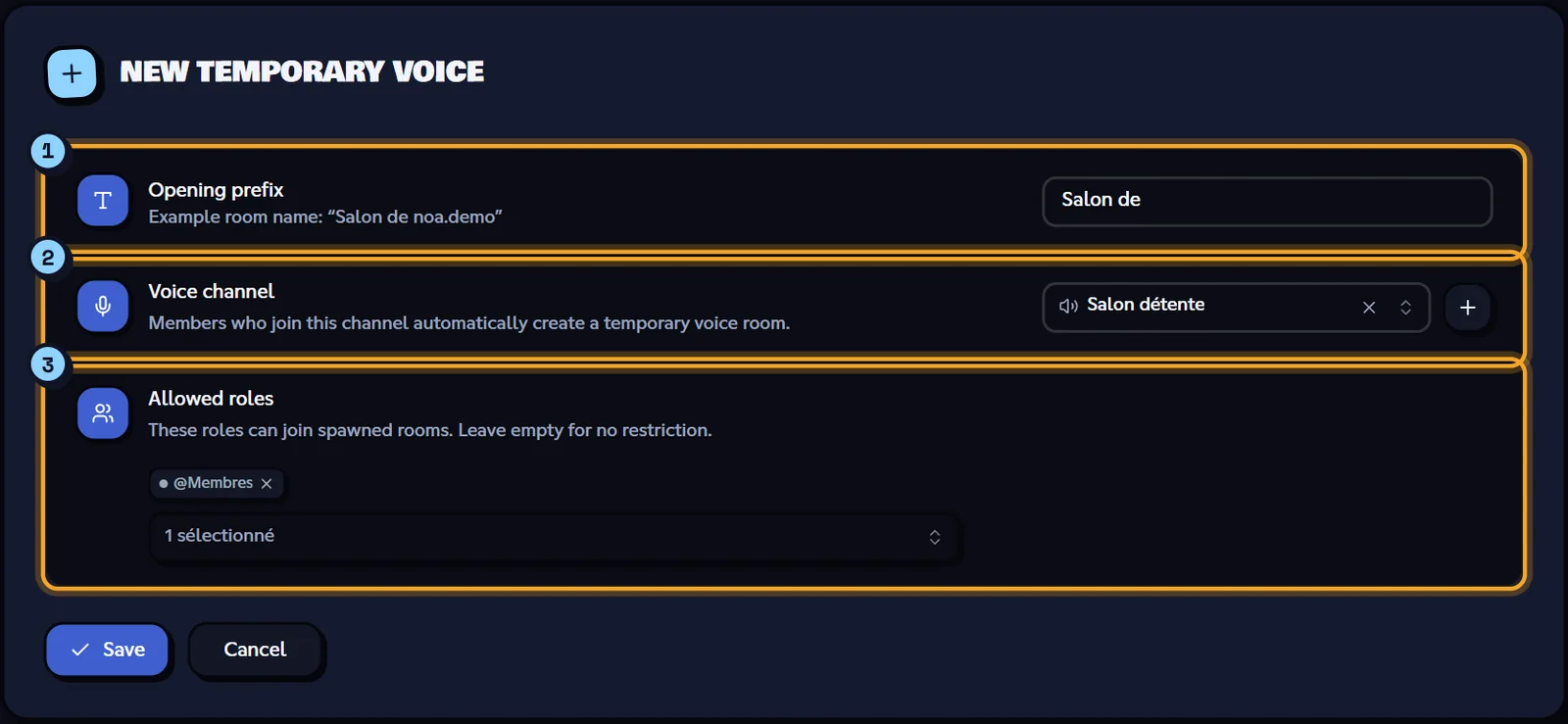
- Opening prefix and the example name.
- Voice channel and the Create a voice channel button.
- Allowed roles.
To edit a creator channel, click Edit then Update. To remove it, click the bin (no confirmation).
Warning
While rooms spawned by a creator channel are still open, you can neither delete it nor swap it for another channel: wait until they are empty.
What the bot does with voice rooms
- The room is created in the same category as the creator channel, and the member is moved into it automatically.
- The room is closed to @everyone: its owner, members with the allowed roles and members the owner adds from the control panel can connect. With no allowed role, the room is therefore private by default, even though the page hint says "Leave empty for no restriction".
- The bot posts a control panel in the room for its owner (lock, rename, add or remove a member, user limit…): see Temporary channels (module).
- When the last member (bots aside) leaves the room, the bot checks 5 seconds later that it's still empty, then deletes it.
Note
The bot needs the Manage Channels, Move Members and Connect permissions.
Limits per plan
| Free | Basic | Ultimate | |
|---|---|---|---|
| Creator channels (temporary voice) | 3 | 5 | Unlimited |
| Self-cleaning text channels | Unlimited | Unlimited | Unlimited |
Once the creator channel limit is reached, the Add a temporary voice button is greyed out. After a downgrade, extra creator channels are kept with the Over quota badge: the bot ignores them until the subscription is renewed (the oldest ones stay active). See Server subscription.
Synchronisation with the bot
- Delay: immediate on both pages. The bot reads the shared configuration on the next message (temporary channels) or the next voice join (creator channels).
- No log message on Discord; changes show up in Configuration Logs (Temporary channels and Temporary voice channels categories).
- If another administrator edits the page at the same time, the list refreshes and a "… updated by …" message appears.
- A channel you just created on Discord appears in the pickers after Refresh (voice page) or Sync Discord Data at the top of the page, otherwise within 30 minutes.
Error messages
Messages coming from the server stay in French whatever the site language: the French text is shown below in quotes, with its meaning.
| Message | Cause | What to do |
|---|---|---|
| Select a channel. / Select a voice channel. | No channel picked. | Pick a channel. |
| Limit reached: … creator channel(s) maximum. | Your plan's limit is reached. | Remove a creator channel or change plan. |
| "Impossible de déplacer ce salon créateur : N vocal(aux) temporaire(s) encore actif(s)." (can't move) | Changing the channel while rooms are open. | Wait until the rooms are empty. |
| "Impossible de supprimer : N vocal(aux) temporaire(s) encore actif(s)." (can't delete) | Deleting while rooms are open. | Wait until the rooms are empty. |
| "Impossible d'enregistrer le salon (vocal) temporaire. Vérifiez que le bot est sur le serveur." (could not save) | The bot hasn't initialised the server yet. | Check that the bot is there, then try again. |
| "Salon enregistré, mais la mise à jour des rôles a échoué." (roles not saved) | The channel is configured but not the allowed roles. | Open Edit and save the roles again. |
| Could not create the voice channel. | The bot couldn't create the channel on Discord. | Check that the bot has Manage Channels. |
| "Durée invalide." (invalid delay) | Unknown delay. | Pick a delay from the list. |
Related pages
- Temporary channels (module): voice room control panel and Discord-side details.
- Channels: the channels used by the bot.
- Premium plans and limits
- Synchronisation with the bot