
The Dispatch.IO website goes hand in hand with the Discord bot. It's where you discover the bot, add it to your servers, set it up from a dashboard, follow your activity and manage your subscription. This page walks you through the site so you know where everything is, whether you own a server, moderate one or are just curious.
There's no account to create: you sign in with your Discord account (see Sign-in and account). The site is available in French and English.
The main parts of the site
The site has four parts:
| Part | Address | Sign-in needed | What you do there |
|---|---|---|---|
| Home page | / | No | Discover the bot, add it to Discord, see the plans. |
| Public pages | /leaderboard/…, /rank/…, /team, /api-docs | No | Check a server's leaderboards, a rank card, the team, the API. |
| Dashboard | /dashboard | Yes, with Discord | Your personal space, your server settings, the shop. |
| Documentation | /documentation | No | Read guides like this one. |
Every address starts with the language: /fr/… for French, /en/… for English (for example /en/dashboard).
The home page
The home page introduces Dispatch.IO and puts the two main actions up front: adding the bot and opening the dashboard.
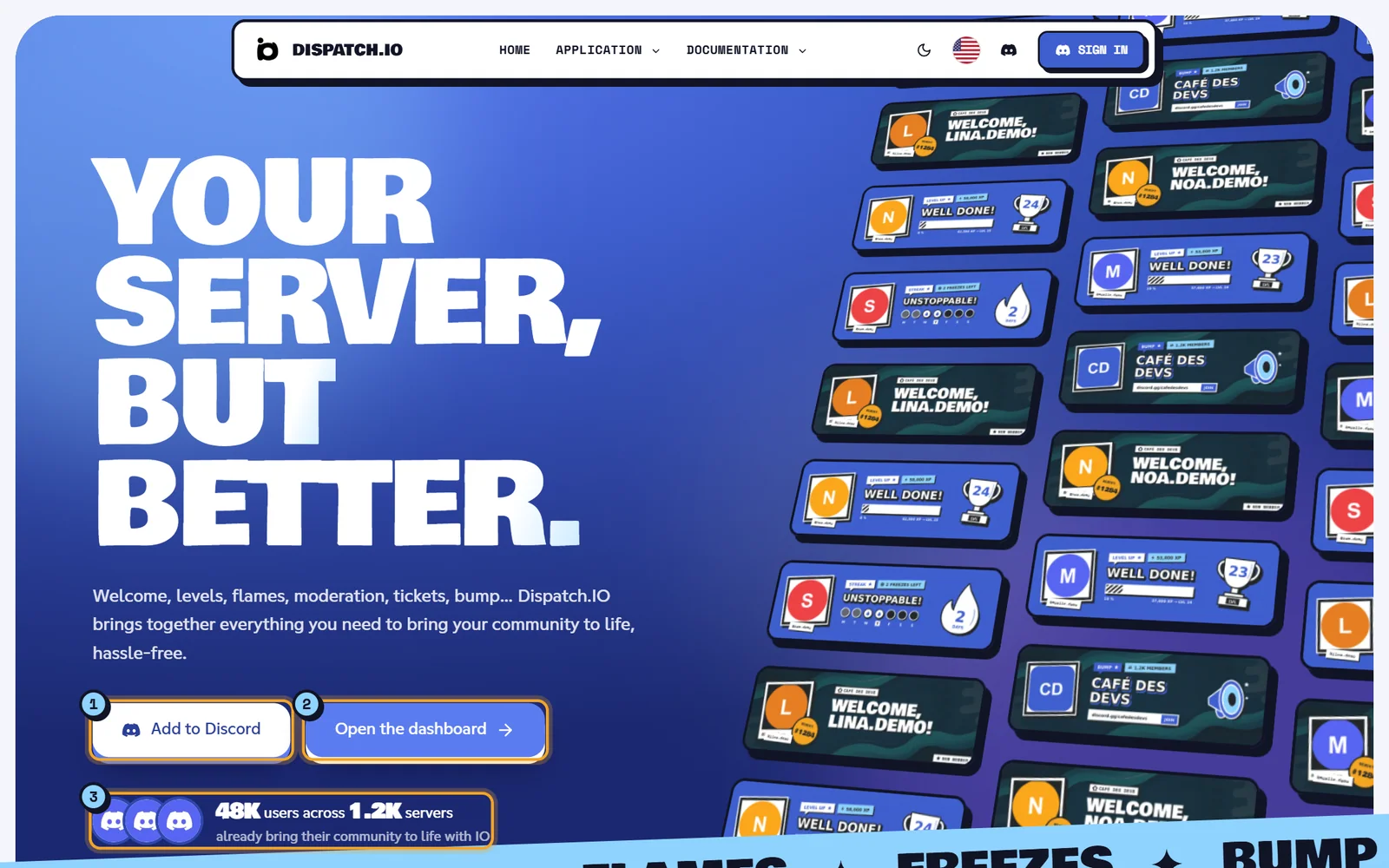
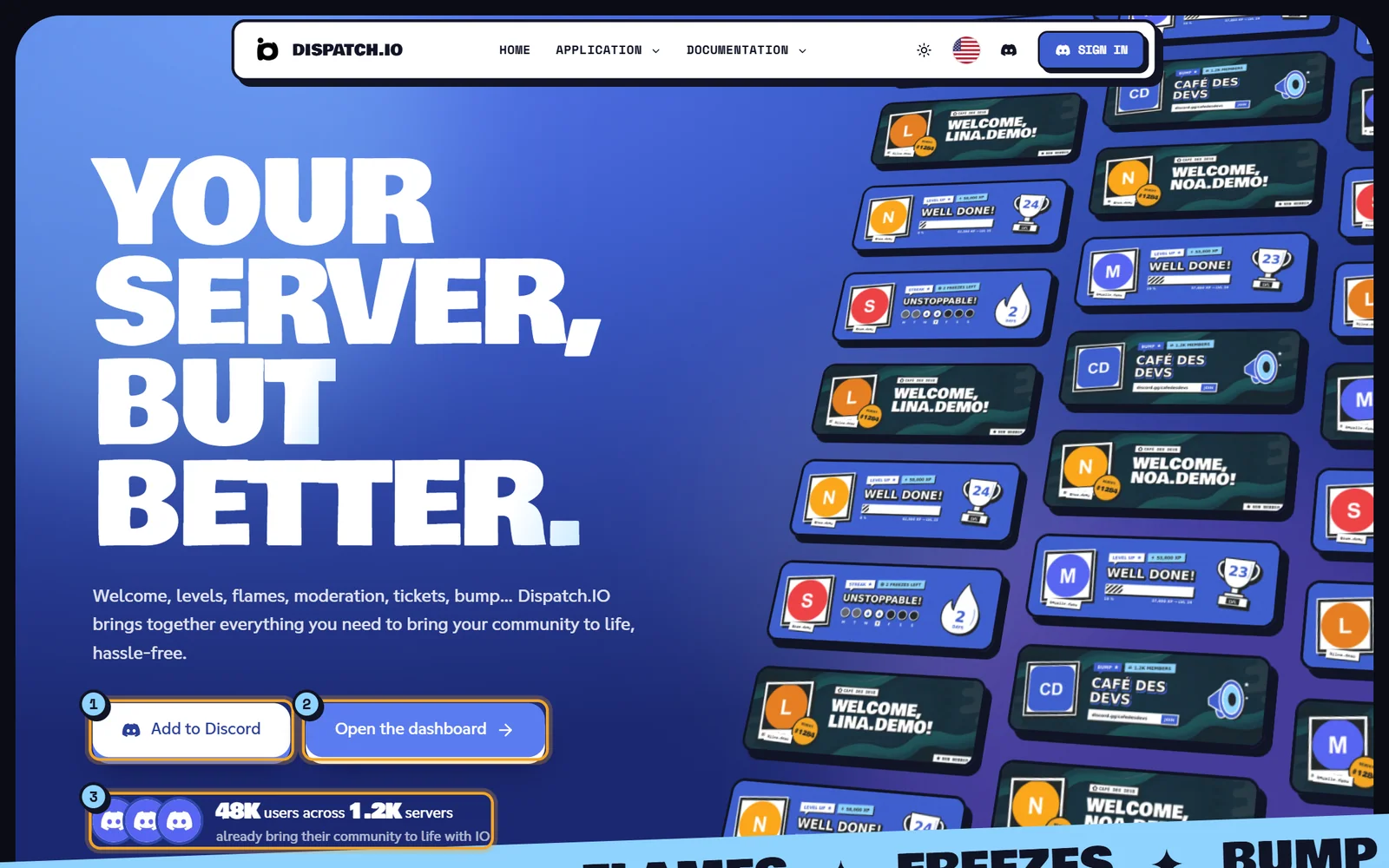
- Add to Discord opens, in a new tab, the Discord page that invites the bot to one of your servers. The details are in Adding the bot and first steps.
- Open the dashboard takes you to your dashboard. If you're not signed in, the site sends you to Discord to sign in first.
- The counters show how many users and servers already use the bot.
Scrolling down, you'll find, in order:
| Block | Content |
|---|---|
| The essentials | The four core modules: welcome, security, levels and flames. |
| Go even further | Bump, tickets and customisation (banners, cards). |
| How it works | The three steps to get started (Add IO, Set it up, Enjoy), the latest bumped servers and our partners. |
| Pricing | The Free, Basic and Ultimate plans with their prices. Choose Basic, Choose Ultimate and See the full shop open the dashboard shop. |
| FAQ | Six frequent questions and a Join the support button to the team's Discord server. |
Tip
You can jump straight to the home page FAQ at /en#faq.
Public pages
These pages open without signing in, and you can share their links with anyone.
| Page | Address | What it's for |
|---|---|---|
| A server's level leaderboard | /leaderboard/<server id> | The members' XP ranking. |
| Flame leaderboard | /leaderboard/<server id>/streak | The daily streak ranking. |
| Rank card | /rank/<server id>/<member id> | A member's progress on a server. |
| Team | /team | The people behind Dispatch.IO. |
| API documentation | /api-docs | The technical documentation of the public API. |
| Support | /discord | A short link to the support Discord server. |
Leaderboards and rank cards are covered in Leaderboards and rank cards, the team and the API in Team, legal pages and API.
Note
The FAQ page (/faq) and the Terms of Use, Terms of Sale and Privacy Policy pages currently show "This page is a work in progress by IO. Come back soon!". The frequent questions are at the bottom of the home page.
The dashboard
The dashboard is the members-only part of the site. Open it with the Dashboard button at the top right (or Open the dashboard on the home page).
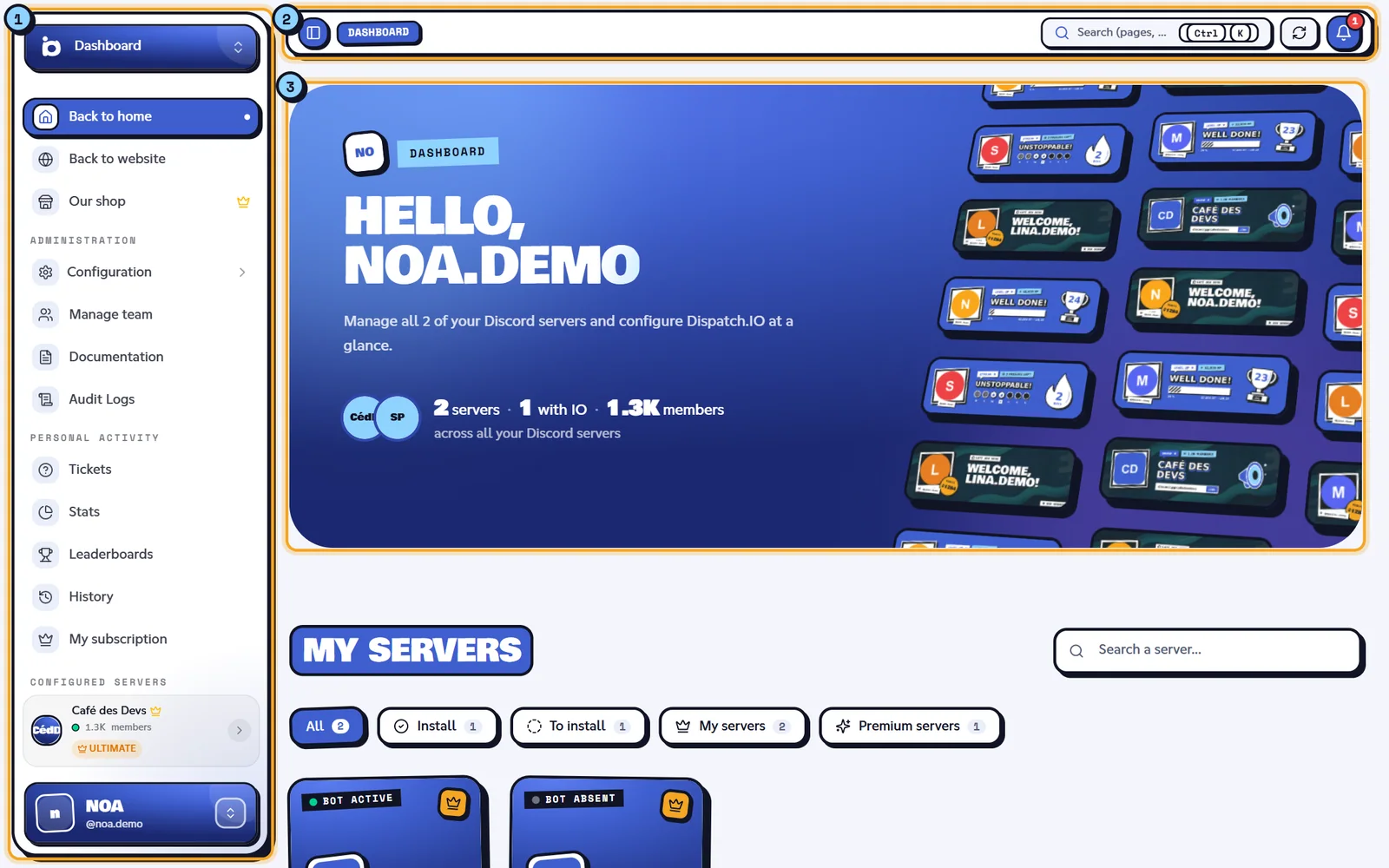
- The sidebar: server picker, shortcuts, menus and your account.
- The top bar: breadcrumb, search, Discord data refresh and notifications.
- The content of the open page.
It brings together three areas:
- Your personal space: the dashboard home, your activity (tickets, stats, leaderboards, subscription) and the shop.
- Your server settings: for each server you manage where the bot is present, a home page and settings pages. Start with Managing your servers, then Server home.
- Administration: reserved for the Dispatch.IO team. Other members don't see it.
To find your way around the dashboard (menus, search, shortcuts, notifications), read Navigation, search and notifications.
The documentation
The documentation you're reading lives at /documentation. It's open to everyone, no sign-in needed.
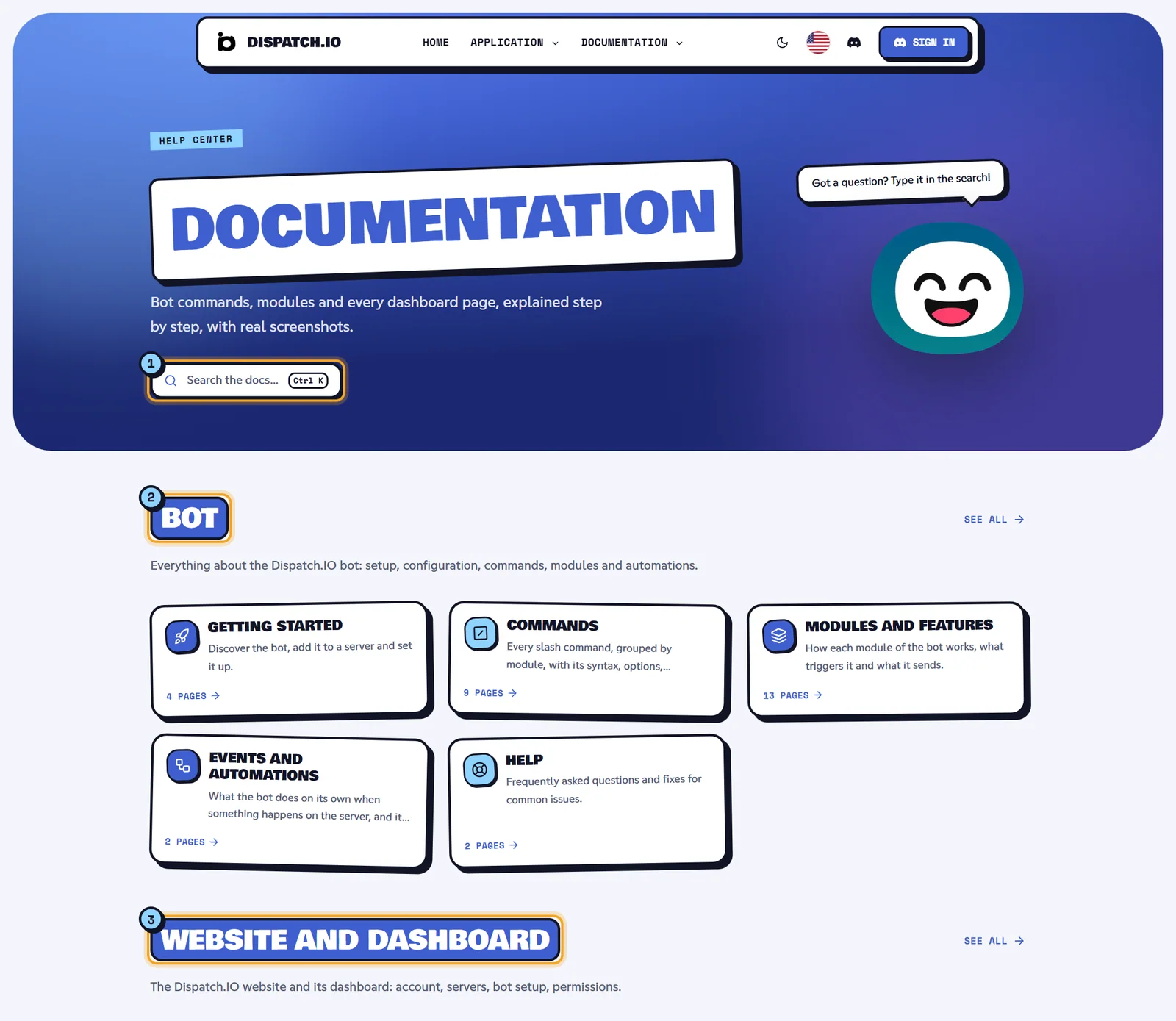
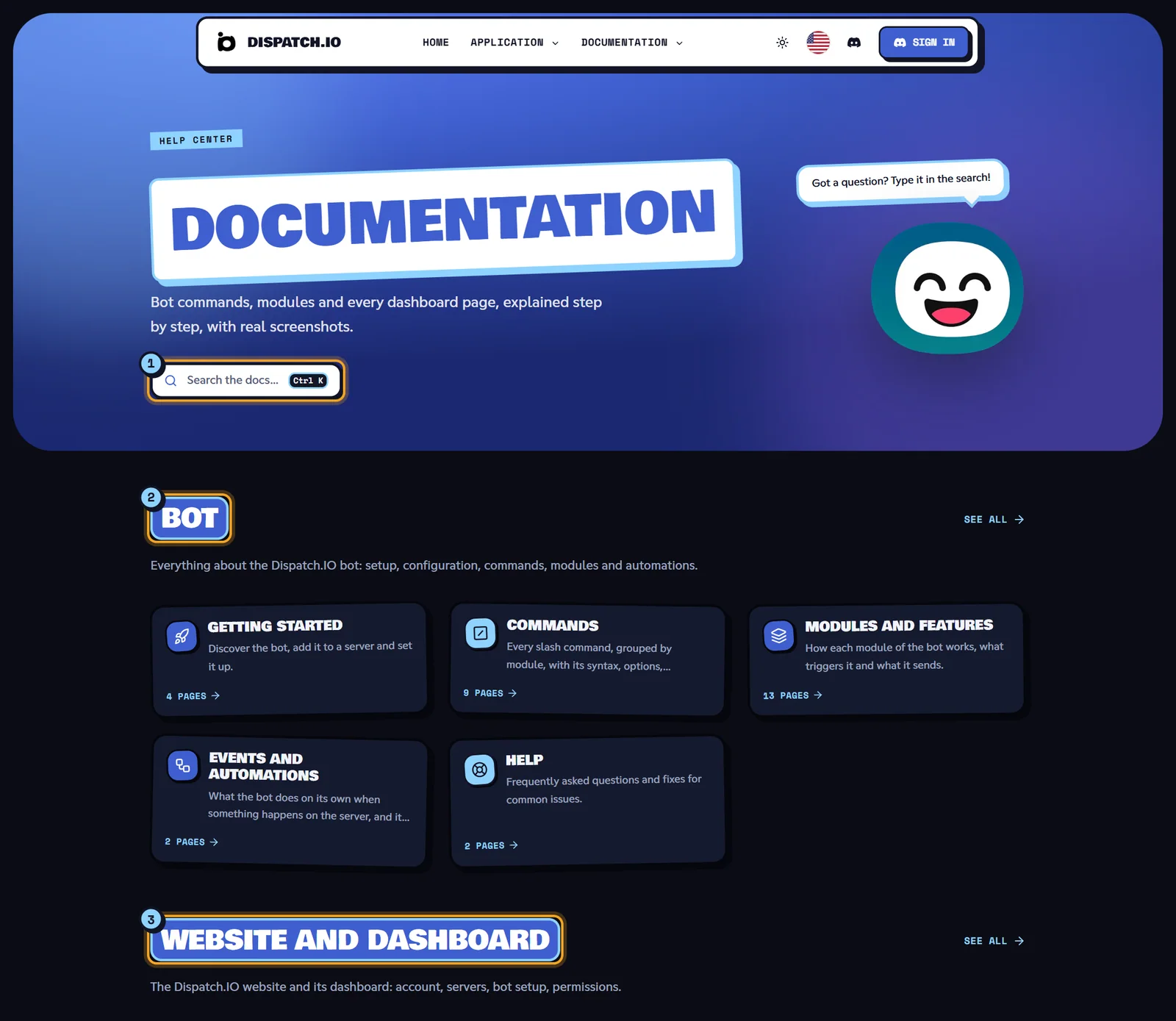
- Search: type at least 2 characters (a command, a module, a dashboard page…). On any documentation page, Ctrl K (⌘ K on Mac) or the / key also opens the search.
- The Bot space: the bot's commands, modules and events.
- The Website and dashboard space: this site, page by page.
In each space, See all opens the full list of its pages.
On a documentation page, the page menu is on the left (behind the Contents button on phones), the page outline ("On this page") is on the right on large screens, and the Previous / Next buttons are at the bottom. If a page isn't available in your language yet, it's shown in its original language with a "Not translated yet" banner.
The top menu
The top menu is the same on every public page and in the documentation.


| Item | What it does |
|---|---|
| Dispatch.IO logo | Back to the home page. |
| Home | Back to the home page. |
| Application (1) | Opens a menu: Support (Discord server, new tab), Commands, Team, FAQ. |
| Documentation (2) | Opens a menu: Guide and documentation (this documentation) and API Documentation (new tab). |
| Sun or moon (3) | Switches between the dark and light themes. |
| Flag (4) | Changes the site language. |
| Discord logo (5) | Opens the support Discord server in a new tab. |
| Sign in or Dashboard (6) | Signs you in with Discord, or opens your dashboard if you're already signed in (with your avatar). |
Warning
The Commands link (in the menu and in the footer) currently leads to a "Page not found" page. The full list of commands is in All commands.
On a phone or small tablet (under 1024 pixels wide), the menus sit behind the three-line button on the right. It opens a side panel: tap a row with an arrow to open its submenu, and Back to go up. At the bottom of the panel you'll find Support, the Theme switch and the sign-in button.
At the bottom of every page, the footer repeats the useful links: Quick Links (Home, Commands, FAQ, the legal pages), Contact, social networks (LinkedIn, Discord, X) and an Add to Discord button. On long pages, an arrow at the bottom right takes you back to the top.
Changing the language and theme
Language
Click the flag in the top menu: the Application language menu offers Français and English. The change is instant and you stay on the same page (in the documentation too). As the menu says, the "Setting applies to this browser only": the site remembers it on this device.
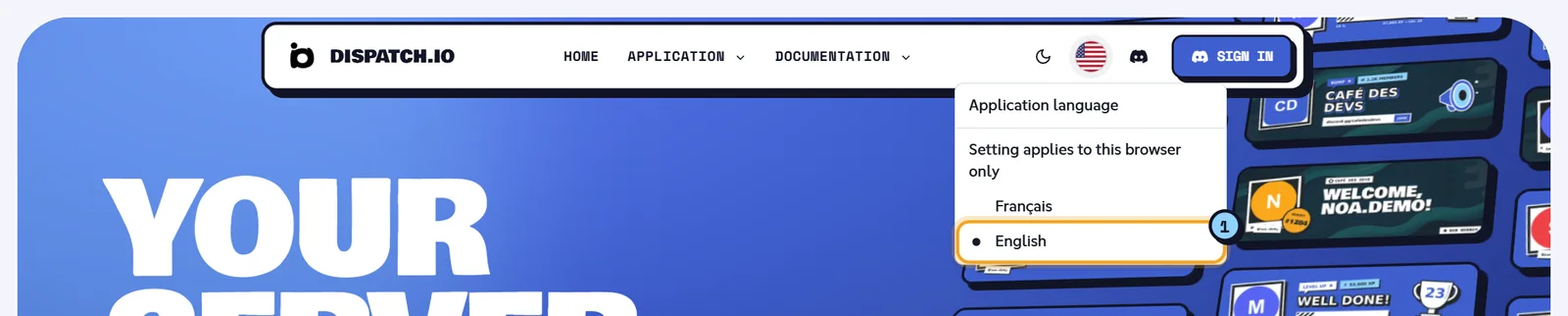
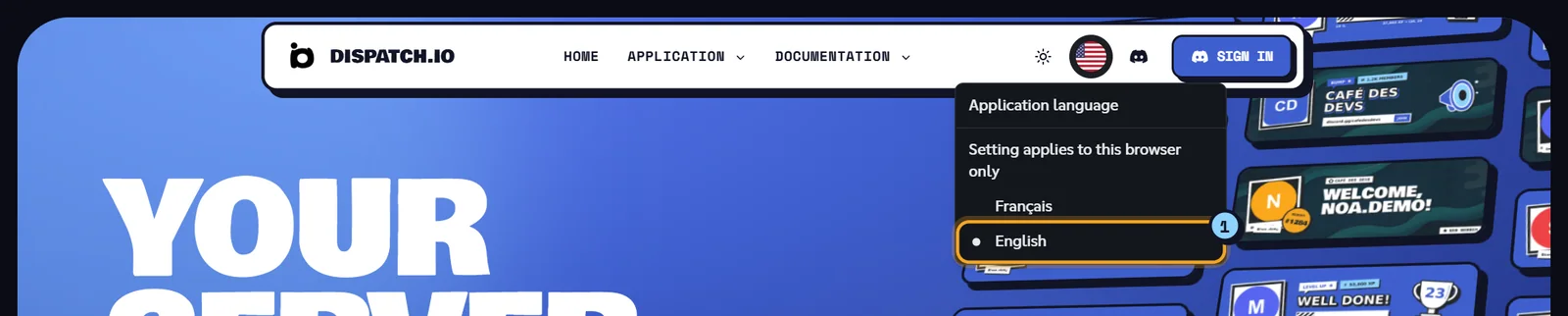
In the dashboard, you can also change the language from your account menu (Language) or in Preferences on the dashboard home.
Note
The site language doesn't change the bot's language on your server. That one is set in the server settings (see Bot configuration).
Theme
- On the public site and in the documentation, the sun or moon button switches between the dark theme (the default) and the light theme.
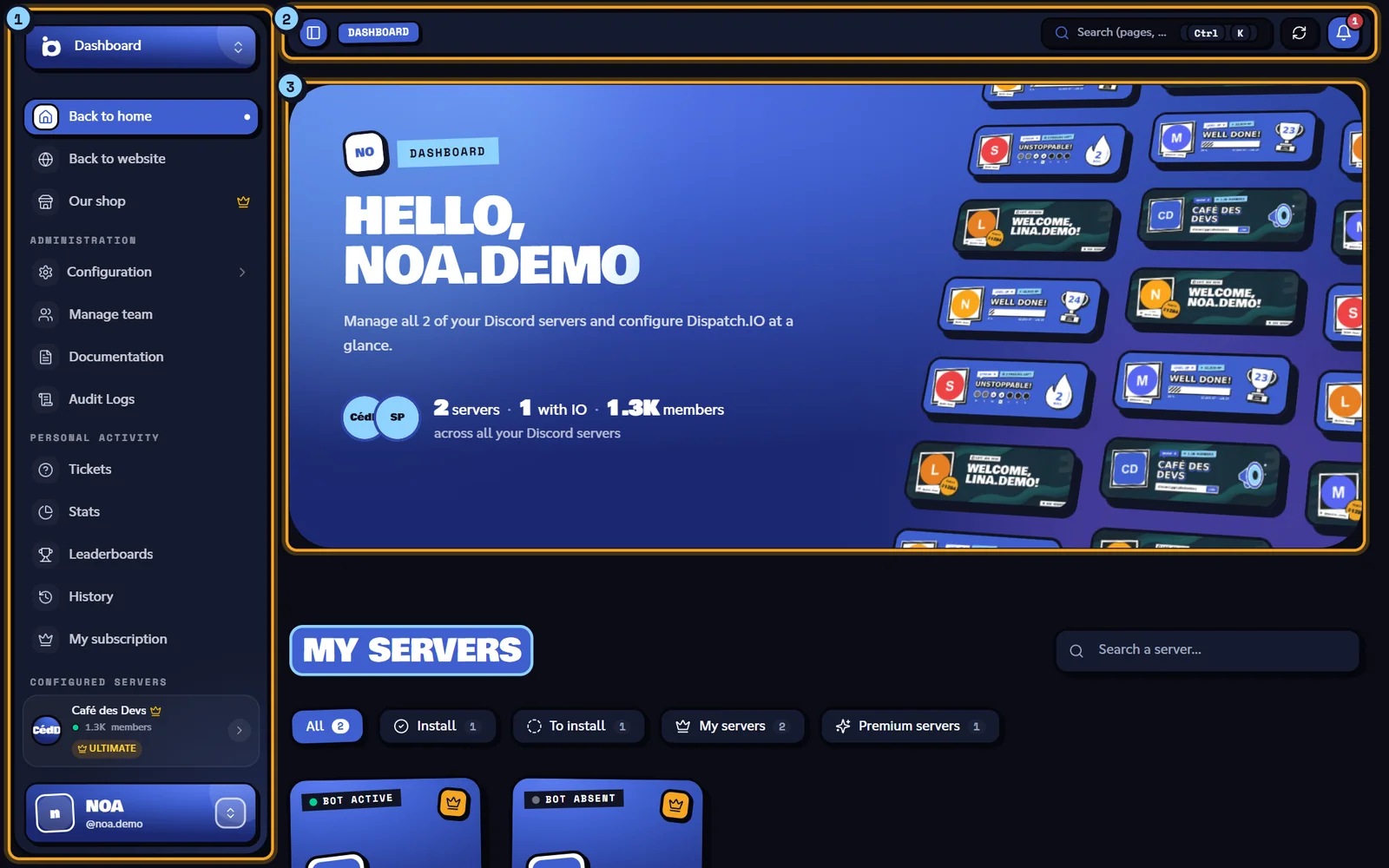
- In the dashboard, the theme is set separately, with three options: Light, Dark or System (follows your device; this is the default). Change it from your account menu (Theme) or in Preferences.
Both choices are saved in your browser.
Learn more
- Sign-in and account: signing in with Discord and using several accounts.
- Managing your servers: finding your servers and adding the bot.
- The dashboard: your personal space home.
- Navigation, search and notifications: getting around the dashboard quickly.
- Website FAQ and Website troubleshooting: when something doesn't work.