
The Welcome and Goodbye pages set what Dispatch.IO posts when a member joins or leaves your server: the channel, the text (with variables such as the member's name), the card's background image and, for welcome, the roles given automatically. A live preview shows the result before you save, and a test button sends it for real.
They are meant for server administrators. The message as members receive it on Discord is described in the Welcome and goodbye module.
Two pages, one form
Open Configuration > Welcome or Configuration > Goodbye in the menu, or the tiles with the same names on the server home. Both pages share the same layout, with these differences:
| Welcome | Goodbye | |
|---|---|---|
| When | A member joins the server | A member leaves the server |
| Automatic roles | Yes (Welcome Roles) | No |
| Header indicators | Channel, Roles, Message, Image | Channel, Message, Image |
| Channel created by + | ┇bienvenue | ┇au-revoir |
{guildMemberCount} | Total member count | Remaining member count |
| DM copy to the member | Yes, with a custom message | No |
| Changes recorded in the Discord logs | Yes | No |
The header: indicators and test
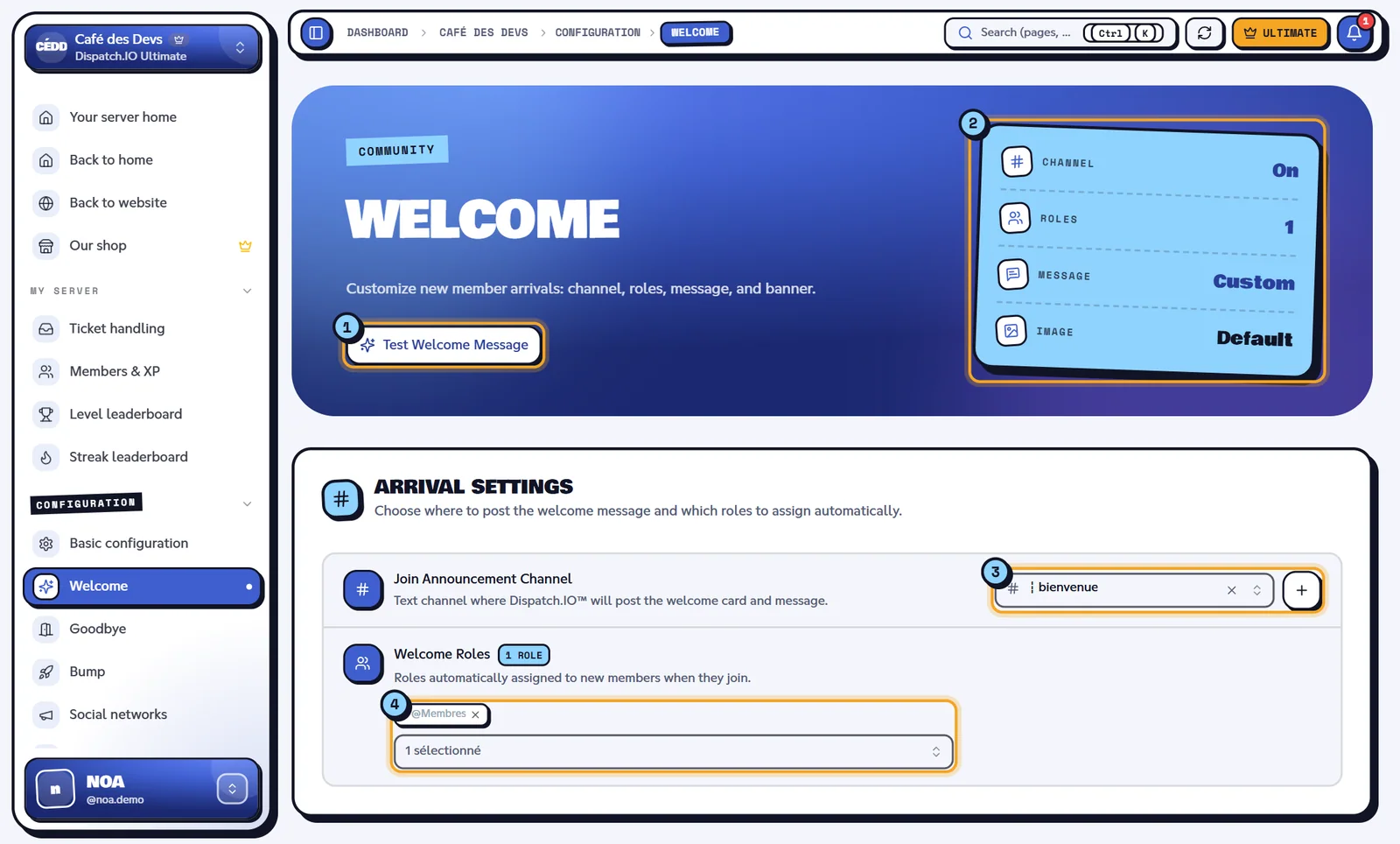
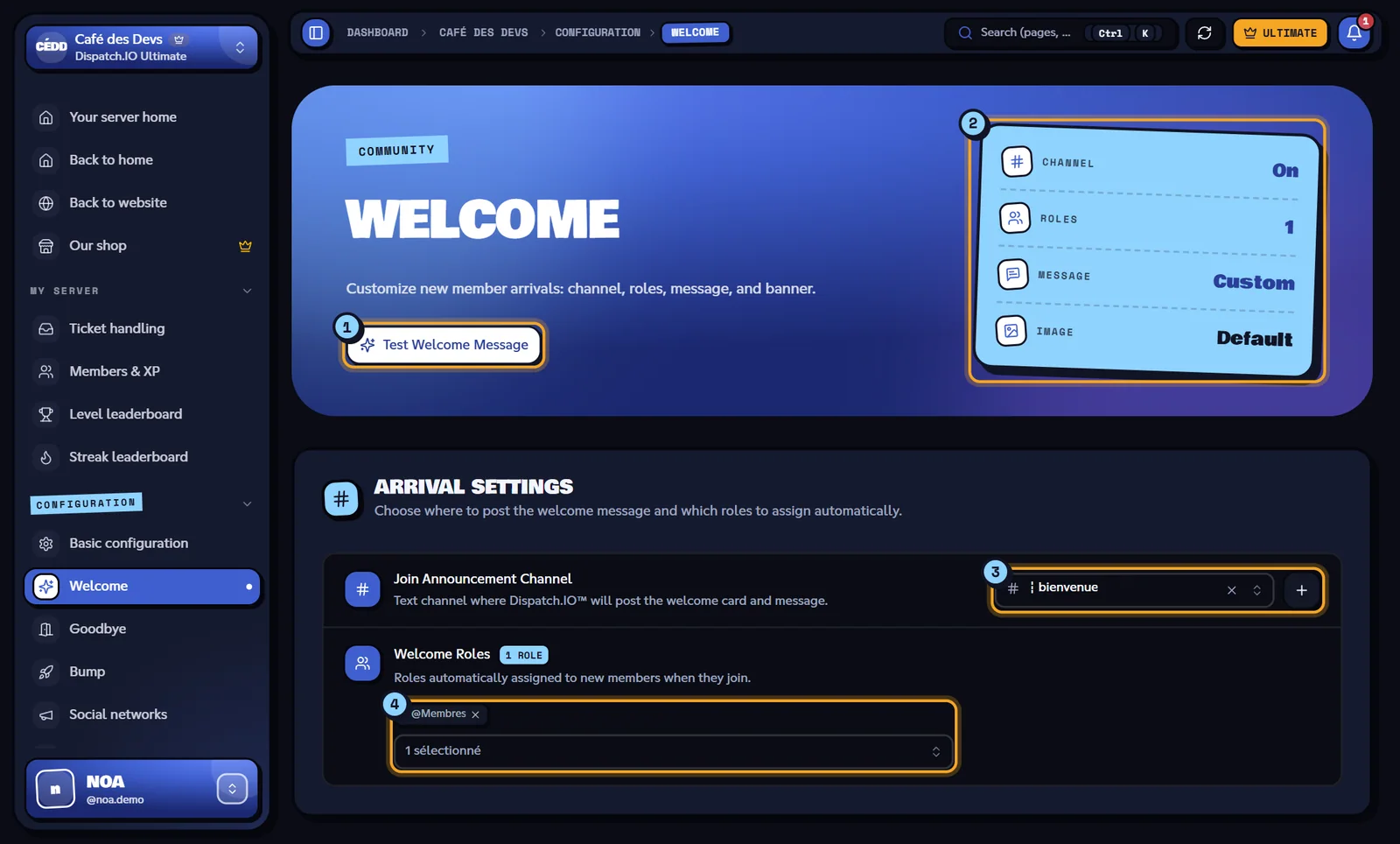
- Test Welcome Message: sends a real test message (see Testing).
- Indicators: Channel (On or Off), Roles (number of welcome roles), Message and Image (Custom if you customised it, Default otherwise).
- Join Announcement Channel, with the + button.
- Welcome Roles.
Choosing the channel
In Arrival settings (or Leave settings), pick the Join Announcement Channel (or Leave Announcement Channel) from the list.
- Disabled (no message sent) turns the channel announcement off.
- The + button (Create automatically) immediately creates a public text channel
┇bienvenueor┇au-revoir(with your server's separator; names are in French) and selects it. Message: "Channel #… was created successfully." The bot needs the Manage Channels permission.
Warning
Pick a regular text channel. Announcement channels show up in the list, but the bot doesn't post the card there.
This is the same setting as Arrivals (Welcome) and Departures (Goodbye) on the Channels page. You can use the same channel for both.
Welcome roles
On the Welcome page only, Welcome Roles gives one or more roles to every new member as soon as they join. The badge shows how many roles are selected; there is no limit.
- Integration-managed roles (bot roles) and @everyone aren't offered.
- Roles are given after the security checks: if anti-raid, raid mode or the captcha stops the member, they don't get them.
- The bot's role must be above the roles to give in Discord's role list, otherwise Discord refuses.
Example on Café des Devs: the @Membres role is given to every newcomer.
Writing the message
In Message content, the Custom Welcome Message (or Custom Goodbye Message) box accepts up to 2000 characters and Discord Markdown (**bold**, *italic*, lists…). Click a variable to add it at the end of the text:
| Variable | Replaced with |
|---|---|
{user} | The member mention (@User) |
{userName} | The member's username |
{guildName} | The server name |
{guildMemberCount} | The total member count (welcome) or remaining member count (goodbye) |
Any other word in braces stays as is in the message.
Example:
**Welcome to {guildName}!**
Hi {user}, you are member number {guildMemberCount}. Come and say hi in #general 👋
Becomes, for Alex: "Welcome to Café des Devs! Hi @Alex, you are member number 1284…"
- Use default message fills the box with a ready-made template (in French for now).
- Empty box: the bot sends its standard message, in the server language.
- With a custom message, the welcome is also sent by DM to the new member, with a button to the welcome channel.
The card image
The bot generates a card (member avatar, server name, welcome or goodbye title) on top of a background image. You have three ways to choose that background:
- Upload Image: drop a file or click the area. PNG, JPG, WEBP or GIF, 5 MB max. The image is scaled down to 1200 pixels wide before it is saved.
- Paste a link in the field after "OR": a direct link to an image (
https://…/image.png). - Reset to default image: puts back the website's default banner.
The Dark veil over the image switch (on by default) darkens the background so the text stays readable. Turn it off if your image is already dark.
| Message | Cause |
|---|---|
| "Please upload a valid image (PNG, JPG, WEBP, GIF)." | The file isn't an image. |
| "Image must be 5 MB or less." | File too large. |
| "Failed to read the image file." | Unreadable file: try another format. |
Note
For welcome, a premium member who picked their own card background in their personal space keeps that background. The goodbye card always uses the server image.
The live preview
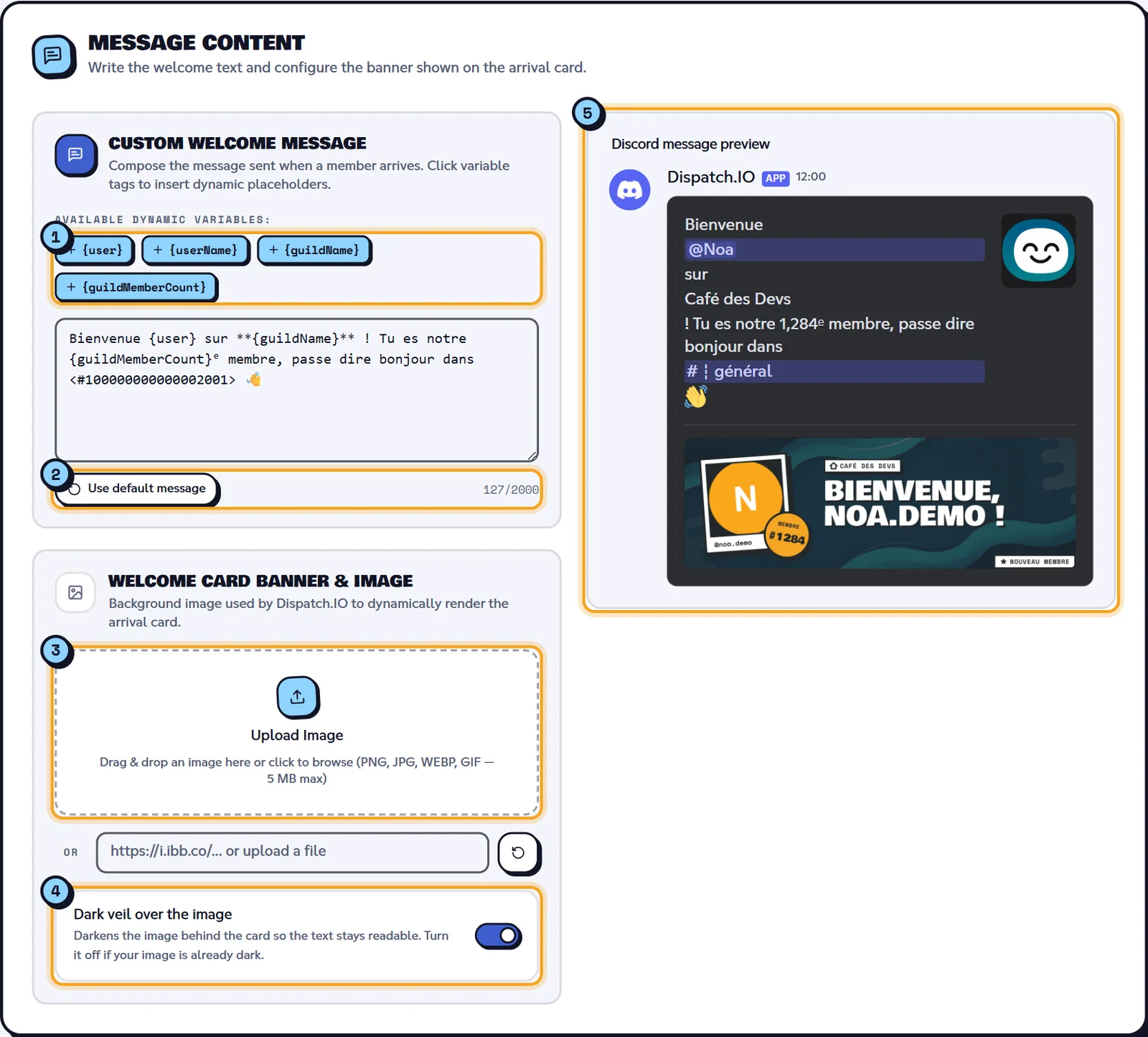
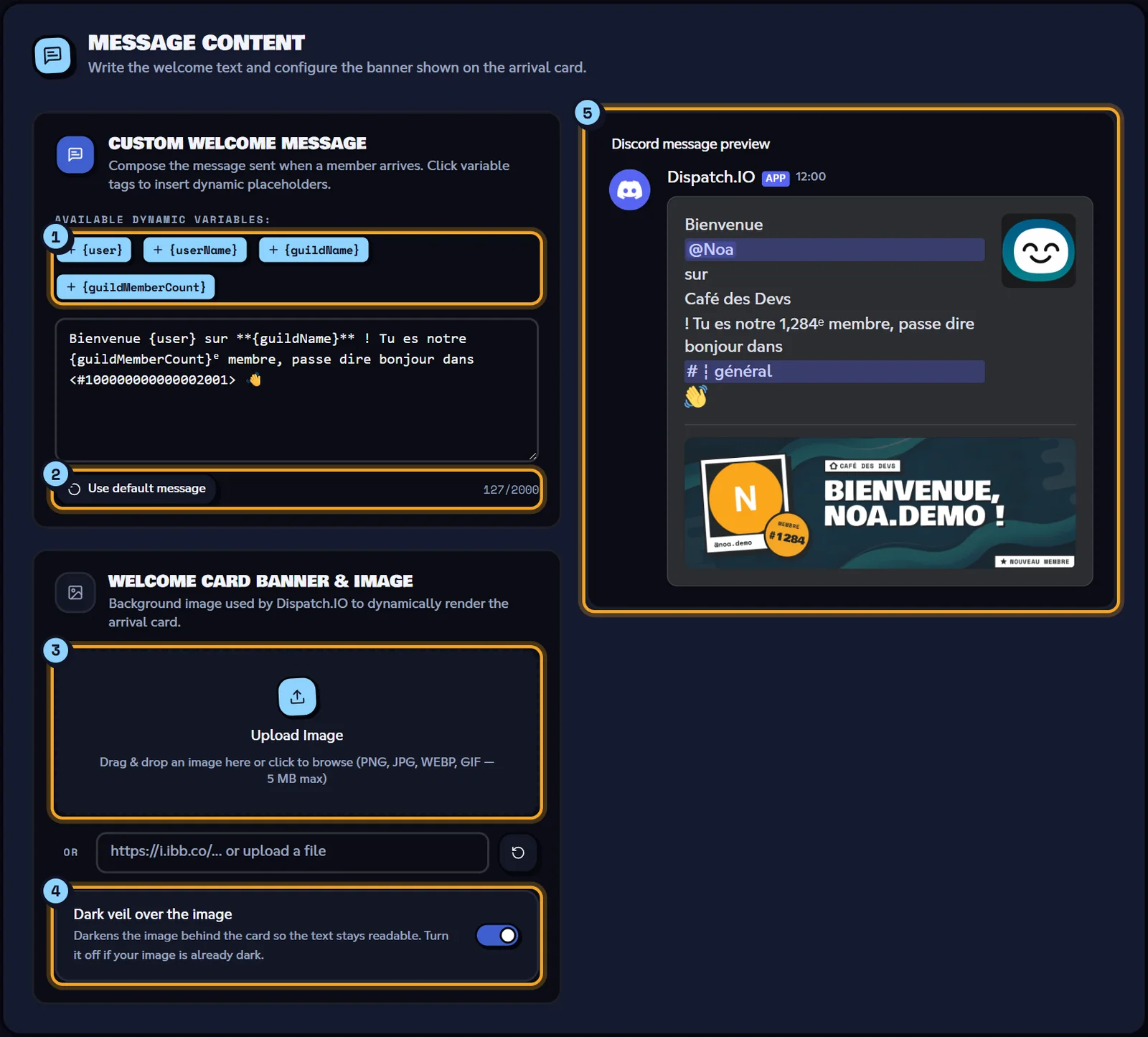
- The variables to insert.
- The character counter and Use default message.
- The image upload or image link.
- Dark veil over the image.
- The Discord message preview.
The preview on the right shows the message as on Discord, with your account as the example member. The preview card is generated by the bot itself: "Generating canvas…" shows for a few seconds after each image or veil change. The preview follows what you type, even before you save.
Note
If the bot is offline, the preview shows "Could not generate the canvas. Make sure the bot is online." The rest of the page works normally.
Testing
The Test Welcome Message (or Test Goodbye Message) button asks the bot to send the real message in the channel, with you as the member: as if you had just joined, or left.
- The test uses the saved configuration: save your changes first.
- A saved channel is required, otherwise: "Please select and save a welcome channel before triggering a test."
- No welcome role is given to you during a test. With a custom message, you also get the welcome DM.
- One test per minute per server, shared by all administrators: the button shows the time left, for example "Test Welcome Message (0:42)".
"Test welcome message successfully sent to #…!" means the request went out: check the channel on Discord. If nothing shows up, check that the bot can write in that channel.
Saving
Click Save changes in the bottom bar. The bot uses the new configuration from the next member on.
| Message | Meaning |
|---|---|
| "Welcome configuration saved successfully!" / "Goodbye configuration saved successfully!" | Saved. |
| "Failed to save welcome configuration." / "Failed to save goodbye configuration." | Saving failed: try again. |
| "Welcome configuration updated by …" | Another administrator just saved: the page shows their changes. |
Changes on the Welcome page (channel, roles, message, image) are recorded in the General Server Logs channel. Those of the Goodbye page aren't, but they stay visible in Configuration Logs (see Logs).
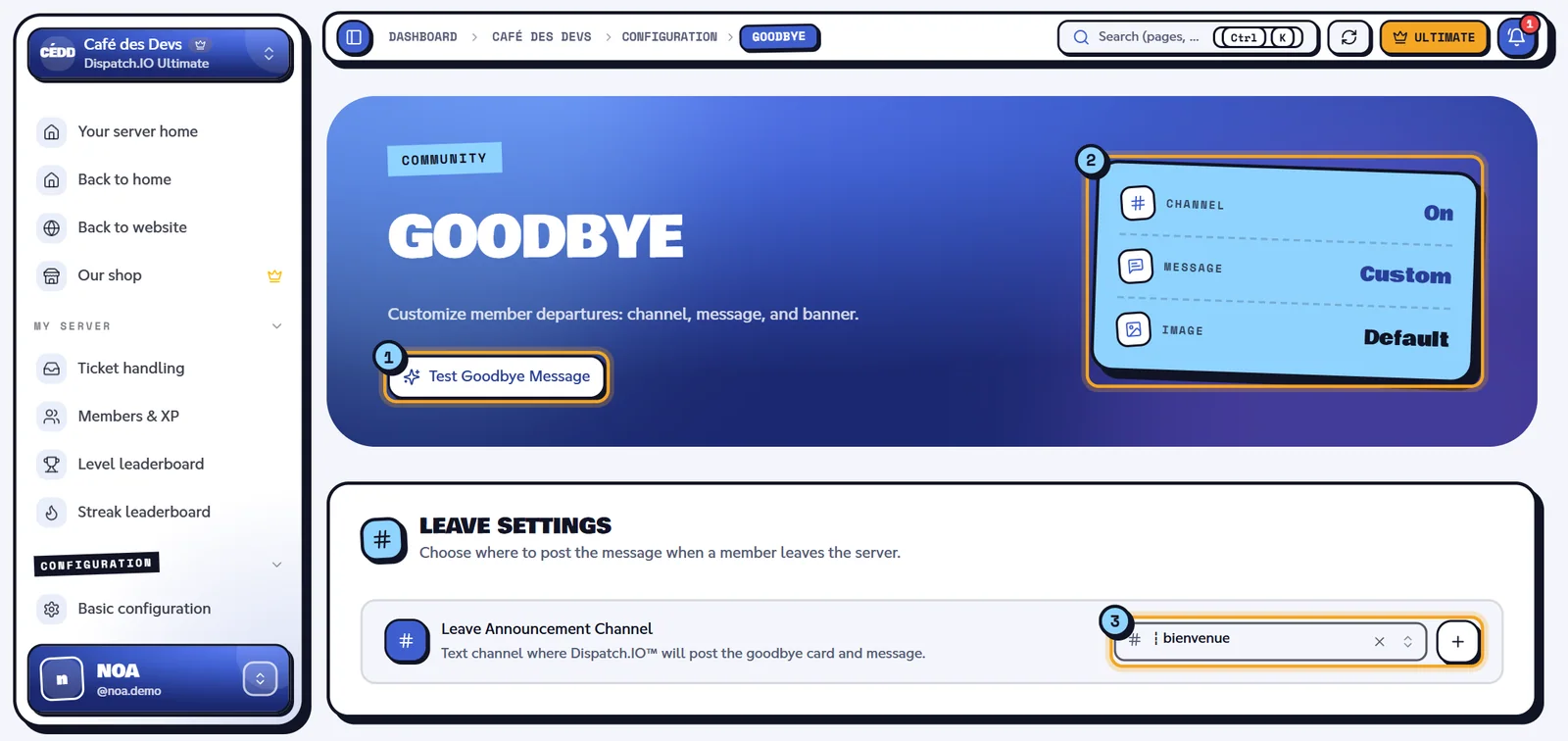
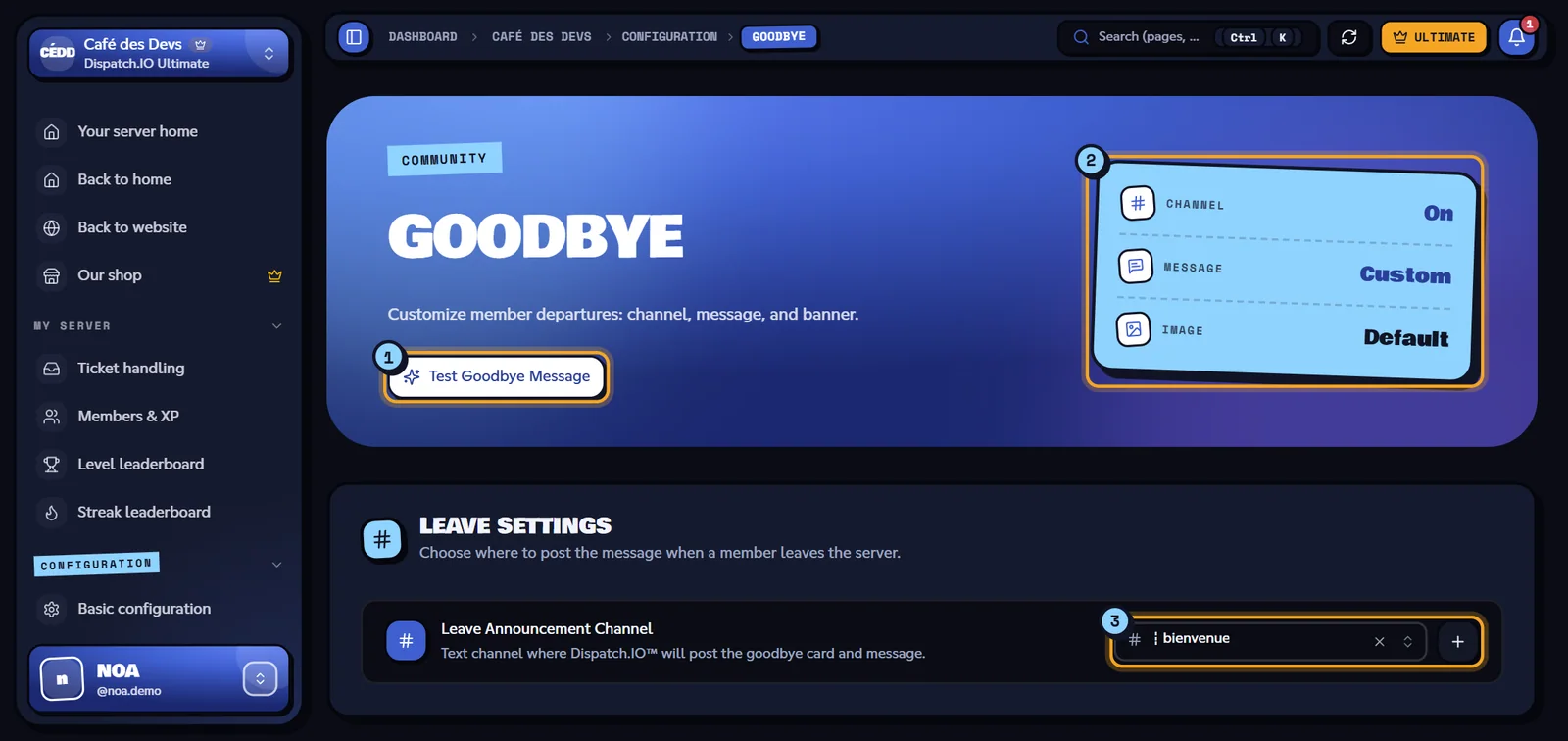
- Test Goodbye Message.
- The three indicators Channel, Message and Image.
- Leave Announcement Channel.
Related pages
- Welcome and goodbye (bot module): the message as it arrives on Discord.
- Channels: every channel used by the bot.
- Security and anti-raid: captcha and protections before the welcome.
- Bot configuration: welcome settings through
/config.