
The dashboard home (/dashboard) is the first page you see after signing in. It brings together your servers, your account settings and your Dispatch.IO profile. This page describes it panel by panel, from top to bottom.
Every signed-in member can use it, whether they manage servers or not. For the sidebar and the top bar, shared by the whole dashboard, read Navigation, search and notifications.
Overview
The home is made of five panels, in this order:
| Panel | What it's for |
|---|---|
| Welcome banner | Greeting you, summing up your servers and offering your latest pages. |
| My servers | Opening a server or adding the bot to it. |
| Preferences | Theme, language, notifications, shortcuts, personal color and images. |
| Profile | What the /profile command shows: banner, description, links. |
| Linked accounts | Your game accounts (disabled for now). |
The welcome banner
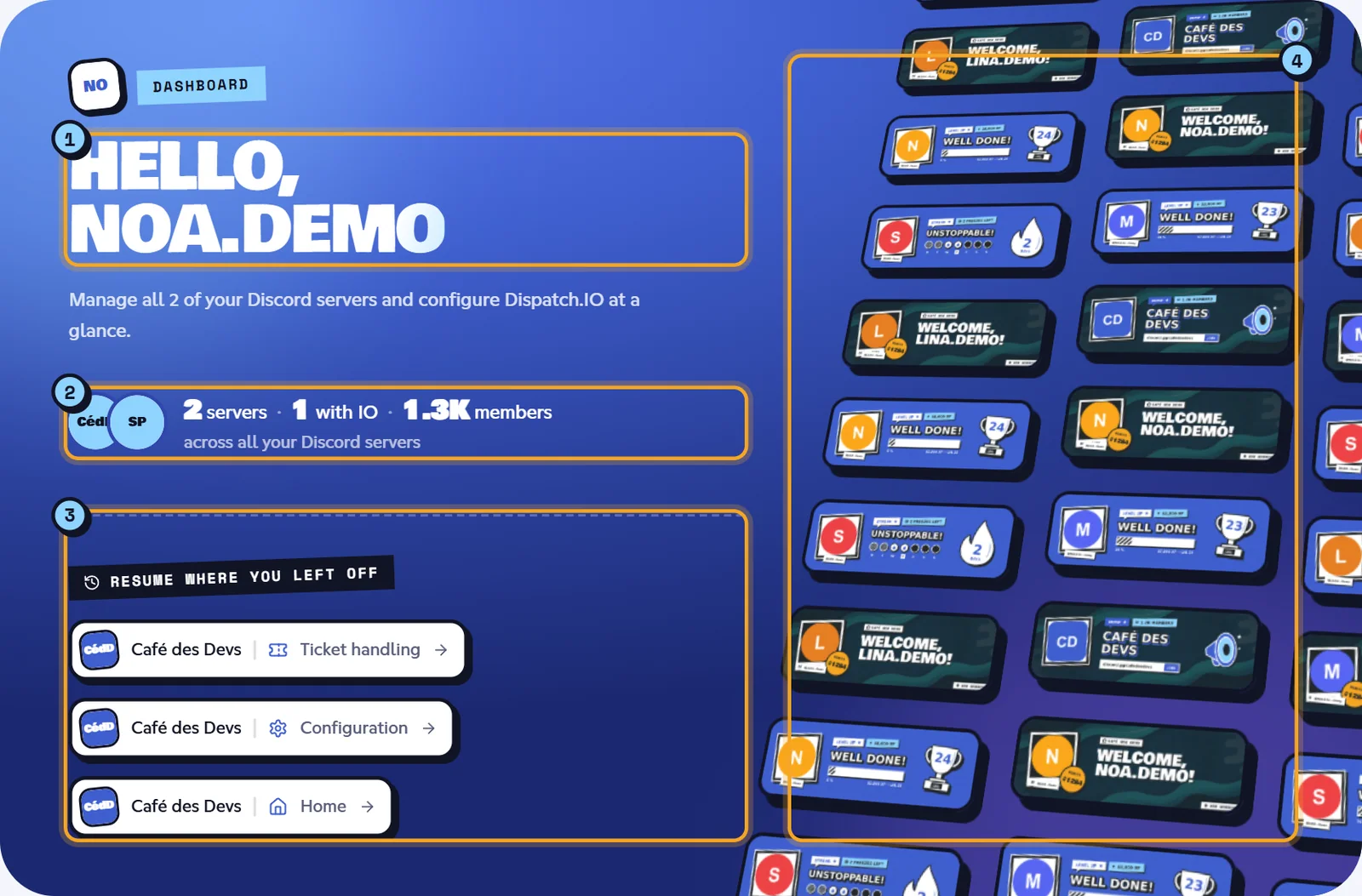
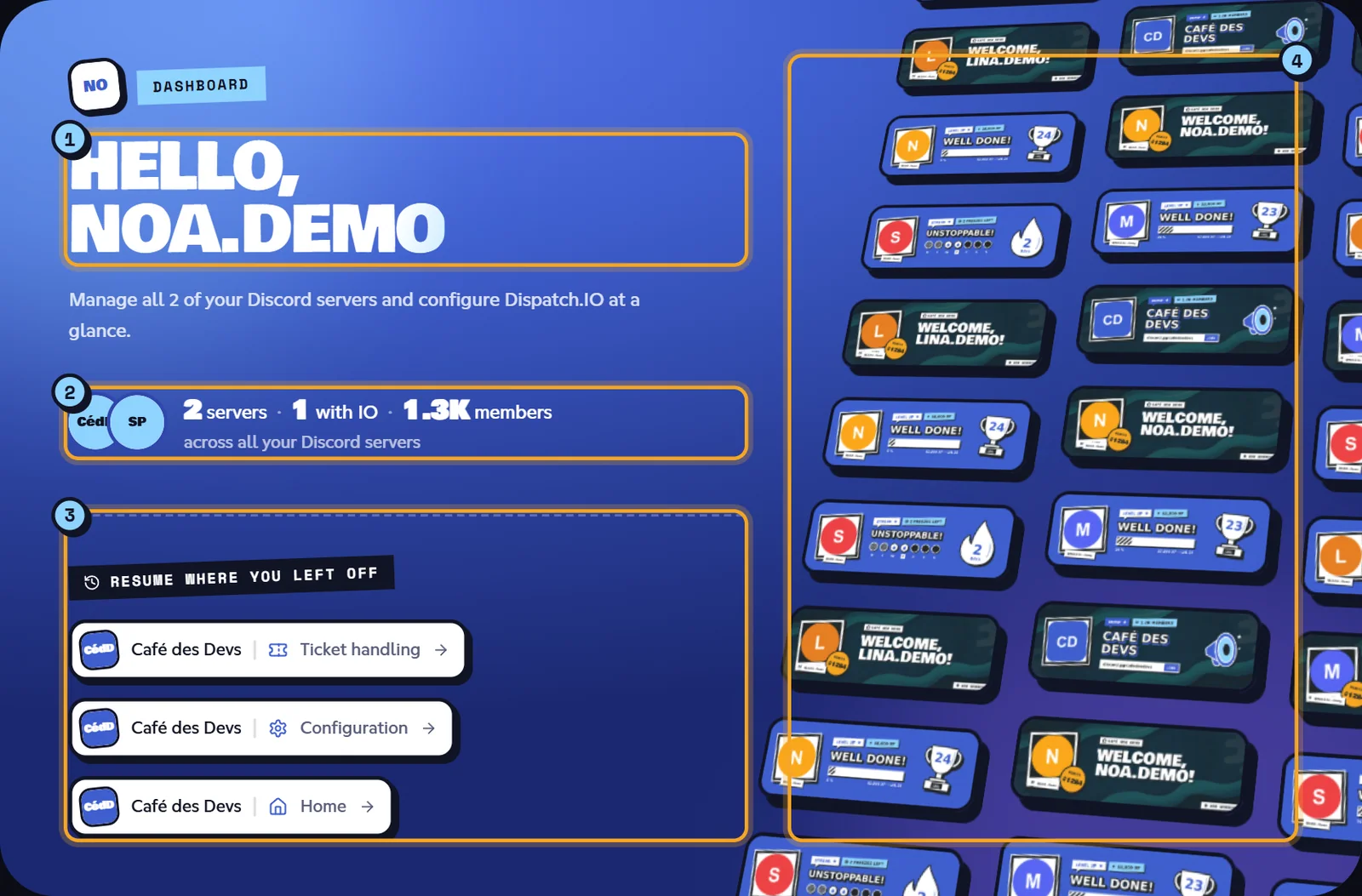
The blue banner at the top of the page contains:
- The greeting: your avatar, the "Dashboard" tag and "Hello," followed by your name (for example Hello, Noa). The subtitle reminds you how many servers you manage.
- The summary of your servers: a few server icons, then for example "2 servers · 1 with IO · 1.2K members": how many servers you manage, how many have the bot, and their total members.
- Your latest pages ("Resume where you left off"), described just below.
- The card wall, on large screens: examples of the bot's cards (level, flame, welcome, bump). They're illustrations, not your own cards.
When you have unread notifications, the browser tab title counts them, for example "(3) Dispatch.IO™ - Dashboard".
Resume where you left off
This block takes you back in one click to server pages you opened recently. Each shortcut shows the server and the page, for example Café des Devs · Ticket handling.
- The site remembers three pages of each server: its home page, Basic configuration (shown as "Configuration") and Ticket handling.
- It keeps the last 3 servers you visited and shows up to 5 shortcuts.
- The list is kept in this browser. A server you no longer manage drops off it.
Until you've opened one of these pages, the block doesn't appear.
My servers
The My servers section lists, as cards, every server you can manage, with a search and filters. On each card, Manage server opens its dashboard, or Add bot invites the bot if it isn't there yet.
Everything is explained in Managing your servers.
Preferences
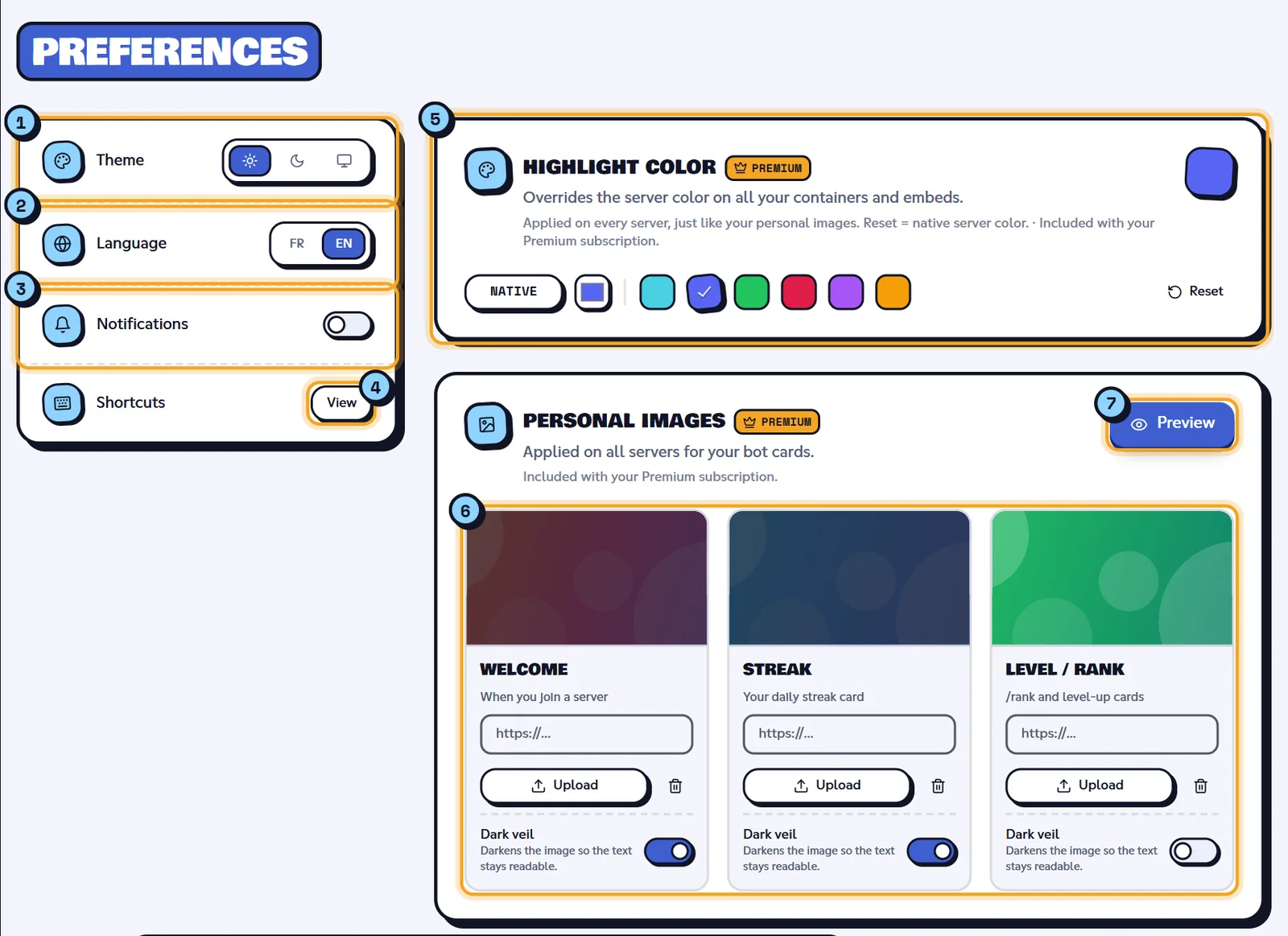
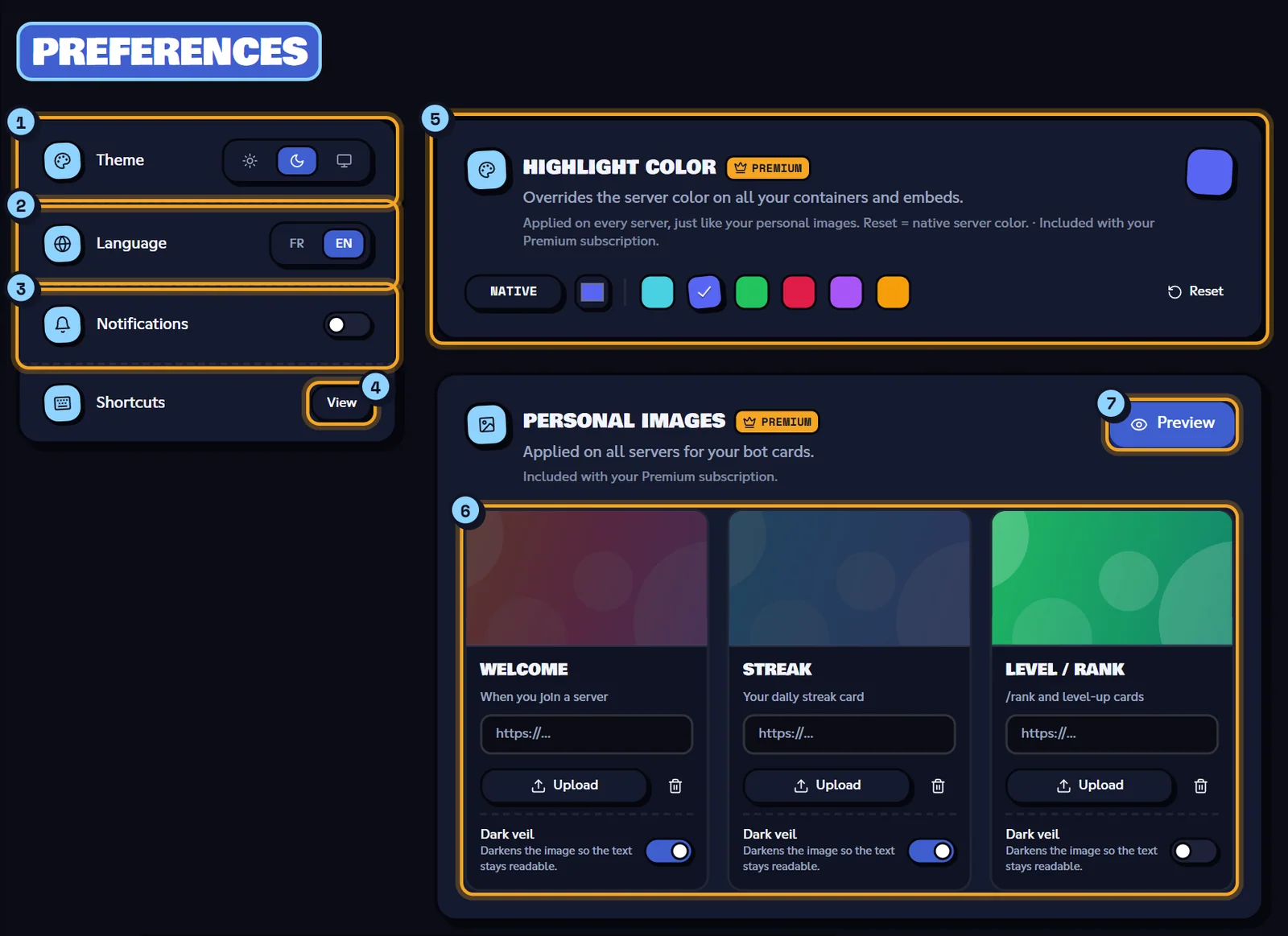
The Preferences section groups your settings. The left column applies right away, without saving; the right column (color and images) is saved with the bar at the bottom of the screen.
| Setting | What it does |
|---|---|
| Theme (1) | Three buttons: Light, Dark or System (follows your device). Applies to the dashboard. |
| Language (2) | FR or EN: the site language. |
| Notifications (3) | The switch turns on browser notifications: your browser asks for permission. Once allowed, the speaker button turns the sound on. If your browser blocks them, "Blocked by the browser" shows in red: unblock them in your browser settings. |
| Shortcuts (4) | View opens the list of keyboard shortcuts. |
Notifications and shortcuts are covered in Navigation, search and notifications.
Highlight color
The highlight color (5 in the screenshot) replaces the server color on the bot's replies about you ("all your containers and embeds"), on every server. For example, it's the border of your /profile reply. It's a Premium perk.
- Native: no personal color, the bot keeps each server's color.
- The color square opens your browser's color picker.
- Six ready-made colors:
#48D1E1,#5865F2,#22C55E,#E11D48,#A855F7and#F59E0B. - Reset goes back to the native color.
Then click Save changes in the bar at the bottom: the site confirms "Color saved".
Personal images
Personal images (6 in the screenshot) replace the background of the bot's cards about you, on every server. This is also a Premium perk. There are three slots:
| Slot | Card it changes |
|---|---|
| Welcome | "When you join a server": your welcome card. |
| Streak | "Your daily streak card". |
| Level / Rank | "/rank and level-up cards". |
For each slot:
- Paste an image address (
https://…) or click Upload to pick an image file (5 MB max; the site shrinks it automatically). - Keep Dark veil on to darken the image so the text stays readable, or turn it off.
- The bin removes the image: the card then goes back to the server background ("Server background").
Click Preview (7) to see your three cards with your current settings, even unsaved ones.
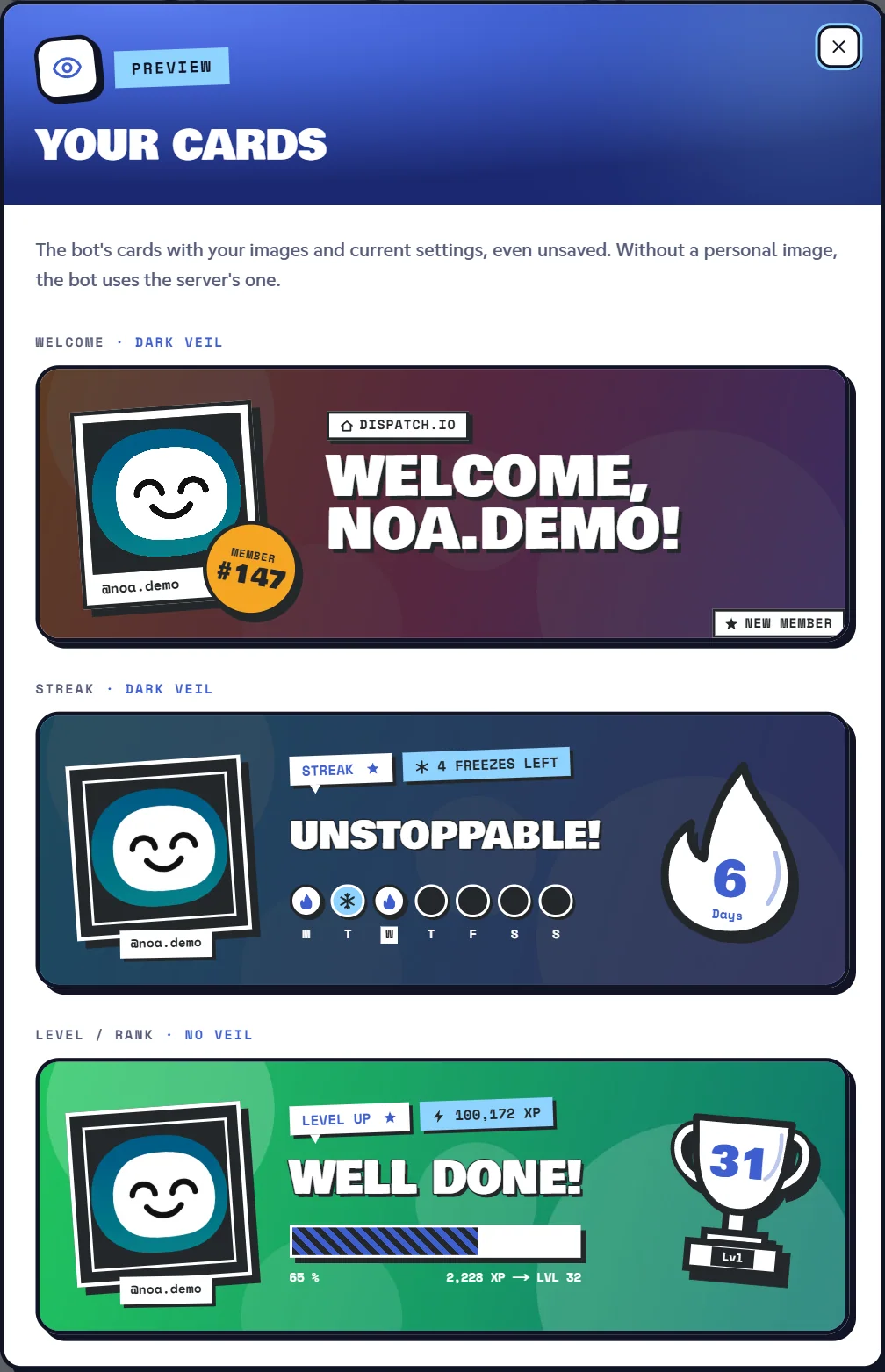
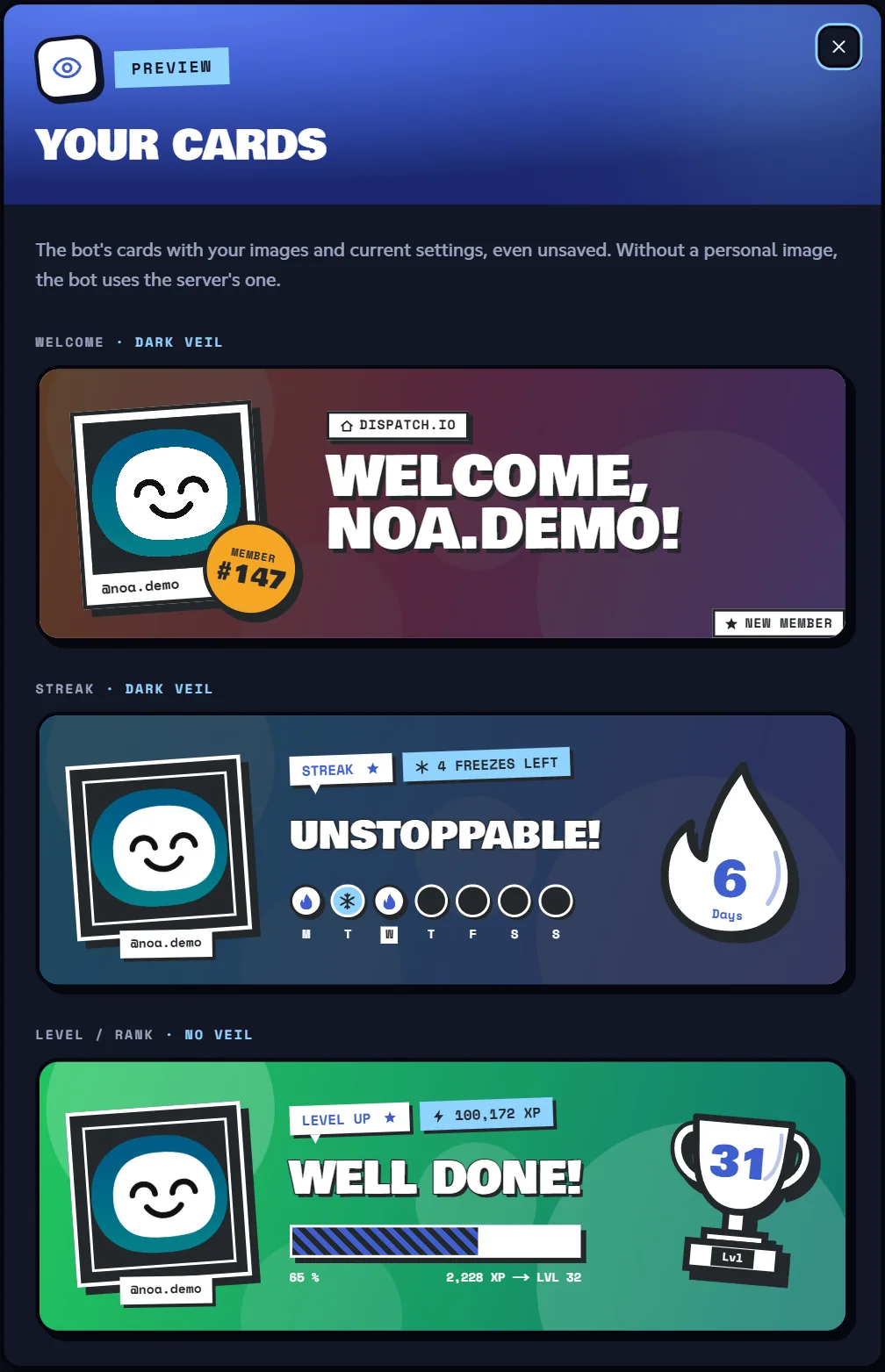
Save with the bar at the bottom: the site confirms "Personal images saved".
Which plan do you need?
The color and images are included in Individual Basic, Individual Ultimate and Dispatch.IO Ultimate (which includes Individual Ultimate), or if a friend on Ultimate invited you. Without one of these, saving is refused with the message "Premium required for global banners" or "Premium required for accent color". See Shop and subscription.
If your subscription ends, your images and color are set aside, then put back when you subscribe again.
Profile
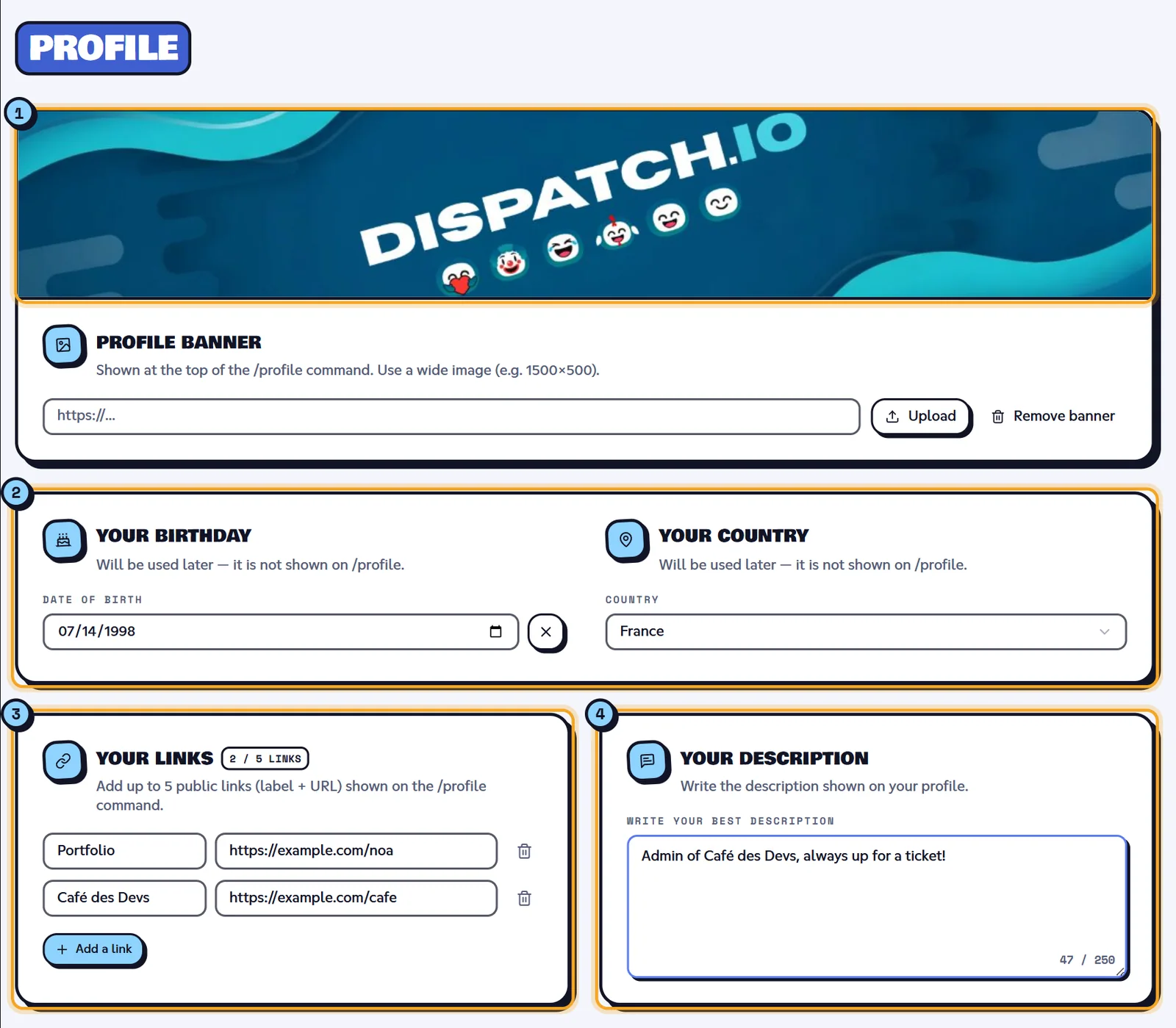
The Profile section sets what the /profile command shows on Discord (see General commands). These settings are free.
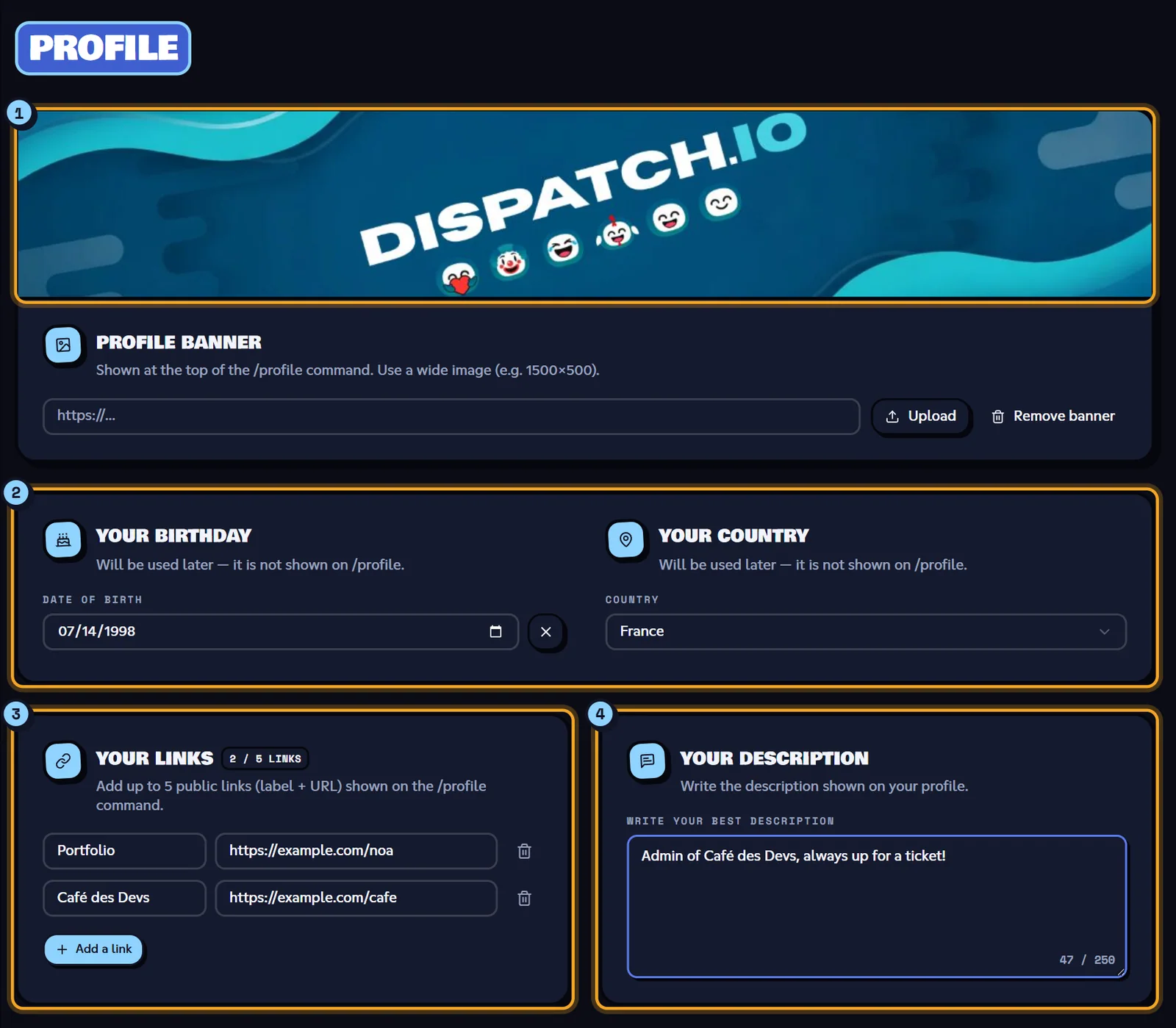
| Field | Details | Shown by /profile |
|---|---|---|
| Profile banner (1) | A wide image (for example 1500×500): paste its address or click Upload. Remove banner takes it off. | Yes, at the top |
| Your birthday (2) | Your date of birth; the X button clears it. | No ("Will be used later") |
| Your country (2) | Your country from the list, or No country. | No ("Will be used later") |
| Your links (3) | Up to 5 public links: a Label (32 characters) and an http:// or https:// address (200 characters). Add a link adds one, the bin removes one. | Yes |
| Your description (4) | Up to 250 characters; the counter turns red at the limit. | Yes |
Example: Noa adds the link Portfolio → https://example.com/noa and the description "Café des Devs admin, always up for a ticket!".
Then click Save changes: the site confirms "Profile saved".
Warning
A link without http:// or https:// is refused with the message "Invalid link". An incomplete date shows "Could not save profile".
Linked accounts
The Linked accounts section is meant to link your game accounts (Riot Games, Epic Games, Steam, Battle.net, Ubisoft, Supercell, Minecraft, osu!). For now it's greyed out with the message "The Dispatch.IO team has disabled this feature because it is under development." There's nothing to set up yet.
Saving your changes
- Theme, language and notifications apply as soon as you click.
- Color, images and profile need saving: as soon as you change one of these fields, the "Unsaved changes" bar appears at the bottom of the screen, with Reset (undo) and Save changes.
Preferences and Profile each have their own bar, in the same spot. If you change both, save one section, then the other. If you leave the page without saving, your changes are lost.
Learn more
- Managing your servers: the My servers section in detail.
- My activity: your tickets, stats and subscription.
- Shop and subscription: the plans that unlock the color and images.
- Sign-in and account: your Discord accounts and signing out.