
The shop (/dashboard/boutique) sells Dispatch.IO's Premium plans. It's where you pick a plan for your account or for one of your servers, pay online with Stripe (the payment service the site uses), redeem promo codes and find your invoices. This page explains every step, right up to sharing your Ultimate plan with a friend.
To open the shop: the Our shop shortcut (with a crown) at the top of the dashboard sidebar, or the Choose Basic, Choose Ultimate and See the full shop buttons on the site's home page. From a server's pages, the shortcut pre-selects that server.
Everything each plan unlocks on the bot side (limits, modules) is detailed in Premium plans and limits.
The shop page
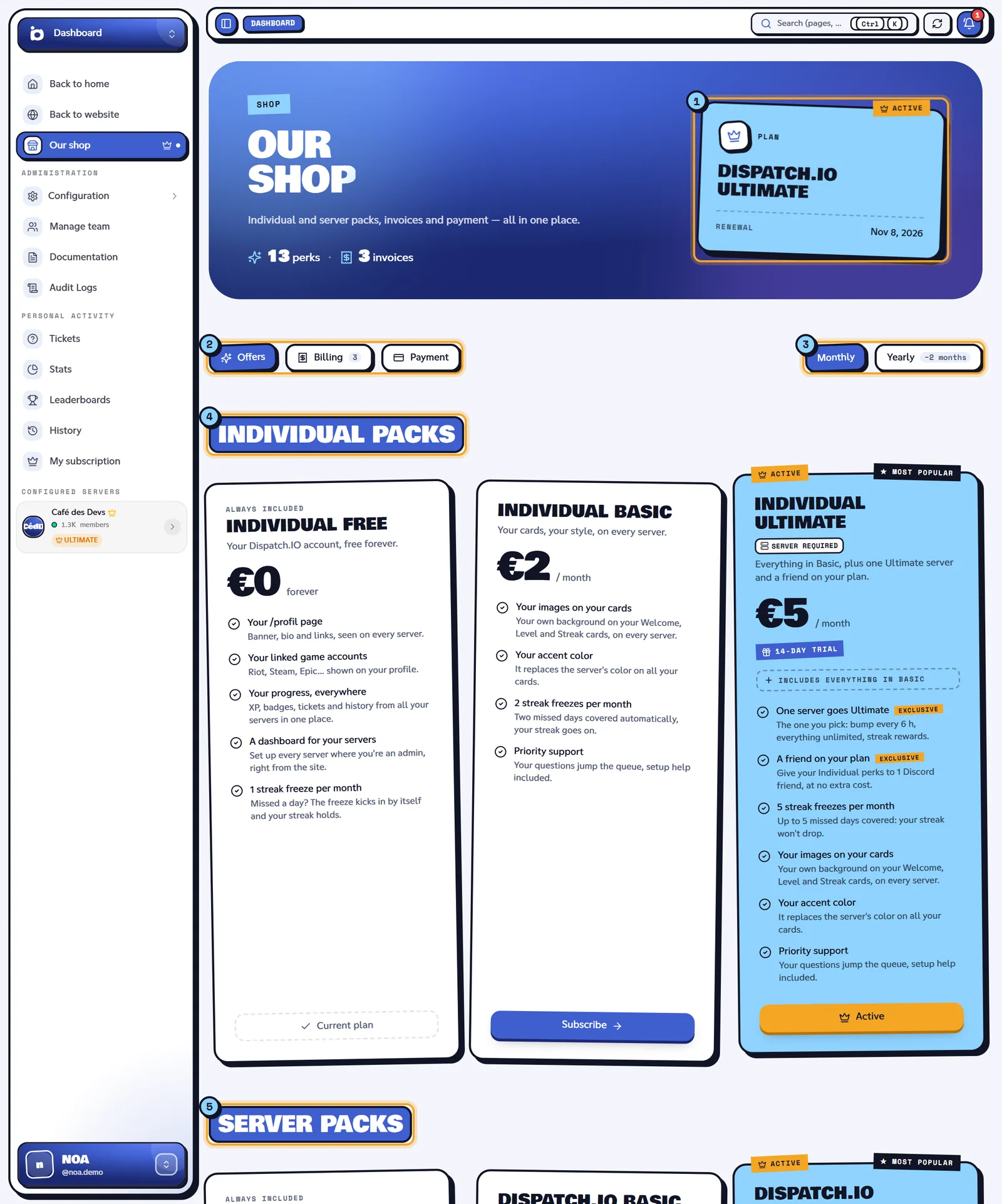
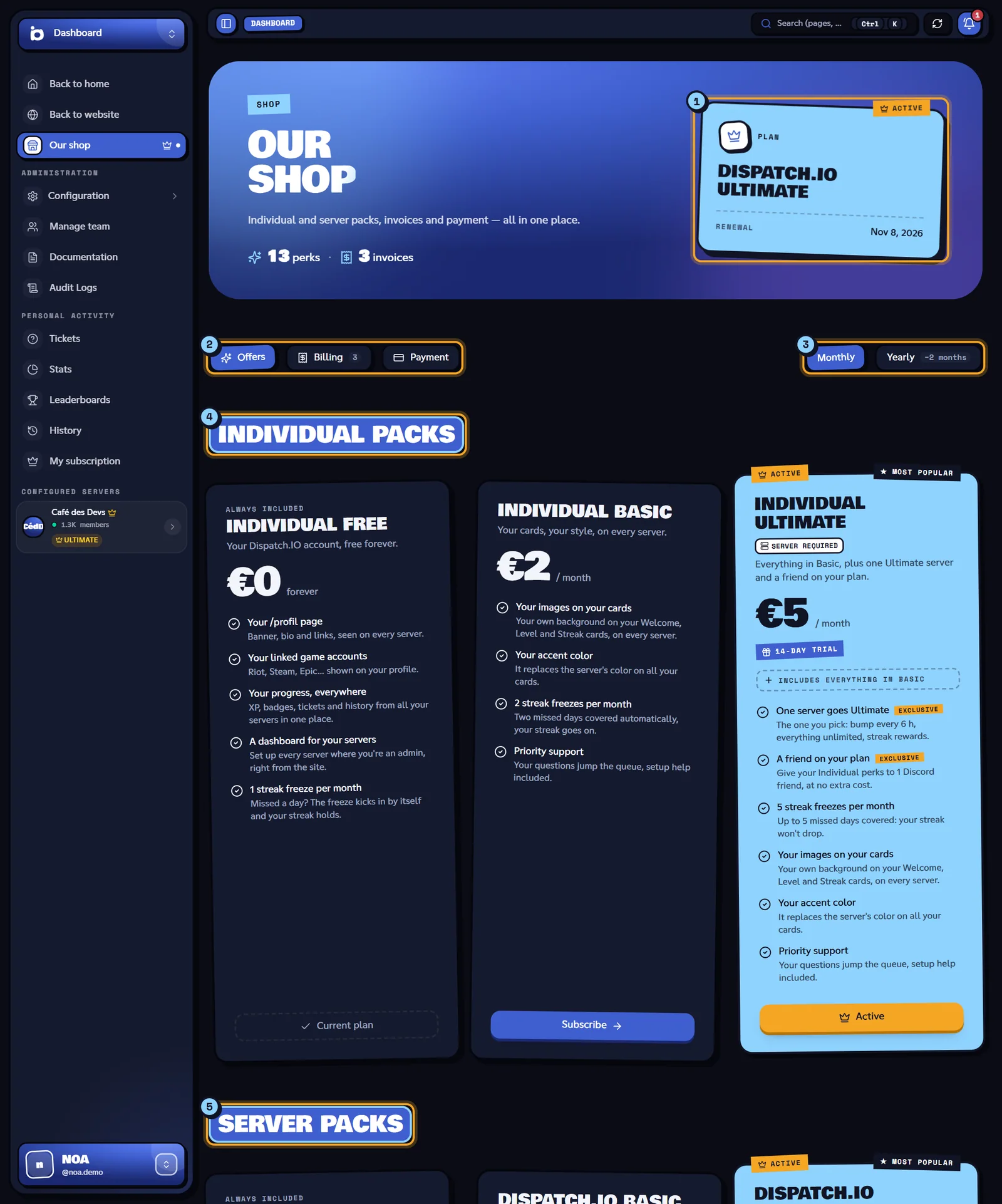
- Your current plan: the "Plan" box gives your plan's name (or Free), its Renewal date, and an Active tag if you have a paid plan. Under the title, a line sums up your number of perks and invoices.
- The tabs: Offers, Billing (with the number of invoices) and Payment.
- Monthly or Yearly: yearly billing is flagged "−2 months".
- and 5. The plans, in two families, detailed below.
Individual packs and server packs
- Individual packs are tied to your Discord account: their perks follow you on every server (your cards, your color, your streak freezes).
- Server packs are tied to one server: they raise the bot's limits and unlock modules on that server, for all its members.
Each family starts with a free card, "Always included", then the Basic and Ultimate plans. Here's what each card lists:
| Plan | What it brings |
|---|---|
| Individual Free | Your /profil page, your linked game accounts, your progress everywhere, a dashboard for your servers, 1 streak freeze per month. |
| Individual Basic | Your images on your cards, your accent color, 2 streak freezes per month, priority support. |
| Individual Ultimate | Everything in Basic, plus: one server goes Ultimate, a friend on your plan, 5 streak freezes per month. |
| Plan | What it brings |
|---|---|
| Dispatch.IO Free | /bump every 12 h, 2 YouTube + 2 Twitch, 3 role panels, 3 creator channels, 5 word reactions, 2 + 2 ticket systems. |
| Dispatch.IO Basic | /bump every 9 h, 5 YouTube + 5 Twitch, emergency alerts by DM, provisional level roles, 5 role panels, 5 creator channels, 10 word reactions, 5 + 5 ticket systems. |
| Dispatch.IO Ultimate | Individual Ultimate included, everything unlimited, /bump every 6 h, unlimited YouTube & Twitch, streak rewards, your image on streak cards. |
On each card you'll also see:
- the price, "/ month" or "/ year"; on yearly plans, "Save amount" compared with 12 months;
- "n-day trial" when the plan starts with a free trial;
- Most popular on Ultimate plans, with "Includes everything in Basic";
- Server required when the plan applies to a server: every server plan, and Individual Ultimate (for the server that goes Ultimate).
Note
Linked game accounts, listed in Individual Free, are currently disabled on the site.
Subscribing
- In the Offers tab, pick Monthly or Yearly.
- If the card says Server required, pick the server in the Server list. Only servers where the bot is present are offered: add the bot first if needed (see Managing your servers).
- Click Subscribe. The button shows "Redirecting…", then Stripe's secure payment page opens.
- On Stripe, enter your card (and your discount code if you have one), then confirm.
- You're taken back to the shop. Your plan switches to Active within a few seconds, without reloading the page.
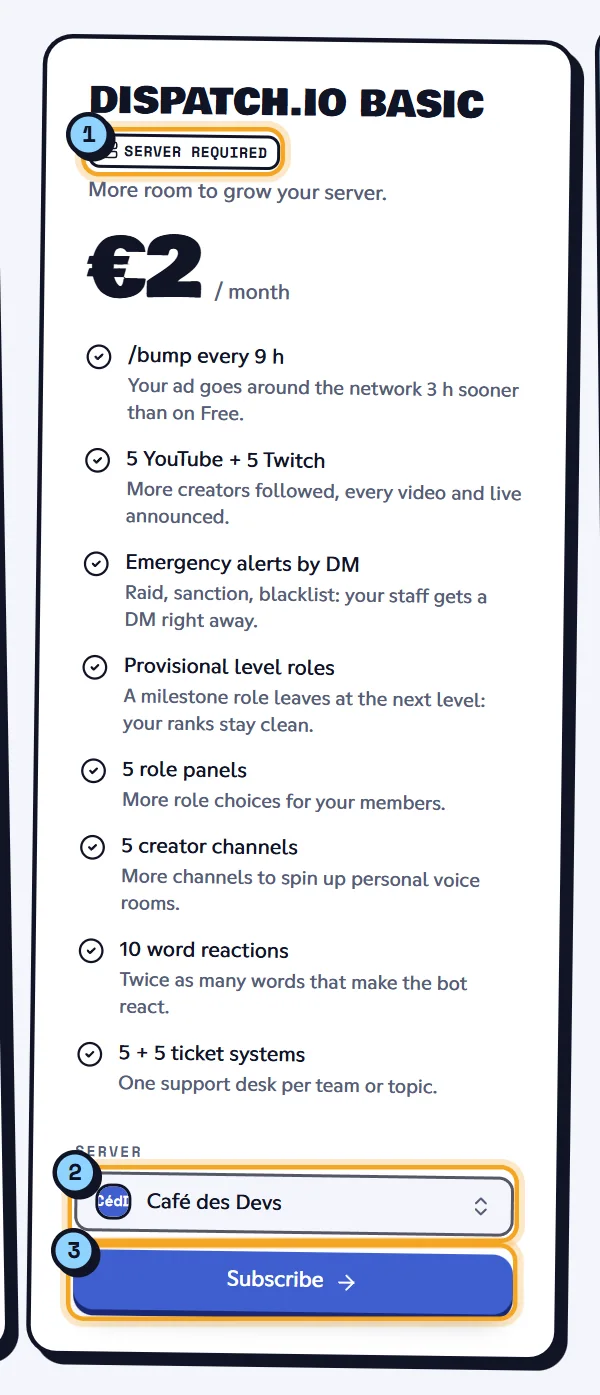
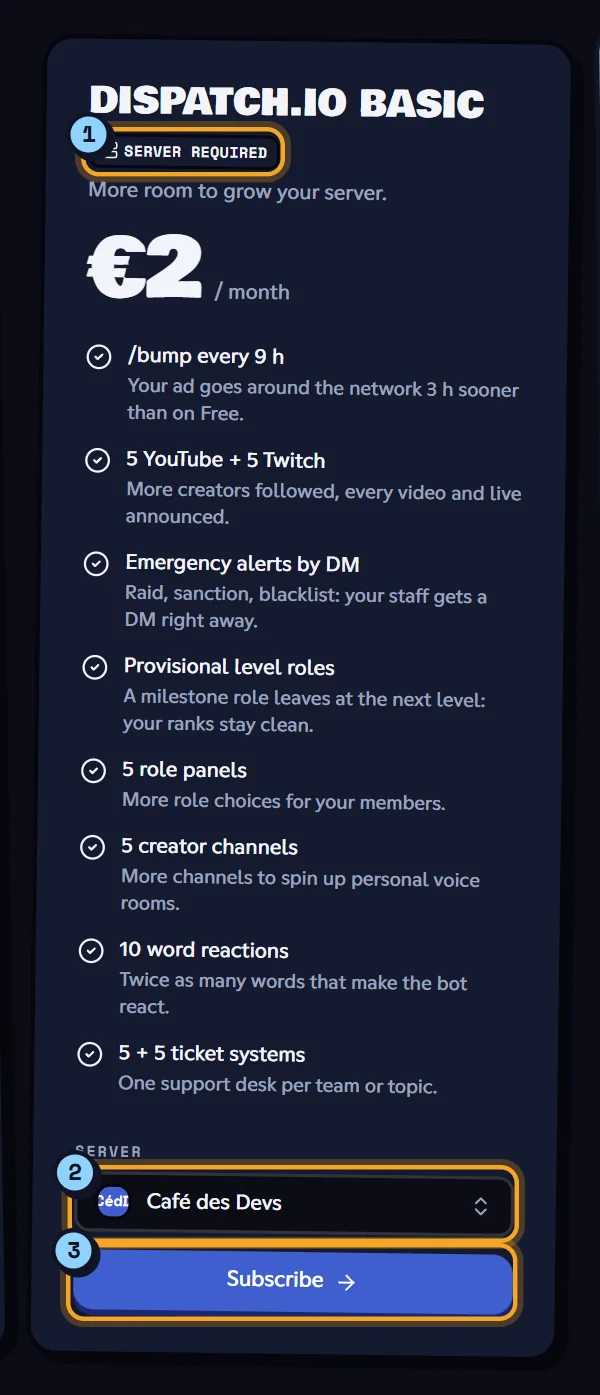
Free trial: when the card shows "n-day trial", Stripe saves your card but only charges you at the end of the trial. During the trial, your plan card shows Free trial in My subscription.
If you leave the Stripe page without paying, you're taken back to the shop and nothing is charged.
Tip
A plan you already have shows Active and its button is disabled. Dispatch.IO Ultimate also shows Active when you have Individual Ultimate, which includes one Ultimate server.
| Message | Meaning |
|---|---|
| "Checkout is not available yet." | Online payment isn't open: the Subscribe buttons are greyed out. |
| "Select a server." | The plan needs a server: pick it in the card's list. |
| "Unable to start checkout" | Stripe couldn't open the payment page: try again in a moment. |
Using a promo code
There are two kinds of promo codes, entered in different places:
| Kind of code | Where to enter it | Effect |
|---|---|---|
| Free days | The shop's Promo code field | Activates a plan for a number of days, no card needed. |
| Discount (% or amount) | The Stripe payment page | Lowers the price of your subscription. |
For a free-days code:
- At the bottom of the Offers tab, type the code in Promo code (it switches to capitals on its own) and click OK (or press Enter).
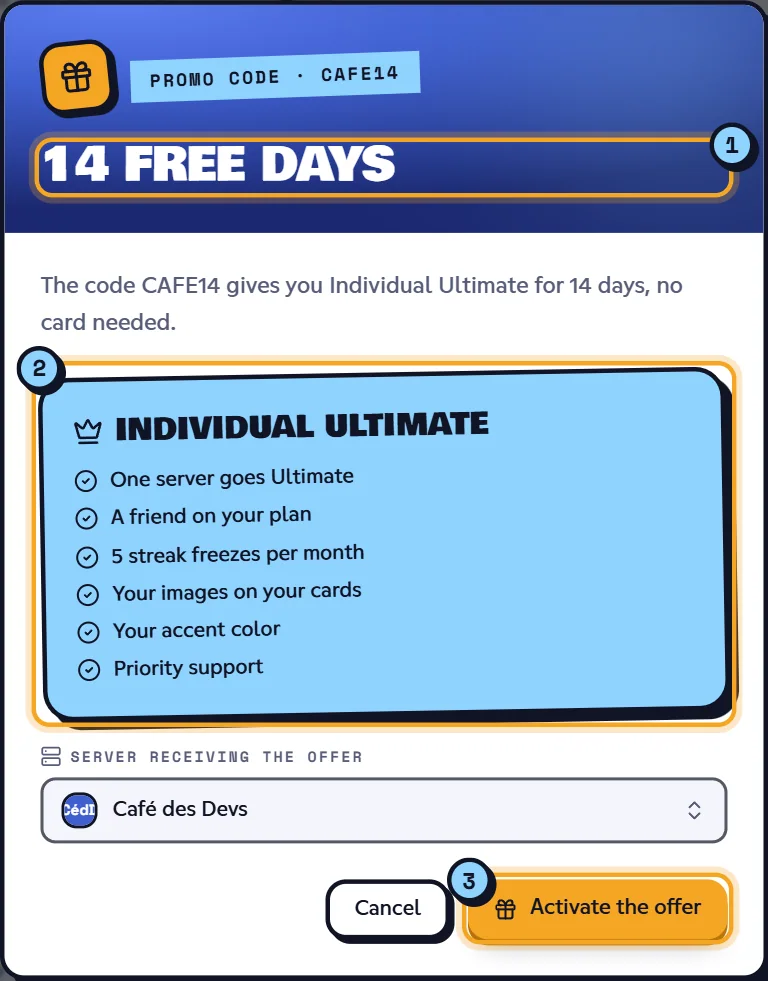
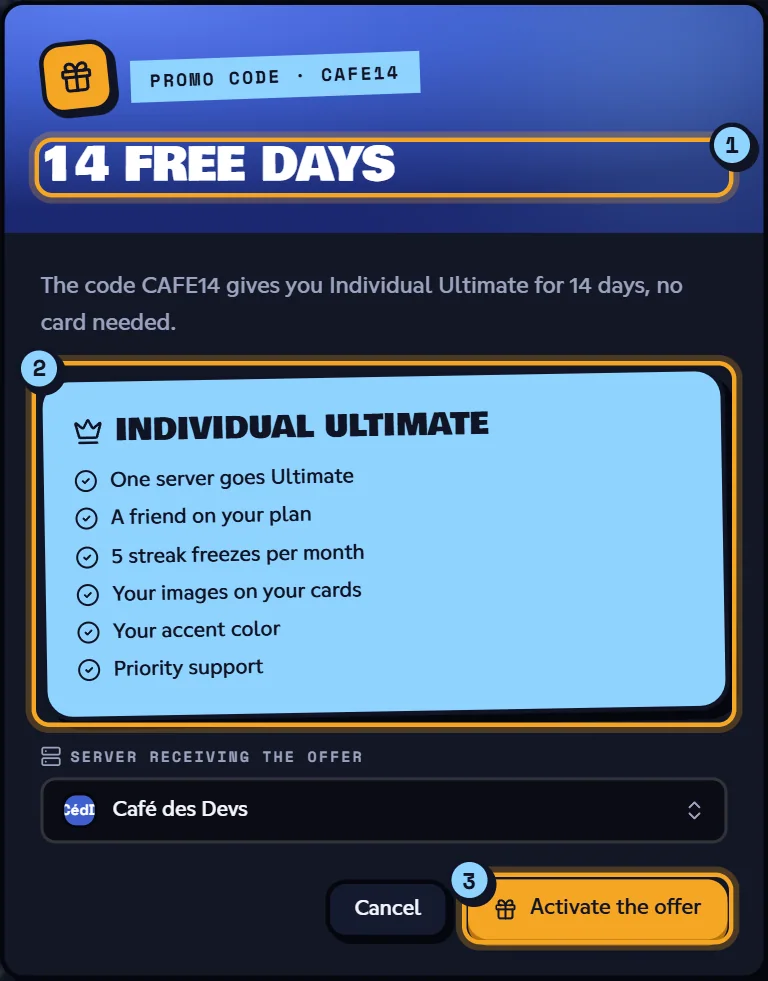
- A window checks the code ("Checking…"), then shows for example "14 free days" and "The code CAFE14 gives you Individual Ultimate for 14 days, no card needed.", with the plan's perks and its deadline ("Valid until…").
- If the plan applies to a server, pick it in "Server receiving the offer".
- Click Activate the offer. The window shows "It's on!": the plan is active right away. On My subscription, it carries the Gifted tag.
If you type a discount code in this field, the window shows "Discount at checkout" (for example "−20% off your subscription") and explains that you enter it on the Stripe page; See the plans takes you back to the cards.
| Message | Meaning |
|---|---|
| "This code doesn't exist or is no longer active." | Unknown or disabled code: check the spelling. |
| "This code has expired." / "This code isn't active yet." | The code is outside its validity period. |
| "You've already used this code." | Your account has already used this code. |
| "This code has reached its maximum number of uses." | No uses left. |
| "Pick the server that should receive the offer." | The plan needs a server. |
| "This code is used at checkout." | It's a discount code: enter it on Stripe. |
| "This code's plan is no longer available." / "This code is misconfigured, please contact support." | A problem with the code itself: contact support. |
Finding your invoices
The Billing tab lists up to 50 invoices, with their Date, Status, Amount and an Open button, which shows the invoice on Stripe in a new tab (you can download it there).
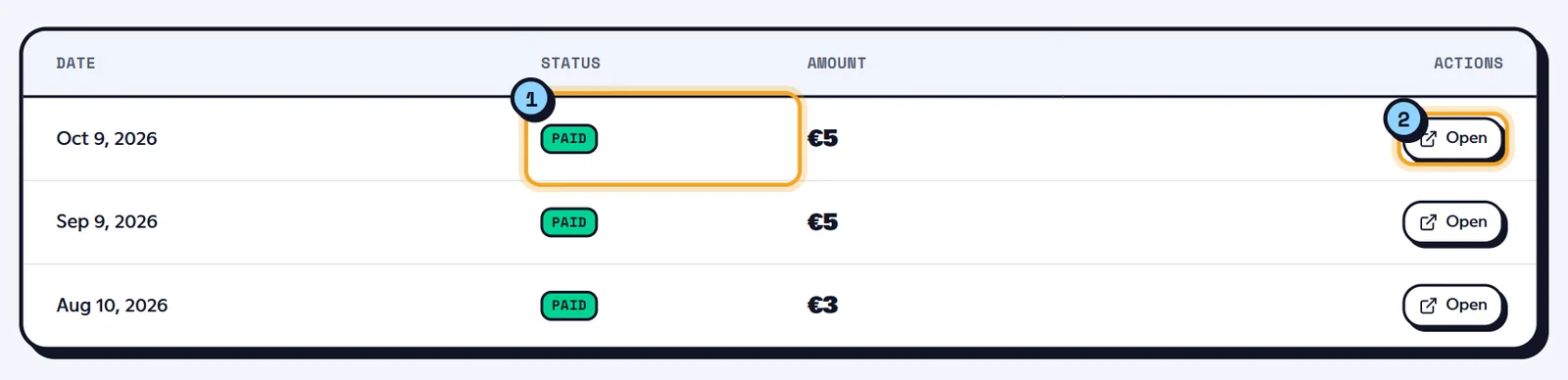
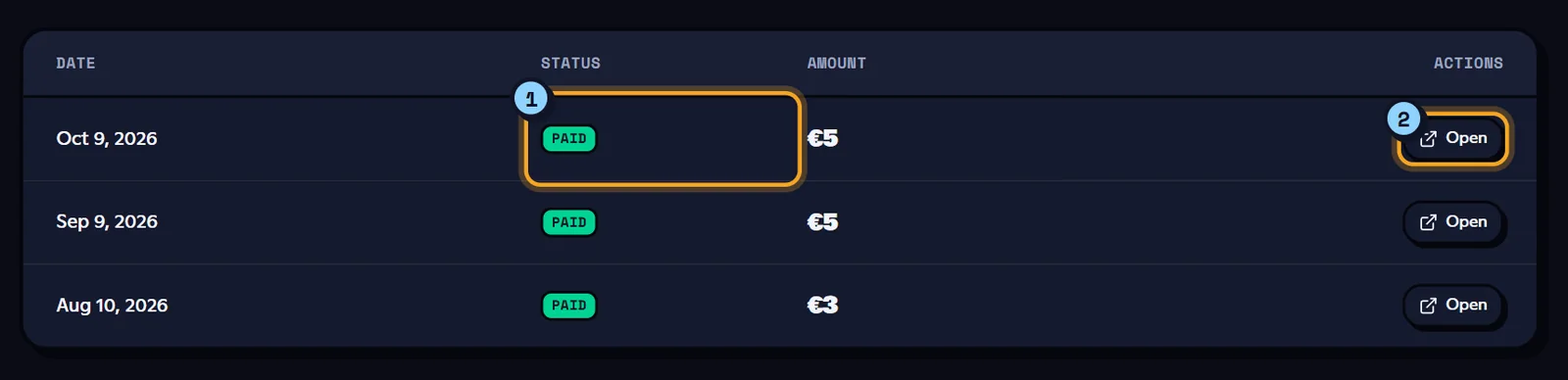
In this tab, the status is shown as Stripe gives it: paid, open (due), draft, uncollectible (unpaid) or void. Your last 5 invoices also appear on My subscription, with friendlier labels.
With no invoice, the tab shows "No invoices yet." and an Offers button.
Managing your payment and cancelling
Your bank card, invoices and cancellation are handled on Stripe's customer portal:
- in the shop, Payment tab › Open Stripe portal;
- or on My subscription: Manage my payment, Manage payment on a plan, or Open the Stripe space.
On the portal, you can change your card, download your invoices and cancel your subscription. When you're done, you come back to the shop's Payment tab.
If you cancel, your plan stays active until the end of the paid period and its card shows Cancellation scheduled. You can change your mind with Resume subscription. When the plan ends, your personal images and color are set aside, then put back if you subscribe again.
If you've never paid by card, the tab shows "No Stripe customer yet — subscribe first." and the button is greyed out.
Sharing Ultimate with a friend
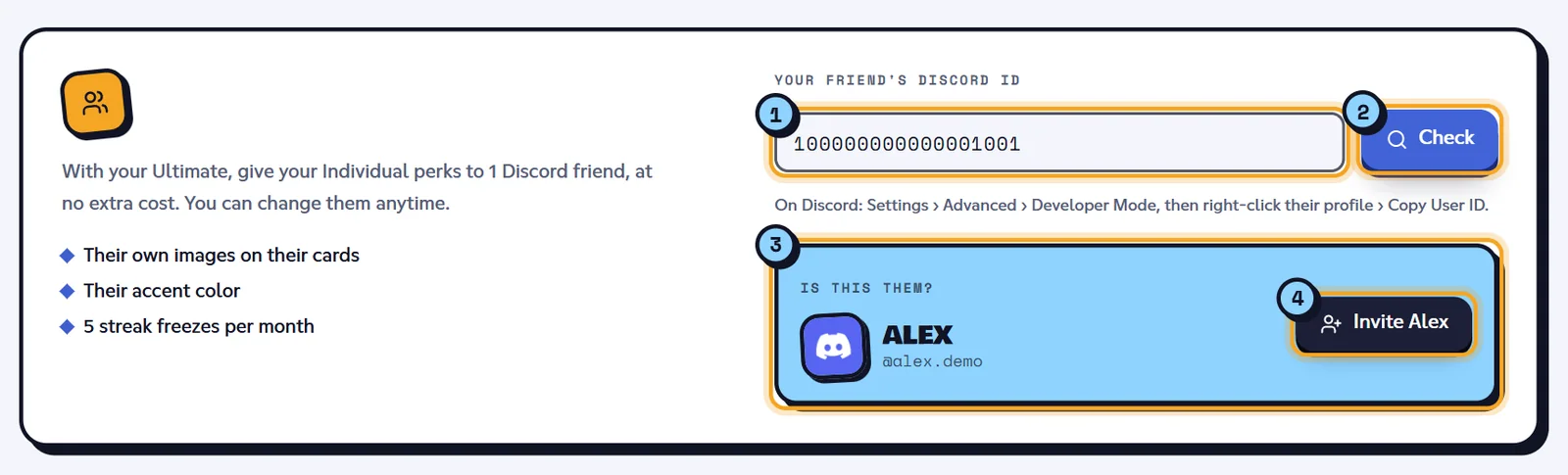
With Individual Ultimate or Dispatch.IO Ultimate, you can give your Individual perks to one Discord friend, at no extra cost. Your friend gets:
- their own images on their cards;
- their accent color;
- 5 streak freezes per month.
Sharing happens on My subscription, in Invite a friend:
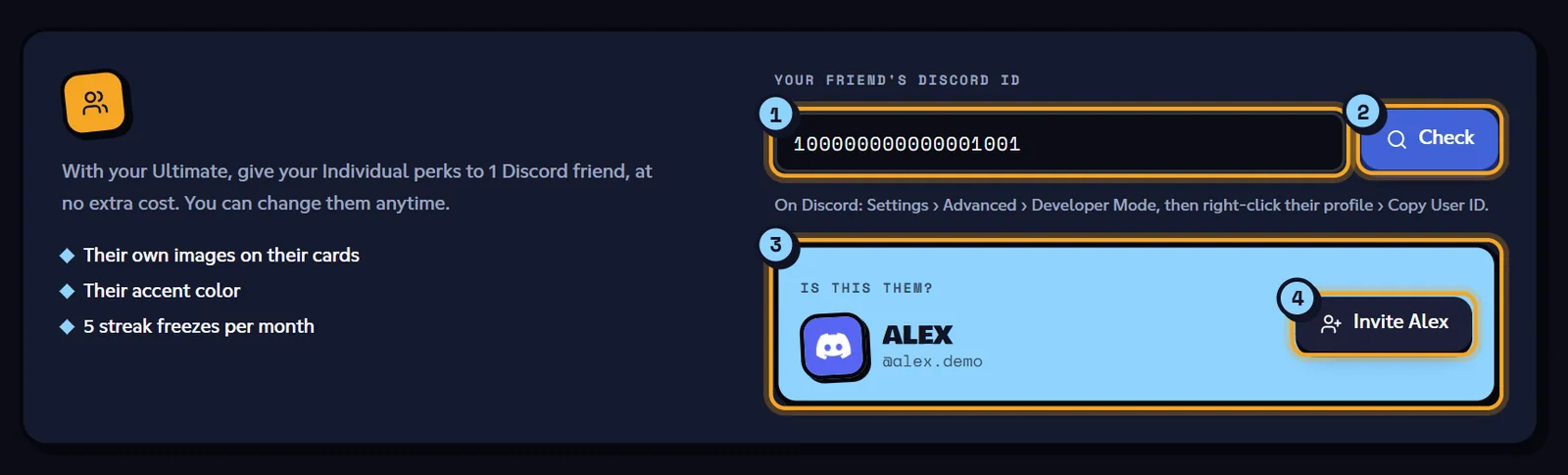
- Get your friend's Discord ID: "On Discord: Settings › Advanced › Developer Mode, then right-click their profile › Copy User ID."
- Paste it in "Your friend's Discord ID" and click Check.
- The "Is this them?" card shows their profile. If it's your friend, click Invite name (for example Invite Alex).
- The site confirms "Alex now enjoys your perks!". Your plan card says "Shared with Alex".
To change friends: Remove this friend › "Remove Alex?" › Yes, remove. The site confirms "Alex no longer has your perks." and you can invite someone else.
On their side, your friend sees a "Shared perks" card on their My subscription page, and "Gifted by your name" as their current plan.
Without an Ultimate plan, the card shows "Invite a friend with Ultimate" and a Go Ultimate button.
| Message | Meaning |
|---|---|
| "This ID isn't valid: it has 17 to 20 digits." | You pasted something other than a Discord ID. |
| "No Discord account with this ID." | The ID doesn't match any account. |
| "You can't invite yourself." | That's your own ID. |
| "You already invited a friend: remove them first." | One seat per Ultimate plan. |
| "Your plan doesn't include inviting a friend." | Your plan isn't an Ultimate plan. |
Learn more
- Premium plans and limits: what each plan changes in the bot.
- My activity: the My subscription page in detail.
- Server subscription: a server's plan seen from its dashboard.
- The dashboard: setting your images and color once subscribed.