
Server protection is set up on two pages of the Configuration menu, plus the emergency alerts:
| Where | What it's for | When to use it |
|---|---|---|
| Security | Raid mode (kick every new joiner) and the whitelist (who is exempt from which protections). | During an attack, and to declare your trusted bots and staff. |
| Anti-Raid | The automatic protections: captcha, recent accounts, spam, links, forbidden words, channel deletions… | Once, to choose what the bot keeps an eye on. |
| Basic configuration → Emergency Mentions & Alerts | Who gets pinged when a protection fires. | Once, to alert your team. |
This page is for server owners and administrators. The bot's detailed behaviour (direct messages, logs, /raid-mode command) is described in Anti-raid and security (module).
Important
The bot needs the Administrator permission for the anti-raid. If it loses it, the anti-raid turns itself off: give the permission back, then turn the anti-raid on again.
The Security page
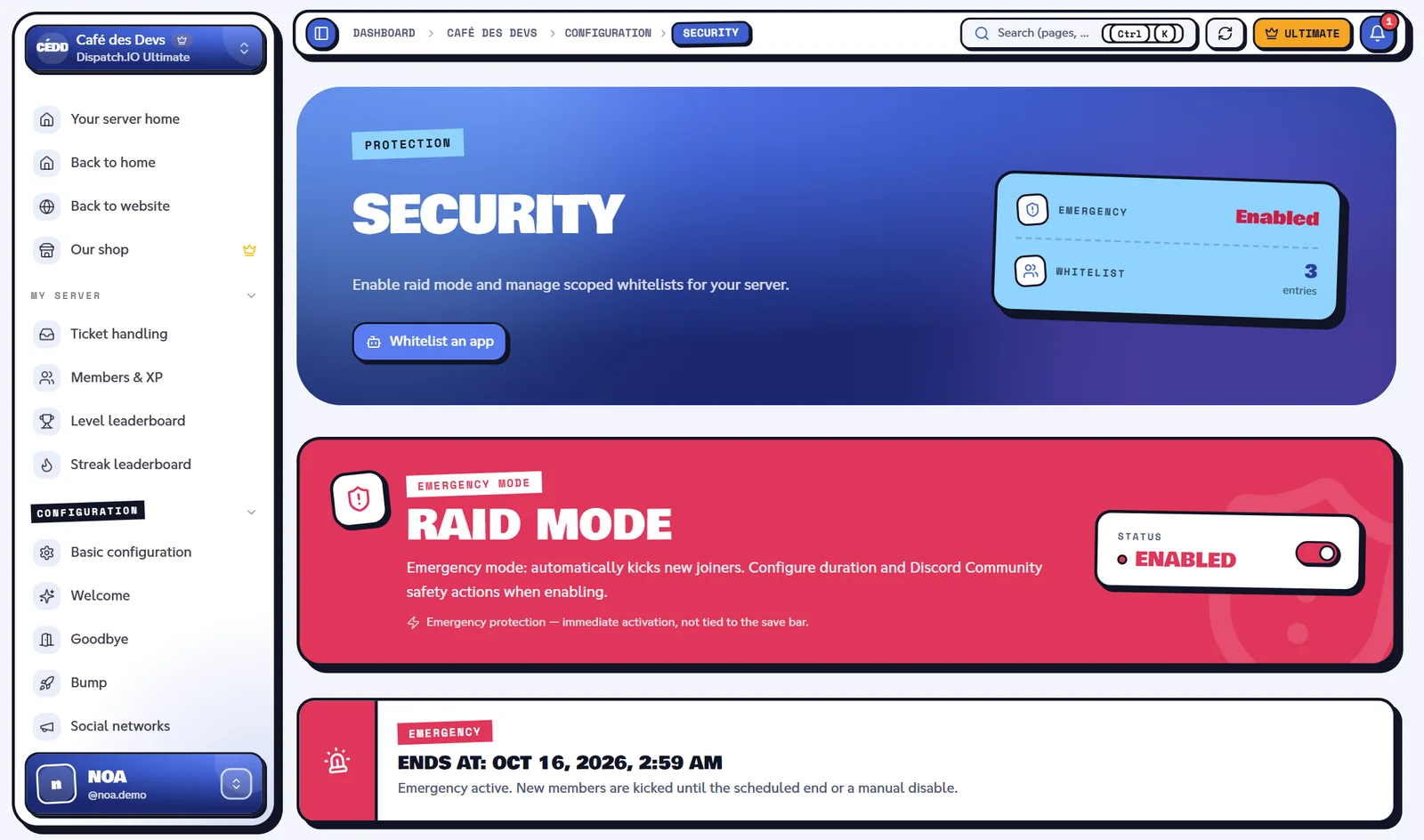
In the left menu, Configuration group, click Security. On the server home, the red "Under attack? Turn on raid mode" callout and its Open button also lead here.
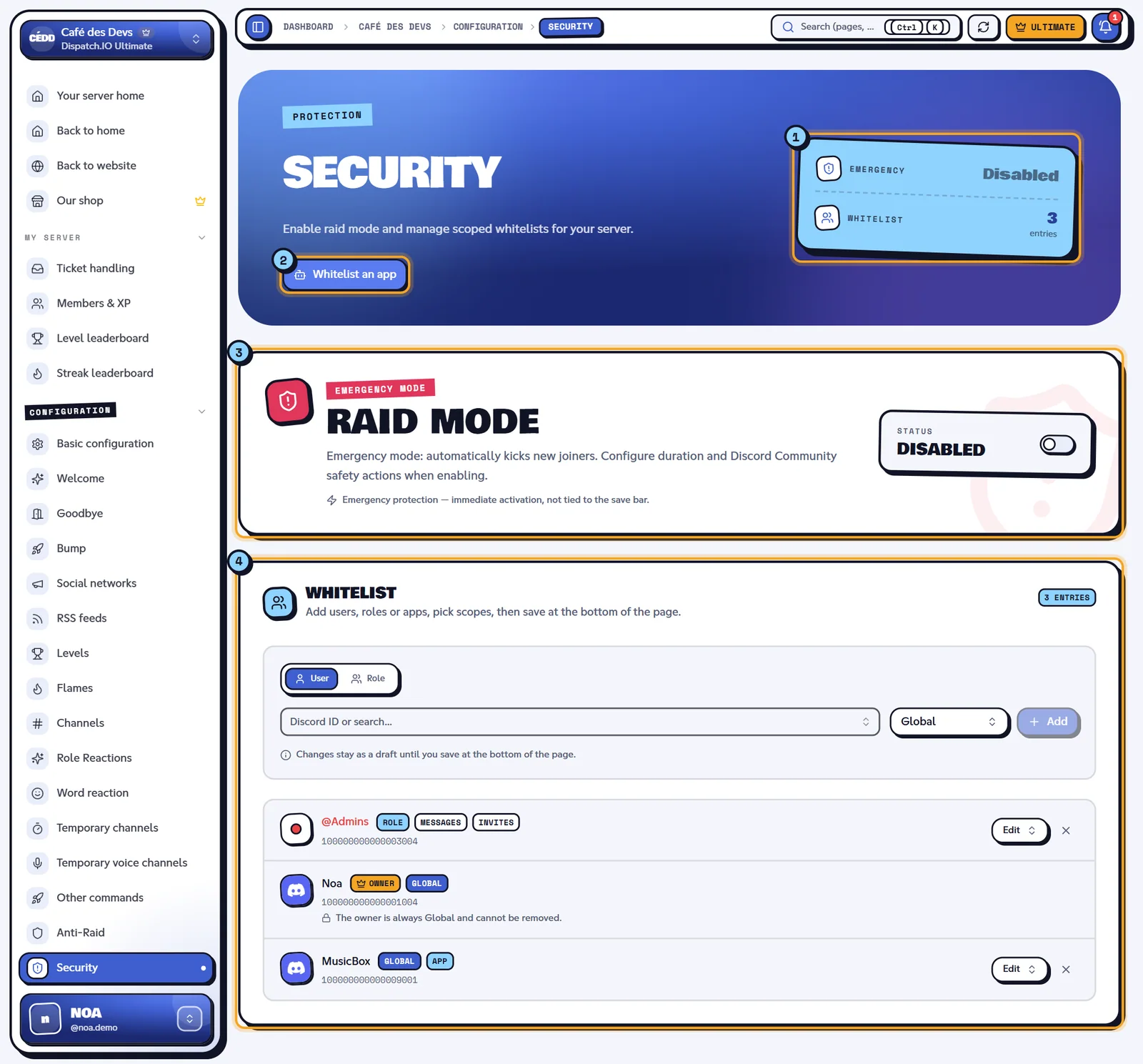
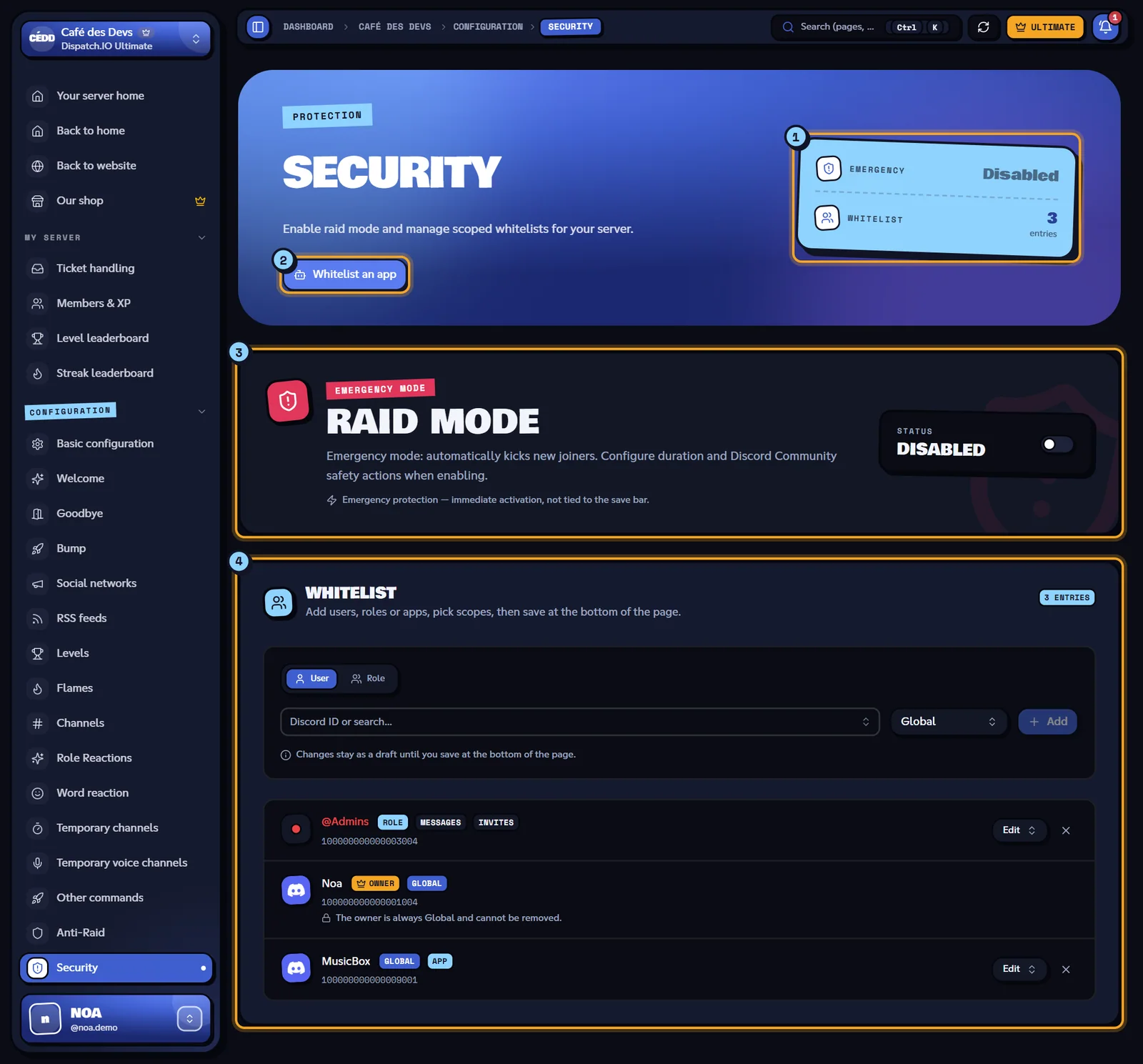
- The counters: Emergency (raid mode Enabled or Disabled) and Whitelist (number of entries, owner included).
- Whitelist an app: adds a bot to the whitelist (see below).
- The Raid mode block and its red switch.
- The Whitelist: the add box, then the list of entries.
Raid mode
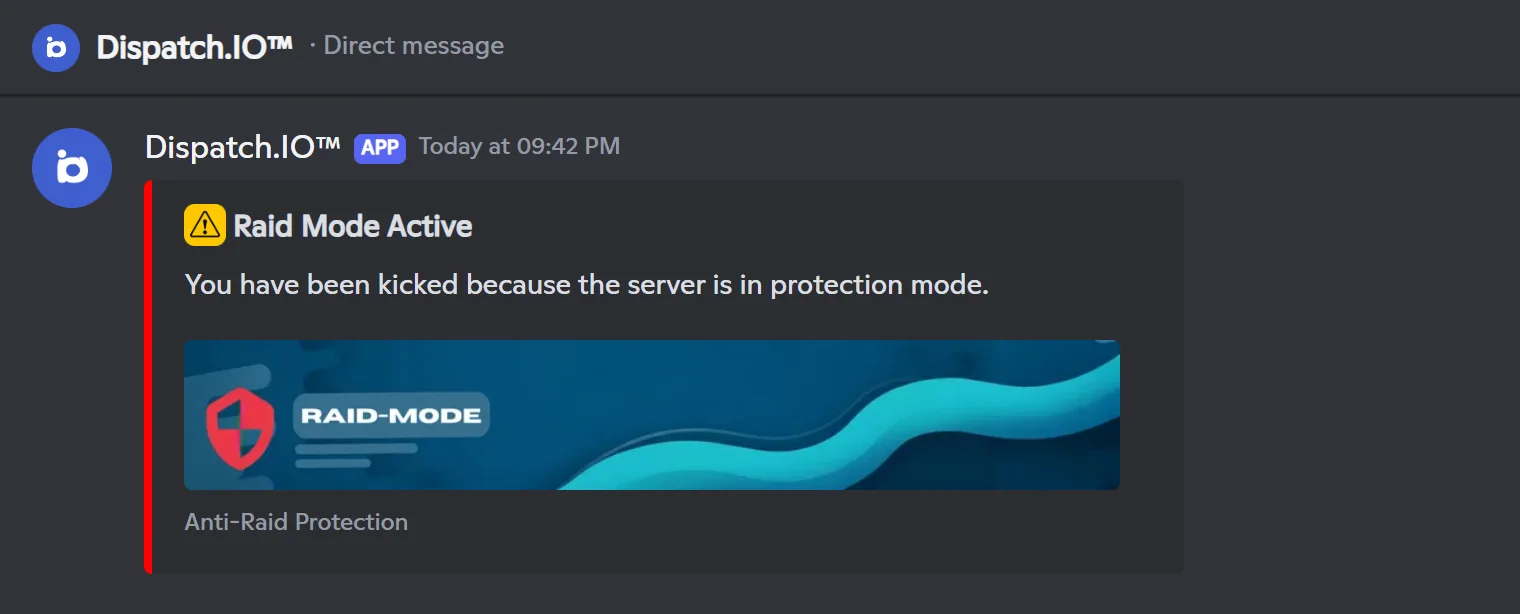
Raid mode is the emergency switch: while it's on, every new member gets a direct message and is then kicked. Members already on the server are not affected. It works even when the anti-raid is off, and the whitelist doesn't apply: nobody is exempt during that time.
It takes effect immediately, without going through the save bar.
Turn raid mode on
- Click the switch in the Raid mode block. The Enable raid mode dialog opens.
- Set the options below.
- Click Enable. The message "Raid mode enabled." appears and the block turns red.
| Option | Effect | Values | Default |
|---|---|---|---|
| Duration | Raid mode stops on its own after this time. The dialog shows the end time ("Ends: …"). | 1 h, 2 h, 4 h, 6 h, 12 h, 24 h | 2 h |
| Pause invites | Discord blocks joins through invite links or vanity URLs for the same duration. | On / off | On |
| Pause DMs | Discord blocks new direct messages between members of the server for the same duration. | On / off | On |
The last two options are Discord safety actions, only available on a Community server. On any other server, the dialog shows "This server does not have Community enabled — Discord safety actions are unavailable." and the switches are greyed out.
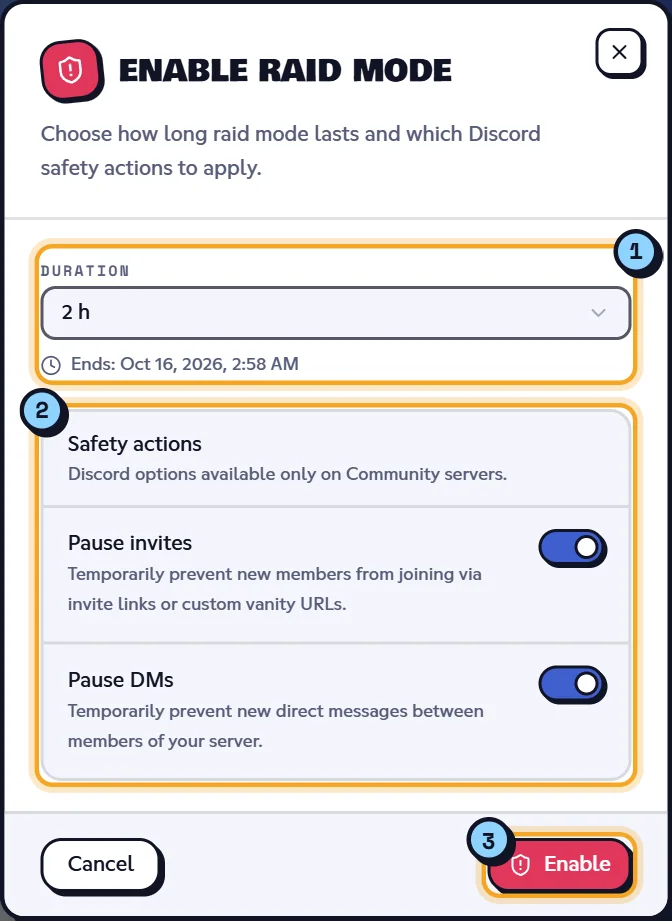
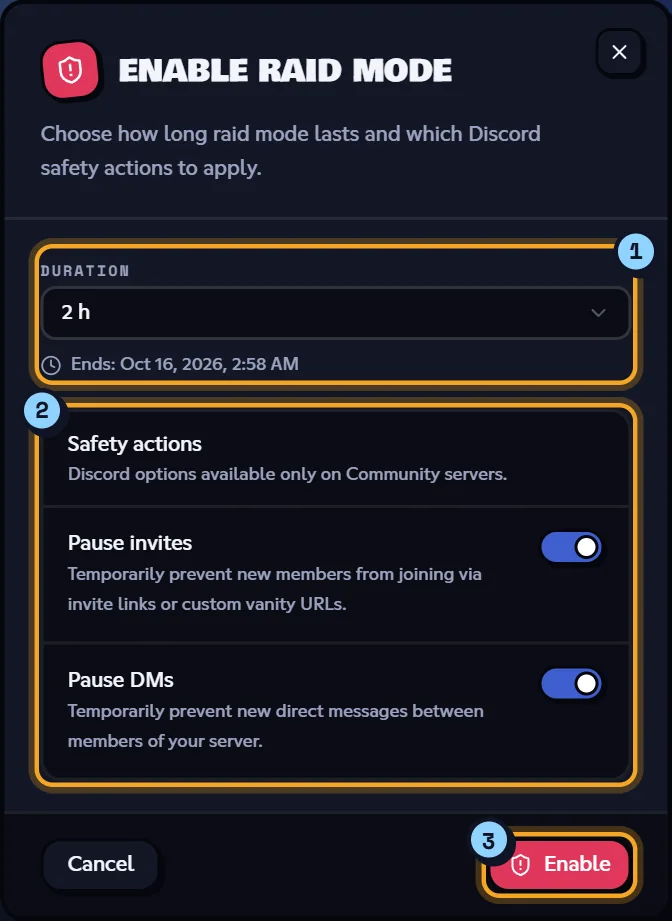
- Duration and the computed end time.
- The safety actions (Community server).
- Enable.
While raid mode is on
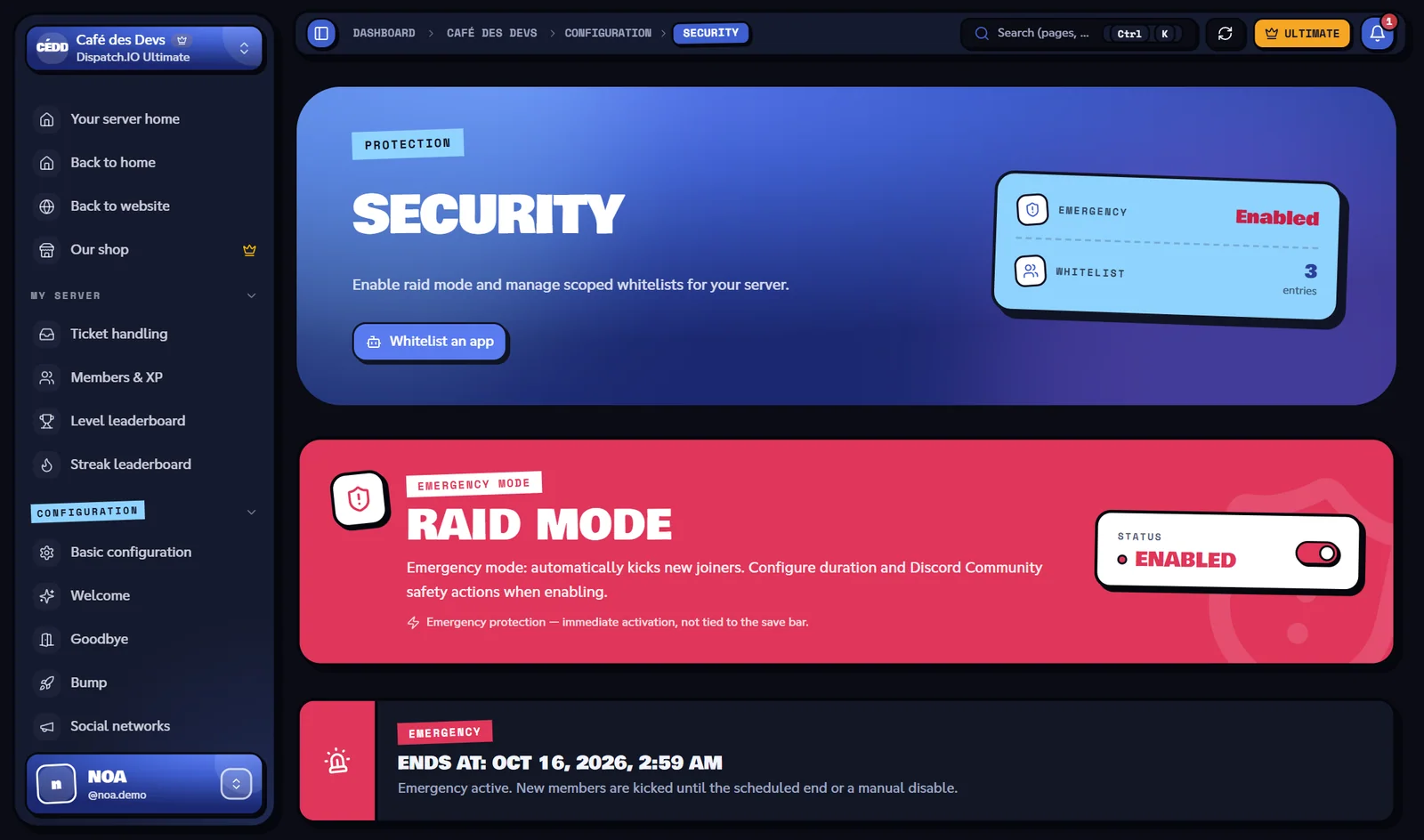
- The Raid mode block is red and shows "Ends at: …" with "Emergency active. New members are kicked until the scheduled end or a manual disable."
- The server home shows the Raid mode active banner ("New joiners are kicked automatically until …") with an Open Security button.
- On Discord, the activation is posted in the Anti-Raid & Security Logs channel (with the emergency mentions) and each kick in Joins & Leaves Logs.
The direct message each new joiner receives:
Turn raid mode off
Click the switch again: the "Disable raid mode?" dialog reminds you that "Automatic kicks stop and Discord safety actions are cleared.". Click Disable ("Raid mode disabled.").
When the chosen duration is over, raid mode stops on its own, without any message on Discord; reload the page to see the current state.
Warning
During a raid, if the Basic configuration page was already open before you turned raid mode on, reload it before saving anything there: a page opened before the change can put raid mode back to its previous state.
From Discord, the /raid-mode command does the same thing with a fixed 24-hour duration (see Server management).
The whitelist
The whitelist says who is exempt from which anti-raid protections. Each entry (a member, a role or an app) has one or more scopes.
Add a member or a role
- In the add box, choose User or Role.
- Pick the member (search among the first 100 members, or paste a Discord ID) or the role.
- Choose the covered protections in the scope picker (Global by default).
- Click Add: "Added to draft — save at the bottom to apply.".
- Click Save changes in the bar at the bottom of the screen ("Whitelist saved.").
Note
Until you save, additions, removals and scope changes stay a draft: Reset cancels them. If you leave the page without saving, they are lost.
Scopes
| Scope (label) | The member, role or app is exempt from… |
|---|---|
| Global | All the protections below. Picking Global removes the other scopes. |
| App additions | The app addition protection: the listed app can be added to the server without being kicked. |
| Messages (spam, links, words, mentions) | The anti-spam, mention, link and forbidden word protections. |
| Channel create | The mass channel creation protection. |
| Channel delete | The mass channel deletion protection. |
| Mass bans | The mass ban protection. |
| Webhooks | The webhook creation protection. |
| Invites | The invite creation protection. |
| Server updates | The server modification protection. |
| Joins / recent accounts | The mass join and recent account protections (for a role, only if the member already has that role when joining). |
Neither raid mode nor the captcha take the whitelist into account.
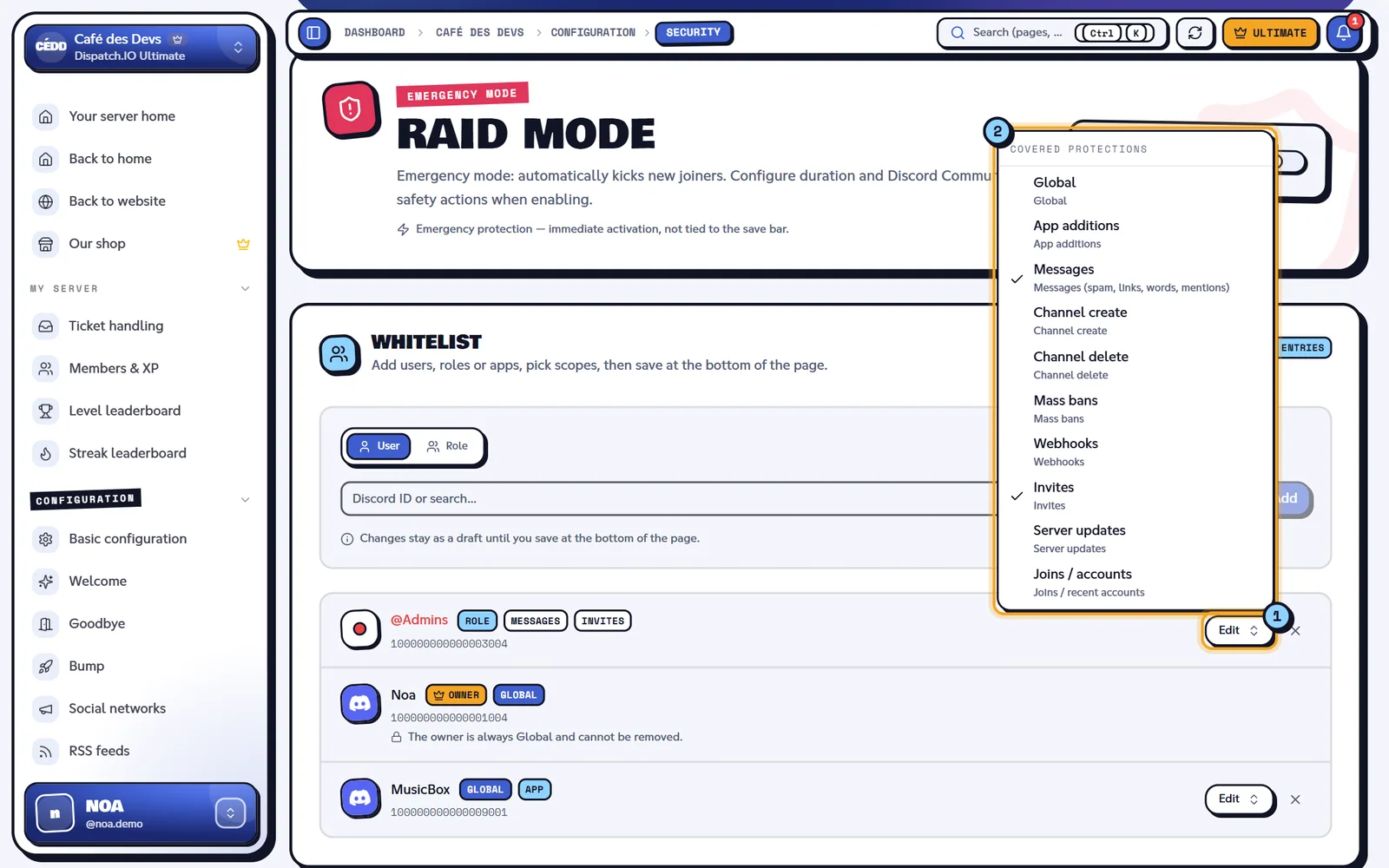
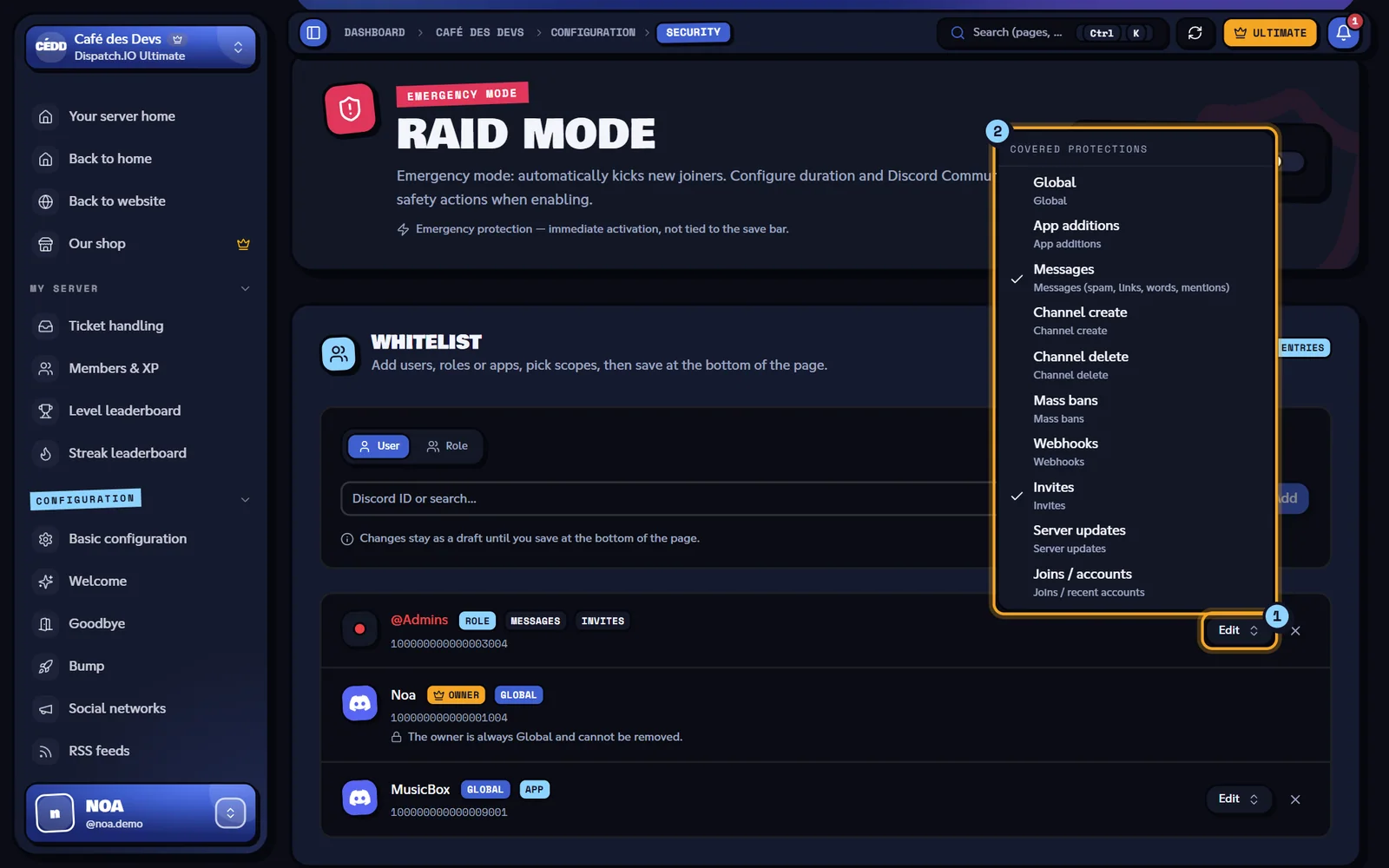
- An entry's Edit button opens the Covered protections picker.
- Tick or untick scopes; the summary shows Global, a single scope or "N protections".
The list
- Roles come first (colour dot, Role badge), then members.
- The owner is always shown at the top of the members, with the Owner badge and the Global scope: they can't be edited or removed here.
- Bots carry the APP badge.
- For each entry: its scopes, Edit (scopes) and the cross to remove it from the draft.
- A member sanctioned with
/timeout,/kickor/ban(or from the website) is automatically removed from the whitelist.
The owner and saving
This display doesn't match what is saved. Saving the whitelist from this page deletes the Global entry the bot created for the owner when it joined the server. The message filters always ignore the owner, but for server protections (channels, bans, invites, webhooks, server changes), their own changes can then be undone. After saving, add them back with /config → Whitelist → Add (see Whitelist).
Whitelist an app
The Whitelist an app button opens the Whitelist an application dialog: pick a bot that's on the server (search "Search a bot…") or paste the application ID, choose the covered protections (App additions by default), then click Add.
- From the Security page, the app is added to the draft: save afterwards with the bottom bar.
- From the Anti-Raid page, the app is added right away ("Added to whitelist.").
Tip
Before adding a new bot while App addition protection is on, whitelist its application ID with the App additions scope: otherwise it will be kicked as soon as it joins.
The Anti-Raid page
In the left menu, Configuration group, click Anti-Raid.
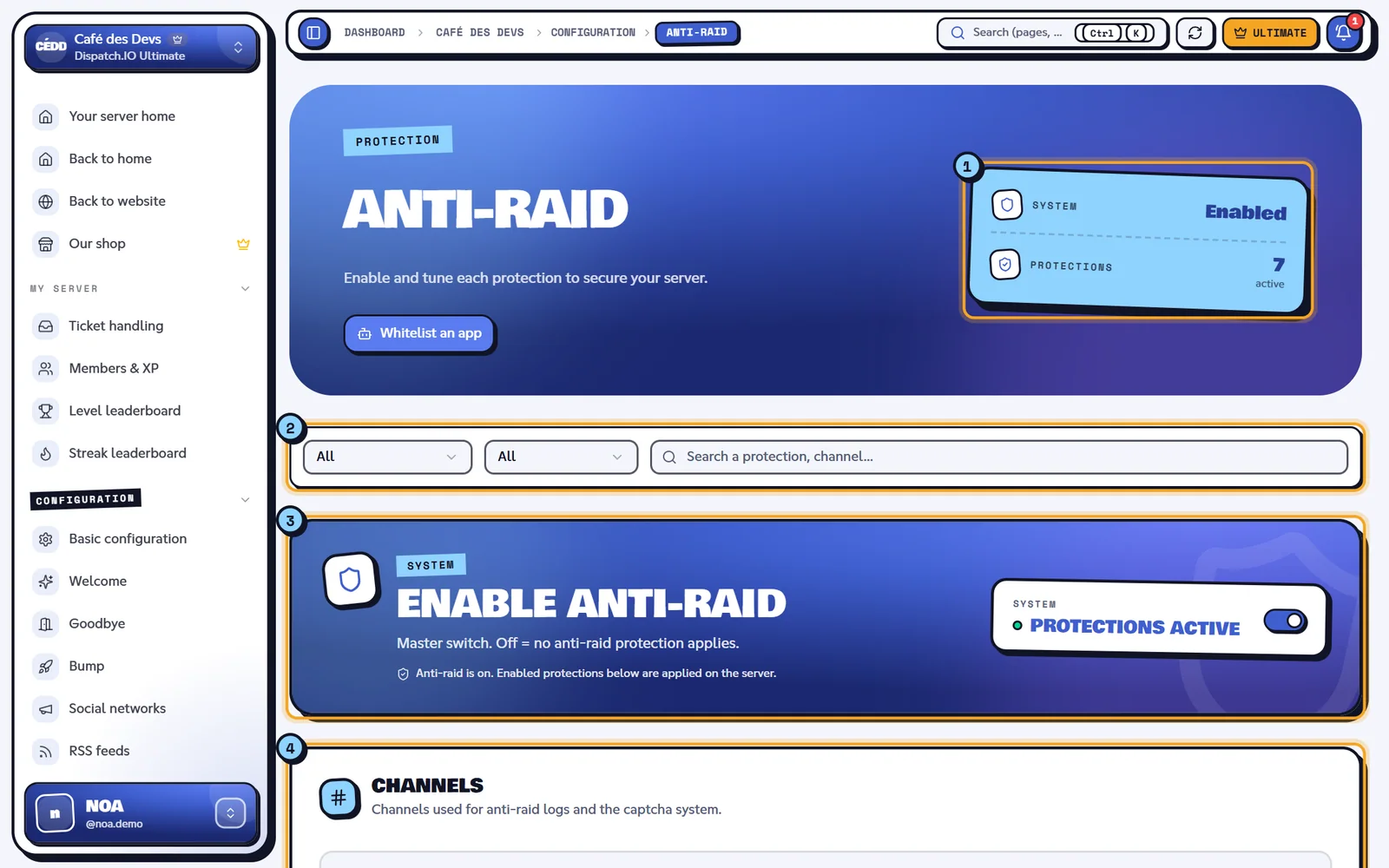
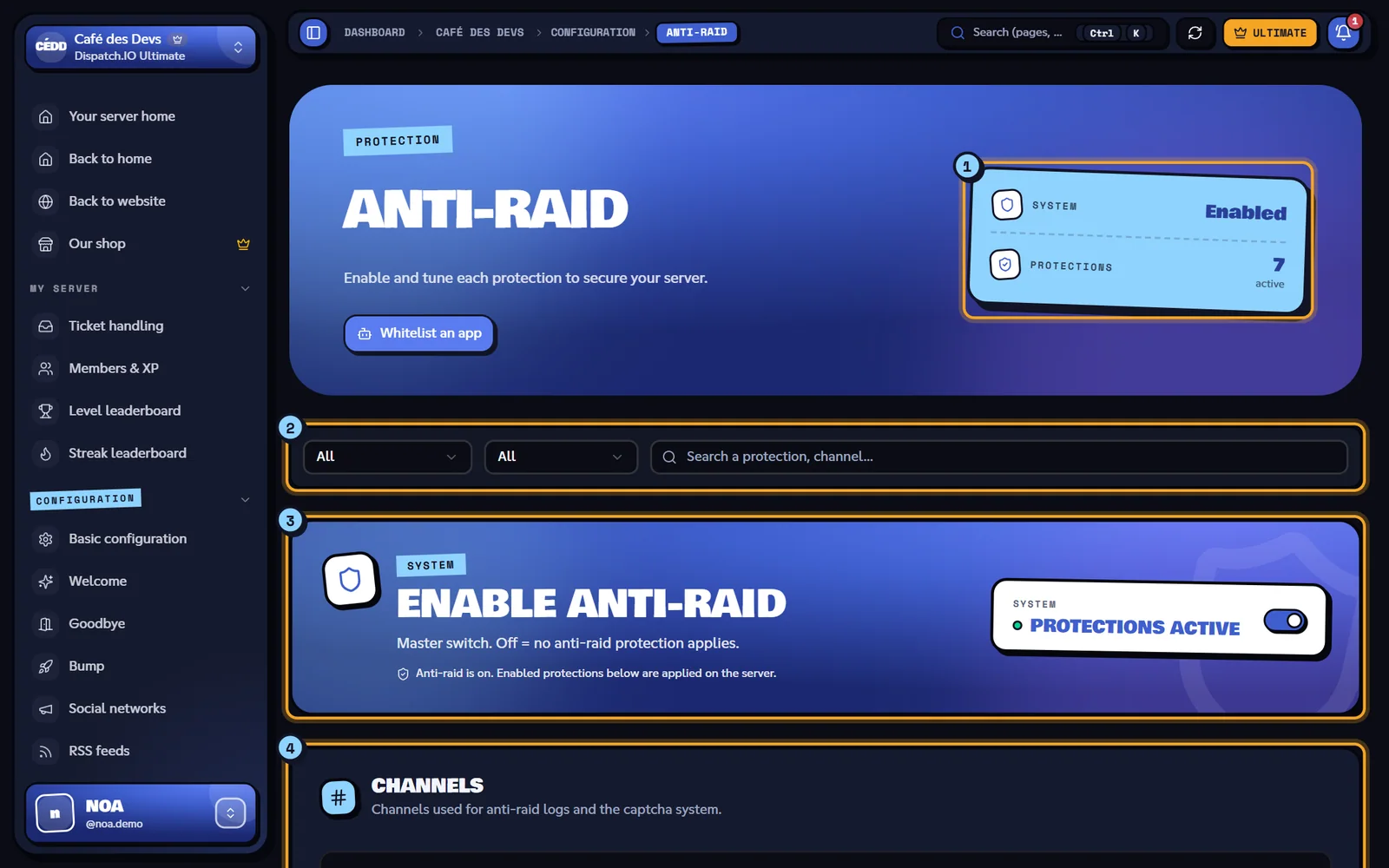
- The System (Enabled / Disabled) and Protections (number of active protections out of 14) counters.
- The filter bar: group (All, System, Channels, Members, Messages, Server), status (All, Active, Inactive) and search "Search a protection, channel…". These filters only change what's displayed.
- The Enable Anti-Raid master switch.
- The anti-raid channels, then the protection groups.
The master switch
Enable Anti-Raid is the master switch (off by default). When it's off, no protection applies, even if ticked: the page shows "Anti-raid is off" and every setting is greyed out.
Channels
| Setting | Role | Default |
|---|---|---|
| Anti-Raid logs channel | The bot posts every sanction and every anti-raid configuration change there, with the emergency mentions. It's the same channel as Anti-Raid & Security Logs on the Channels page. | Disabled (no channel) |
| Captcha channel | The bot sends captchas to new members there. Required for the captcha protection (text channel). | Disabled |
| Captcha logs channel | The bot logs captcha successes and failures there. | Disabled |
Each sanction is also recorded in the member's infractions (viewable with /infractions). The thresholds below are Dispatch.IO's default settings, shared by every server.
Members group protections
These protections act when a member joins. The server owner is never affected.
| Protection | What the bot does | Sanction shown | Exemption (scope) |
|---|---|---|---|
| Captcha protection | Posts an image with a 6-character code in the Captcha channel. The new member must type the code in that channel: 3 tries, 3 minutes. The welcome message and join roles are only given after success. Bots skip the captcha. | Kick after 3 failed attempts | None |
| Mass join protection | If more than 5 members join within 10 seconds, those who joined in that window get a direct message and are then kicked. | Kick | Joins / recent accounts |
| Recent accounts protection | Kicks Discord accounts younger than Min. age (days) (field shown when the protection is on, 0 to 365, 7 by default). On the 3rd attempt within that period, the account is banned. | Kick, then ban if the user rejoins too many times | Joins / recent accounts |
| App addition protection | Kicks any added app that isn't on the whitelist, whoever added it. If the person who added it isn't an administrator, an infraction is recorded for them. | Kick the app | App additions (app ID) |
Tip
The captcha doesn't block access to channels on its own. To make sure a new member sees nothing before passing it, grant access to your channels through a welcome role (see Welcome and goodbye): it's only given after the captcha.
Messages group protections
These protections check every message sent or edited. The server owner is never affected. When a protection fires, the message is deleted, the member gets a warning by direct message and the bot counts the infraction.
| Protection | What triggers it | Sanction shown | Exemption (scope) |
|---|---|---|---|
| Anti-spam protection | 5 messages within 5 seconds. The bot removes the member's roles that have the Administrator permission, times them out for 24 hours and deletes their latest messages. | 24-hour timeout | Messages |
| Mention abuse protection | More than 5 mentions in a message, or 3 messages with mentions within 30 seconds. | 3 infractions within 30 seconds, 24-hour timeout | Messages |
| Link protection | A link outside the allowed channels, including a bare address like example.com. Open ticket channels are always allowed. | 3 infractions within 60 seconds, 24-hour timeout | Messages |
| Forbidden words protection | A word from your list or from Dispatch.IO's default list (insults, threats…). Detection ignores case, accents and separators (w.o.r.d), and also finds the word inside another one. | 3 infractions within 24 hours, 24-hour timeout | Messages |
Two protections have an extra setting, shown when they are on:
- Channels allowed for links (link protection): tick the channels where links stay allowed ("N channel(s) selected"). Threads in those channels are not included.
- Forbidden words list (forbidden words protection): type a word (50 characters max) then Add or Enter; click a word's cross to remove it. Words are saved in lower case. "This word is already in the list." flags a duplicate.
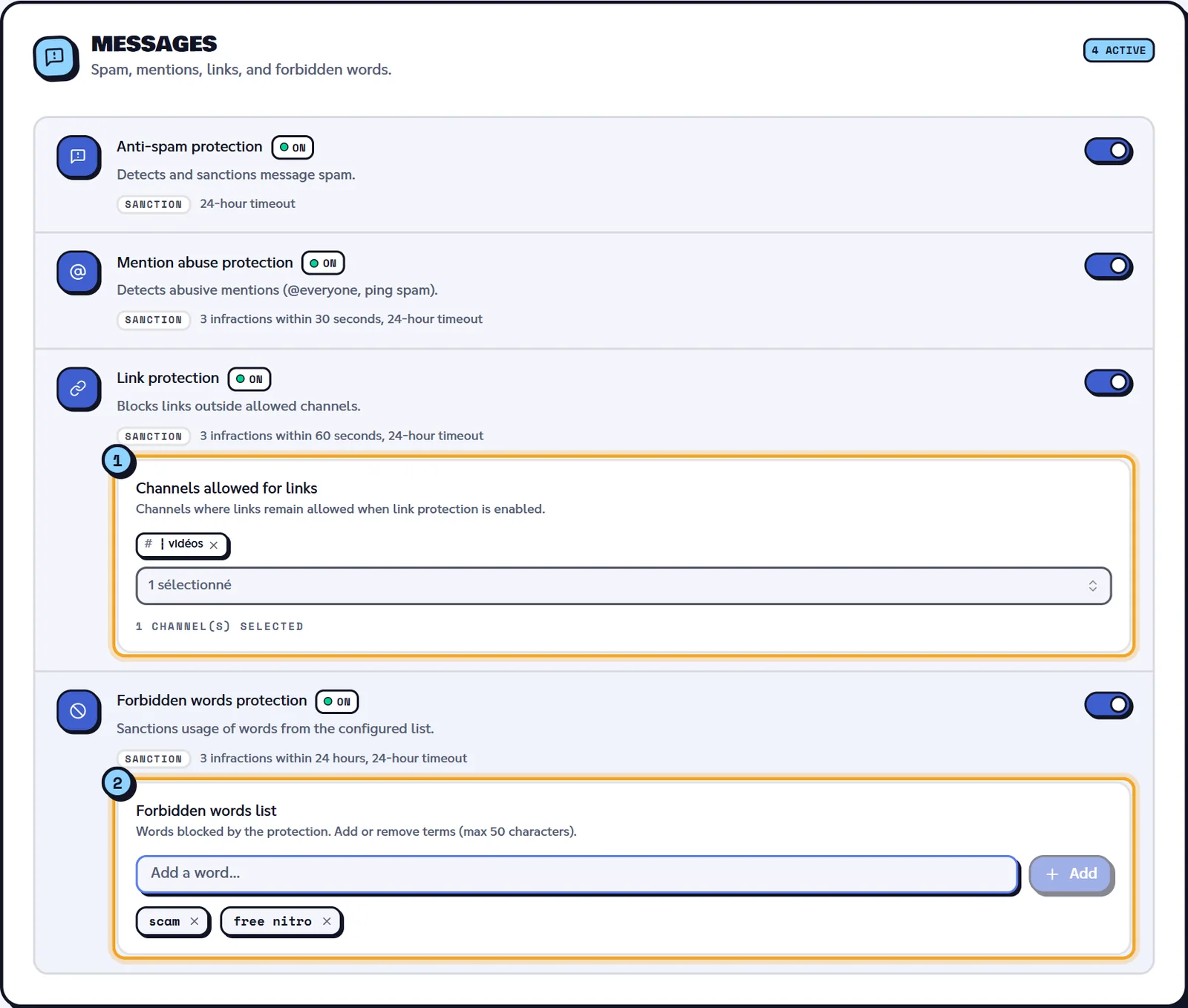
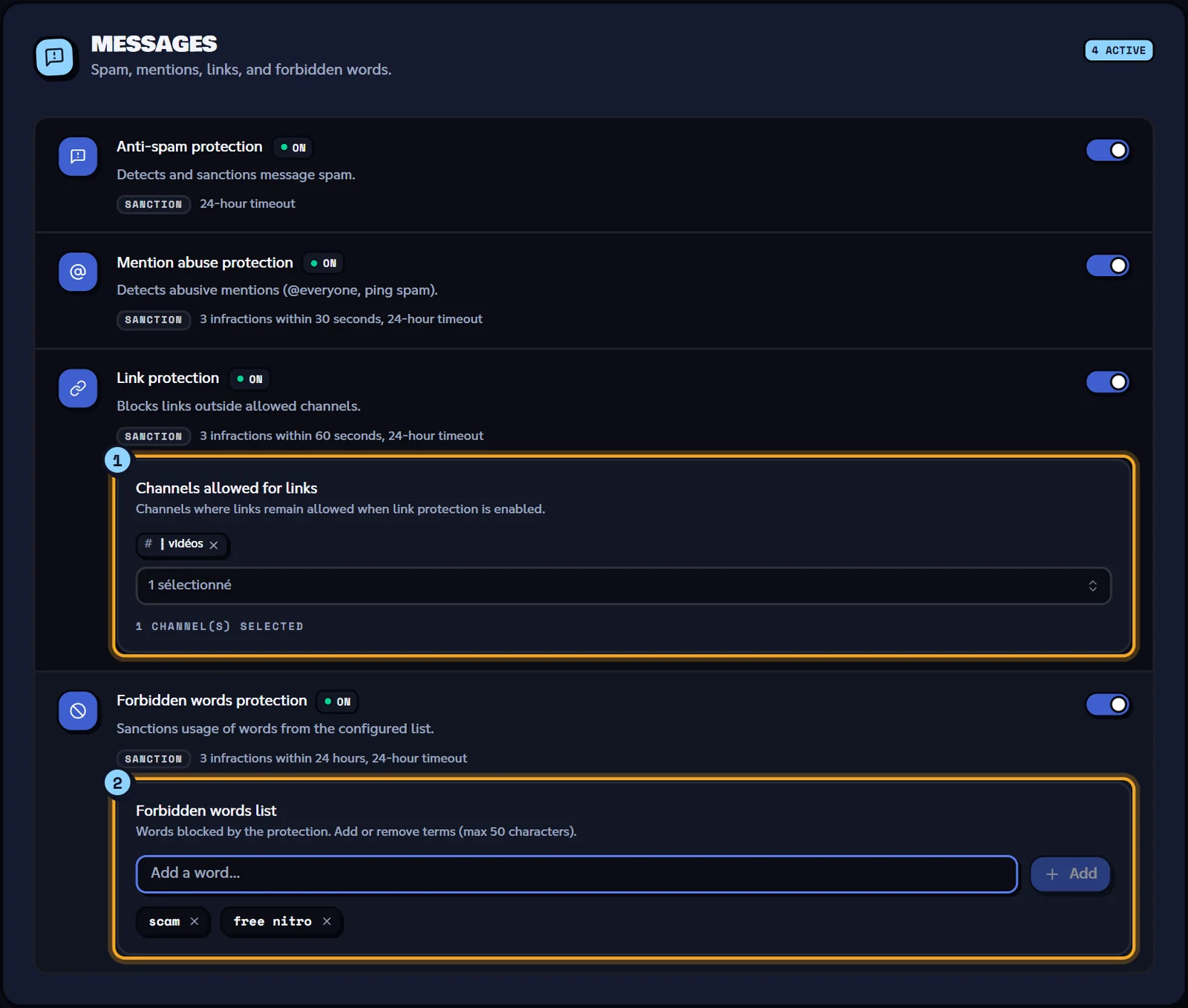
- Channels allowed for links.
- Forbidden words list and its input.
Warning
For now, a word already saved by another Dispatch.IO server isn't saved for yours: it stays displayed until you reload the page, then disappears. Reload the page after saving to check your list.
Server group protections
These protections read Discord's audit log to find who performed an action. They target that person, whoever they are: only accounts and roles on the whitelist (with the right scope) are exempt. The bot needs the View Audit Log permission.
| Protection | What triggers it | What the bot does | Sanction shown | Exemption (scope) |
|---|---|---|---|---|
| Mass channel creation protection | More than 2 channels created within 10 seconds, at least 2 by the same person. | Deletes the channels they just created. | Role removal + 3-day timeout | Channel create |
| Mass channel deletion protection | The same person deletes 3 channels within 30 seconds. | Recreates the last deleted channel (without its messages). | 3 infractions within 30 seconds, 7-day timeout | Channel delete |
| Mass ban protection | More than 3 bans within 10 seconds, at least 3 by the same person. Bans made with the bot's /ban don't count. | Unbans the members involved. | Role removal + 7-day timeout | Mass bans |
| Webhook creation protection | More than 100 webhooks created within 60 seconds by the same person. | Deletes those webhooks. | Role removal + 3-day timeout | Webhooks |
| Invite creation protection | More than 5 invites created within 60 seconds, at least 5 by the same person. | Deletes those invites. | Role removal + 3-day timeout | Invites |
| Server modification protection | A single change to the server name, verification level or explicit content filter is enough. | Reverts the change. | Role removal + revert changes + 7-day timeout | Server updates |
"Role removal" means the bot removes the person's roles that have the Administrator permission (for mass bans: their ADMIN and MODO staff roles saved for the server). If the person is a bot with an administrator integration role, it is banned instead of timed out (except for mass bans).
Tip
Before doing big works on the server yourself (renaming the server, deleting several channels…), check that your account is on the whitelist with the right scope, or turn the relevant protection off while you make the changes.
Save and sync
On the Anti-Raid page, any change (switches, channels, minimum age, allowed channels, forbidden words) brings up the Unsaved changes bar at the bottom of the screen:
- Save changes: "Anti-raid configuration saved successfully!".
- Reset: goes back to the saved values.
On the bot side, everything is immediate:
| Change | Delay | Trace on Discord |
|---|---|---|
| Anti-raid saved | Immediate | One message per change in Anti-Raid & Security Logs, with the emergency mentions. |
| Raid mode turned on / off | Immediate | Message in Anti-Raid & Security Logs; Discord safety actions on a Community server. |
| Whitelist saved (Security page) | Immediate | No message. |
| App whitelisted from the Anti-Raid page | Immediate | "User added to the whitelist" message in General Server Logs. |
If another administrator saves while you have the page open, it updates and shows "Anti-raid configuration updated by …" or "Security updated by …". All these changes also show up in Configuration Logs (Security category). See Synchronisation with the bot.
Emergency alerts
Emergency alerts are set in Basic configuration, Emergency Mentions & Alerts section. Whenever a critical log is posted (anti-raid sanctions, raid mode, moderation sanctions, channel or role deletions, critical server changes, blacklist), the bot mentions the chosen recipients in the relevant log channel.
| Setting | Effect | Default |
|---|---|---|
| Security Alerts | Turns all emergency mentions on or off. Off: no automatic ping. | On |
| Emergency Roles | Roles mentioned in critical logs. | None |
| Emergency Users | Members mentioned individually (search or Discord ID). | None |
| Default recipient | With no role and no user, the owner is mentioned. | Owner |
| Direct Message (DM) Copy | Also sends the alert by direct message to the emergency users (or the owner), at most once every 30 seconds per person. Role members don't get DMs. Basic and Ultimate plans only. | Off |
Save with the bar at the bottom of the screen ("Emergency mentions configuration saved successfully!"). The change is immediate and logged in General Server Logs.
Tip
By default, the owner is mentioned on every critical log, even a simple link warning. Pick a moderation role (for example @Modérateurs) to share the alerts.
Error messages
Some messages come straight from the server and stay in English whatever the site language.
| Message | Cause | What to do |
|---|---|---|
| Guild configuration not found. | The bot hasn't initialised the server yet. | Check that the bot is on the server, then try again. |
| Failed to save anti-raid configuration. | Save failed. | Try again in a moment. |
| Could not update raid mode. | Turning raid mode on or off failed. | Try again; the switch goes back to its previous state. |
| Could not save whitelist. | Saving the whitelist failed. | Try again; your draft is kept. |
| Invalid Discord ID. | The pasted ID doesn't have 17 to 20 digits. | Copy the ID from Discord (developer mode). |
| This ID is not an application. | The ID pasted in Whitelist an app belongs to a member. | Use User in the add box. |
| The owner is always Global and cannot be removed. | Attempt to add or edit the owner. | Nothing to do: they're already Global. |
| Could not add to whitelist. | Whitelist an app failed from the Anti-Raid page. | Try again. |
Related pages
- Anti-raid and security (module): what the bot does on Discord, messages and logs.
- Server management: the
/raid-modecommand. - Channels: log channels.
- Logs: history of configuration changes.
- Permissions and roles