
Every dashboard page shares the same frame: a sidebar on the left, a bar at the top and the content in the middle. This page explains each part of that frame so you can quickly find what you're looking for: menus, search, keyboard shortcuts, notifications and saving your changes.
It's for every member signed in to the dashboard.
How the screen is organised
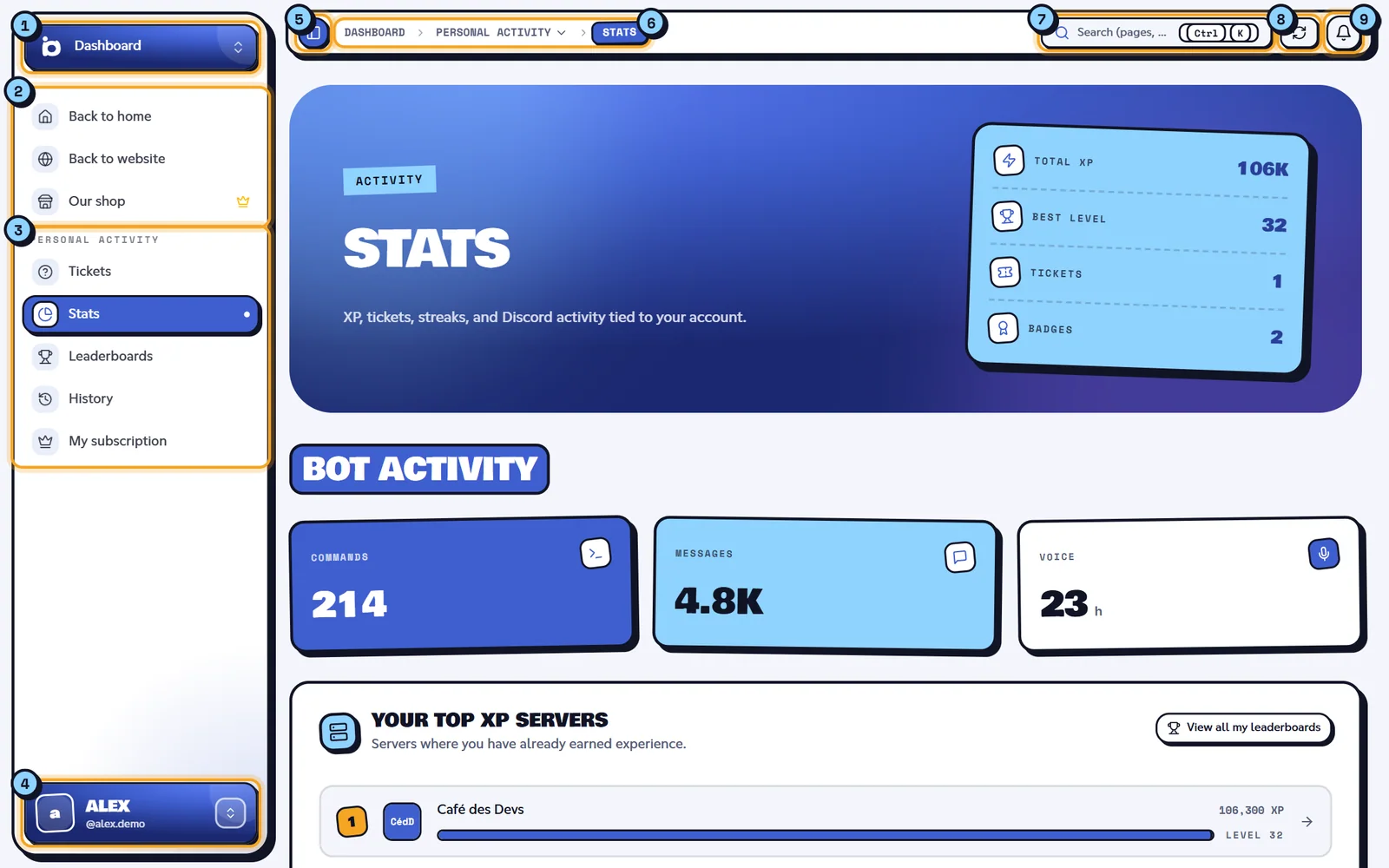
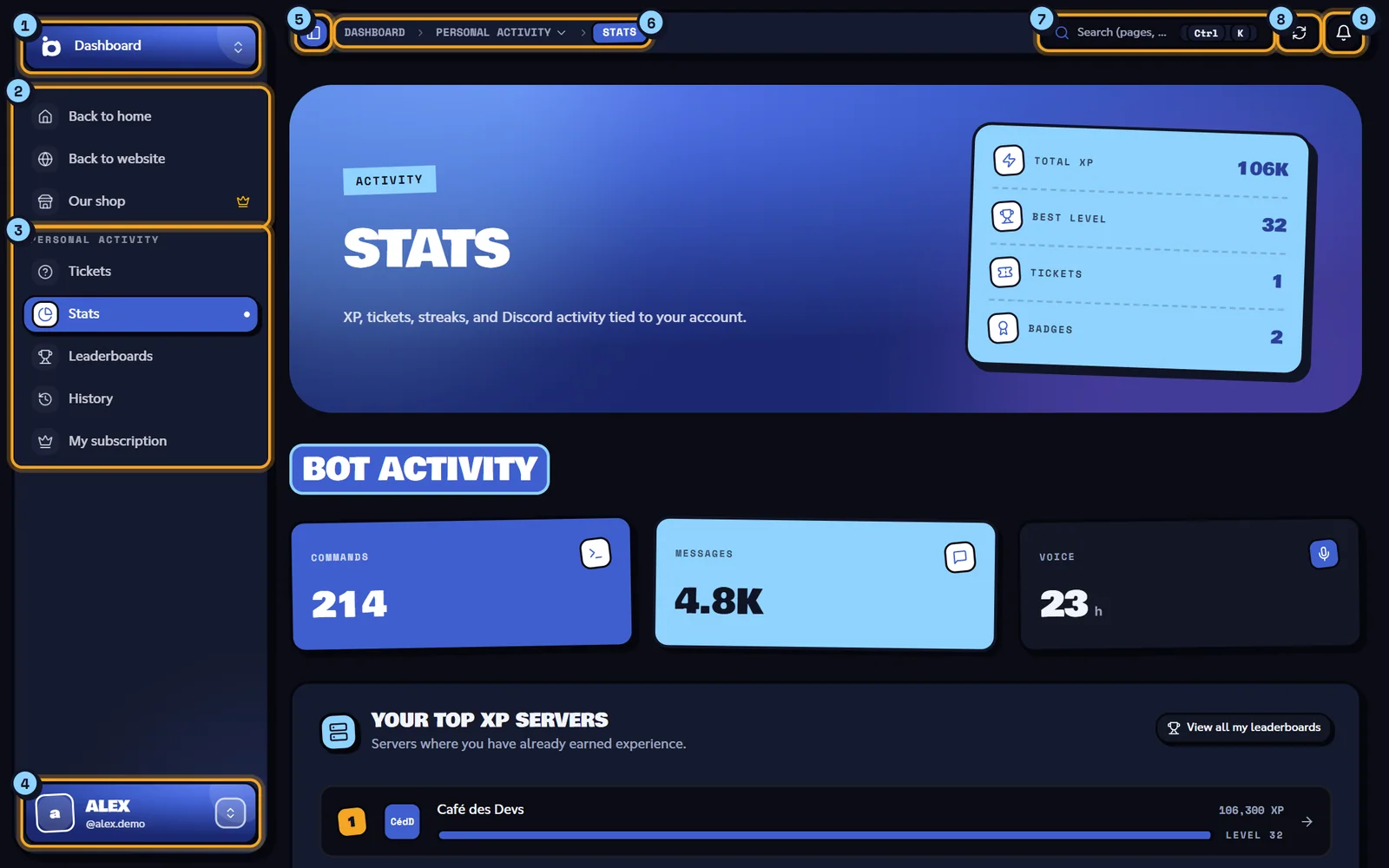
| No. | Item | Role |
|---|---|---|
| 1 | Server picker | Switch between servers or go back to the dashboard. |
| 2 | Shortcuts | Back to home, Back to website and Our shop. |
| 3 | Menu | The pages of the open section, here Personal activity. |
| 4 | Your account | Theme, language, help, account switching, log out. |
| 5 | Sidebar button | Collapse or reopen the sidebar. |
| 6 | Breadcrumb | Where you are. |
| 7 | Search | Find a page or a server (Ctrl K). |
| 8 | Data sync | Reload Discord information. |
| 9 | Bell | Your notifications. |
On the pages of a server with a paid plan, a tag (for example Ultimate) appears before the bell; hover it to see the plan's full name ("Dispatch.IO Ultimate subscription"). The data sync button is explained in Managing your servers.
The sidebar
From top to bottom, the sidebar contains:
- The server picker: a button showing Dashboard or the open server. See Managing your servers.
- The shortcuts: Back to home (the dashboard home), Back to website (the public home page) and Our shop. On a server's pages, Your server home is added at the top.
- The menus, which change depending on where you are:
- on general pages: Personal activity (Tickets, Stats, Leaderboards, History, My subscription), then Configured servers, the list of servers where the bot is present. Dispatch.IO team members also see Administration;
- on a server's pages: the My server (open by default), Configuration and Administration sections, which you open or close with a click. See Server home.
- Your account, at the very bottom. See Sign-in and account.
The open page is highlighted in blue in the menu.
Collapsing the sidebar
Click the blue square button on the left of the top bar ("Close sidebar"), the right edge of the sidebar, or press Ctrl + B (⌘ + B on Mac). The sidebar then keeps only the icons: hover one to see its name. Clicking a section that contains pages reopens the sidebar. After a page reload, the sidebar is open again.
On phones and small tablets (under 1024 pixels wide), the sidebar is hidden: the same button opens it over the page.
The breadcrumb
The breadcrumb at the top shows where you are: Dashboard, then the section, then the page (for example Dashboard › Personal activity › Stats). The current page is the blue tag.
- A step with a small arrow opens the list of pages in the same section: handy to go from Stats to Tickets without using the menu.
- On a server's pages, the breadcrumb starts with the server's name (click it to go back to its home page).
- Pages that aren't in the menu (the shop, a ticket's page…) only show Dashboard.
- On screens under 1280 pixels wide, the middle steps are hidden; on phones, only the current page remains.
- If you open a server you can't manage, an orange tag replaces its name, such as "Ghost server" or "Access denied".
A little secret
Click the last step of the breadcrumb five times in a row, quickly.
Search (Ctrl K)
Search takes you to a page or a server in a few keystrokes.
- Click "Search (pages, users...)" in the top bar, or press Ctrl + K (⌘ + K on Mac), even while typing in a field.
- Type part of a page's name, of its section (for example activity) or of a server's name.
- Click the result to open it.
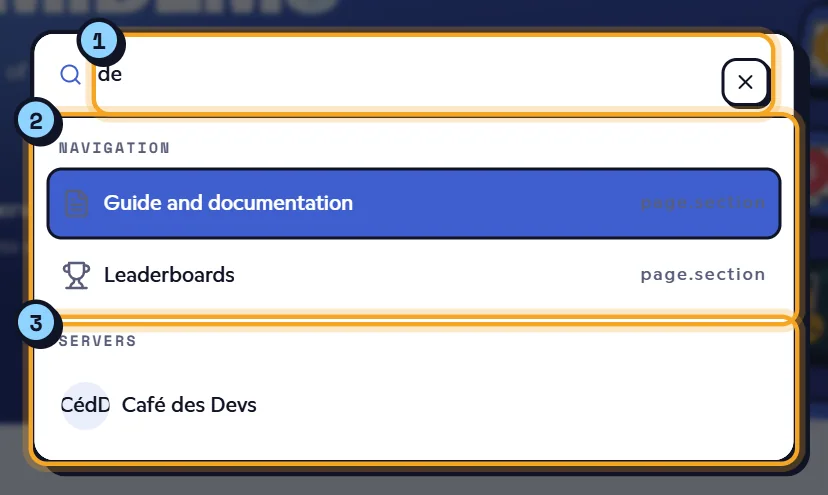
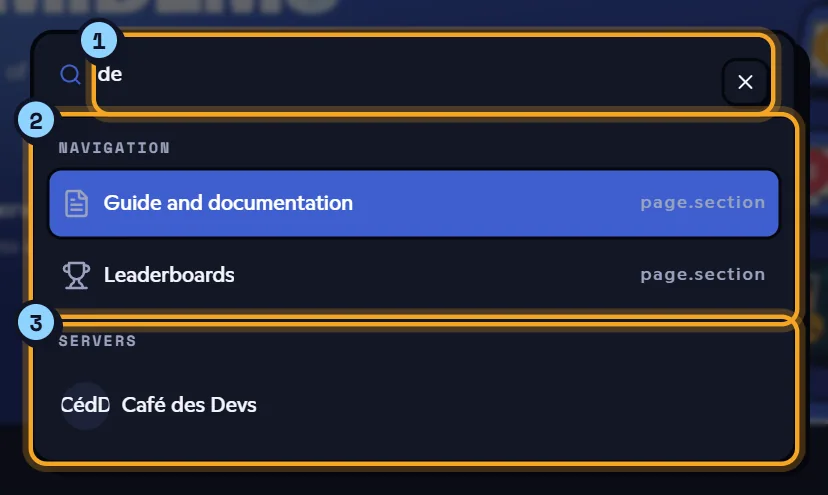
- The search field.
- Navigation: up to 8 pages. Without typing anything, the main pages show (Home, Support, Commands, FAQ, Guide and documentation, Tickets…). On a server's pages, its most useful pages come first: Ticket handling, Members & XP, Level leaderboard, Streak leaderboard. A page that opens in a new tab carries a small arrow.
- Servers: up to 10 servers, your favorites first (marked "Favorite").
If nothing matches, the window shows "No results found.".
Note
The Enter key closes the window without opening the page: click the result instead. Despite the field's text, search doesn't find users yet, only pages and servers.
In the documentation, Ctrl K (or the / key) opens the documentation search.
Keyboard shortcuts
| Shortcut (Windows, Linux) | On Mac | Action |
|---|---|---|
| Ctrl + B | ⌘ + B | Toggle the sidebar (collapse or reopen). |
| Ctrl + K | ⌘ + K | Open or close the search bar. |
| Ctrl + . | ⌘ + . | Open the list of keyboard shortcuts (not while typing in a field). |
The Keyboard Shortcuts window also opens from your account menu (Learn more › Keyboard Shortcuts) or from Preferences › Shortcuts › View, on the dashboard home.
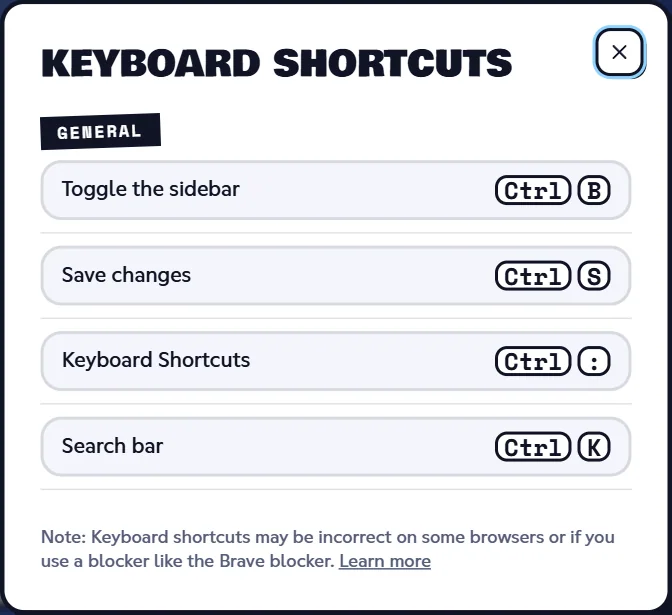
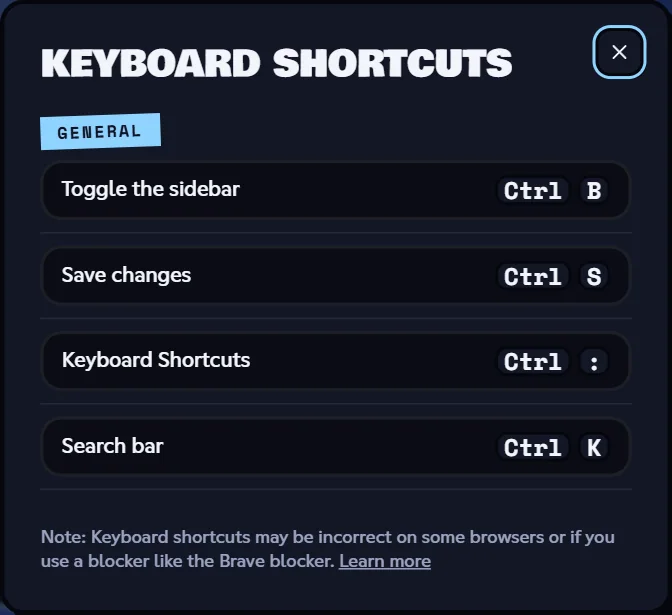
Keys are shown according to your keyboard layout. As the window says, the display may be wrong on some browsers or with a blocker like Brave's.
Note
The window also lists Ctrl + S ("Save changes"), but this shortcut doesn't save anything yet: use the Save changes button.
Notifications
The bell at the top right shows the notifications Dispatch.IO sends to your account. It turns blue with a red badge when you have unread notifications (the number, or "9+" above 9). On the dashboard home, that number also appears in the tab title, for example "(3) Dispatch.IO™ - Dashboard".
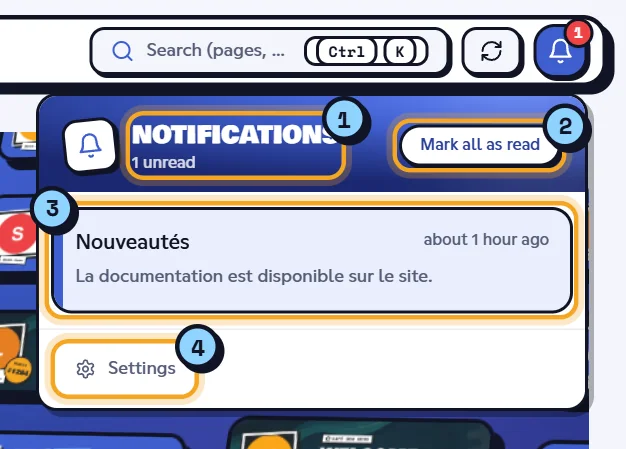
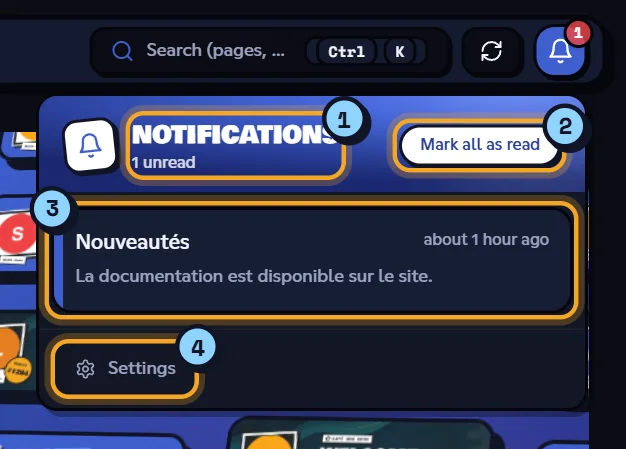
- The "Notifications" title and the unread count (for example "1 unread").
- Mark all as read.
- An unread notification, with a blue bar on the left: its title, text and age ("5 minutes ago"). Click it to mark it as read; some also open a page.
- Settings opens the browser notification settings (below).
The list loads older notifications as you scroll. With no notification, the panel shows "No notifications".
Browser notifications
Browser notifications ("native notifications") alert you even when the site's tab is in the background. Open the bell › Settings, or Preferences › Notifications on the dashboard home.
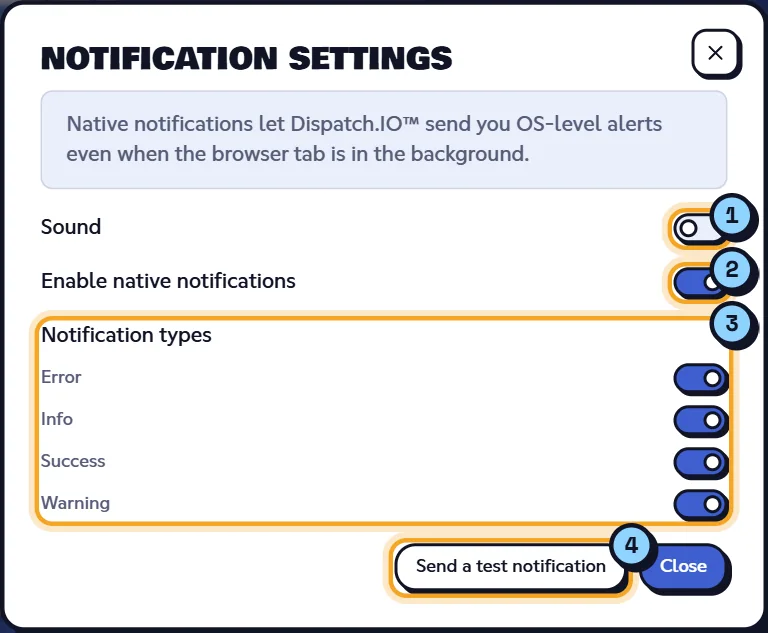
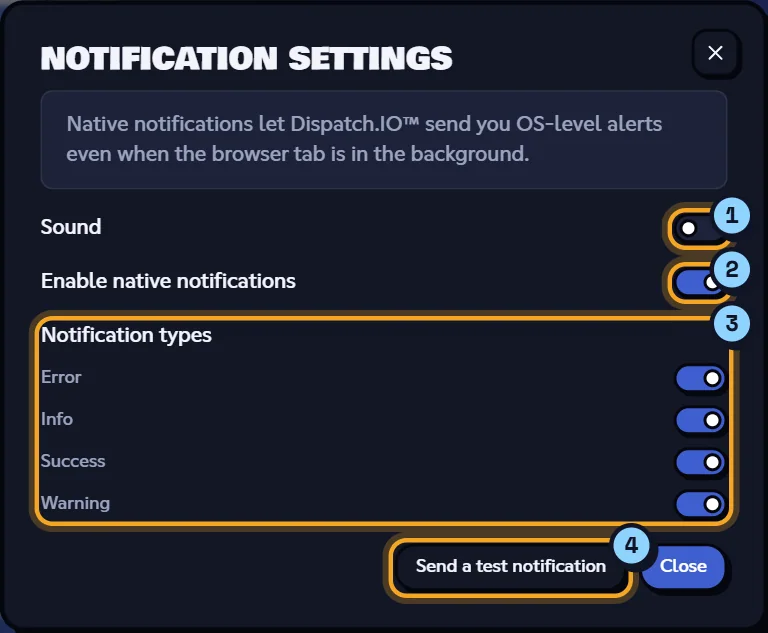
- Sound: plays a short sound with each notification.
- Enable native notifications: your browser asks for permission.
- Notification types: choose which ones show (Info, Success, Warning, Error).
- Send a test notification: checks that everything works ("If you see this notification, native notifications are working.").
If several tabs of the site are open, only one shows the notification. These settings are kept in this browser.
Warning
If your browser blocks notifications, the window shows "Permission denied": unblock them in your browser's site settings (Notifications). Likewise, turning the switch off on the site doesn't remove the permission given to the browser: to stop notifications completely, remove the permission in your browser settings.
Saving or discarding your changes
On pages with settings (the dashboard home, a server's settings…), your changes aren't saved right away. As soon as you change a field, a bar appears at the bottom of the screen.


- "Unsaved changes": "Don't forget to save your changes to apply them to your server."
- Reset (1) discards your changes and restores the saved values.
- Save changes (2) saves. The button shows "Saving..." while it works, then the bar disappears.
Warning
On most pages, leaving without saving loses your changes. On some pages, the site stops you from leaving until you save or reset: the bar then shakes in red.
Learn more
- Managing your servers: the server picker and data sync.
- Sign-in and account: your account menu.
- The dashboard: the home page and your preferences.
- Server home: a server's menu.