
Once you're signed in, the site lists the Discord servers you can manage. From that list, you add the bot to a server or open its dashboard to set it up. This page explains which servers show up, how to find them quickly and what to do when some information is out of date.
It's for server owners and administrators. To sign in, read Sign-in and account first.
Which servers show up
The site shows the servers you own, or where one of your roles gives the Discord Administrator or Manage Server permission. Servers where you're a regular member don't show up.
| Your situation on the server | The server shows up | What you can do on the site |
|---|---|---|
| Owner | Yes | Set up everything. |
| Administrator permission | Yes | Set up everything. |
| Manage Server permission only | Yes | Open the server's page, but its menu (My server, Configuration, Administration) doesn't appear in the sidebar: you need Administrator or to be the owner. |
| Regular member | No | Nothing on the settings side. You still find your tickets and XP in My activity. |
The detailed rules are in Managing permissions.
A server is missing?
If you just got a role or created a server, click Sync Discord Data (see below). If no server shows up at all, the site says "If no servers appear, the application probably no longer has access to your Discord servers. Please log out and log back in to reauthorize access.": log out, then sign in again.
The “My servers” list
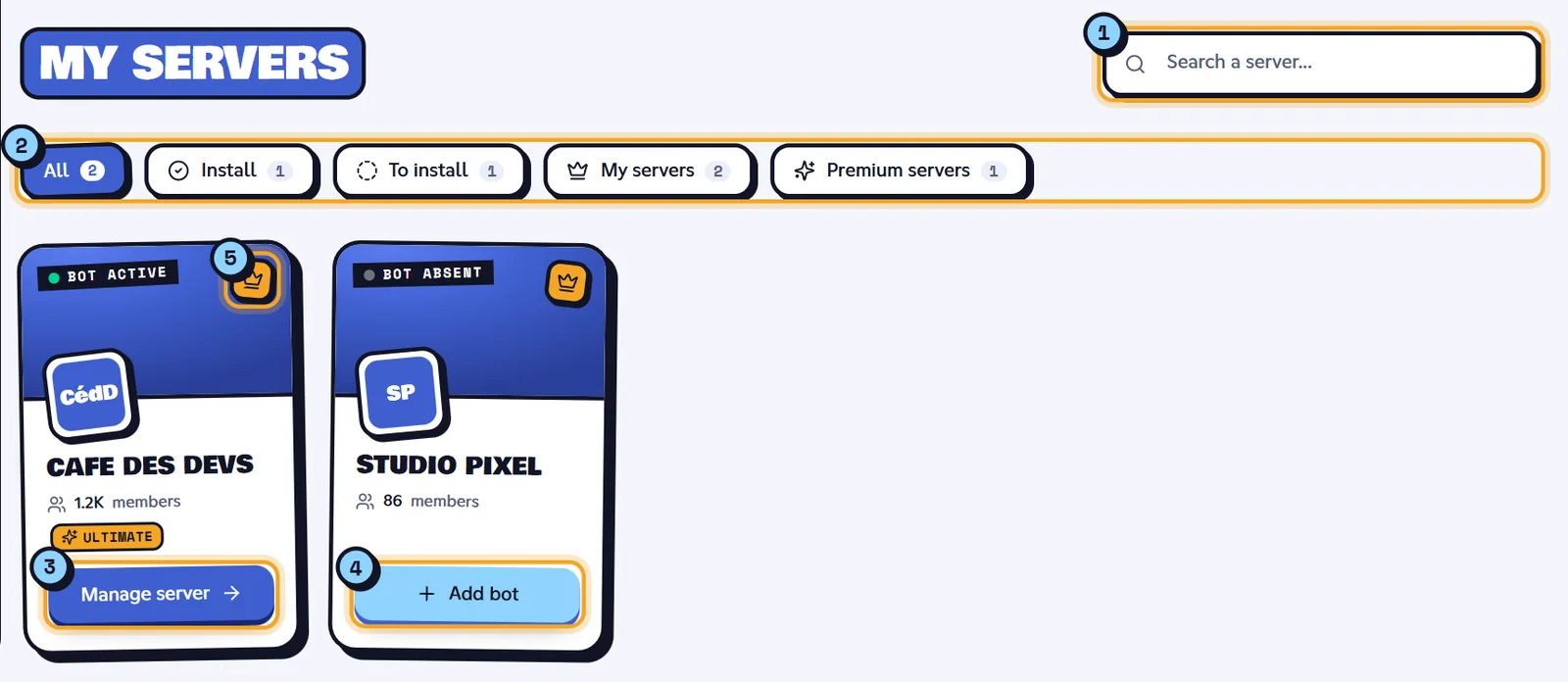
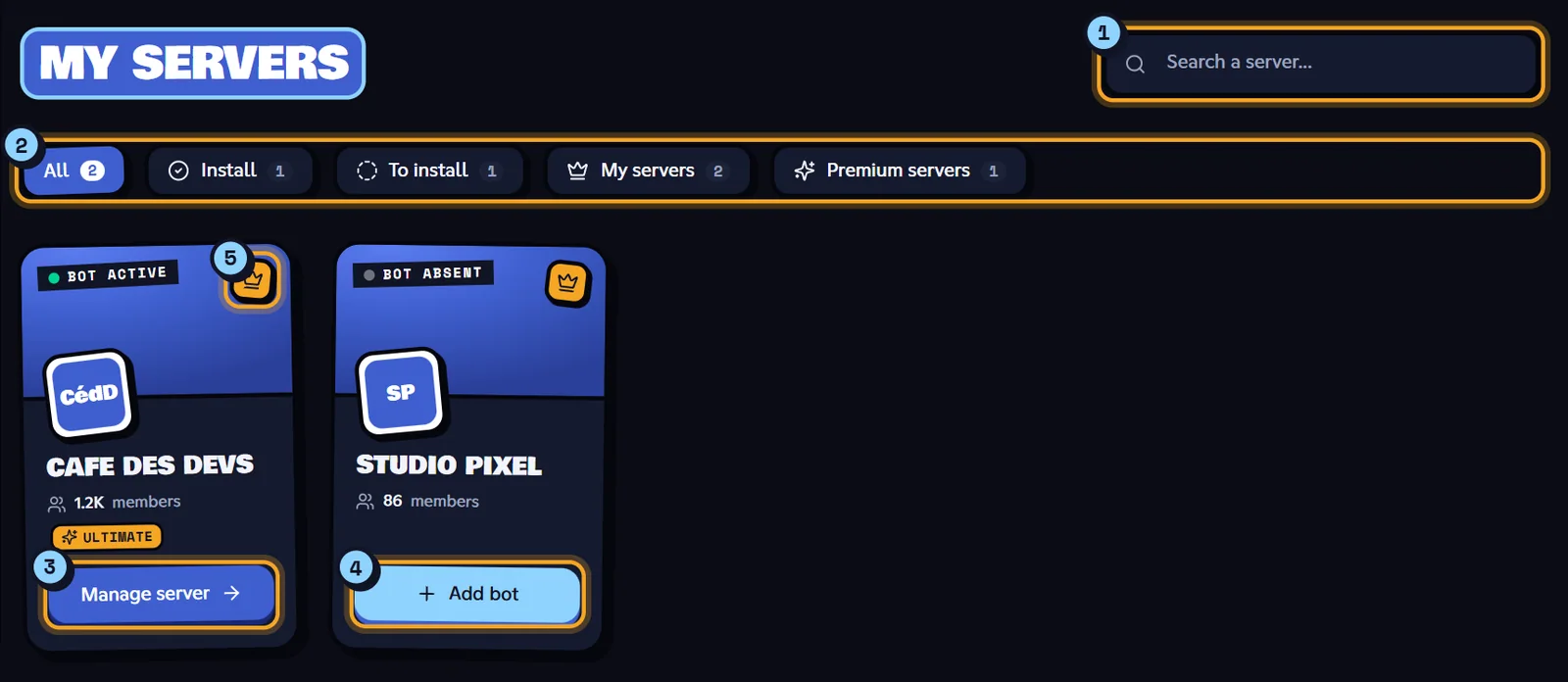
On the dashboard home, the My servers section shows all your servers as cards.
-
The search ("Search a server...") finds a server by name or ID.
-
The filters, each with its number of servers:
Filter Servers shown All All your servers. Install Those where the bot is already installed. To install Those where the bot isn't yet. My servers Those you own (the filter only appears if you own any). Premium servers Those with a paid plan (the filter only appears if there are any). -
A Bot active card: the Manage server button opens its dashboard.
-
A Bot absent card: the Add bot button starts the invite (see below).
-
The crown means you're the server's Owner.
Each card also shows the member count and, for a Premium server, an Ultimate or Basic badge. Cards are listed 5 per page: your favorites first, then servers that have a banner. The buttons under the list ("Showing 1 to 5 of 12 servers") change pages.
Switching servers from the sidebar
At the top of the sidebar, the blue button shows where you are: Dashboard, or the open server's name with its plan (for example Ultimate, or Standard without a plan). Click it to switch servers from any page.
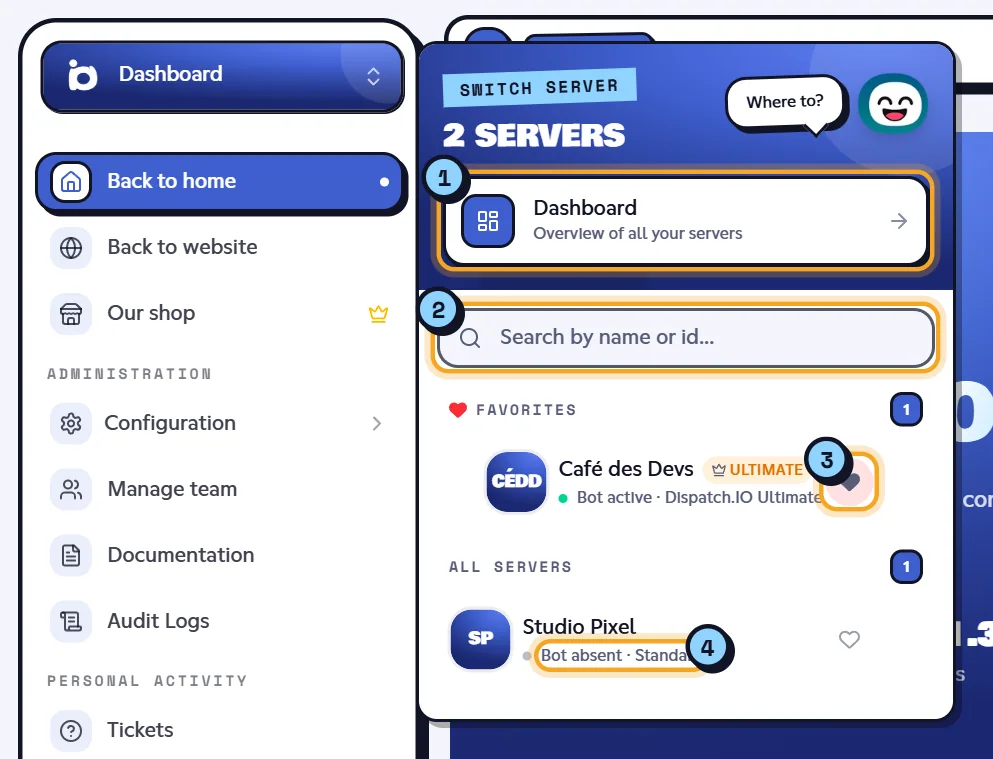
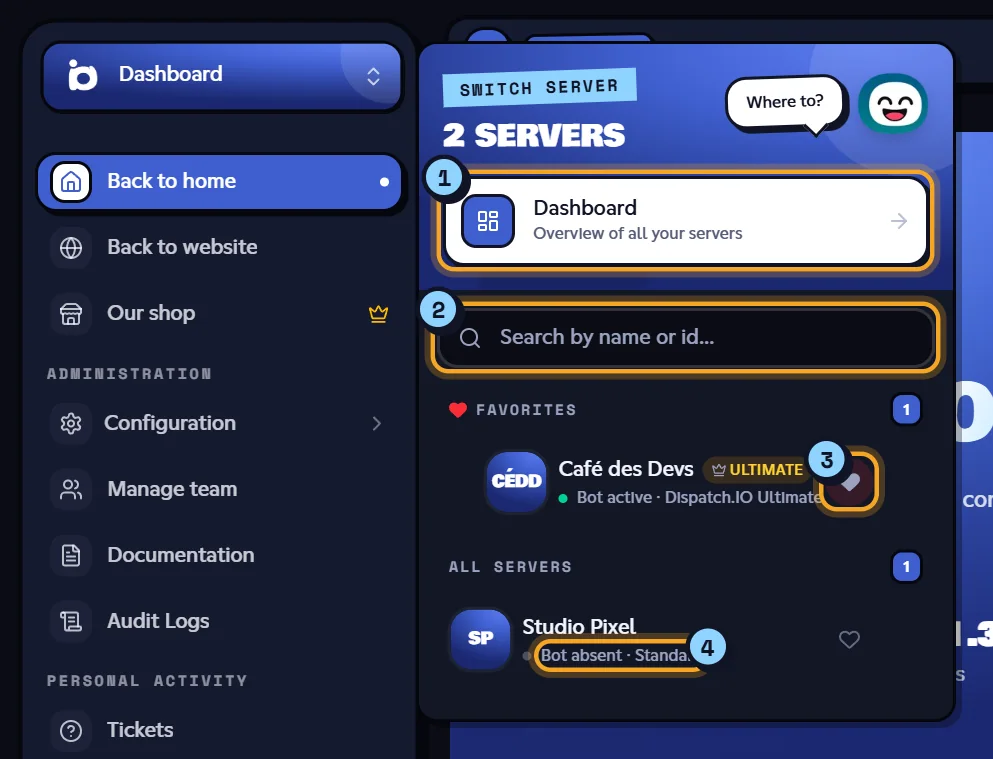
- The Dashboard card ("Overview of all your servers") takes you back to the dashboard home.
- The search ("Search by name or id...") filters the list as you type.
- The heart adds a server to or removes it from your Favorites.
- Under each name, Bot active or Bot absent, followed by the server's plan.
Click a server to open its page, even if the bot isn't there yet (you then land on the invite page).
Two other shortcuts lead to your servers:
- in the sidebar, outside a server's pages, the Configured servers list shows up to 15 servers where the bot is present, with their member count;
- the Ctrl K search finds a server by name (see Navigation, search and notifications).
Adding servers to your favorites
Favorites bring the servers you open most often to the top.
- Add or remove: click the heart to the right of the server in the Switch server menu. The site confirms, for example "Café des Devs has been added to favorites".
- Reorder: in the menu's Favorites section, grab a server by the handle that appears on hover and drag it (not during a search).
Your favorites come first in the Switch server menu, in My servers, in the Ctrl K search (marked "Favorite") and in the shop's server picker. They're kept in this browser, for each of your Discord accounts.
Adding the bot to a server
To add the bot to a server, you need the Discord Manage Server permission on that server: that's a Discord rule.
From the "My servers" list
- In My servers, pick the To install filter.
- On the server's card (for example Studio Pixel), click Add bot. Discord's invite page opens in a new tab, with that server already selected.
- Keep the suggested permissions and confirm the invite.
- Go back to the site's tab: the card switches to Bot active on its own as soon as the bot has joined the server. If it doesn't, click Sync Discord Data or reload the page.
From the server's page
If you open a server where the bot isn't present (from the Switch server menu or the search), the dashboard shows an invite page instead of the settings.
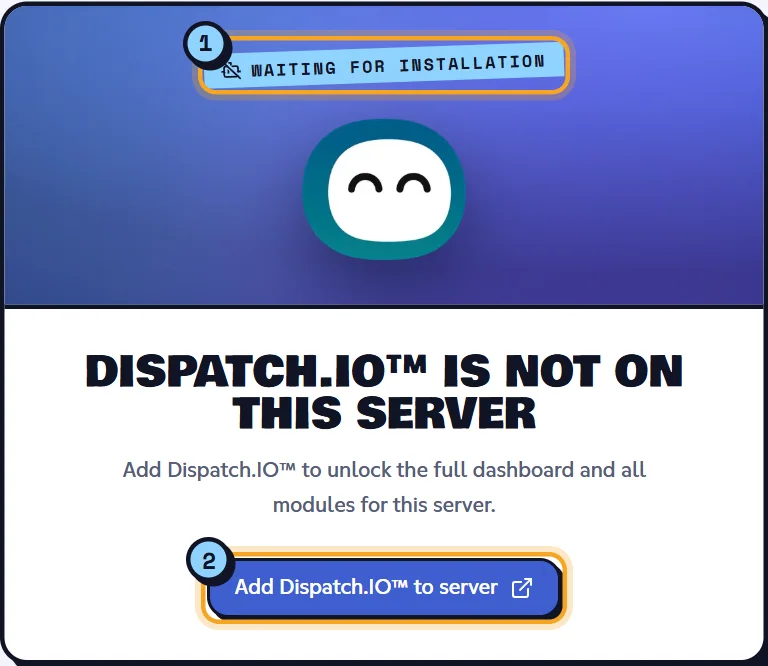
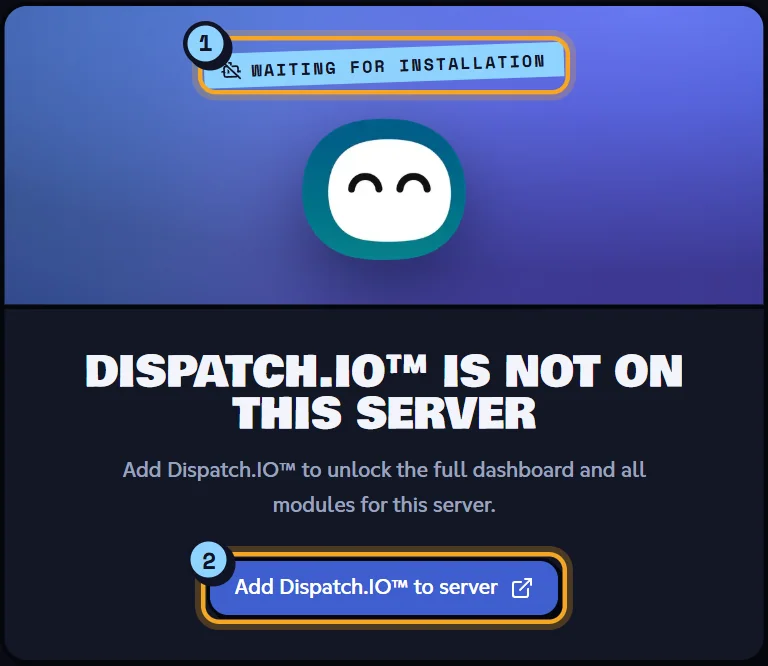
- The "Waiting for installation" tag and the "Dispatch.IO™ is not on this server" title.
- The Add Dispatch.IO™ to server button opens the Discord invite in a new tab. Pick the server in Discord's list, then confirm.
As soon as the bot has joined the server, the page reloads and the server's dashboard appears.
The permissions the bot asks for and its first settings are explained in Adding the bot and first steps.
Refreshing Discord data
The site keeps some Discord information in memory to be faster. After a change on Discord, it can take a while to update. The Sync Discord Data button in the dashboard's top bar forces a reload.


Use it when you've created or renamed a role or channel, renamed a server, received new permissions, or added the bot and the card didn't change.
- On general dashboard pages, it reloads your server list.
- On a server's pages, it also reloads that server's information: roles, channels and the bot's permissions.
The button is a two-arrow icon; its name is only written out on very large screens. Hover it to see "Modified a role, channel, or server on Discord?". While loading, it shows "Syncing...", then a green check mark and the message "Discord data refreshed successfully!".
You then have to wait 1 minute before trying again: the button is greyed out and shows the time left (for example 0:42).
Opening a server's dashboard
Click Manage server on a server's card (or pick it in the Switch server menu, in Configured servers or in the search). The server's home page opens, at /dashboard/guild/<server id>.
On a server's pages:
- the sidebar shows the server's menu: Your server home, then the My server, Configuration and Administration sections;
- the top bar shows the server's plan if it has one (for example Ultimate);
- the breadcrumb starts with the server's name.
Back to home, at the top of the sidebar, takes you back to the dashboard home. The last pages you opened on your servers appear there under "Resume where you left off".
What comes next is explained in Server home.
Note
If you open the link of a server you can't manage (for example a link someone shared), the dashboard shows its "Page not found" page.
Learn more
- Server home: a server's page and its basic settings.
- Managing permissions: who can see and set up what.
- Synchronisation with the bot: how the bot receives changes made on the site.
- Adding the bot and first steps: inviting the bot and getting it ready.