
The questions we get asked most often about the Dispatch.IO™ website, with short answers and links to the detailed pages. If you run into a specific error (a message, a blocked page), head to Website troubleshooting instead.
Account and sign-in
How do I sign in to the website?
Click Sign in in the top-right corner. Discord asks you to authorise Dispatch.IO, then sends you back to your dashboard. There's no password to create: your Discord account is all you need. If you open a dashboard page directly while signed out, the website sends you to Discord on its own. Details are in Sign-in and account.
Why do I have to sign in again from time to time?
Your session lasts 2 days and is extended whenever you use the website. If you stay away for more than 2 days, you have to go through Discord again: click Sign in (you then land on your dashboard), or open a dashboard page directly: the website takes you through Discord and brings you back to that page.
Can I use several Discord accounts?
Yes, up to 5 accounts in the same browser. At the bottom of the side menu, click your profile: Change account switches between accounts, and Manage accounts lets you add one (Add an account) or disconnect one.
Servers and the bot
My server doesn't show up in "My servers"
The website only lists servers you own, or where you have the Administrator or Manage Server Discord permission. Check:
- that you are signed in with the right Discord account (see the question about accounts);
- that you really have one of these permissions on the server;
- the filters and search above the list (All shows everything): the list shows 5 servers per page.
If you have just been given the permission, click Sync Discord Data in the top bar (just a refresh icon on smaller screens) to reload the list. More details in Managing your servers.
My server says "Bot absent"
The bot isn't on that server yet. Click Add bot: Discord opens in a new tab with your server already selected. Accept the permissions; back on the website, the card switches to Bot active on its own, without reloading the page. While the bot is missing, the server's pages show "Dispatch.IO™ is not on this server".
I have "Manage Server" but the server menu is empty
A server's side-menu entries only show up for the owner and members with the Administrator permission. With Manage Server only, open the server from My servers: its home page shows every tile of the Modules section, which lead to the same pages.
I saved but nothing changes on Discord
- Make sure you clicked Save changes: on a server's pages, leaving the page without saving loses your changes, with no warning.
- Check that the bot is online and has the Discord permissions it needs in the channel concerned.
- Most settings apply straight away. A few modules work with regular checks (YouTube and Twitch notifications, RSS feeds) or need the bot to post a message (reaction-role panels, tickets): allow a few seconds to a few minutes.
How it works in detail: Synchronisation with the bot.
A channel or role I just created isn't in the lists
The website keeps a copy of the server's channels and roles for 30 minutes. Click Sync Discord Data in the top bar: the list reloads straight away. You can use this button once a minute.
Premium and payment
Are the website and the bot free?
Yes: welcome, levels, flames, moderation, tickets, bump… everything essential is free. The Basic and Ultimate plans raise the limits and add extras. Ultimate plans can include a free trial (14 days in the catalog). The limits are detailed in Premium plans and limits.
What's the difference between an Individual pack and a server pack?
- An Individual pack is tied to your account and follows you on every server: your images on your cards, your accent colour, more streak freezes. Individual Ultimate also upgrades one server to Ultimate and lets you invite a friend.
- A server pack (Dispatch.IO Basic or Ultimate) is tied to one server: it raises the bot's limits on that server. Dispatch.IO Ultimate includes Individual Ultimate.
Everything is bought from the dashboard Shop.
How do I use a promo code?
It depends on the code:
- a free days code goes in the shop's Promo code field, then OK: the offer turns on with no card needed;
- a discount code (% or €) goes on the Stripe payment page, after clicking Subscribe.
Each free days code can only be used once per account.
How do I cancel my subscription?
For a paid subscription, open My subscription and click Manage my payment (or open the shop's Payment tab): cancelling, your card and invoices are all handled in Stripe's secure space. An offer received through a code or a gift has no payment: it simply ends on its end date.
Data and language
What information does the website get from Discord?
When you sign in, Discord shares your identity (ID, username, avatar, banner), your email address and your server list with your permissions. The website uses them to show your profile and the servers you can manage. Your email address is also suggested to Stripe on a first purchase. The full privacy policy is still being written: for any question about your data, contact the team.
Who can see my server's leaderboard?
Everyone: the level and flame leaderboards, and members' rank cards, are public pages that anyone with the link can see without an account. There's no setting to make them private. See Leaderboards and rank cards.
How do I change the website language?
- On public pages: click the flag in the top-right corner, then pick Français or English.
- On the dashboard: open your profile menu (at the bottom of the side menu) › Language.
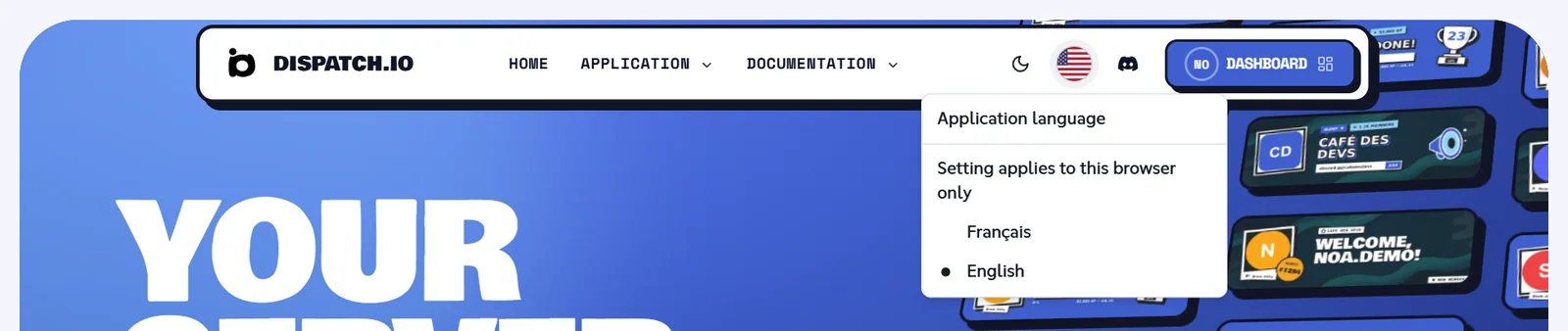
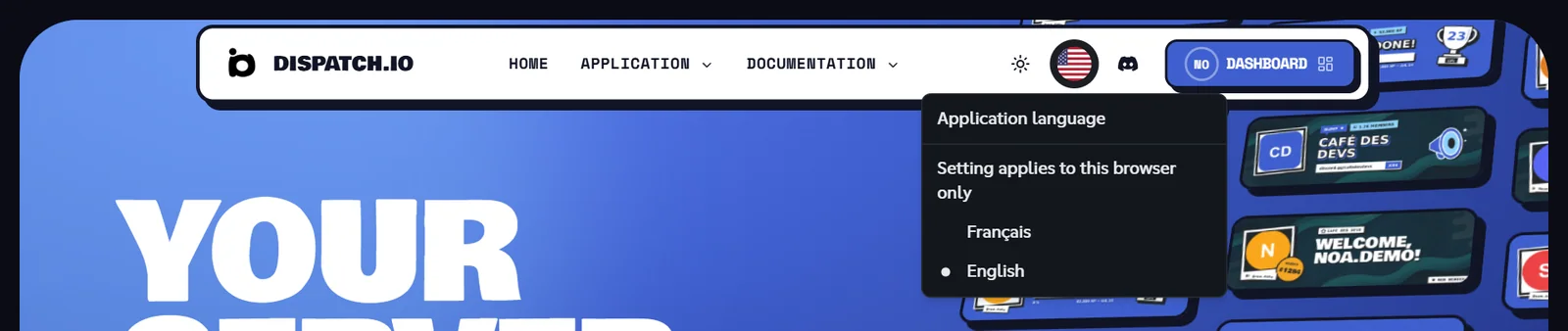
This choice only applies to your browser. The language of the messages the bot posts on Discord (announcements, logs…) is a separate setting, per server; its replies to your commands follow your Discord language. Change the server language in the server's basic configuration (Server home) or with /config (see Bot configuration).