
A role panel is a Discord message with buttons or reactions: by clicking, your members give themselves roles (notifications, games, interests…) or get a private reply. The Role Reactions page lists your panels and offers a four-step wizard to create them.
It is meant for administrators. What members see and do on Discord is described in the Reactions and triggers module.
The panel list
Open Configuration > Role Reactions in the menu or the Role reactions tile of the server home.
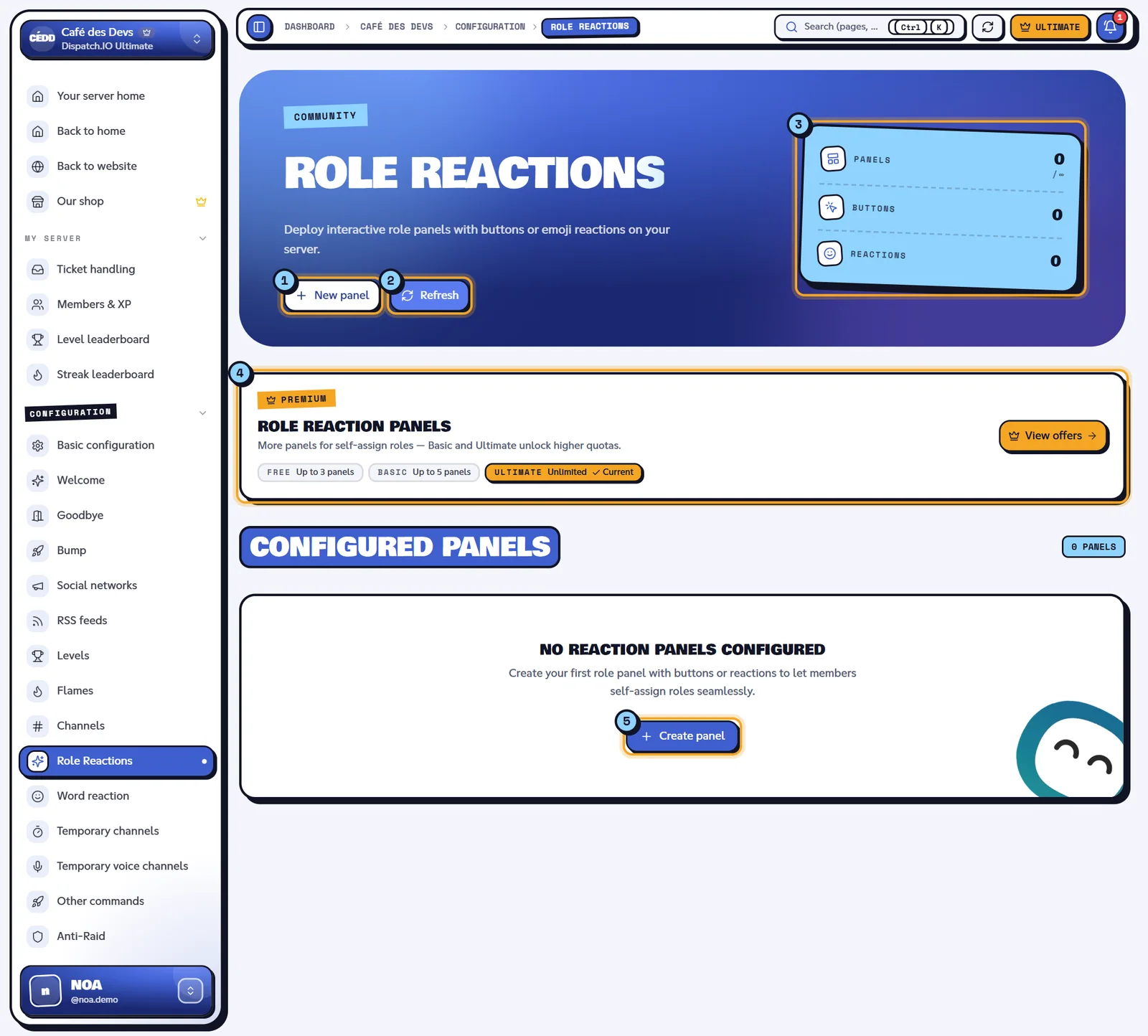
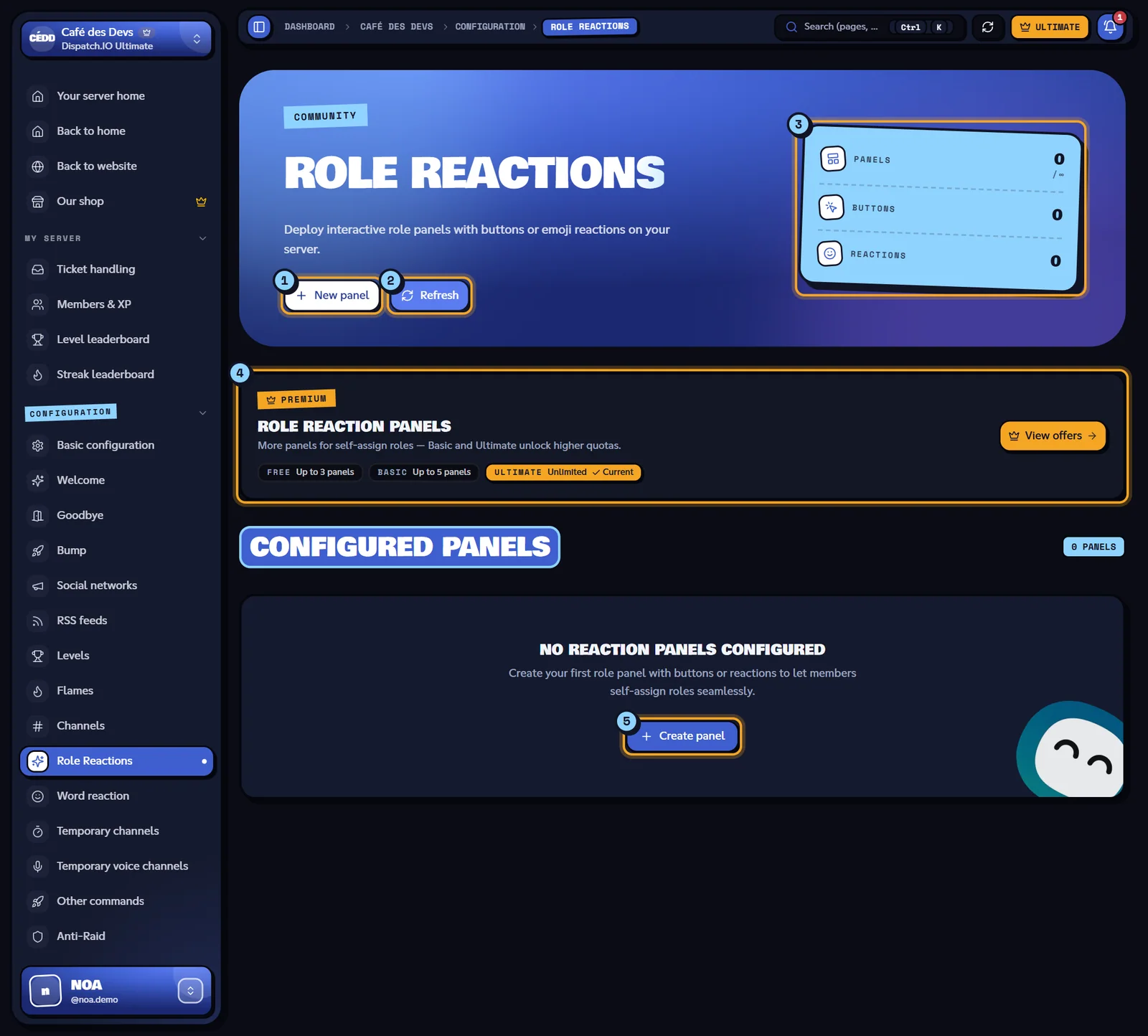
- New panel: starts the creation wizard.
- Refresh: reloads the list.
- Indicators: Panels (used out of your plan's maximum), Buttons and Reactions (number of triggers of each type).
- The Role reaction panels banner: number of panels per plan.
- Create panel: same as New panel, when the list is empty.
Each panel in the list is a card with its number, its title (read from Discord, or "Untitled panel"), the Buttons and Reactions badges, the channel and the number of triggers. Three actions:
- Edit: opens the panel in the editor (see Editing or deleting a panel).
- Open in Discord (icon): opens the message in Discord.
- Delete: removes every button and reaction of the panel.
Limits per plan
| Server plan | Panels |
|---|---|
| Free | 3 |
| Basic | 5 |
| Ultimate | Unlimited |
One panel is one Discord message. When the limit is reached, New panel is greyed out ("Limit reached: … panel(s) maximum."); editing an existing panel is still possible. The website doesn't limit the number of buttons or reactions per panel, but Discord does (see Good practices).
Step 1: choosing the format
The wizard shows its four steps at the top: Format, Destination, Triggers, Review. Move on with Next once the current step is complete; Cancel goes back to the list (the draft is lost).
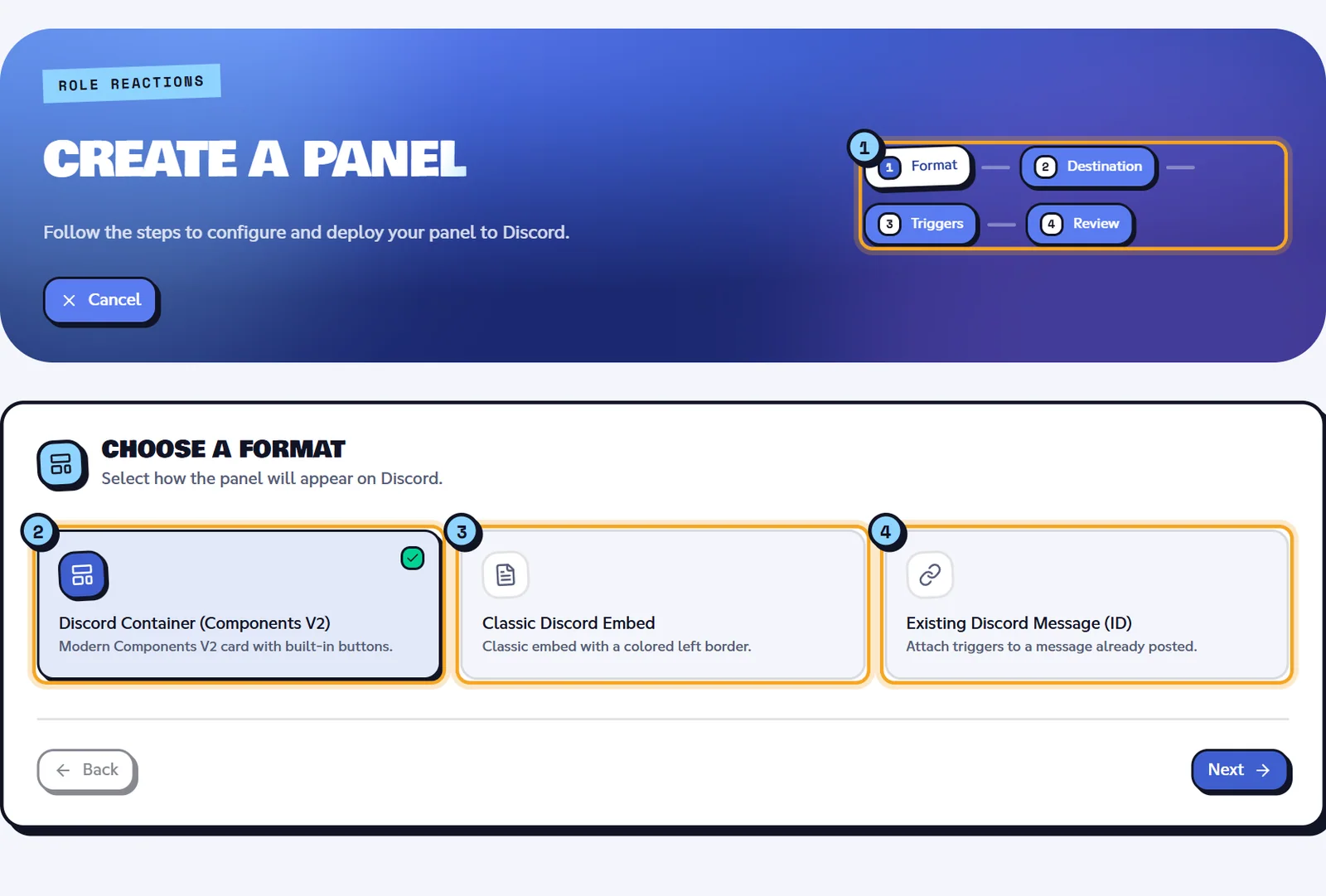
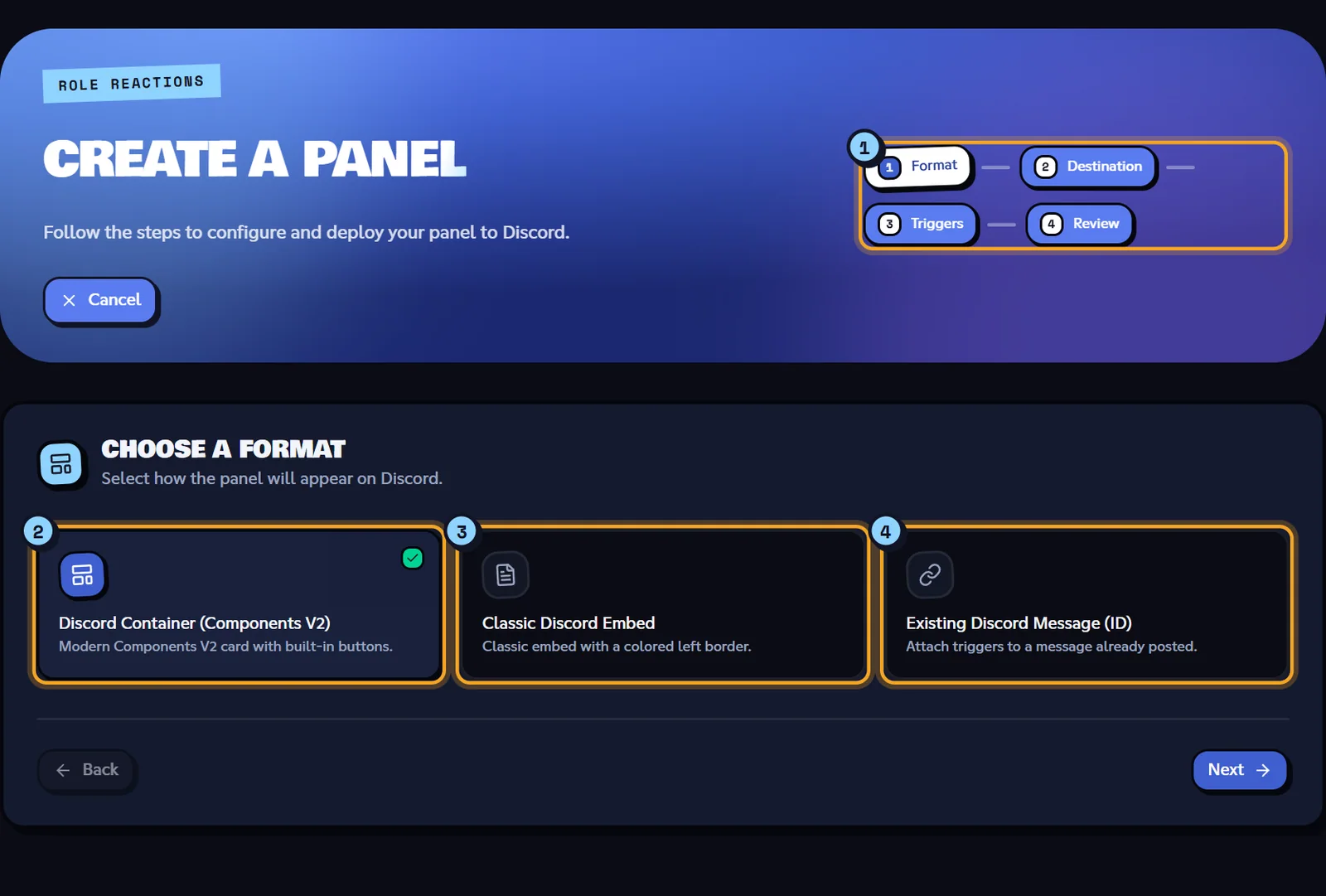
- The wizard steps.
- Discord Container (Components V2).
- Classic Discord Embed.
- Existing Discord Message (ID).
| Format | Result on Discord |
|---|---|
| Discord Container (Components V2) (default) | A modern card: title, description, optional image and buttons inside the card or below it. |
| Classic Discord Embed | An embed with a colored border; buttons sit below the embed. |
| Existing Discord Message (ID) | Adds triggers to a message already posted, without touching its content. |
Note
With an existing message, reactions work on any message. Buttons, however, can only be added to a message sent by the bot (Discord doesn't let a bot edit someone else's message), and not to a container message.
Step 2: destination and content
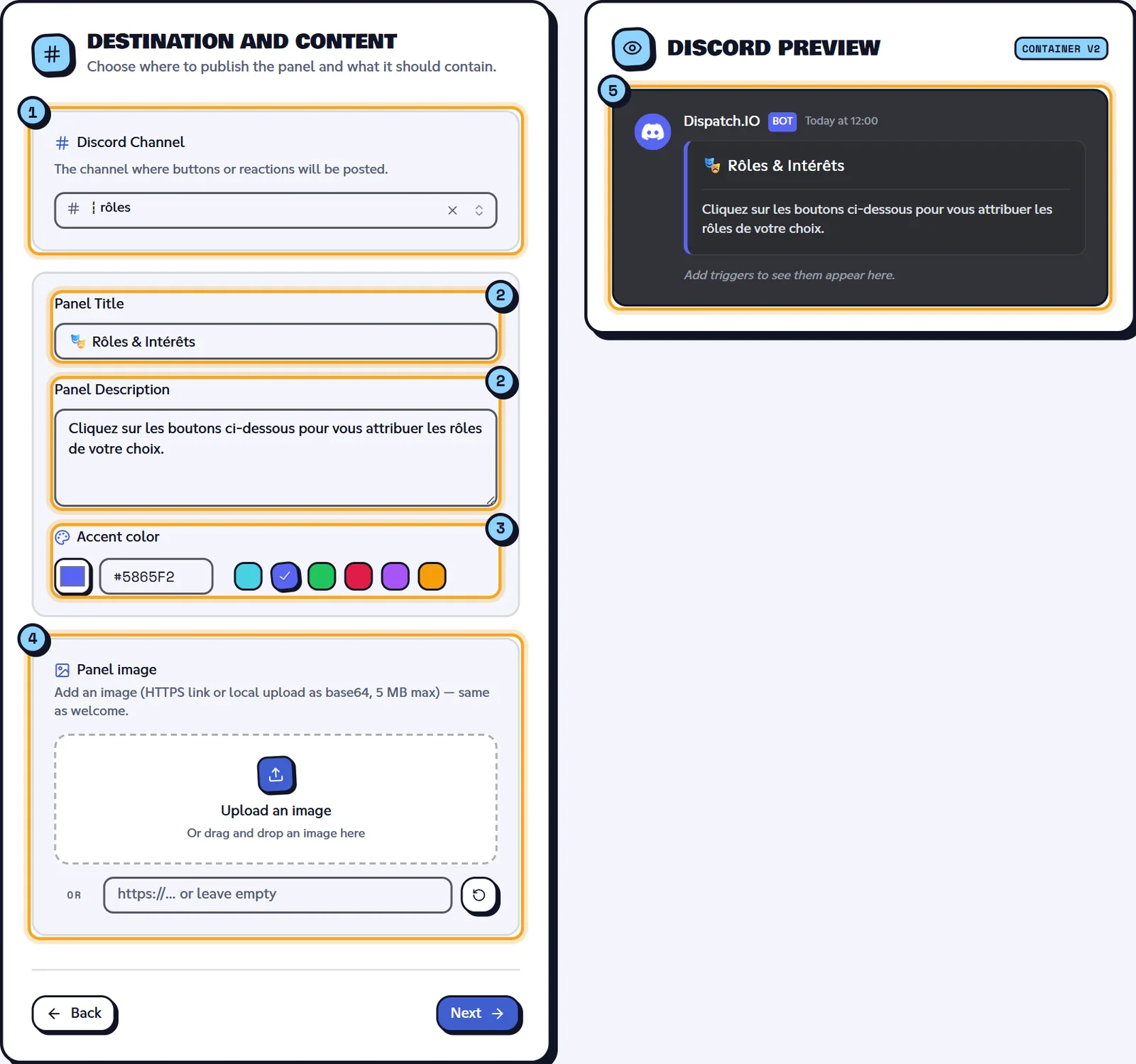
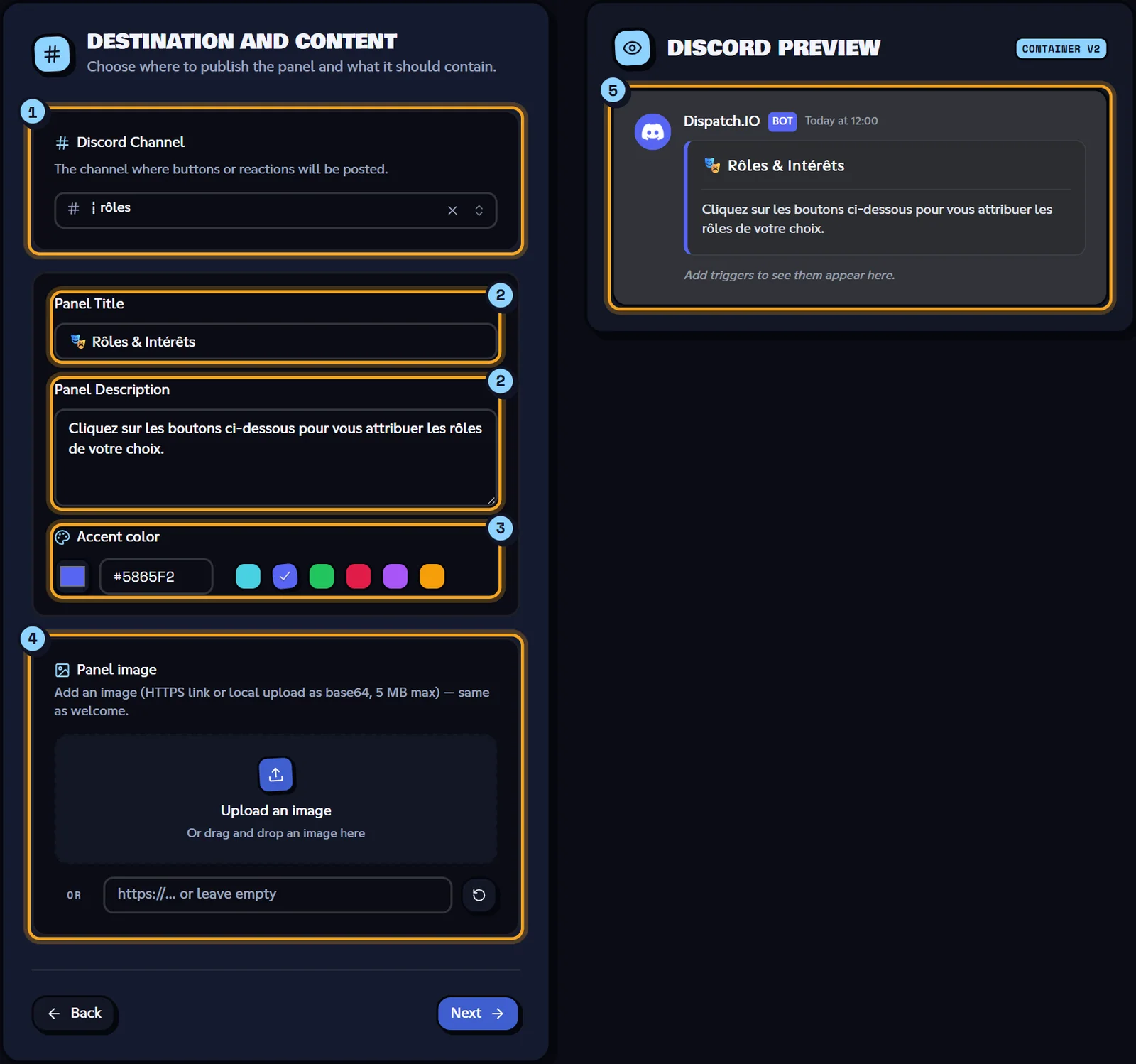
- Discord Channel.
- Panel Title and Panel Description.
- Accent color.
- Panel image.
- The Discord preview, updated on every change.
| Field | What it does | Rules and default |
|---|---|---|
| Discord Channel | The channel where the panel is posted | Required ("Please select a target Discord channel.") |
| Discord Message ID (existing message) | The message to add triggers to. On Discord: turn on Developer Mode, right-click the message, Copy Message ID. | Required ("Please enter the target Discord message ID.") |
| Panel Title | Title at the top of the panel | Required. Default: "🎭 Rôles & Intérêts" |
| Panel Description | Text under the title, Discord Markdown accepted | Default: "Cliquez sur les boutons ci-dessous pour vous attribuer les rôles de votre choix." |
| Accent color | Color of the embed border or card | Picker, hex code or swatch. Default #5865F2 (Blurple) |
| Panel image | Image in the panel | Optional: upload (PNG, JPG, WEBP, GIF, 5 MB max) or HTTPS link |
Default texts are in French: replace them if your server speaks English.
Step 3: triggers
A trigger is a button or a reaction of the panel. Click Add trigger, then set it up in Configure trigger #…. The list shows Ready or Incomplete for each one; the bin deletes it.
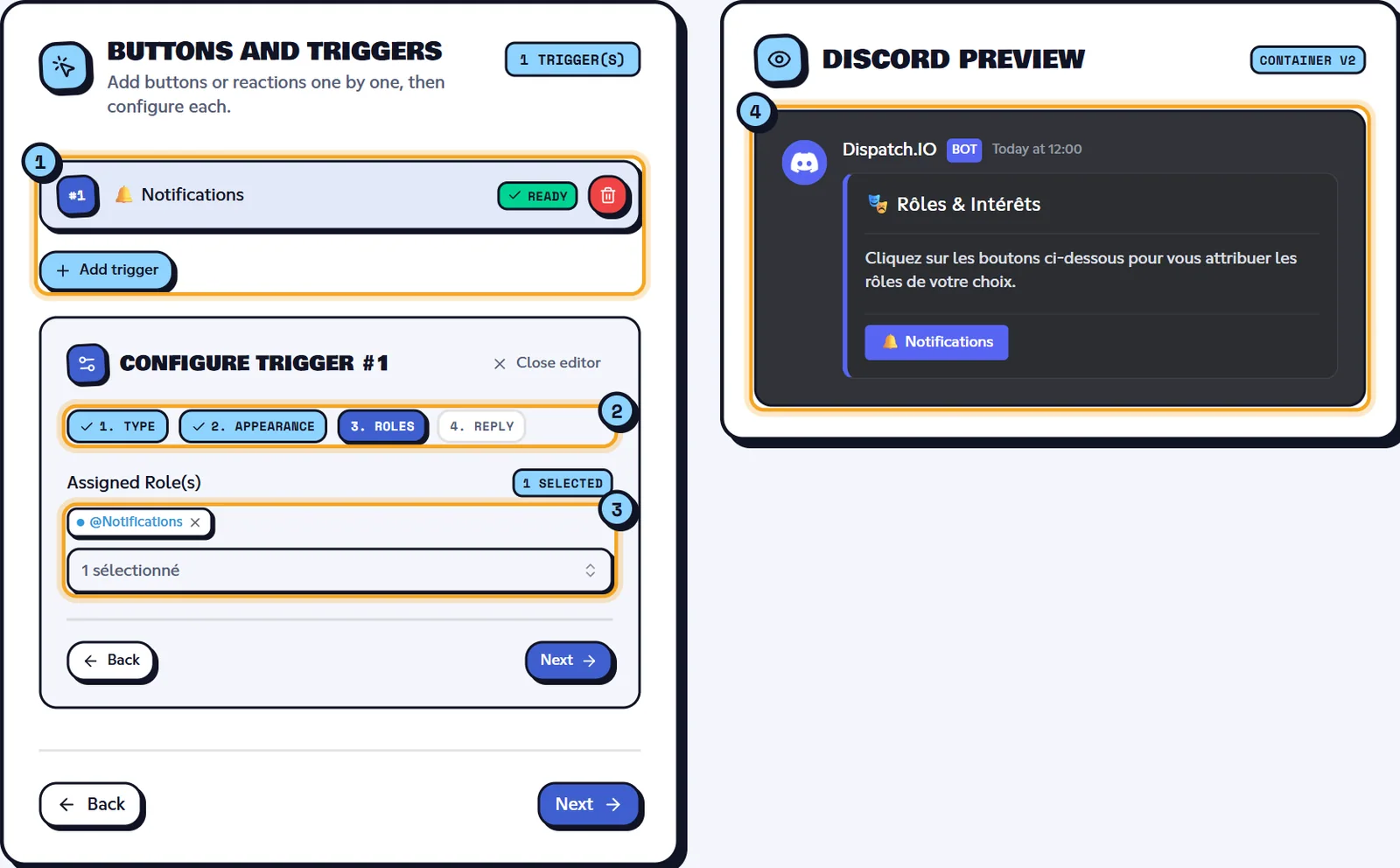
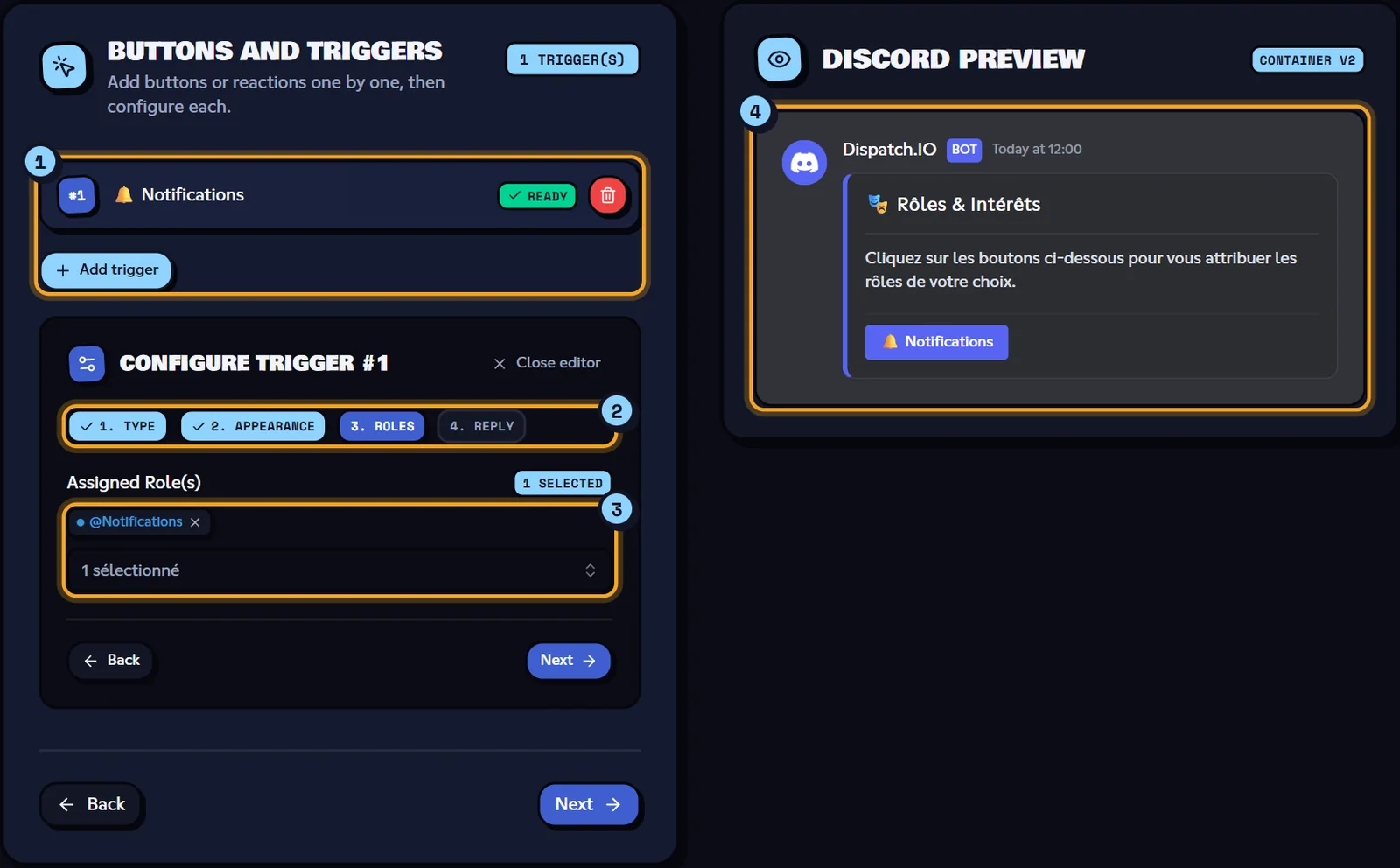
- The trigger list and Add trigger.
- The trigger's sub-steps.
- The fields of the current sub-step.
- The panel preview with its buttons.
Each trigger is set up in sub-steps depending on its type:
| Type | Sub-steps |
|---|---|
| Role Button(s) (default) | Type → Appearance → Roles → Reply |
| Message Button | Type → Appearance → Message |
| Emoji Reaction | Type → Emoji → Roles |
- Appearance (buttons): Button Label, with the Server emojis grid to add one of your server's emojis; Discord button style: Blurple Blue, Discord Gray, Success Green or Alert Red; for a container, Button Position: Inside Container or Below Container (ActionRow). A label made of a single emoji becomes the button icon.
- Emoji (reactions): Reaction emoji, a Unicode emoji (
👍) or a server emoji. - Roles: Assigned Role(s), one or more roles (integration-managed roles and @everyone aren't offered).
- Reply (role button): Message when the role is added (default "Tu as reçu {roles} !") and Message when the role is removed ("Tu as perdu {roles}.").
{roles}is replaced with the role mentions; Insert '{roles}' adds it to the text. The defaults are in French: translate them if needed. - Message (message button): Response Message, sent privately to the member who clicks (always ephemeral, only they can see it).
Finish with Done. A trigger is ready when it has a label or an emoji, plus roles (or a message for a message button).
What each type does for the member
- Role Button(s): one click gives the roles; another click removes them. The member gets the reply privately.
- Message Button: one click shows the response message, privately.
- Emoji Reaction: reacting gives the roles, removing the reaction removes them.
Step 4: review and deployment
The Review step sums up the Format, the Channel, the Title (or message ID) and the trigger list. Click Deploy to Discord.
- The website checks the draft first: "Add at least one trigger before deploying." or "Trigger #… (…) is incomplete." takes you back to step 3.
- Then: "Role reaction panel deployed successfully!", and the list reloads for a few seconds until the panel shows up.
Warning
The success message shows as soon as the request leaves for the bot. If the panel doesn't appear in the list after a few seconds, the bot couldn't post it: check that it can view the channel, write in it, add reactions, and that its role is above the roles to give. Then click Refresh.
Editing or deleting a panel
Editing
Edit opens Edit panel: every section on a single page, with the content read from Discord. The channel and the message are locked ("This panel will update this existing Discord message."); you can change the title, description, color, image and triggers. Click Update on Discord: "Panel updated on Discord successfully!".
On each update, the bot replaces every trigger of the message with those of the editor.
- "Could not read Discord content: defaults used, please check title and description.": the website couldn't read the message; check the fields before updating.
- "This Discord message no longer exists — the orphaned panel was removed from the list.": the message was deleted on Discord.
Deleting
Delete removes every button and reaction of the panel right away, without confirmation: "The panel was removed from Discord.". The message itself (title, description) stays on Discord: delete it by hand if needed.
Orphaned panels
If a panel's message was deleted on Discord, the website removes the panel from the list on the next load: "… orphaned panel(s) cleaned (Discord message not found).".
Good practices
- One label or emoji per trigger: two triggers of the same panel must not share the same label or emoji, otherwise deployment fails.
- Discord limits: 5 buttons per row (the bot builds rows by itself), 20 different reactions per message, 80 characters per button label.
- Put the bot's role above the roles it hands out in the Discord server settings.
- For a server emoji created recently, click Sync Discord Data in the site header to see it in the grid.
- Panels can also be created from Discord with
/config(Role/message reaction category): see Bot configuration.
Related pages
- Reactions and triggers: the panel from the member's side.
- Word reactions: automatic reactions to words.
- Premium plans and limits: number of panels per plan.
- Permissions and roles: bot permissions.