
The Message with buttons action posts a message (text and embed) with up to 5 buttons or one select menu of 25 options. A click starts another automation: the one whose trigger is Button or menu clicked.
Set up a button
- First create the automation started by the click: trigger Button or menu clicked, then its actions (for example Toggle a role and Reply). Save it.
- Create (or open) the automation that posts the message: add the Message with buttons action, write the message, then for each button: text, emoji, color, and Automation started (the list only offers “Button or menu clicked” automations).
- Start that automation (a command, a schedule…): the message is posted.
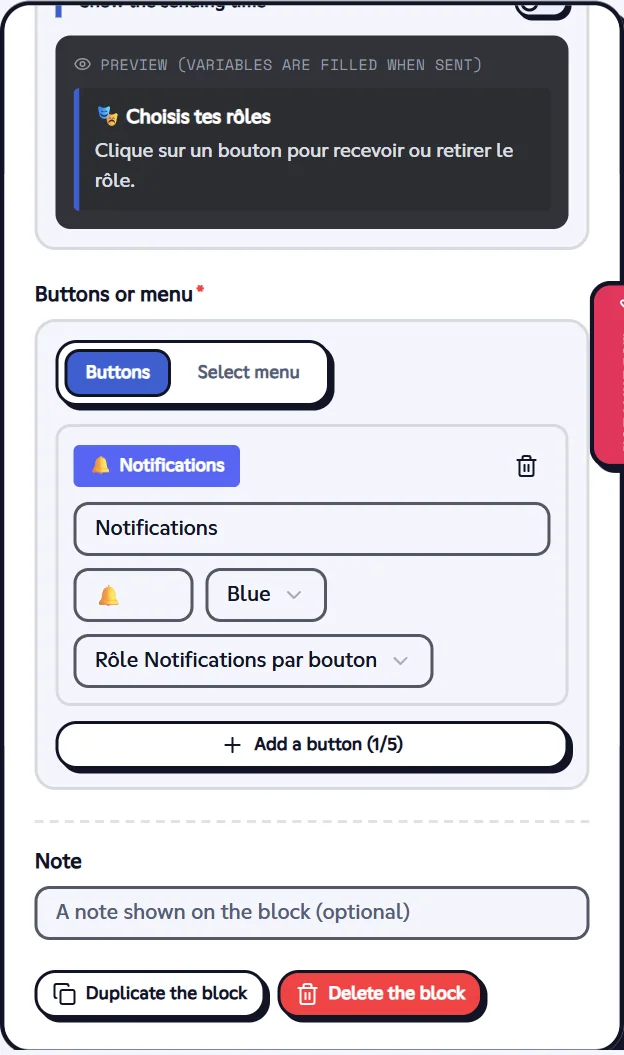
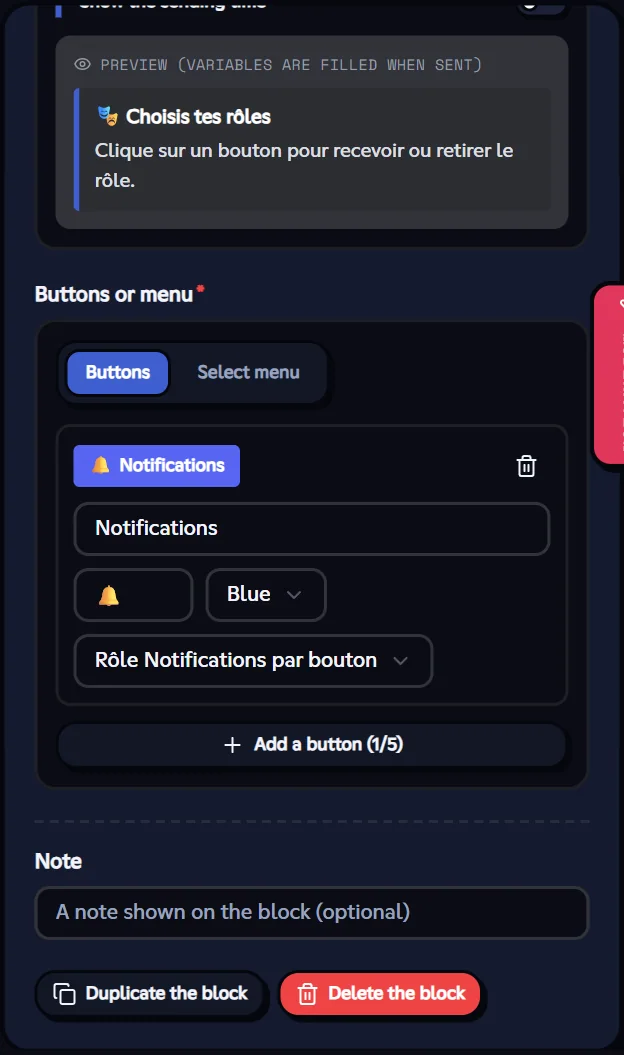
The /role-panel command template and the Role by button template make exactly this pair.
Buttons, links and menus
| Element | Effect |
|---|---|
| Blue, Grey, Green, Red button | Starts the chosen automation. |
| Link (URL) button | Opens a web address (no automation). |
| Select menu | Each option starts its own automation; a placeholder text shows when nothing is chosen. |
A button needs a text or an emoji; a link button needs an https:// address.
What happens on click
- The bot puts the interaction in “thinking” state right away (visible only to the one who clicks if Replies visible only to the one who clicks is on in the trigger).
- The automation started knows the member who clicked (
{user}), the channel and the message of the button. - Its Reply actions reply to the click; without a reply, the waiting message is removed (or shows “✅ Done.” when replies are visible only to the one who clicks).
- The cooldown, the anti-loop and the other safeguards apply like for any automation.
Note
Buttons stay active as long as the automation they start exists and is on. If it's deleted or turned off, a click shows “This command or button is no longer available”.