
Automations let you program the bot without writing a single line of code: “when this happens, if this condition is true, then do that”. A role given 10 minutes after joining, a welcome DM, a reminder every Friday, a /rules command, a suggestions channel that adds 👍 and 👎 on its own… everything is built by linking blocks in a diagram.
This page explains the basics. To learn the editor, see The editor.
Where to find automations
In your server's dashboard, the Automation group of the left menu has four pages:
| Page | Content |
|---|---|
| Automations | The list of your automations, their switches and their statistics. |
| Custom commands | Your own slash commands, each one linked to an automation (see Custom commands). |
| Variables | The counters and values your automations remember (see Variables). |
| History | Every run of the last 14 days, with the path taken and the errors. |
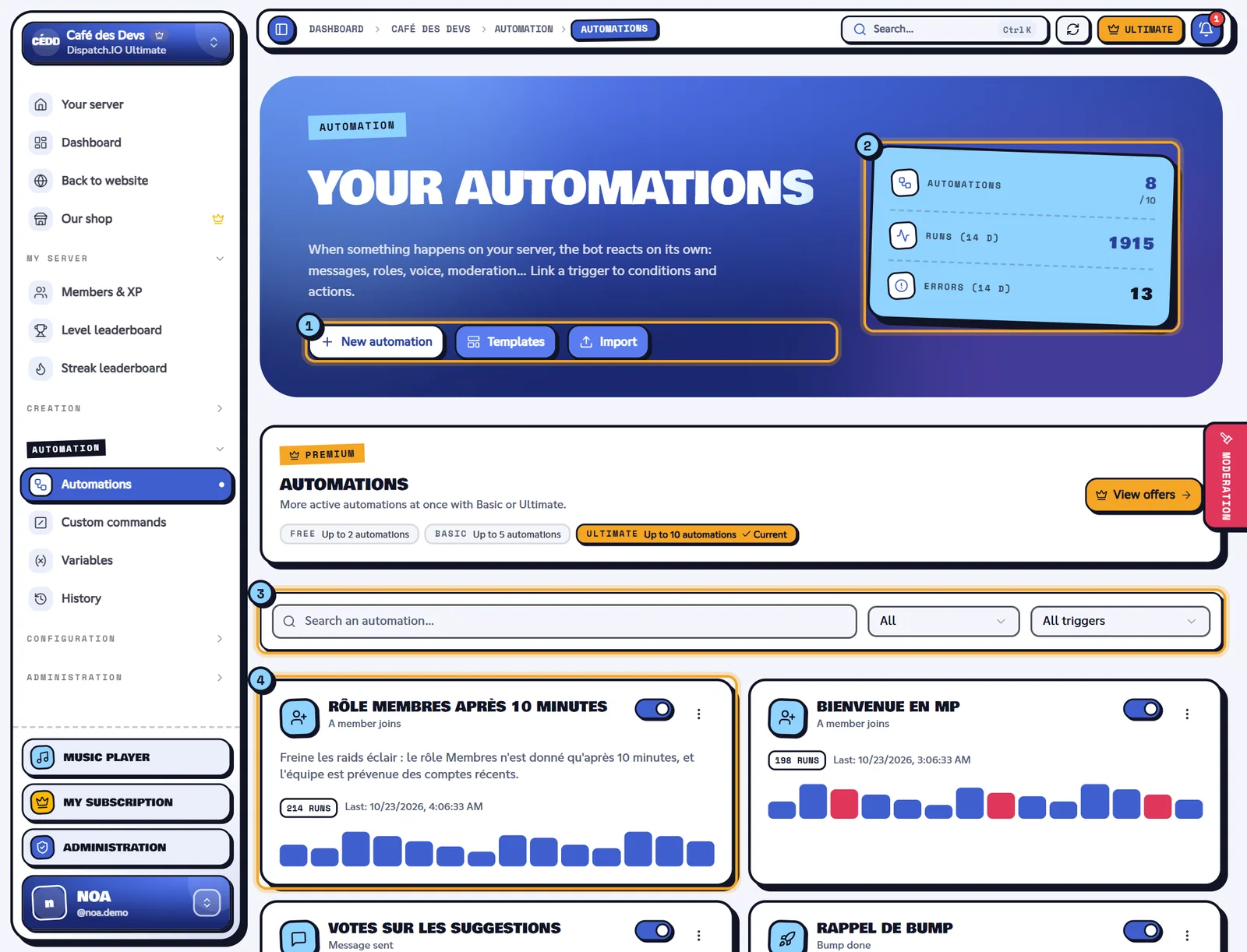
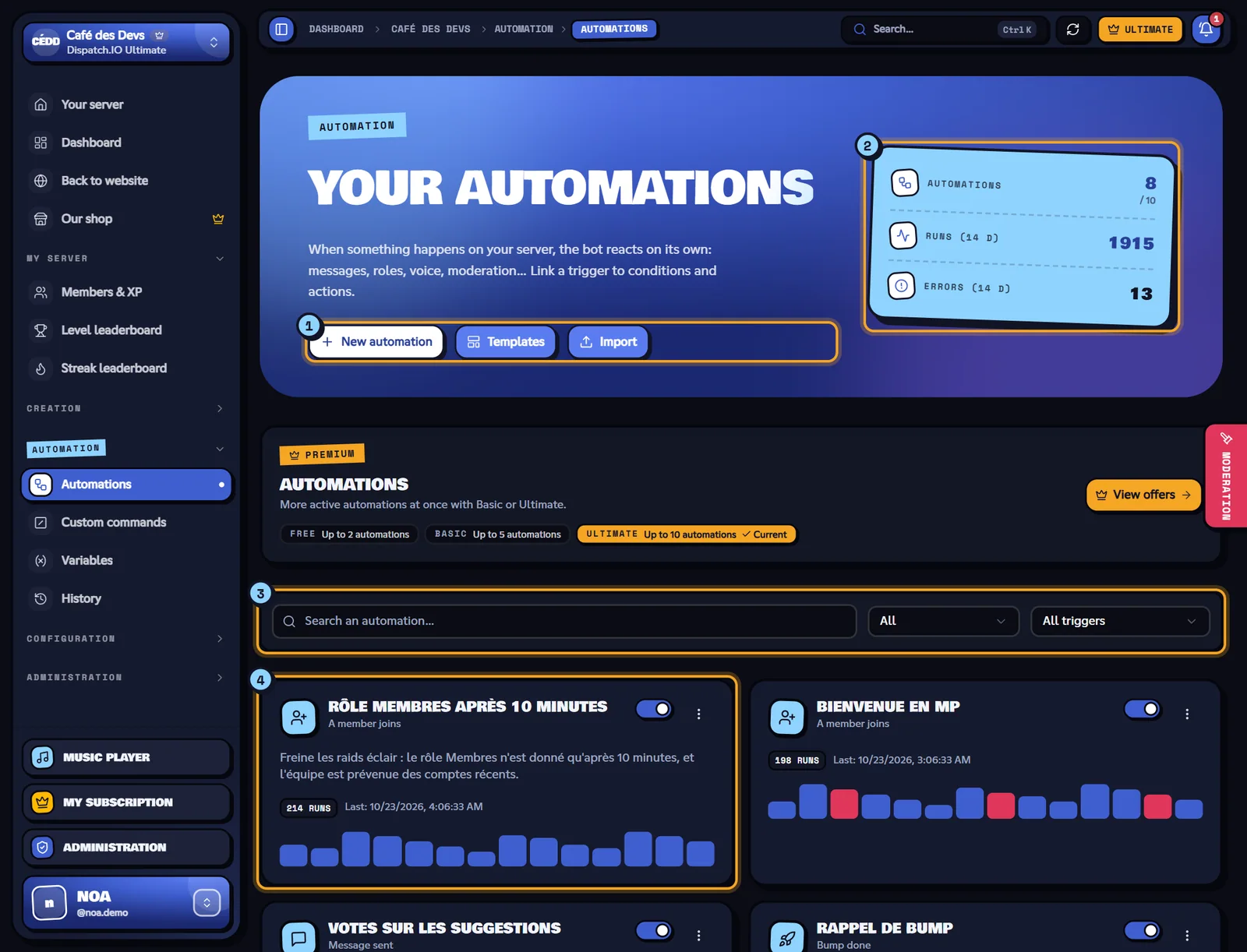
- New automation opens the editor; Templates offers about twenty ready-made automations; Import loads an exported file.
- Counters: saved automations / maximum of your plan, runs and errors of the last 14 days.
- Search and filters: by name, by state (on, off, failing) and by trigger type.
- One card per automation: its trigger, its switch, its badges (paused, failures, over the quota) and a small chart of its runs over 14 days.
Note
The module can be turned off from the server home (Automations tile): the bot then runs no automation at all, without deleting anything.
Trigger, conditions, actions
An automation is a diagram that always starts from one single trigger:
| Block | Role | Examples |
|---|---|---|
| Trigger | What starts the automation. One per automation. | A member joins, a message is sent, every day at 9 AM, a /points command… |
| Condition | A question: what follows goes through the Yes output or the No output. | Has a role, account age, the text contains a word, time window, chance… |
| Action | What the bot does. | Send a message, give a role, react, timeout, wait, add points… |
| Random branches | Picks one output at random (2 to 5), with weights. | Three different welcome messages. |
The full lists are in Triggers, Conditions and Actions.
How the bot runs an automation
- The event happens on Discord (a member joins, a message is posted…). The bot looks for the server's enabled automations whose trigger matches, taking its settings into account (watched channels, text searched, roles…).
- For each one, it checks the safeguards (see below): ignored bots, cooldown, anti-loop.
- It follows the diagram from the trigger: each condition picks its output, each action is done one after the other. When an output leads to several blocks, they run in the order of the diagram, top to bottom then left to right.
- The run is saved in the history: who started it, the path taken, the duration and the error if any.
A Wait action puts what follows aside: it resumes at the planned time, even if the bot restarts meanwhile (up to 7 days). A Stop action ends the run.
Important
If an action fails (missing permission, role above the bot, member gone…), the run stops at that step and the error is explained in the history. After 10 failures in a row, the bot pauses the automation and the server managers get a notification on the website.
Safeguards
Automations are powerful; the bot frames them to avoid disasters:
| Safeguard | Effect |
|---|---|
| Bots ignored | By default, a bot or a webhook never starts an automation (can be changed in Settings). The bot's own messages never start anything. |
| Cooldown | Optional: minimum time between two runs, per member, per channel or for the whole server. |
| Anti-loop | The diagram can't go back to a previous step. An automation that starts again more than 8 times in 10 seconds for the same member is held for a moment. |
| Nesting | An automation can start another one, 3 levels deep at most. |
| Caps | 100 steps per run, 240 actions per minute on the server, of which 20 moderation actions (timeout, kick, ban, message deletion). |
| Protected roles | The bot never gives a role above its own, managed by an app, or giving moderation rights (administrator, manage roles, ban…). |
| Moderation | Moderation actions never touch the server owner, the bot itself, nor a member above the bot. |
| Mentions | Automation messages can mention members and roles, never @everyone nor @here. |
Limits by plan
| Free | Basic | Ultimate | |
|---|---|---|---|
| Automations | 2 | 5 | 10 |
| Custom commands | 2 | 5 | 10 |
| Variables | 50 | 50 | 50 |
| History | 14 days | 14 days | 14 days |
Every feature (triggers, conditions, actions, templates, tests, versions) is available in every plan: only the number changes. Automations and commands each have their own quota.
If your plan goes down (subscription ended), nothing is deleted: the first automations of the list stay active within the limit of the new plan, the next ones get the Over the quota badge and no longer run. See Server subscription.
Who can manage them
Like the other server pages: the owner, the members who have Administrator or Manage Server on Discord, and the Dispatch.IO staff allowed from Edit authorization. Every creation, change, deletion and switch is written in the server's Configuration logs (Automations category).
See Managing permissions.