
The editor opens when you click New automation, a template or the name of an automation in the list. On a computer it shows a diagram; on a phone, the same scenario as a list.
Create an automation
- Automations page › New automation.
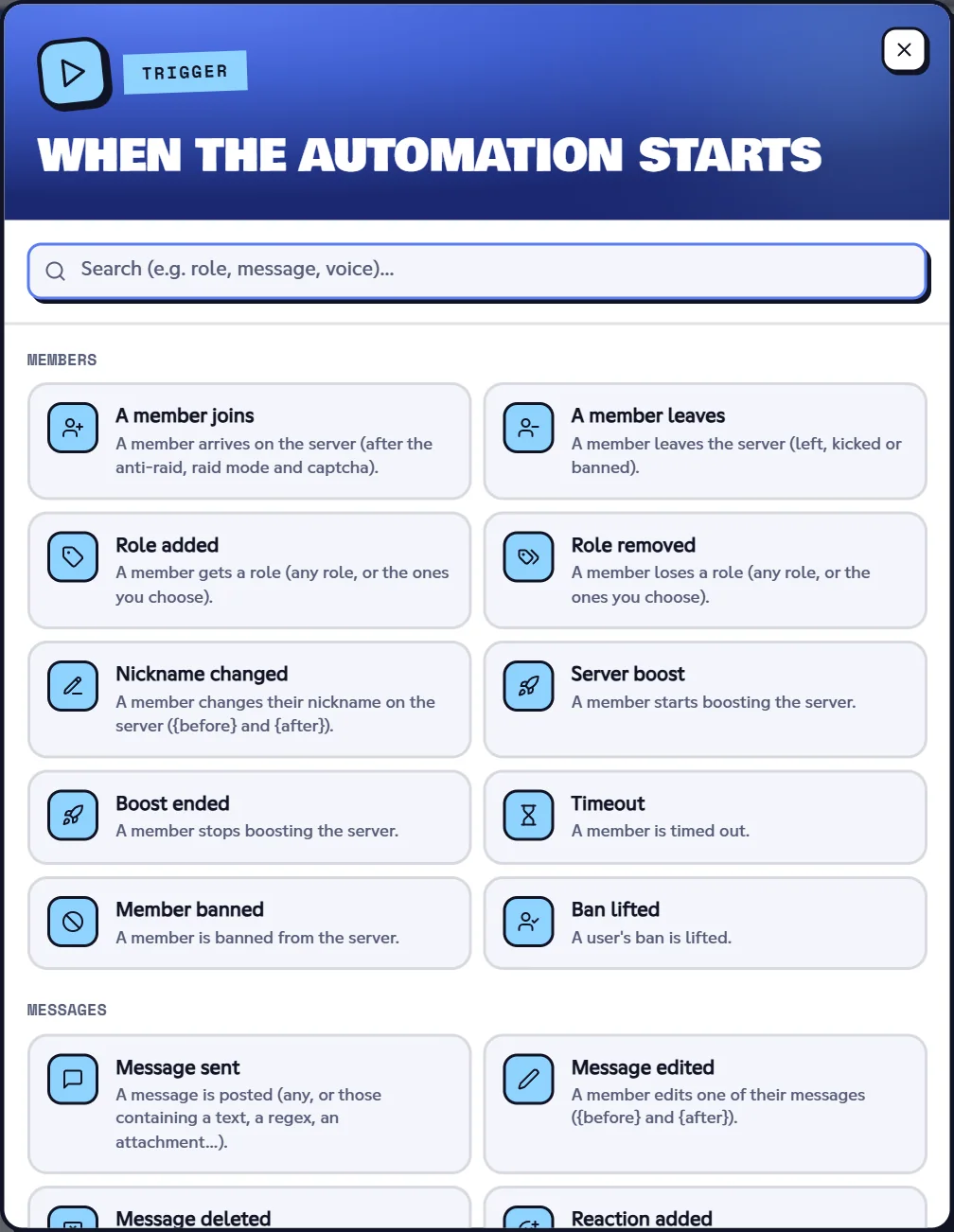
- Choose the trigger in the window that opens (you can search: “role”, “voice”, “message”…), or click Start from a template.
- The editor opens with the trigger alone. Add what follows with the + buttons (see below).
- Name the automation (field at the top), then click Create in the bottom bar.
Tip
Templates are the fastest way to start: pick one, replace the channels and roles marked in red, then save. See Tutorials.
The diagram (computer)
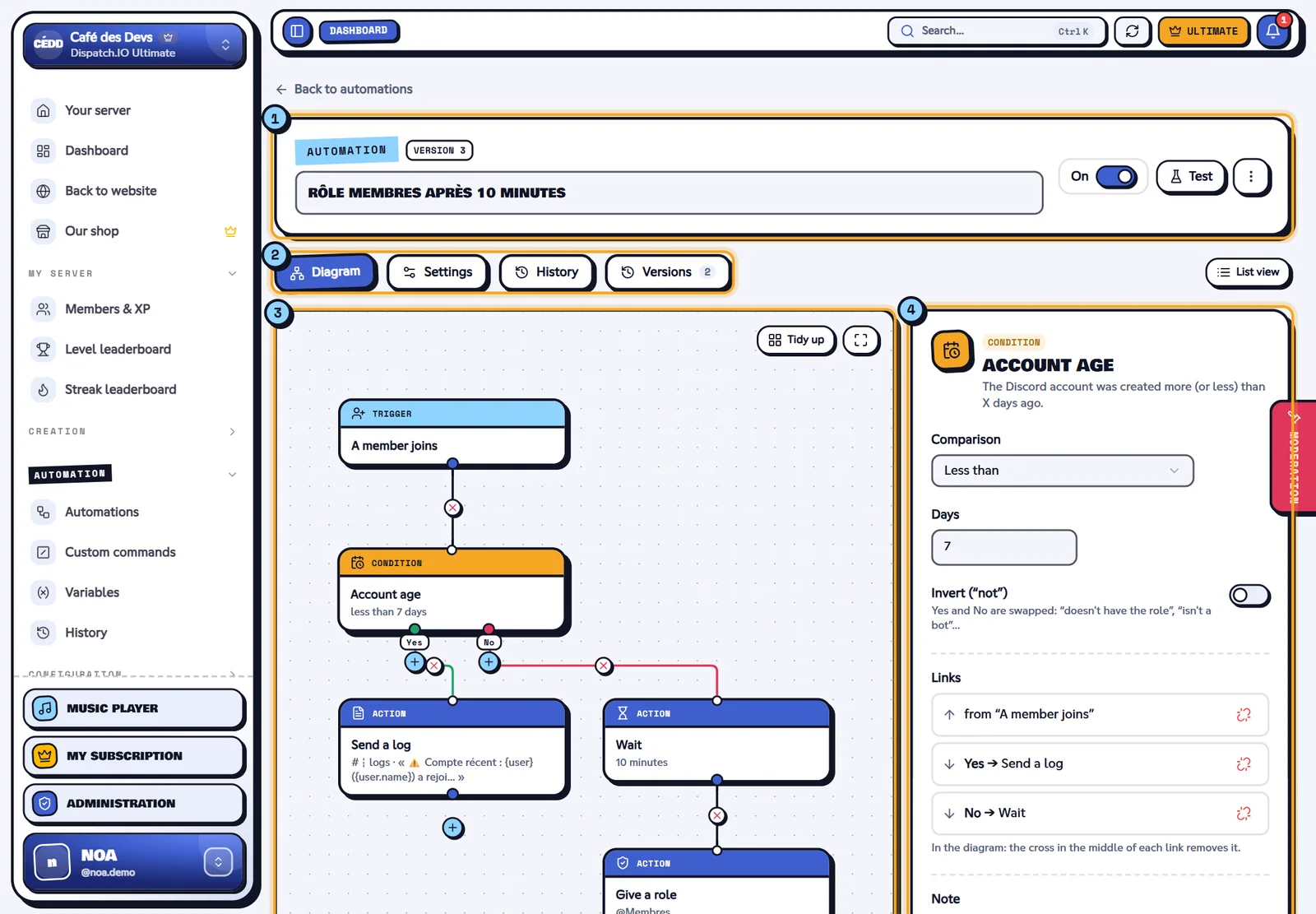
- Header: name of the automation, On / Off switch, Test and the ⋮ menu (duplicate, export, copy to a server, change the trigger, delete).
- Tabs: Diagram, Settings, History, Versions. List view switches to the list (useful on a computer too).
- The diagram: the trigger in light blue, conditions in yellow (Yes outputs in green and No in red), actions in blue, random branches in purple. Each block shows a line that sums up its settings.
- The settings panel of the selected block.
| Gesture | Effect |
|---|---|
| Click a block | Opens it in the settings panel. |
| + button under an output | Opens the step picker (action, condition or logic) and adds it after that output. On a block that already has a next step, the + shows when the block is selected. |
| Add a step block (under the settings panel) | Same step picker: the new step goes after the selected block, or, when nothing is selected, after the last block of the diagram. |
| Drag a block | Moves it. The position matters: when an output leads to several blocks, the bot runs them top to bottom then left to right. |
| Drag from an output (small dot at the bottom of a block) to another block | Creates a link. A link that would make a loop is refused. |
| Cross in the middle of a link | Removes the link (it turns red on hover). Clicking the link selects it (dotted); the Delete key removes it too. |
| Links section of the settings panel | Lists the links of the selected block (the incoming one and the outgoing ones, with their Yes / No / Branch output); the button on the right removes a link. |
| Delete key on a selected block | Deletes the block and its links (the trigger can't be deleted). |
| Tidy up | Arranges the whole diagram as a tree, automatically. |
| Wheel / pinch, drag the background | Zoom and move. The frame button (next to Tidy up) shows everything. |
A block linked to nothing is greyed out: it will never run (a message tells you above the diagram).
The list view (phone)
On a small screen, the editor shows the same diagram as stacked cards: each step under the previous one, the Yes / No outputs and the branches indented.
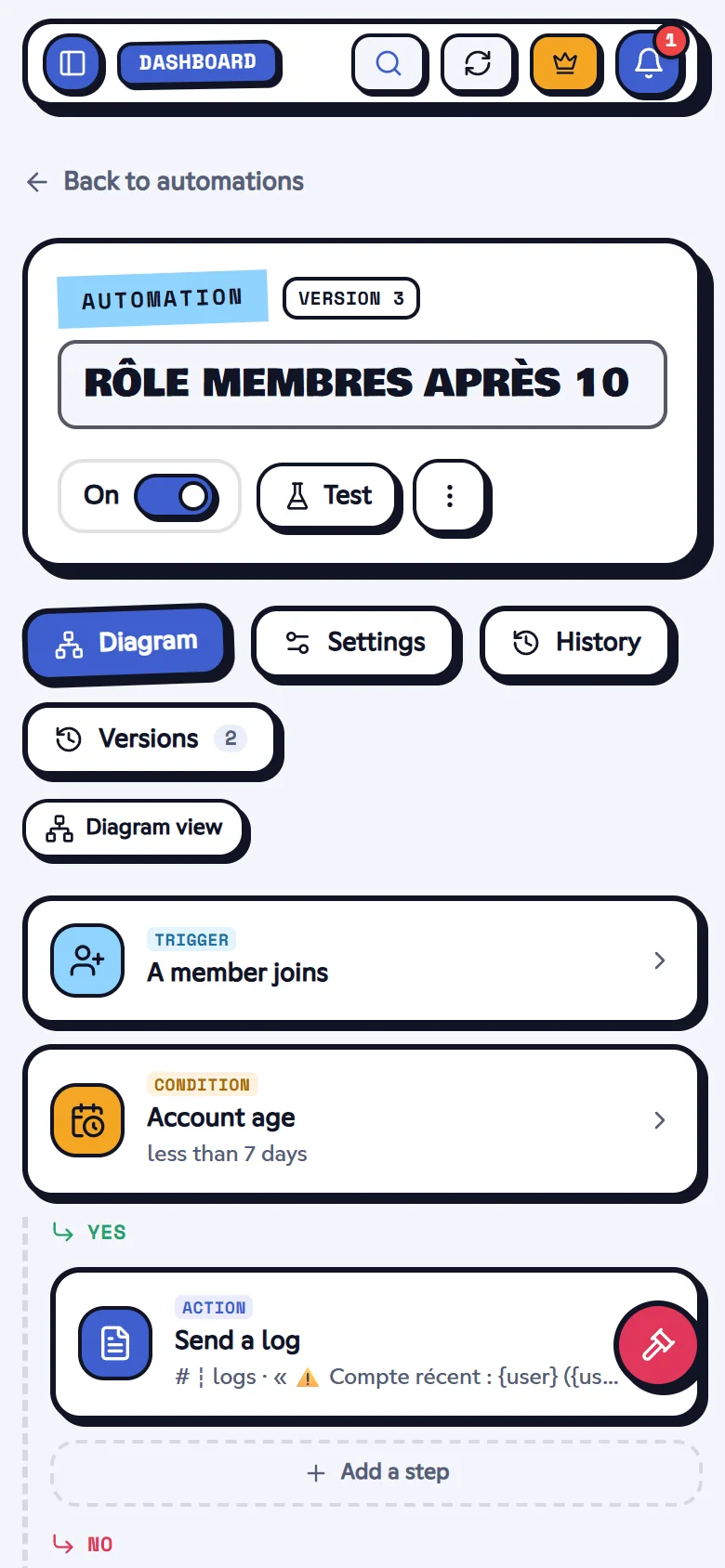
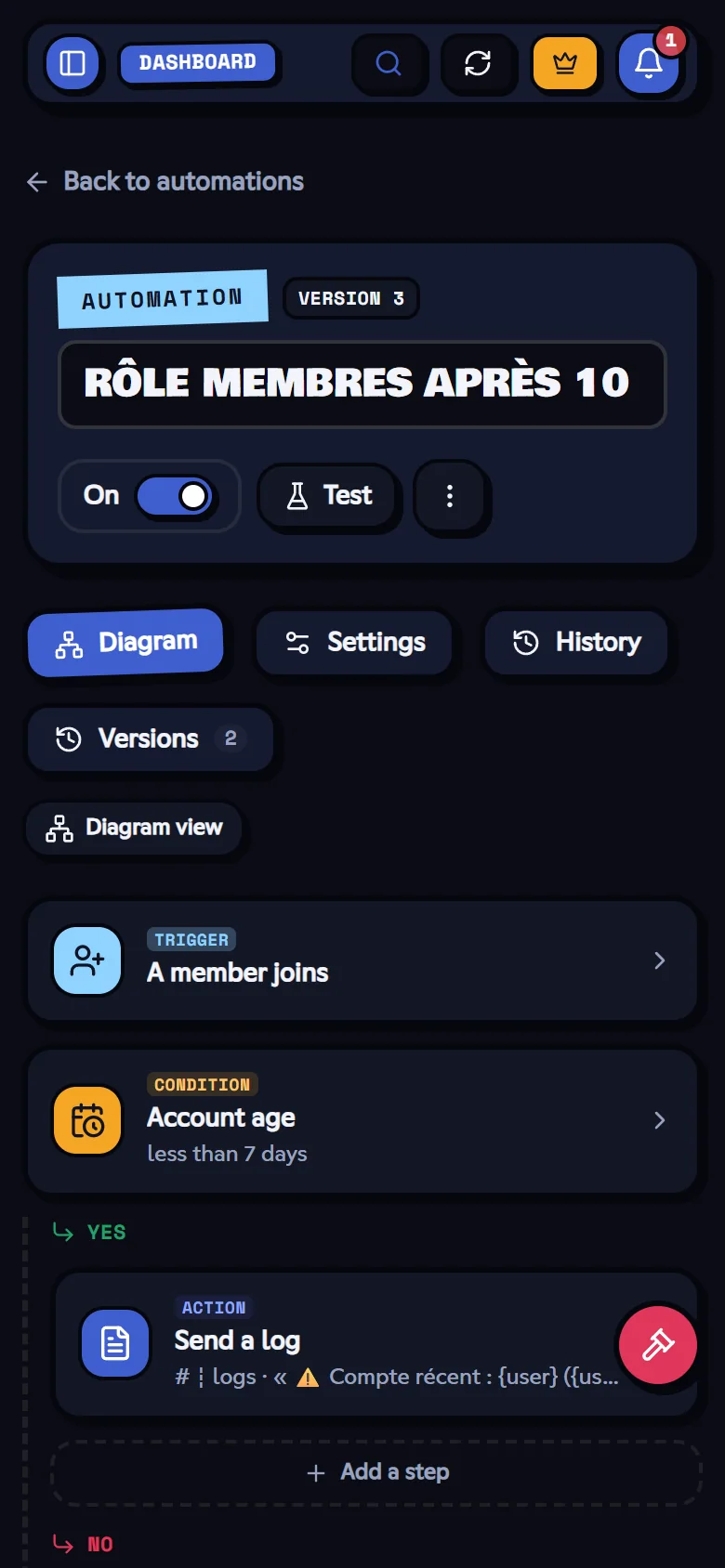
- Tap a card to open its settings in a panel that slides up from the bottom of the screen.
- + Add a step adds a block at the end of a sequence or in an empty branch.
- A block reached by two paths shows a second time with a dotted border (“Continues to…”).
Everything done in the list shows in the diagram, and the other way around.
Set a block
The settings panel shows the name and description of the block, then its fields. Fields with a red asterisk are required.
- A text field accepts variables (
{user},{server.members}…): the Insert a variable button lists the ones your trigger gives. See Variables. - A Message field offers a text, an optional embed (title, description, color, image, footer…) and a preview.
- A Member concerned field chooses who the action acts on: the member who started it, a “Member” option of a command, or another member (ID or variable, for example
{invite.inviter}). - A condition always has the Invert switch: Yes and No are swapped (“doesn't have the role”).
- Each block can get a note, shown on the diagram.
- Duplicate the block creates an unlinked copy; Delete the block removes it with its links.
Actions that need a permission for the bot say so at the top of the panel; moderation actions are flagged in red.
Save and turn on
Changes only apply when you save: the Unsaved changes bar shows at the bottom of the screen with Save (or Create) and Reset.
Before saving, the editor checks the automation: problems are listed above the diagram and the blocks concerned get a red badge. The server checks everything again when saving: channels and roles that still exist, free command name, quota of your plan…
The On switch of the header (or of the list) turns the automation on or off. From the list it applies right away; from the editor, when you save.
Note
An automation paused by the bot after 10 failures gets the Paused badge. Fix the problem (History tab), save, then turn it back on.
Automation settings
The Settings tab sets the whole automation:
| Setting | Effect |
|---|---|
| Description | A note for the team (300 characters). |
| Cooldown | Minimum time between two runs (from 5 seconds to 1 day), per member, per channel or for the whole server. A member in cooldown who uses a command or a button gets a waiting message. |
| Ignore bots | On by default: a bot or a webhook never starts the automation. |
| Tracking channel | Each run (or only the errors) is also posted in this channel. |
It also shows the next run of a scheduled automation, the command name of a custom command and the statistics (runs, last run, creation date).
Test
Test (header) asks the bot to run the saved automation as if you had started it yourself:
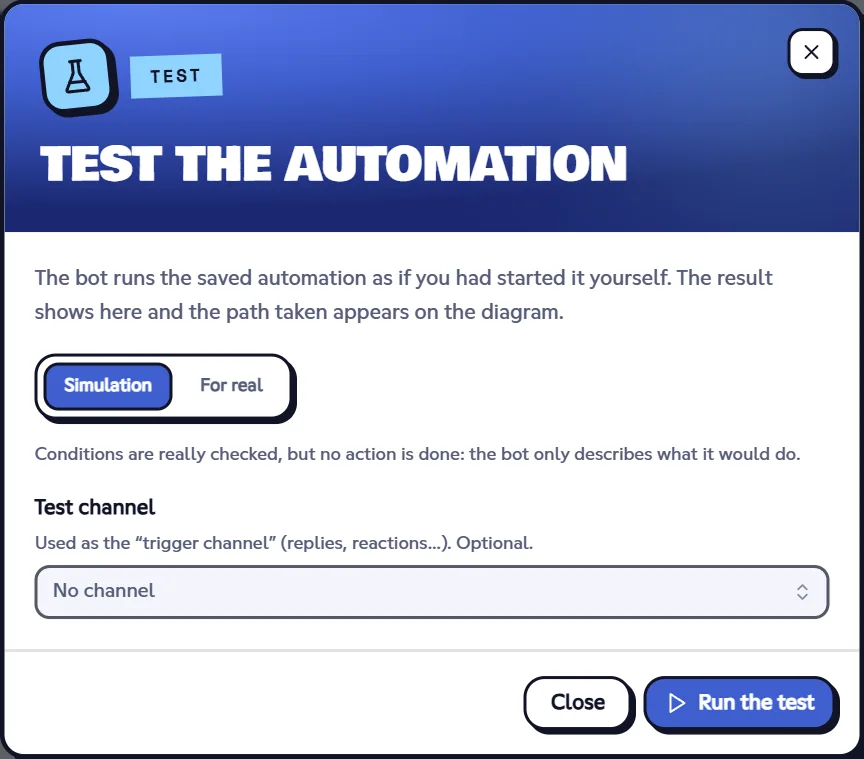
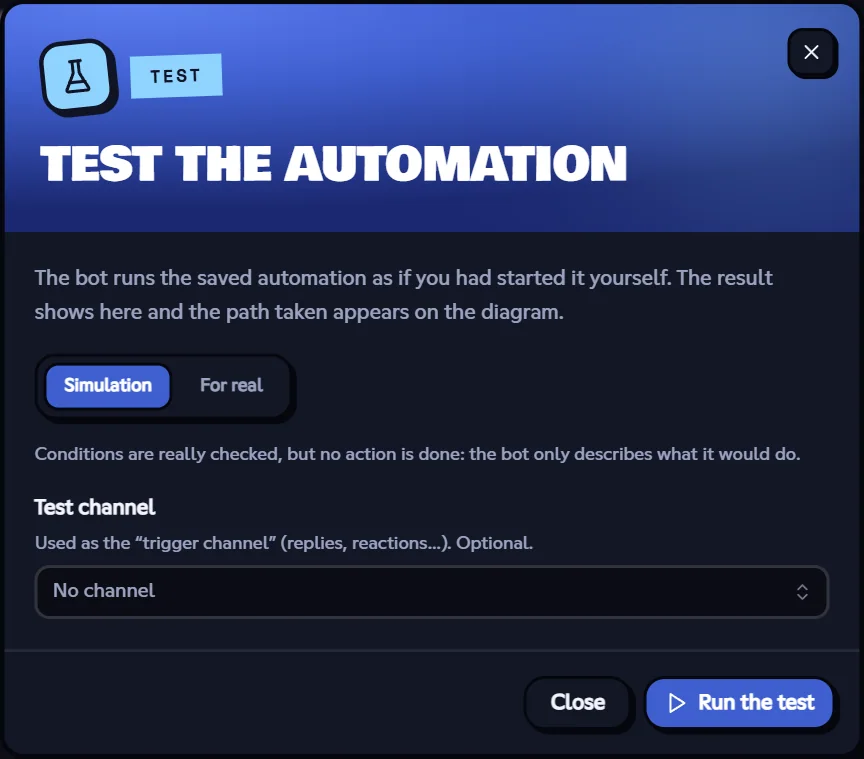
- Simulation: conditions are really checked (your roles, the time…), but no action is done. The bot describes what it would have done.
- For real: actions are done, on you and in the chosen channel.
- Test channel: used as the “trigger channel” (replies, reactions…).
The result shows step by step, and the path taken is highlighted on the diagram (green: done, yellow: false condition, red: error). Clear the path removes the highlight. A test is saved in the history with the Test badge; it doesn't count in the statistics.
Warning
In For real mode, a moderation action (timeout, kick, ban) would apply to you: the window warns you when the automation has one. The server owner is protected anyway.
History and versions
- History: the runs of the last 14 days (filters: succeeded, errors, stopped, skipped). Open a line to see each step, the error explained in plain words, and Show the path on the diagram. The History page of the menu gathers every automation of the server.
- Versions: the last 15 saved versions are kept. Load puts a version in the editor; save to restore it (the current version is kept too).
Duplicate, export, copy
⋮ menu of the header (and of each card of the list):
| Action | Effect |
|---|---|
| Duplicate | Creates an off copy on the same server. A copied command gets a free name (rules-2). |
| Export (file) | Downloads the automation as .json, to back it up or share it. |
| Import (Automations page) | Creates an off automation from an exported file. |
| Copy to a server | Creates an off copy on another server you manage (the bot must be on it). |
When importing or copying to another server, channels, roles, studio messages and links to other automations are emptied: choose them again (the fields concerned are marked in red), then turn the automation on.